In business, the same customer often uses several different channels to connect with your business. The Merge Customer feature will help you identify and manage customers who are actually the same. Hence, using Merge Customer feature will effectively reduce broadcast costs since you don’t need to send messages to all channels but only to a customer who use one of the most active channels.
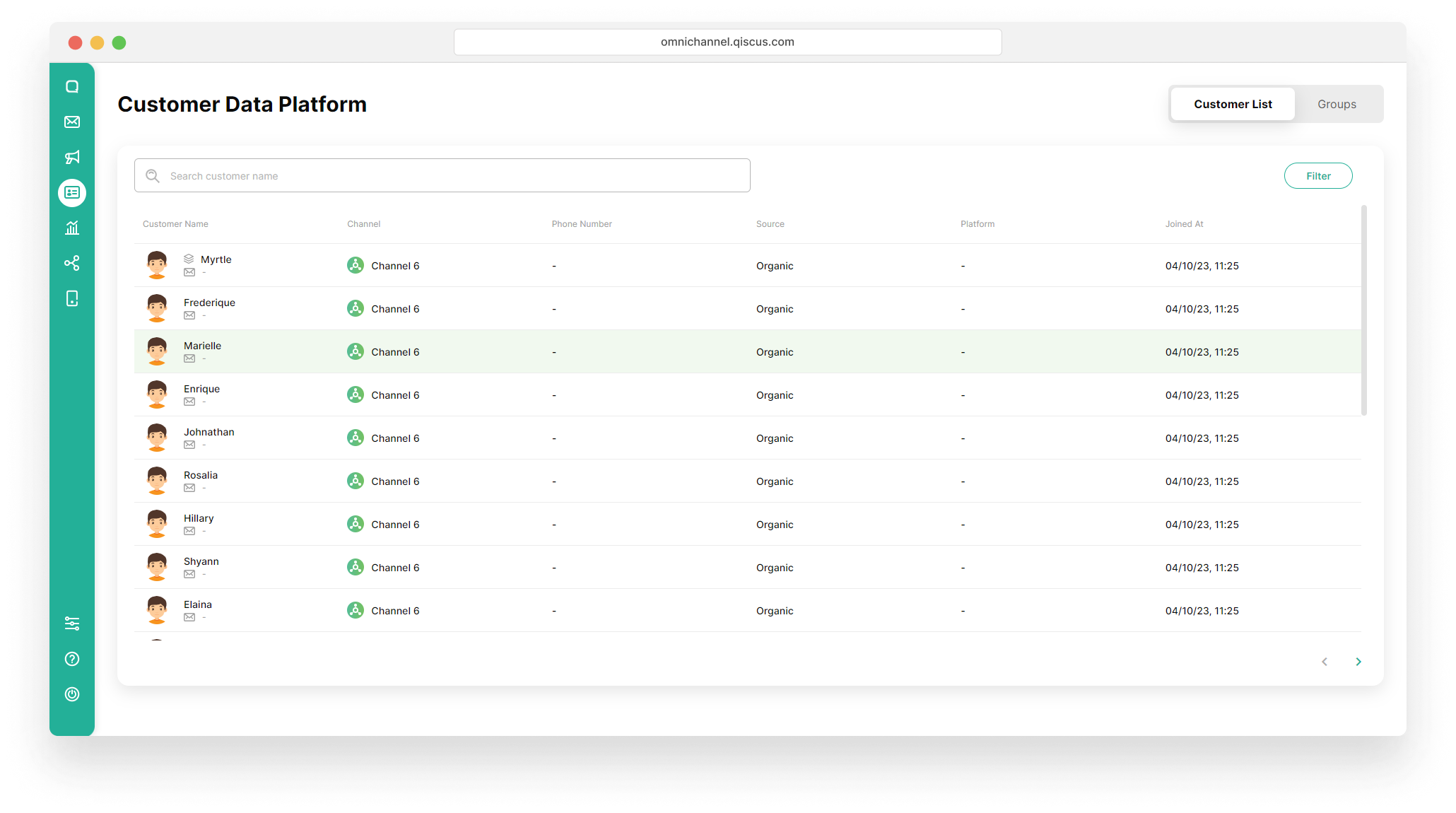
In the Customer List, you will see several symbols next to the customer’s name.
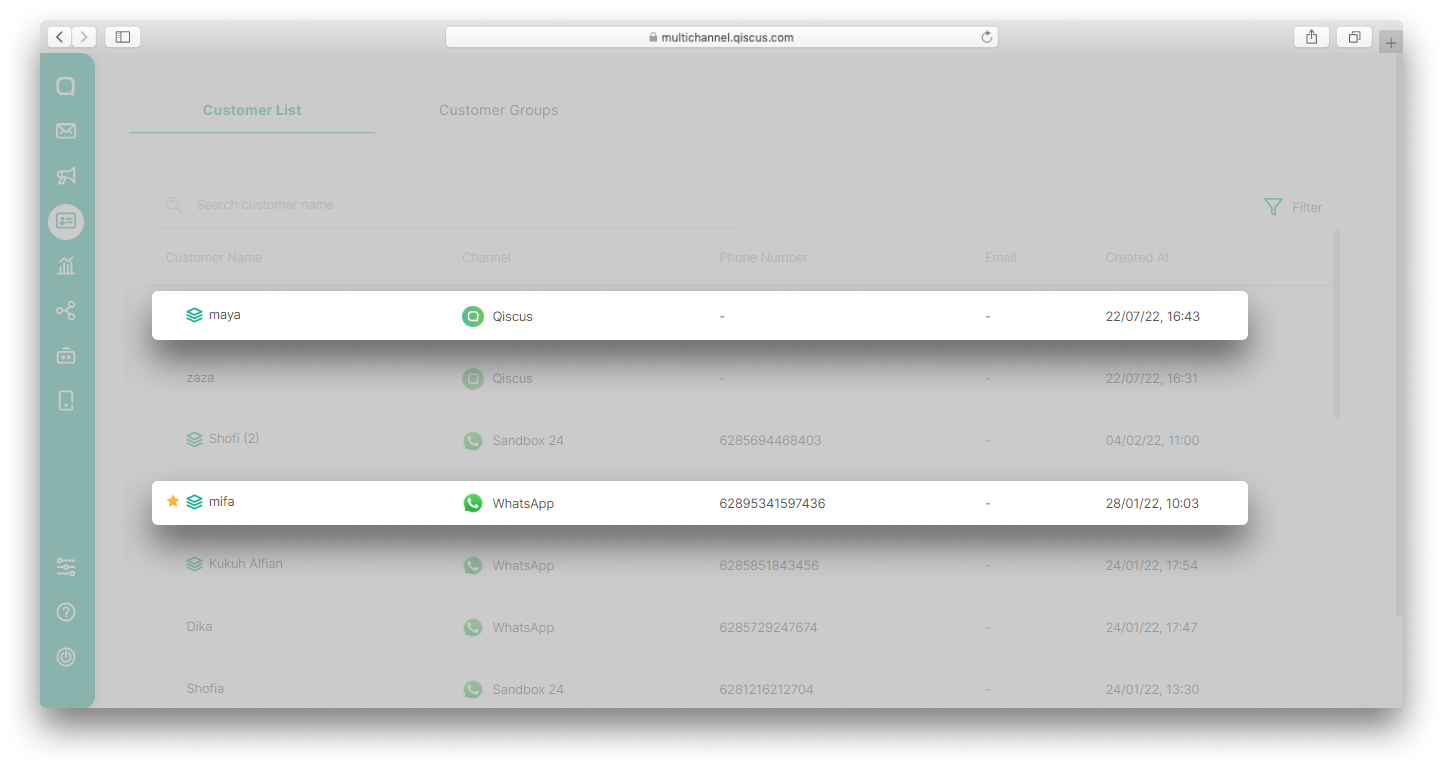
Here are the meanings of the symbols in the Merge Customer feature:



There are two ways to merge a customer with an existing customer, via the Inbox menu and customer detail.
Via Inbox Menu
Here is how you can merge customer via Inbox menu:
- Go to Inbox Menu on the sidebar and select a customer you want to merge. Click the kebab button (three vertical dots), and click Merge to Existing Customers,
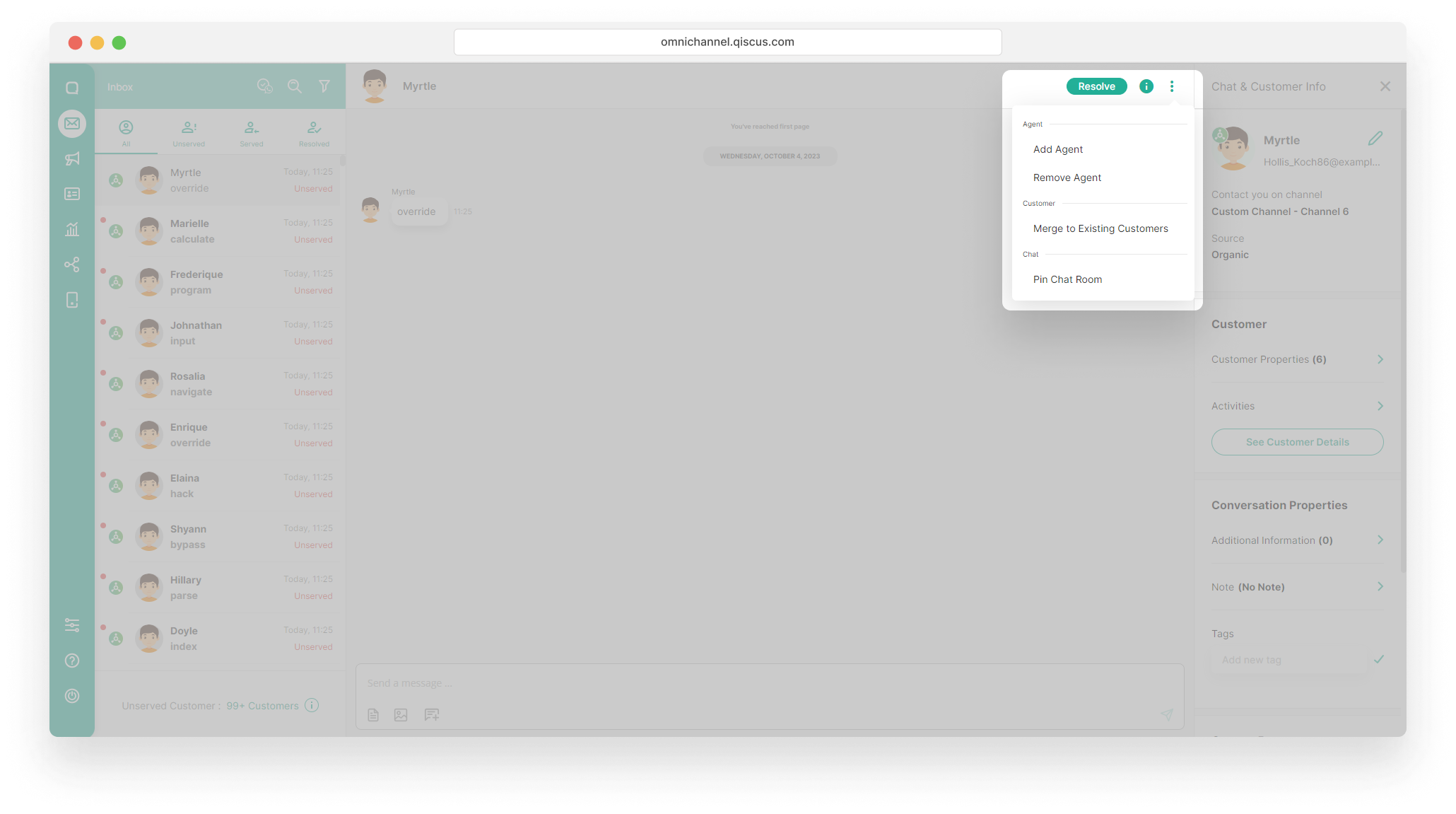
If a customer has merged with another customer, the Merge to Existing Customer menu will not appear.
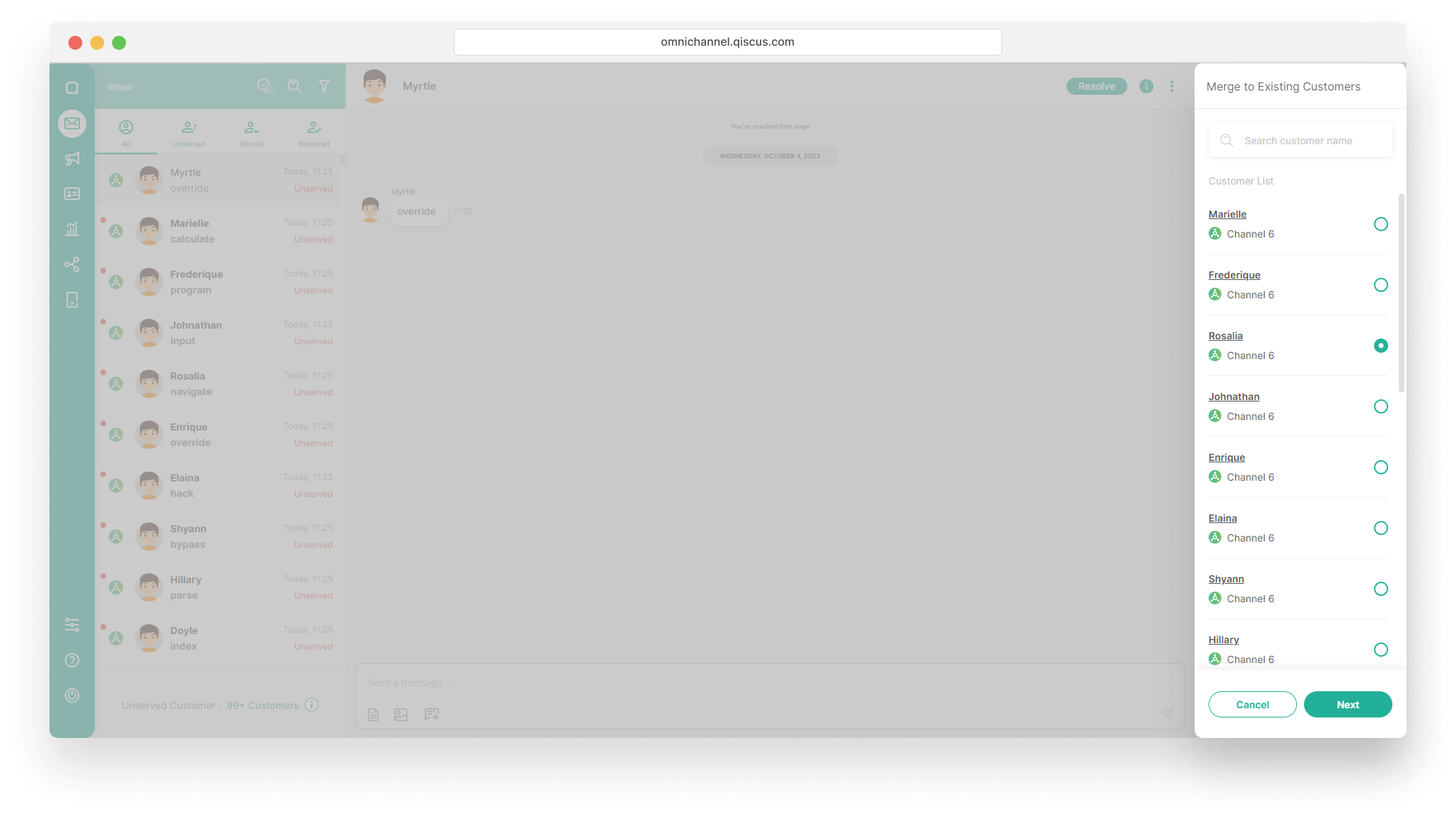
- Select a customer you want to merge and then click Next. In addition, you can search for customers by name,
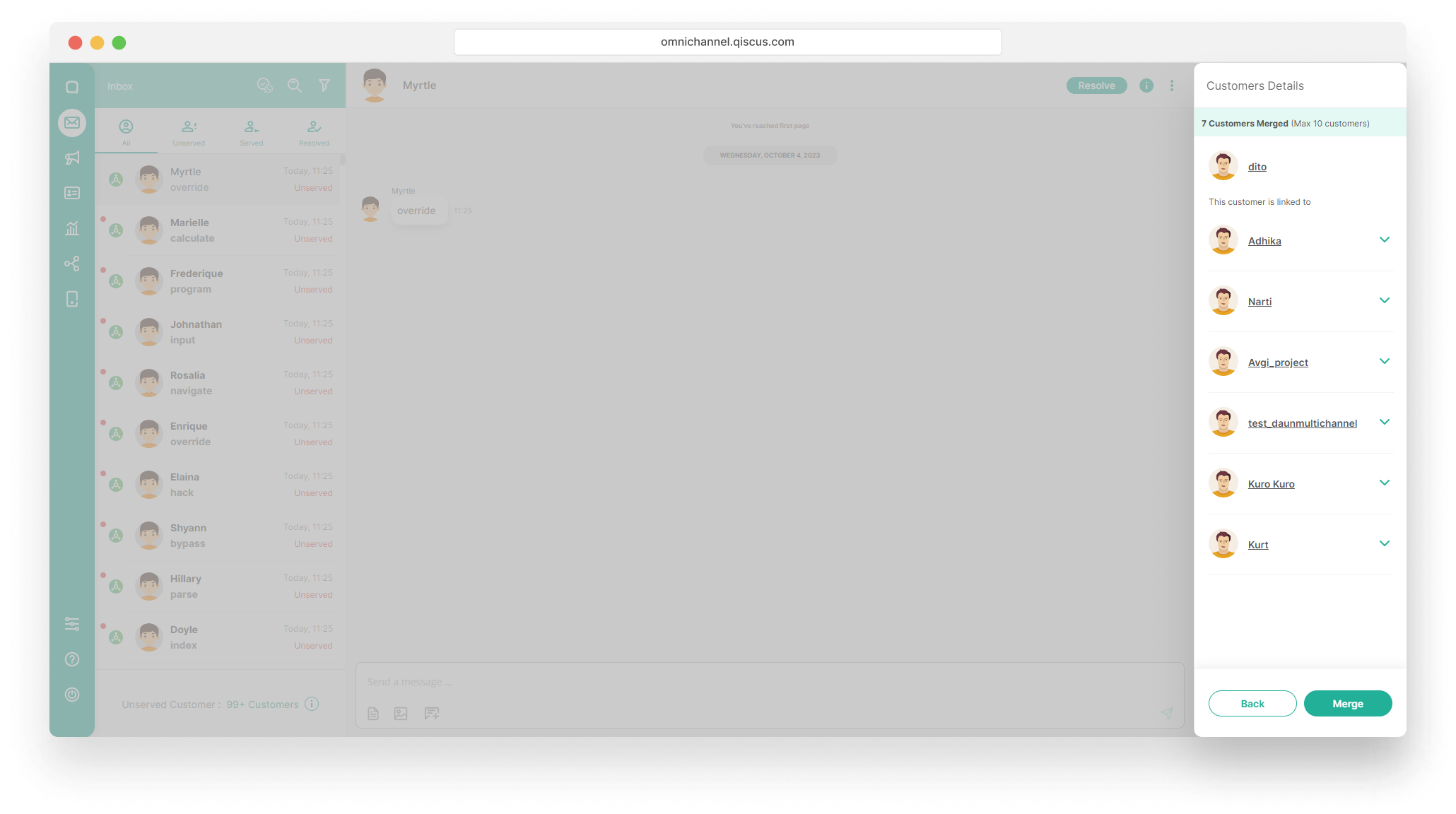
- You will get information regarding the Customers Details. If the customer you want to merge with has already merged with other customers, you will see a list of other linked customers. Click Merge,
- Once finished, you will see which channels the customer is available on.
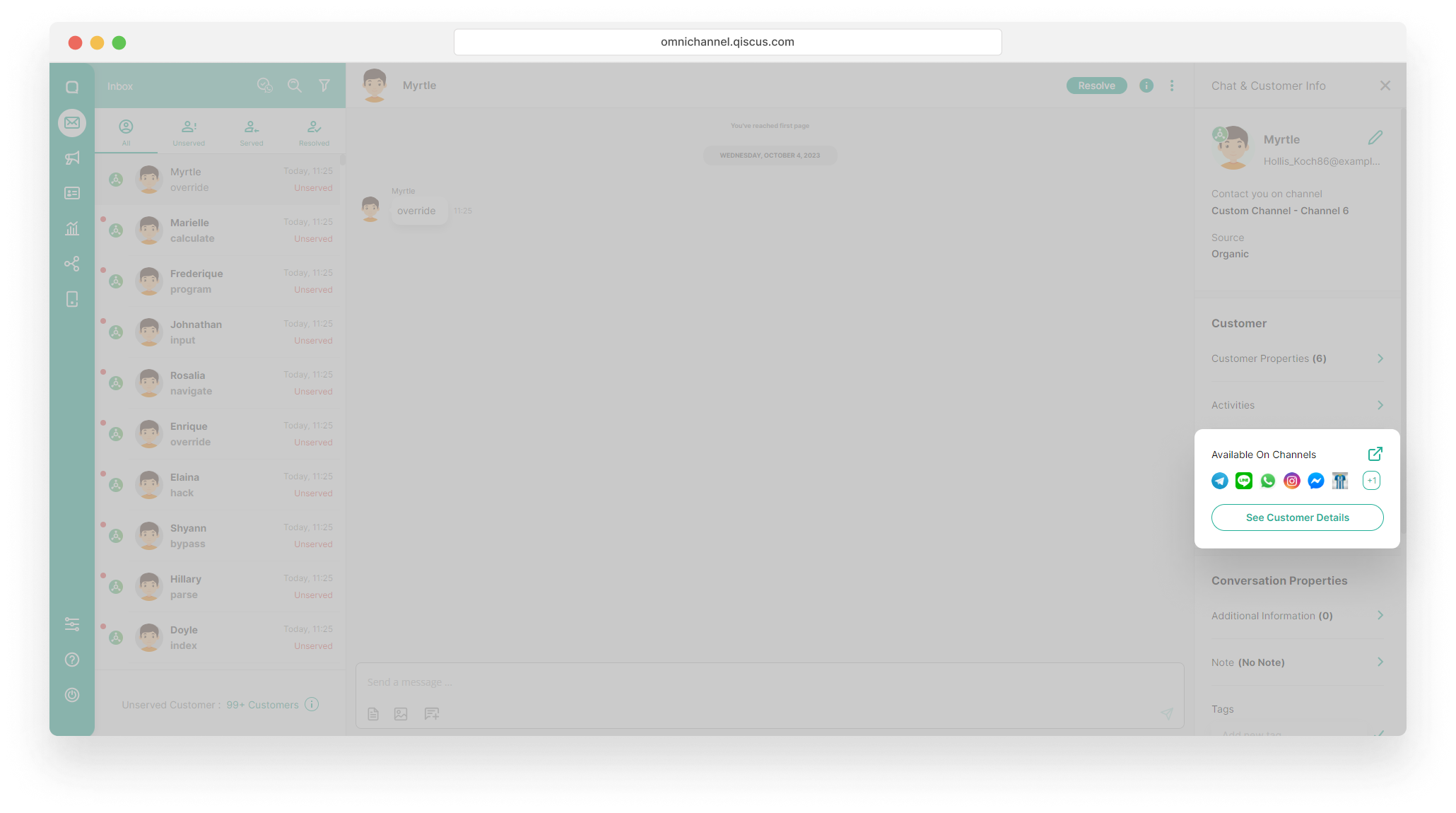
Via Customer Detail
Other than via Inbox menu, you can also merge customer via customer detail.
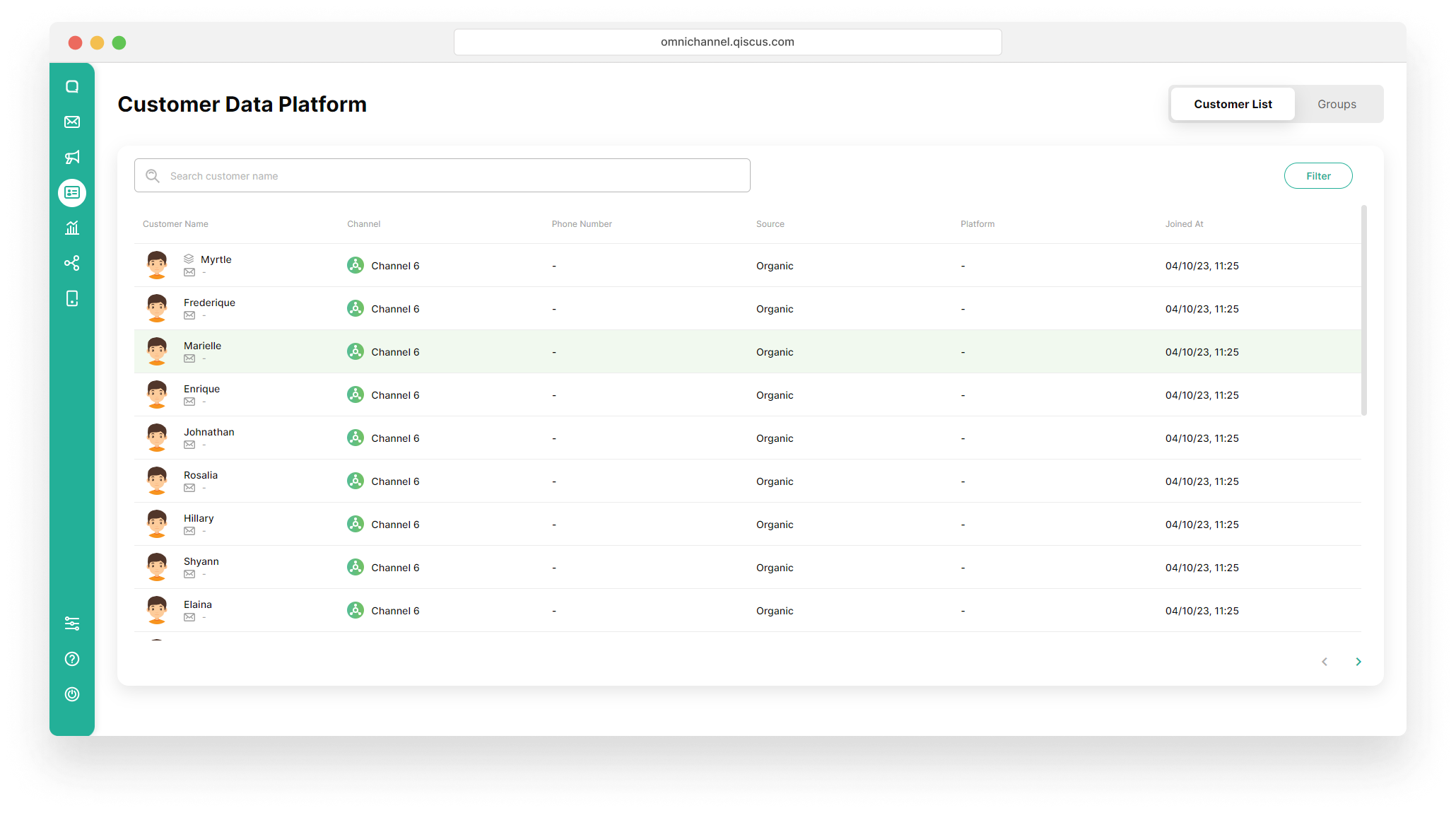
- Go to the Customers menu on the sidebar. Select a customer you want to merge from the Customer List,
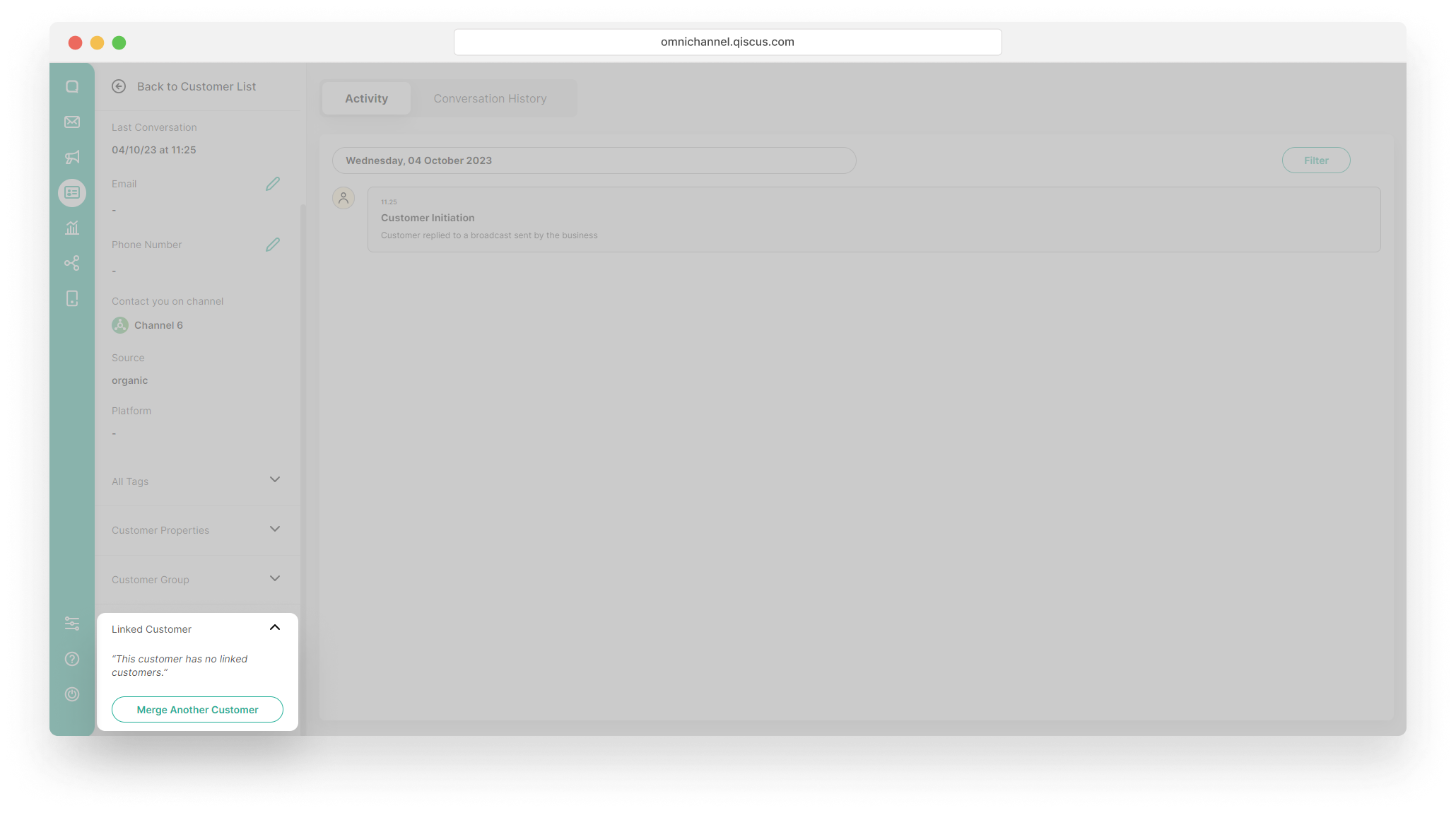
- If the customer is not yet linked to other customers, “This customer has no linked customers” will appear in the linked customer dropdown,
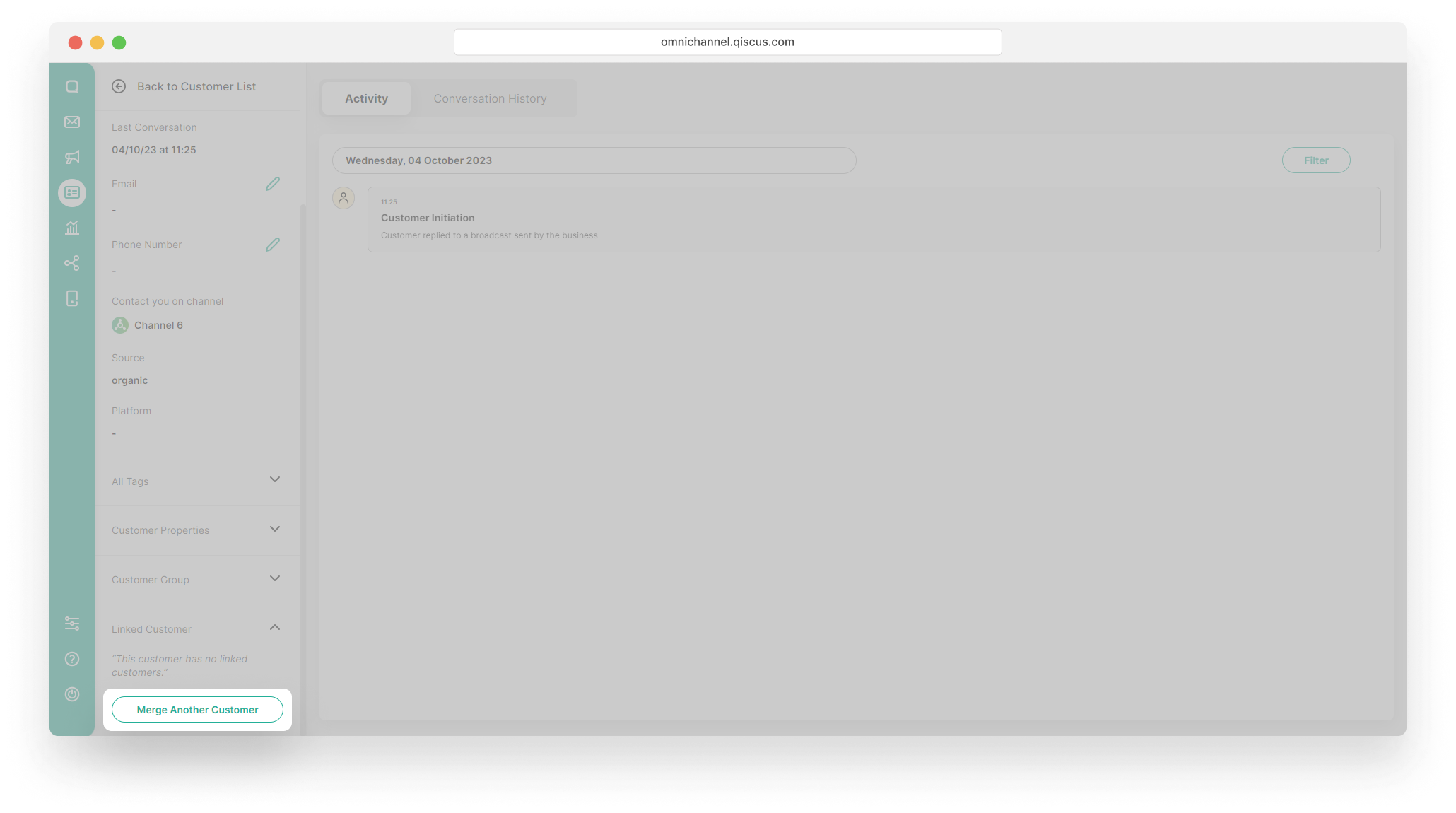
- Click Merge Another Customer button,
- Select a customer you want to merge and then click Next. In addition, you can search for customers by name,
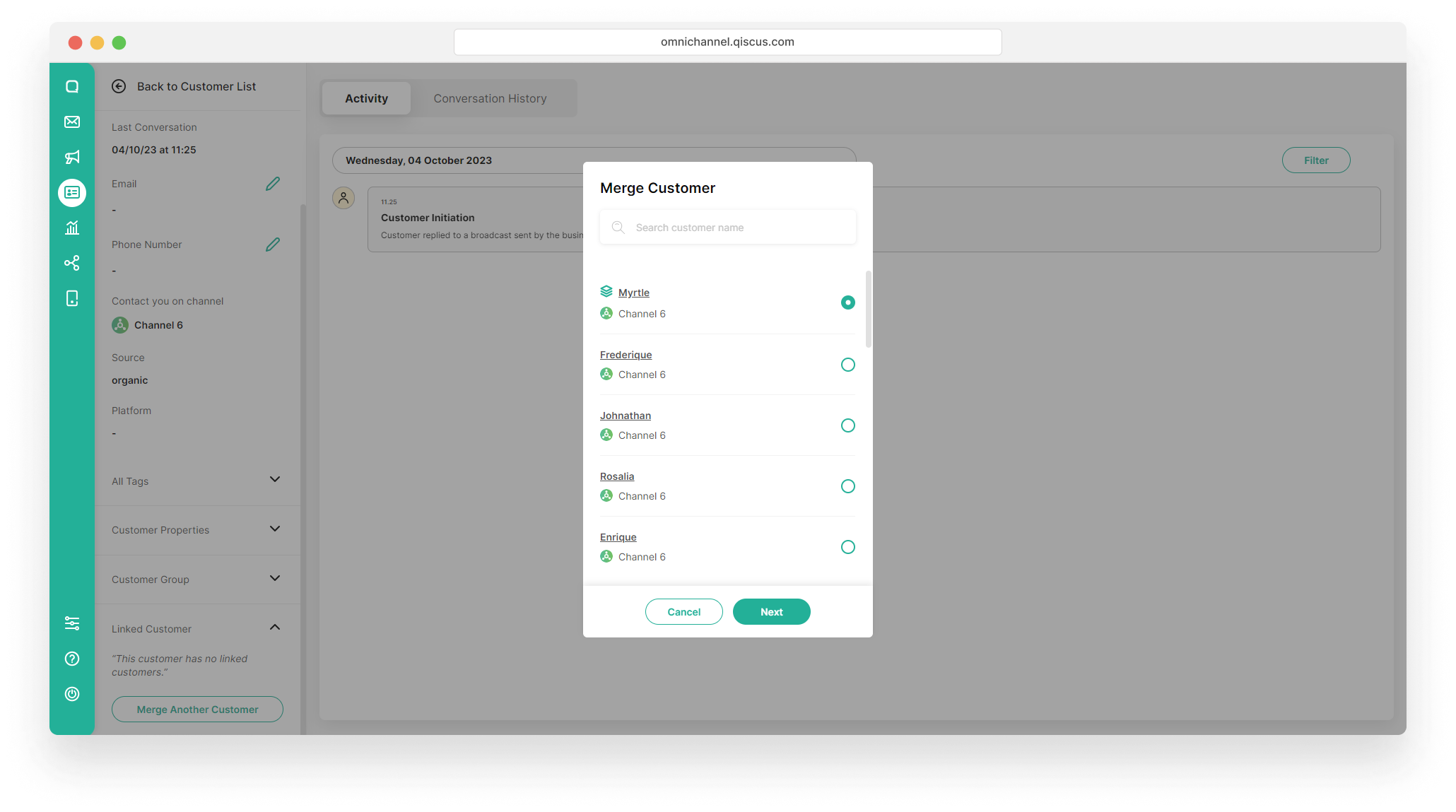
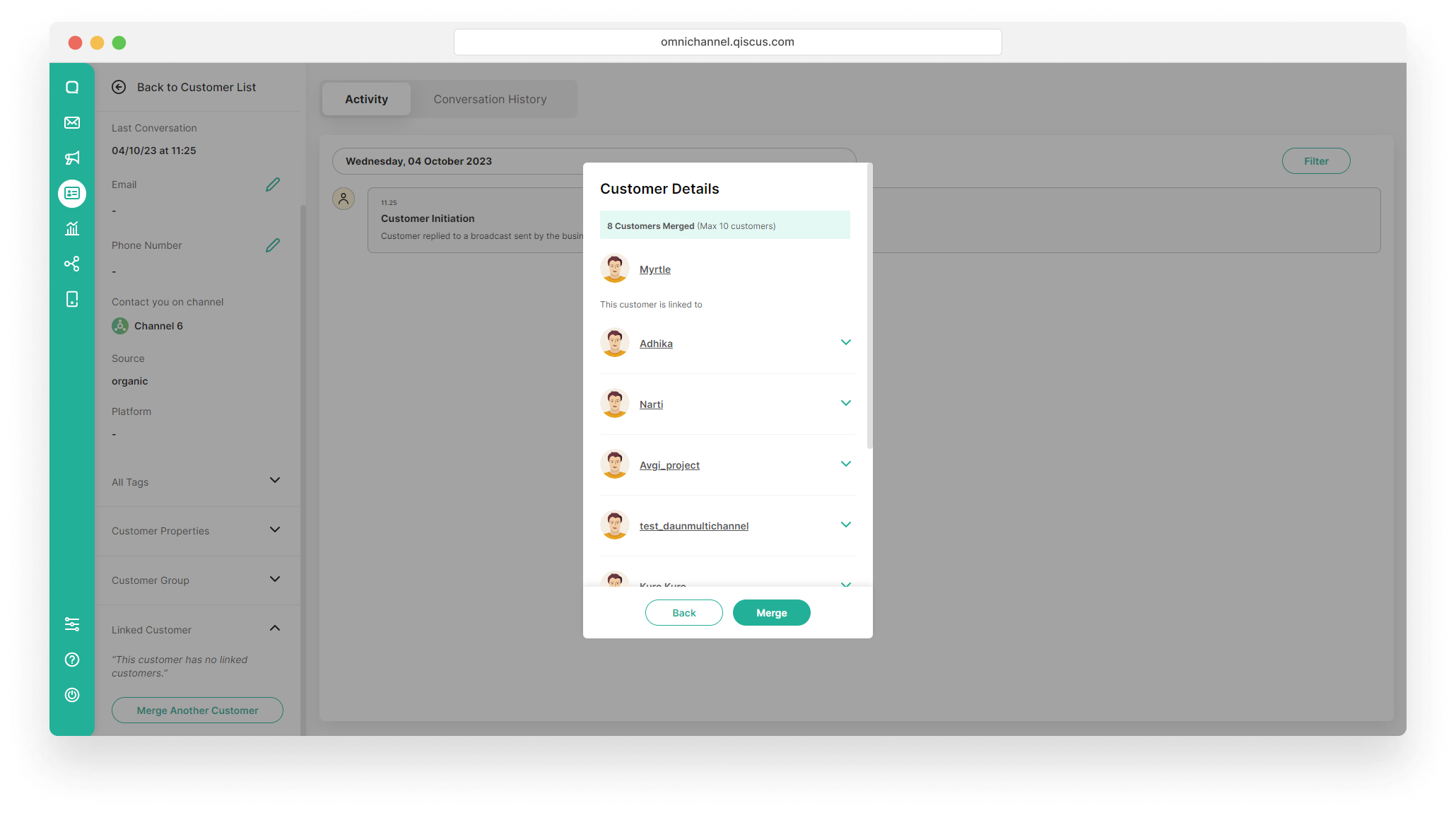
- You will get information regarding the Customers Details. If the customer you want to merge with has already merged with other customers, you will see a list of other linked customers. Click Merge,
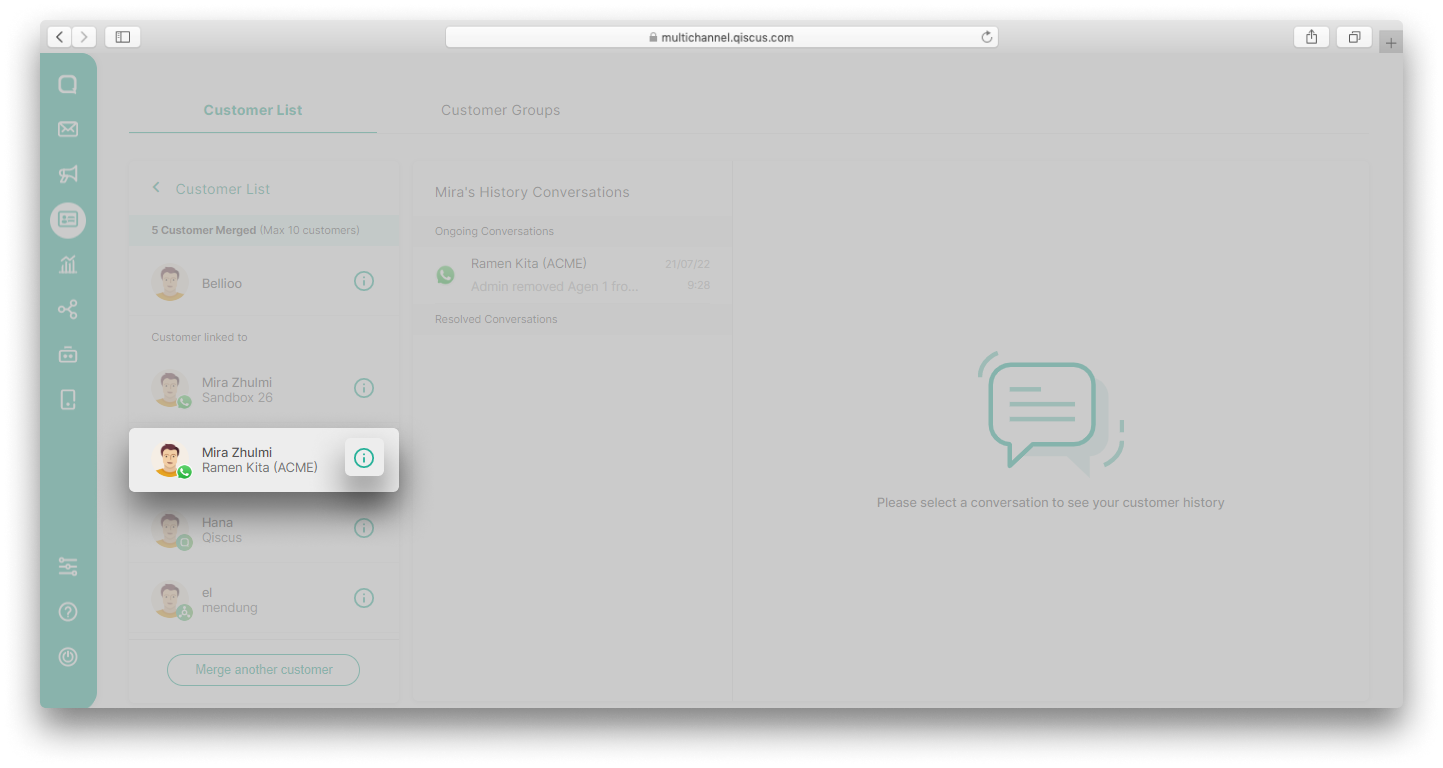
- Once finished, you will see all linked customers in the customer detail.
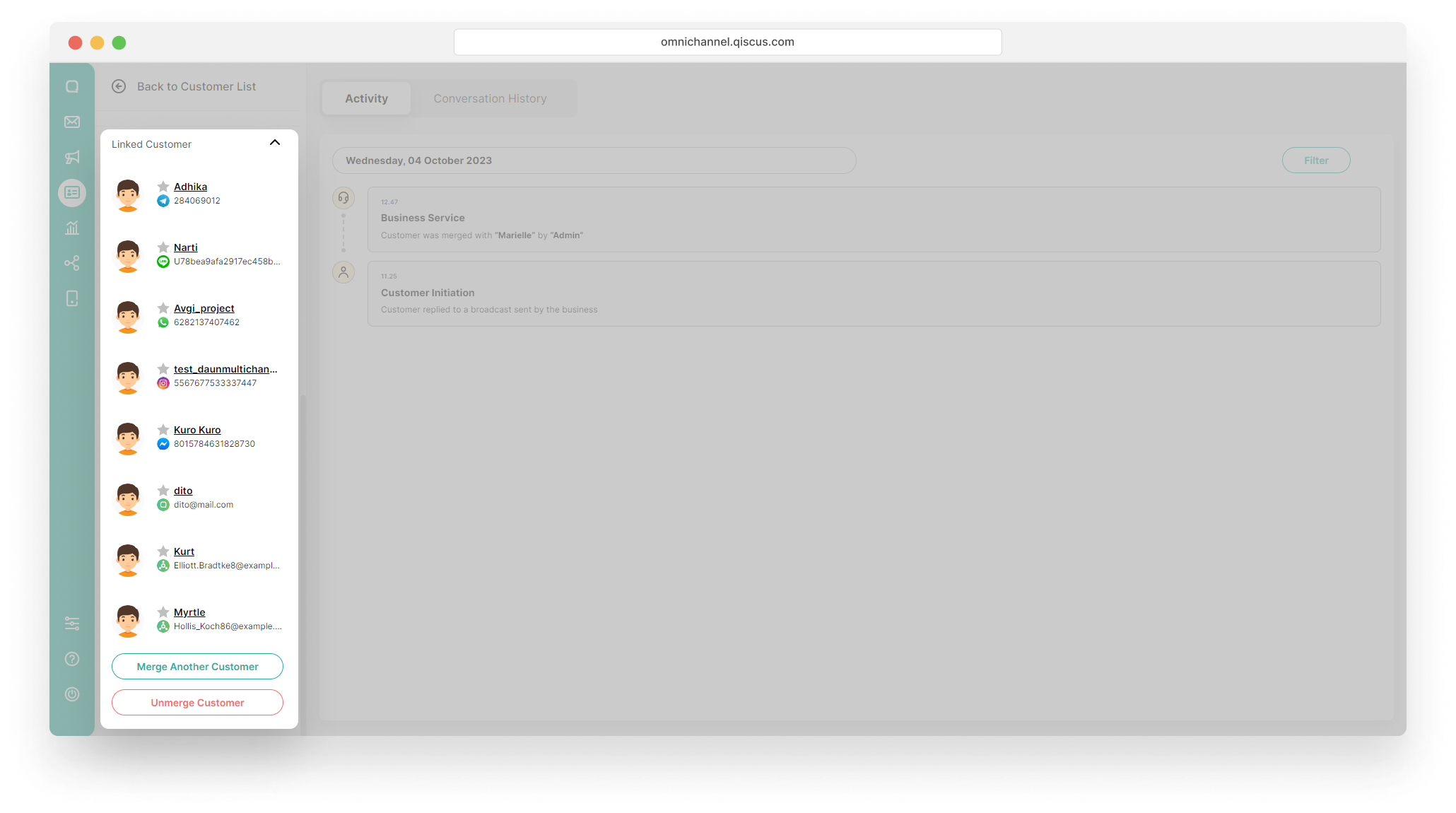
Merge Another Customer
You can add another customer to merge by following these steps:
- Click Merge Another Customer button,
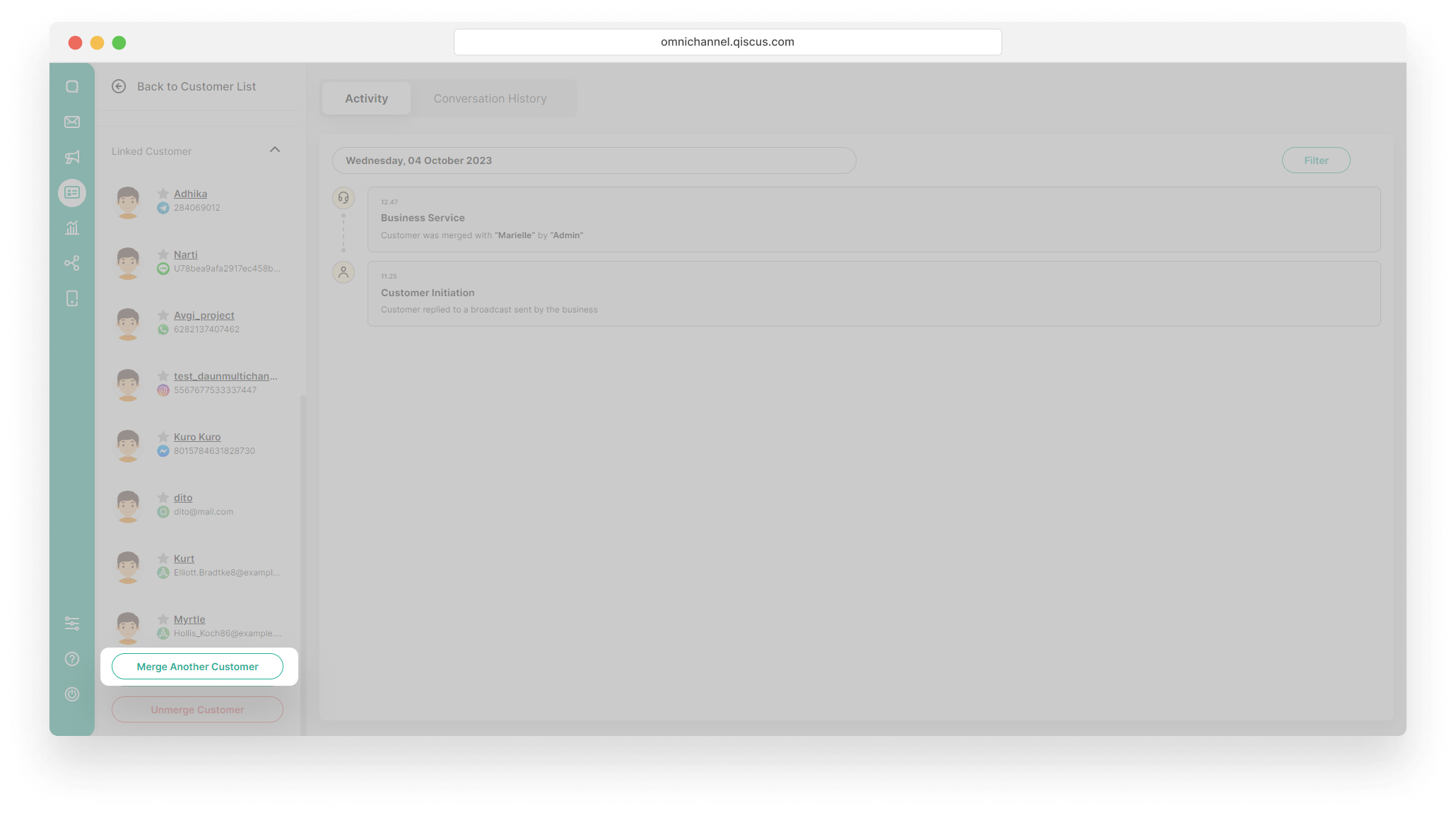
- Select a customer you want to merge and then click Next. In addition, you can search for customers by name. For Merge Another Customer feature, you can only merge customer who has not yet linked with other customers,
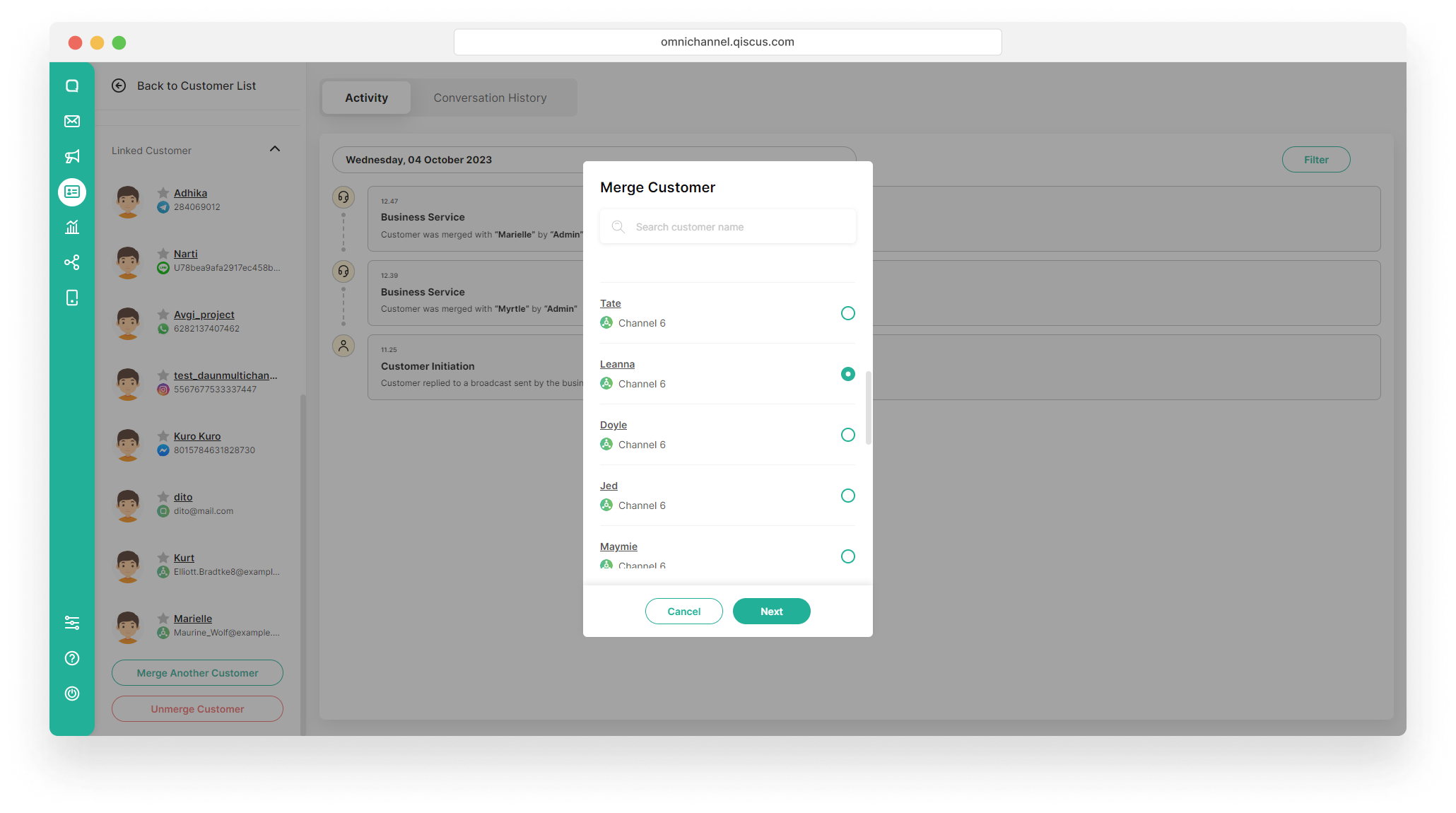
- You will get information regarding the Customers Details. Click Merge.
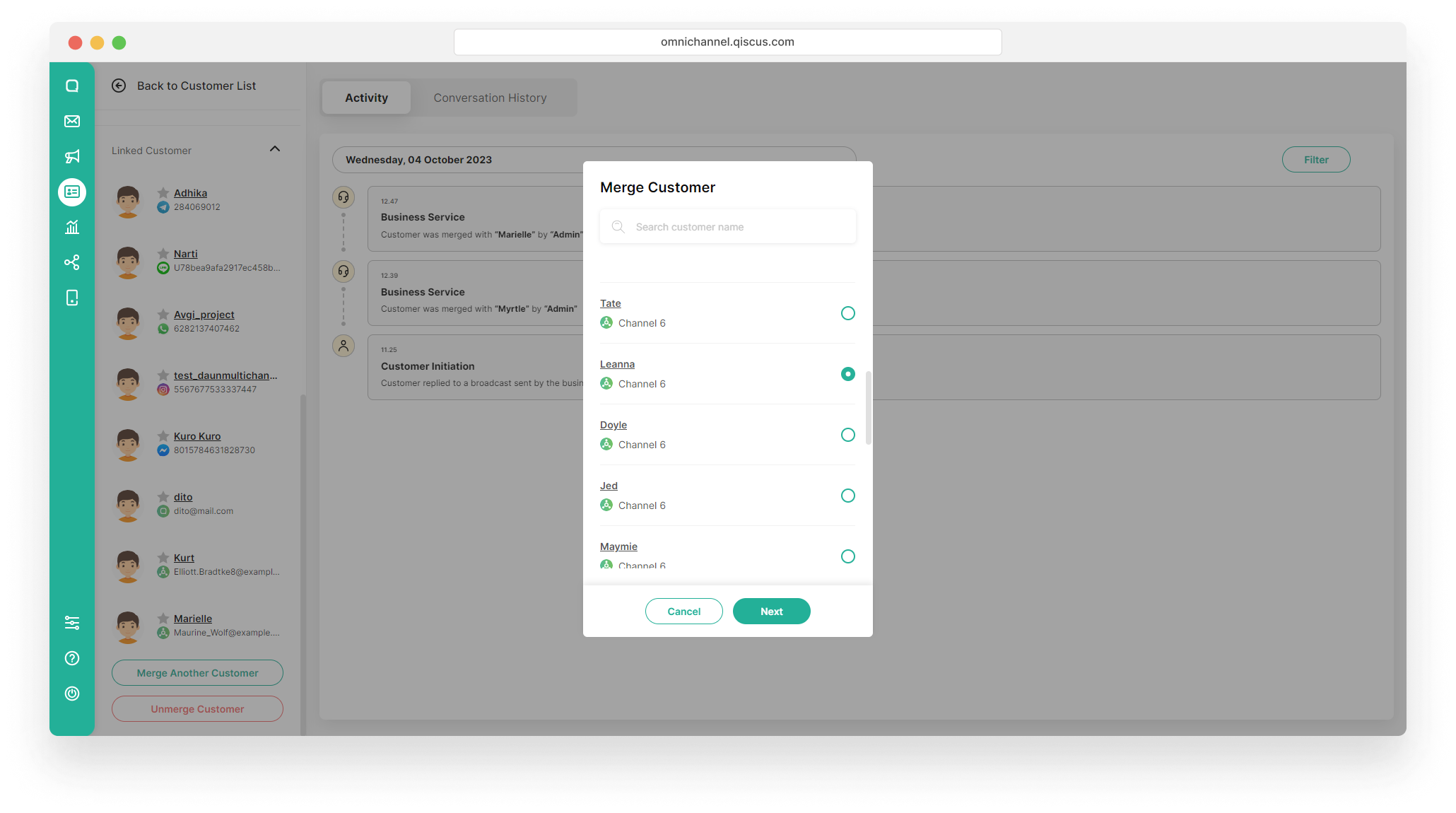
You can only merge a maximum of 10 customers.
Unmerge Customer
After the merge customer process is complete, you have the option to unmerge. However, if you unmerge a customer, this customer will have no relation with the previously merged customers. Follow these steps to unmerge a customer.
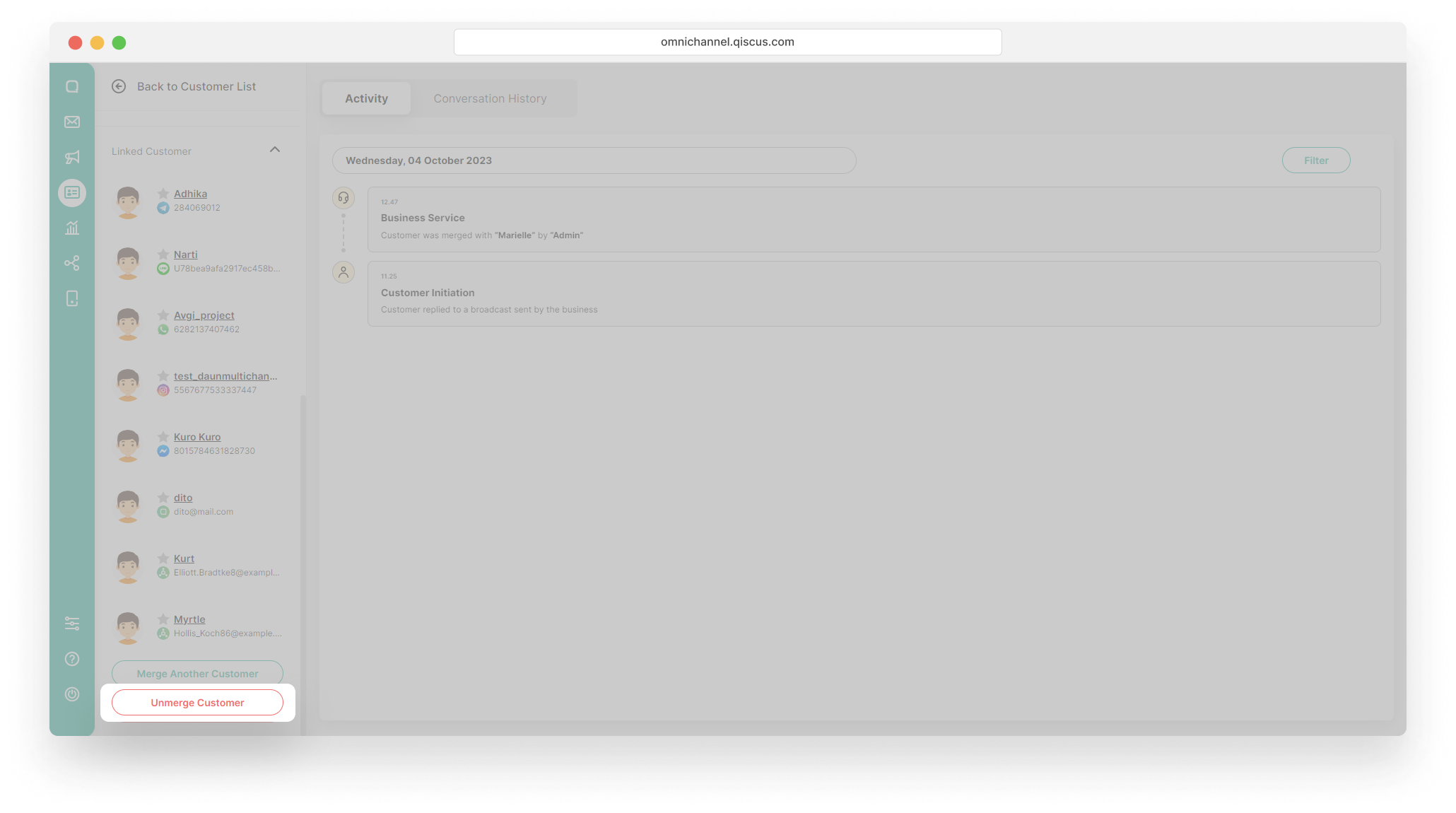
- Select a customer you want to unmerge,
- Click dropdown Linked Customer and then click Unmerge Customer button.
Set the Main Channel
You can set the Main Channel for merged customers to help you identify the channel that customer use the most. The Main Channel will be marked with a star symbol next to the customer’s name. You can follow these step to set the Main Channel.
- Select a customer with linked customer icon,
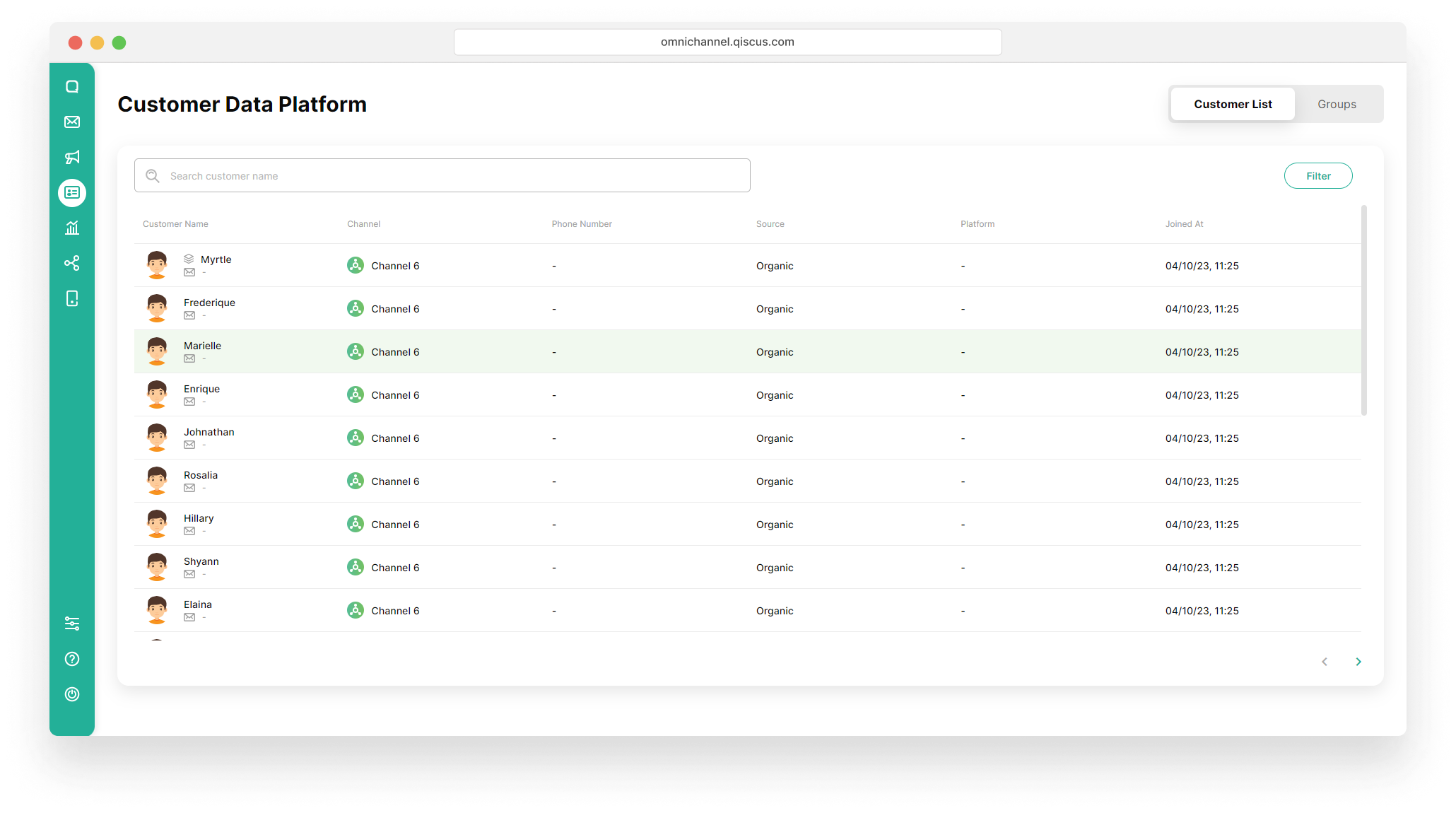
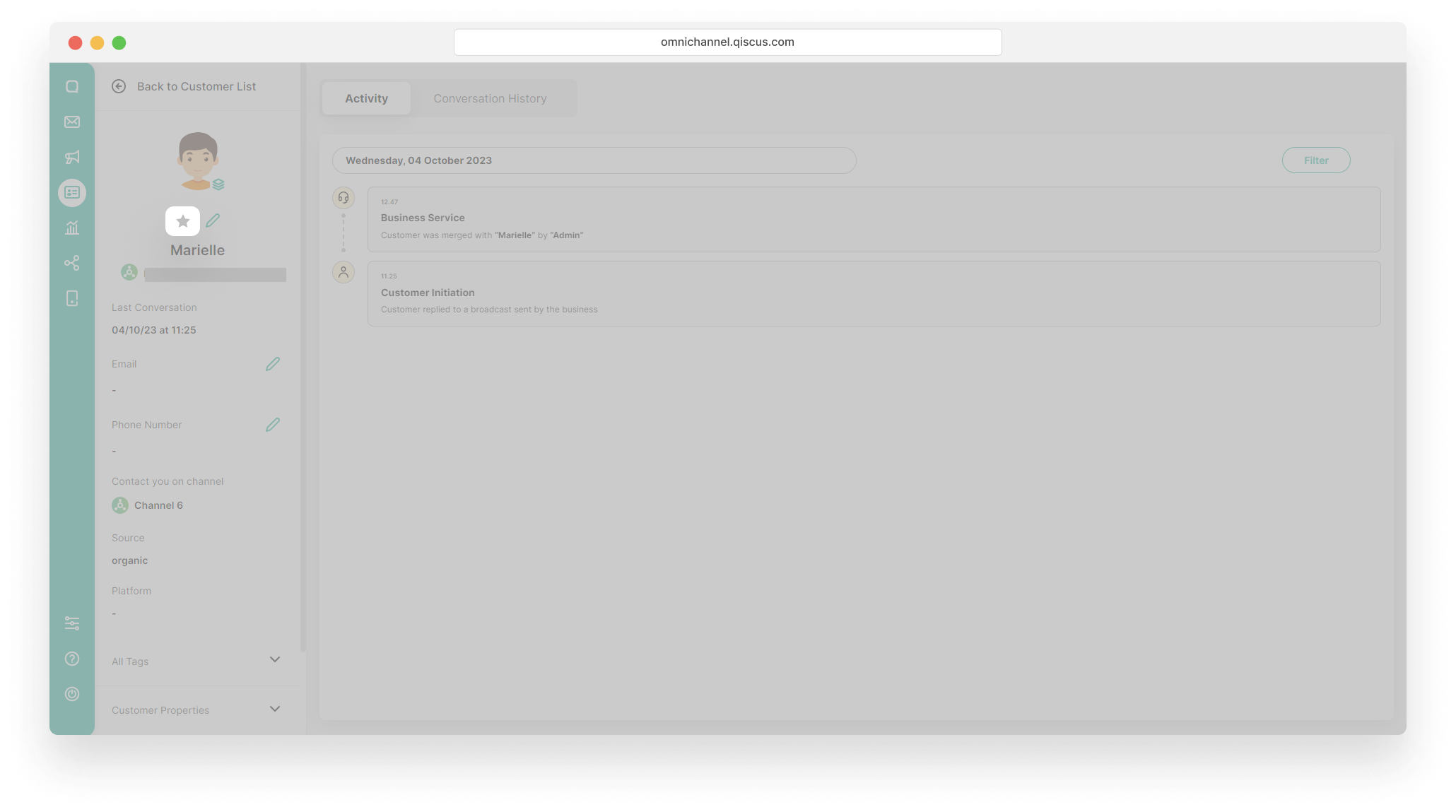
- If the currently selected customer will be used as the Main Channel, then click the star icon above the name,
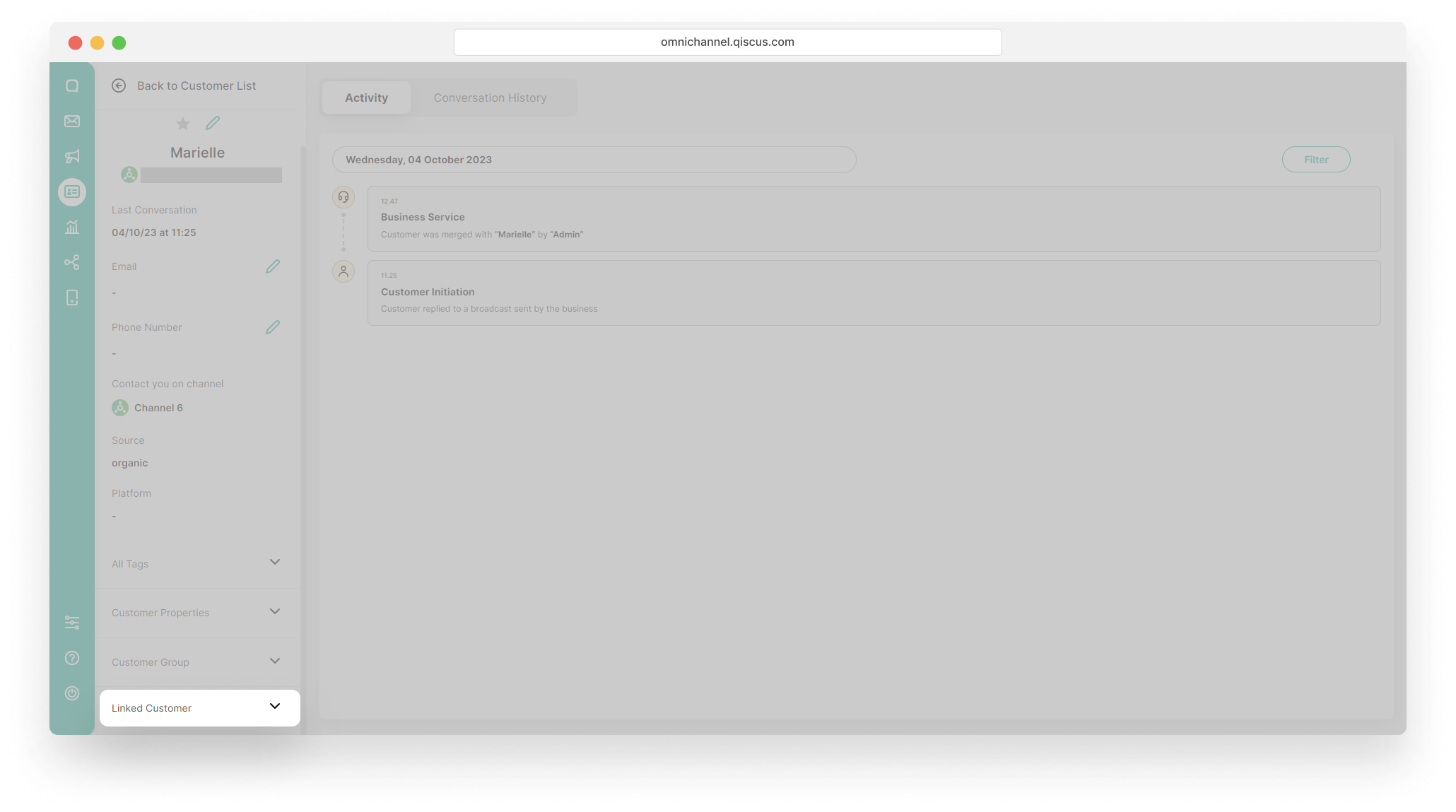
- If the customer you want to use as the Main Channel is not the one currently selected, click dropdown Linked Customer,
- Select the customer you want to set as the Main Channel,
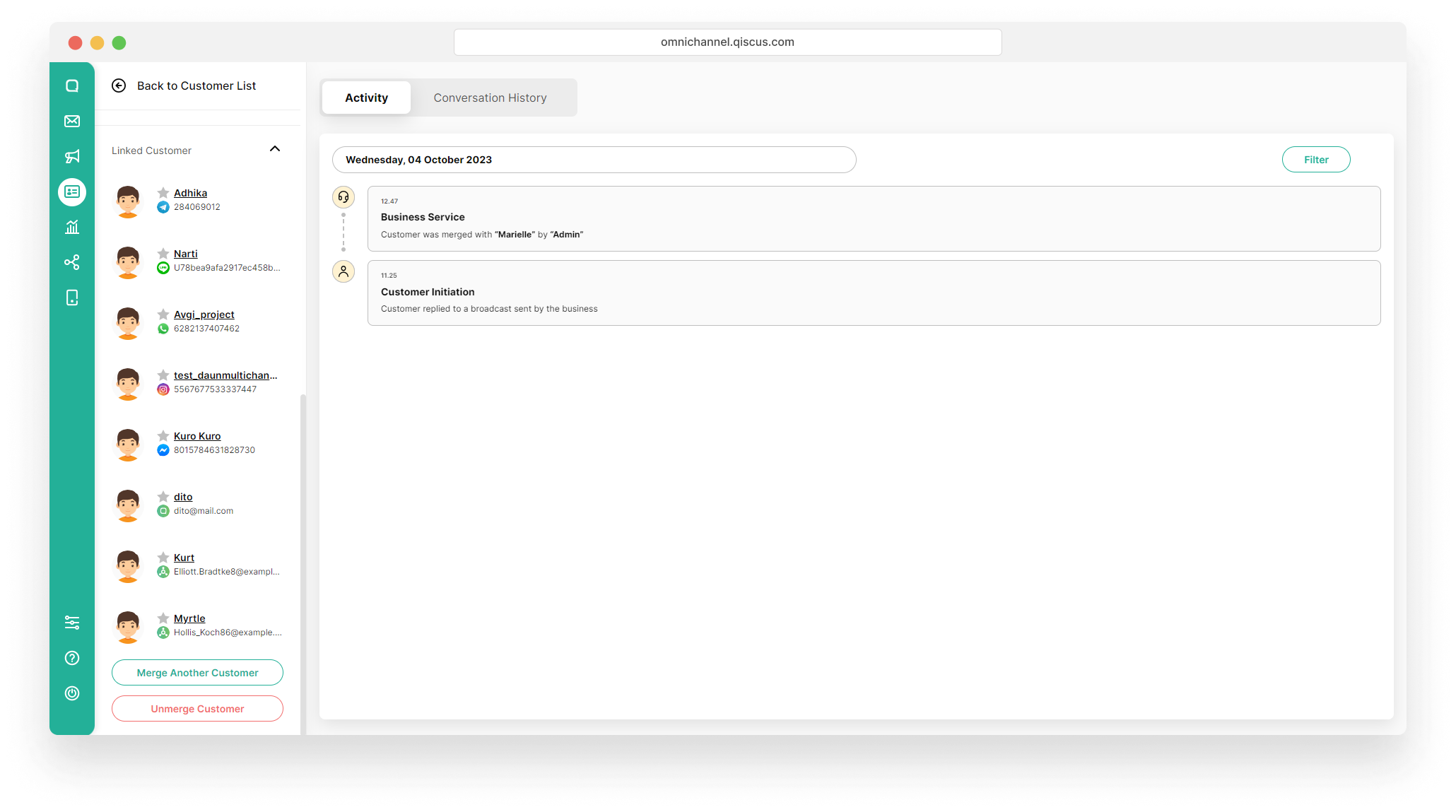
- You will be redirected to the customer details page of the selected customer. Click the star icon above the name,
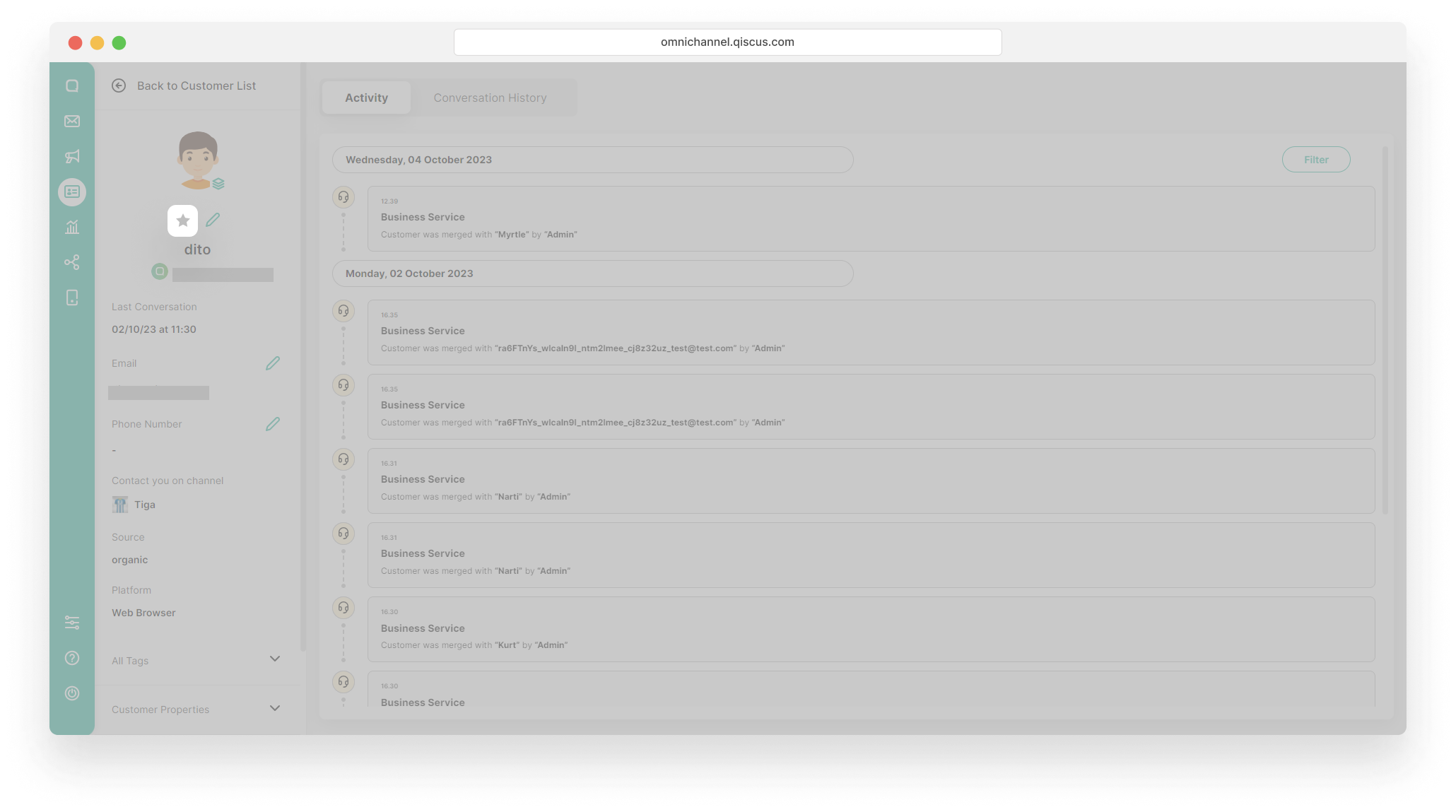
- Once selected, he color of the star icon will change.
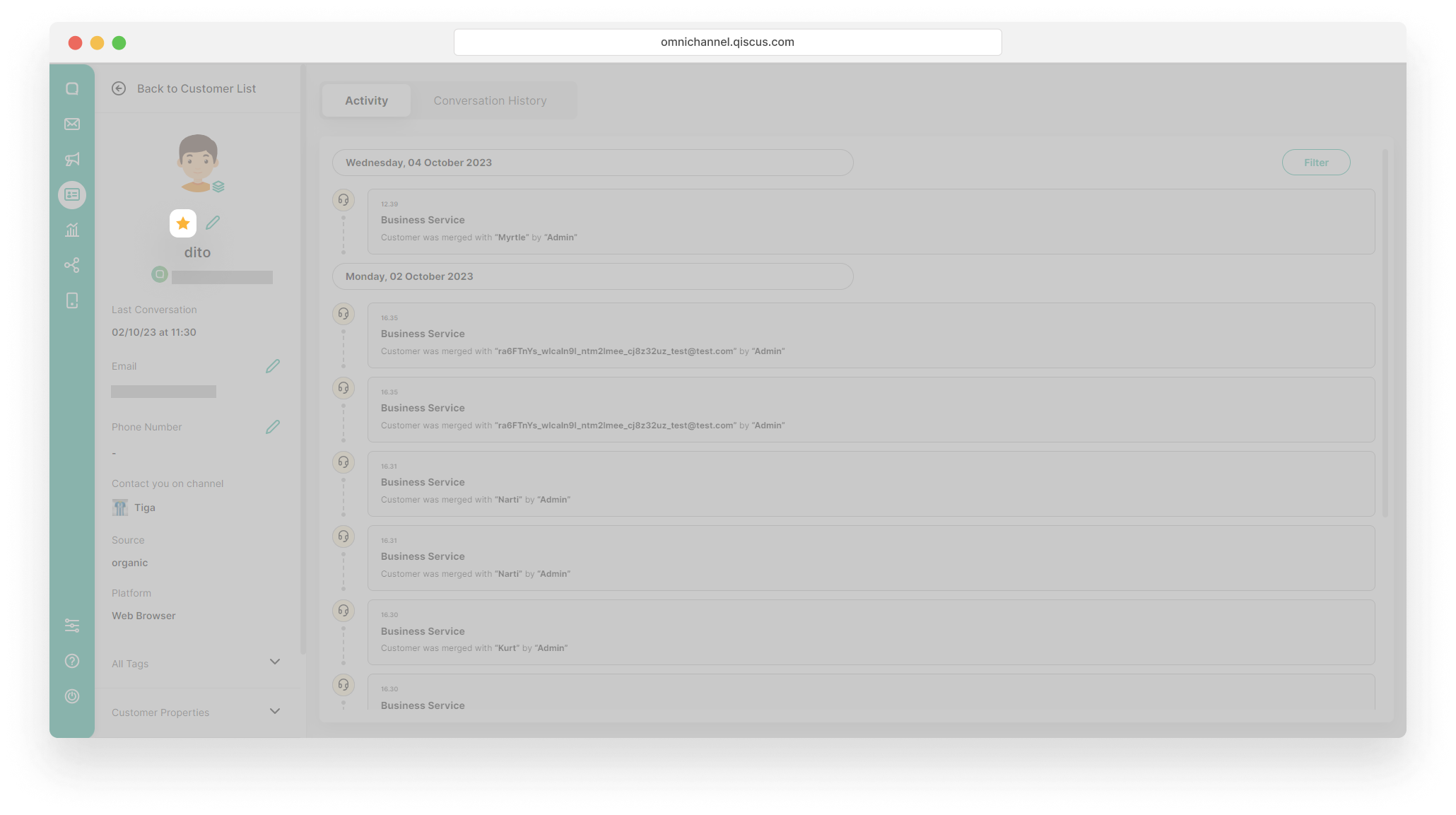
You can only set 1 Main Channel.
Merge Customer’s Analytics
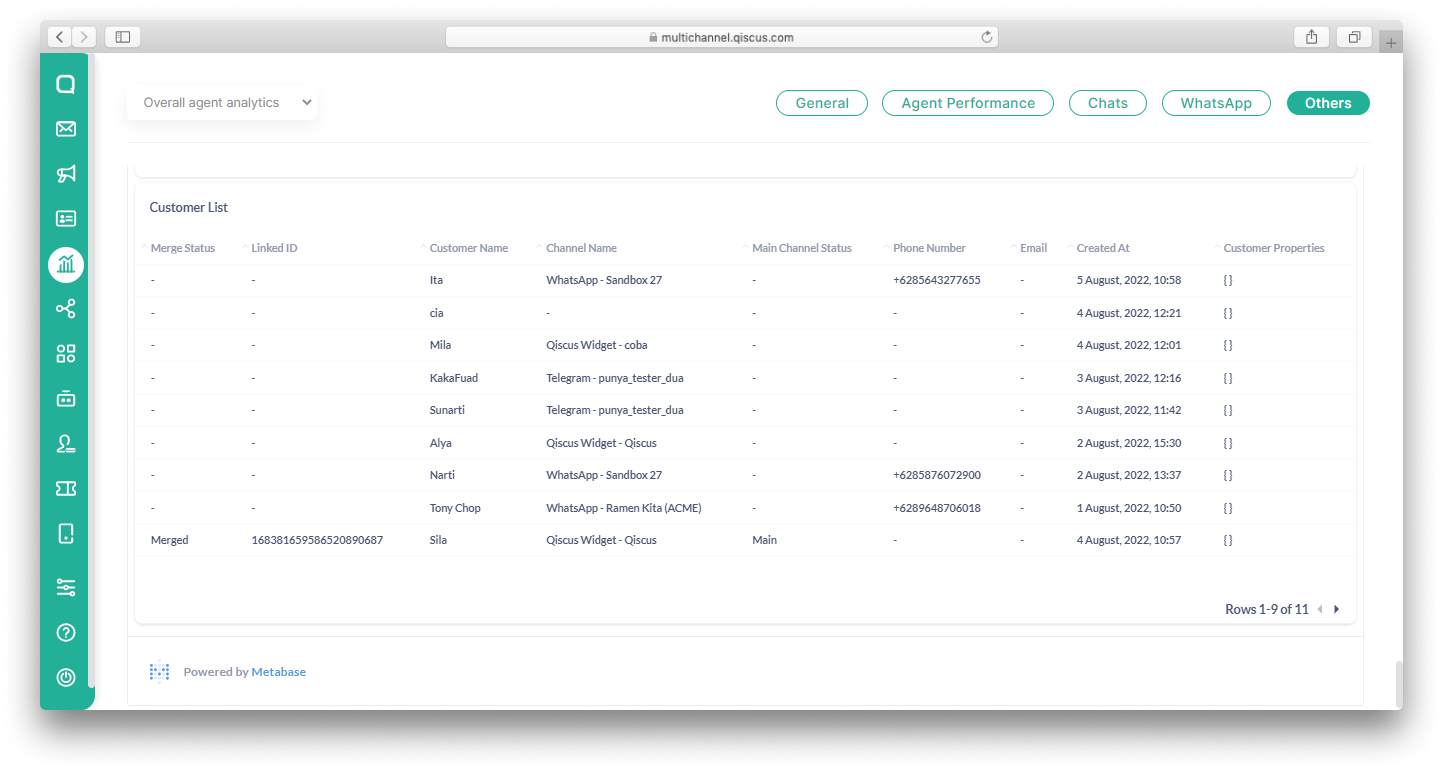
You can view the analytic reports from Merge Customer in the Analytics Menu. Click Tab Others in the Overall Agent Analytics section and scroll down until you find the Customer List reports. You will see complete information about customers including Merge and Main Channel status.
Leave a Reply