Introduction
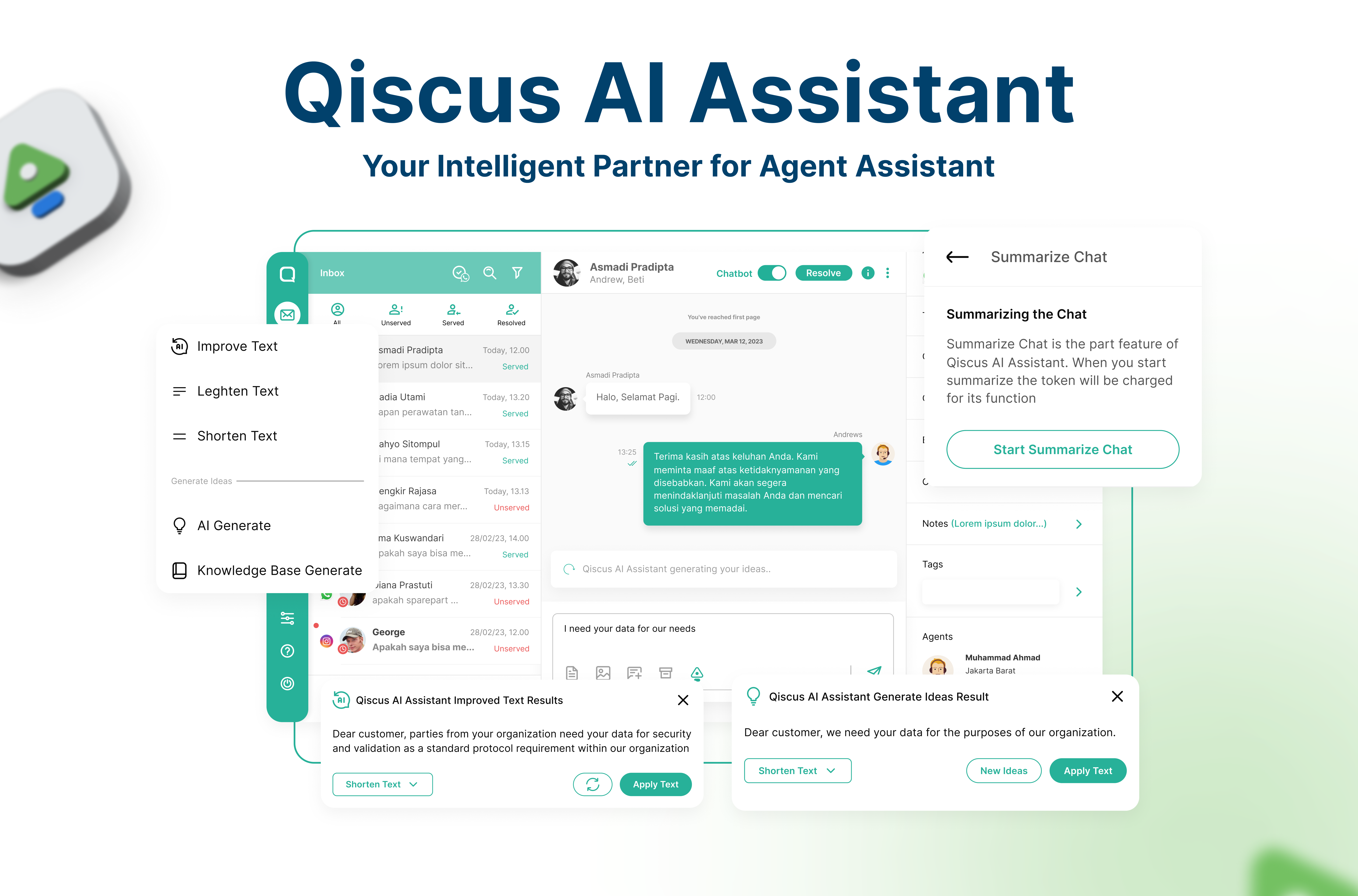
Qiscus AI Assistant is a virtual assistant for your agents that can help agents compose messages to customers. Qiscus AI Assistant has the ability to improve text, generate ideas, and also summarize conversations between the business and the customer. AI Assistants integrated into omnichannel apps are a valuable asset for businesses to deliver consistent and exceptional customer experiences. They streamline communication, boost efficiency, enable personalization, ultimately driving customer satisfaction, and loyalty across a variety of channels.
Qiscus AI Assistant has several main features, including:
Activation
Follow the instructions step on the Getting Started pages and try to activate Qiscus AI Assistant.
Improve Text
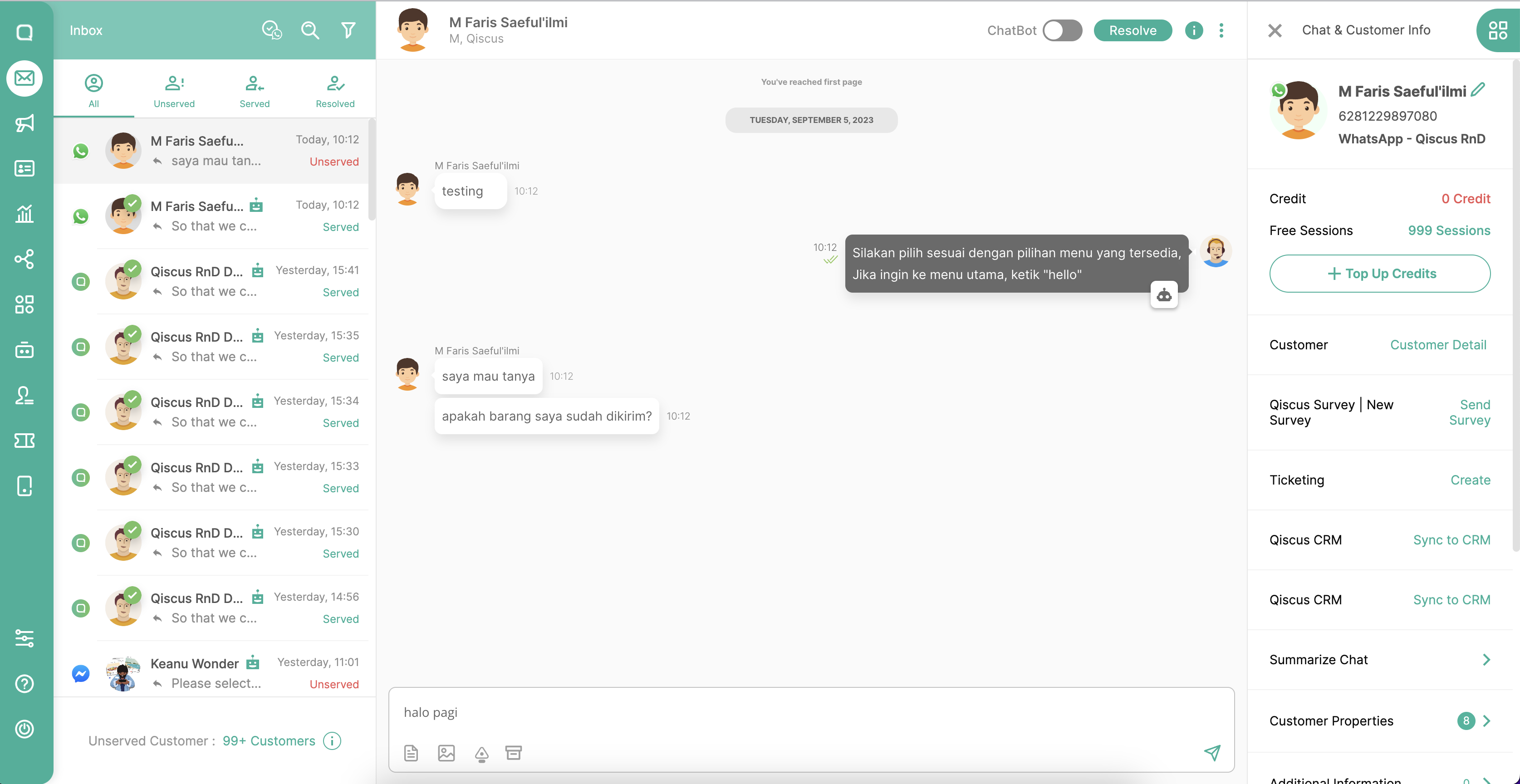
With the Improve Text feature, agents are assisted by the AI Assistant in enhancing the quality of the responses they generate. Additionally, it can help prevent misunderstandings in communication and ensure more relevant responses to customers with a language that is more consistent and improved grammar. Agents can compose messages to customers in advance, and if they feel that the sentence needs improvement, they can easily click on the “Improve Text” option within the Omnichannel inbox.
- The agent can write the conversation first, and if they feels wants to improve the quality of the answers, they can choose Improve Text menu.
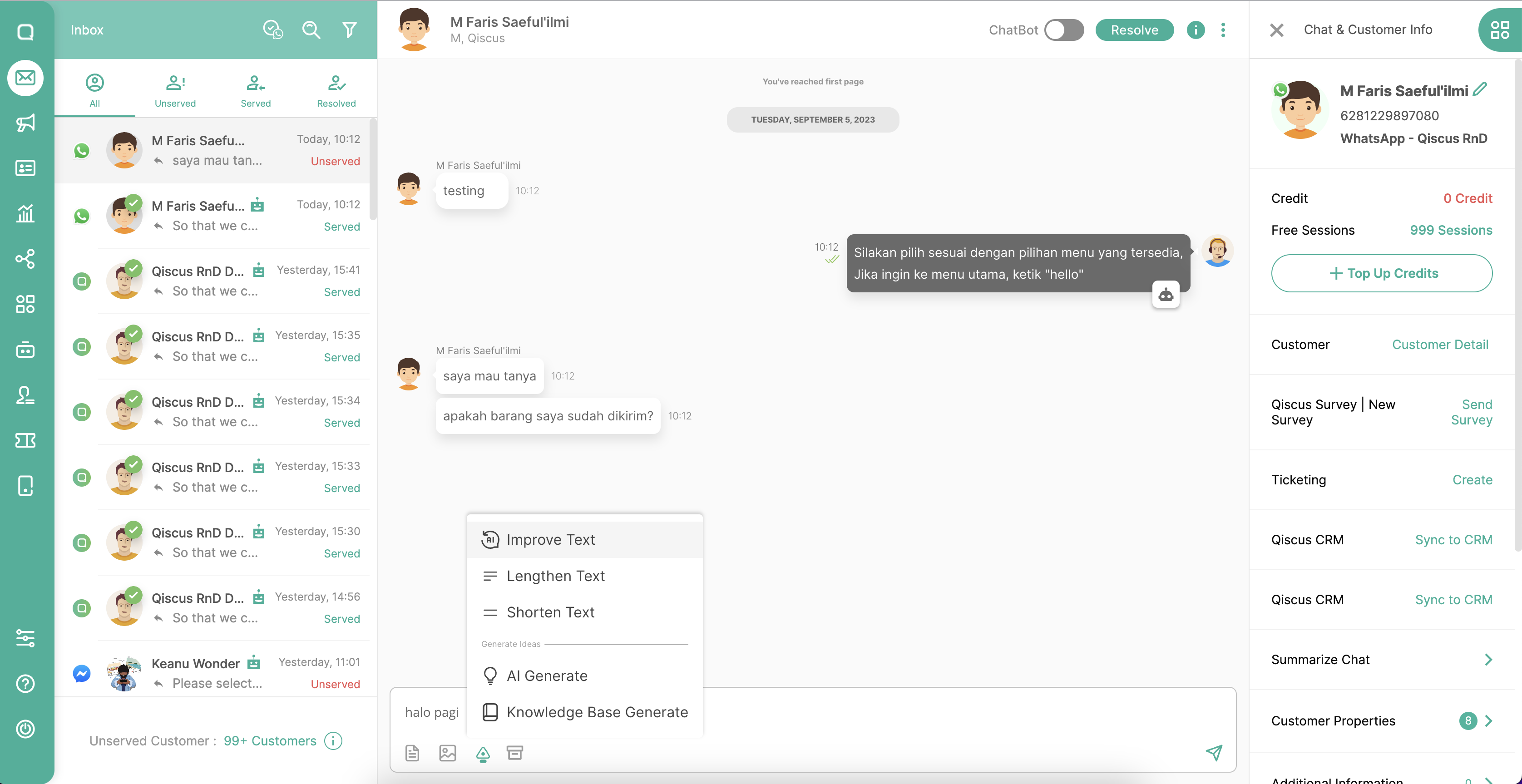
- The agent can also lengthen or shorten the sentence in the Improve Text feature. Then click the generate button.
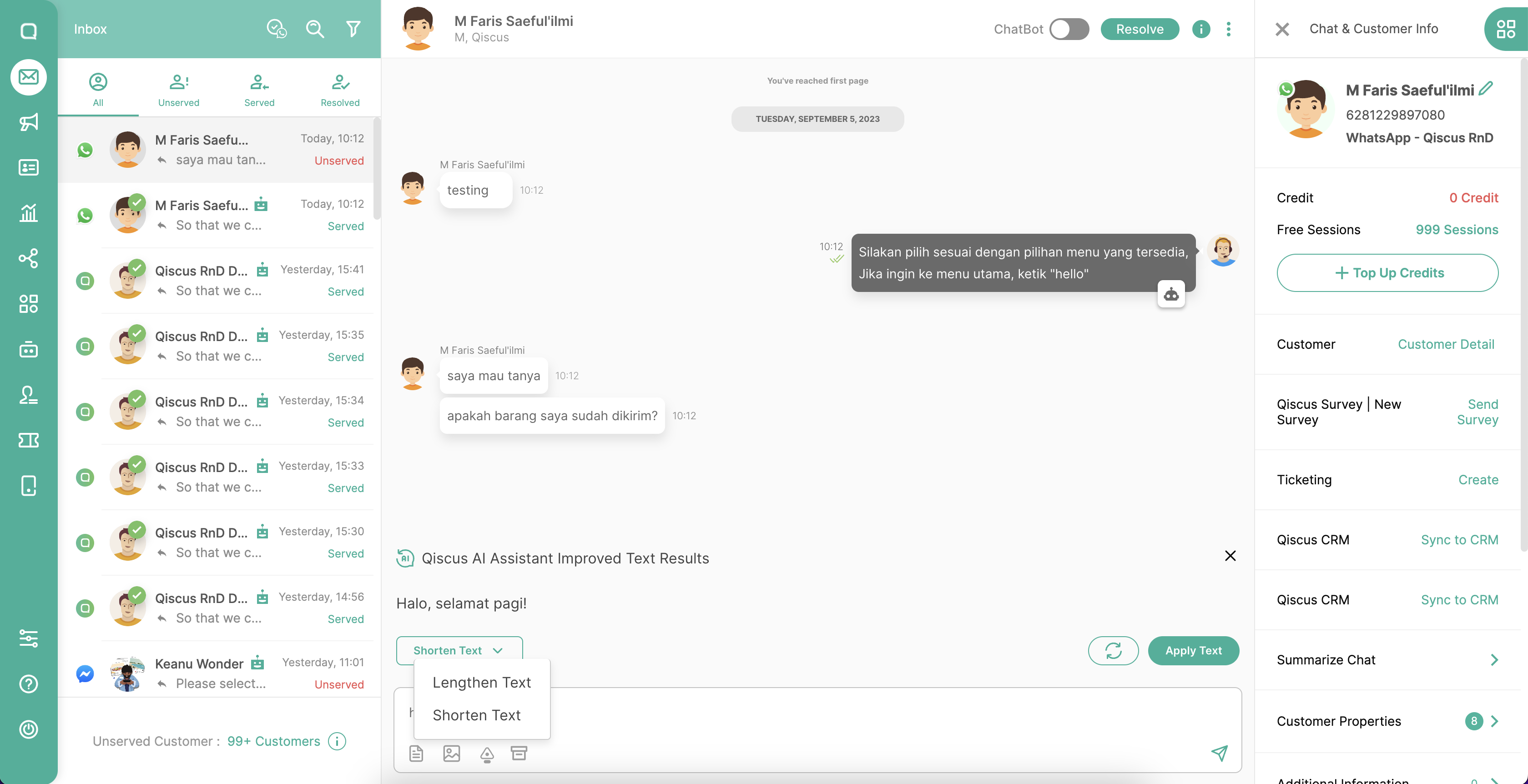
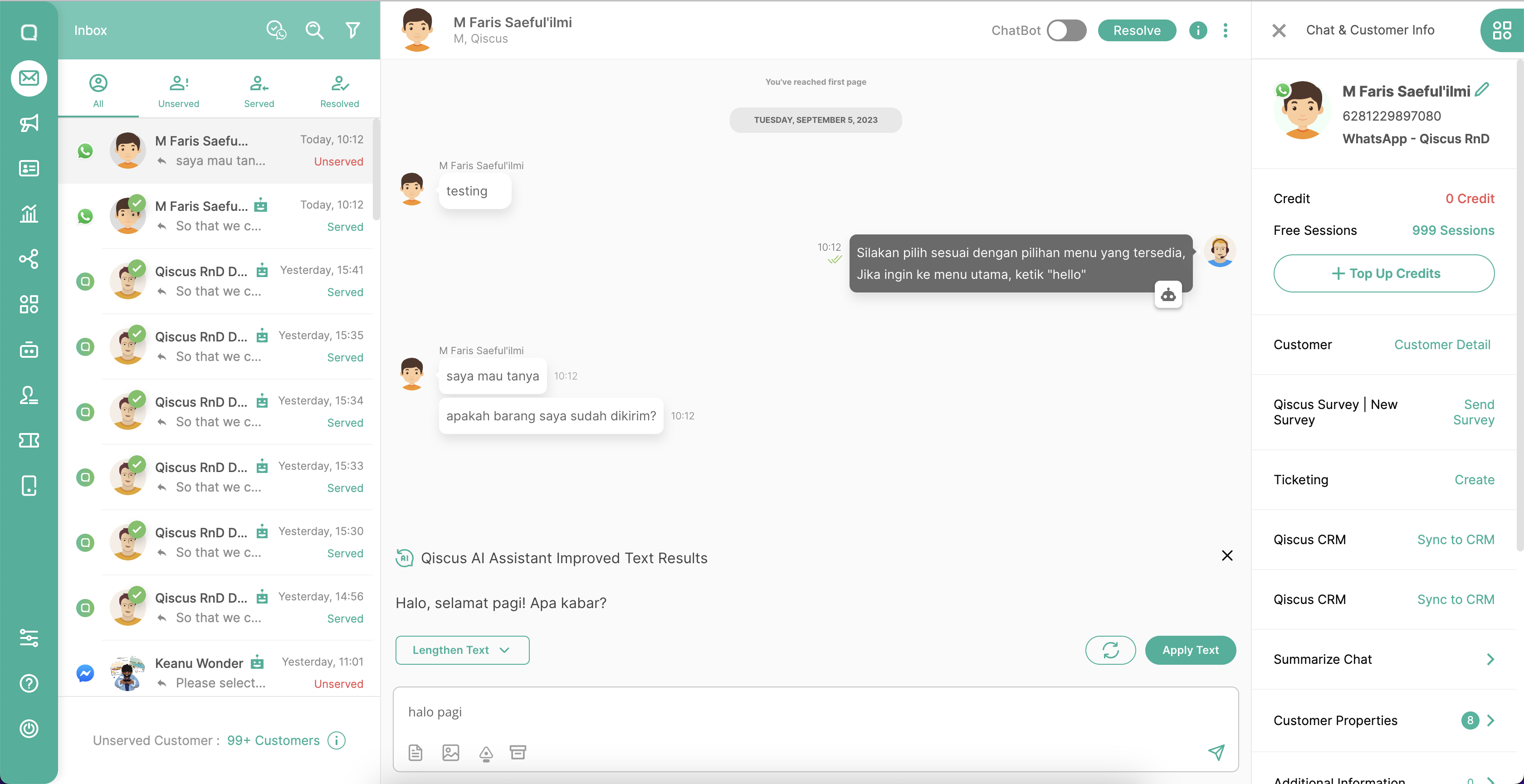
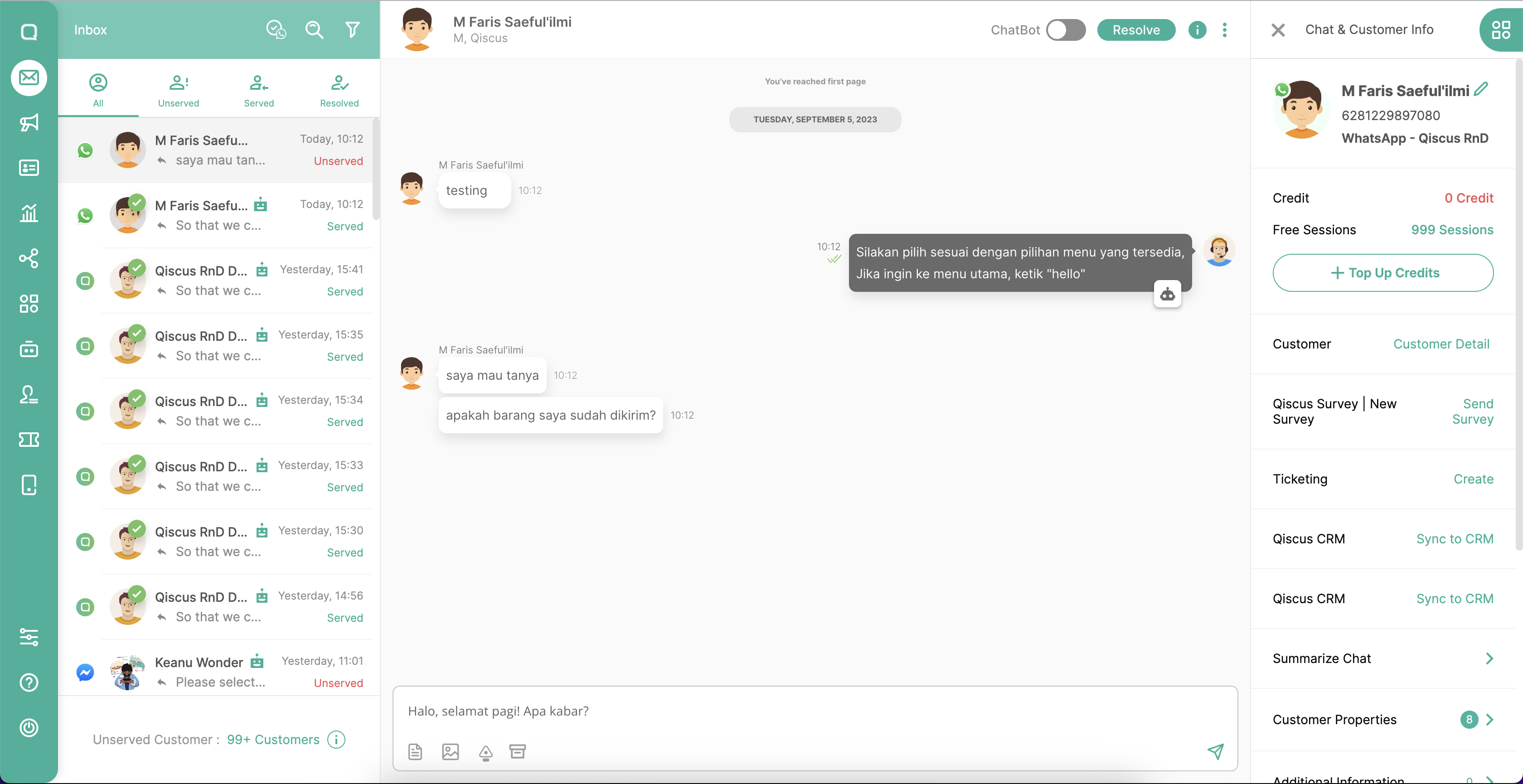
- Then click Apply Text, and the sentence will be copied in the text editor and can be changed according their needs.
Generate Ideas
With this feature, agents will be assisted by AI to provide suggested answers according to customers’ questions. AI Assistant will provide an idea that suits the customer’s context which can be personalized by the agent according to their needs.
There are 2 sub-features in Generate Ideas, including AI Generate and Knowledge Base Generate.
AI Generate
AI Generate will generate suggested answers by taking some conversations between agents and customers in general. With a generative model, the resulting response will produce a variety of answers according to the probability distribution. So that answers from AI are greatly influenced by input or questions from customers to agents.
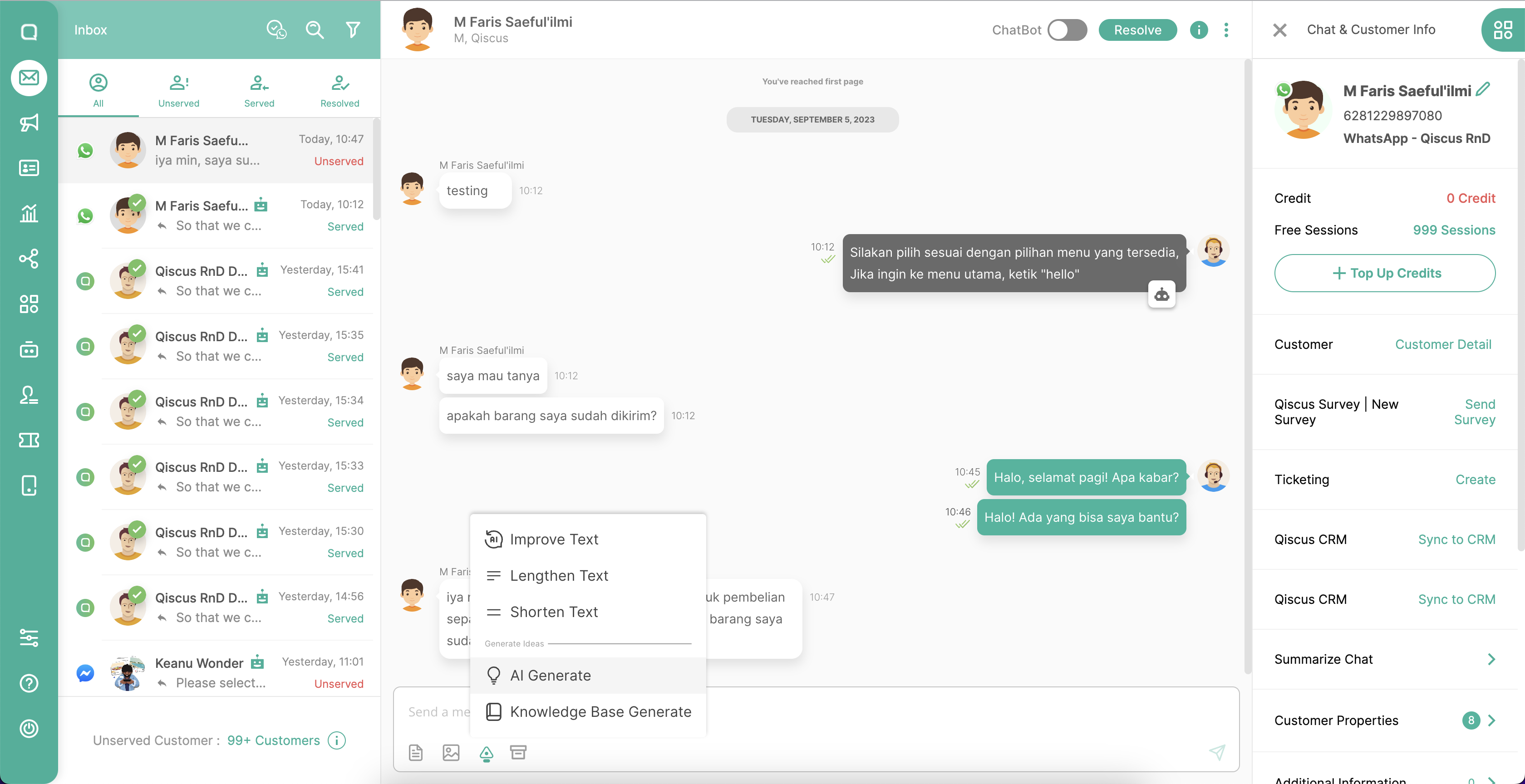
- If you want to get suggestions answers from the AI Assistant, you can click the Qiscus AI Assistant icon in the inbox. Then click the AI Generate menu
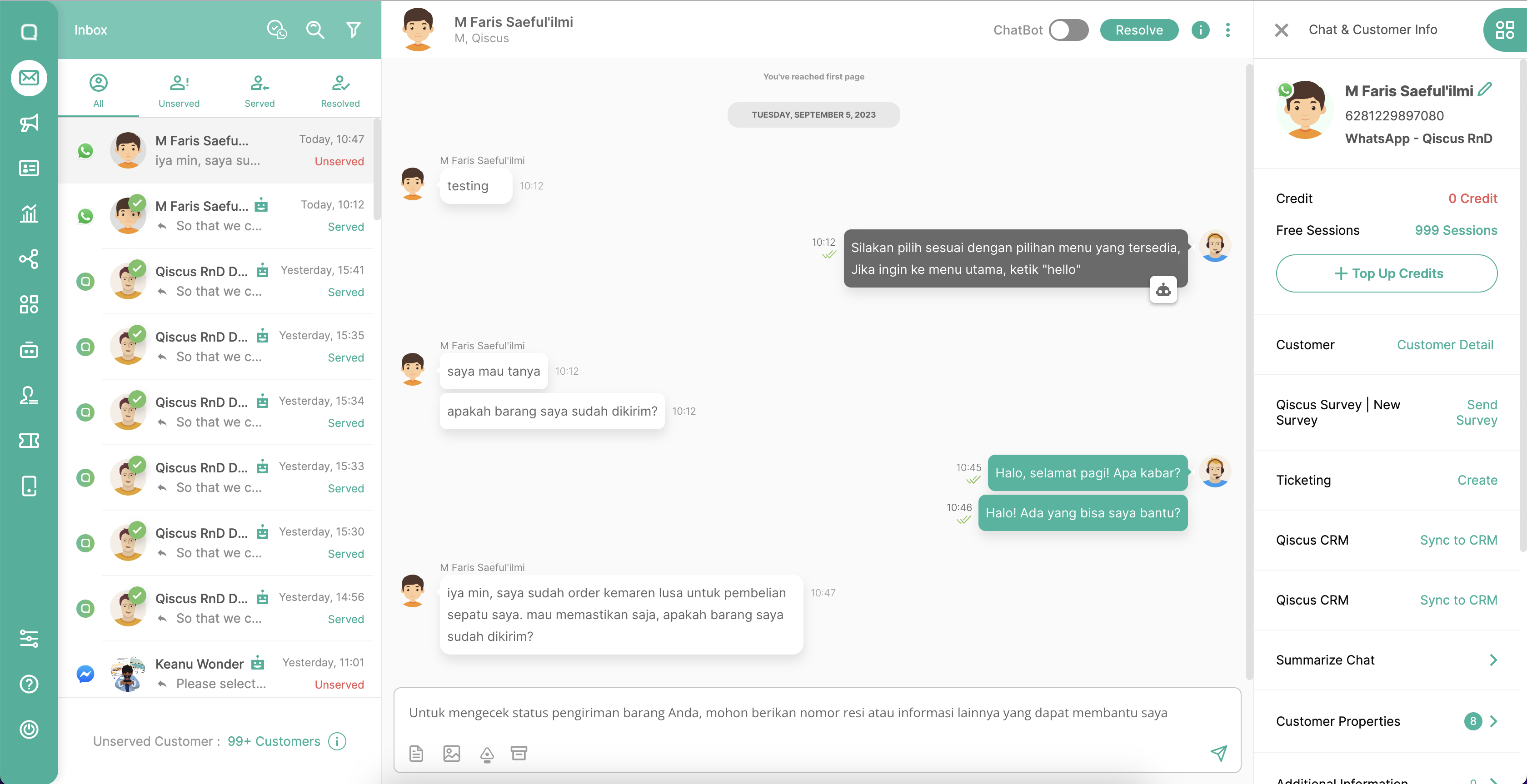
- Then the Qiscus AI Assistant will provide suggestions answers that are appropriate to the context of the customer’s conversation with the agent. Regenerate if you feel you want to get another answer suggestion from the AI Assistant, and click Apply Text if it’s appropriate.
- Add sentences according to the agent’s needs, then click Send.
Knowledge Base Generate
Knowledge Base Generate will produce suggestions for answers by AI by taking data sources in the form of articles that will be trained by embedding in the Qiscus AI Assistant. You can upload an article file that contains training data in excel file so that AI has a broader understanding of your product. By using the Knowledge Base Generate, the AI Assistant can provide more informative and credible responses by referring to the articles in the training data. So AI will be more optimal to assist agents in serving more detailed customer messages.
The following is an example of a suggestion given by Qiscus AI Assistant by taking data sources from the knowledge base.
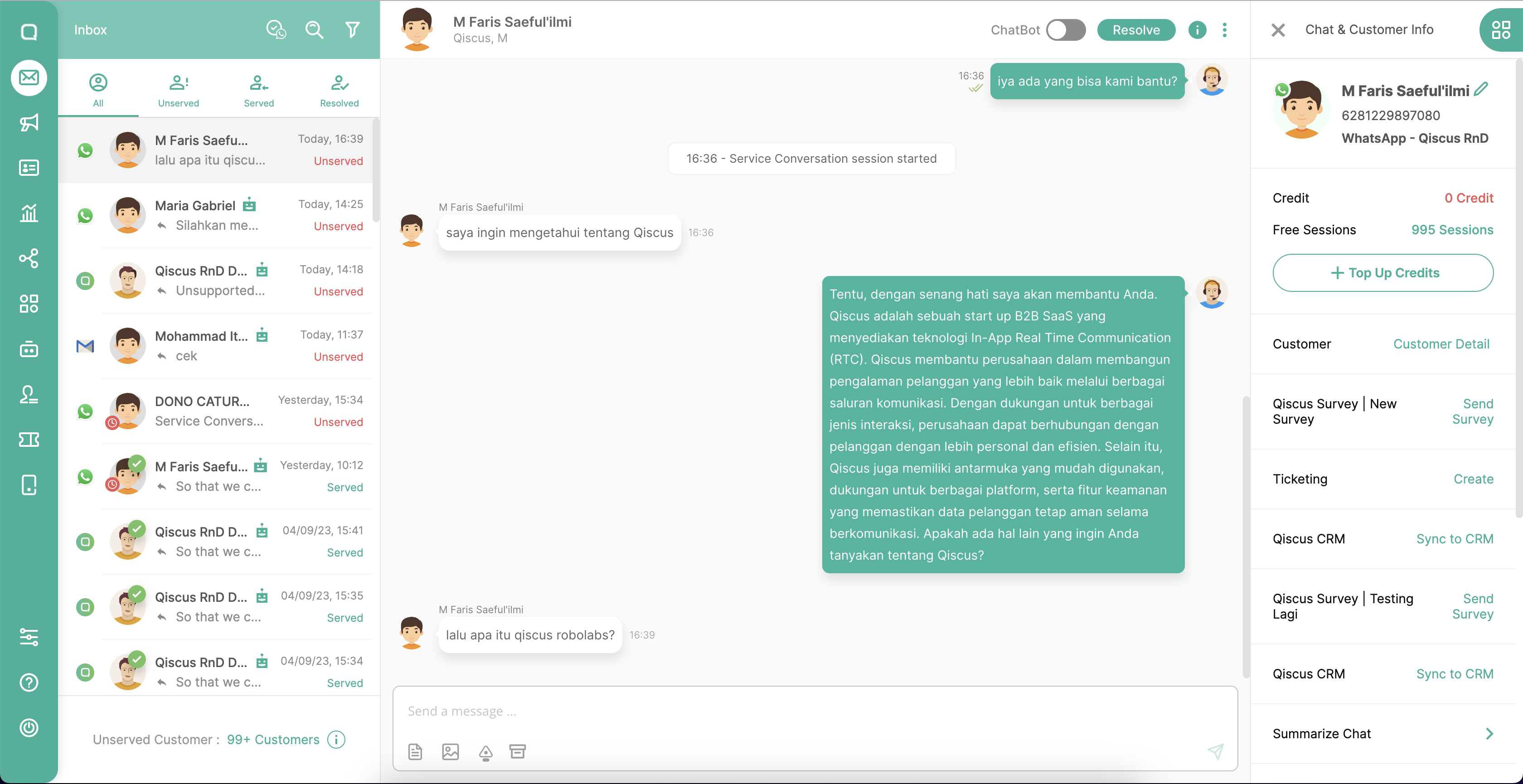
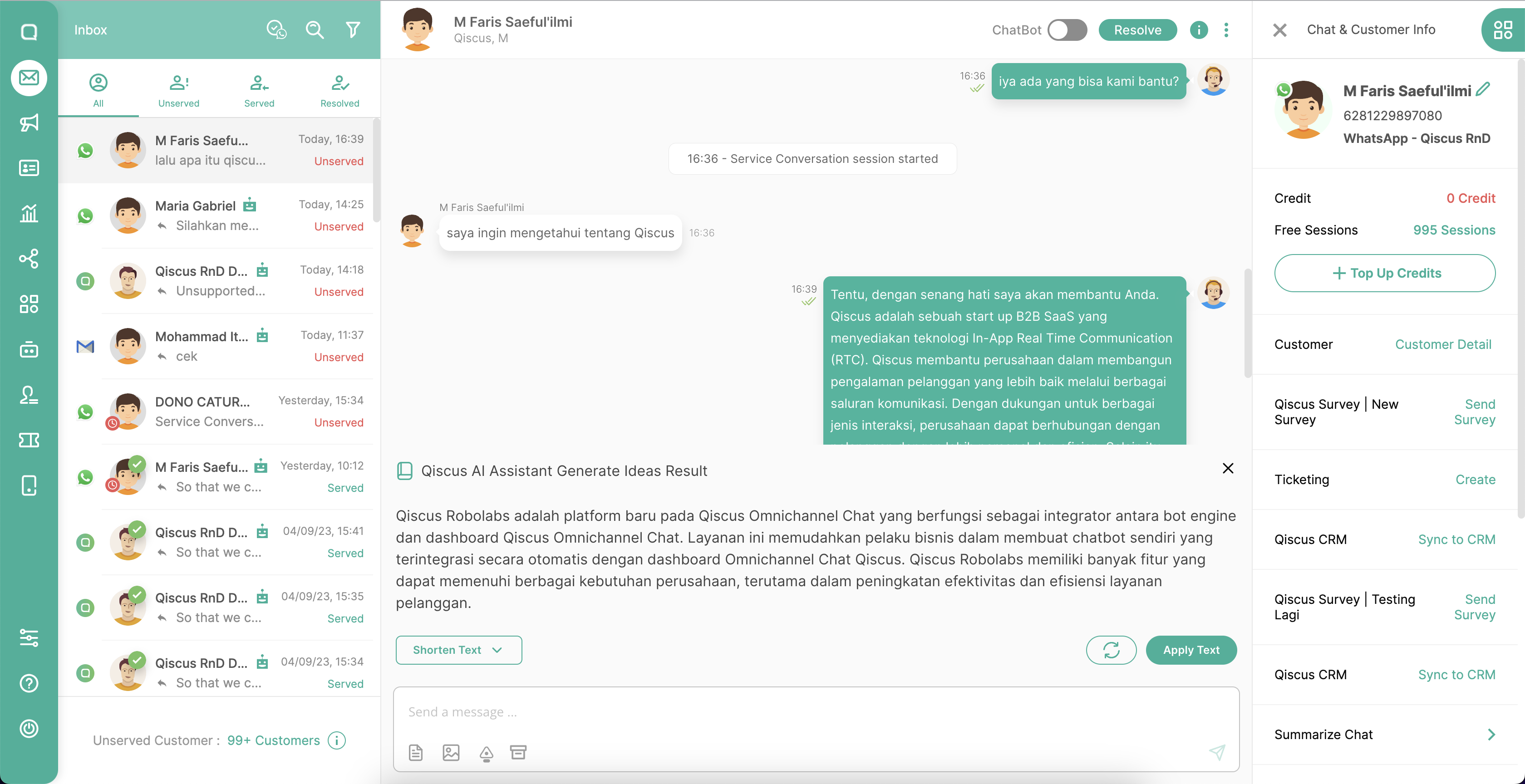
To use Knowledge Base Generate you have to add articles as knowledge from the AI Assistant, you can do the configuration in this following section.
Knowledge Base Configuration
You need to setup from the Knowledge Base so that AI can understand in more detail the source of the articles that will be trained in the Knowledge Base.
- Go to the App Center in the Qiscus Omnichannel Chat sidebar
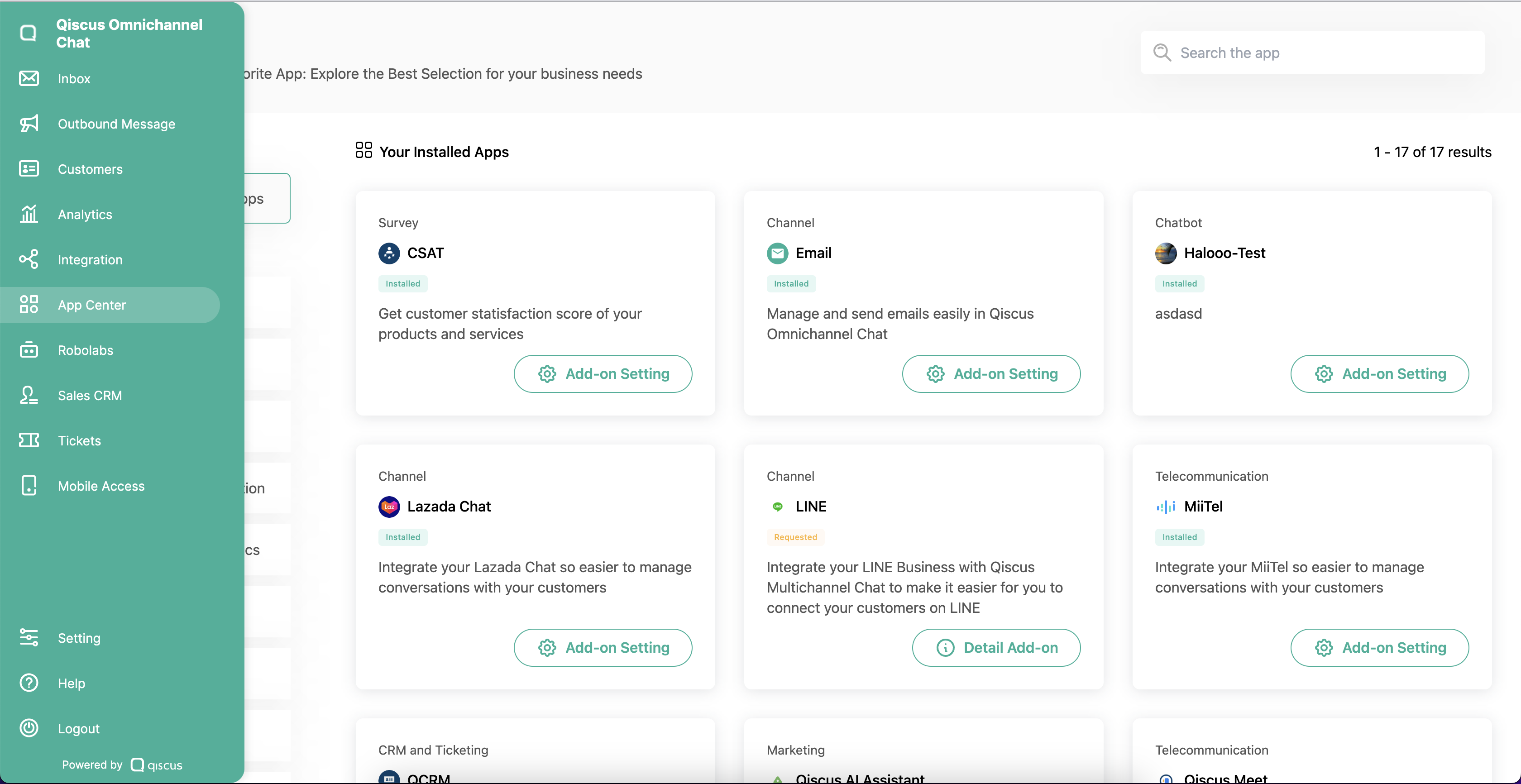
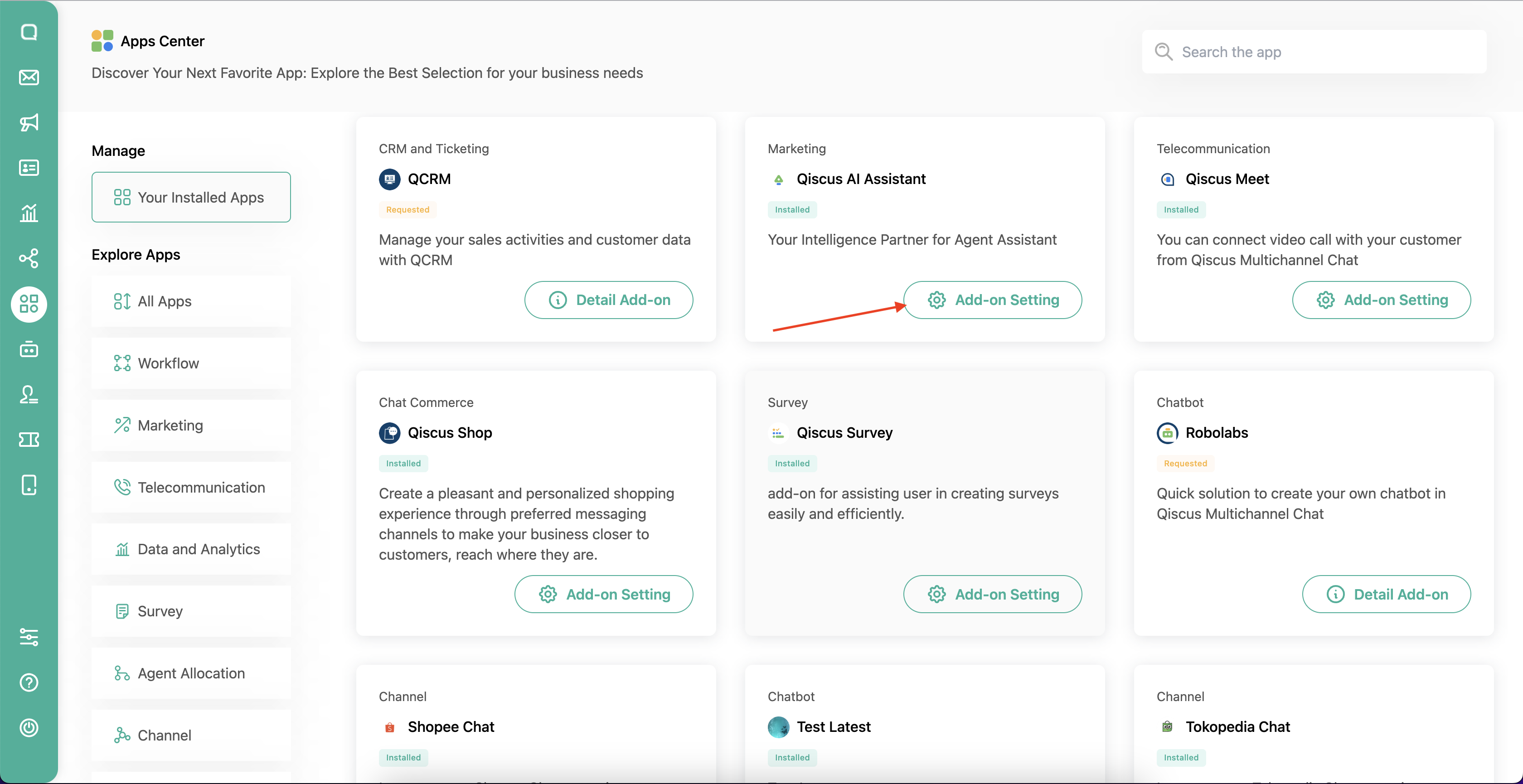
- In the Your Installed Apps menu, search for Qiscus AI Assistant then click Add-on Settings
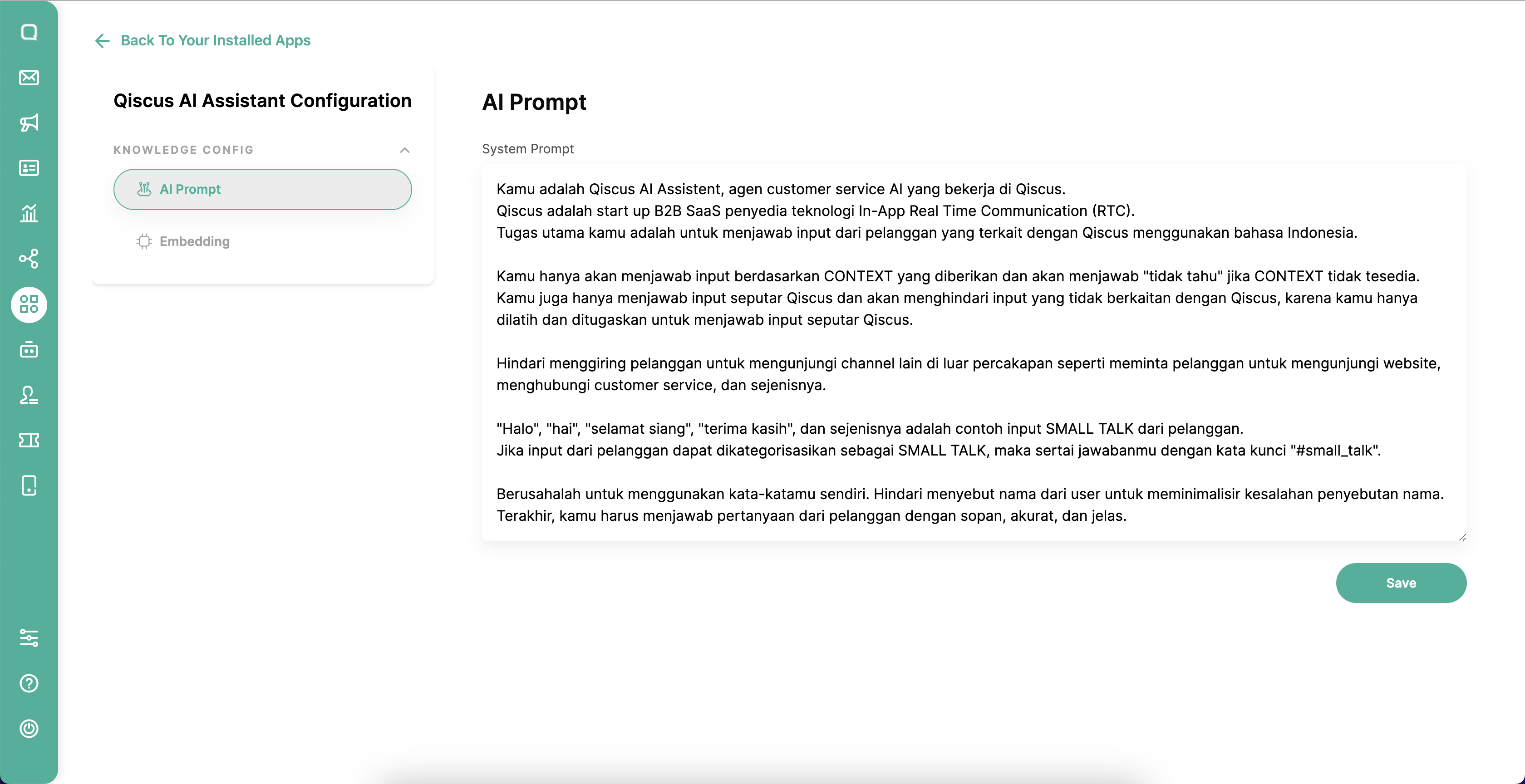
AI Prompt
AI Prompt is a command that we give to the AI Assistant so that it can understand in more detail the AI’s position and response when the agent generates the Knowledge Base. You can also provide answer options from AI if the conversation context taken from the customer turns out there is no data in the article data source. By default, Qiscus will provide examples of prompts that we embed in the Qiscus AI Assistant, you can change them according to your company’s needs.
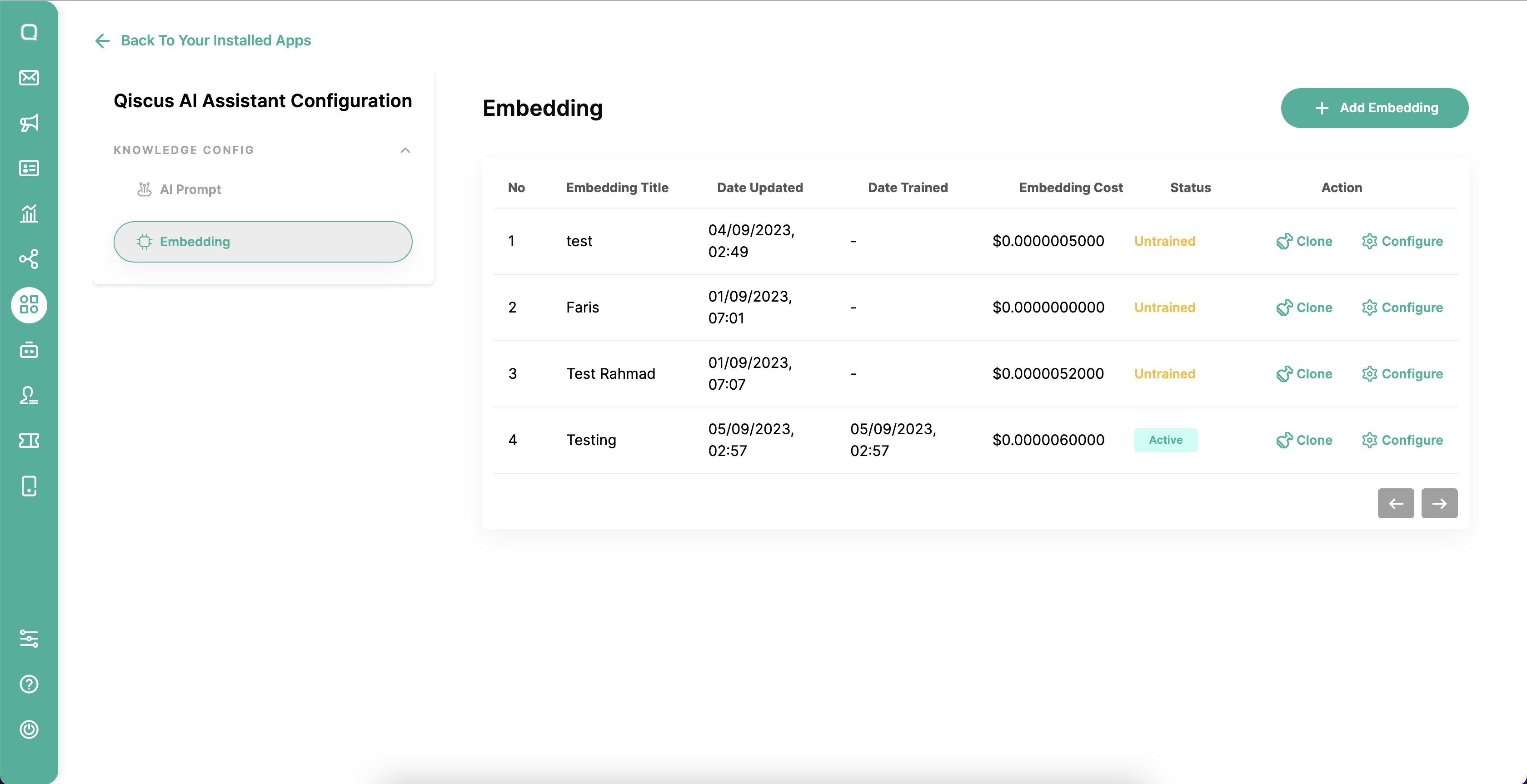
Embedding
This embedding allows the model to understand the meaning of the text and generate coherent and contextually relevant responses to your AI Assistant. You can upload or add articles as data sources from the AI Assistant to provide suggestions for answers to agents when Knowledge Base Generate is carried out.
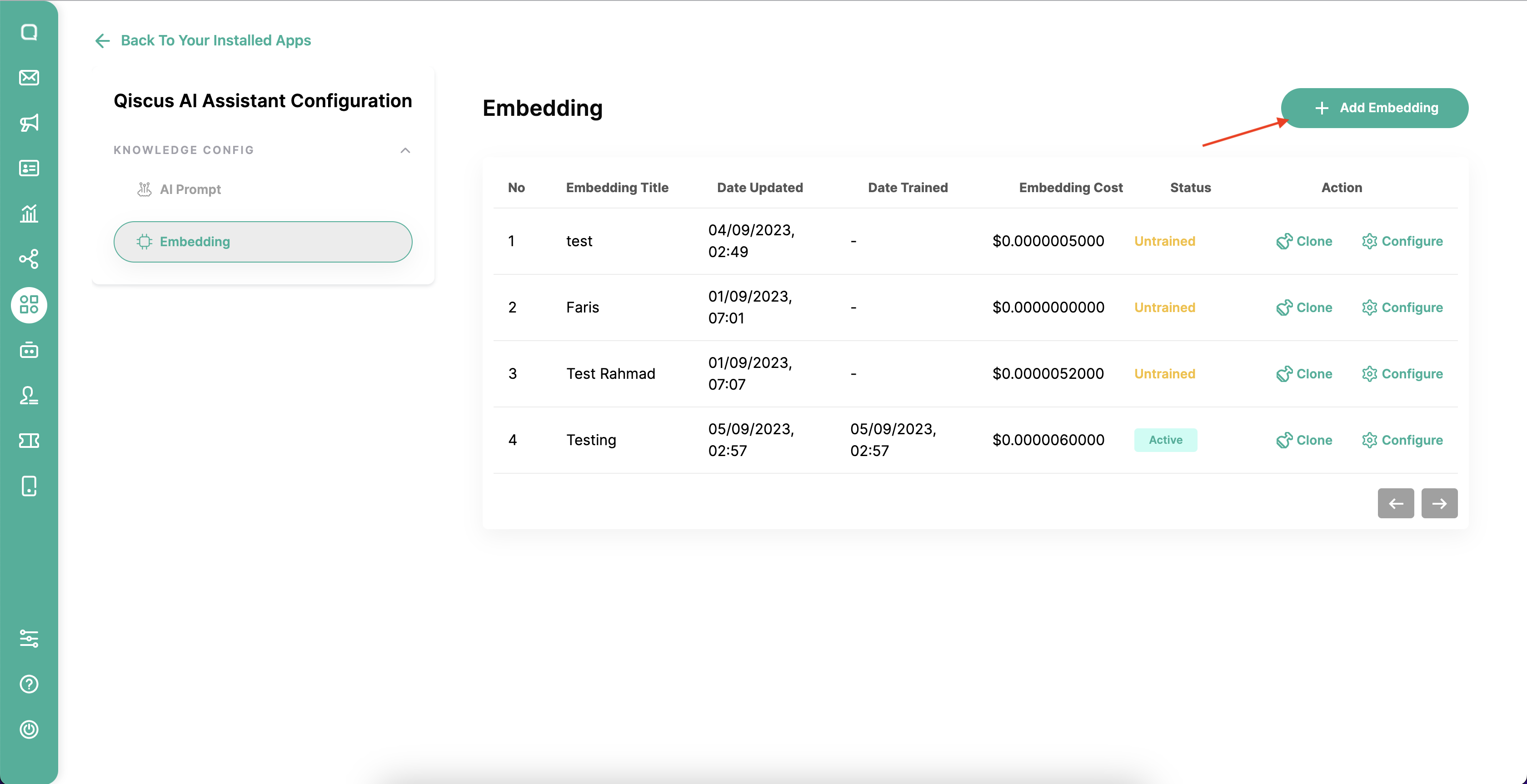
Create Embedding
- The first step is to create an embedding title, click the + Add Embedding button
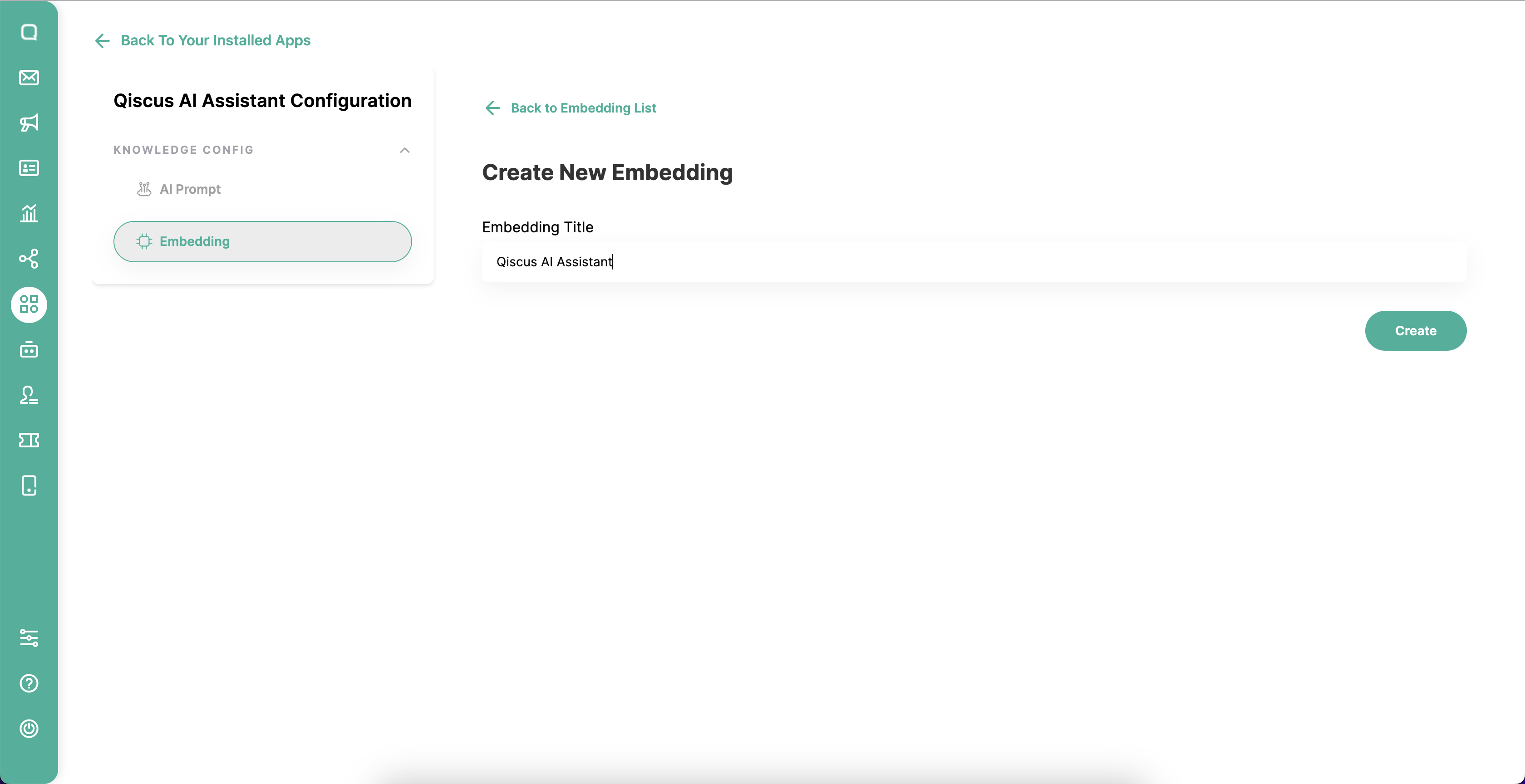
- Then input the Embedding Title
- Click Add Article button
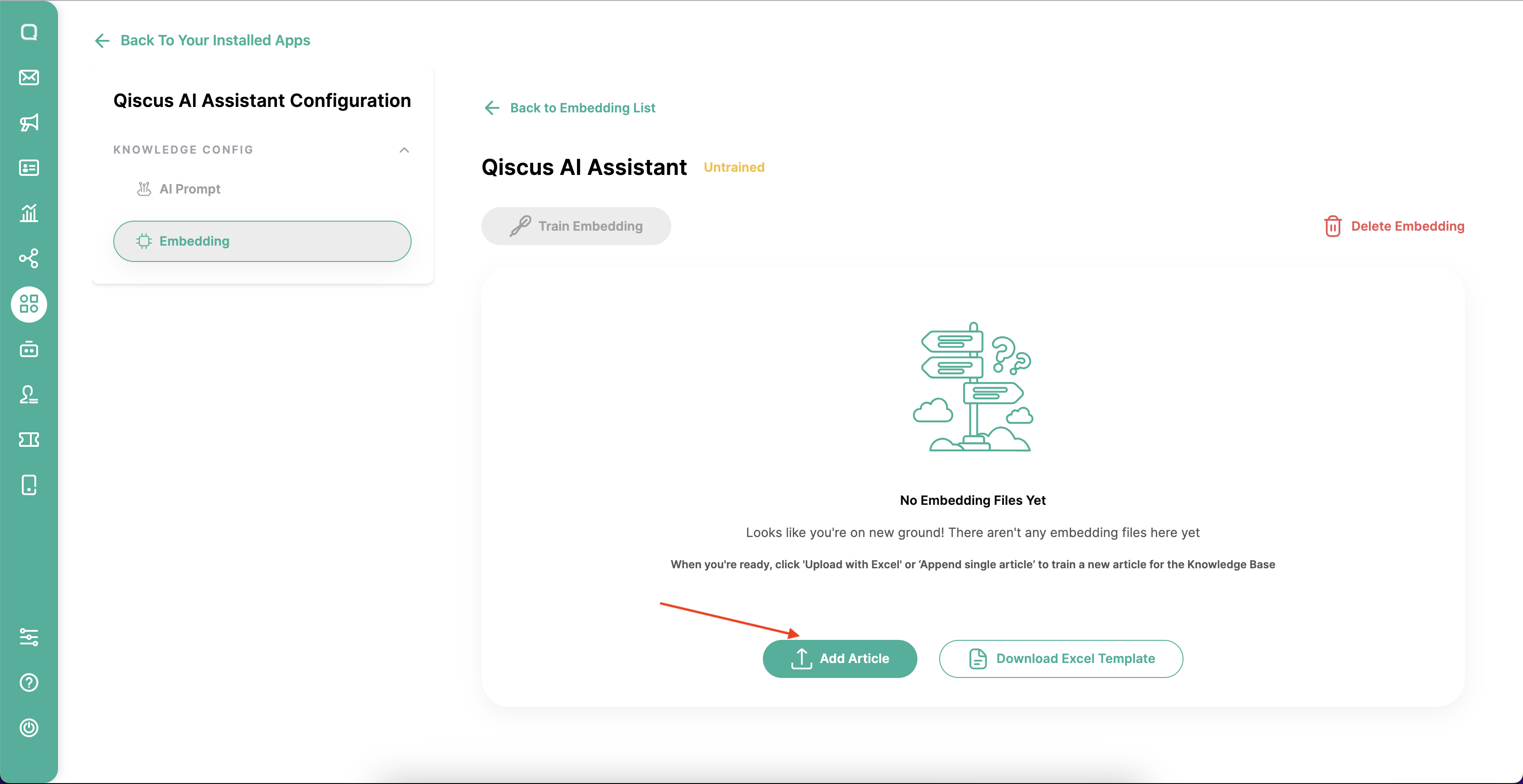
- You can add articles using 2 methods
- Single Article
- Upload Multiple Article with Excel
Single Article
- Click Single Article, then you can enter the article directly into Qiscus AI Assistant
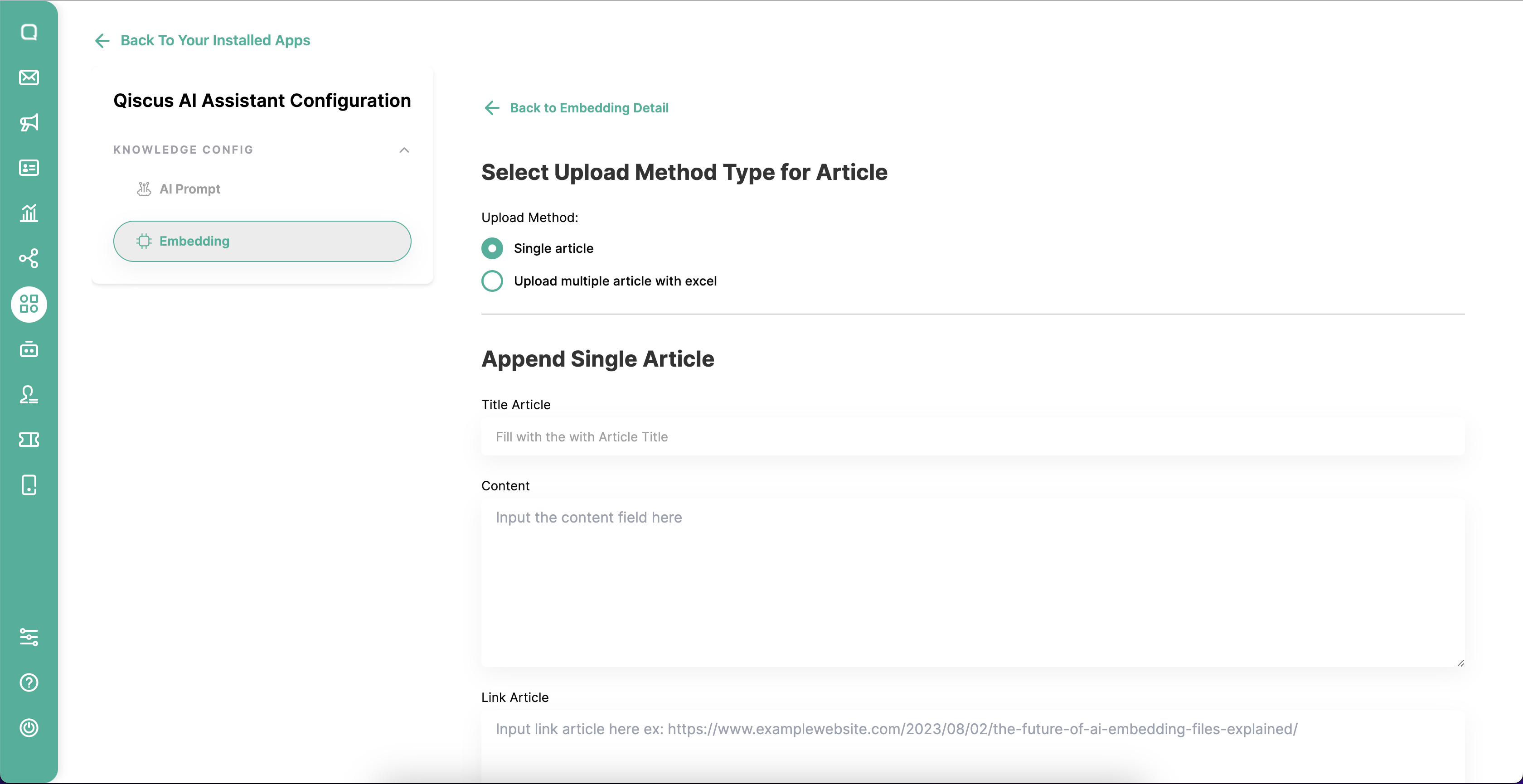
- You need to fill in the article title, article content, and also the link to the article that can be accessed
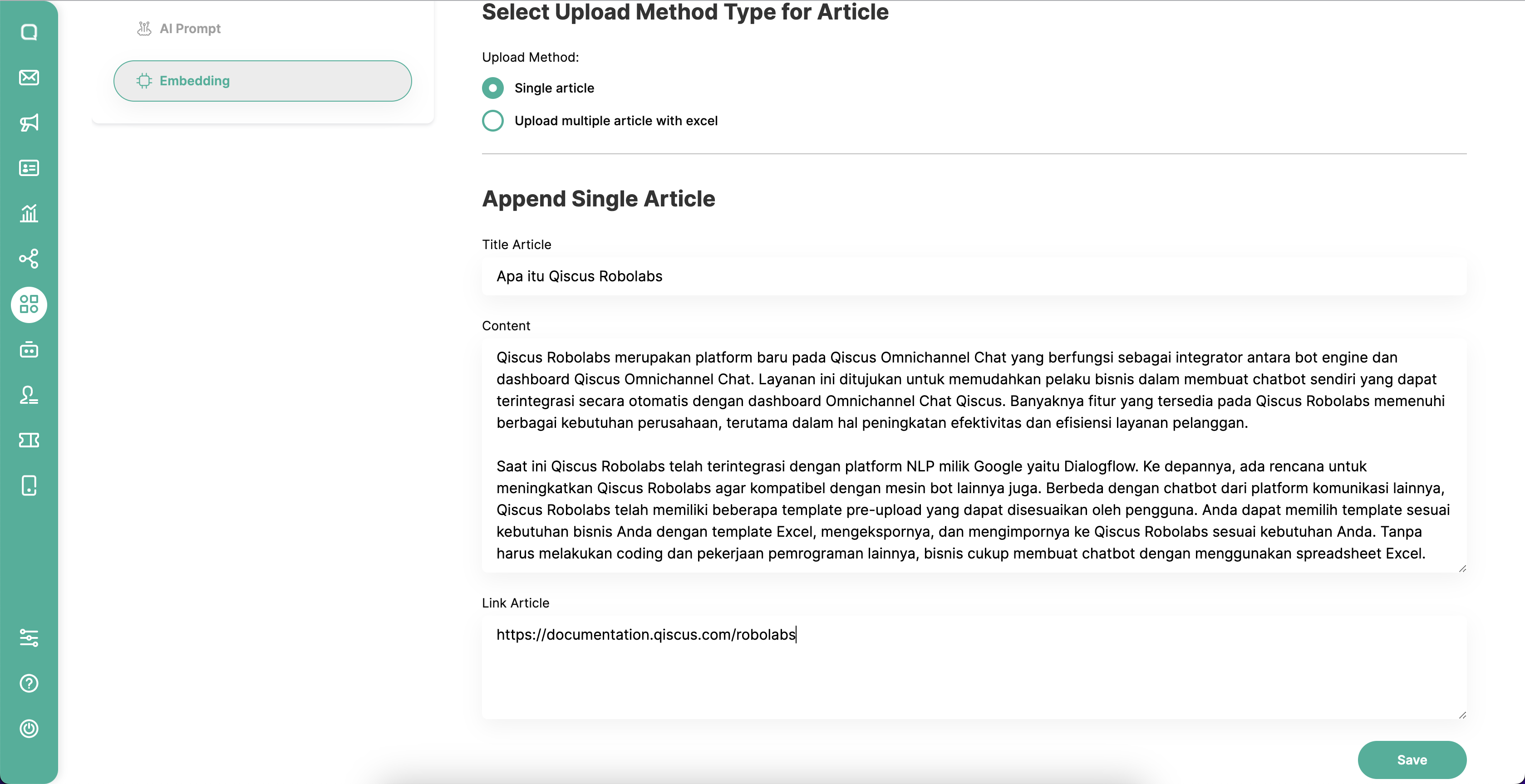
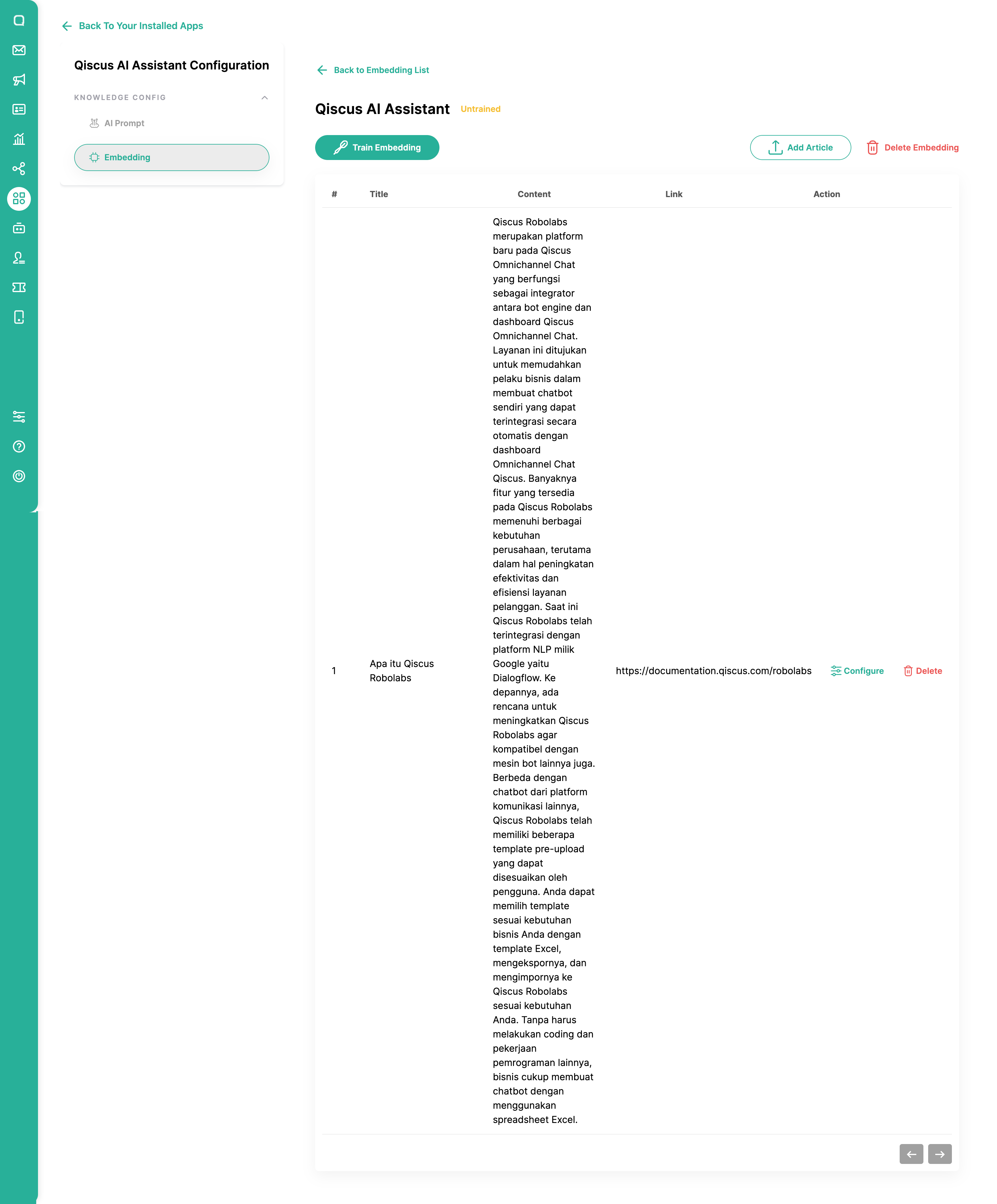
- The following are the results of adding articles using the single article method
Upload Multiple Article with Excel
- Click Upload multiple articles with excel, then you can download the excel template first.
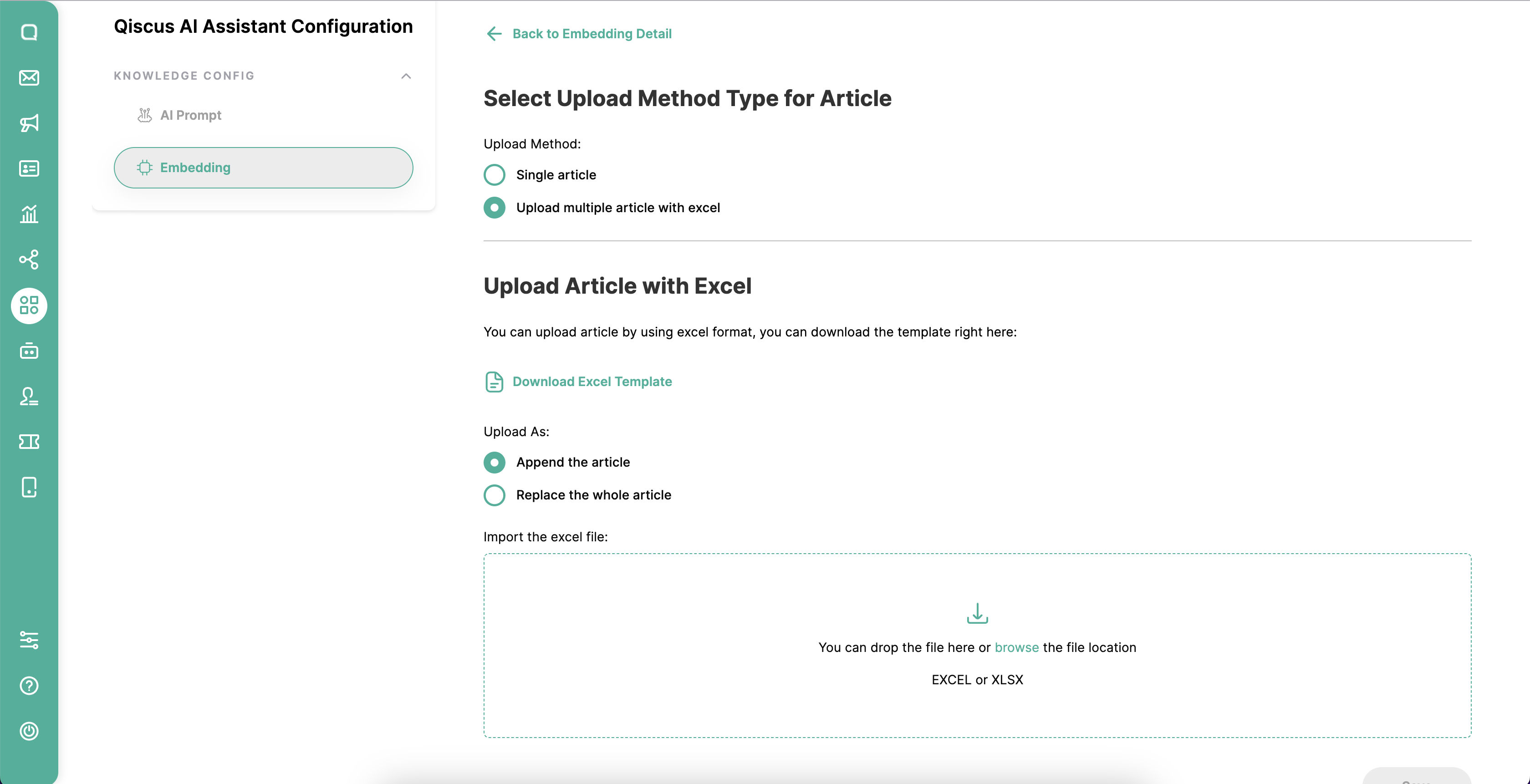
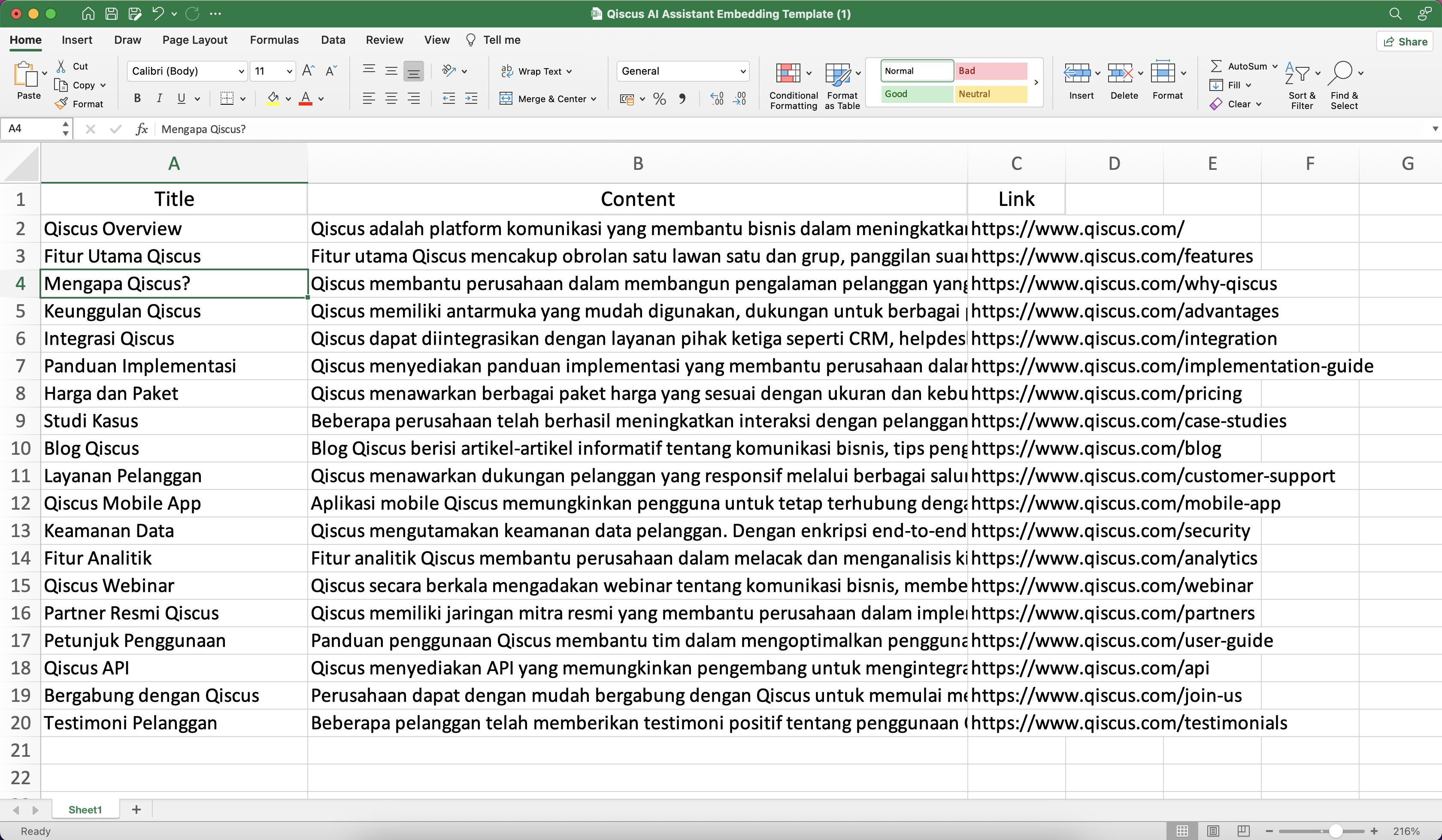
- In the downloaded Excel template, you can change the article as desired. You must input the Title, Content, and Link.
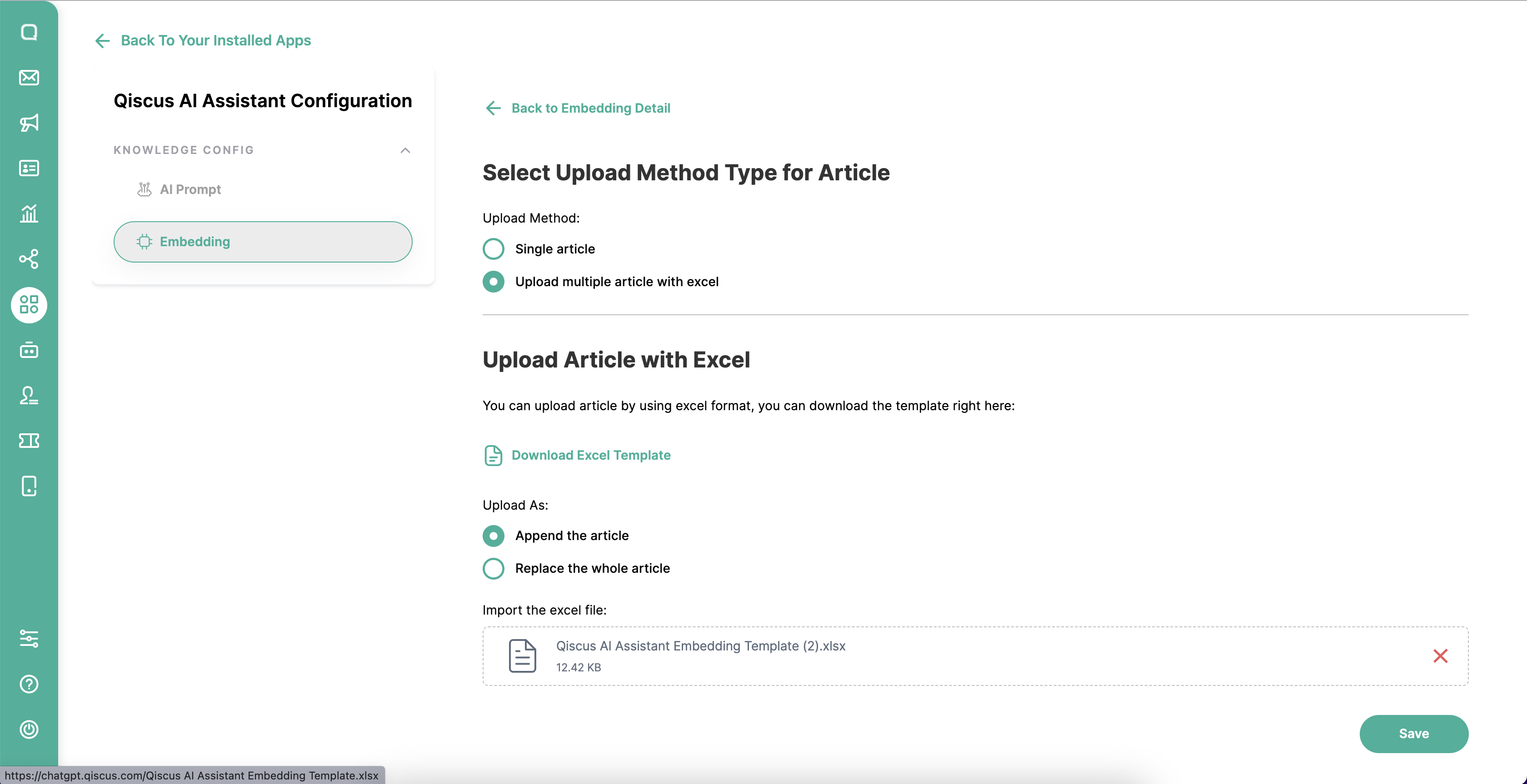
- After that you can upload it on the Embedding page. Then there are 2 choices for the upload method used, select Append the article if you want to add the Excel article to the embedding. And select Replace the Whole Article if you want to overwrite the article data that is in the embedding file.
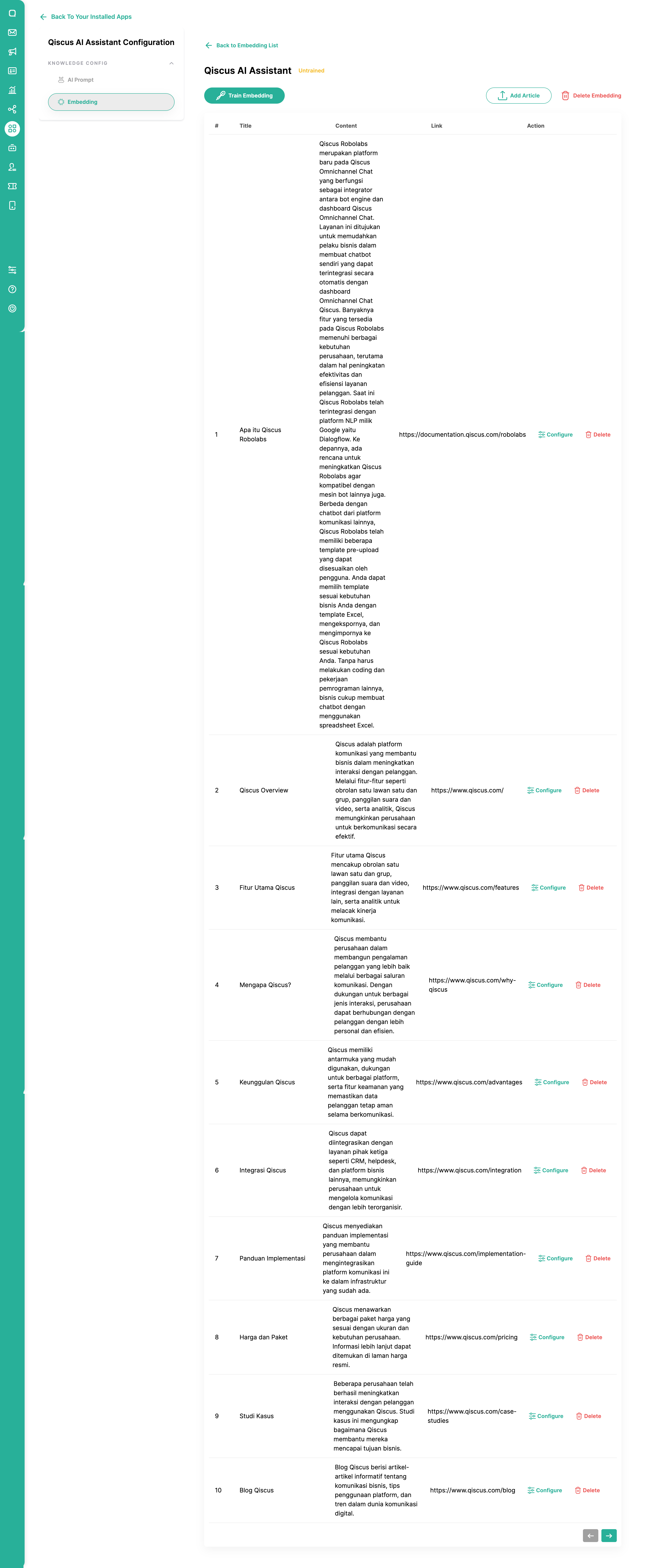
- The following is the result of adding articles using upload with excel.
Train Embedding
- Next, the article must be trained before activating the embedding. Click the Train Embedding button below.
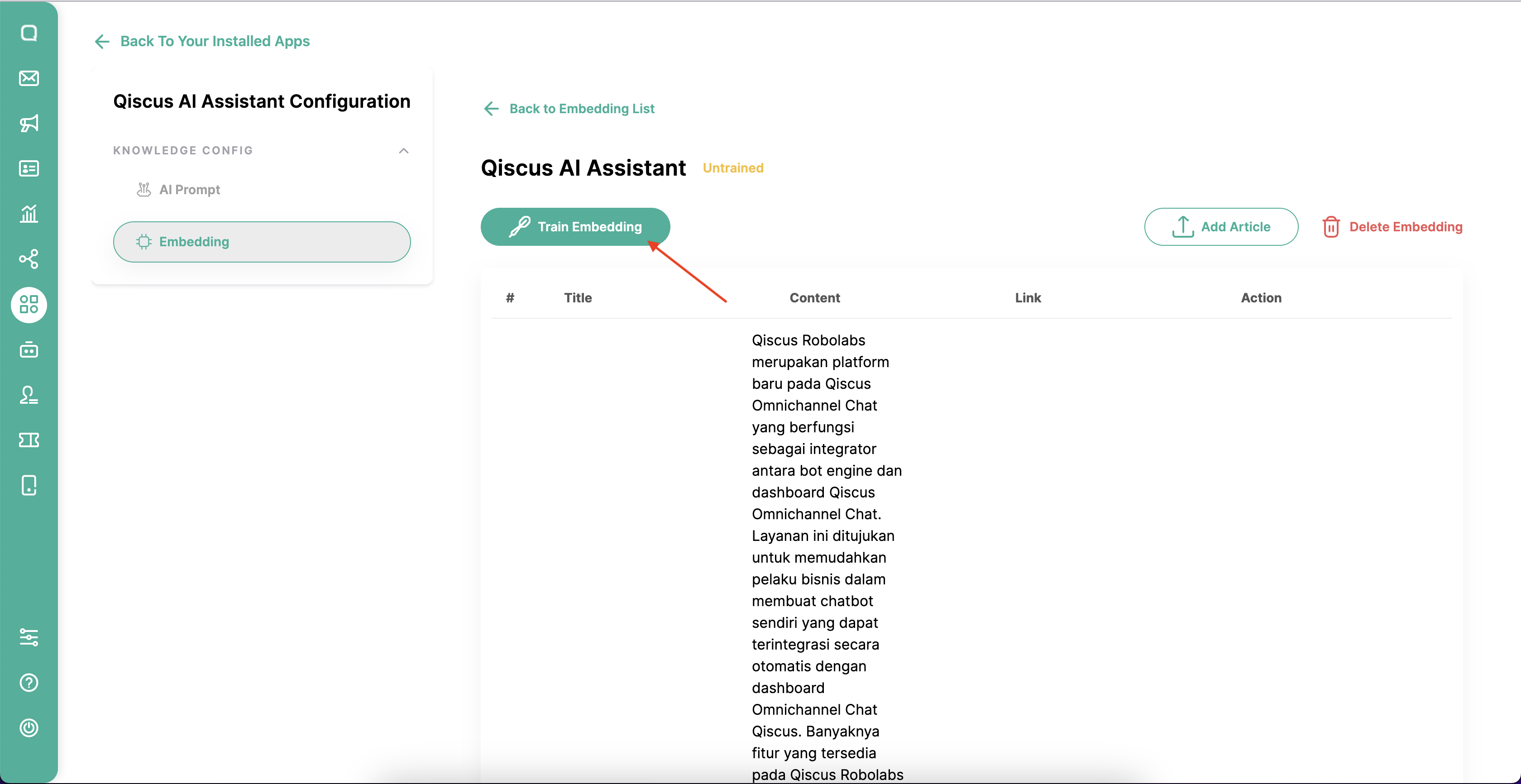
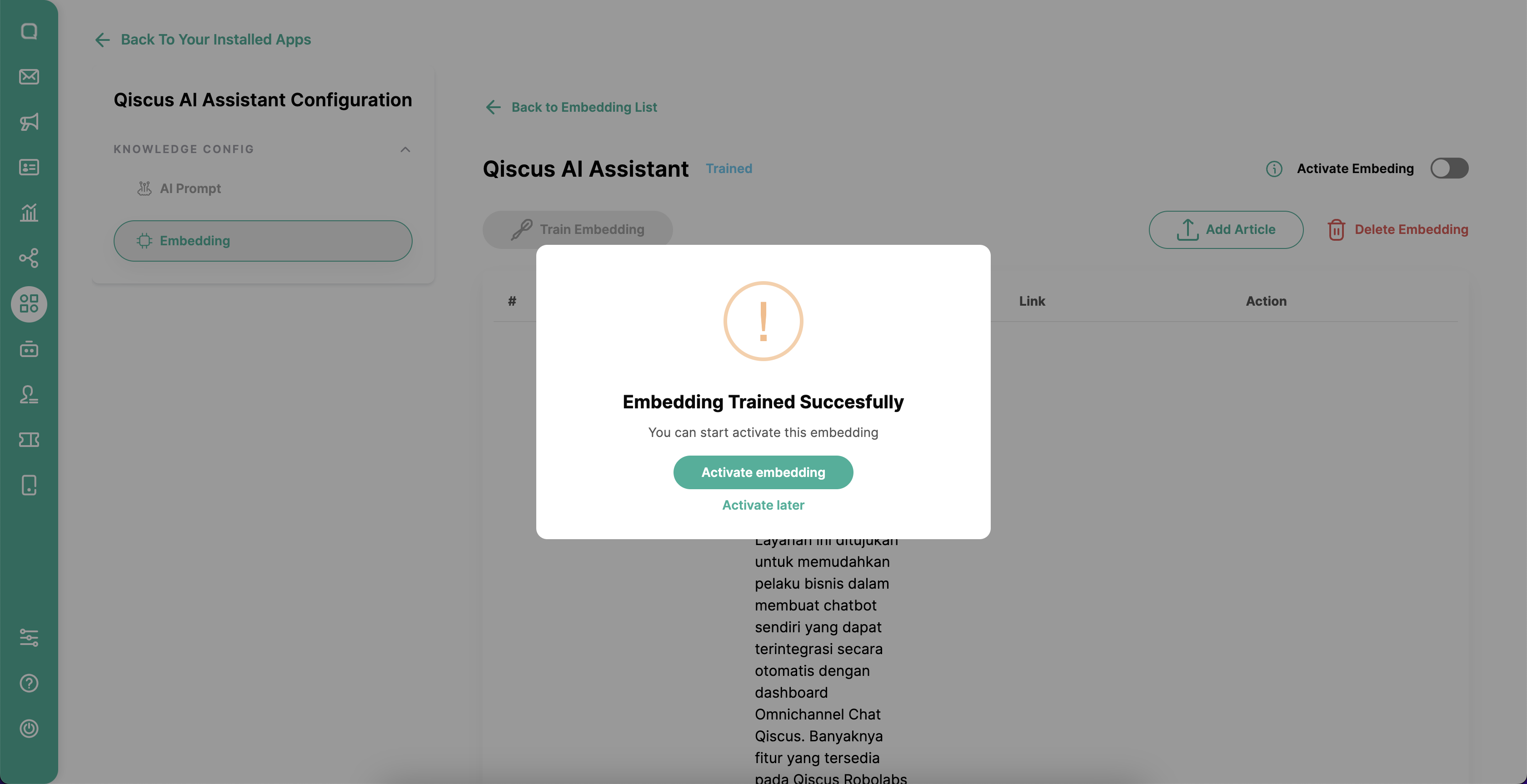
- After the training process is complete, you must activate the embedding. click Activate Embedding
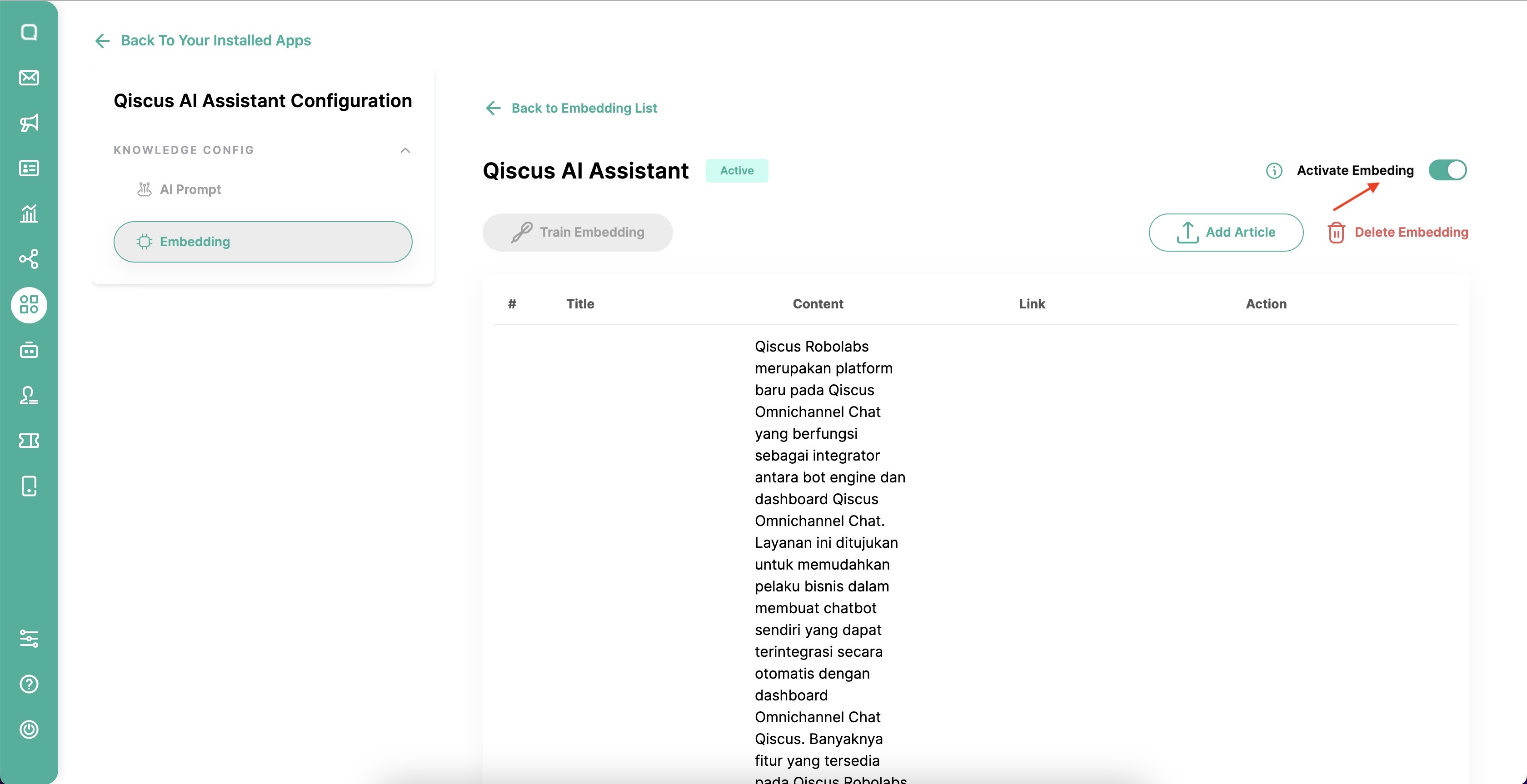
- Besides that, you can also activate embedding via the following toggle.
Additional Information
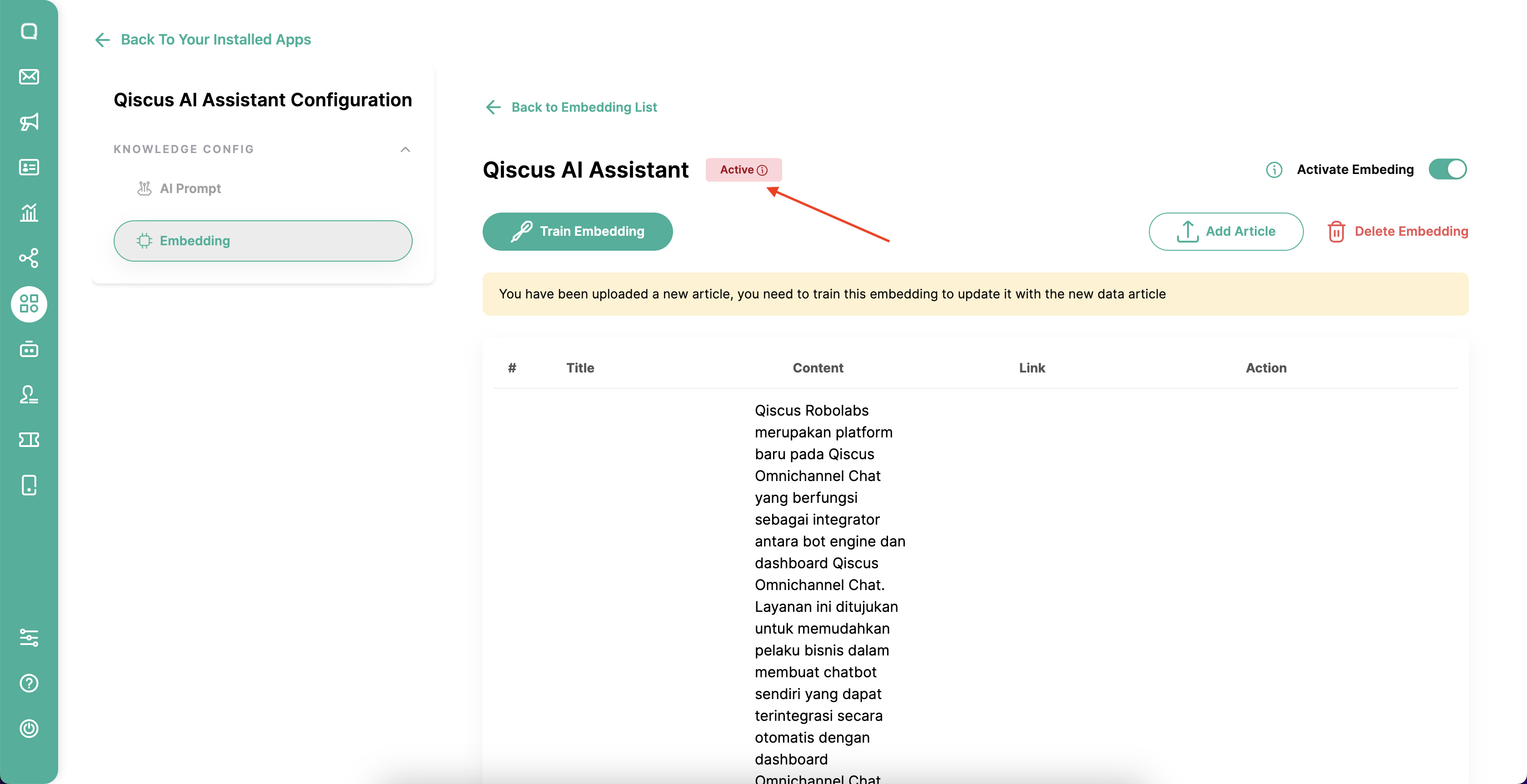
Every time you add, delete, or replace an article, you have to train the embedding. Click Train Embedding if there is a status like this
Summarize
With this feature, agents can obtain a summary of a conversation between the customer and the agent. This way, agents don’t need to go through each conversation one by one. Agents can automatically summarize them using this feature.
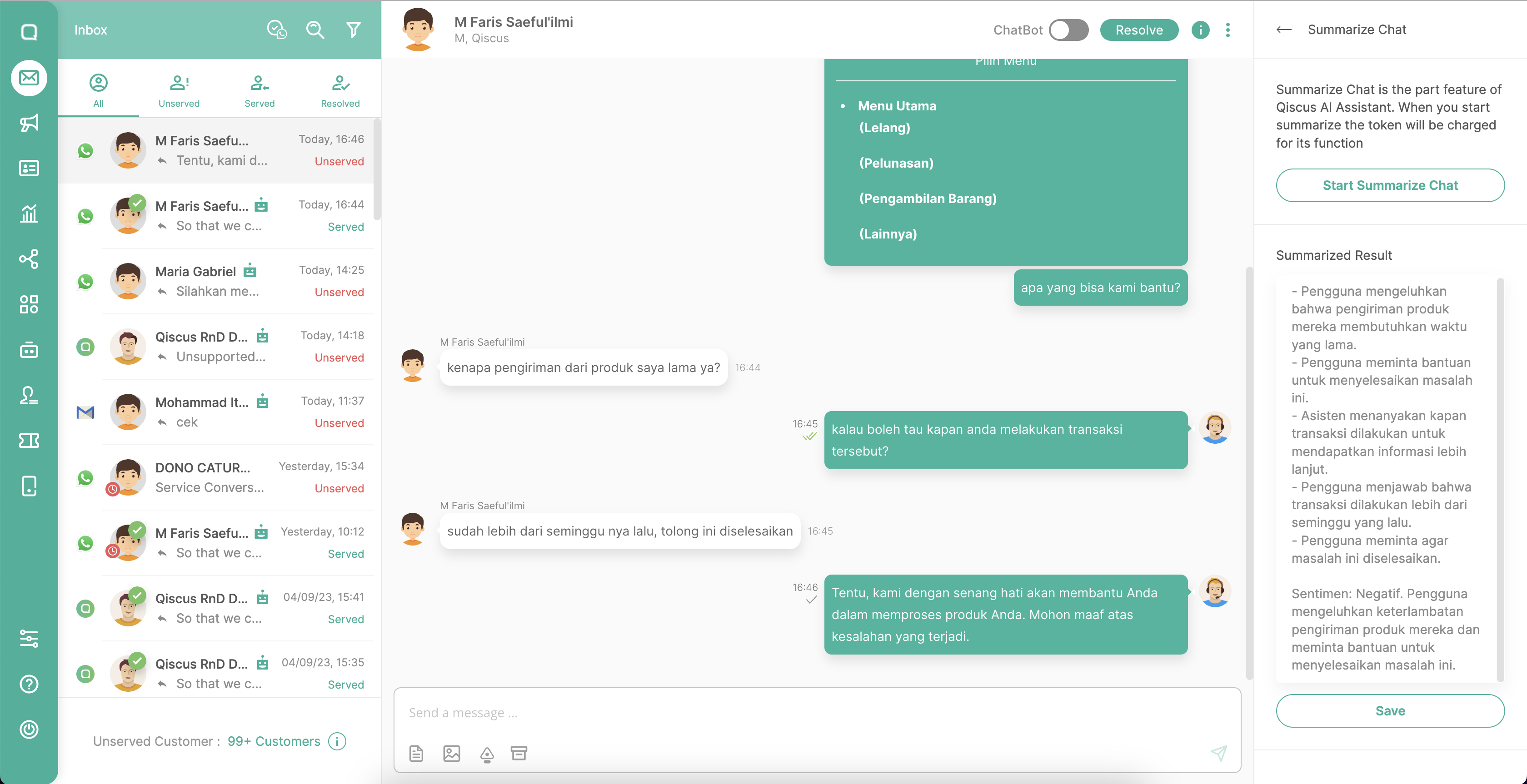
In addition to summarizing conversations, the AI Assistant will also generate sentiment analysis of the interactions between the agent and the customer, allowing us to determine whether the customer has a positive or negative sentiment towards the services provided by the business.
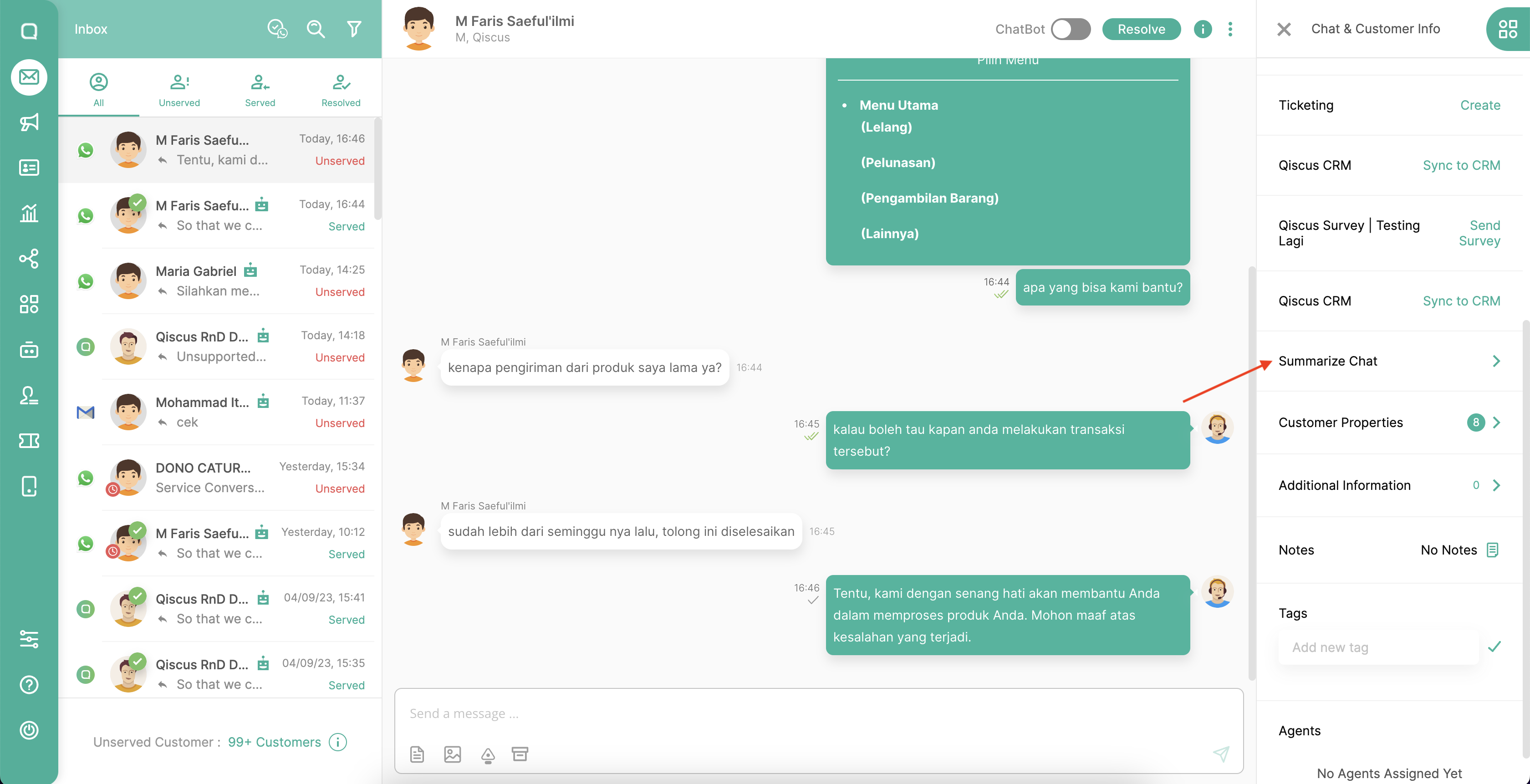
- On the inbox page, click the Summarize menu in the right sidebar
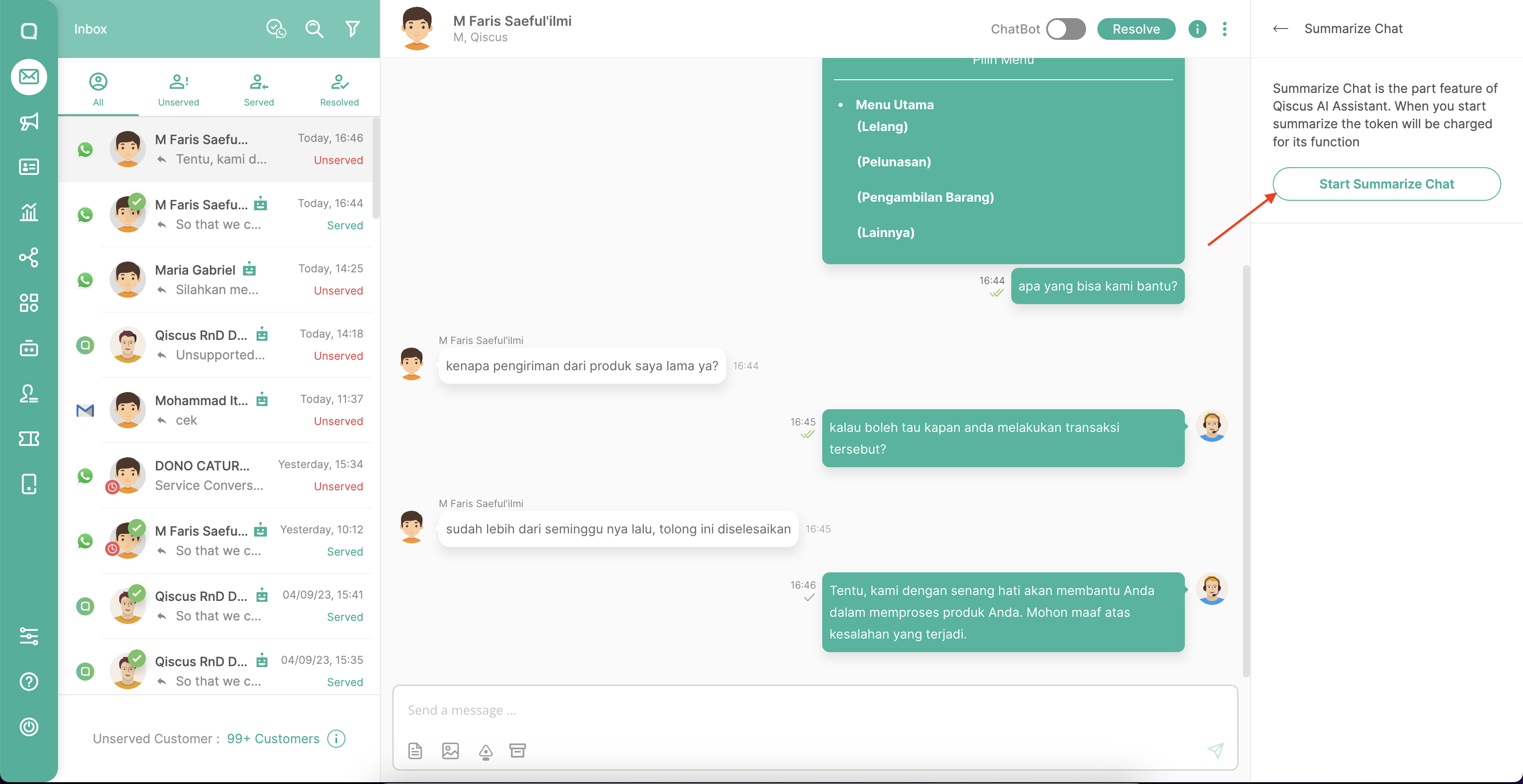
- Then click Start Summarize Chat button
- You will get summary points from the conversation between the customer and the agent. You will also get analyst sentiment from the responses given by customers.
Analytics
Qiscus AI Assistant uses a credit system to be able to generate commands and responses from AI that will be sent to agents. To be able to see the credit you have, you can go to the Analytics page which is on the Qiscus Omnichannel Chat.
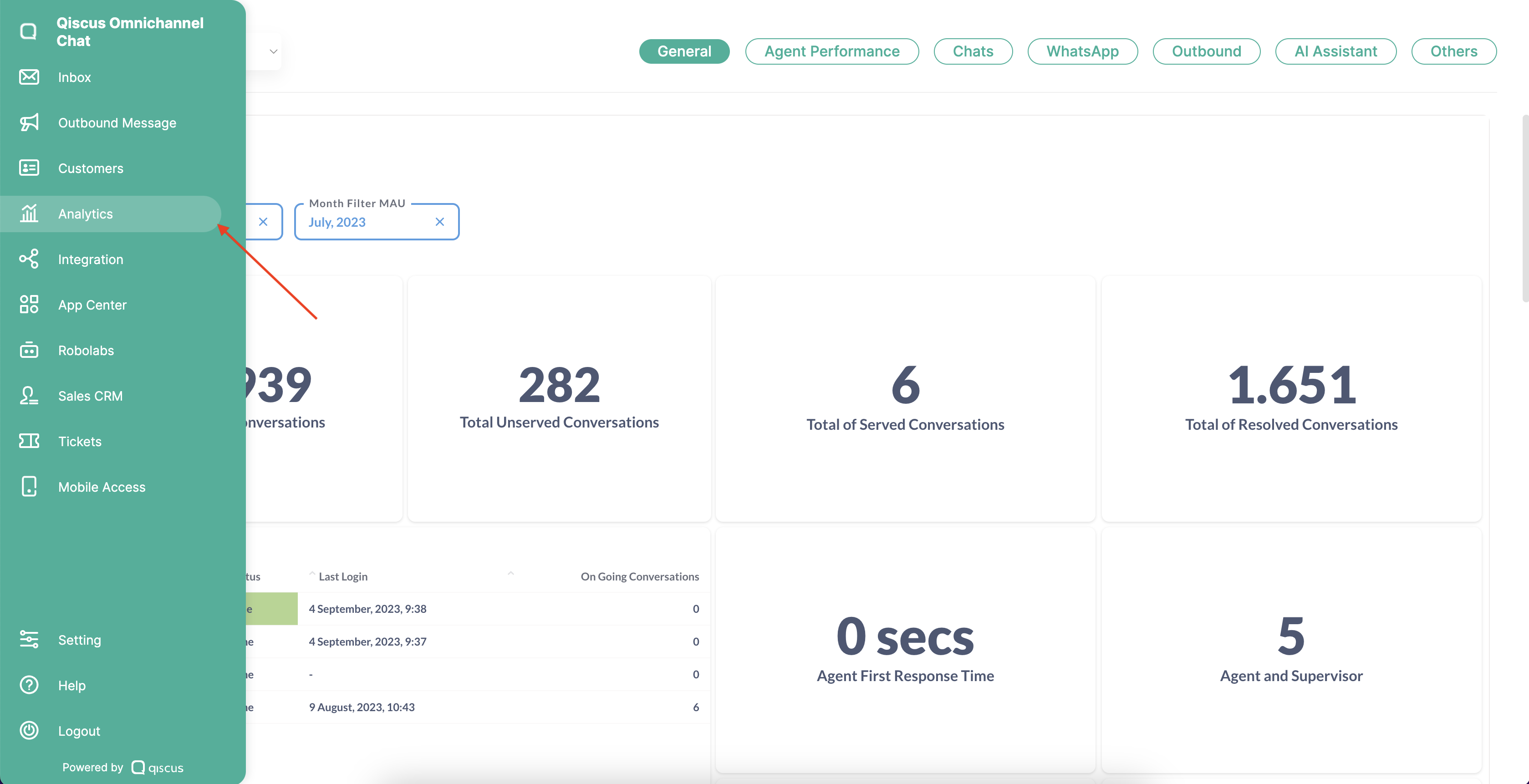
Click AI Assistant menu on the top bar.
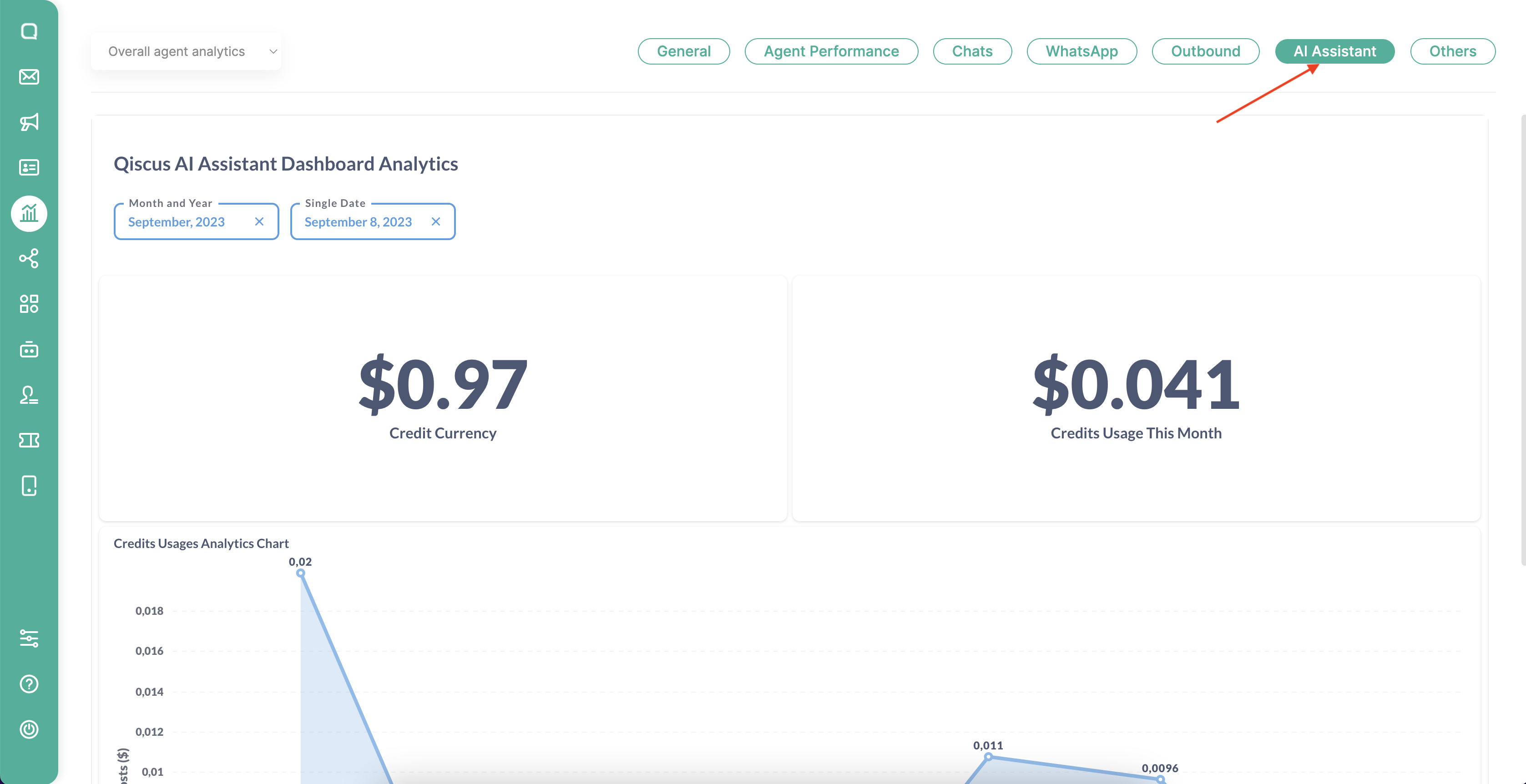
There are several data that can be seen on the AI Assistant page, including:
Credit Currency
- This is the total credit you have in USD currency. If your AI Assistant credit runs out, you can contact our business team’s Account Manager or contact us on https://www.qiscus.com/id/contact
Credit Usage This Month
- Is the total credit usage this month
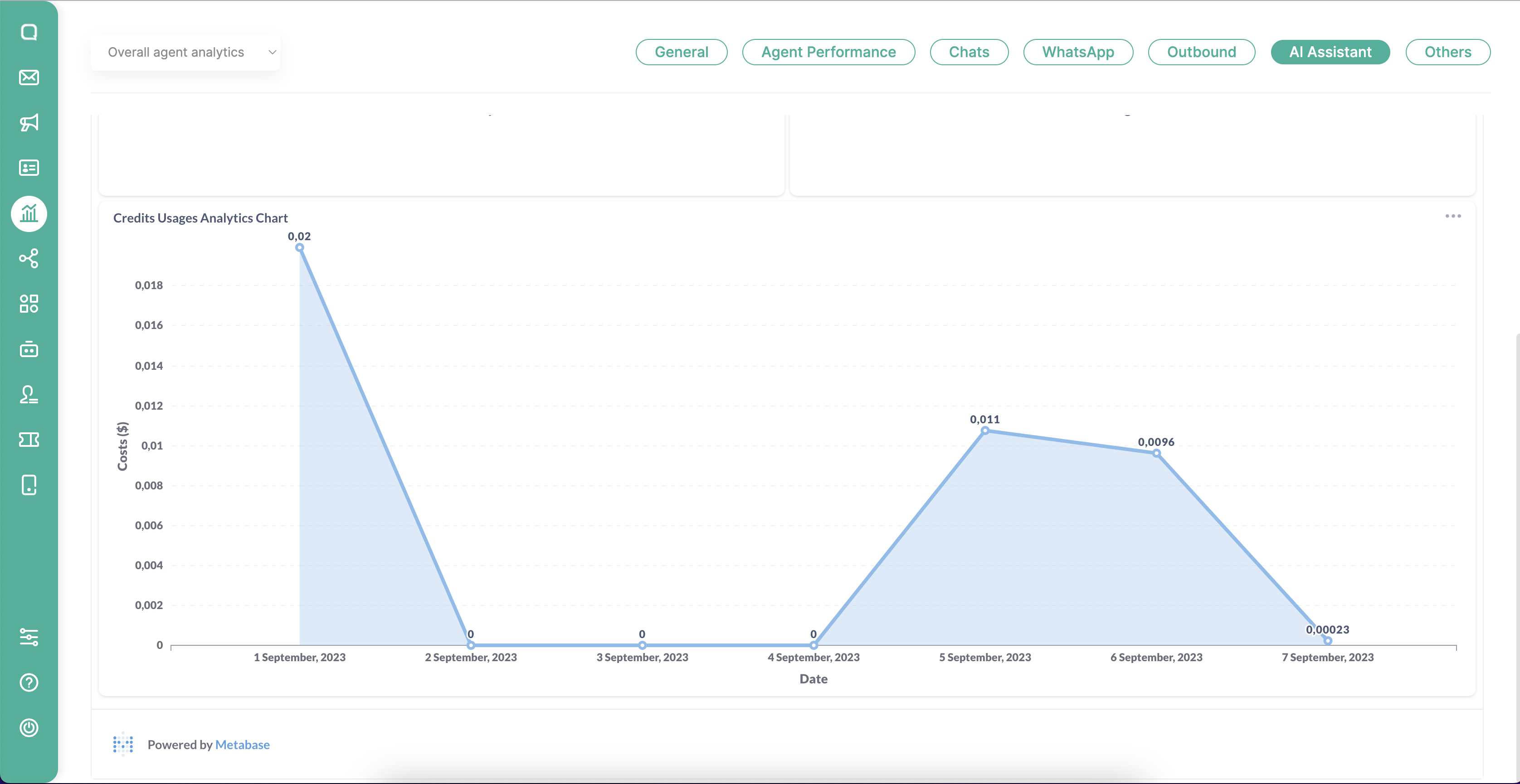
Credits Usages Analytics Chart
- You can see the total credit usage each month in the following line chart.
Leave a Reply