We’ve already launched a new feature called Interactive CSAT, which allows you to send CSAT ratings through WhatsApp interactive messages. More information is available in the Interactive CSAT section of this documentation.
CSAT or Customer Satisfaction is a feature on Qiscus Omnichannel Chat which aids businesses in carrying out satisfaction surveys and collecting the results with much ease. The CSAT application is available in Qiscus App Center and is integrated with your existing account to make data collection that much more convenient and intuitive.
This CSAT application provides three types of assessment methods so you can choose which ones are suited to the needs of your business. The three methods include: numbers on a scale of 1-10, stars on a scale of 1-5, and emojis with absolute scores between ‘Satisfied’ or ‘Dissatisfed’.
Activation
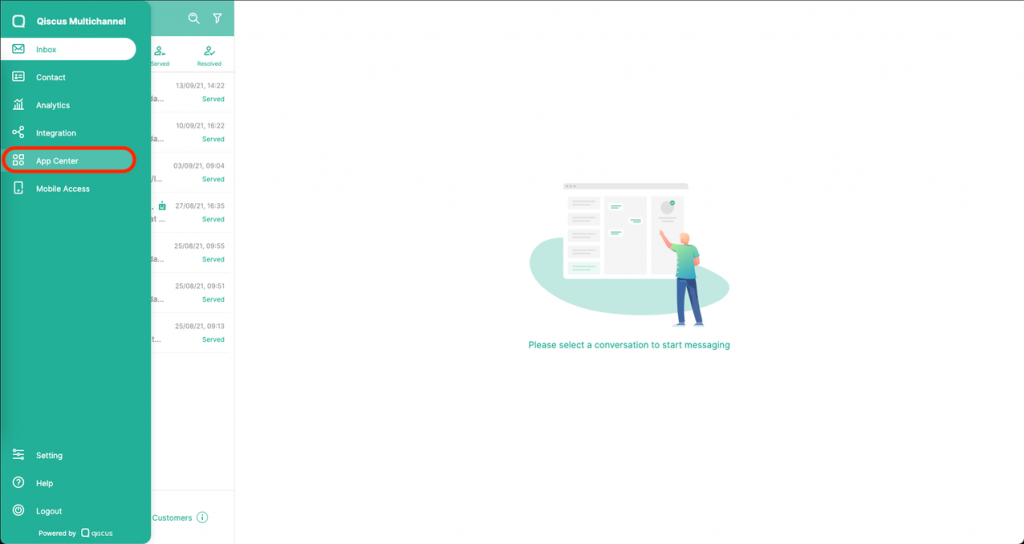
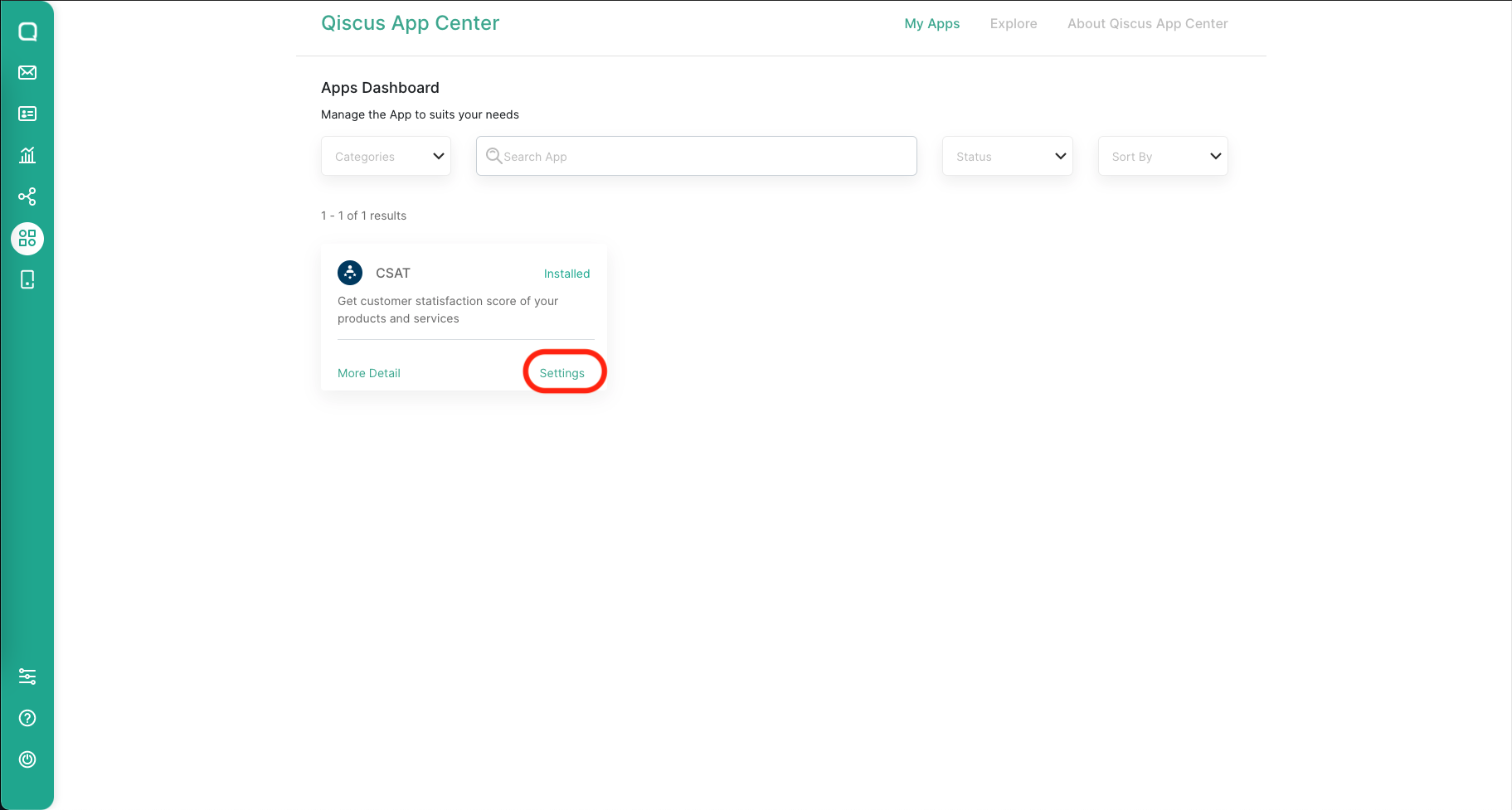
To activate the CSAT add-on, you can access through App Center menu from the sidebar menu.
You can search for CSAT by using searching field from the Explore page
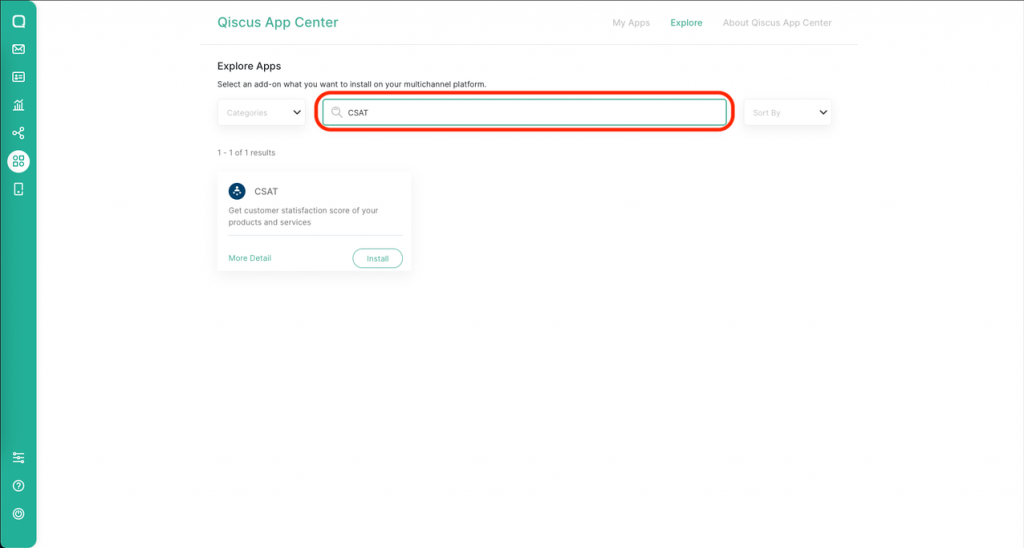
Follow the activation process as described here. Once the add-on has already activated, it will showed up in the My Apps tab. You can click settings button to configure the CSAT Add-on
Setting Page
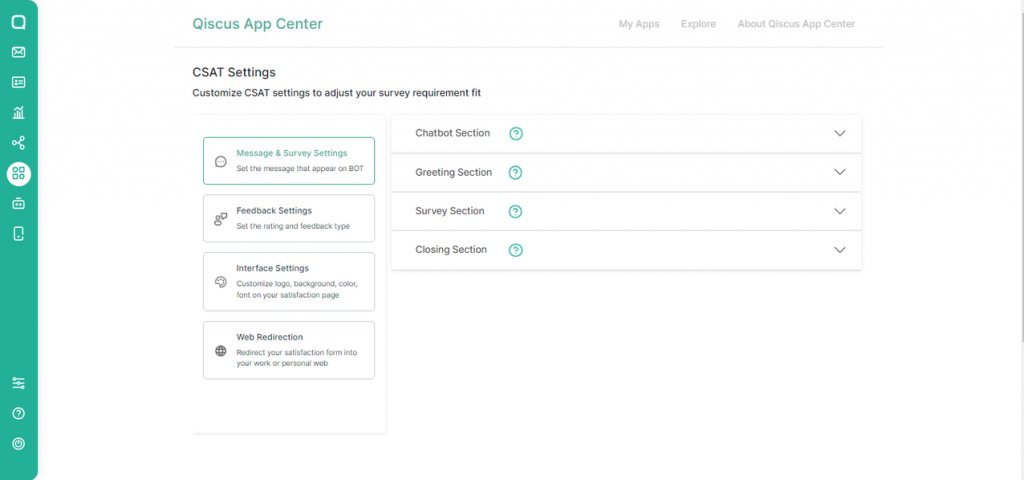
There are four menus in the CSAT sidebar; Message & Survey Settings, Feedback Settings, Interface Settings, and Web Redirection.
Message and Survey Settings
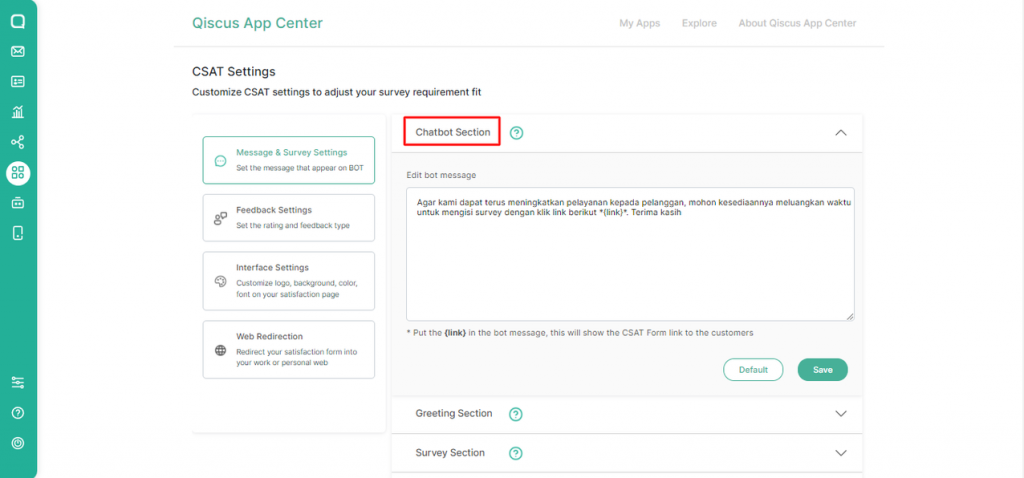
Chatbot Section
When the agent or admin has been completed a conversation by clicking resolve button in the room chat, then system will send a message which contains a link to the CSAT form.
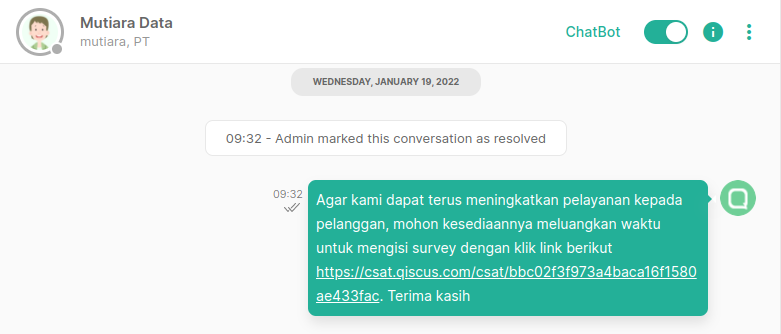
To change the copywriting, you only need to edit by using the text area. Notable things that have to include in the copywriting is about variable called {link}, this variable will render the CSAT link so, it is important to always put that variable in the chatbot section
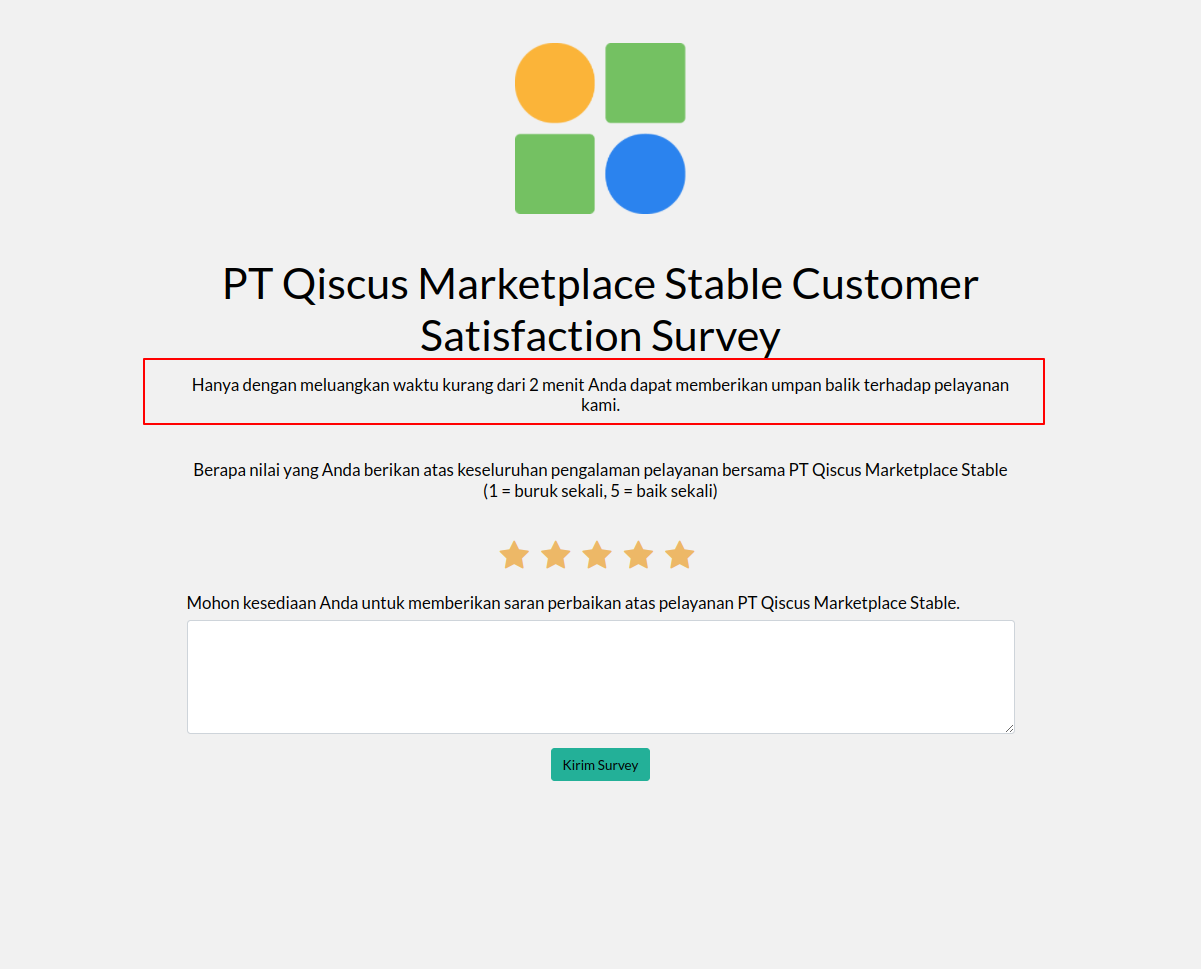
Greeting Section
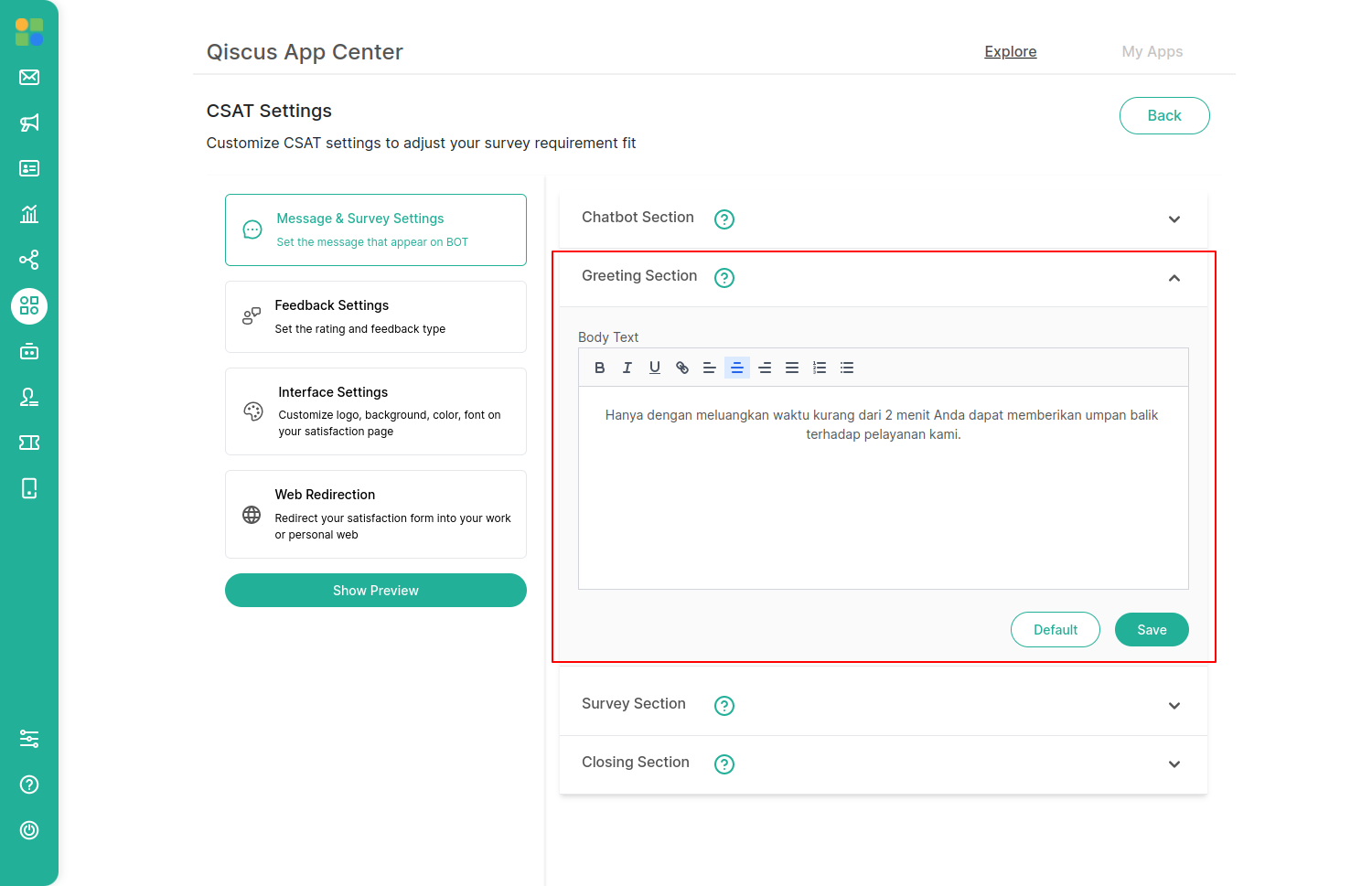
Greeting section is part of CSAT page that can be used to greeting the customer before ask them to give a rating based on their experience with the agents
To change the copywriting, you only need to edit by using the text area
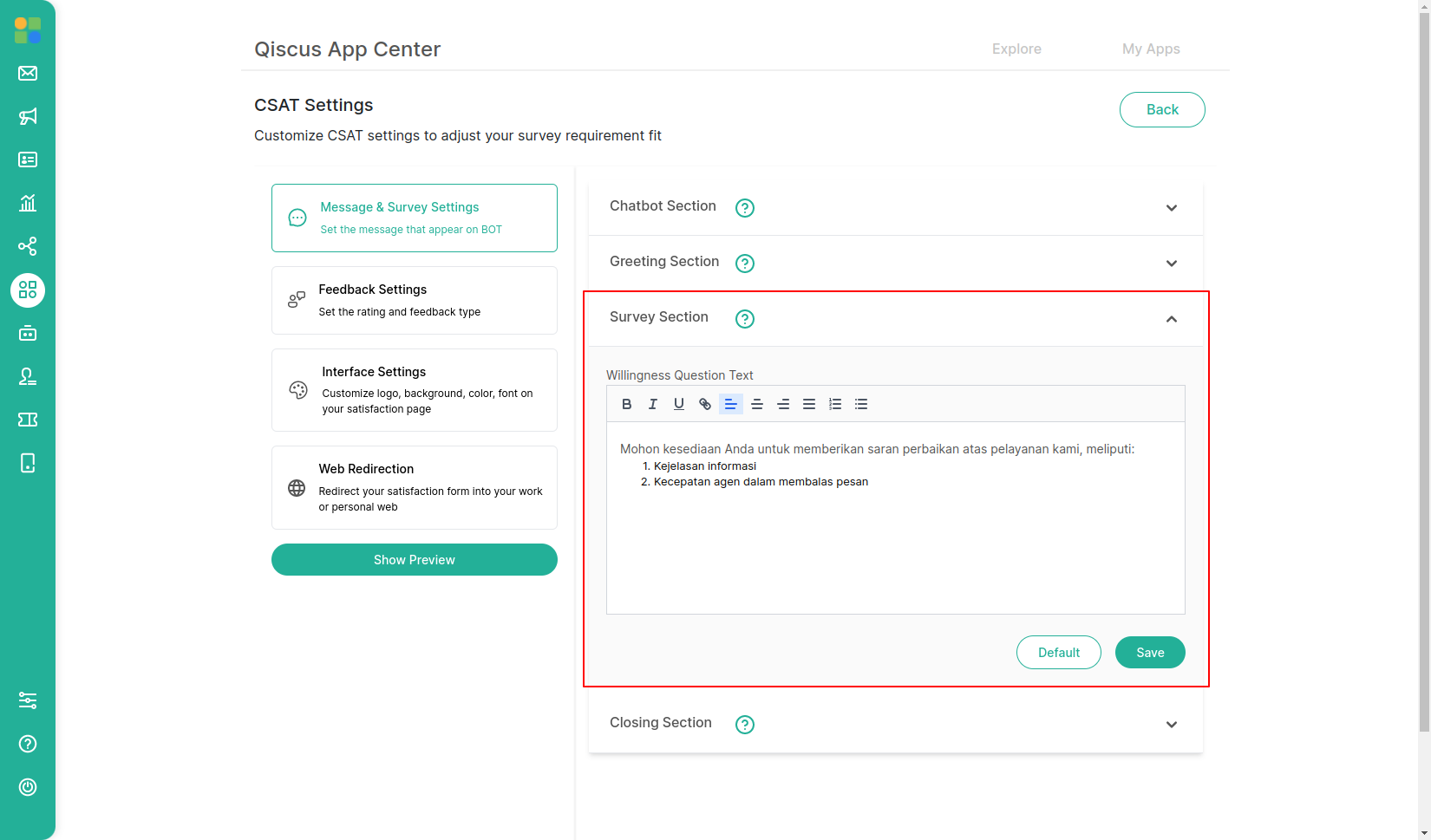
Survey Section
We give businesses the flexibility to give specific directions on what customers want to rate which they can fill out in the survey section.
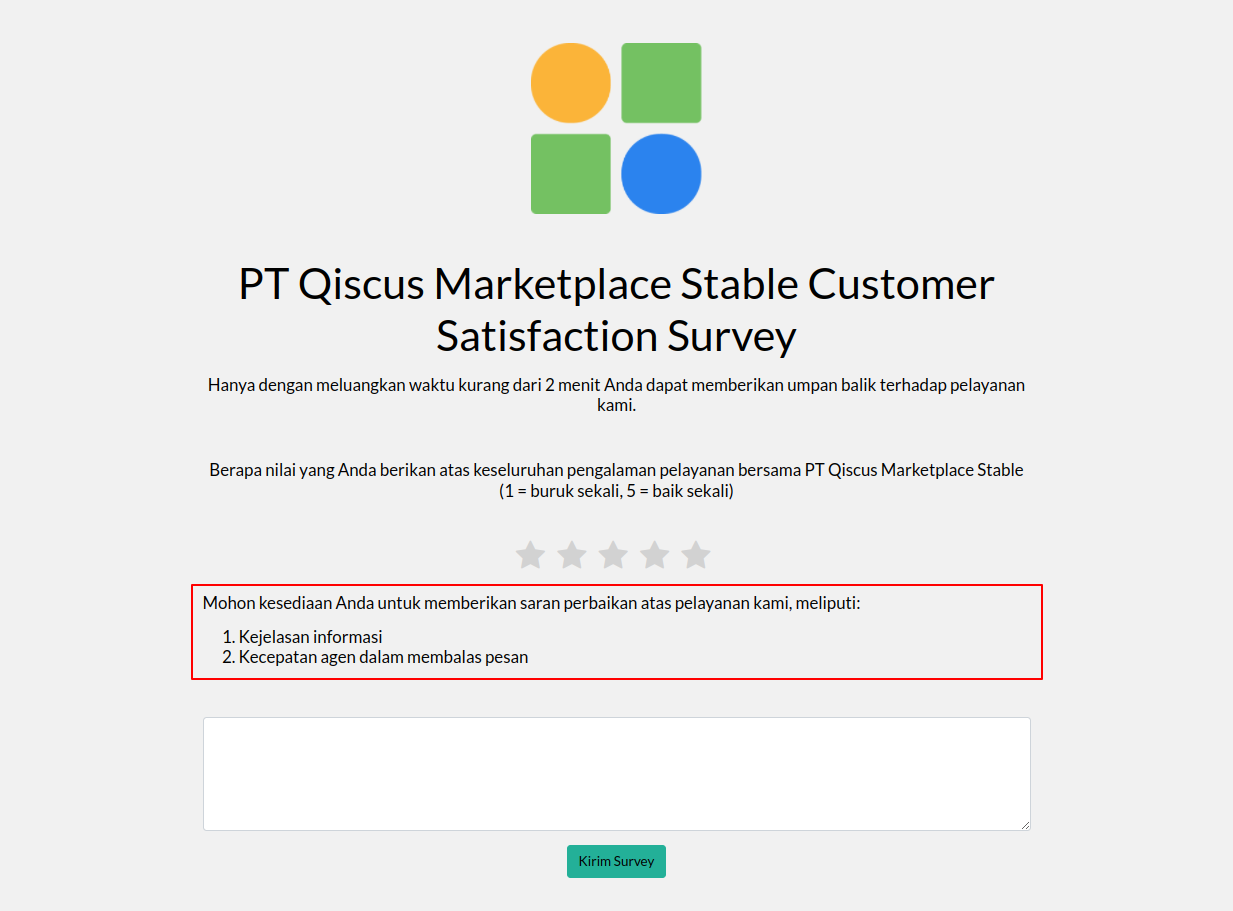
To change the copywriting, you only need to edit by using the text area
Closing Section
The following page will appear after the user leaves a comment or fills out the CSAT. On this closing page, the business can give thanks for what has been given by the customer.
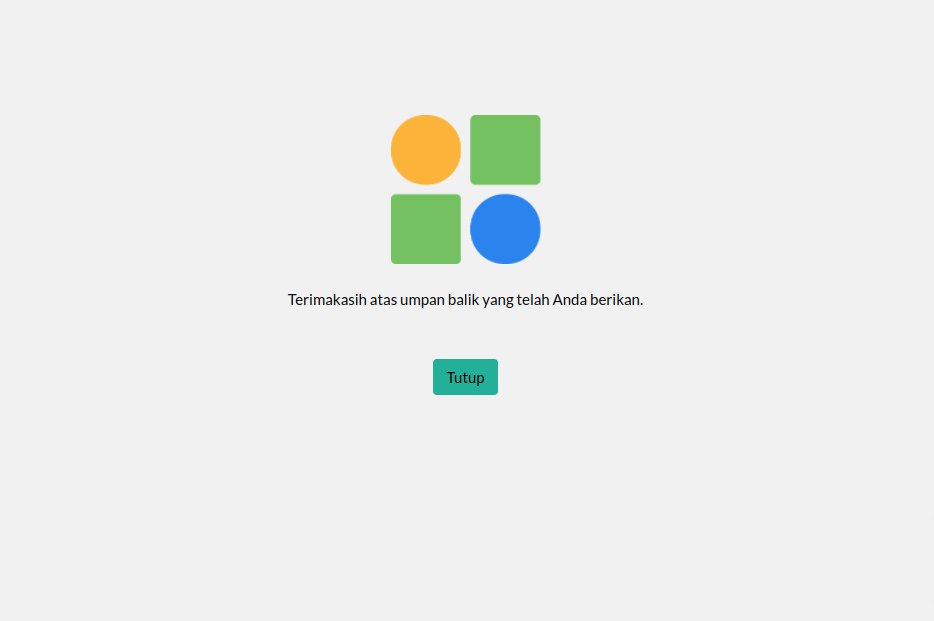
To change the copywriting, you only need to edit by using the text area
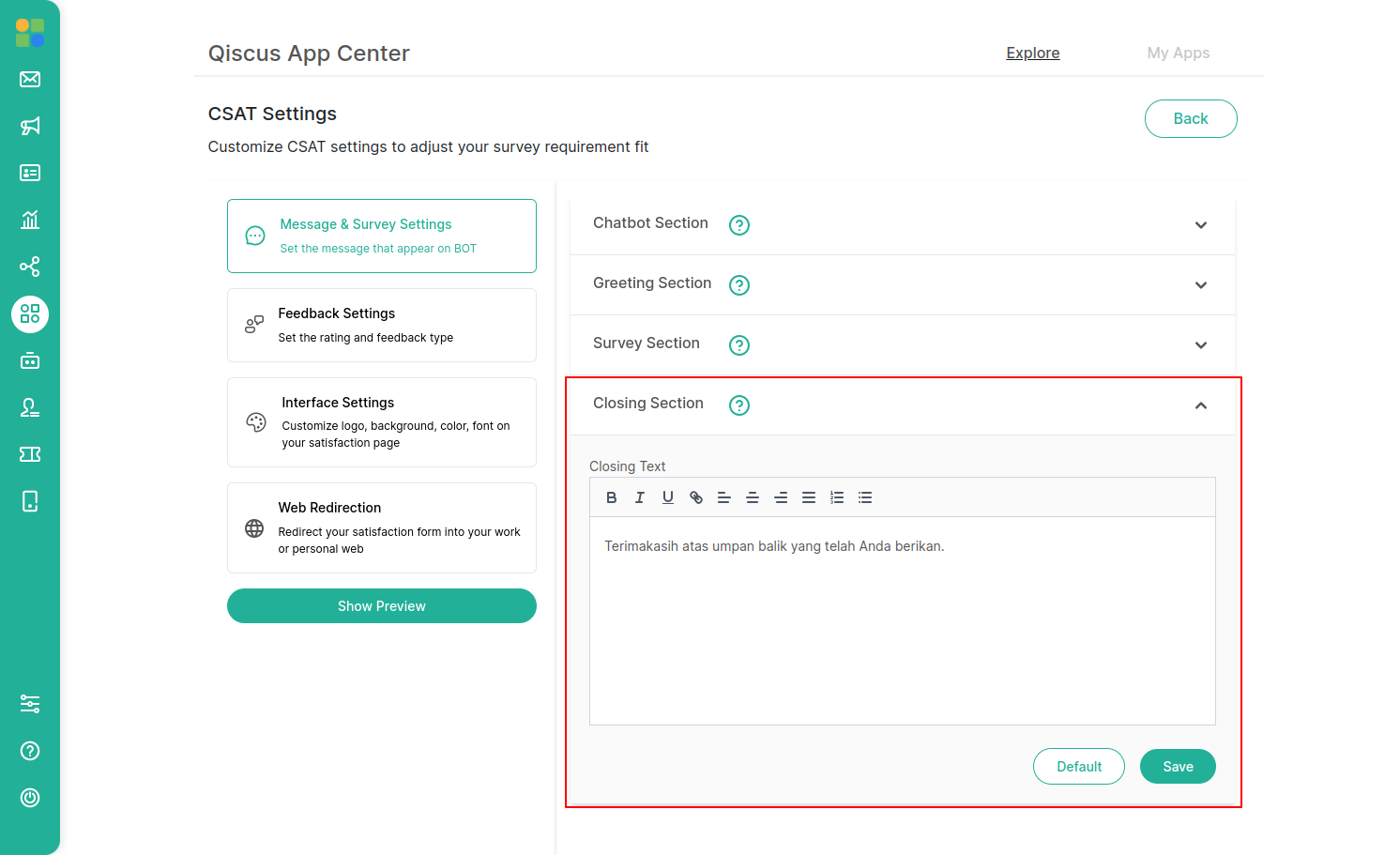
Bear in mind that every changes need to be saved to keep the updated configuration of message and survey setting
Feedback Settings
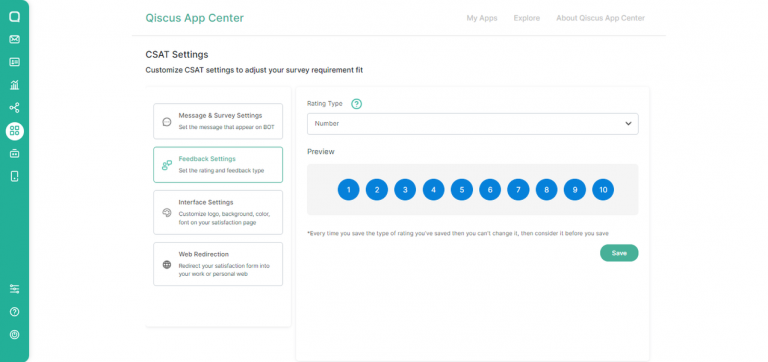
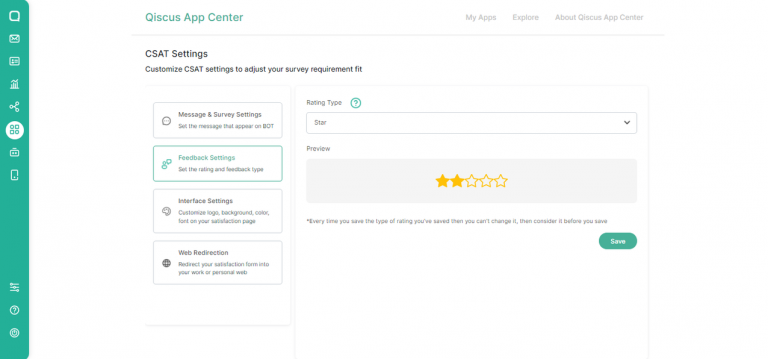
You can choose which rating type that will be used through feedback settings page. Please take note that once you saved the settings you cannot change the rating type.
There are three rating types:
Number
Using rating a scale from one to ten that represented in the number form (1 – 10)
Star
Using rating a scale from one to five that represented by star icon (⭐)
Emoji
Using rating an absolute scale, satisfied or dissatisfied that represented by emoji
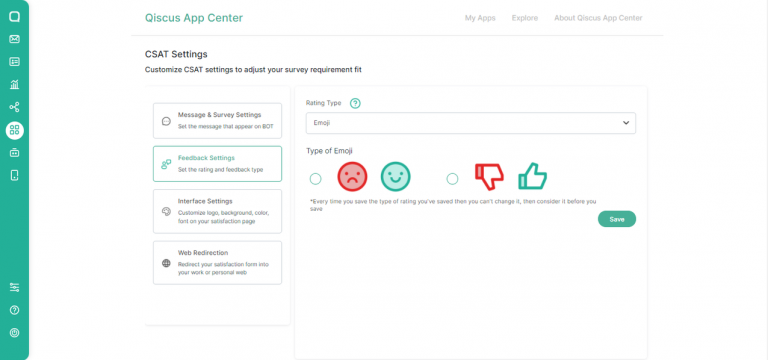
Once you’ve chosen a rating type, you can’t switch to another because it will affect the outcome (average of rating). As a result, it is necessary to specify which rating type will be used. When you’ve decided on a rating type, a preview button will appear. You can see how the configuration looks in this preview.
Interface Settings
Users can customize the appearance of the CSAT on this page, including the logo, background, buttons, and fonts.
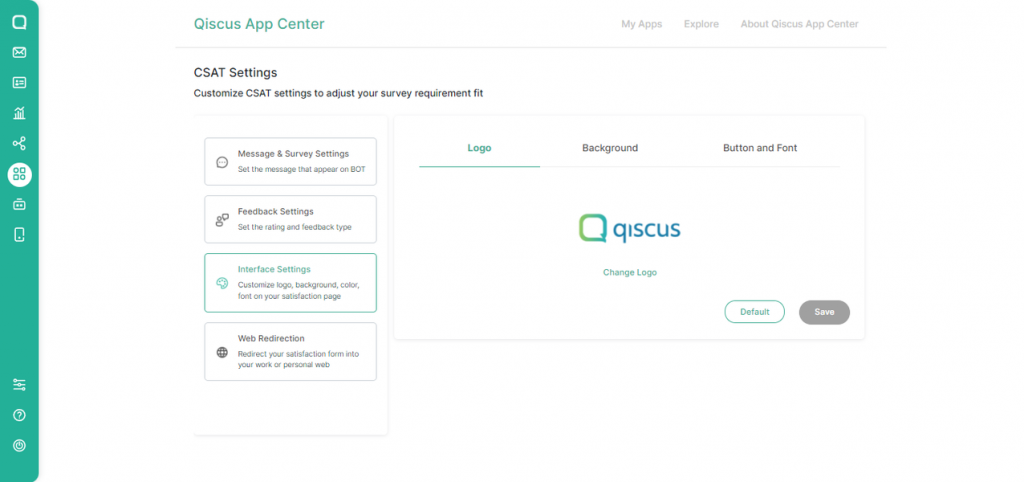
Logo
The user can customize the logo using this menu. The maximum image size for the logo is 2 megabytes. When you’ve finished uploading the image, make sure to click the Save button to save the data.
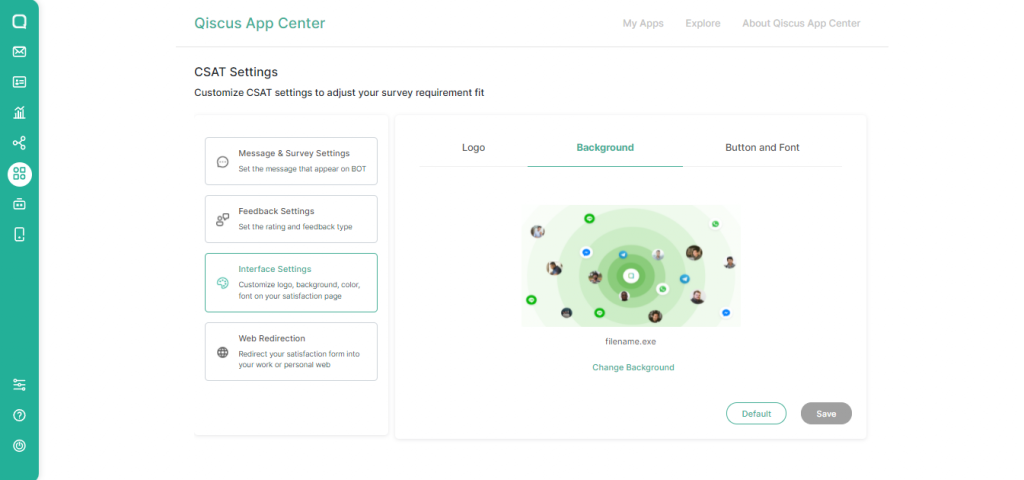
Background
The user can customize the background in this menu. The largest image that can be uploaded is 5 megabytes. When you’ve finished uploading the image, make sure to click the Save button to save the data.
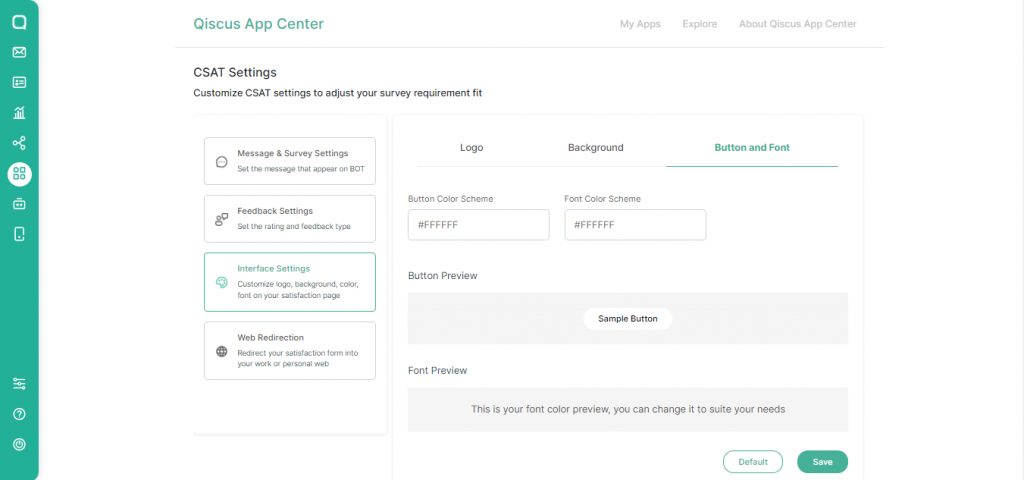
Button and Font
The user can customize the color and font of the button in this menu. The user must enter the color code in hexadecimal format, such as #FFF000, to replace it. The preset colors can also be viewed.
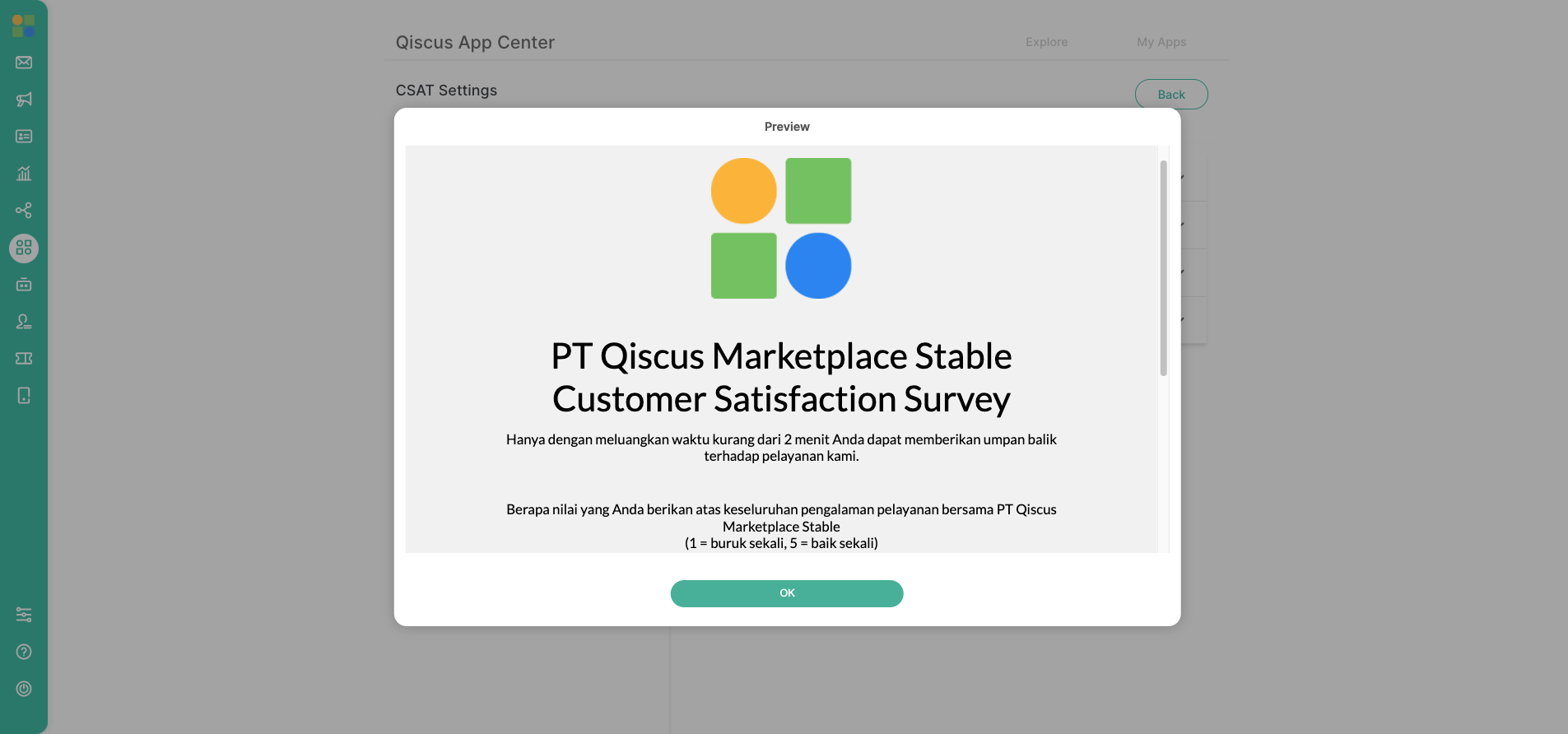
Show Preview
Admin can see a preview of the CSAT page that has been set once all of the settings have been completed. The Admin can double-check the editorial, logo, background, and other elements in this section. The Admin can still change everything except the type of rating scale.
CSAT Result
The Custom Analytics feature, which can be accessed via the Analytic menu in Qiscus Multicihannel Chat, displays the results of customer assessments that have been submitted.
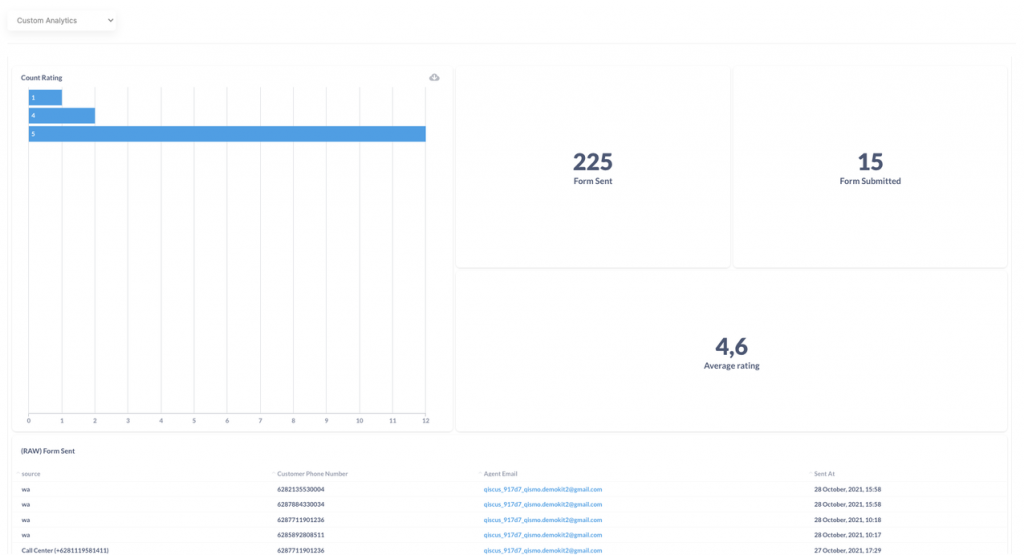
Here is the data that shown in the analytics:
- Summary of information:
- Customers have received a certain number of CSAT links.
- The total number of people who have rated and submitted it.
- Number of customer reviews on average
- The total number of user ratings
- Data for the CSAT link that was sent to the customer in its raw form
- Customer feedback in its most basic form
It is hoped that the data will assist business owners in determining customer ratings of their services in order to improve the business owner’s customer experience.
Web Redirection
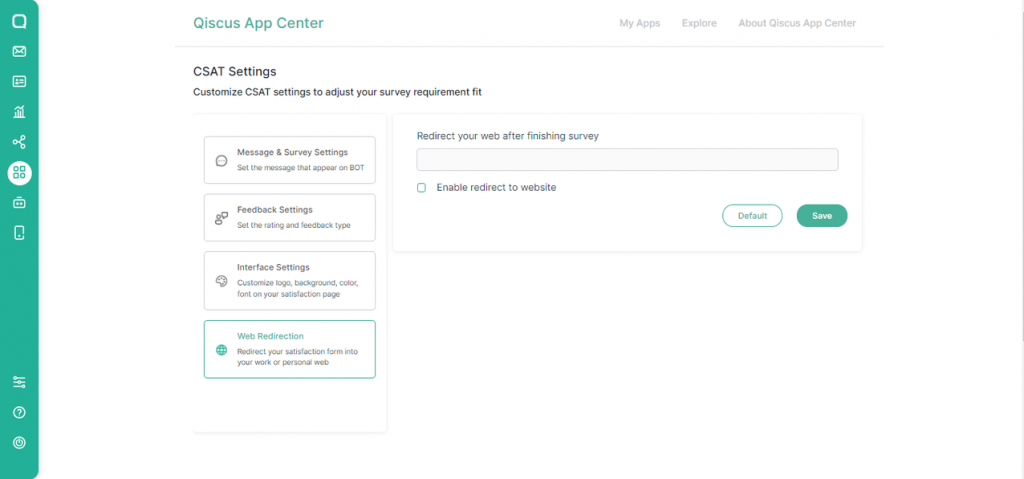
Once the user has completed the CSAT and submitted the rating, the business can choose to redirect the user to the homepage or to a specific page. Place a check mark next to “Enable redirect to website” and then fill in the link address to activate it. After that, make sure to click the save button to save all of your changes.
Quick Feedback Settings
This feature is the latest feature of CSAT, an important feature to make it easier for users to give a short and quick assessment. The Quick Feedback feature can be in the form of ratings, praise, or comments on services or agents. To create and edit quick feedback can be done on the quick feedback settings page.
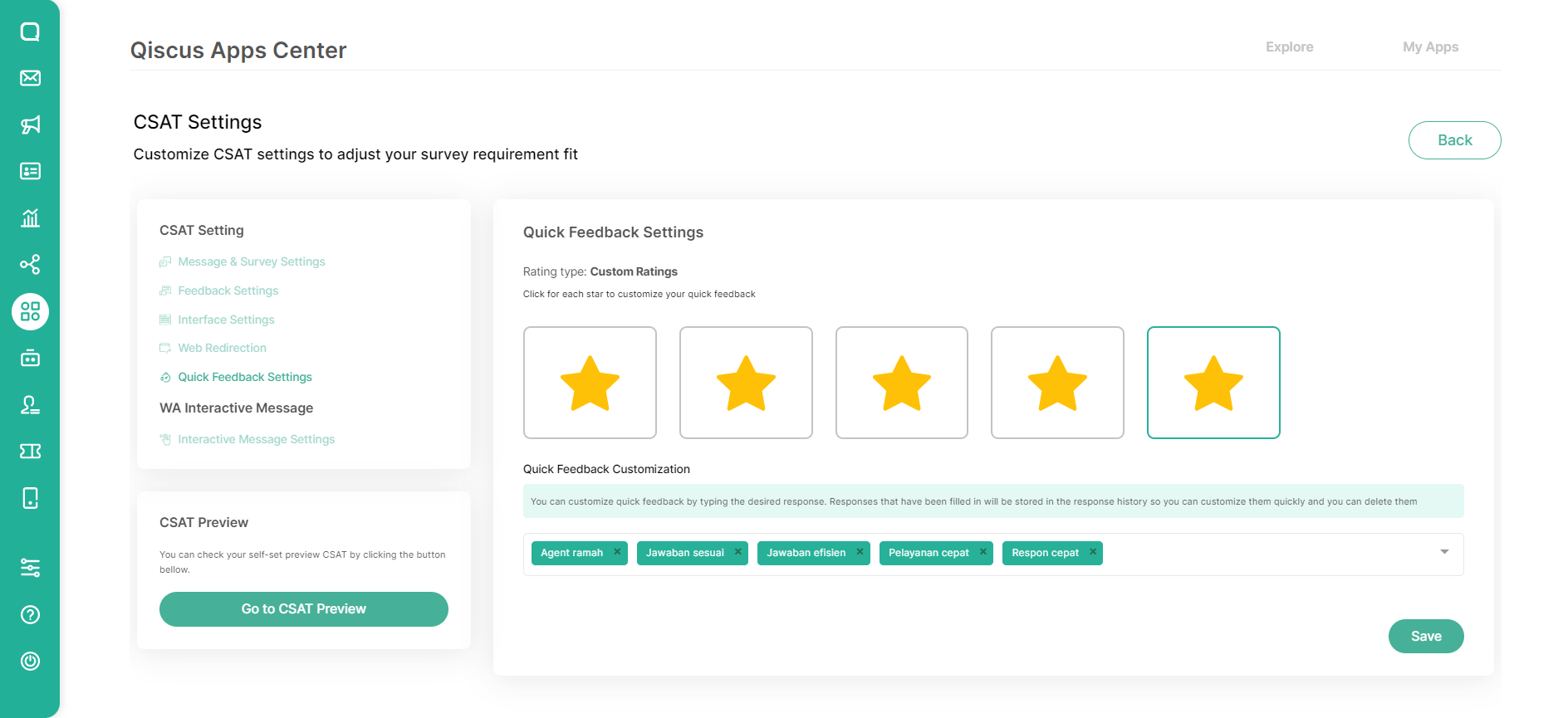
You can customize the quick feedback by typing the desired response in the field provided. The completed responses will be saved in the response history so you can adjust them quickly. You can delete it, then replace it with a new response if needed.
Responses are made attached to each rate, for example if using the star rating type then the response will be made at a rate of 1-5. Quick feedback can be filled without a maximum number of responses, but it should also be noted that if there are too many response options, it is also possible that the CSAT display will shift.
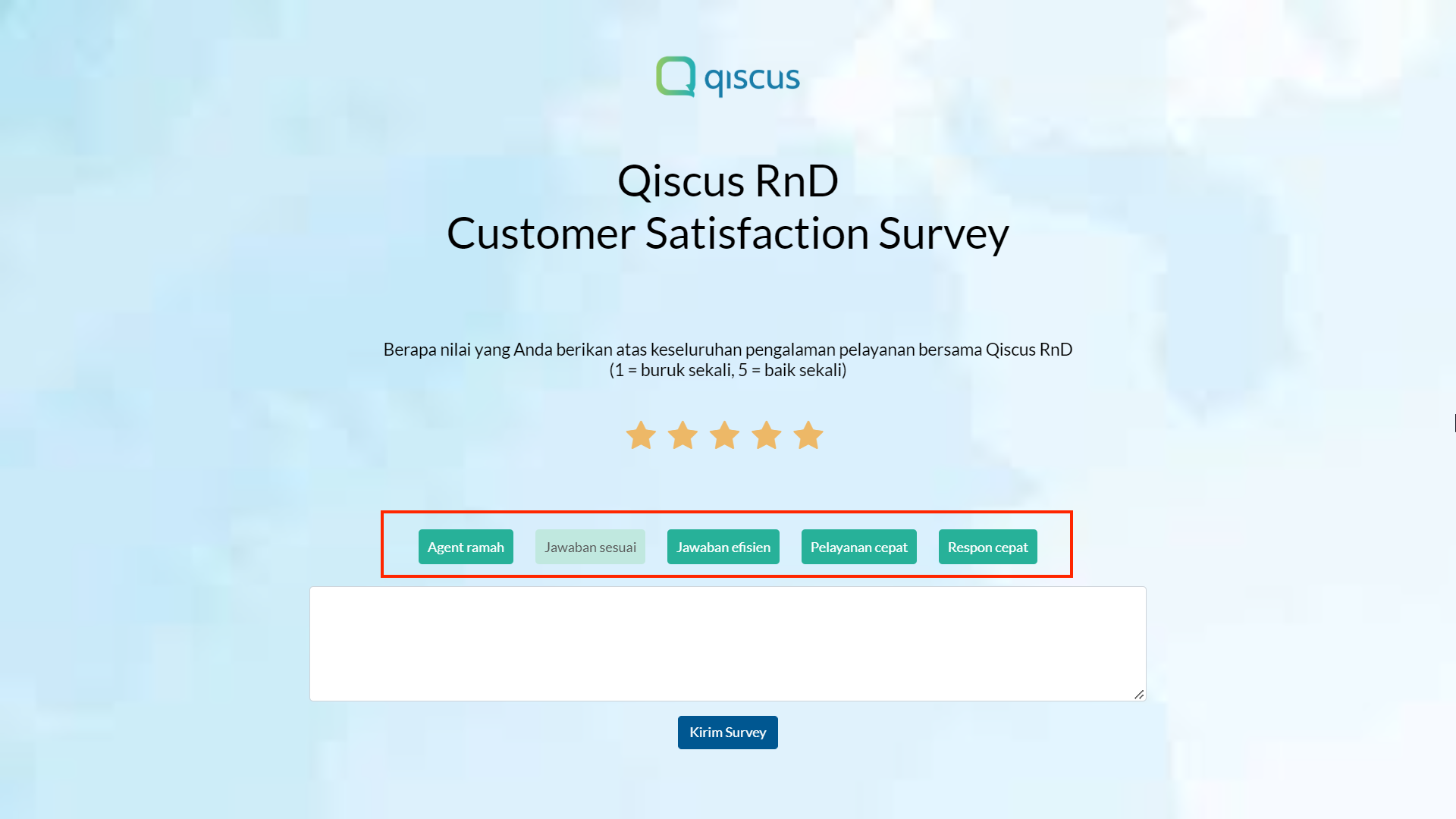
In the customer display, a quick feedback response will appear if the customer has selected one of the desired rates. Customers can choose the most suitable response without fill out a feedback form. Responses can be selected more than one, even select the entire response options displayed.
WA Interactive CSAT
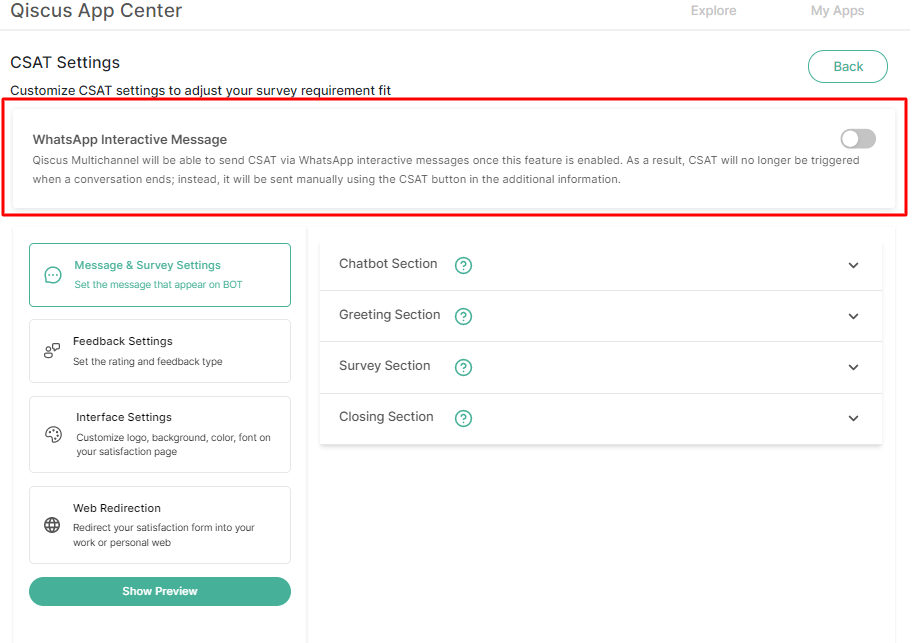
We’ve already released new feature (v 1.5.0) which allows Qiscus Omnichannel Chat to send CSAT using WhatsApp interactive messages in WhatsApp channel and for another channels, CSAT will be sent as web page. As a result, CSAT will no longer be triggered when a conversation ends; instead, it will be sent manually using the CSAT button in the additional information.
There are some condition that need to be met:
- CSAT setting has to be configured
- WABA webhook has not been used by any other services
- Mark as resolved webhook has not been used by any other services
Once above condition has been met, then you can follow these step to enable the feature.
Enable Interactive CSAT
You might see the WhatsApp Interactive Messages on top of CSAT setting
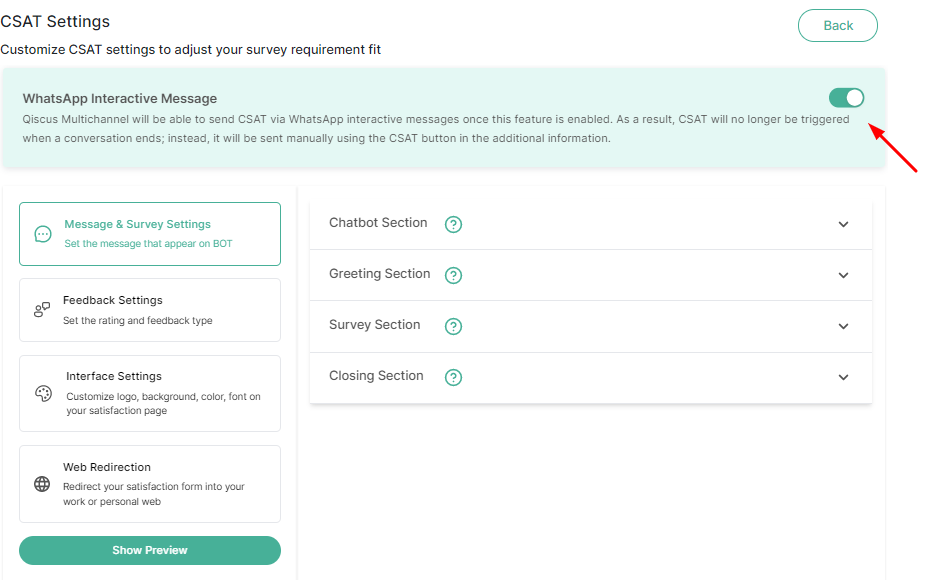
Toggle will be changed from grey to green which mean, the feature has been enabled.
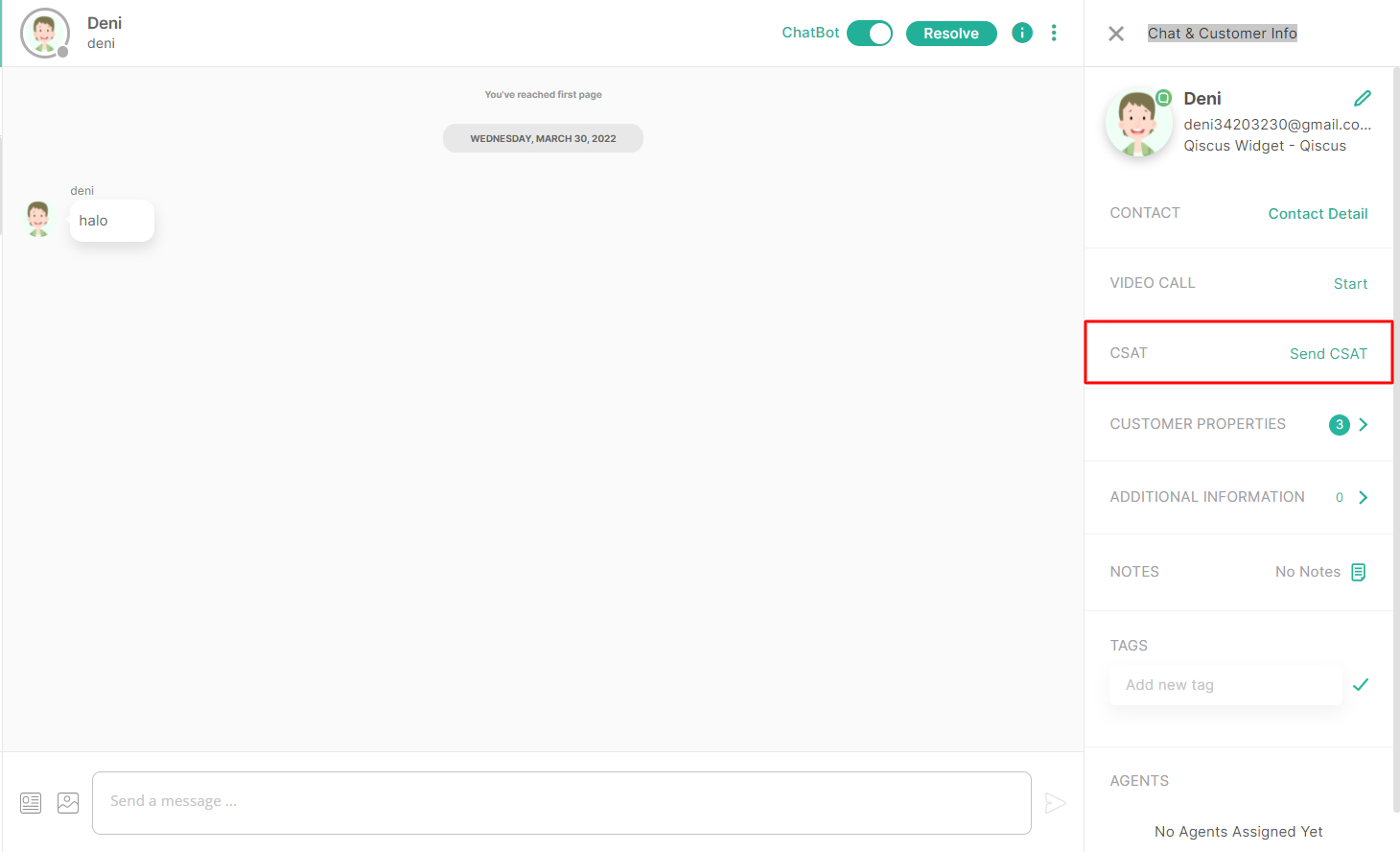
You can open the inbox page and click a conversation from chat list. It will show the chat room, click on the information icon to show the Chat & Customer Info section. You can find a text with hyperlink named Send CSAT. It will triggered CSAT form in interactive message form to the customer through WhatsApp channel.
Customer Point of View
Here is how the message looks while received by the customers
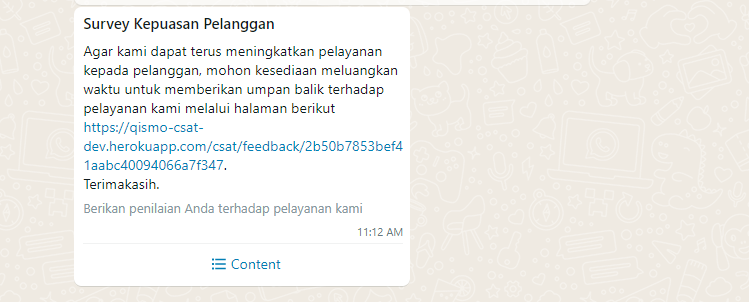
It will separate CSAT into two forms, for rating will be shown as list and for the feedback, will be shown in a web page.
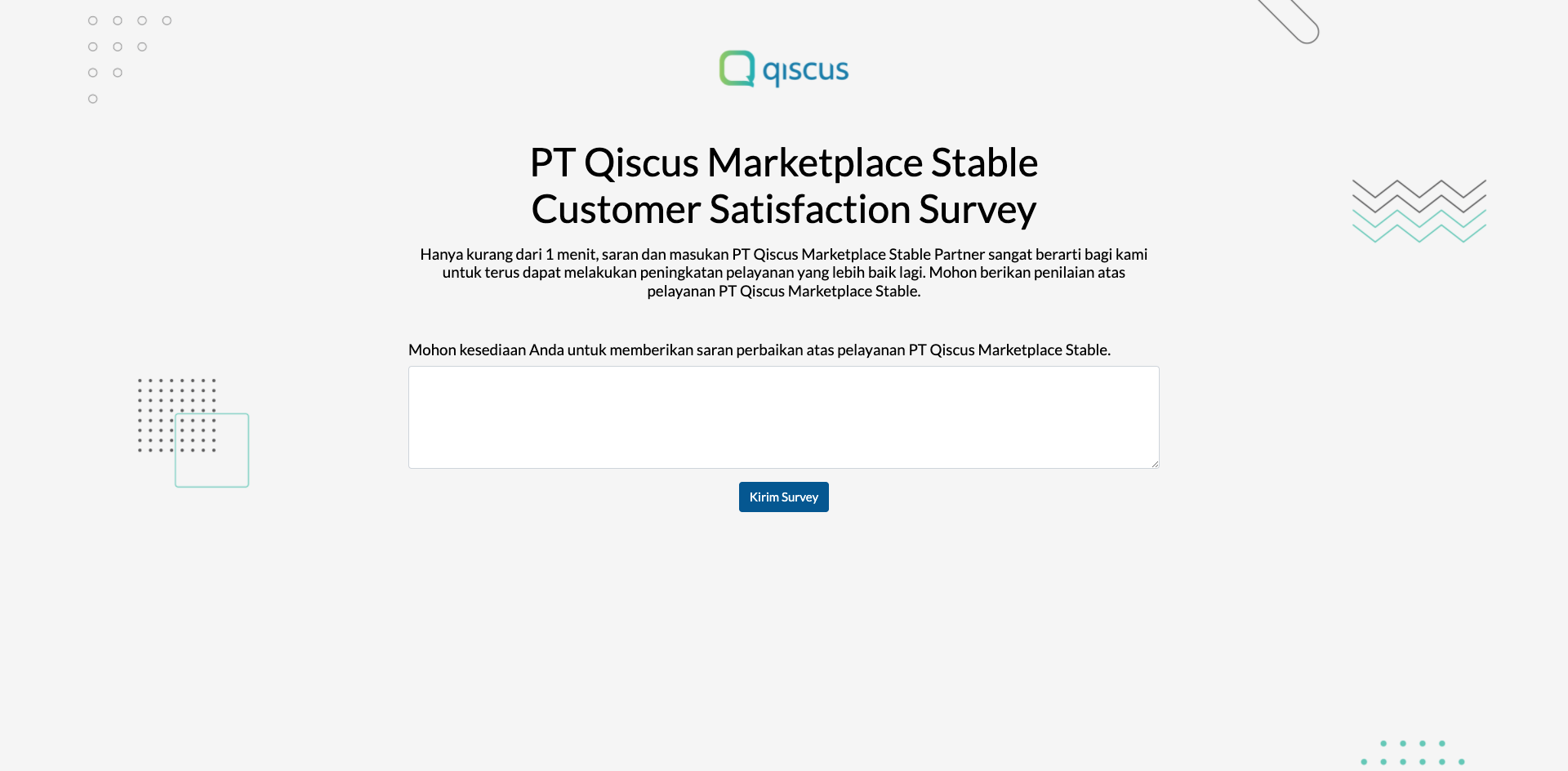
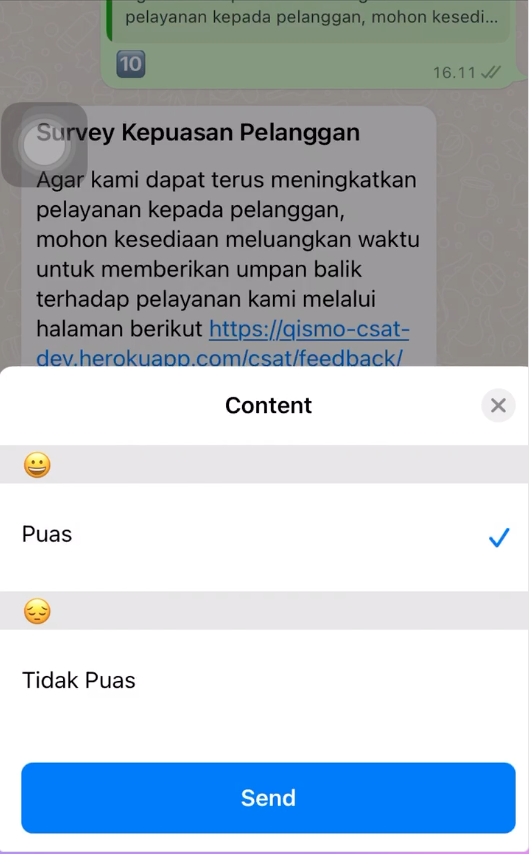
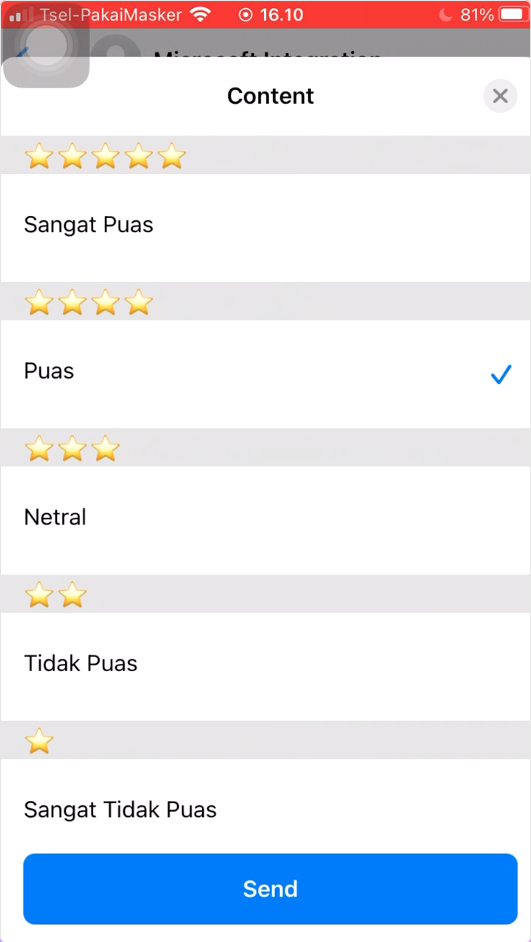
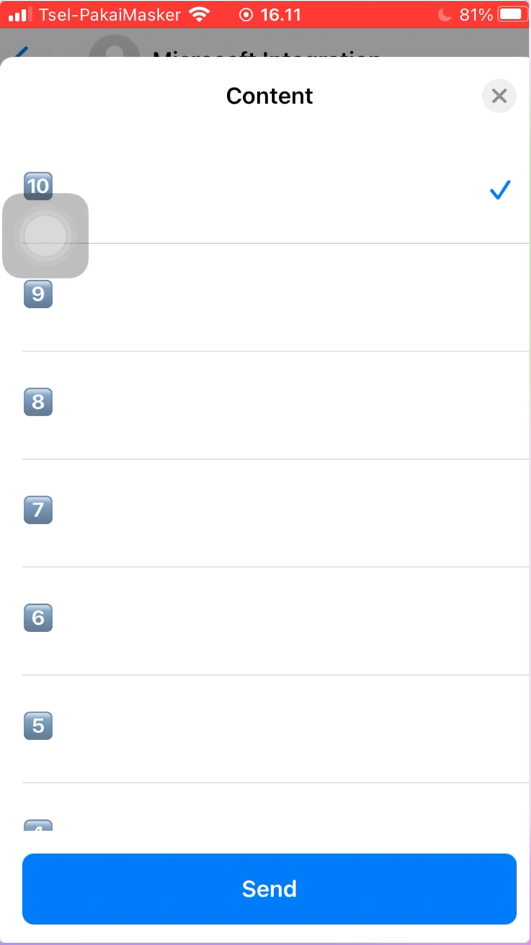
Those rating type will follow the CSAT configuration.
Agent Point of View
This is how the message looks from Agent or Admin
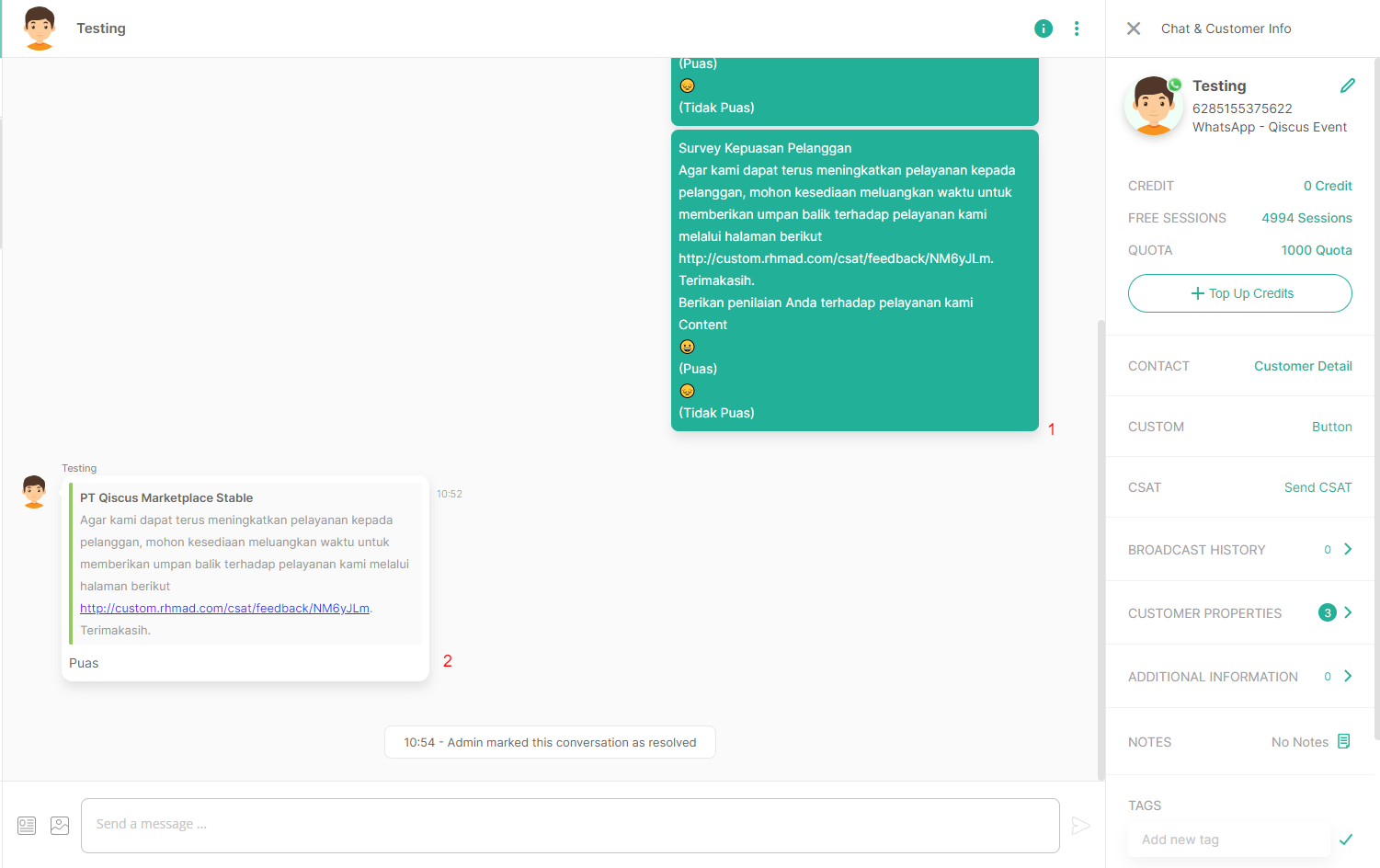
Point 1 show that admin or agent has been sent the CSAT to the customer through WhatsApp channel successfully.
Point 2 show that customer has been submit the survey by giving a rate to the agent’s services.
Notable Points
Csat is used some of webhook to make it works, they are:
- Mark as Resolved, used to trigger CSAT when the user disable interactive CSAT
- Custom Button, used to trigger CSAT
- WABA, used to get the CSAT response
As a result, there are some notable points while use the feature due to usage of webhook, they are:
1. Mark as Resolved webhook has been used by another services
Interactive CSAT could not be used if an app id already using the mark as resolved webhook for another services. The following error message will be shown
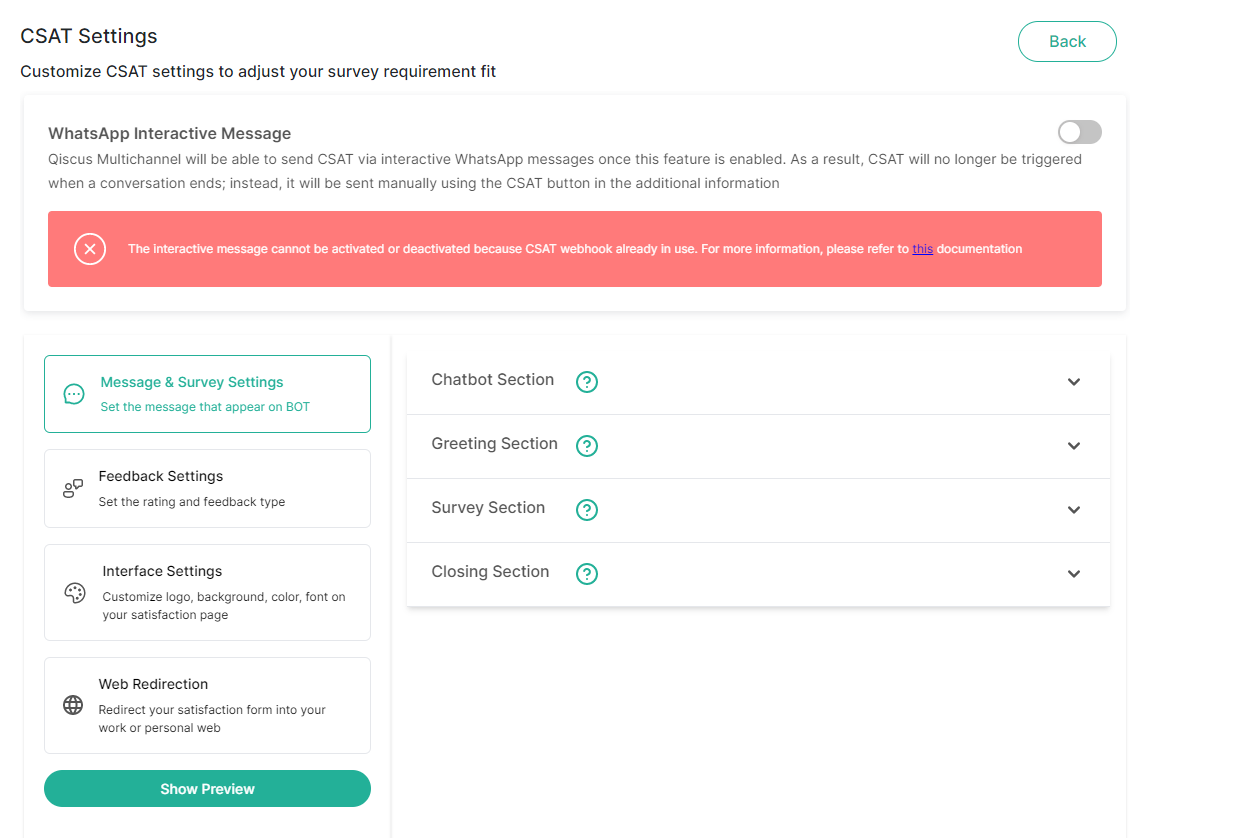
To resolve this issue, you could contact our team via the following page and our team will help to enable this feature.
2. Could not disabled interactive CSAT
Once interactive CSAT has been enabled and you wan to disable this feature, it will check if webhook mark as resolved being used by another services or not. If webhook mark as resolved is being used by another service then you could not disable interactive CSAT because CSAT add-on need to configure mark as resolved to trigger CSAT delivery.
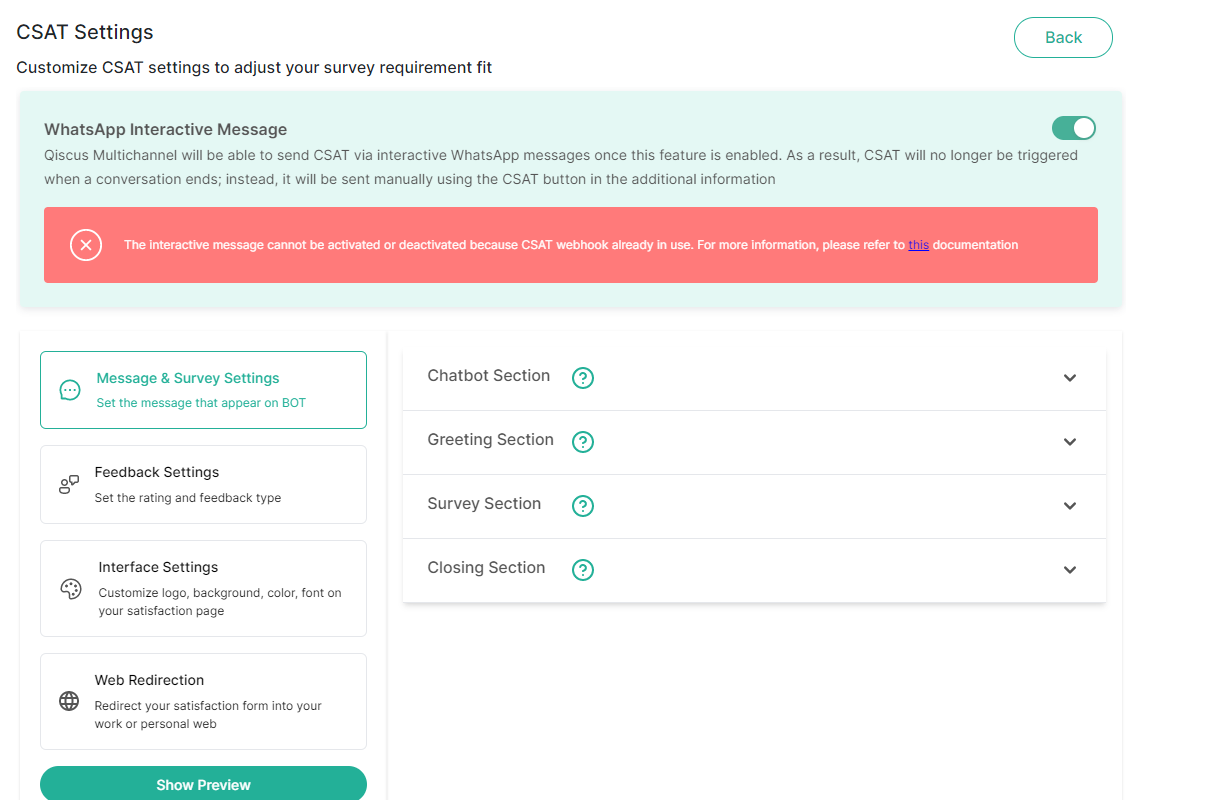
You could contact our team via the following page and our team will help to disable this feature.
3. WABA webhook has been used by another services
As mentioned before, that interactive CSAT needs WABA webhook to capture the response from customer due to the survey that has been sent. If WABA webhook has been used, then interactive CSAT could not be enabled. However, it won’t affect if you want to disable interactive CSAT.
Custom Link CSAT
By using a custom link CSAT, it allows a business to use their own domain to be a CSAT link that will be sent to the customer, so it will build more trust in their customer to click the link and fill in the survey.
To access this feature, you can go to the CSAT setting page
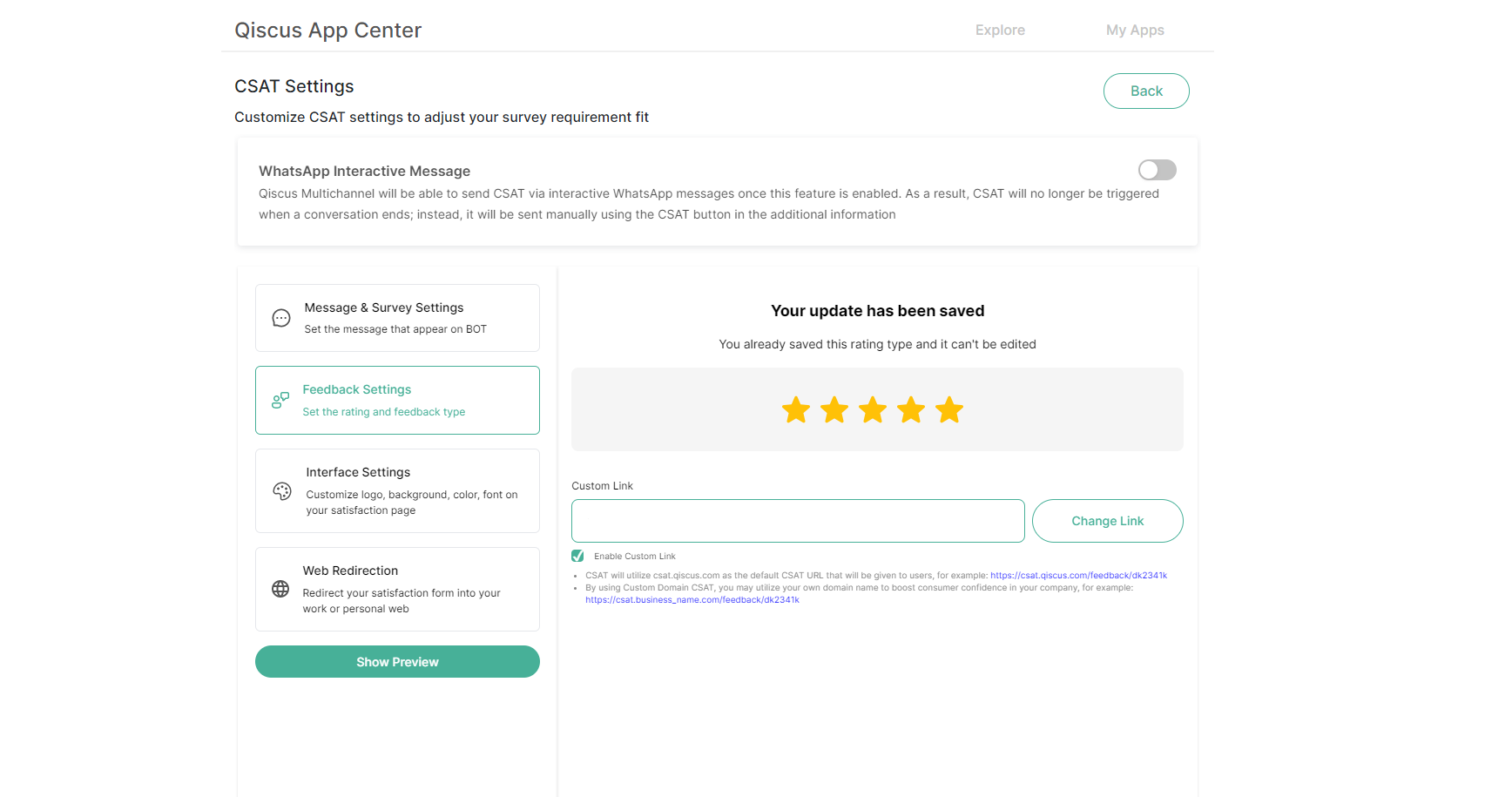
Open the Feedback Settings, and you will see a Custom Link
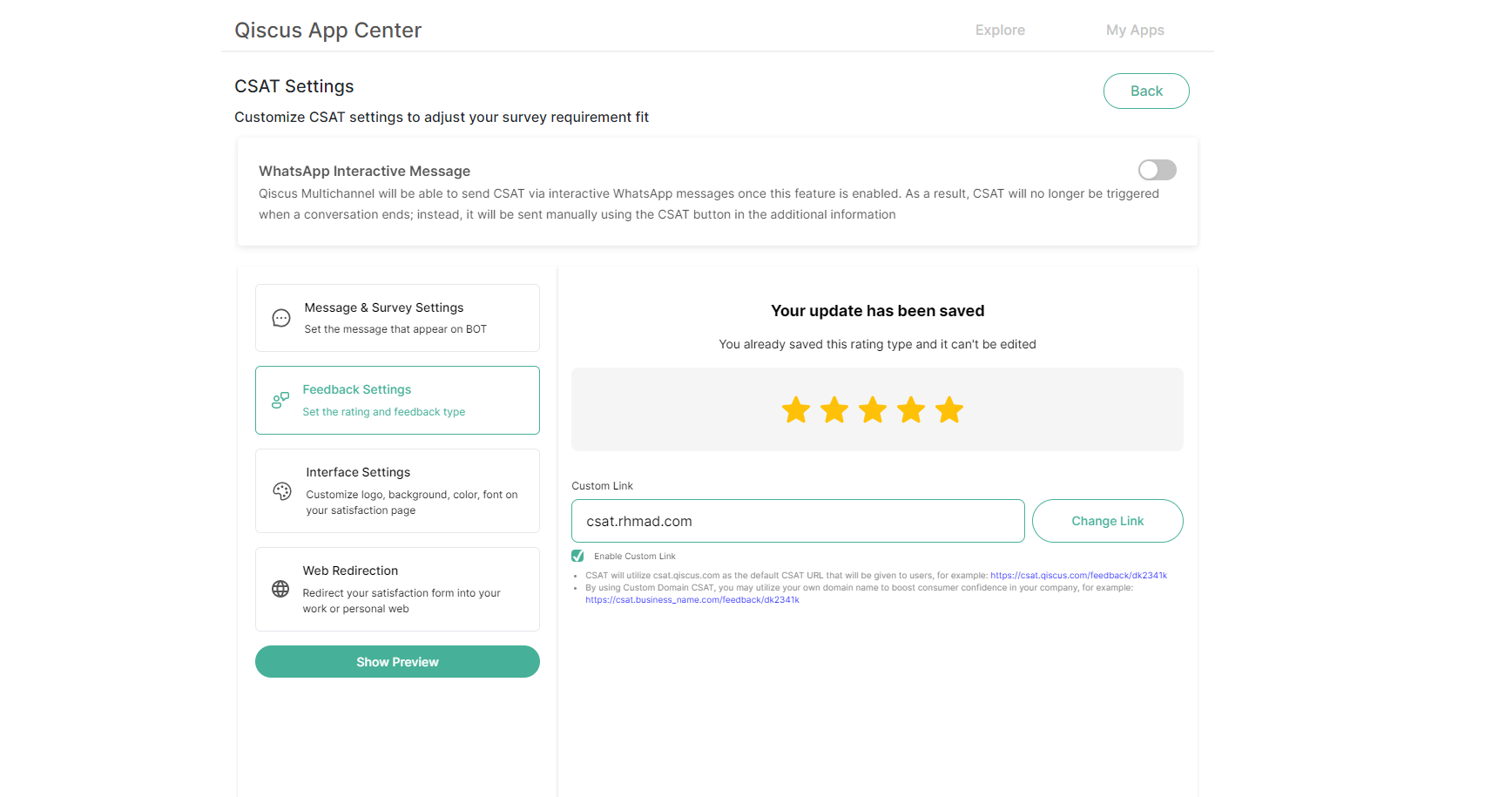
You can input the custom link by clicking the Enable custom link first, and then typing in your custom domain. Once you’ve filled in the custom link then click Change Link to apply it.
You will see a generated url that you need to copy and add it as CNAME record into your DNS management.
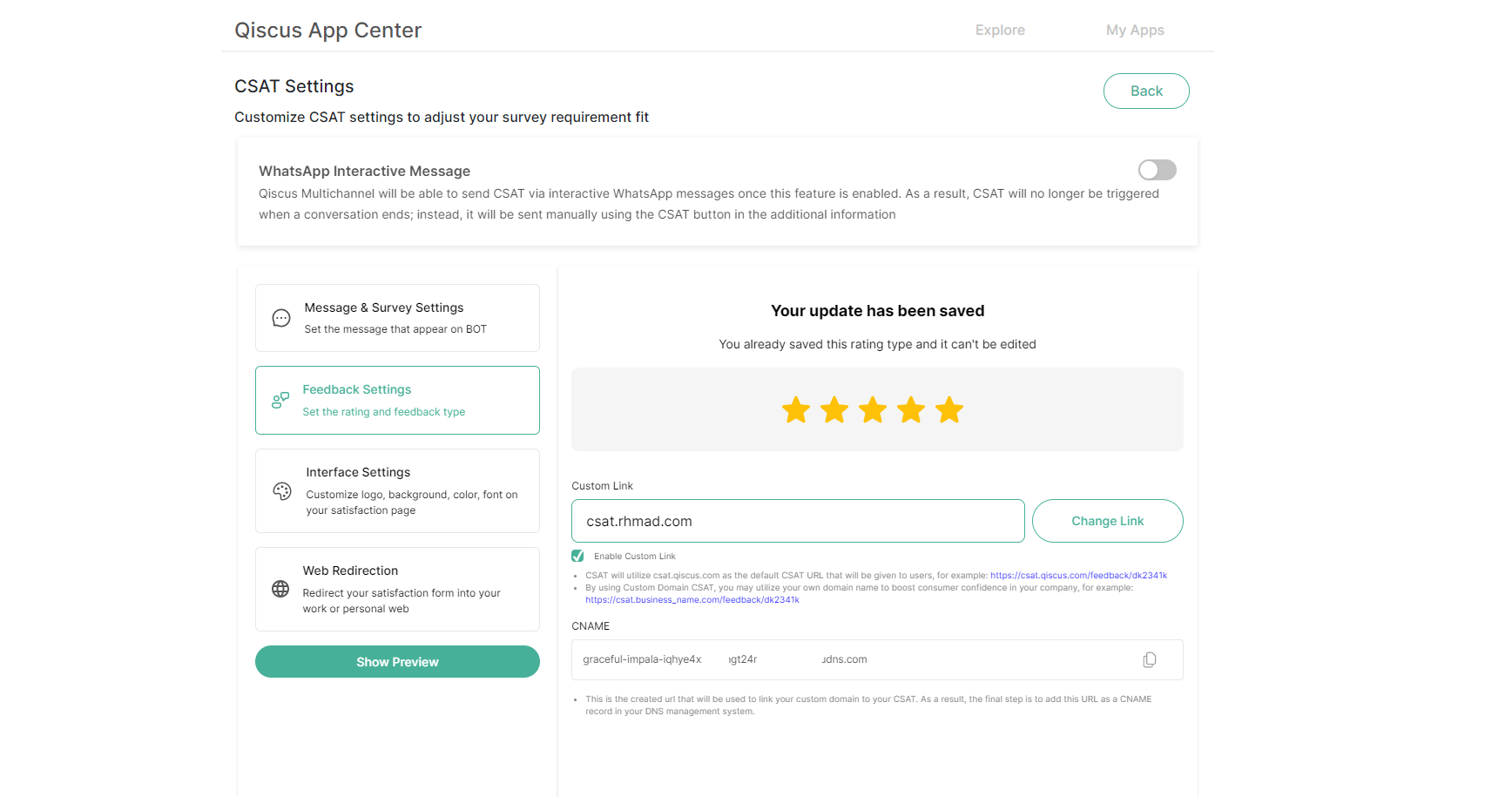
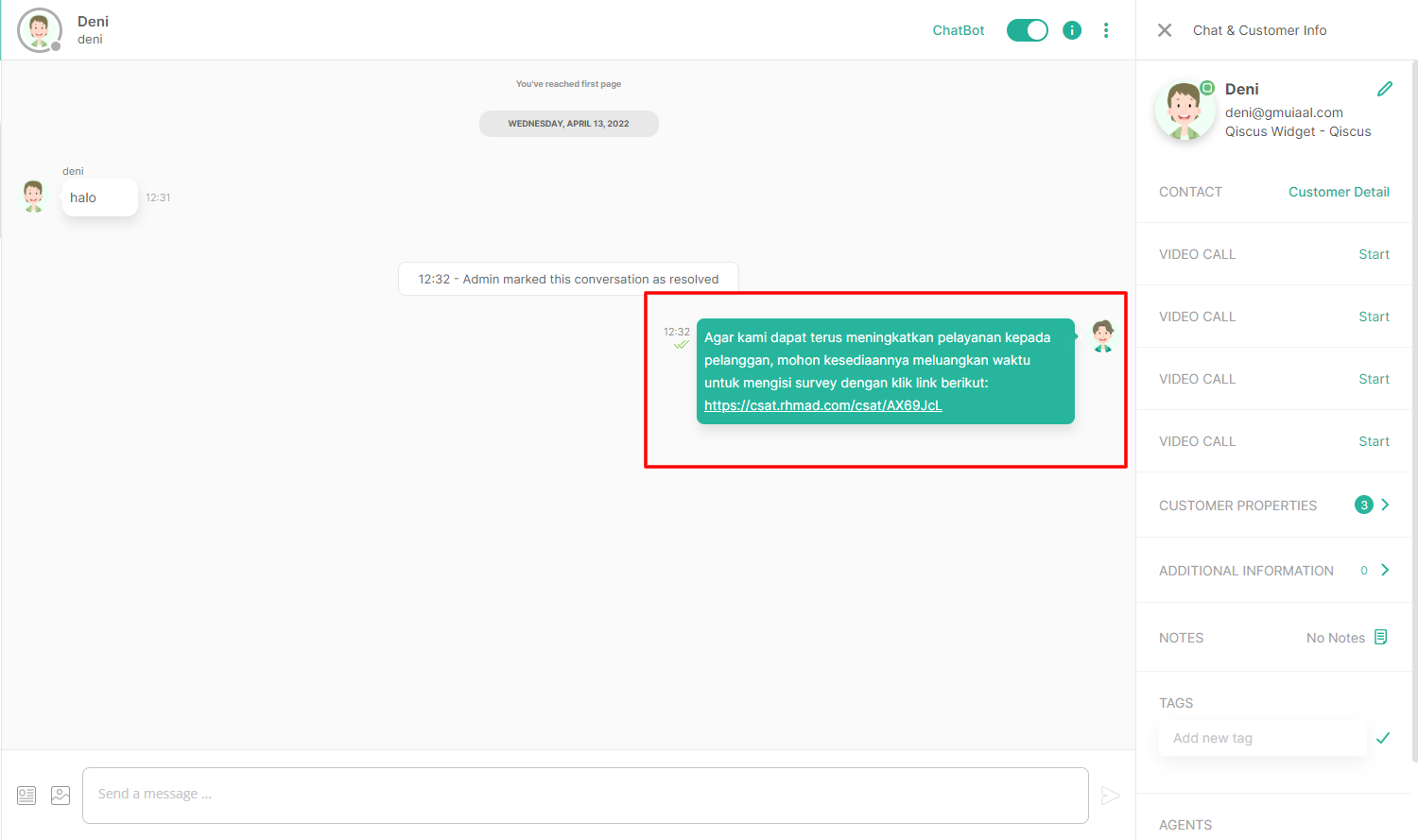
By default this configuration will use HTTPS schema, so you need to use SSL for your custom link. Using these example, owner rhmad.com need to add SSL into csat.rhmad.com to make it work with HTTPS. If you want to use HTTP then Qiscus’ will help you to set HTTP as a default schema for the custom link.
After all of these steps, whenever you trigger a CSAT, then it will send a link using your custom domain that is already set.
Please contact our team via the following page if you have any problems or questions about the various stages listed above.
Leave a Reply