Advantages of sending messages using CSV file:
- No need to send one-by-one to the destination numbers, as a CSV file can contain multiple numbers directly
- Send several phone numbers with different variables
- One broadcast name
As you know, when sending messages through API with endpoint /messages it only can provide one-time delivery, if we make it as a looping, then it will have different broadcast names. If you have requirements such as the previous explanation, we suggest you to using a CSV file via API.
*Note: The template name we will use in this case is smb_testing from our testing appID ramo—.
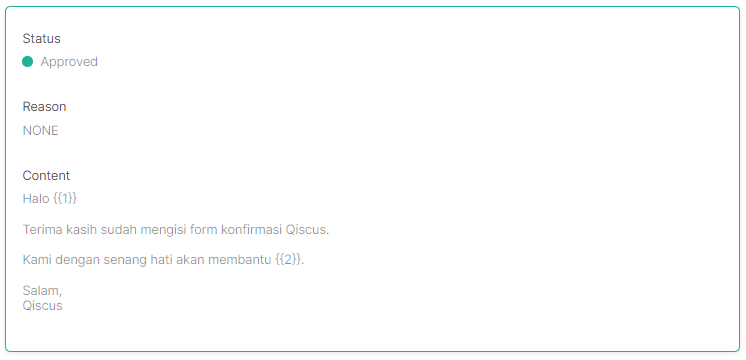
Here are the steps you need to follow:
- First of all, we need detail about the template.

curl –location –request GET ‘https://multichannel.qiscus.com/api/v2/admin/hsm?page=1&limit=10&approved=true’ \
–header ‘Authorization: —‘ \
–header ‘Qiscus-App-Id: ramo—‘Response: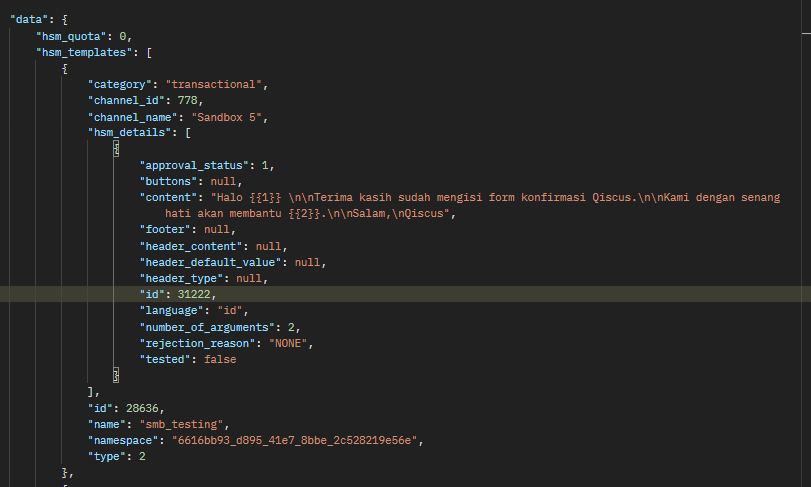
template_detail_id : 31222 - Please note, that using a CSV file means you have to generate the file first according to the template used. After getting the template_detaill_id, you can use this API to get the CSV template, then generate the data according to the result.

curl –location –request GET ‘https://multichannel.qiscus.com/api/v3/admin/broadcast/download_csv?template_detail_id=31222&separator=,’ \
–header ‘Authorization: —‘ \
–header ‘Content-Type: application/x-www-form-urlencoded’Response:
- After generating the CSV file and ensuring there is no error (special characters are prohibited), the next step is to upload the CSV file.
 curl –location –request POST ‘https://multichannel.qiscus.com/api/v3/admin/broadcast/upload_csv’ \
–header ‘Authorization: —‘ \
–form ‘file=@”/C:/Users/Anggraeni/Downloads/csv_broadcast_template (56).csv”‘ \
–form ‘template_detail_id=”31222″‘Response: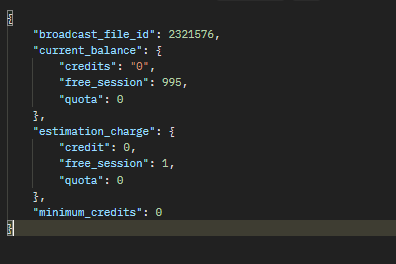
broadcast_file_id : 2321576 - Finally, send the broadcast.

curl –location –request POST ‘https://multichannel.qiscus.com/api/v3/admin/broadcast/send_broadcast’ \
–header ‘Authorization: —‘ \
–form ‘template_detail_id=”31222″‘ \
–form ‘broadcast_file_id=”2321576″‘ \
–form ‘name=”send_broadcast_csv_api”Response: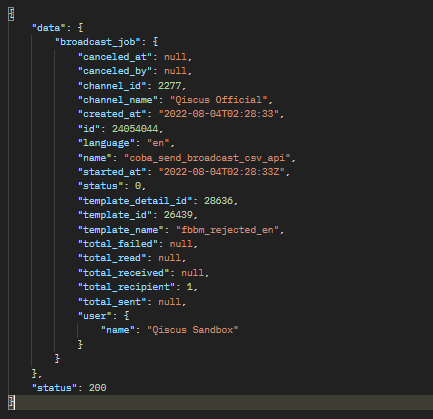
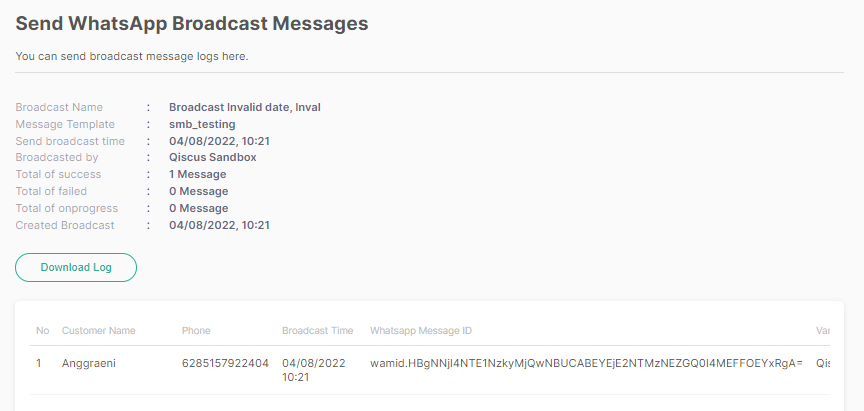
- You can check multichannel for the result, from Outbond Message menu > Send WhatsApp Broadcast Messages

Leave a Reply