Vouchers, also known as coupons or discount codes, have proven to be a powerful tool in influencing purchasing decisions and driving customer loyalty. They offer a win-win situation for both customers and businesses. Customers enjoy cost savings on their purchases, while businesses experience enhanced sales volumes, improved customer engagement, and a stronger market presence. To capitalize on these benefits, it is quite important to strategically integrate a voucher feature into the e-commerce platform.
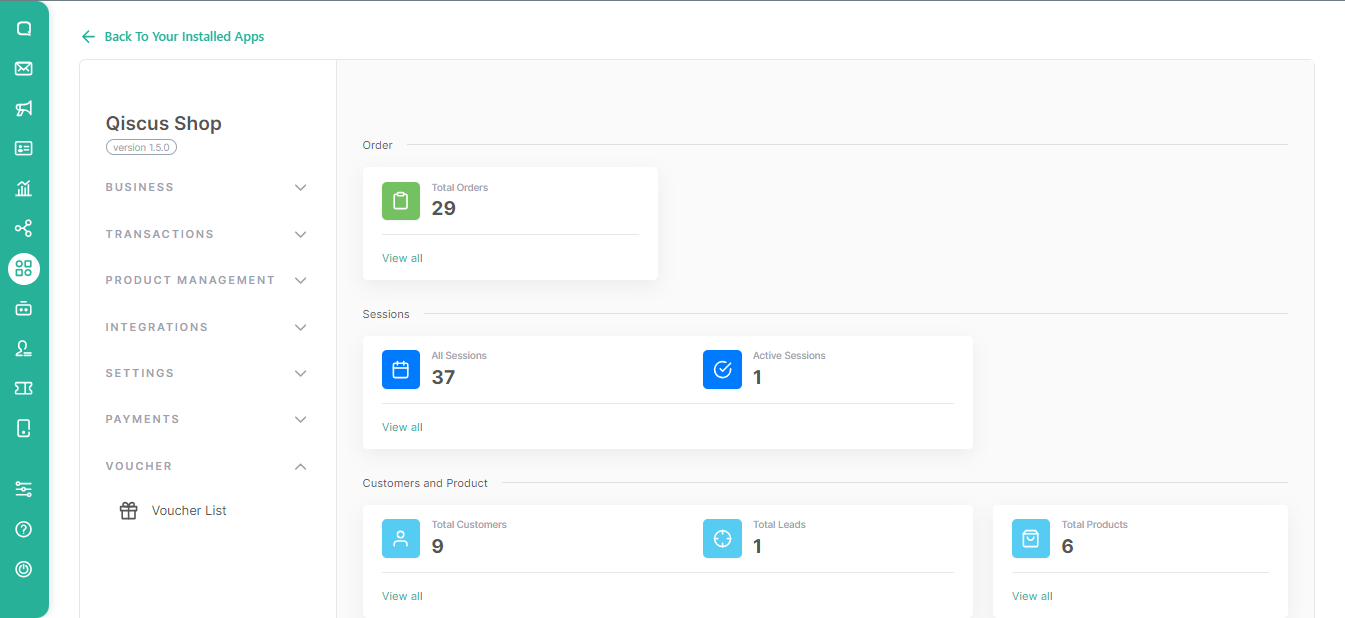
Create Voucher
Here’s how to create your own voucher
- First, please click on the Voucher List menu.
- Click on Add Voucher to create a voucher that you will place in your shop later.
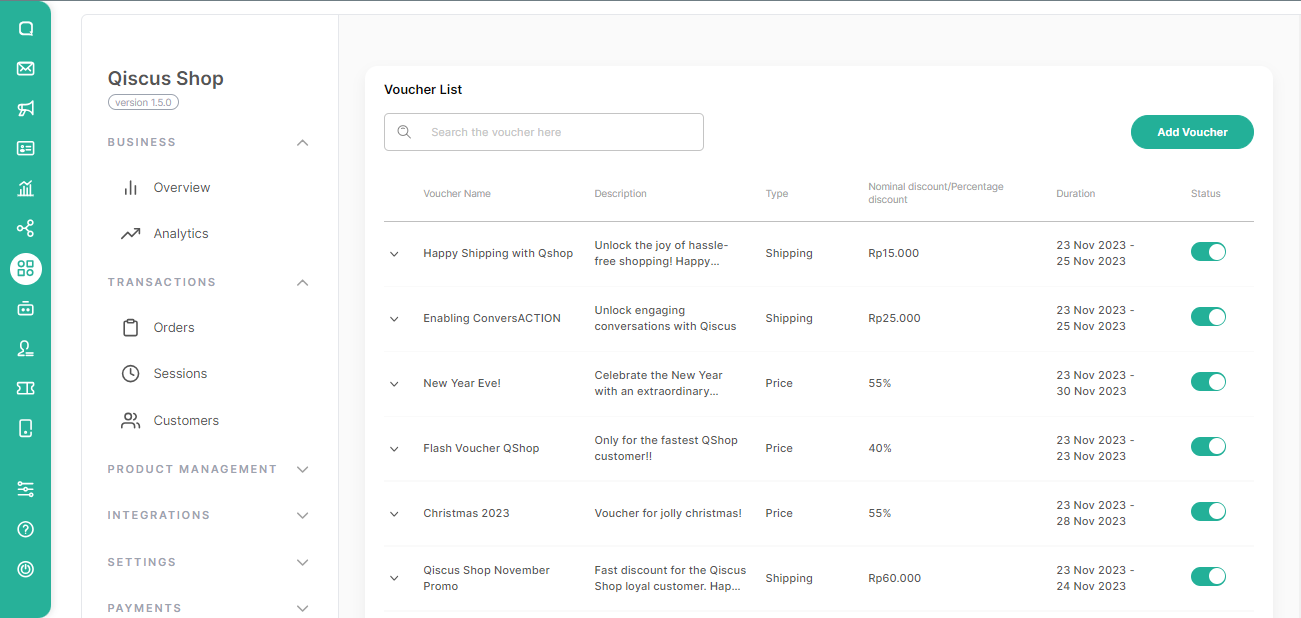
Fill the following details of the Voucher Information:
Voucher Type Choose the Voucher Type:
- Discount : It will cut the transaction value
- Free Shipping: It will cut the shipping value
Voucher Name
Voucher Description
Start and End Period of the Voucher
Then, click Next.
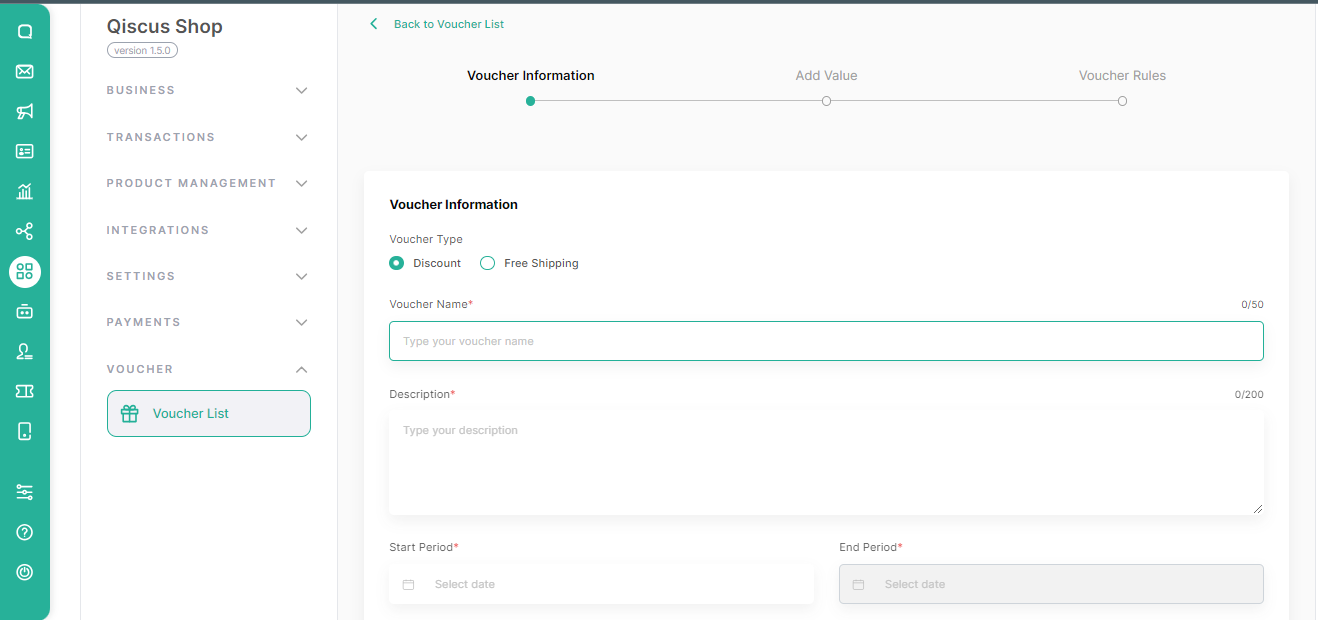
Fill the following details of the Voucher Value:
Discount Type
- Nominal
- Percentage
Nominal Discount
Minimum Transaction
Voucher Quota
After you fill in the form above, you will see the Cost Estimation of your draft voucher.
Then, click Next.
Enter the Voucher code for your discount. You have the option to make the code visible to buyers by checking the Make the voucher visible to the customer box.
To prevent the voucher from being used with another voucher, click the Single-use only box.
For merchandise vouchers, Single-use only means the voucher cannot be combined with another merchandise voucher but can still be used with a shipping voucher.
For shipping vouchers, selecting Single-use only means the voucher can only be used alone and cannot be combined with a merchandise voucher.
Shipping vouchers cannot be combined with another shipping voucher.
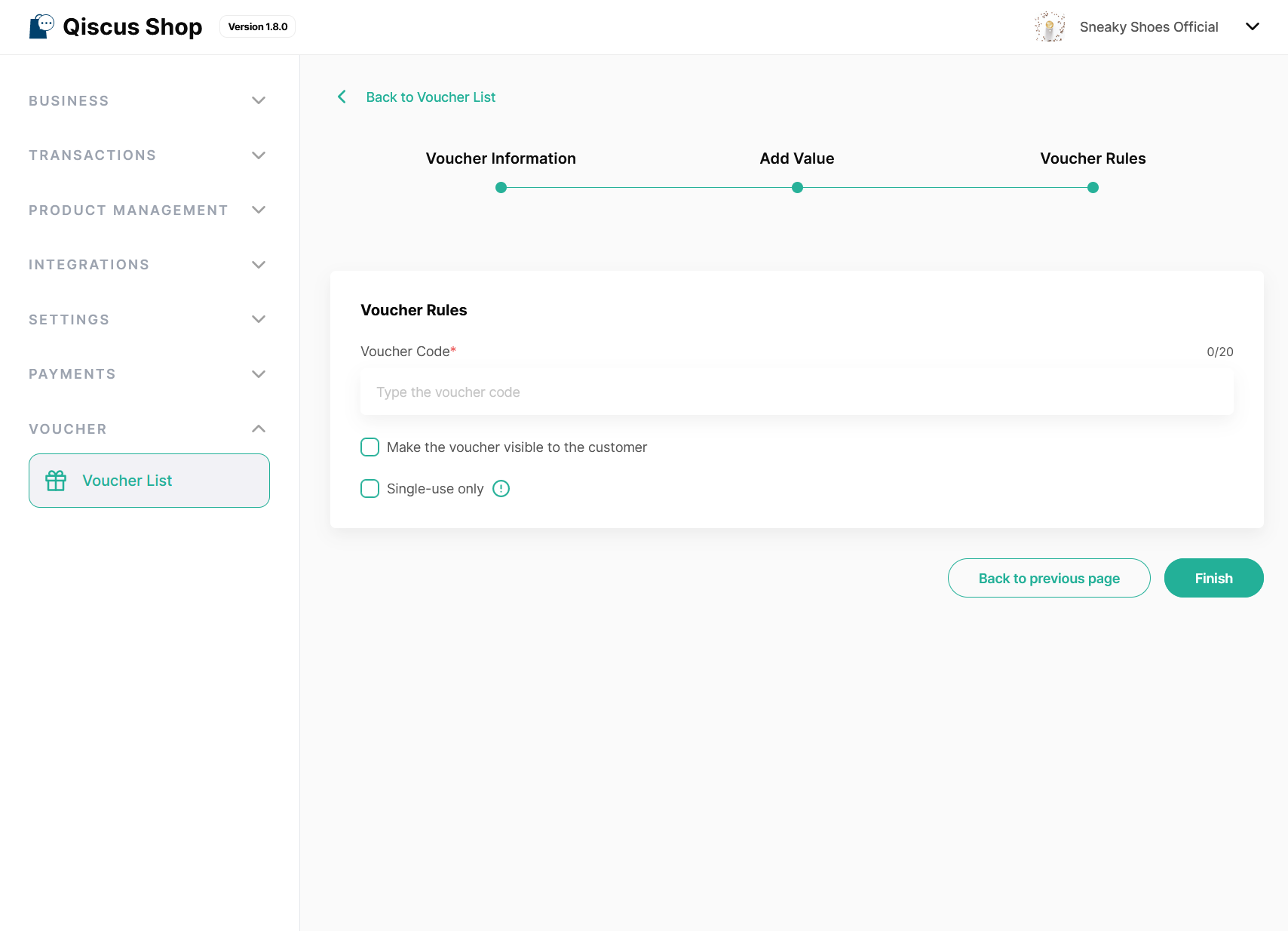
- Then, click Finish.
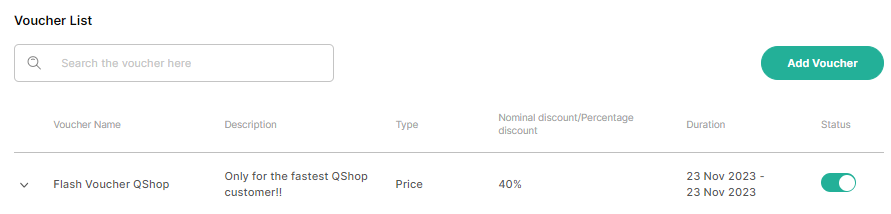
Apply Voucher Microsite
To start using the voucher, you need to access the microsite page to start shopping. Here’s how to use the store voucher’s
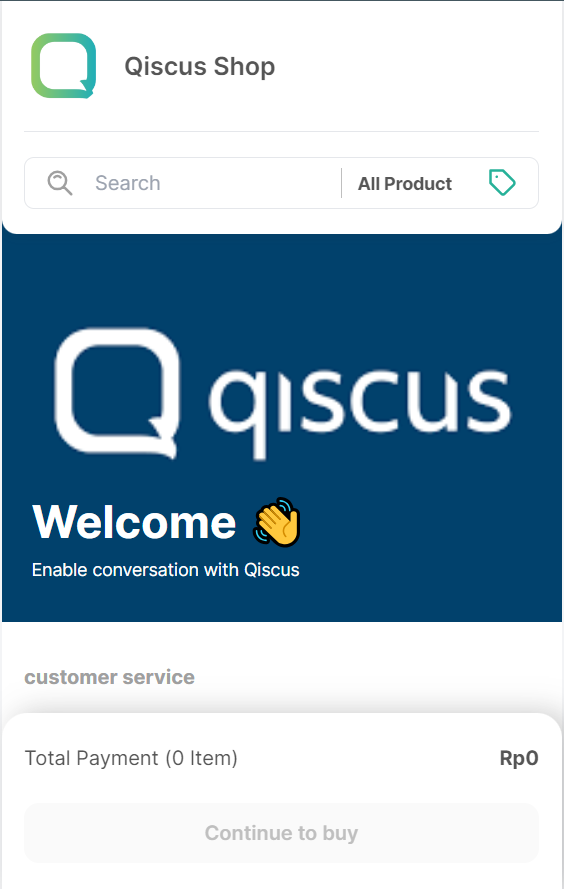
You can choose the items you want to buy
- Product variants
Then, click Buy.
You will see the product you selected with information:
- Stock
- Price
After you have selected the details of the product you want to buy, click Add to cart.
You will find a Continue to buy button on the bottom sheet of the microsite, click the button to process the purchase of the item.
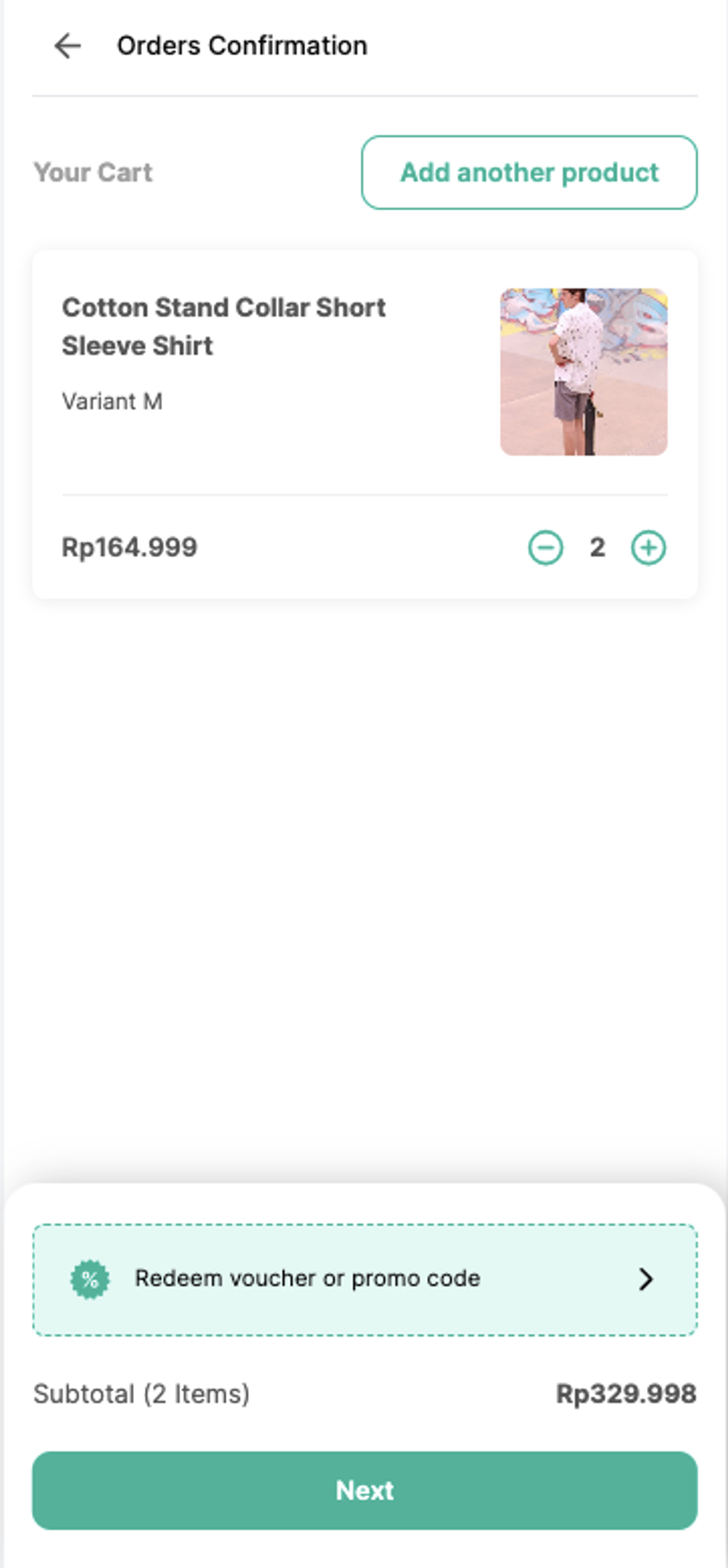
- On the Order Confirmation page, you can find the Redeem Voucher or Promo Code button to display available shop vouchers.
- Select one voucher in the Available voucher section to use in the transaction.
- If you have a voucher code, you can enter the code by pressing the Enter Code button provided.
- After you choose the voucher you want to use, press the Apply voucher button.
- When it comes to shipping vouchers, only one can be applied per transaction. However, if the voucher is not designated for single use, you’re free to combine a shipping voucher with a merchandise voucher.
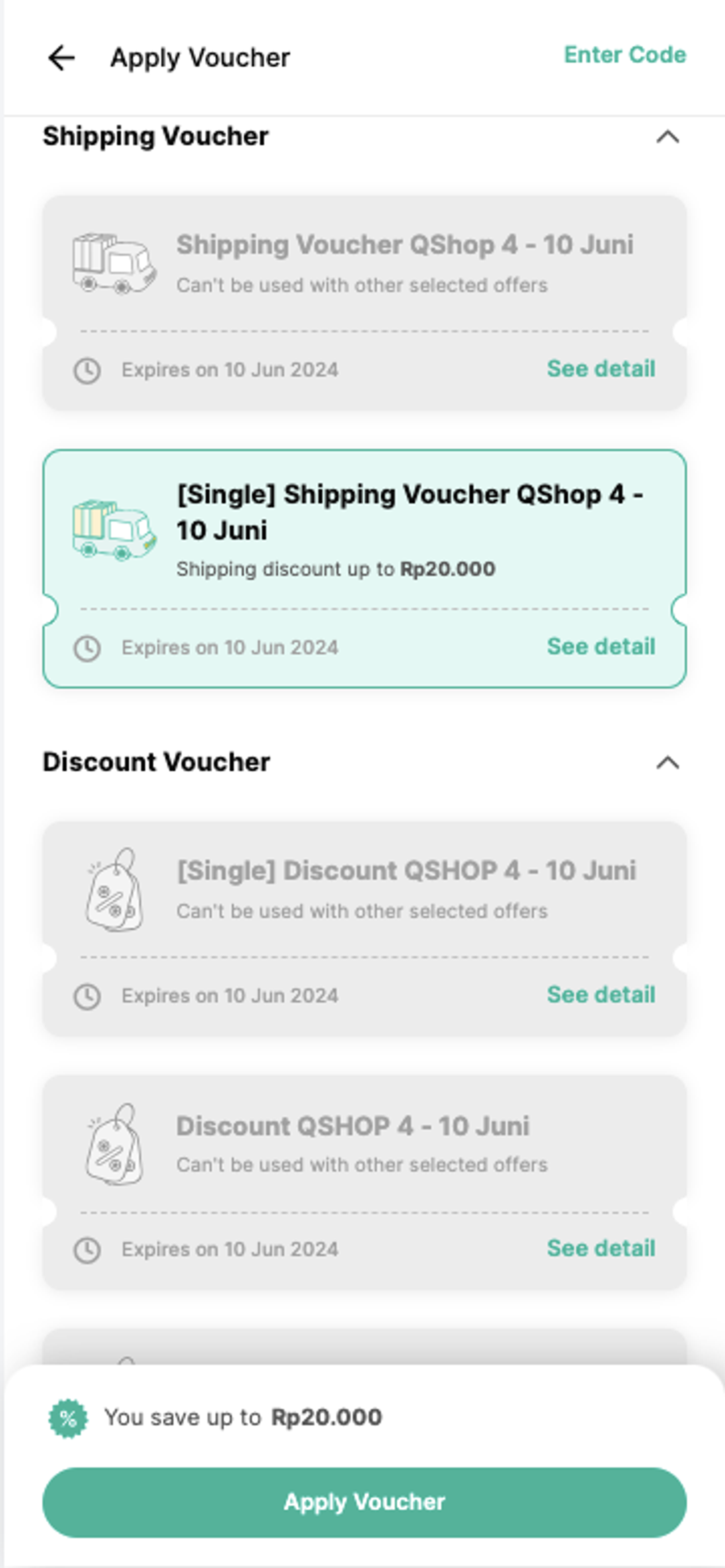
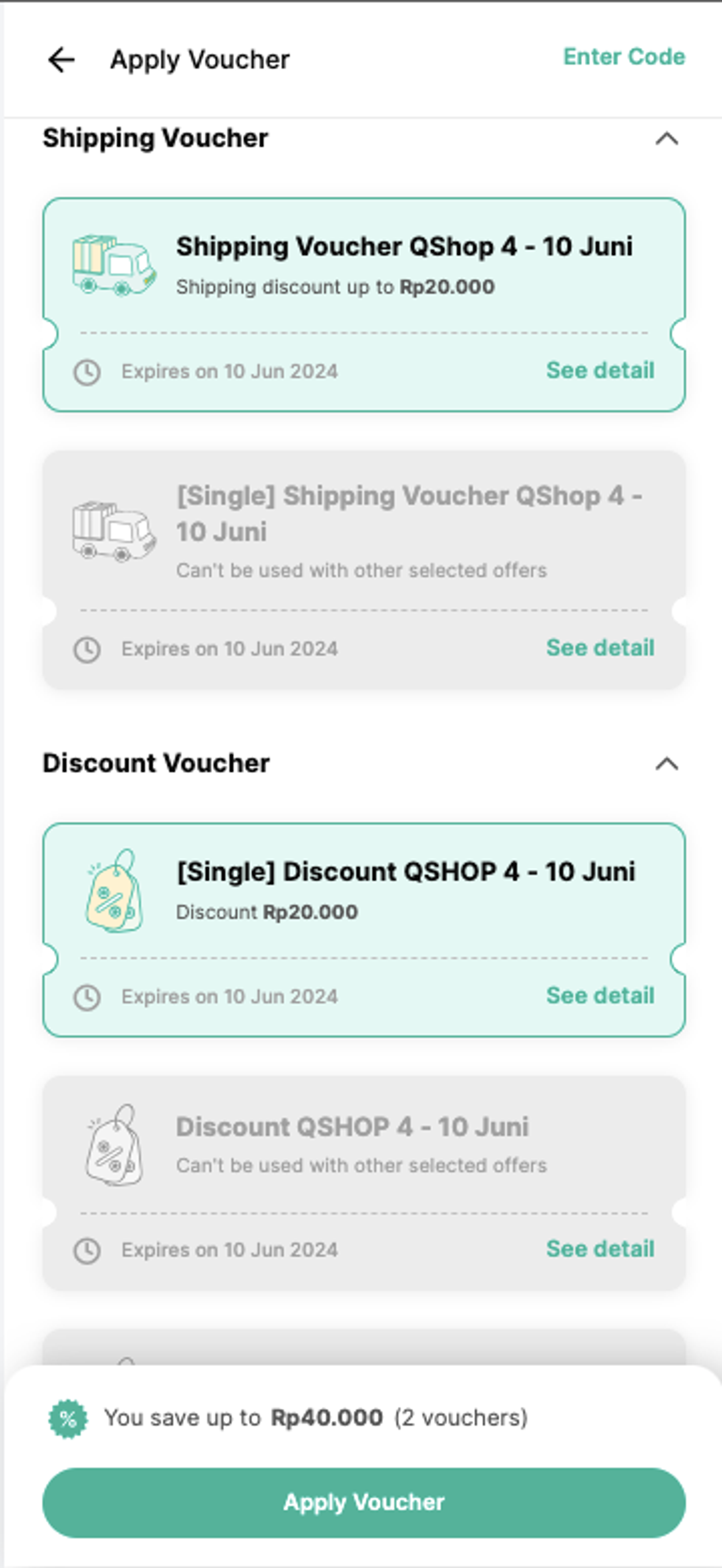
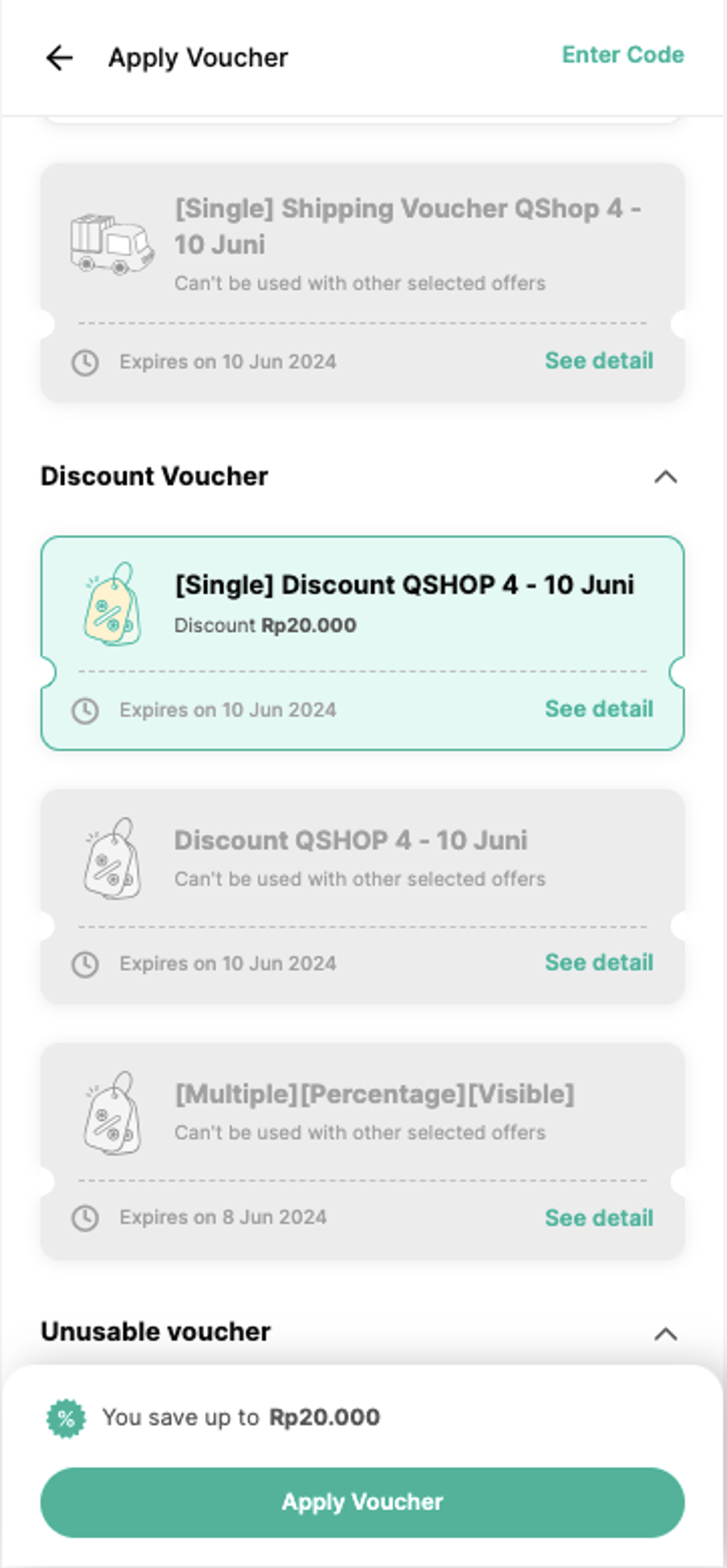
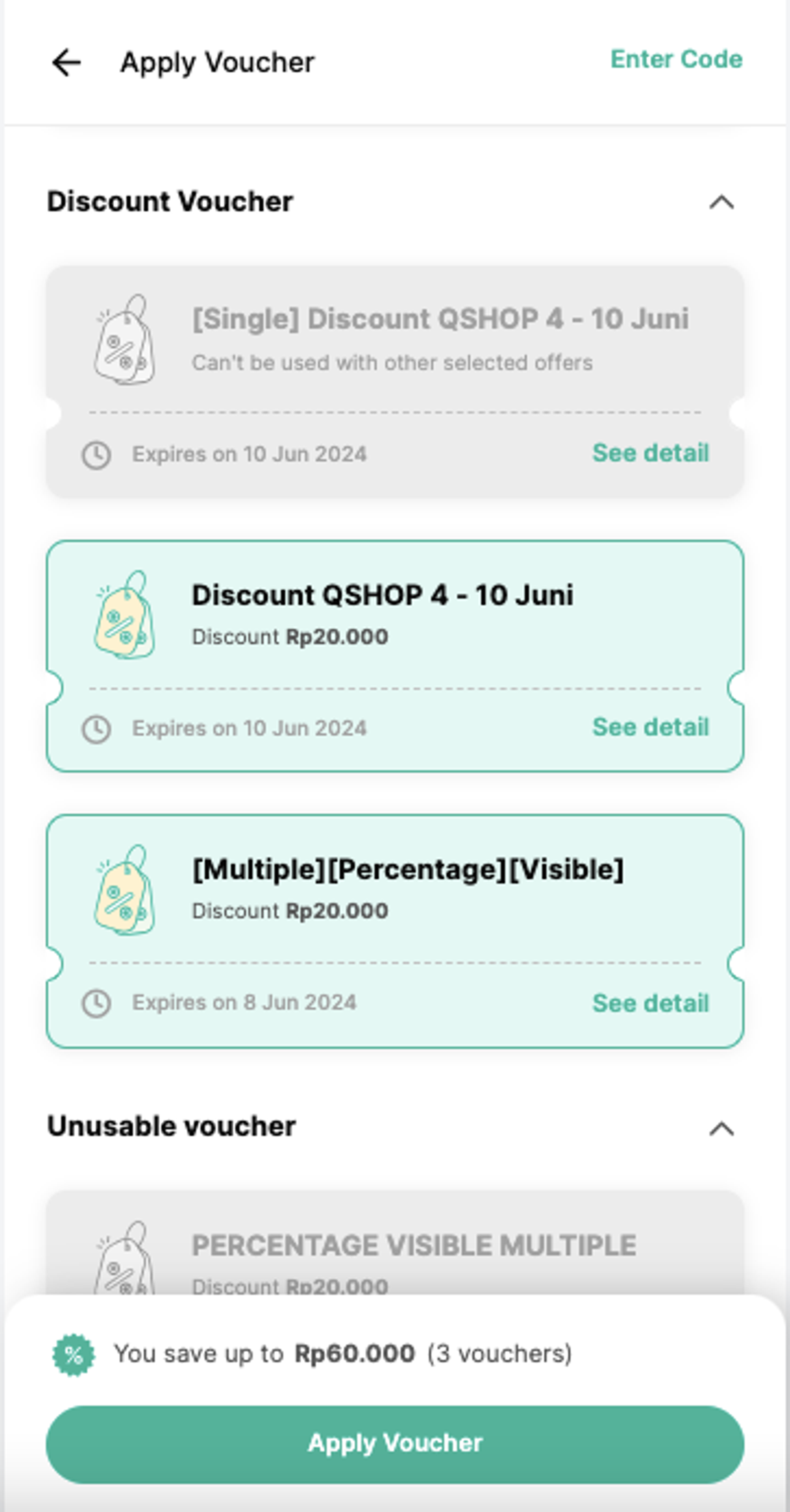
- When it comes to merchandise vouchers, you’re allowed to apply a maximum of two vouchers per transaction. If a voucher is designated for single use, you can only apply one per transaction; otherwise, you can apply a maximum of two merchandise vouchers per transaction.
- You will see discount information for the voucher you are using and also the final price you need to pay after using the voucher.
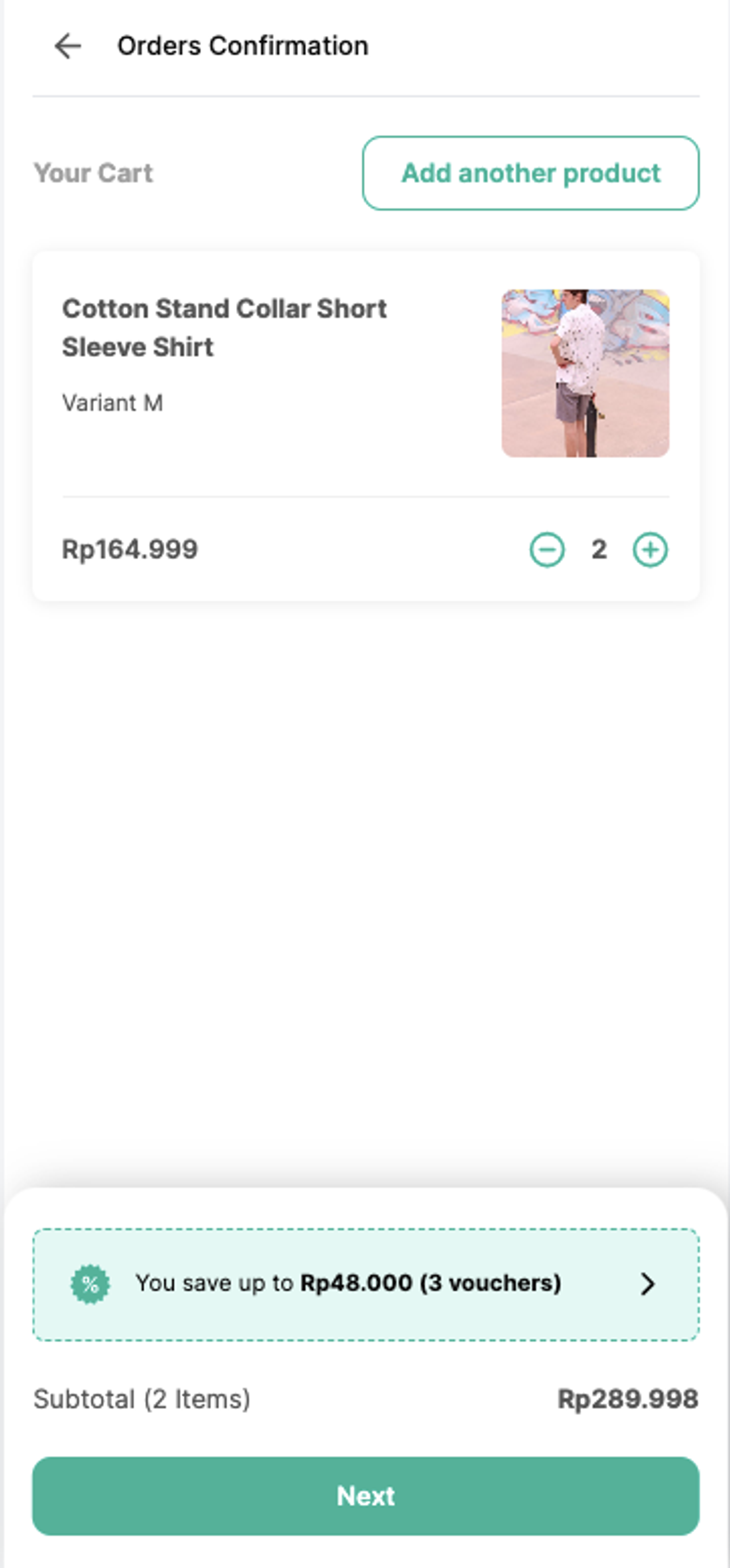
- Then, click Next.
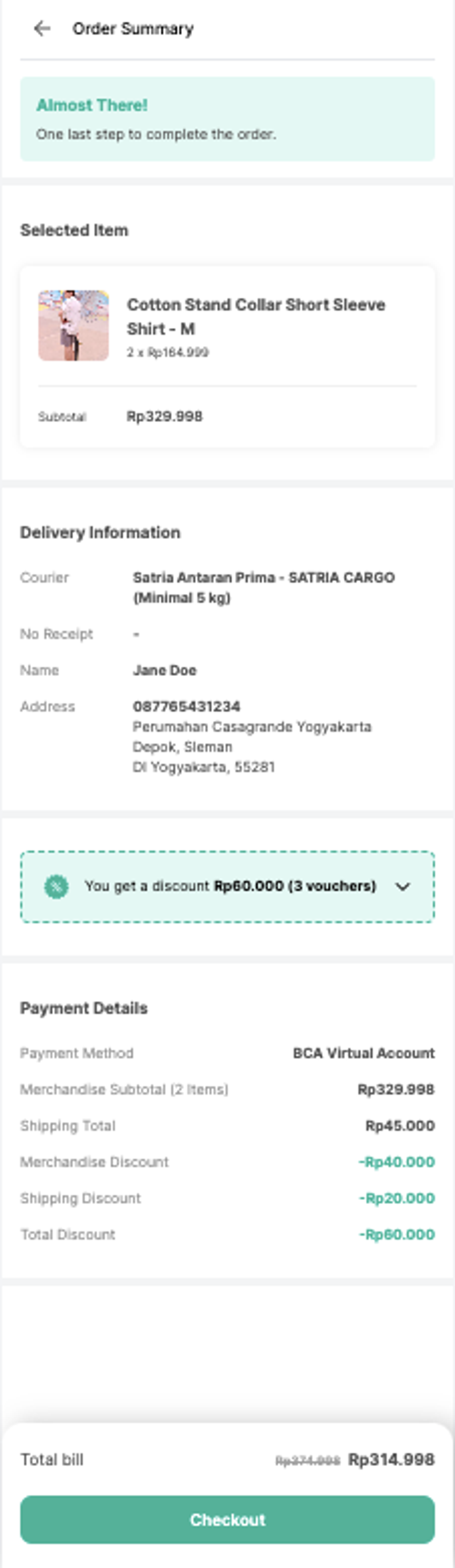
- fill the shipping address information then choose your preferred shipping and payment methods, and proceed to the Order Summary page. Here, you’ll find a detailed overview of the items in your cart, accompanied by information on the voucher you applied. The total amount due has already been adjusted to reflect the discount provided by the voucher.
Leave a Reply