This menu is used to create an email template for broadcasts. You can create beautiful email templates with the template editor by simply dragging and dropping content blocks.
In this section, we will explain creating email templates in email editor.
Create Template
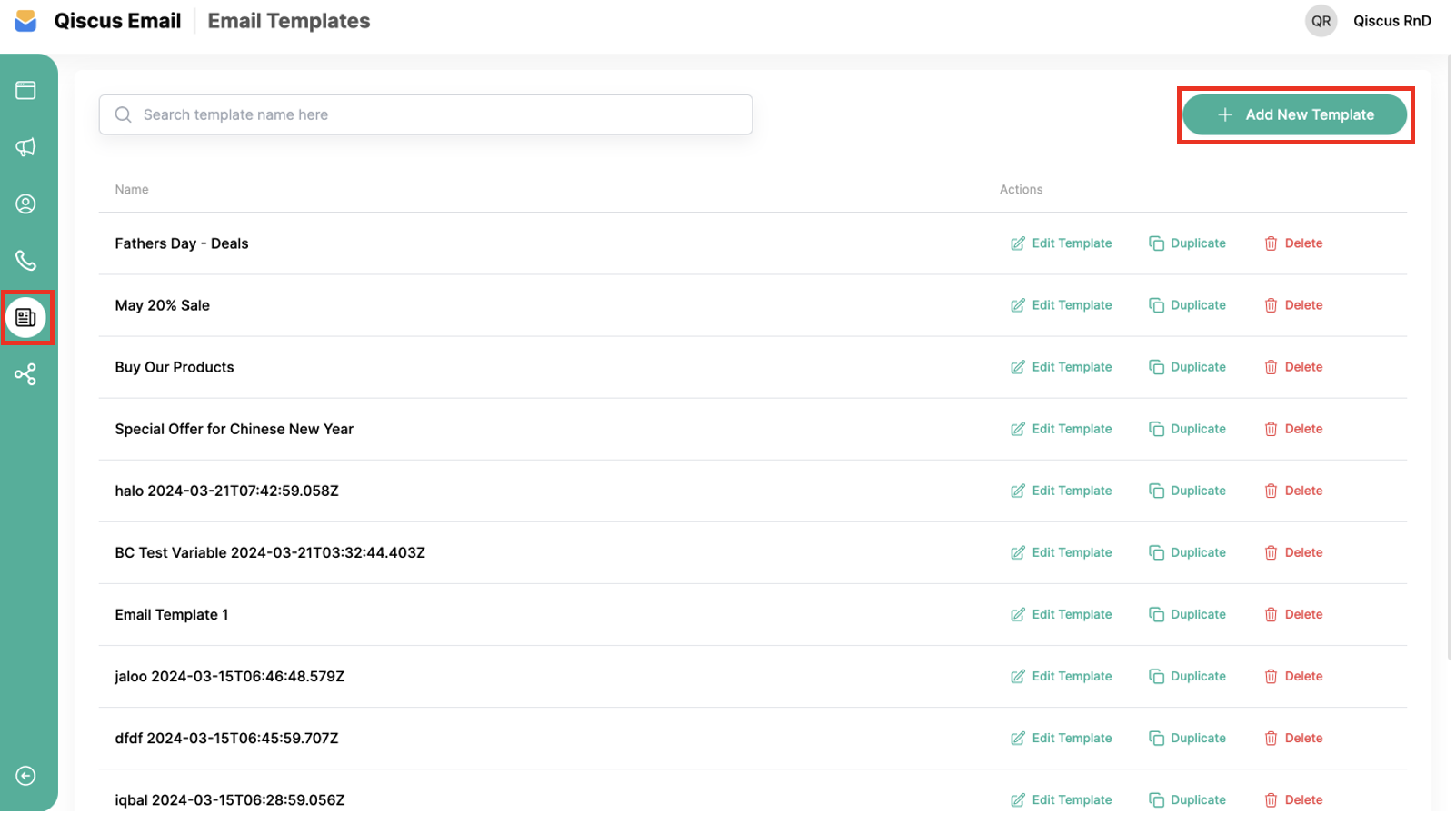
- Before starting, go to the Email Template menu and click Add New Template.
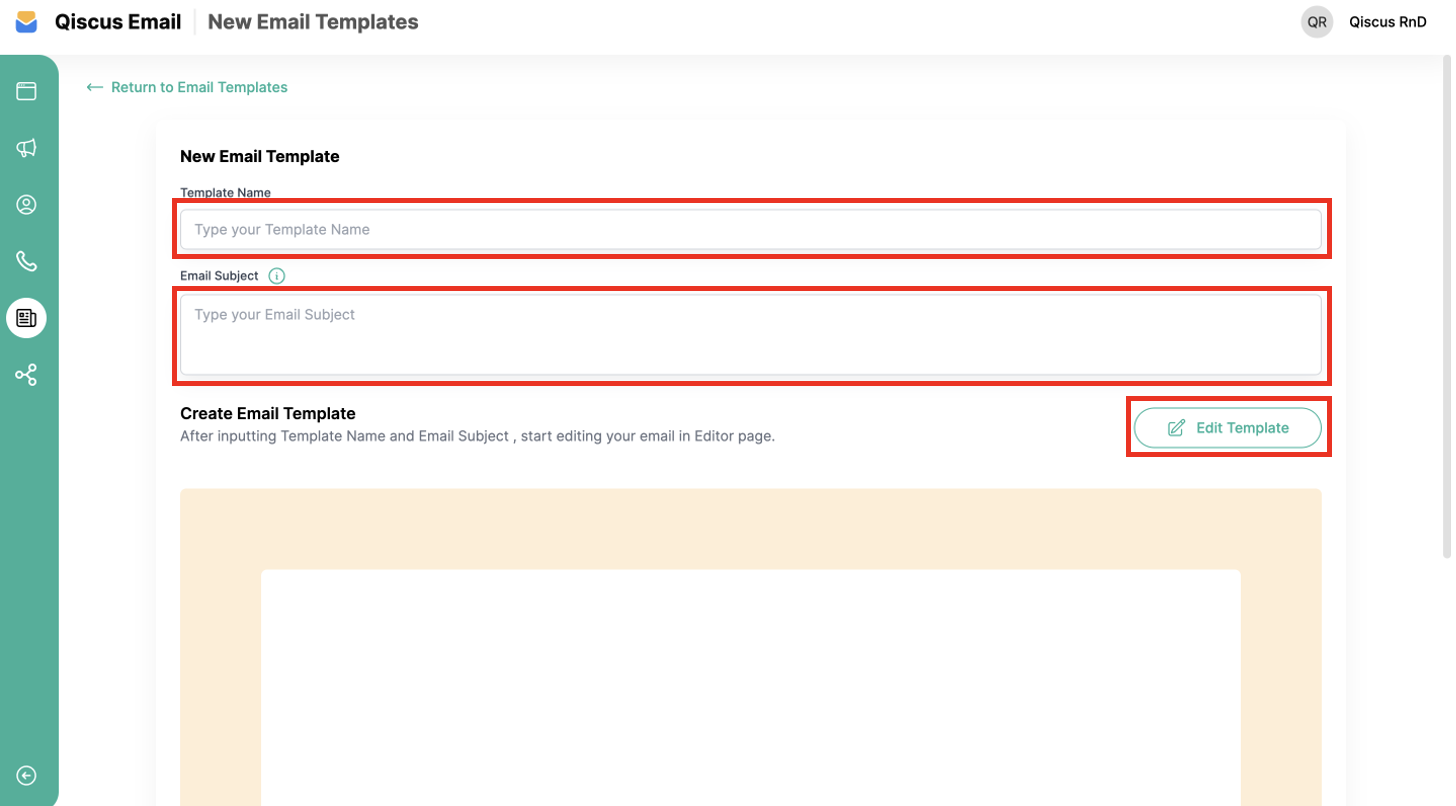
- A new email template page will be displayed. Fill in the Template Name and Email Subject. To create a beautiful email for broadcasting, click Edit Template.
- Now you are in the template editor. The details will be explained in the Edit Template section.
Edit Template
The editor template is an email builder that allows you to create engaging, high-quality emails of any complexity in no time, without coding skills. There are two ways to make your email template with the email editor:
- Import HTML template your own one.
- Drag and Drop and edit with editor tools.
The template editor is divided into several sections as follows:
Header Menu

The header is the top part of the email template editor. It consists of two main buttons:
- Save Template Button: Saves the design you created as a template.
- Close Button: Exits the email builder and cancels the email draft you created. Please note that if you haven’t saved the template and exit the editor, the draft will not be automatically saved, so be careful.
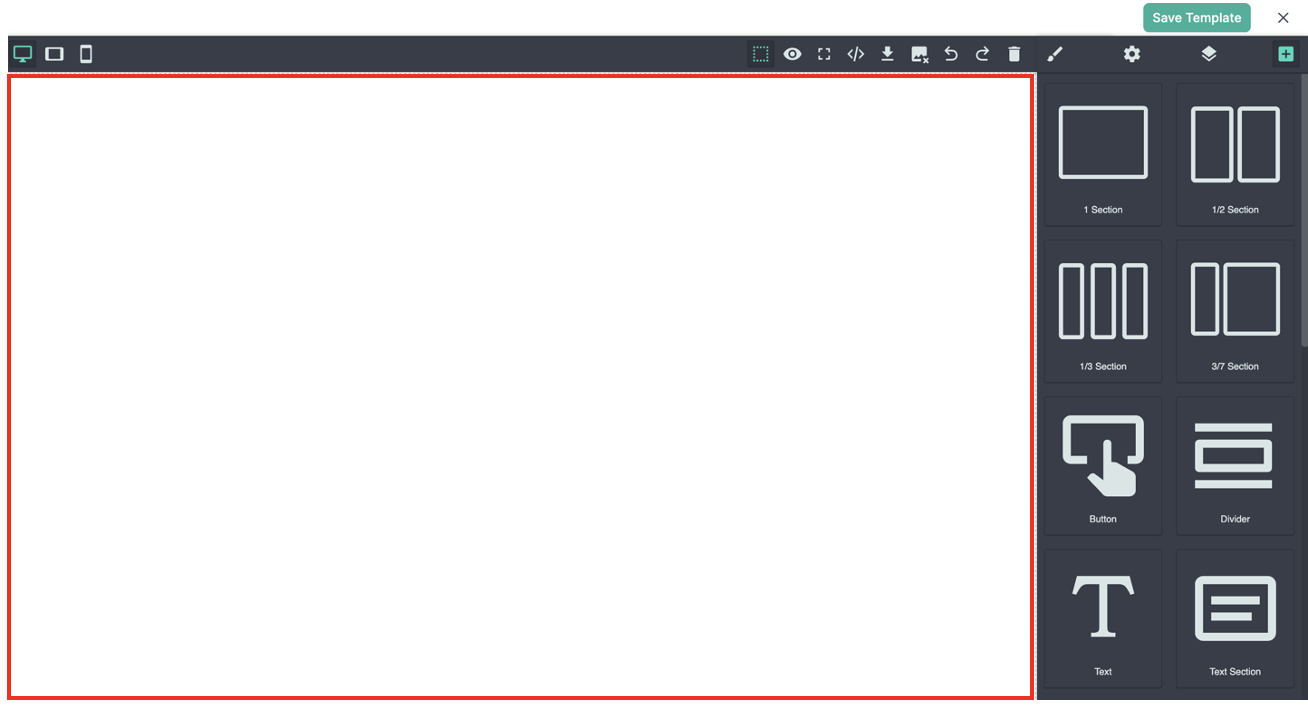
Canvas
The canvas is where you design and write your email content. When you open the email builder for the first time, the display on the canvas will appear as shown in the image. You need to make adjustments.
Command Tools

In this section, you will find features such as:
- Device Preview: To view mail content on desktop, tablet, and mobile.
- View Components: To view the components on the canvas by displaying the component grid lines.
- Preview: To view the email marketing template without showing the command and tools panels.
- Fullscreen: To view the email templates in full screen.
- View Code: To view the HTML code of the email template component you created.
- Import: To import an email template you already have.
- Toggle Image: To remove all images on the canvas.
- Undo and Redo: To revert or reapply the previous or subsequent action when editing the email template.
- Clear Canvas: To clear the canvas without any content.
- Open Style Manager: To manage the advanced style of each component, such as changing the background color, border, shadow, and other options.
- Settings: To manage the elements used in the email template.
- Open Layer Manager: To see the component layers used in the email template.
- Open Blocks: To add other component blocks.
Tools Panel
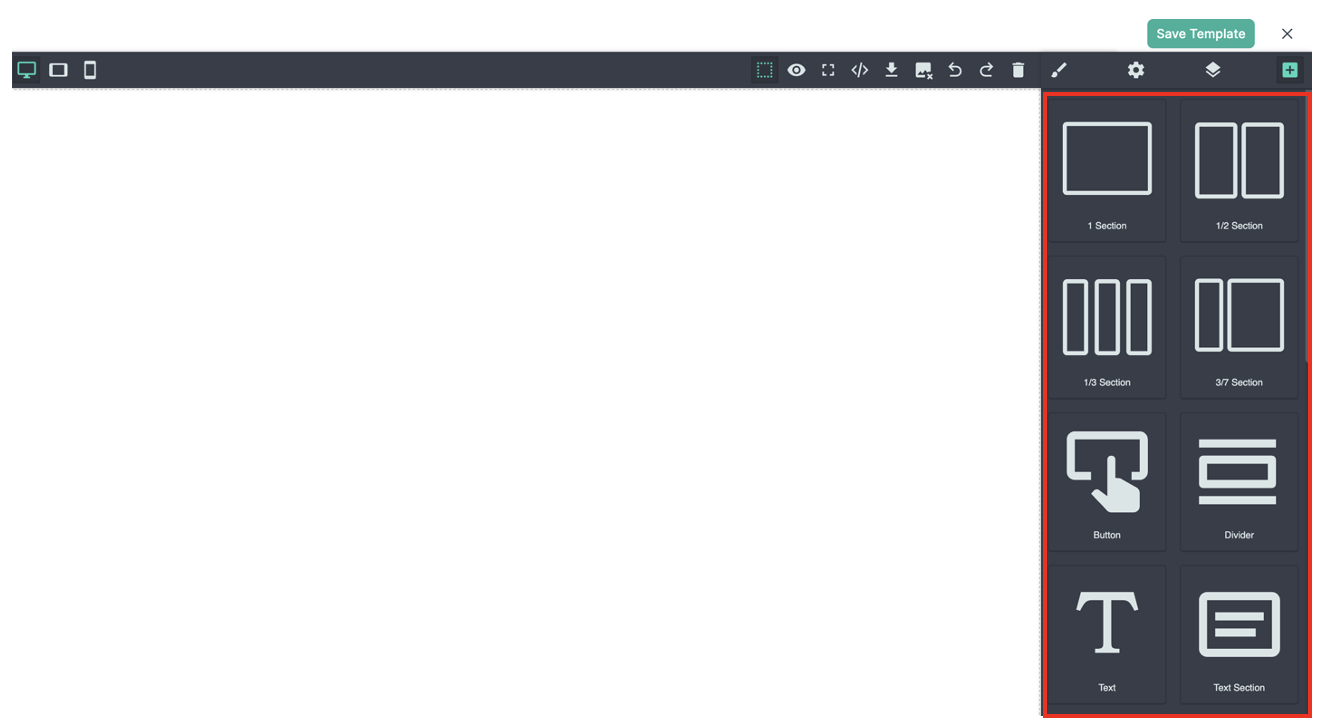
The tools panel is an important part of the editor template. With this panel, you can add new content, adjust the layout, add blocks, and make many adjustments to your email marketing content. Here are some example blocks you can use:
- Section
- Text
- Image
- Button
- Link
- Others
How to start Creating an Email Template
So how to start creating an email template?, let’s try according to the following steps:
Import HTML template
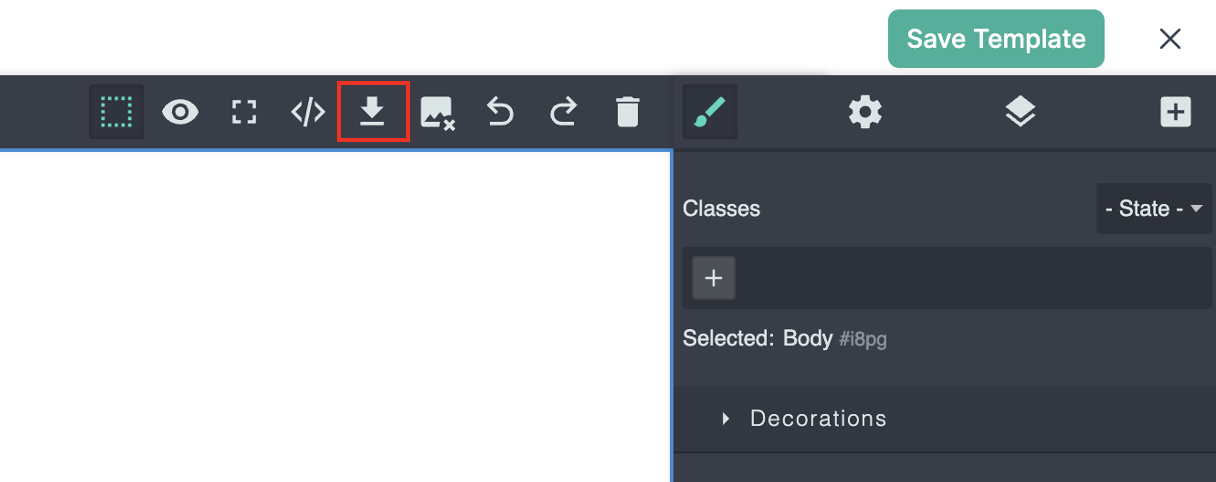
- If you already have an HTML email marketing template file, you can use the import feature in the editor by clicking the Import icon.
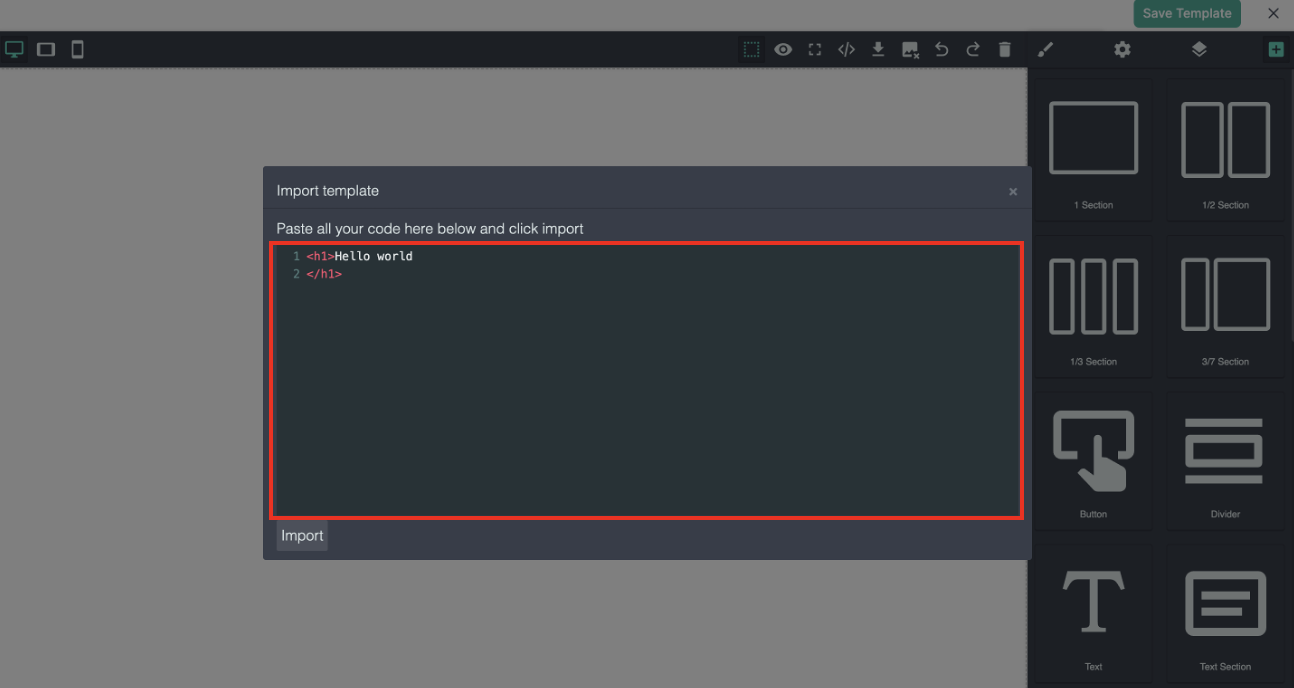
- Paste the code in the provided area.
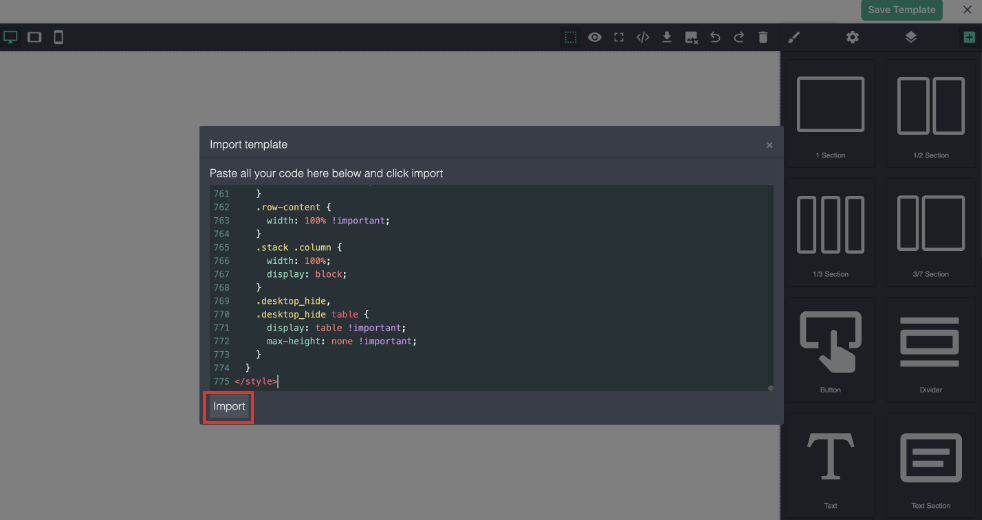
- Click Import.
Drag-and-Drop and Edit with editor tools
You can use the drag-and-drop feature with existing content blocks. This helps speed up the creation of email templates without coding skills. Just drag and drop the content block on the canvas.
Don’t forget to fill in the Template Name and Email Subject, then click Save Template.
Searching for Email Template
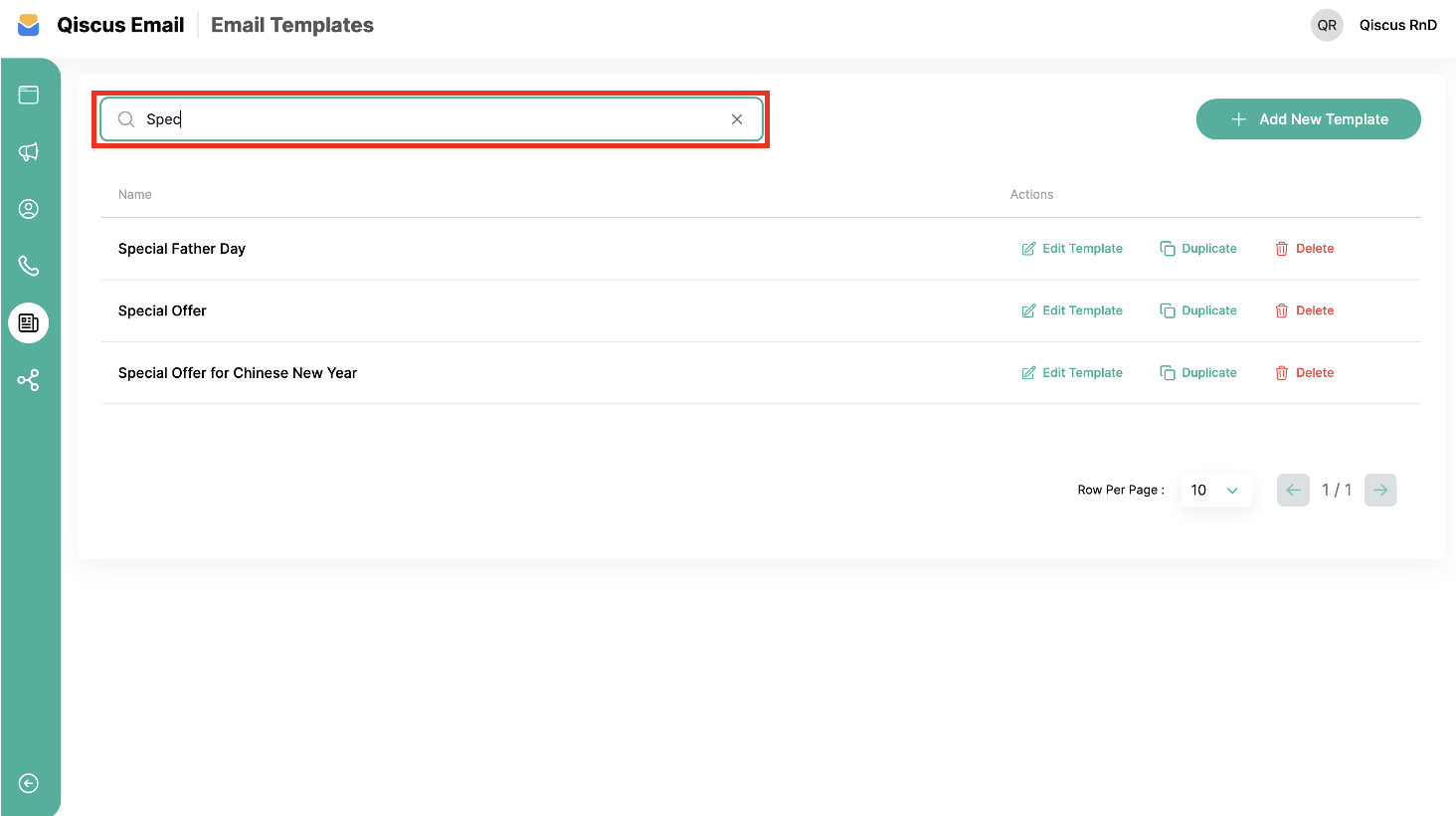
You’ll find a search feature to look up email templates by their names. Fill in the keywords in the search field, and the list will automatically change according to the keywords.
Leave a Reply