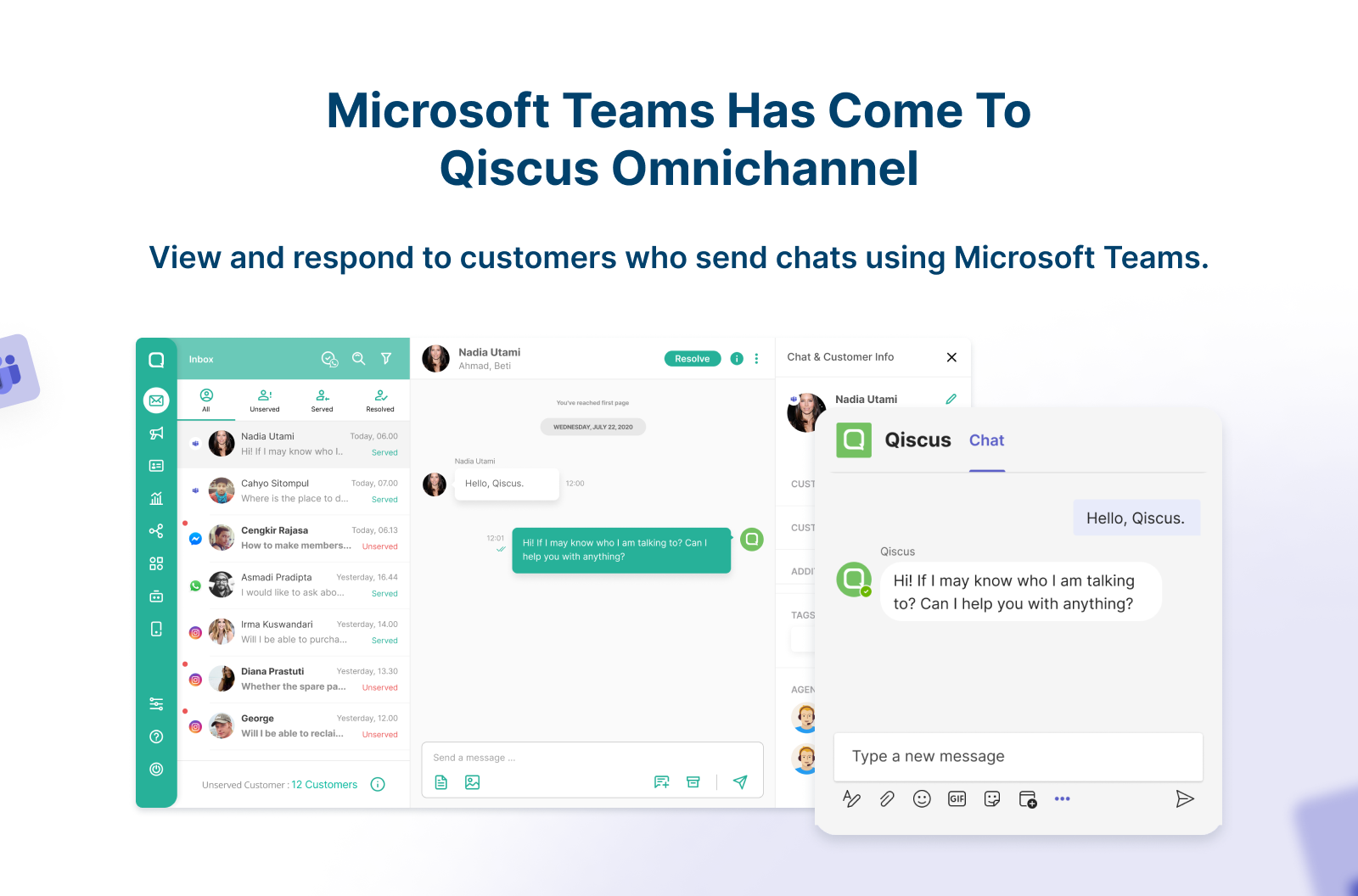
Integrate Microsoft Team with Qiscus Omnichannel.
Qiscus Omnichannel has implemented an Add-On that allows you to receive and reply directly to every customer’s chat in Microsoft Teams via Qiscus Omnichannel dashboard. This new Add-on provides businesses with a seamless and efficient way to manage their customer service operations within Teams, giving them a unified view of all their customer conversations. With this integration, users can easily respond to customer inquiries and issues in real-time, regardless of the channel the customer used to initiate the conversation.
Overview
There are 4 steps you have to do to integrate your MS Account:
- Request Microsoft Teams Addons from App Center
- Create App registrations on Azure Portal
- Create Bot using the Microsoft Bot framework
- Create an Account on Qiscus App Center
Create an Account on Qiscus App Center
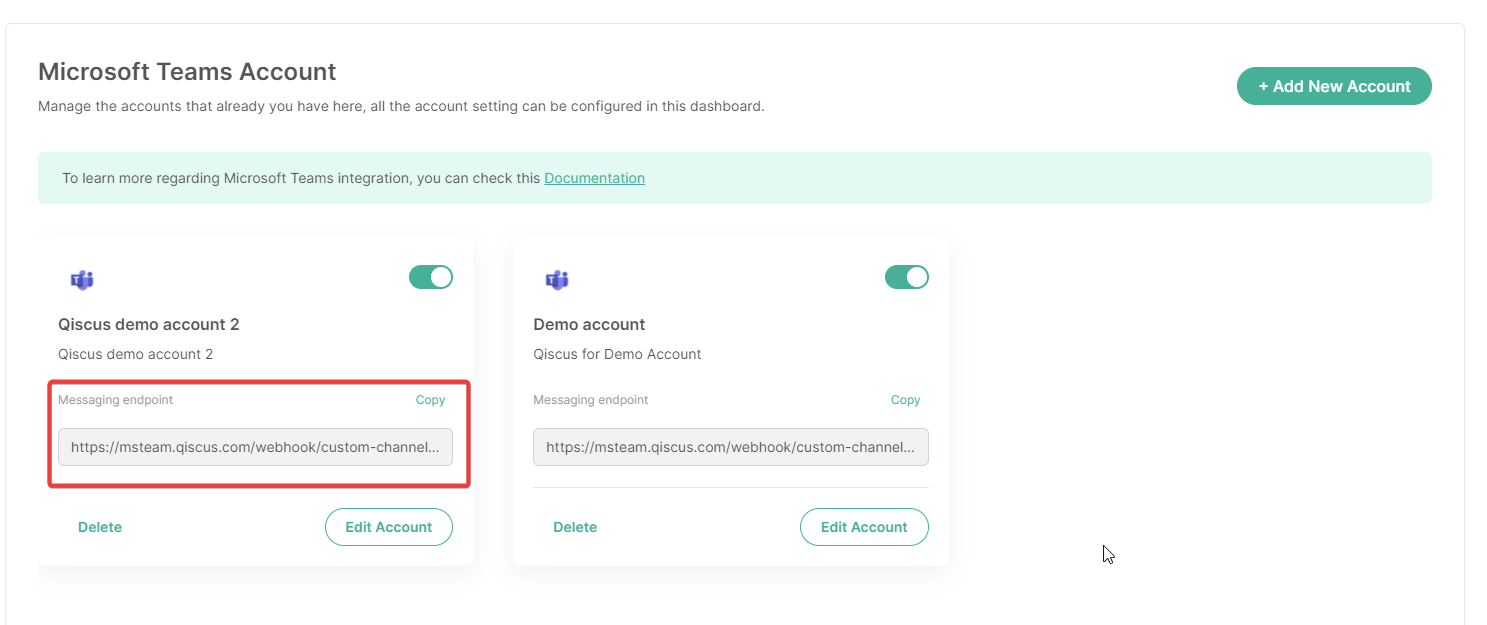
Click Add New Account, you can only create 1 account, if you want to create more than 1 account please contact us.
Fill the form with data
- Client ID is your Application (client) ID from the first section
- Secret Key is your Secret key generated from the first section
After successfully creating an account, you will get the Message endpoint, go back to Bot Framework Setting and set the message endpoint
Create Bot using Microsoft Bot framework
- To create a new bot you can follow the link https://dev.botframework.com/bots/new
- Fill out all forms provided
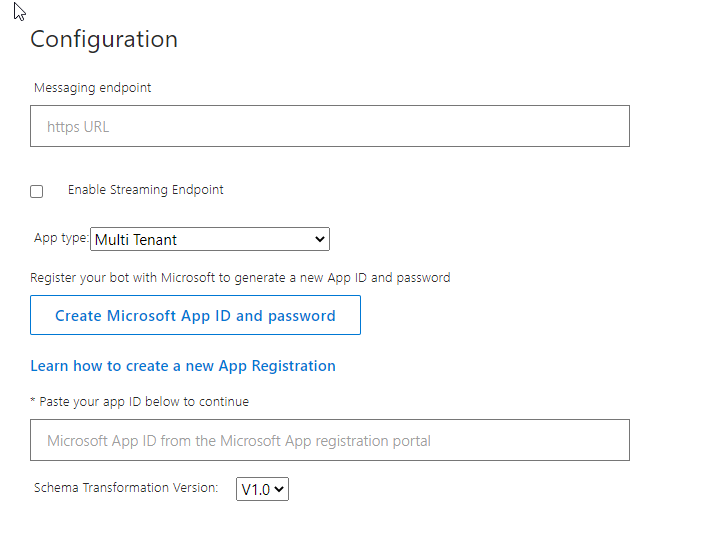
- Configuration section
- Messaging endpoints are used for your bot Webhook URL. Fill this field using our message endpoint from Qiscus App Center, example:
https://msteam.qiscus.com/webhook/custom-channel/Your-AppCode/oDGxc - Paste your Microsoft Application (client) ID
- Messaging endpoints are used for your bot Webhook URL. Fill this field using our message endpoint from Qiscus App Center, example:
- Configuration section
- Create the bot
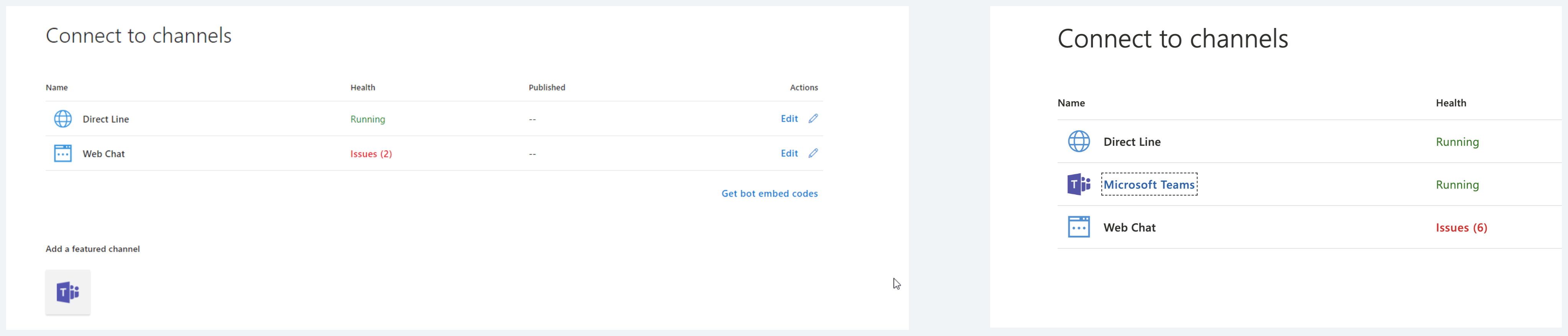
- Add Microsoft Teams Channel to connect bot to Microsoft Teams
- Finished!
Test your bot
After all the configuration is done, you can start to try your bot on MS Teams. Follow this step:
- First, make sure you have installed MS Teams on your device. Then, make sure again that your account is Work or School account.
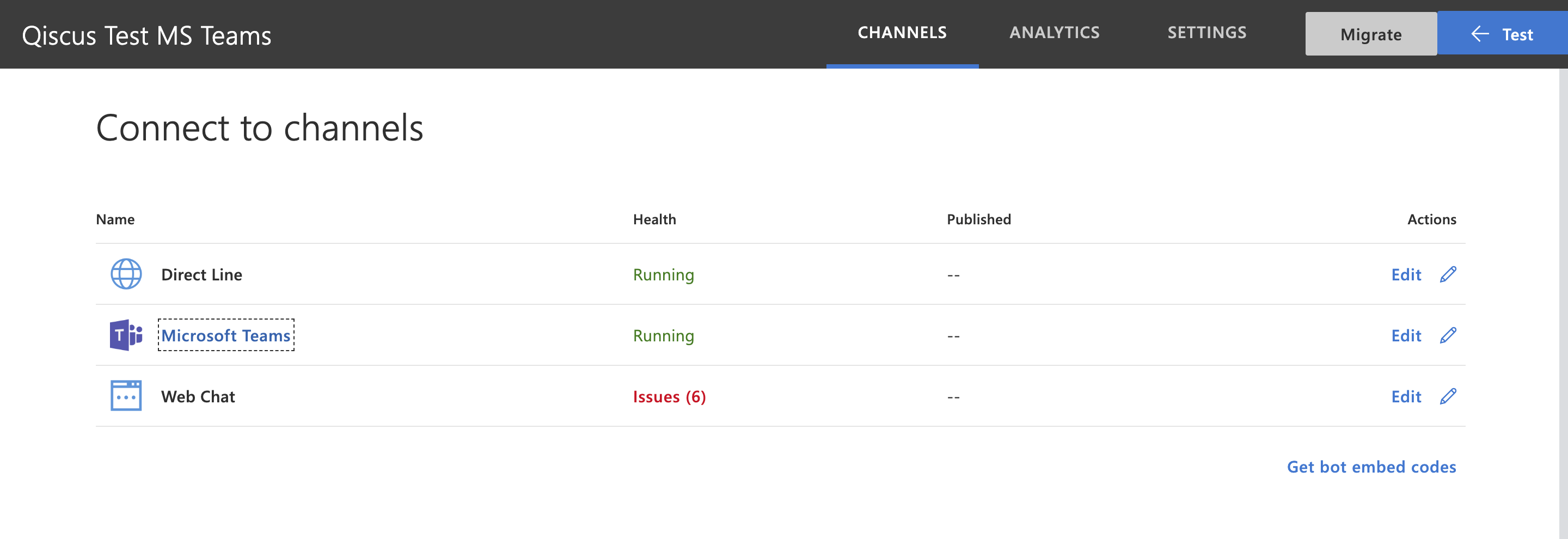
- Click Microsoft Teams on your bot channels list
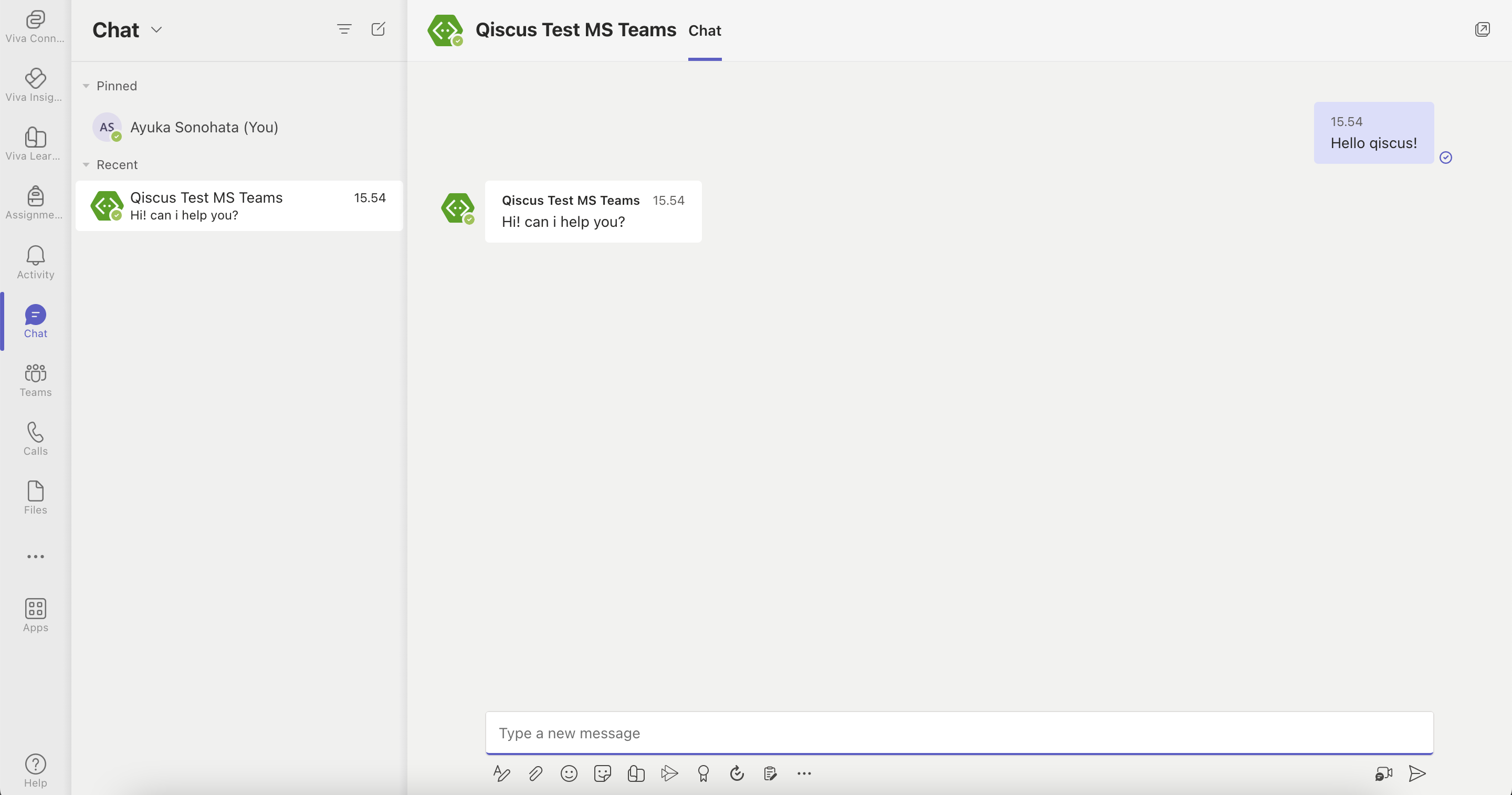
- You will be redirected immediately to the bot room chat
- All the messages you send to your bot will appear on Qiscus Omnichannel dashboard
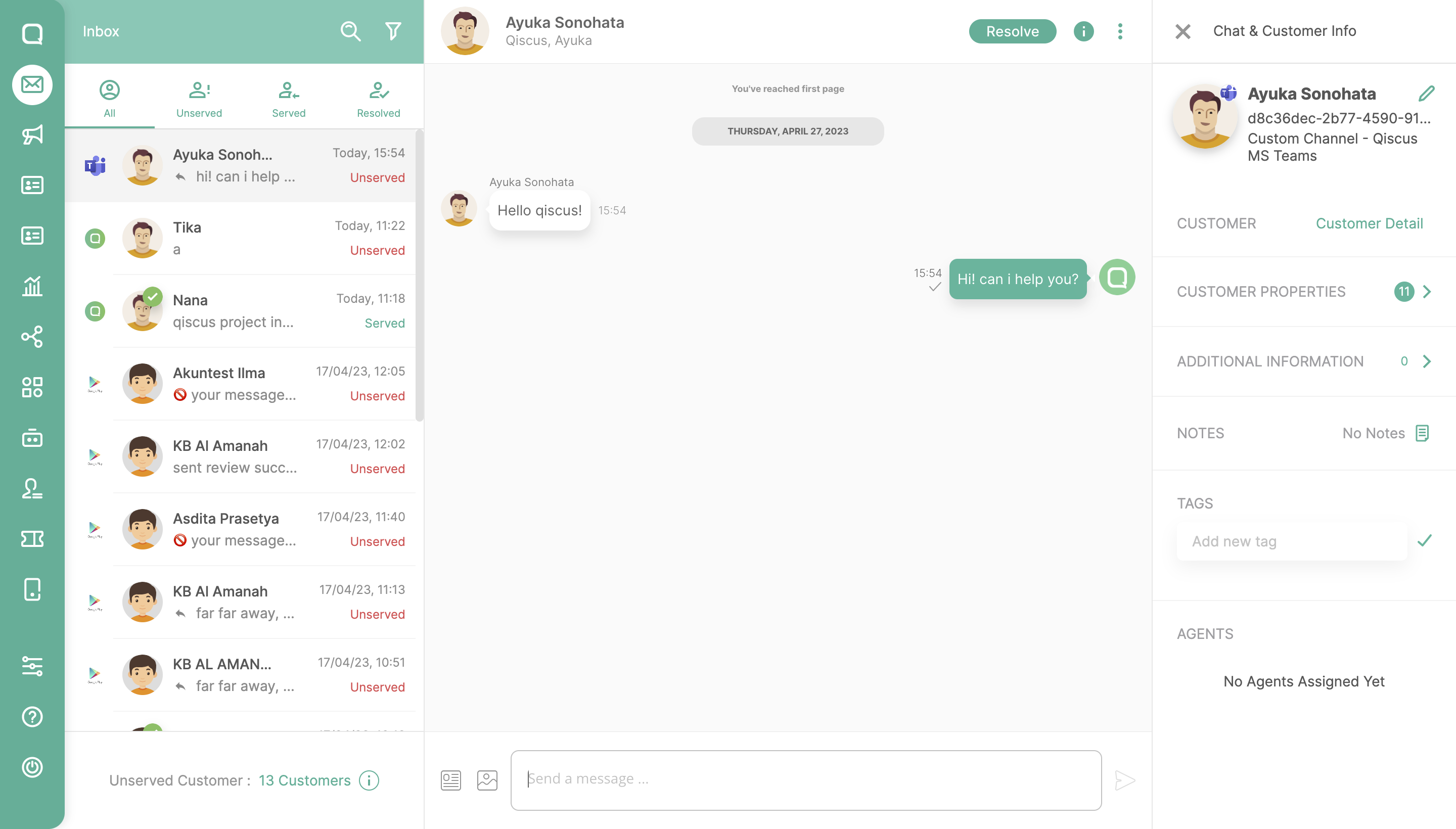
Integration Result
Incoming Message
Leave a Reply