Twitter is an online social networking and microblogging service that allows its users to send and read text-based messages of up to 280 characters known as tweets and direct messages that have no character limit. To be able to reach more conversational channels that can be integrated into Qiscus Omnichannel, the App Center releases a Twitter Add-on, so that they can use it as a liaison/reach media between customers and their business owners on Qiscus Omnichannel.
We assume that the add-on already installed, so we will skip the installation process or you can see the getting started documentation here
To see the Twitter setting page, you can go to the Twitter add-on in the My Apps page then click Settings button.
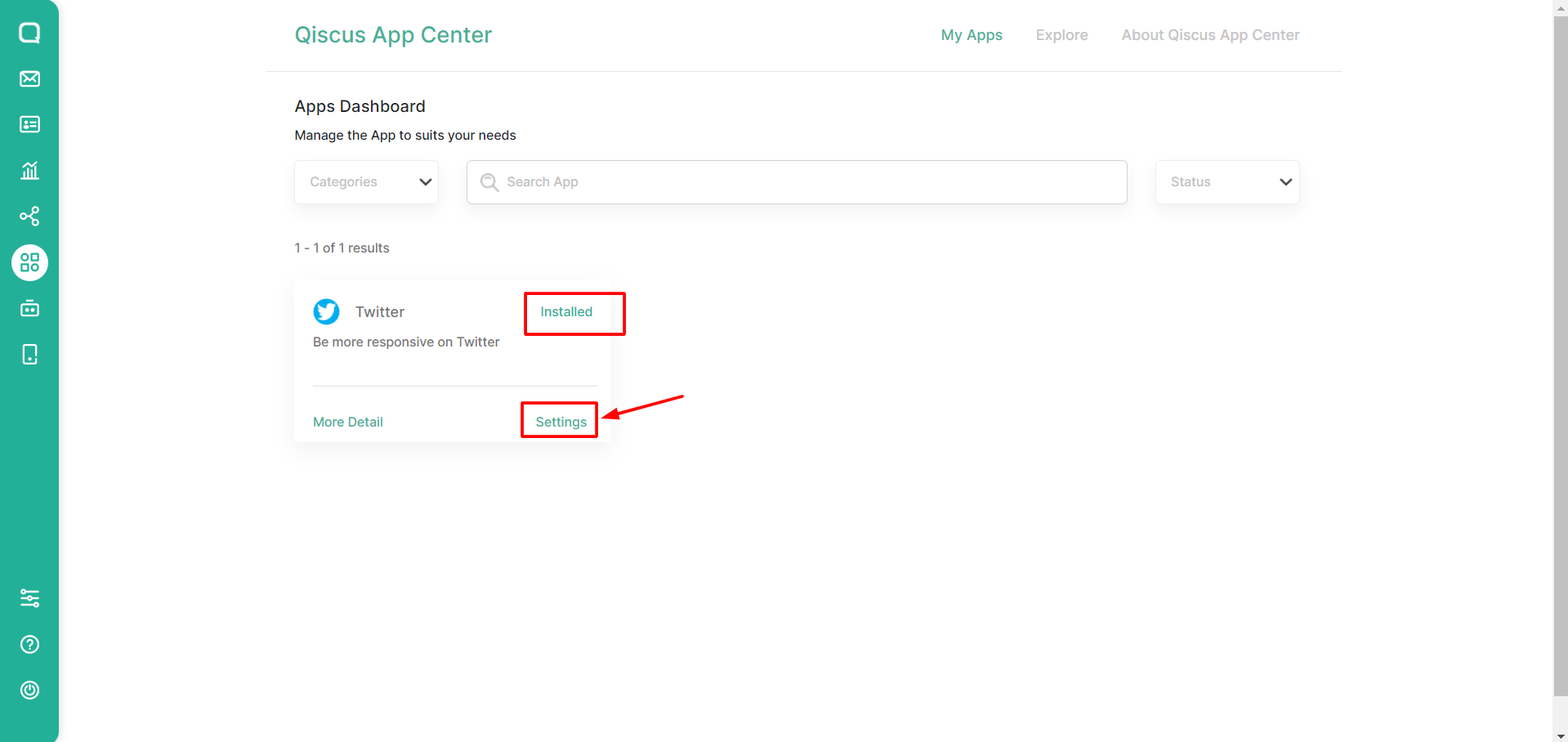
Setting Page
This is what the Twitter setting page looks like. There is a link that will lead to the Twitter Developer Account creation guide. This is necessary because to integrate Twitter into Qiscus Omnichannel, you should use the Twitter that registered as a Twitter Developer.
If a Twitter Developer Account is already available, you can start setting up by clicking the Begin Setup button.
Create an App in Twitter Developer Account
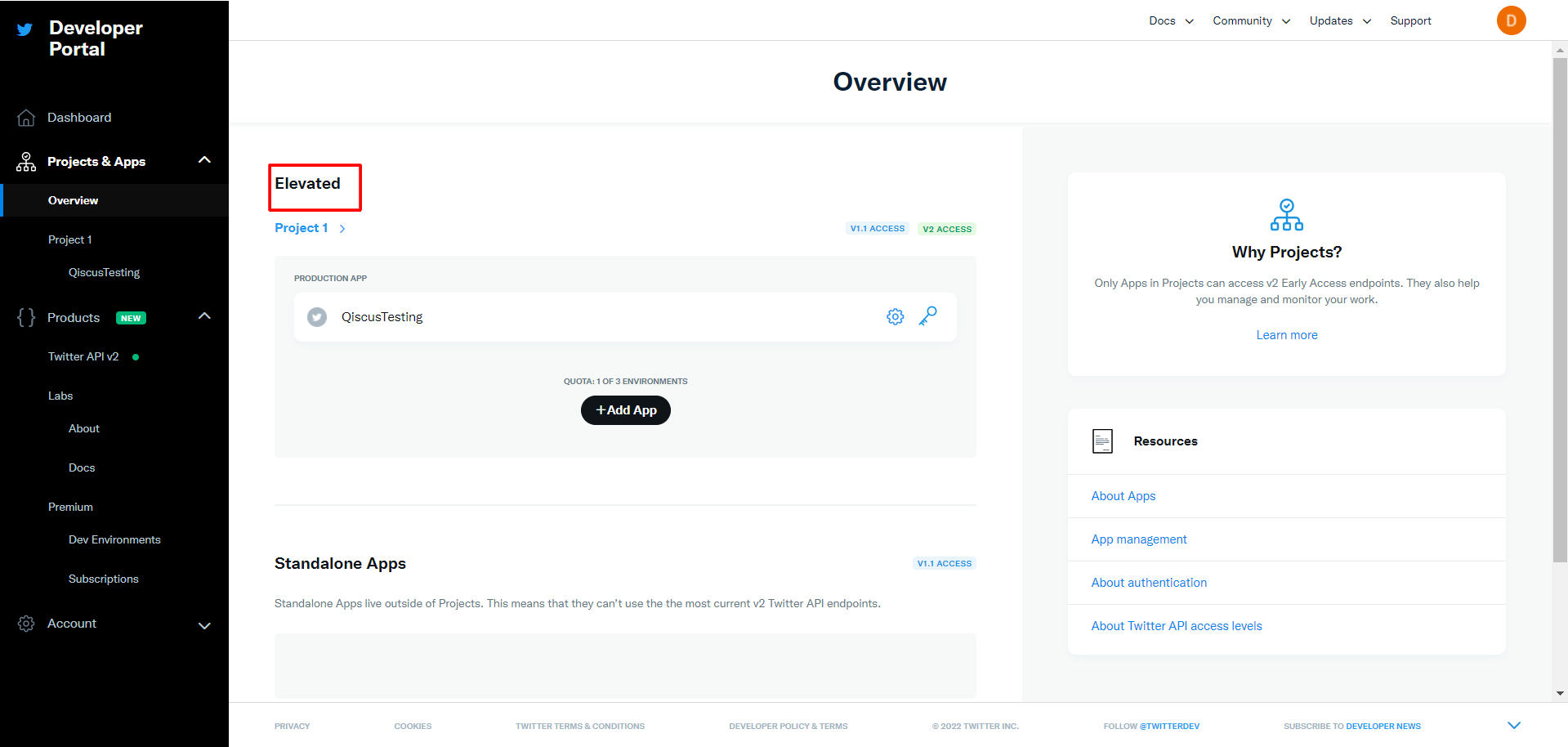
Disclaimer, you have to change the Twitter developer account from Essential to Elevated before integrate the account. Go to Twitter Developer, click Project & Apps, choose Overview, then you can make a request to Twitter to change your Twitter Developer account status to become Elevated. Go to https://developer.twitter.com/en to access Twitter Developer page and login using Twitter account that will be integrated with Qiscus Omnichannel Chat
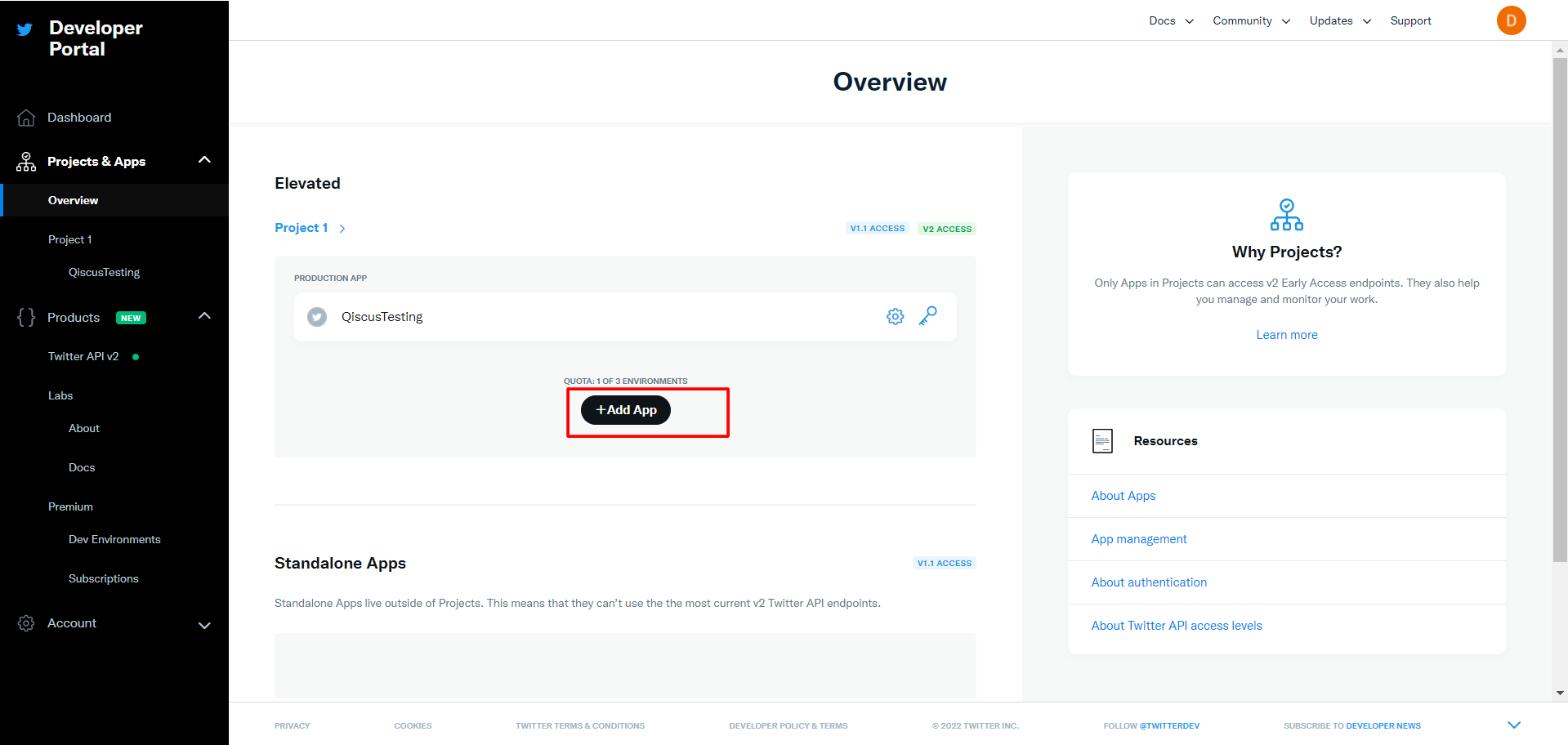
Next, you need to create an app by click the +Add App button to generate consumer key that needed to integrate the Twitter account into Qiscus Omnichannel
Fill in the data below, you can refer to the Twitter App Management documentation here
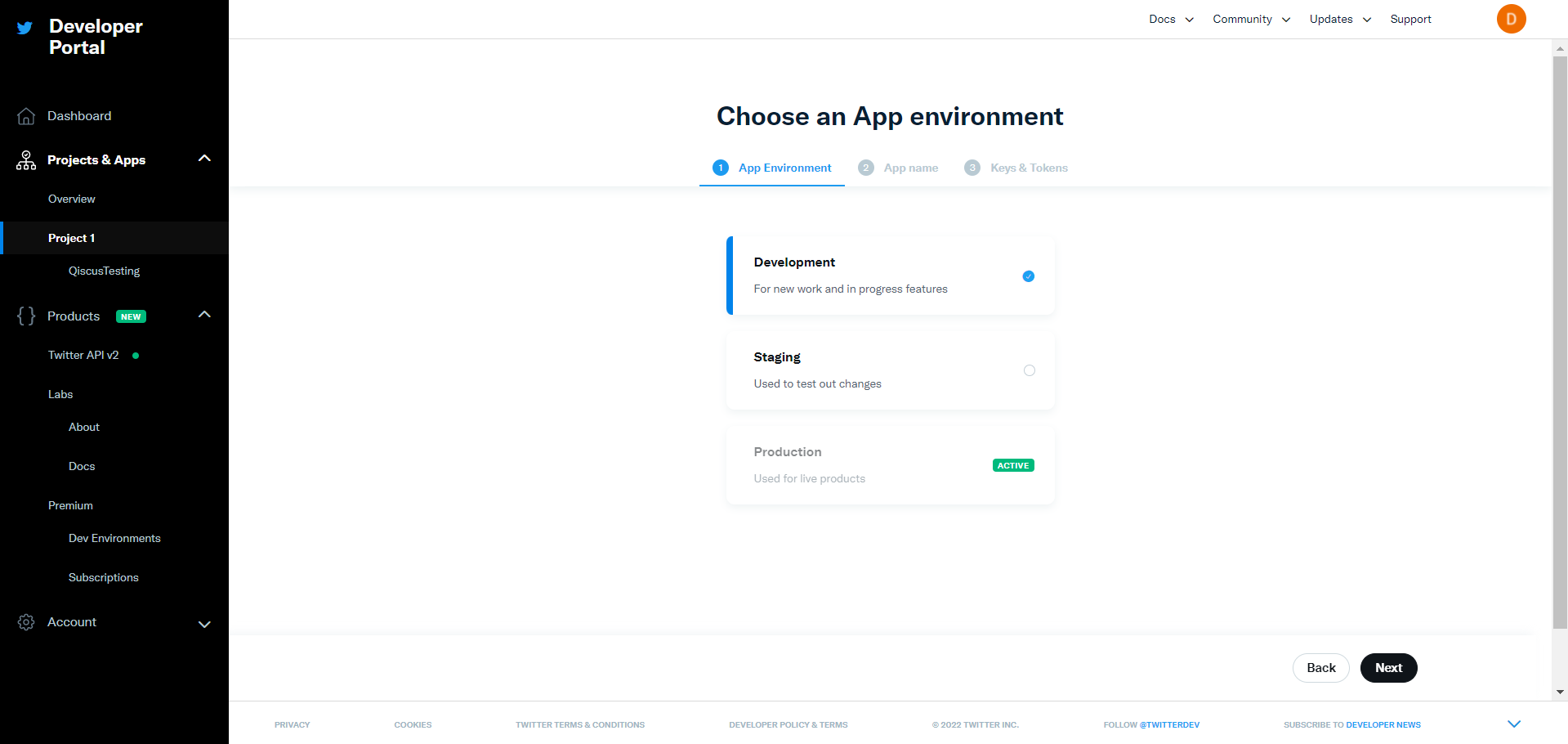
In the last step, you can see the Api Key and Api Key Secret, In general developer known as Consumer Key and Consumer Secret Key, those key needed to authenticate the account. Once you have generated the key, copy it and paste into note or you can just paste into the Twitter setting page in App Center.
Next, you will generate Access Token and Access Token Secret by click App Settings button. For more detail information about the generated keys, you can visit Twitter authentication mechanism documentation here.
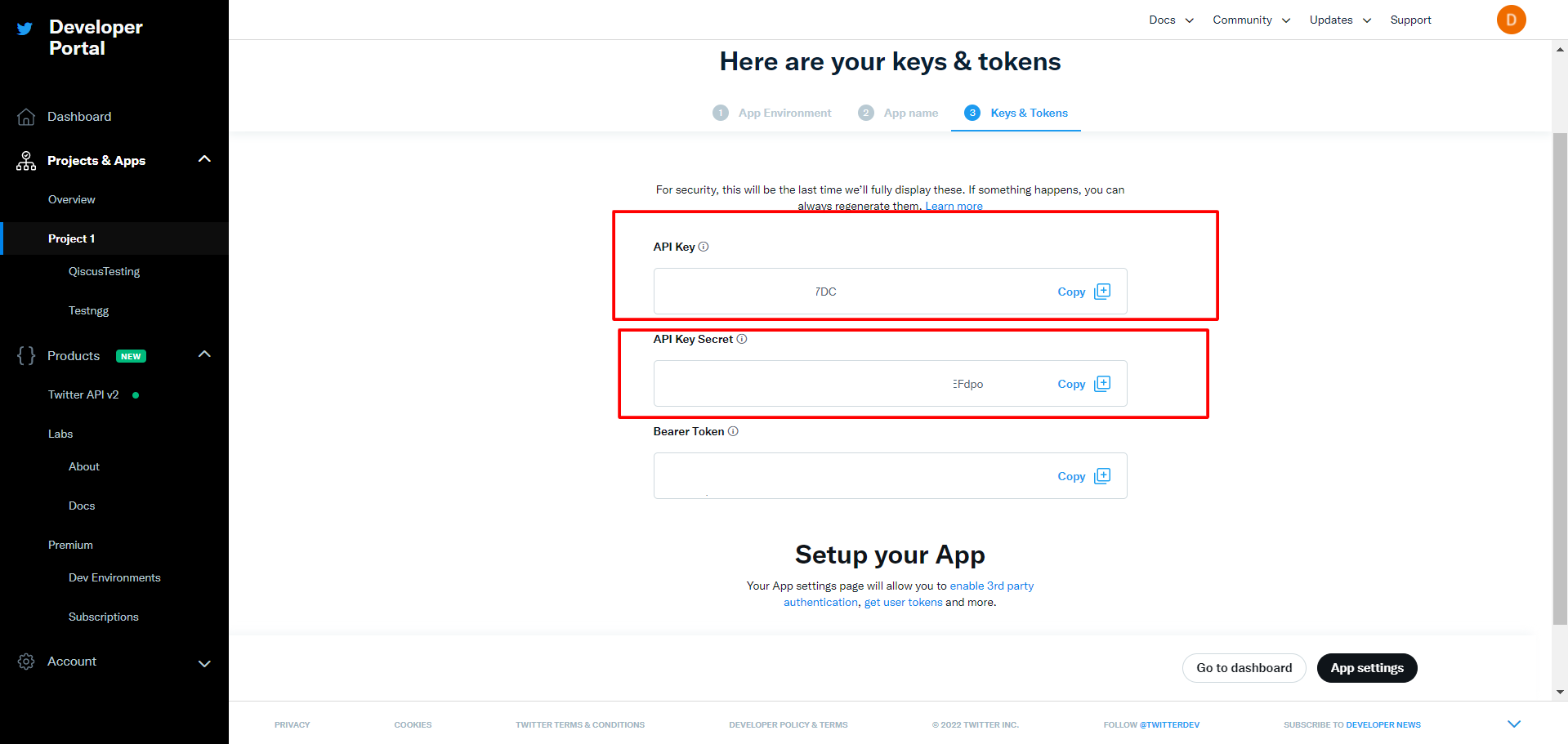
In the App Setting page, navigate to the bottom of screen and you will find User authentication settings.
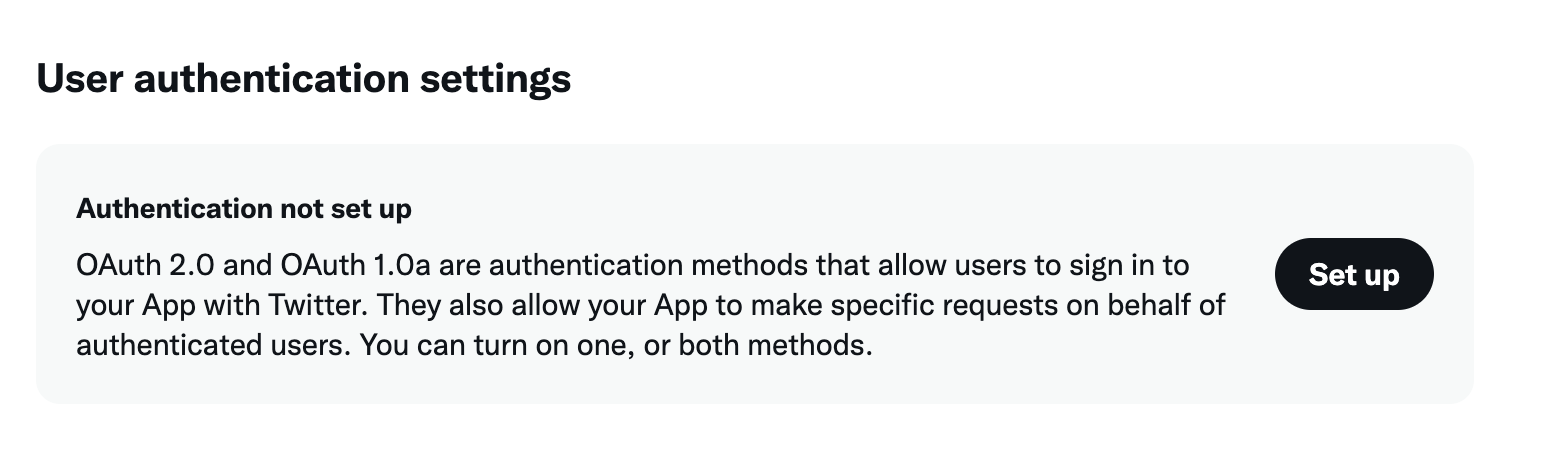
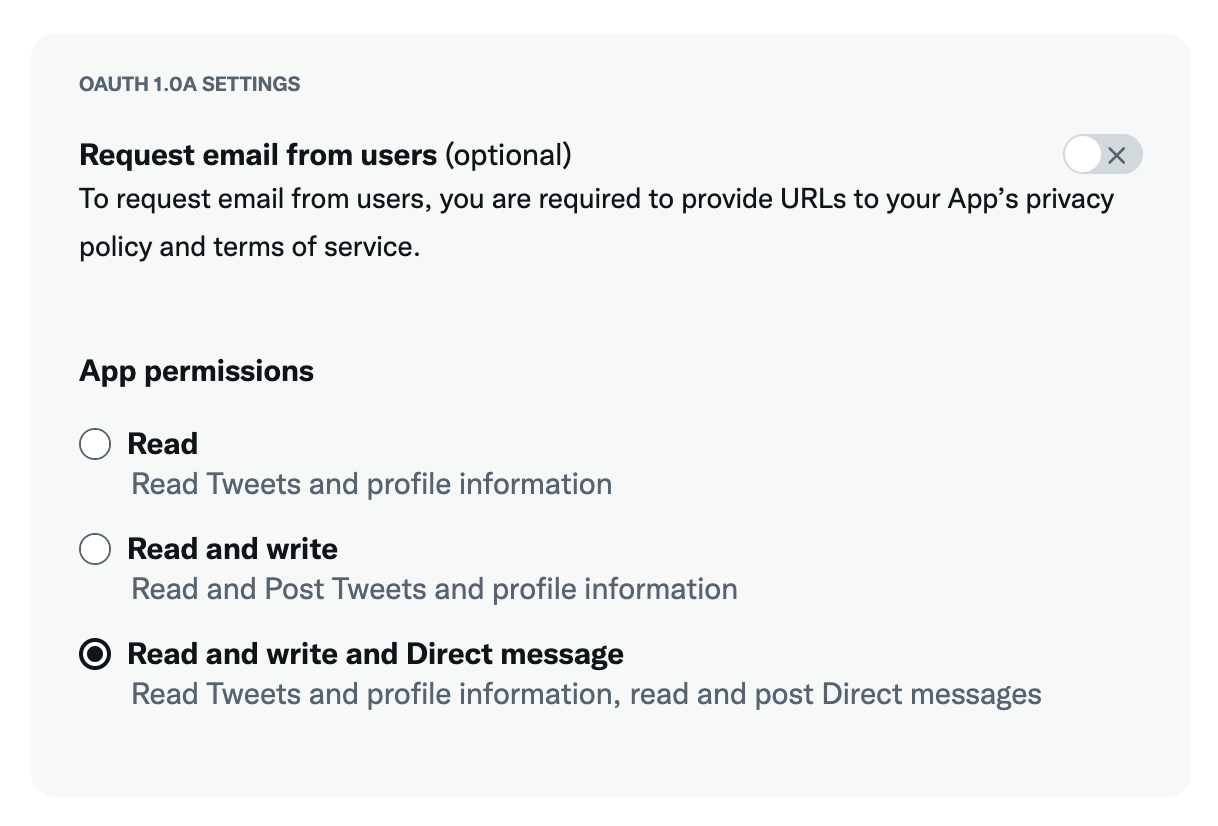
Set up the authentication by click Set Up button and enable the oAuth 1.0a.
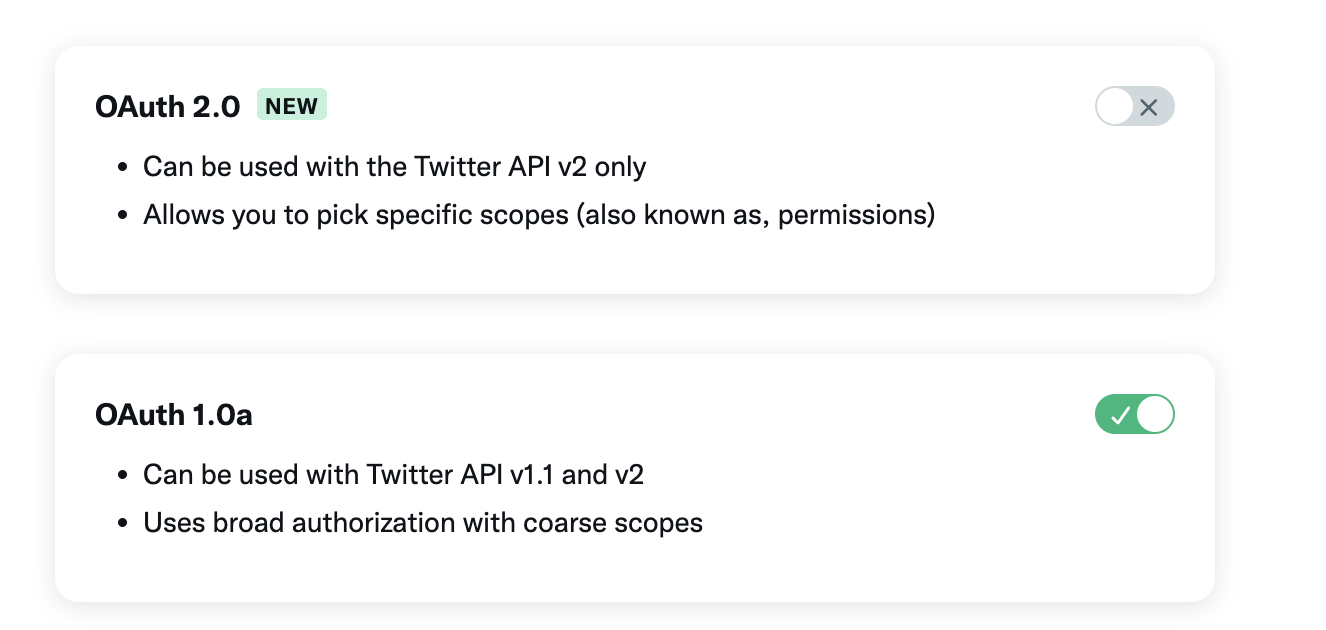
Give the app permission to read and write and Direct Message.
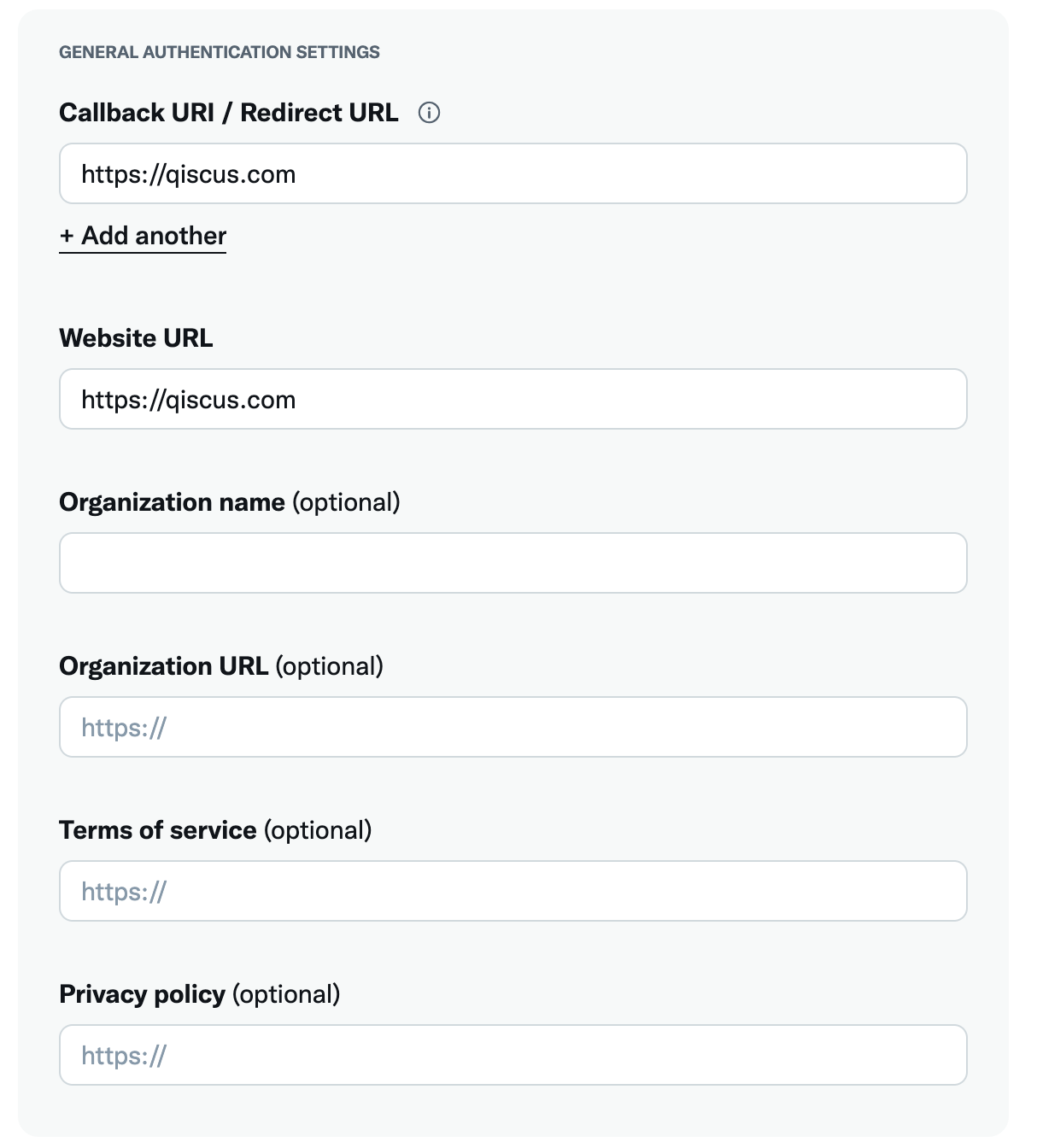
Fill in the rest of the General field according to your data
Once everything has been completed, you can click the Save button and the confirmation dialog will be shown.
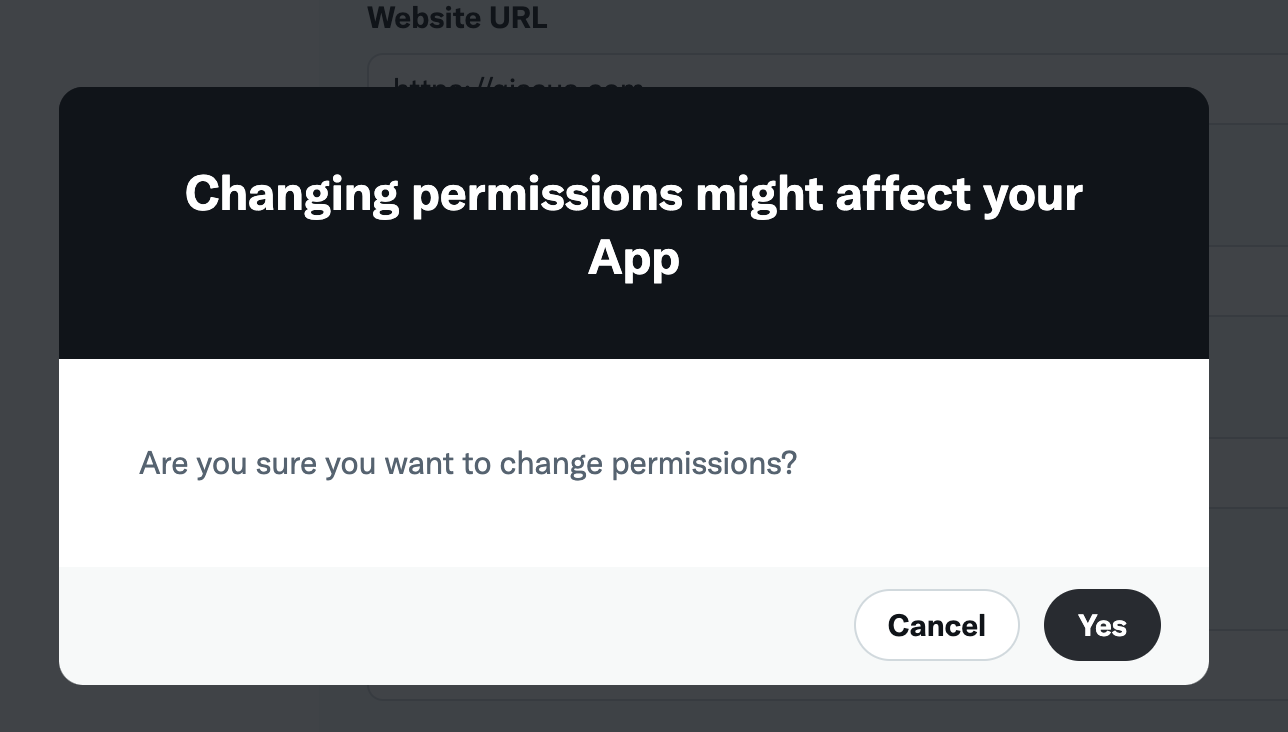
If you have confirmed that everything already completed than you can confirm by click the Yes button to save the change.
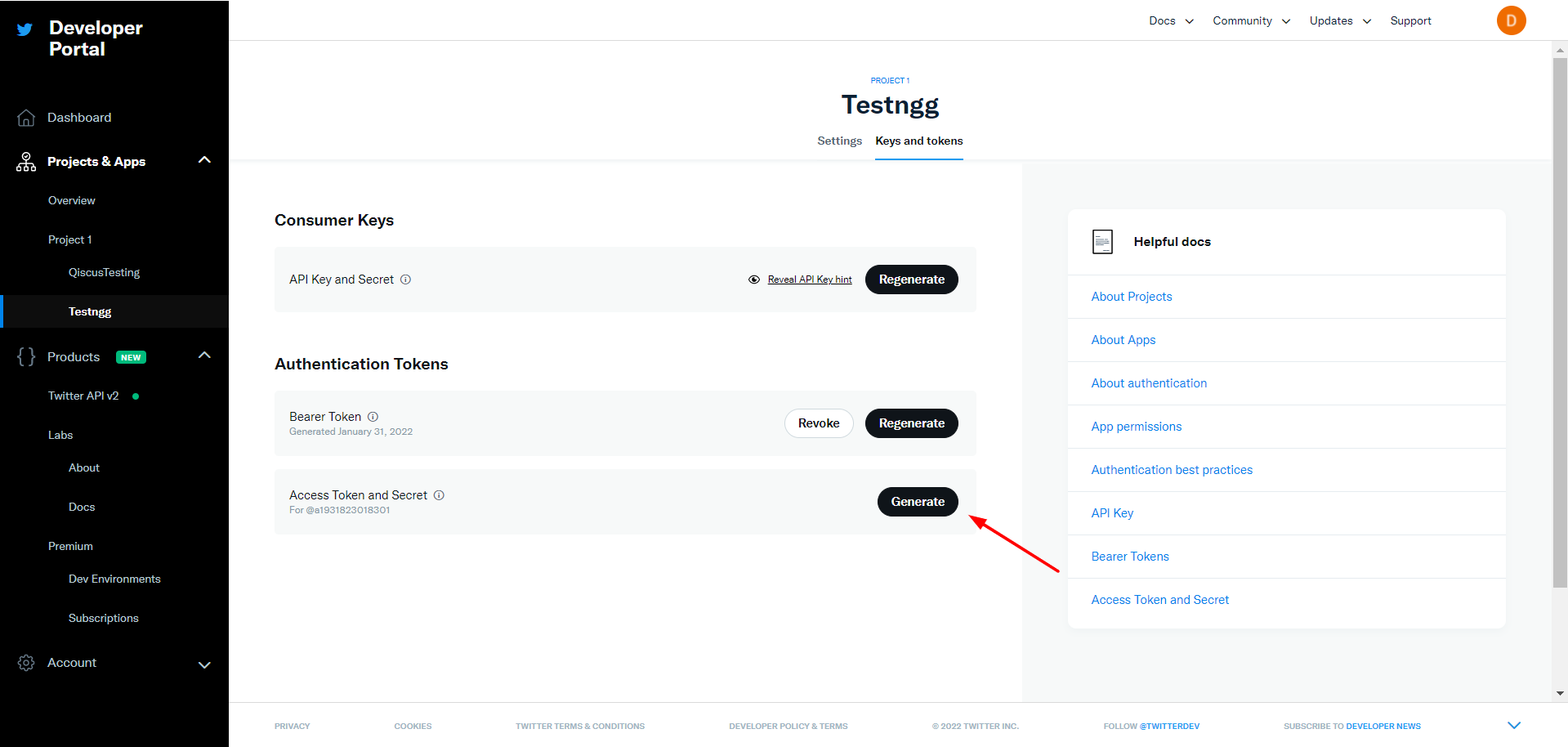
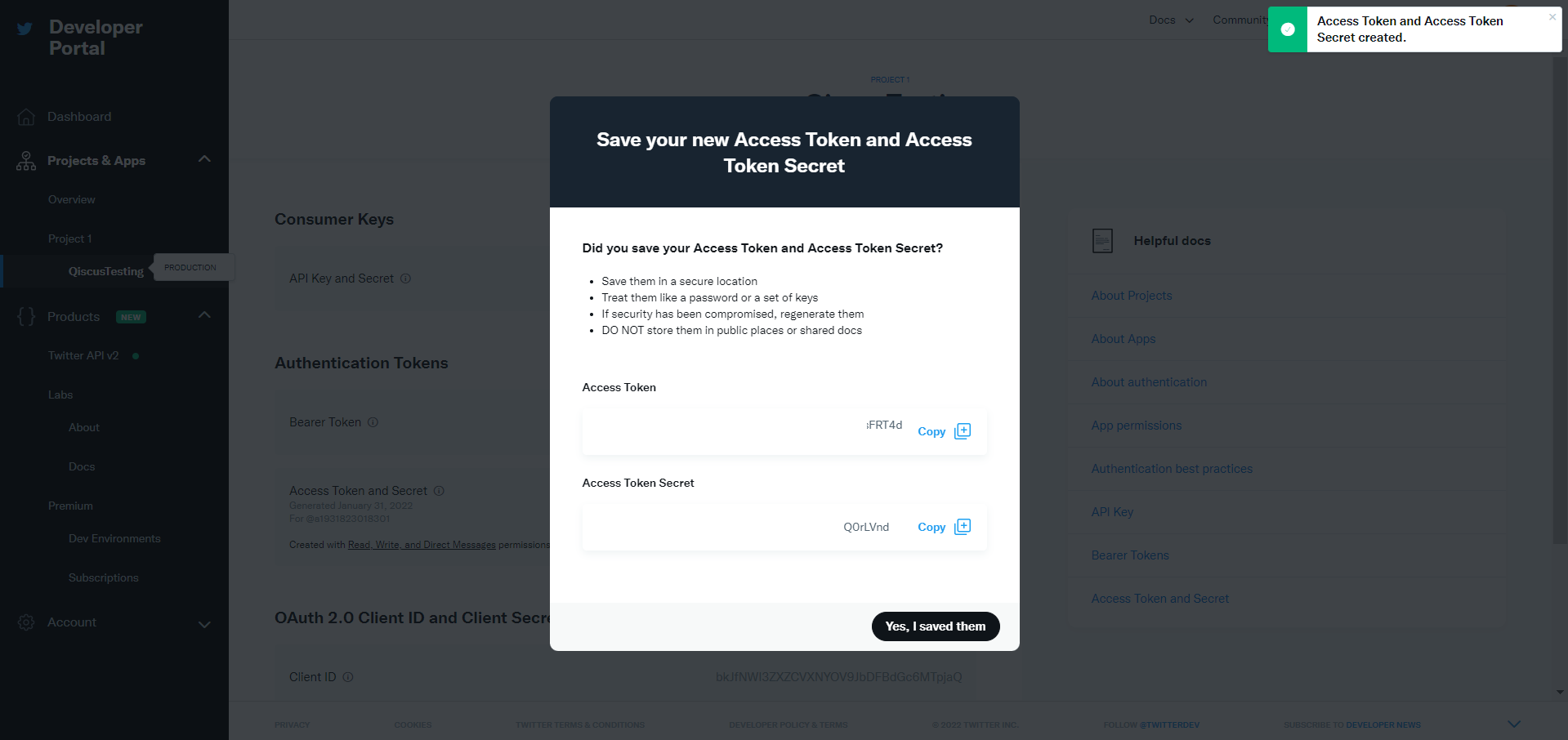
Next step is to generate the **Access Token and Secret.**You can click generate button then copy Access Token and Secret value and paste into Twitter setting page in App Center
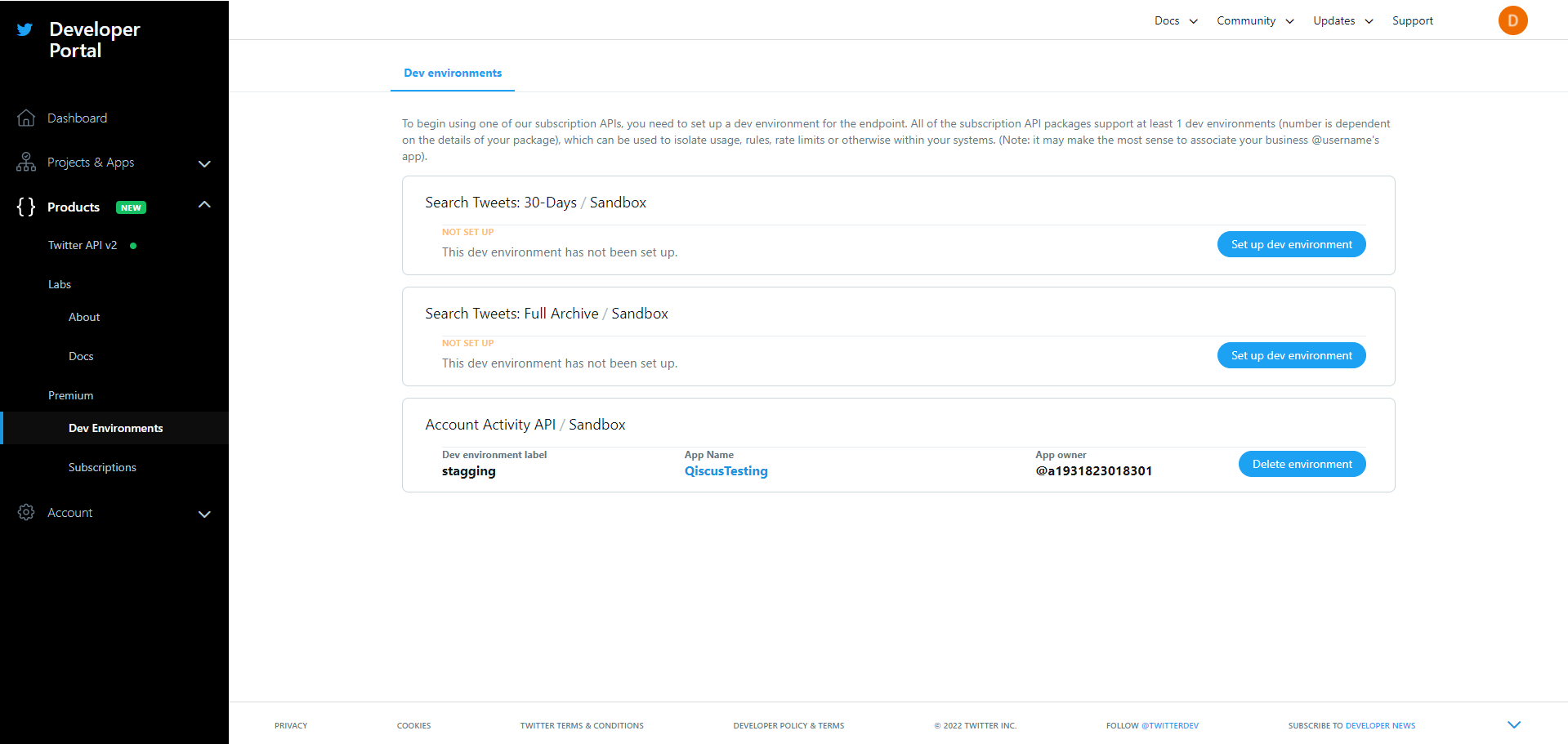
You need to Set up Environment for the newly created app. You can open Dev Environments menu under Products from the sidebar menu. Then, set up Account Activity API, give it a name as dev environment label. Copy and paste the env label into Twitter setting page.
Integrate Twitter Account
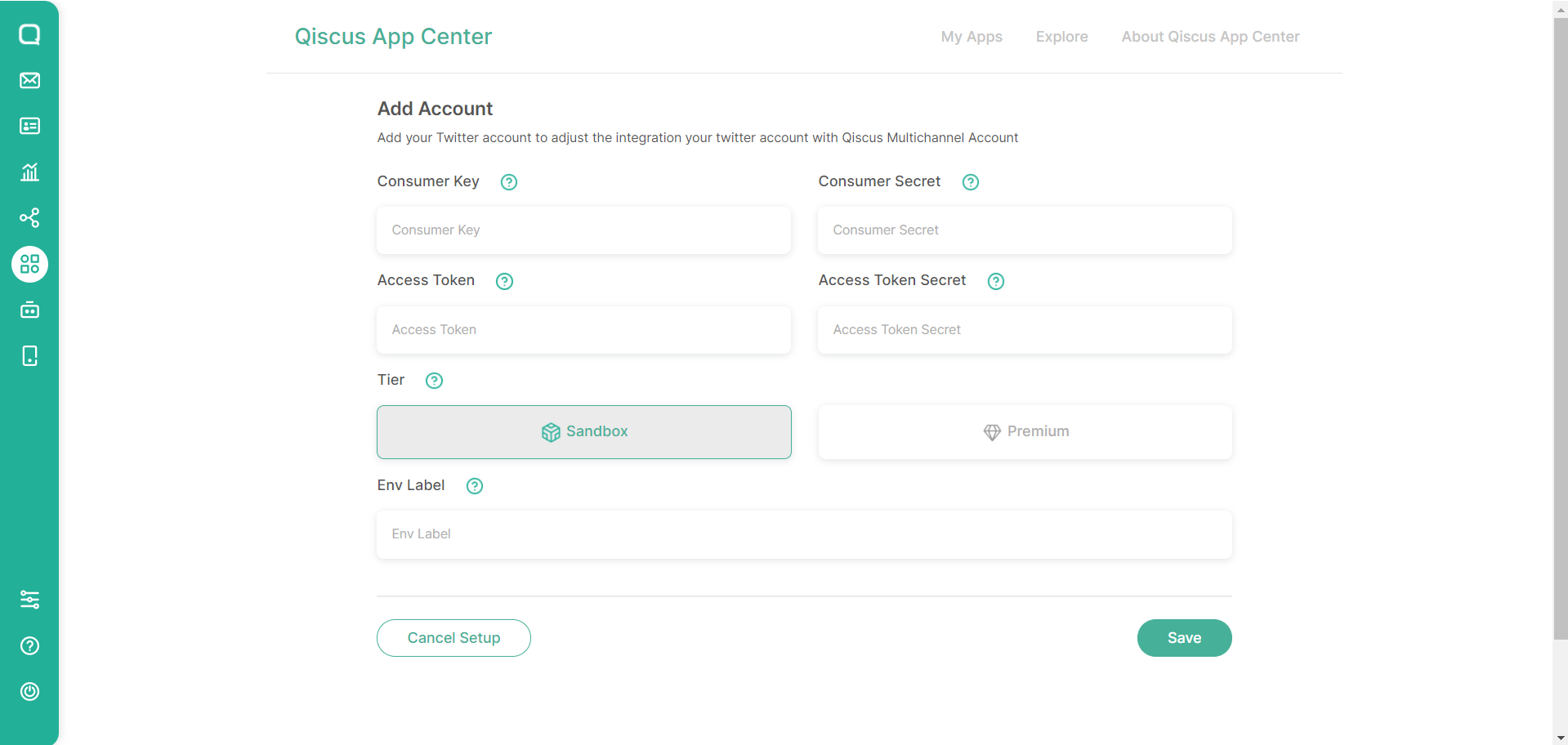
Once you have completed the app creation in the Twitter Developer Portal, then you need to fill the required field in the Twitter Setting page
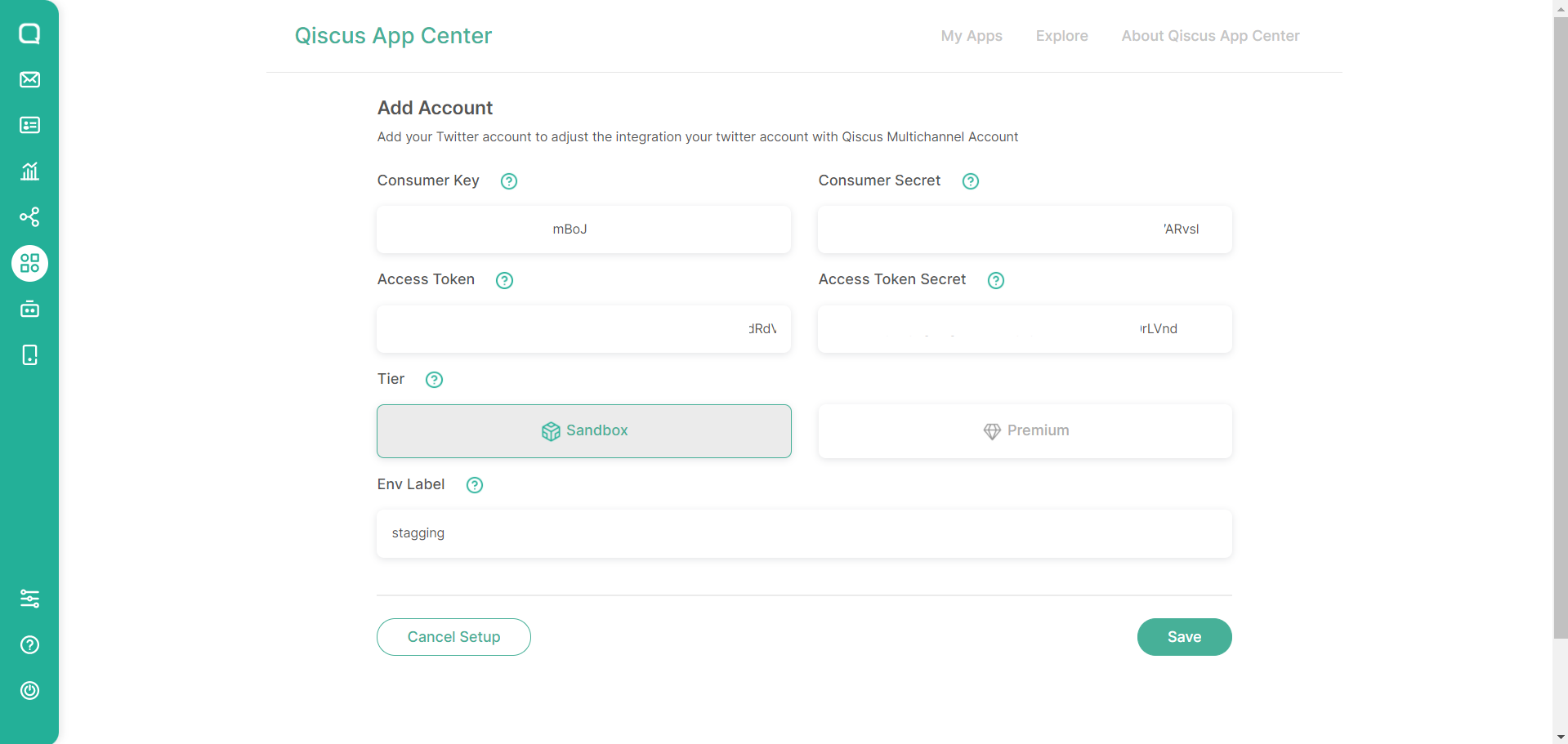
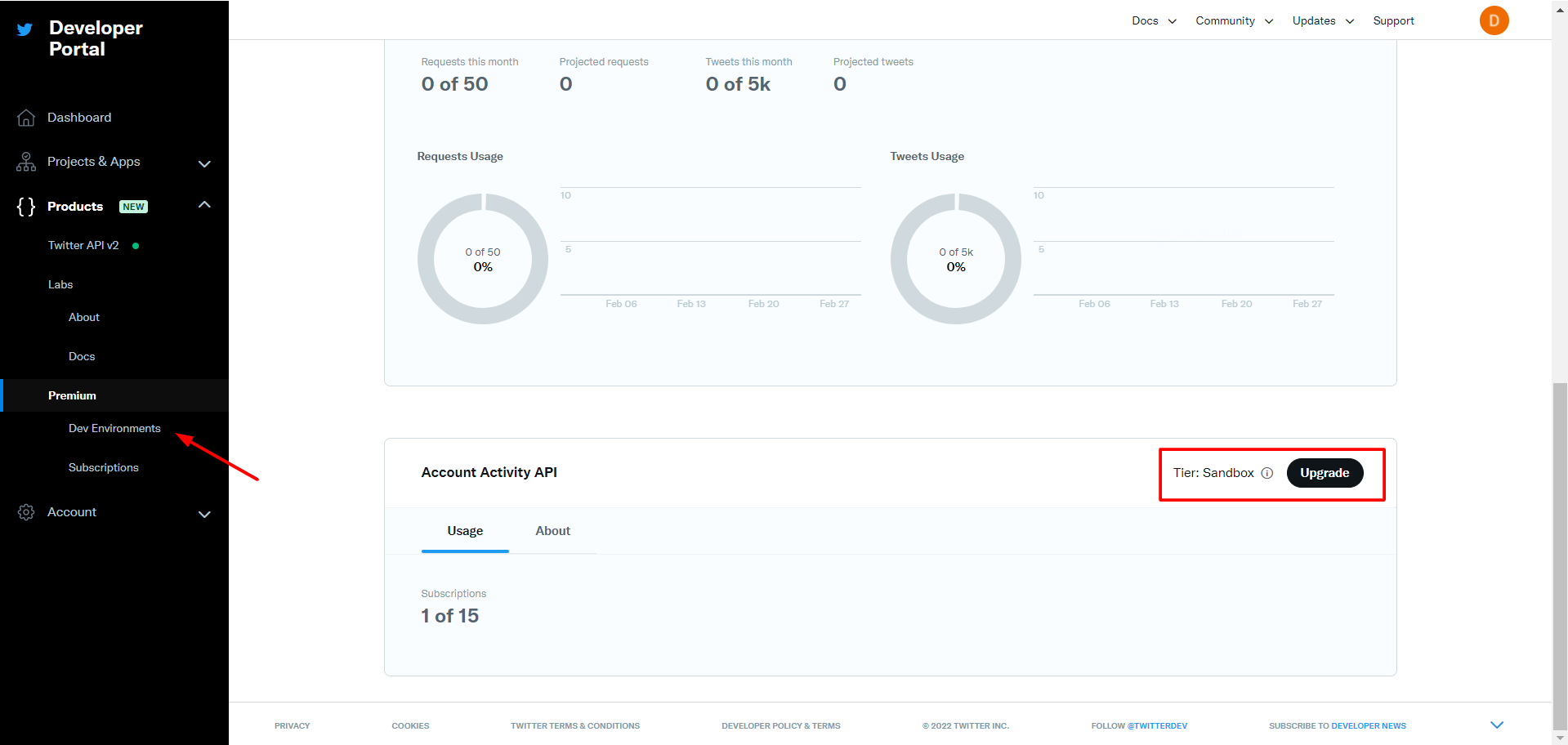
There is Tier section here that you can choose between Sandbox and Premium the difference between those tier can be found here. You can see tier of the Twitter account in the Twitter Developer Portal
If every steps has been completed, then you can save the configuration by click Save button and your account already integrated into Qiscus Omnichannel. The next step, you will need to add Direct Message channel and Twitter Mention Channel.
You can see the detail of your Twitter account and edit the Tier and Env Label by click Detail Account button
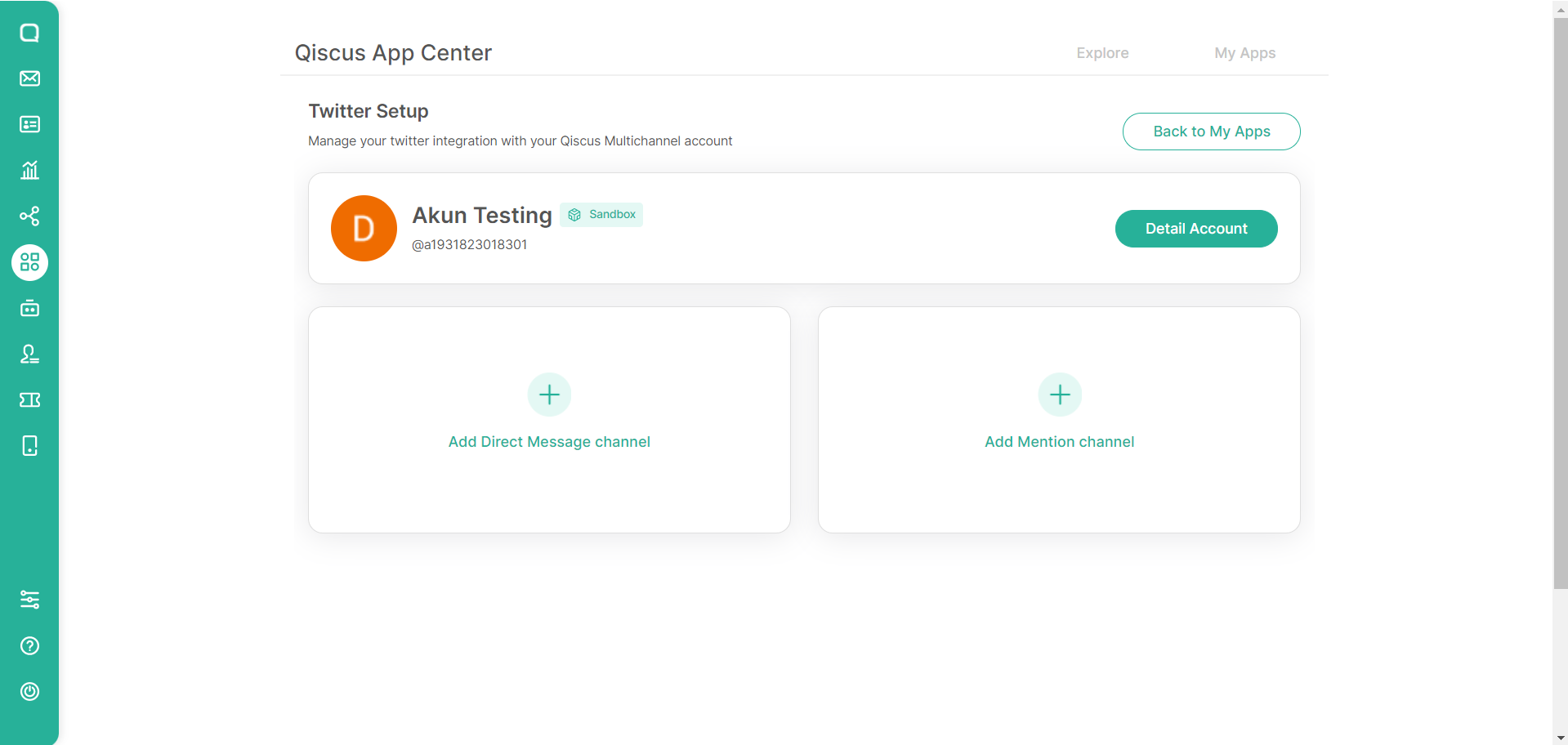
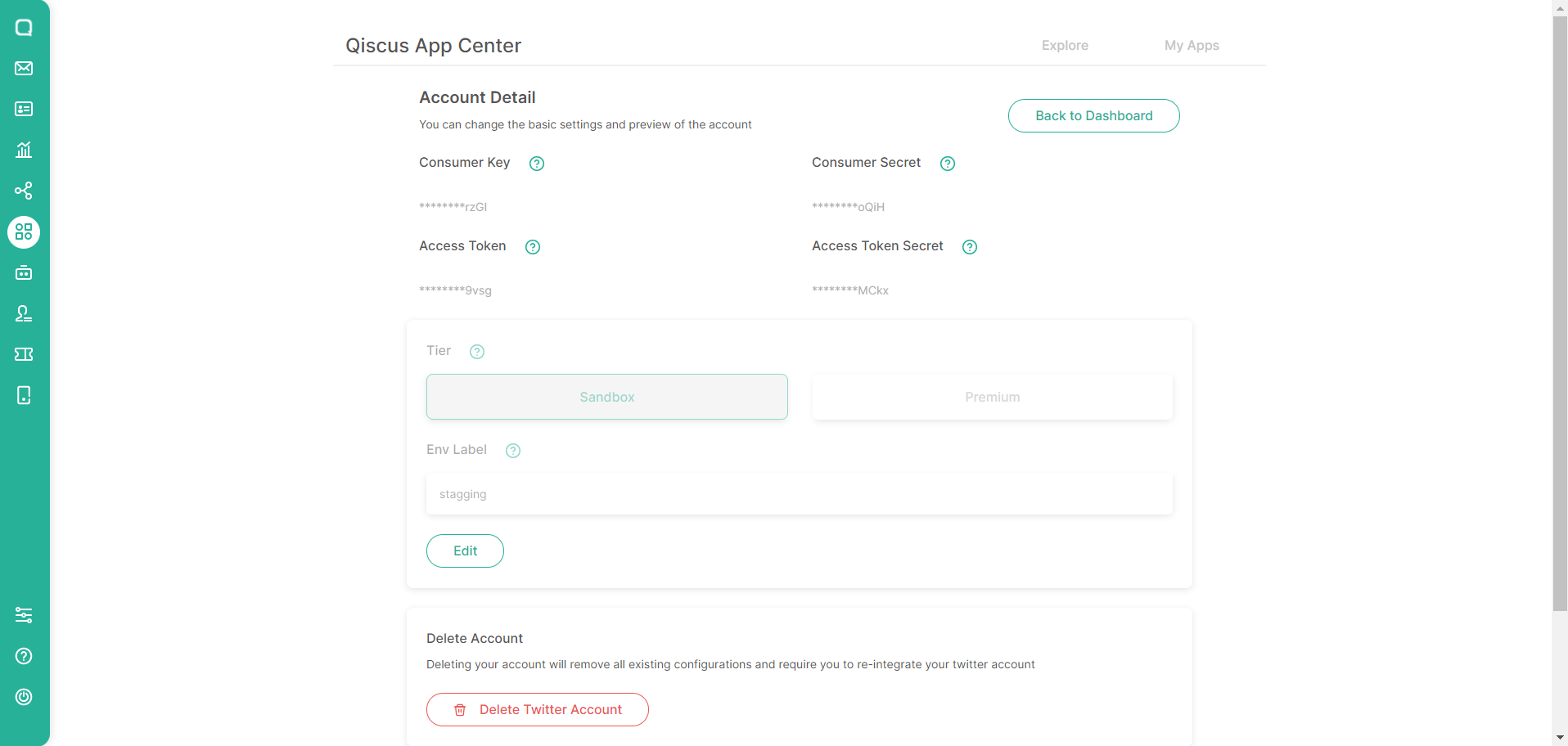
Direct Message channel is used to receive and reply message from Twitter’s users who send the message through the Twitter direct message. Twitter Mention channel is used to receive and reply to anyone that mention (tweet or retweet with mention) the integrated Twitter account.
Direct Message Channel
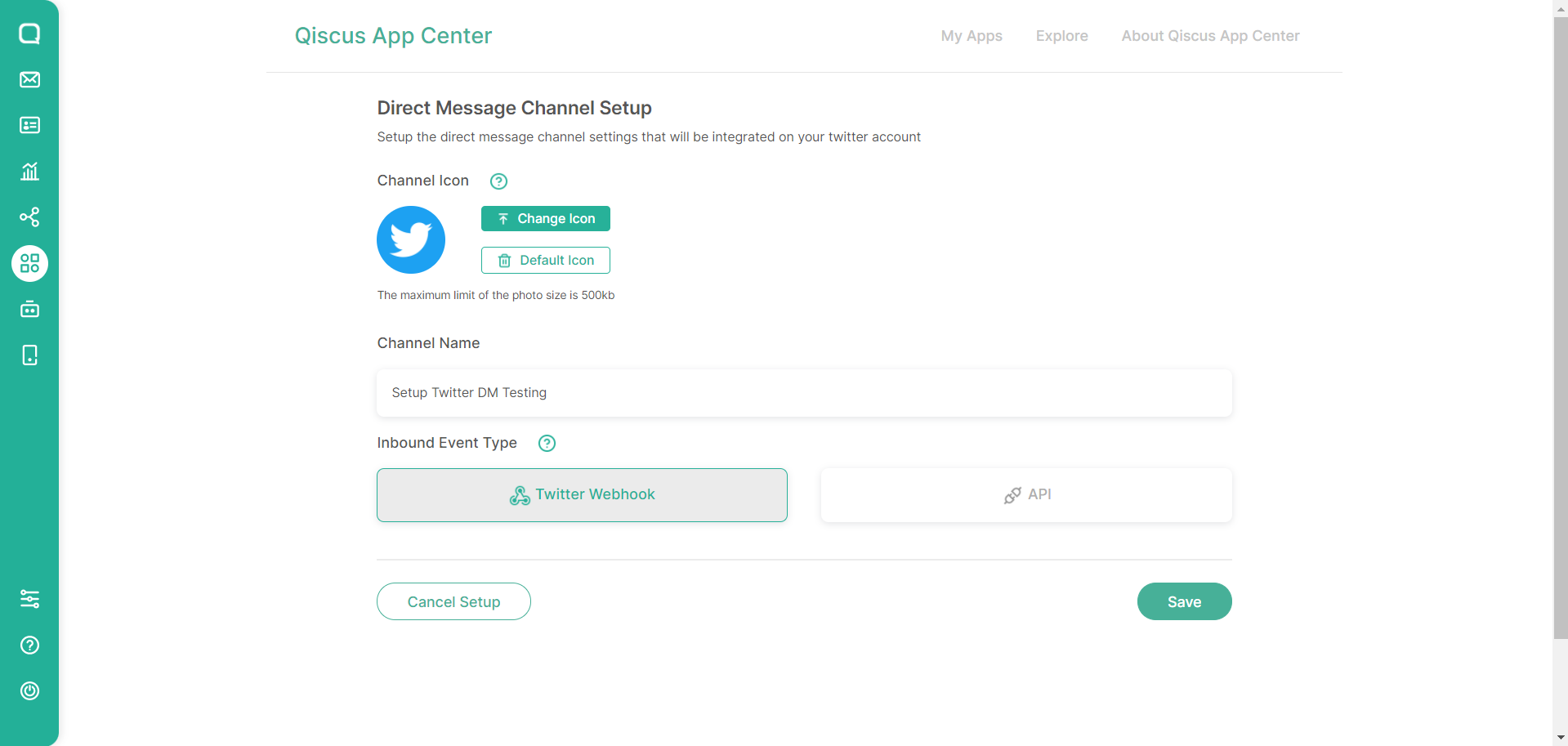
To add Direct Message channel, simply click Add Direct Message channel and fill in the required field.
You may change the default icon, give a channel name, also choose inbound event type. There is tow Inbound event type:
- Twitter Webhook, subscribe to Twitter event directly, so the Twitter add-on can get the direct message & mention event
- Twitter API, used if you have an intermediary service to get the event that comes from Twitter
By default, we suggest to use Twitter Webhook because it is simple and no need more configuration. Once you have completely fill in the required field then you can click the Save button to apply the configuration.
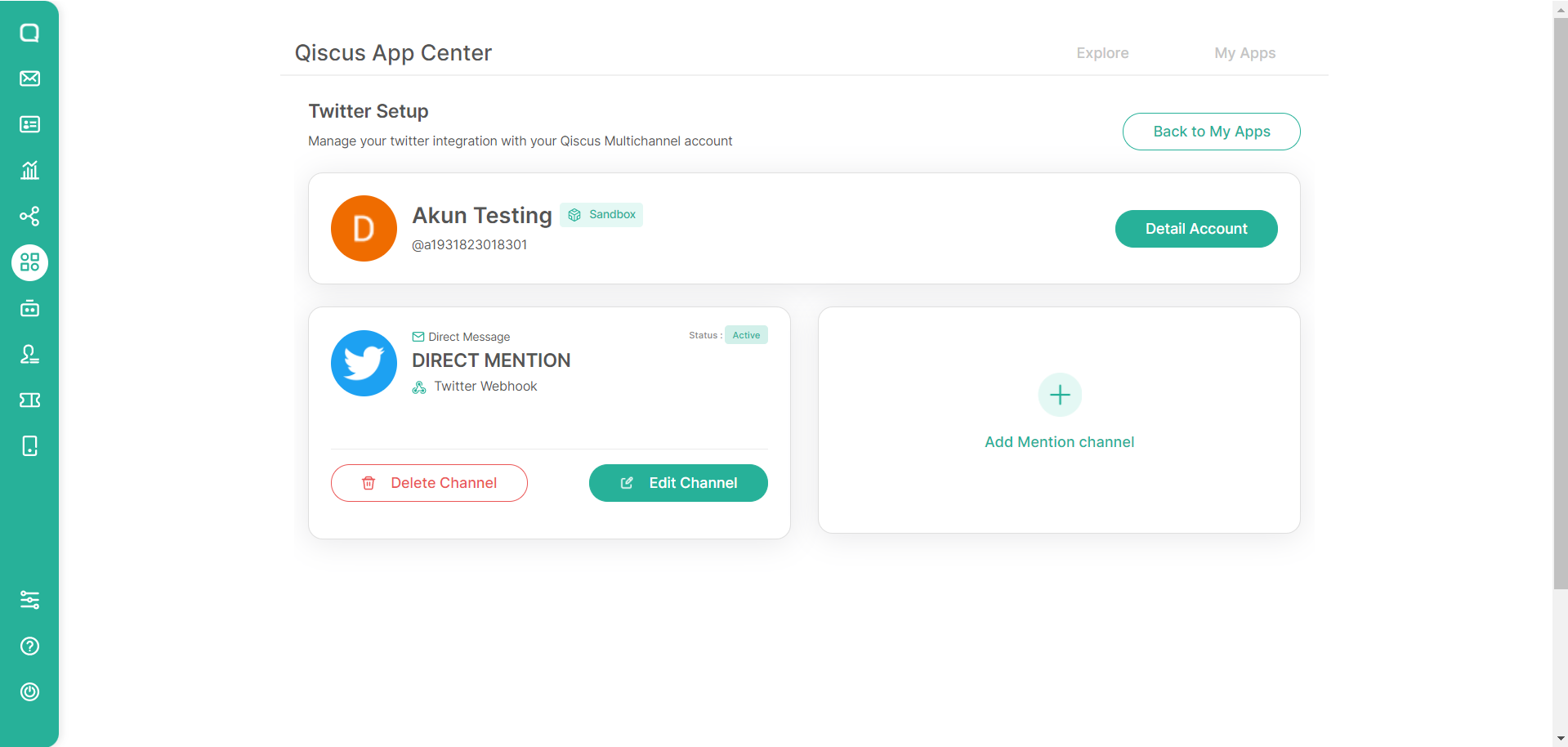
You can see the Direct Message channel already shown in the channels list. You can edit or delete the channel. There is also Active status which means the channel is ready to use so every time Twitter’s users send a message through a direct message to the Twitter account that has been integrated, the message will be shown in the Qiscus Omnichannel
Twitter Mention Channel
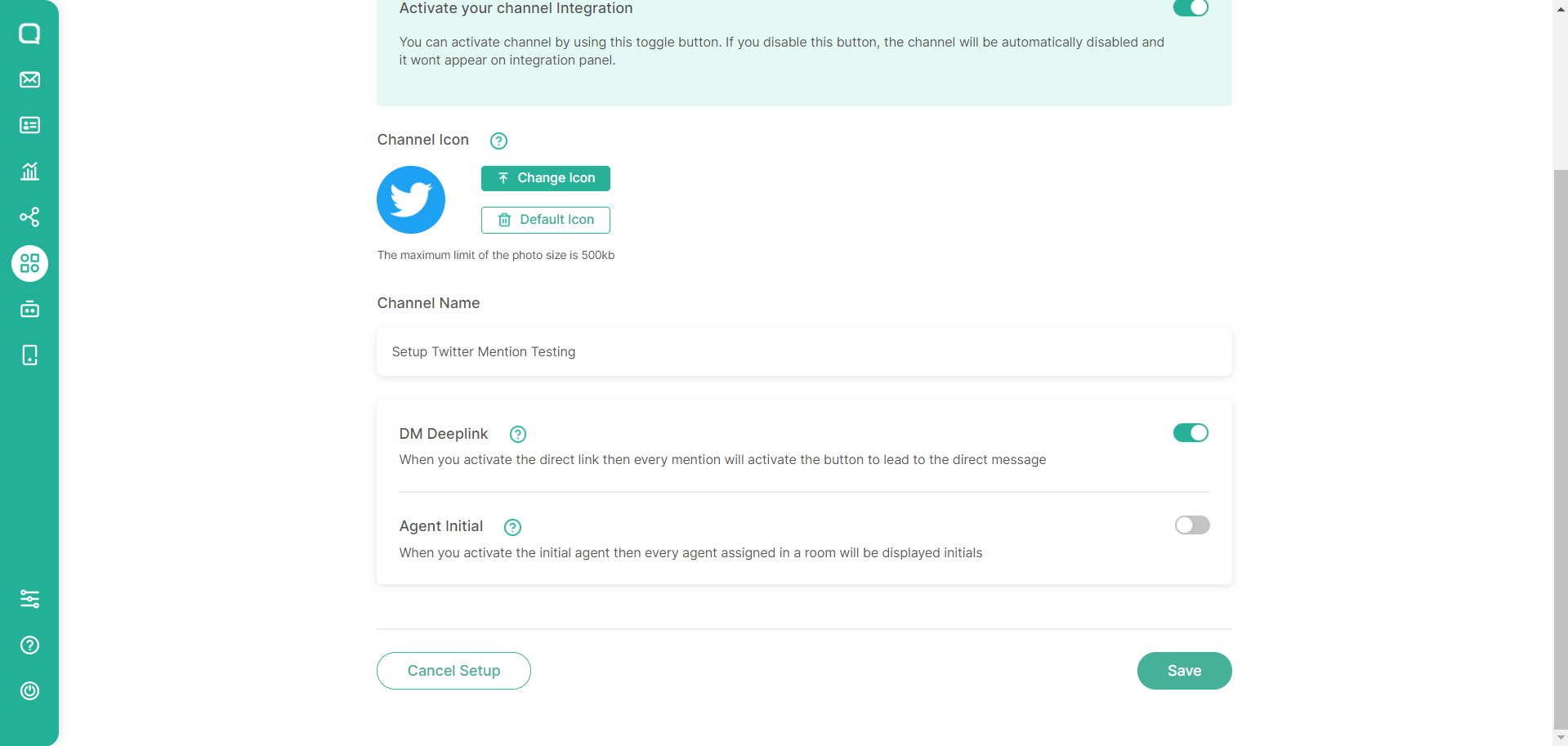
To add Twitter Mention channel, simply click Add Twitter Mention channel and fill in the required field. You may change the default icon and give a channel name.
There are DM Deeplink and Agent Initial features that only available in the Twitter Mention channel.
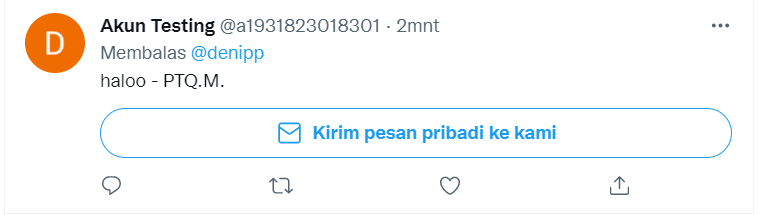
- DM Deeplink is a feature that allows Twitter to embed a direct message send button when sending
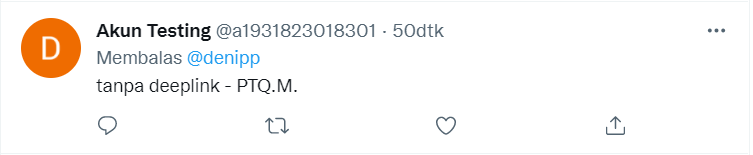
and reply to tweets from other users who mentioned them, so the users can be redirected to continue the conversation through a direct message which is more private rather than post it publicly in the tweet.It is important to take note, DM Deep Link and Agent Initial will be counted as characters so that it will reduce the maximum number of characters that can be sent via Twitter Mention (280 characters) - Agent Initial is the initials of the agent’s name when replying to the mention, if the agent’s name has 2 words, for example, the agent’s name is John Doe, then at the end of the mention there will be the addition of “- J.D”. taken from the beginning of the letter in each word. If the agent name consists of one word for example John then the initials will be “- J.”.
The toggle to the right of DM Deeplink and Agent Initial functions used to enable or disable the feature. When the settings are complete, then we can click Save to apply the configuration.
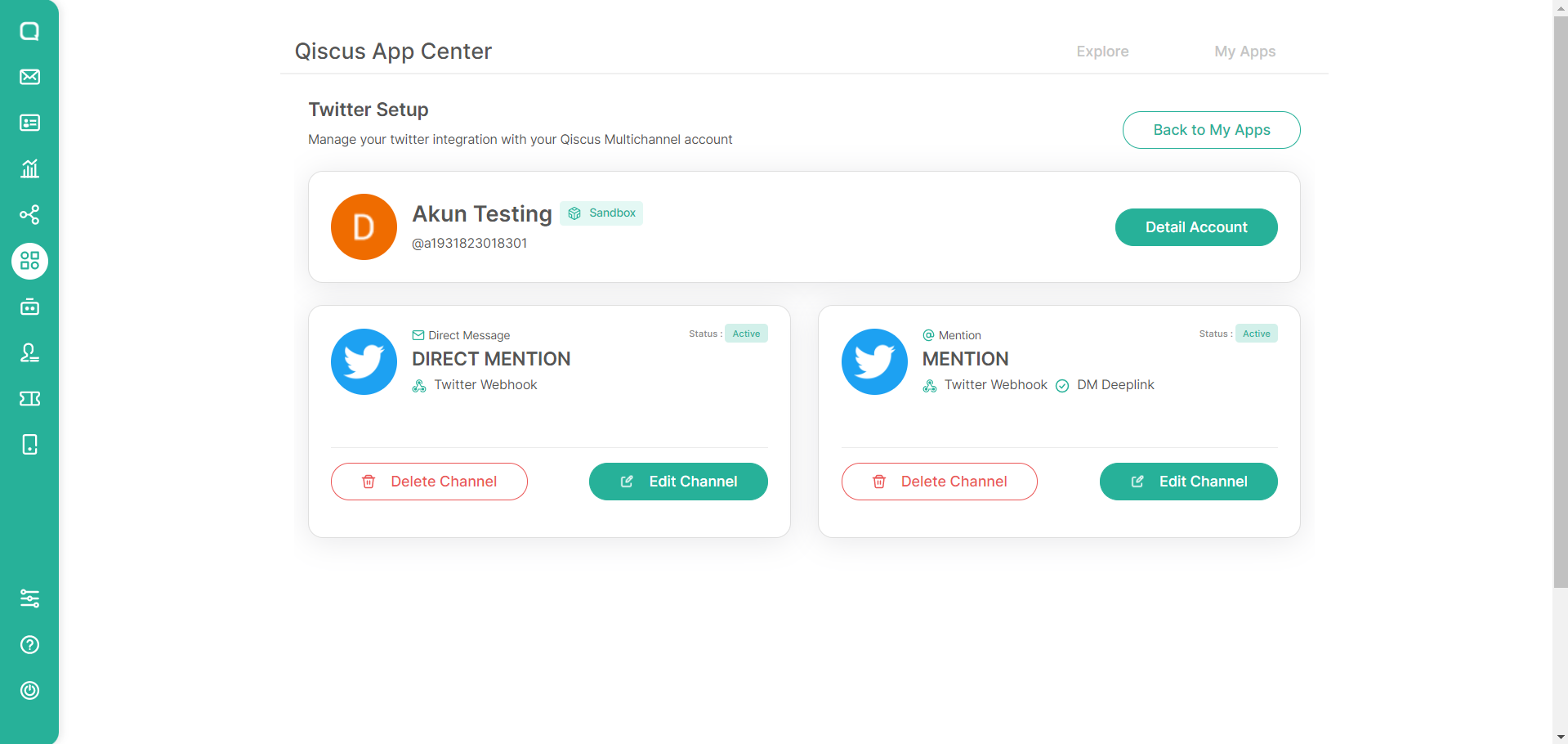
So, here is the Twitter setting page will look like, once you have created a Twitter Mention & Twitter Direct Message channel. The Twitter Mention & Twitter Direct Message edit buttons are used to make changes to the settings for each channel.
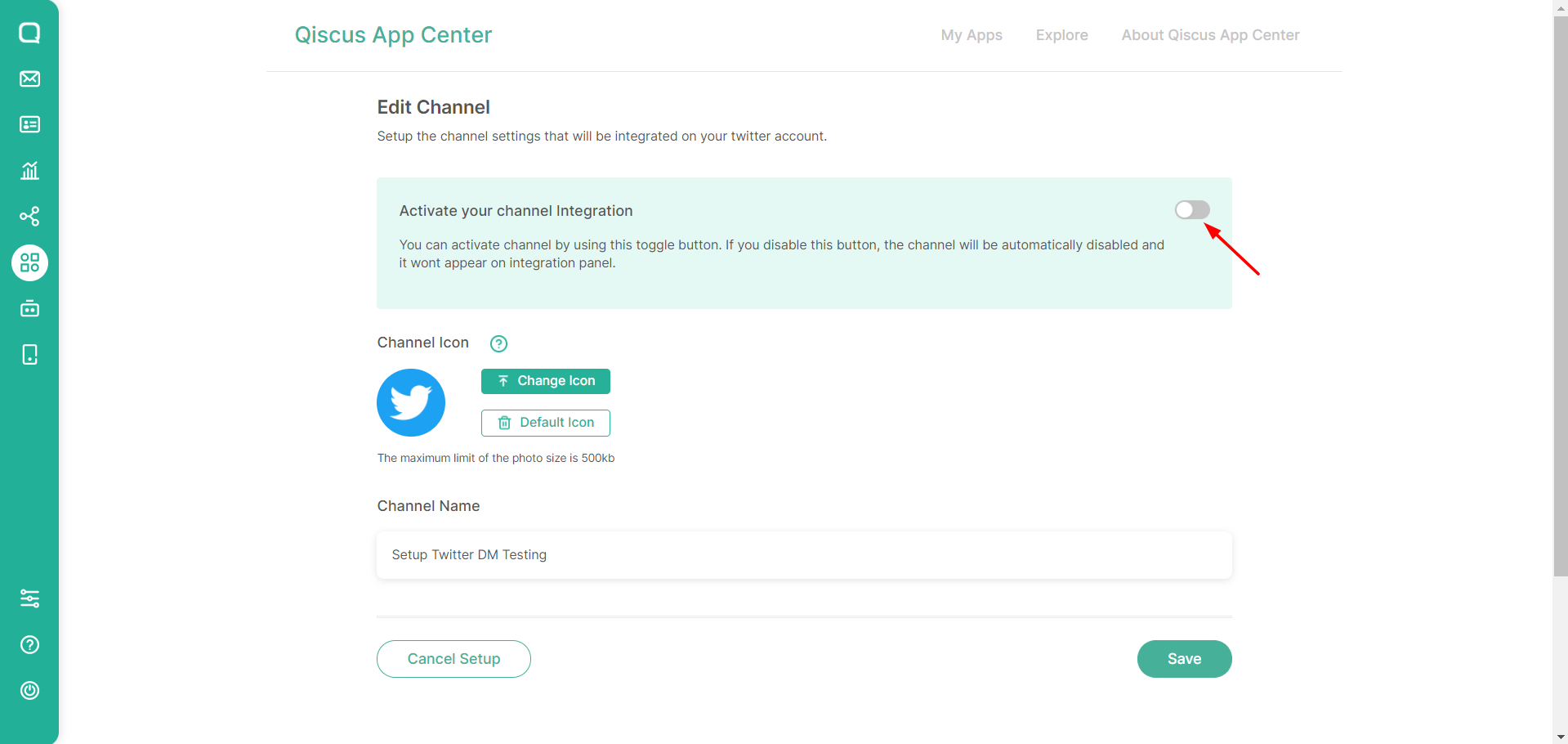
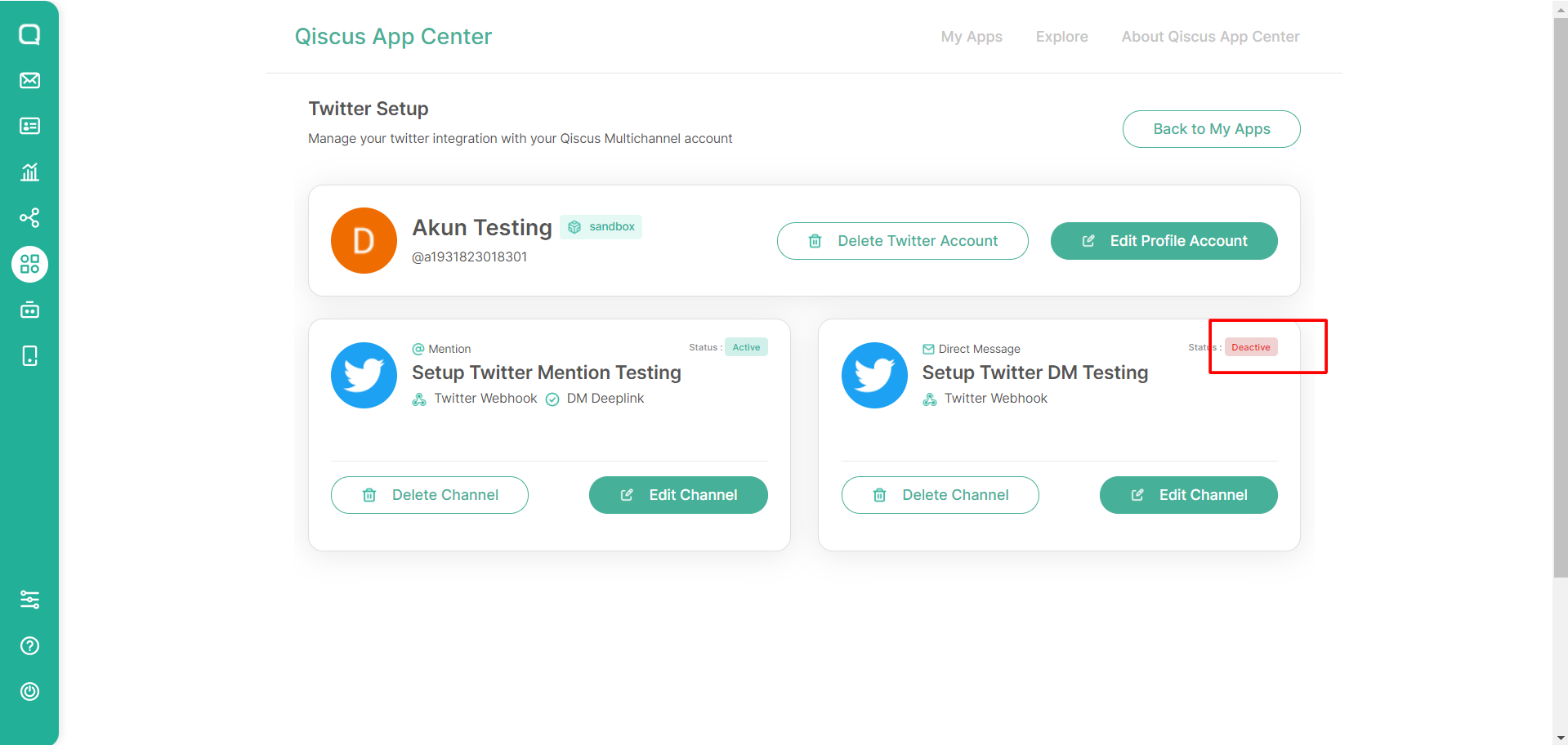
To deactivate a channel, it can be done by clicking the Deactivate toggle, then any user who sends a DM to the account linked to the Omnichannel will not enter the Omnichannel inbox.
The Implementation
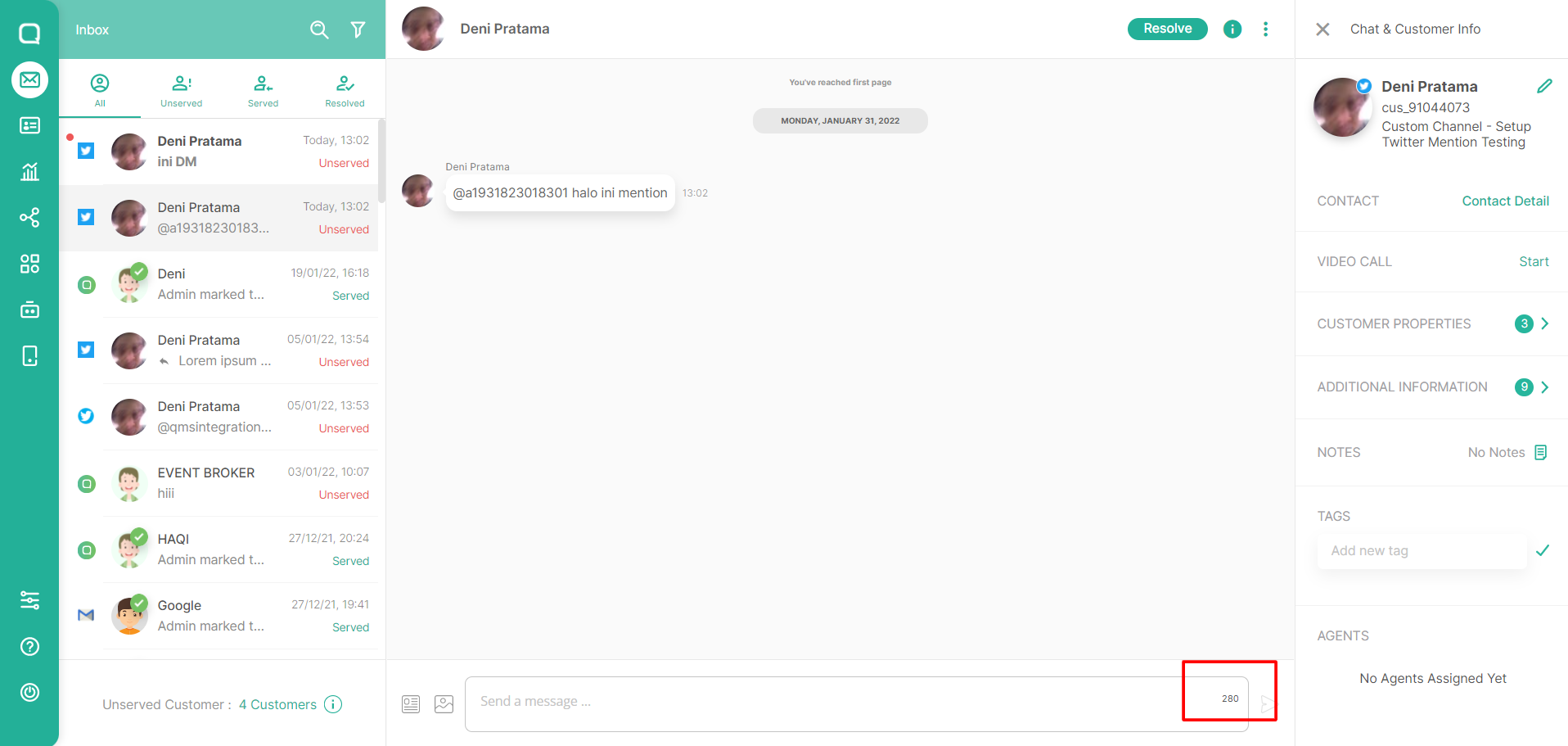
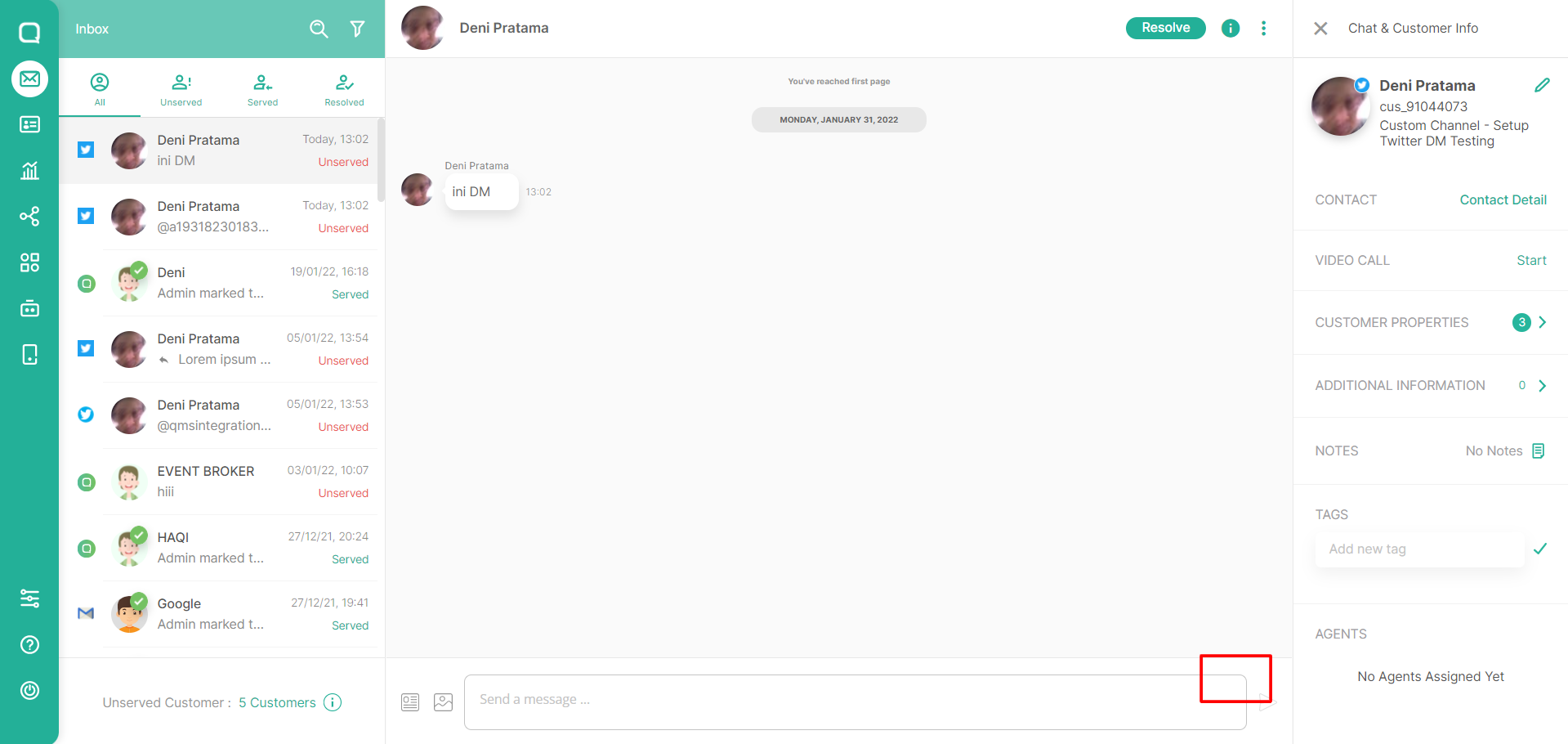
We can try DM and Mention to the account. Like this example of Mentions and DMs when entering a Omnichannel inbox, the difference for Mentions is that there is a count letter, which is 280 characters according to the maximum applicable on Twitter, if it exceeds 280 characters the send button will be disabled.
Using Deeplink and Agent Initial feature, will look like this
Using Agent Initial feature without Deeplink, will look like this
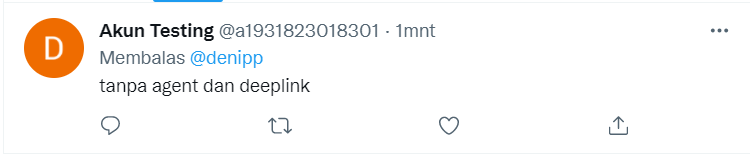
Without Agent Initial and Deeplink feature, will look like this
Leave a Reply