
Create New Ticket
Whenever you have new cases and need to track the progress status, you can create a new ticket with create ticket button. When creating a new ticket, you must fill in the required fields. The following is a list of fields to create a new ticket, the fields marked with an asterisk (*) are required fields.
- Title* (Fill this field with the title of the ticket)
- Channel* (Fill this with the channel that you want to use)
- Requester* (Fill this with the person who requesting the ticket)
- Division (Fill this with the division that will be assigned to handle this ticket)
- Assignee (Fill this with the agent that will be assigned to handle this ticket)
- Priority* (Fill this with the ticket priority)
- Tags (Fill this with the tag you want to use)
- Summary (Fill this with the ticket summary)
- Your custom field (There’s an option to set it as mandatory or not)

There’s three more method to create ticket in QTicketing:
- Via Omnichannel Chat with ‘Create Ticket’ button
- Via configured inbound mail
- Via create ticket API (API Documentation)
- Via ‘Create Ticket’ button in QTicketing tickets page
Read Detail Ticket and Change Ticket Information
The Ticket details page is a page that makes it easier for you to learn about ticket details and everything related to ticket. Able to changes several details of ticket according to the account roles privilege.
| Action | Owner | Admin | Supervisor | Agent | |
|---|---|---|---|---|---|
| 1. | Update requester data | ✔️ | ✔️ | ✔️ | ✔️ |
| 2. | Assign to other division | ✔️ | ✔️ | Only my Division | ✖️ |
| 3. | Assign ticket to agent in division | ✔️ | ✔️ | ✔️ | Only assign to me |
| 4. | Change priority | ✔️ | ✔️ | ✔️ | ✔️ |
| 5. | Change ticket status | ✔️ | ✔️ | ✔️ | ✔️ |
| 6. | Change tag | ✔️ | ✔️ | ✔️ | ✔️ |
| 7. | Reply ticket | ✔️ | ✔️ | ✔️ | ✔️ |
| 8. | Reply ticket with internal notes | ✔️ | ✔️ | ✔️ | ✔️ |
| 9. | Update created custom field | ✔️ | ✔️ | ✔️ | ✔️ |
Let’s take a look on the screenshot bellow to see the detail feature:

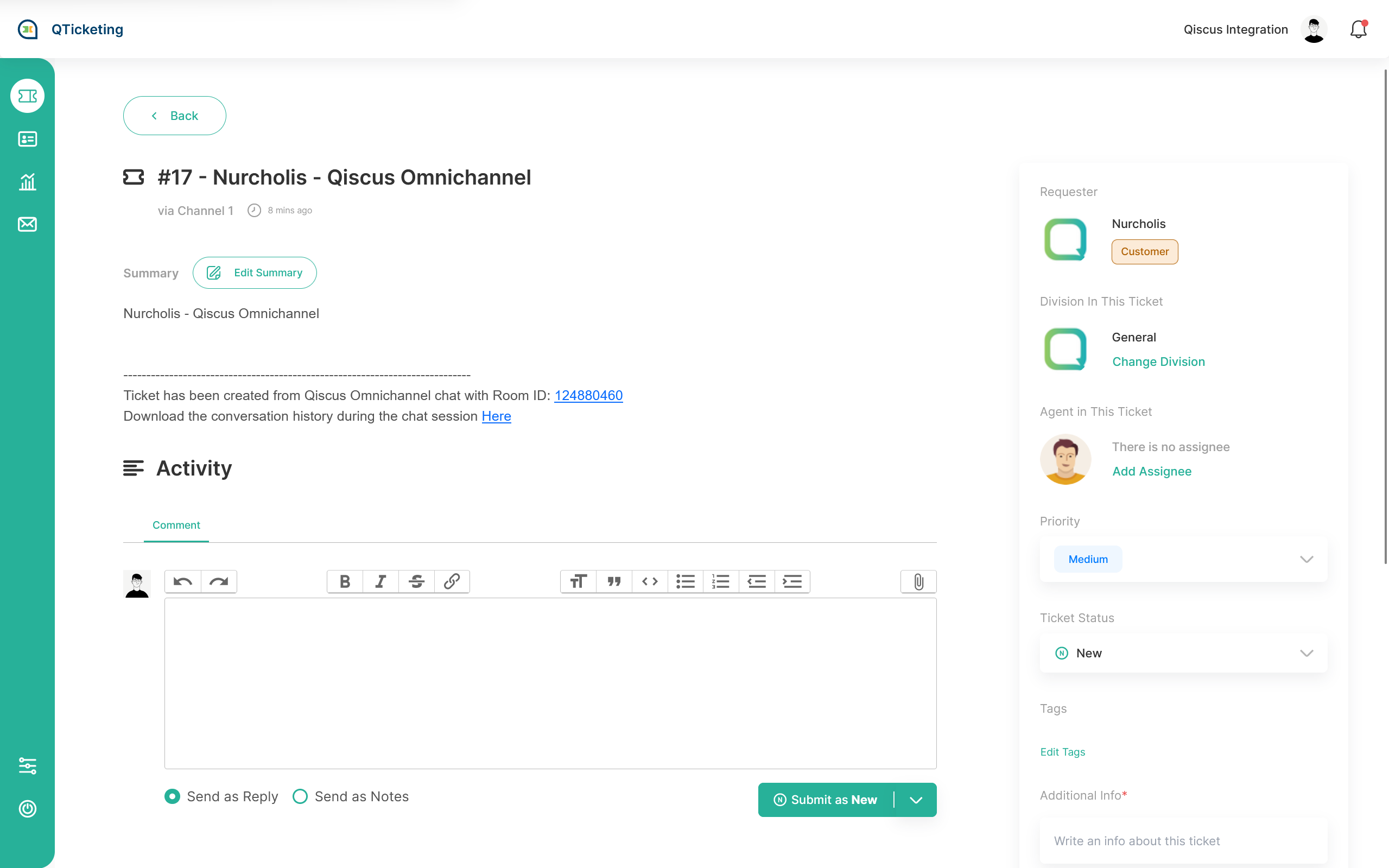
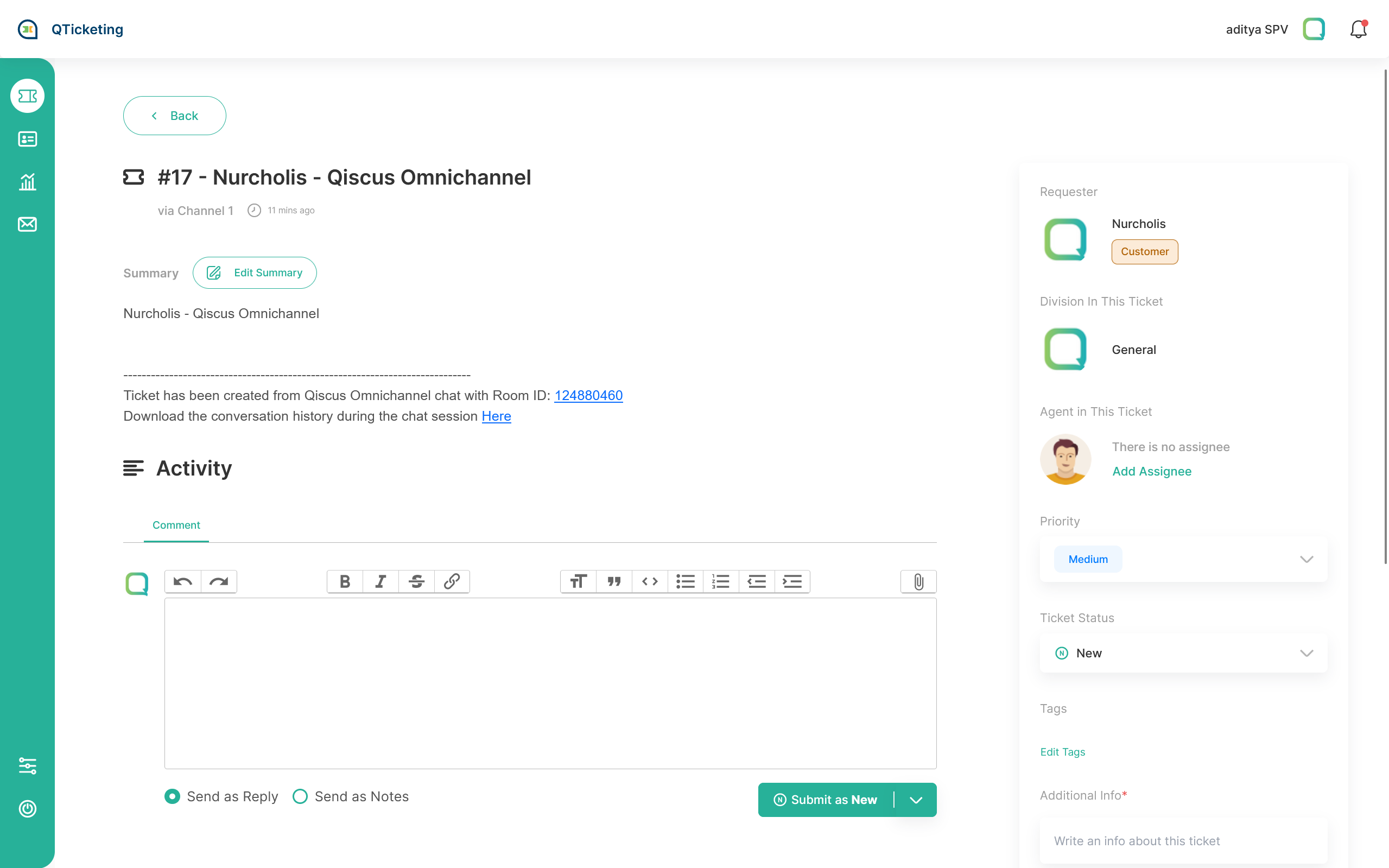
1. Assign to division
There’s a privilege rules applied in assign to division in order to keep the ticket as a private for each division. Only Admin roles that can switch ticket division between all created divisions. Supervisor can switch the ticket division only for the division that he joined and agent can’t changes the ticket’s division.
Owner’s view, Admin’s view and Supervisor’s view
Agent’s view
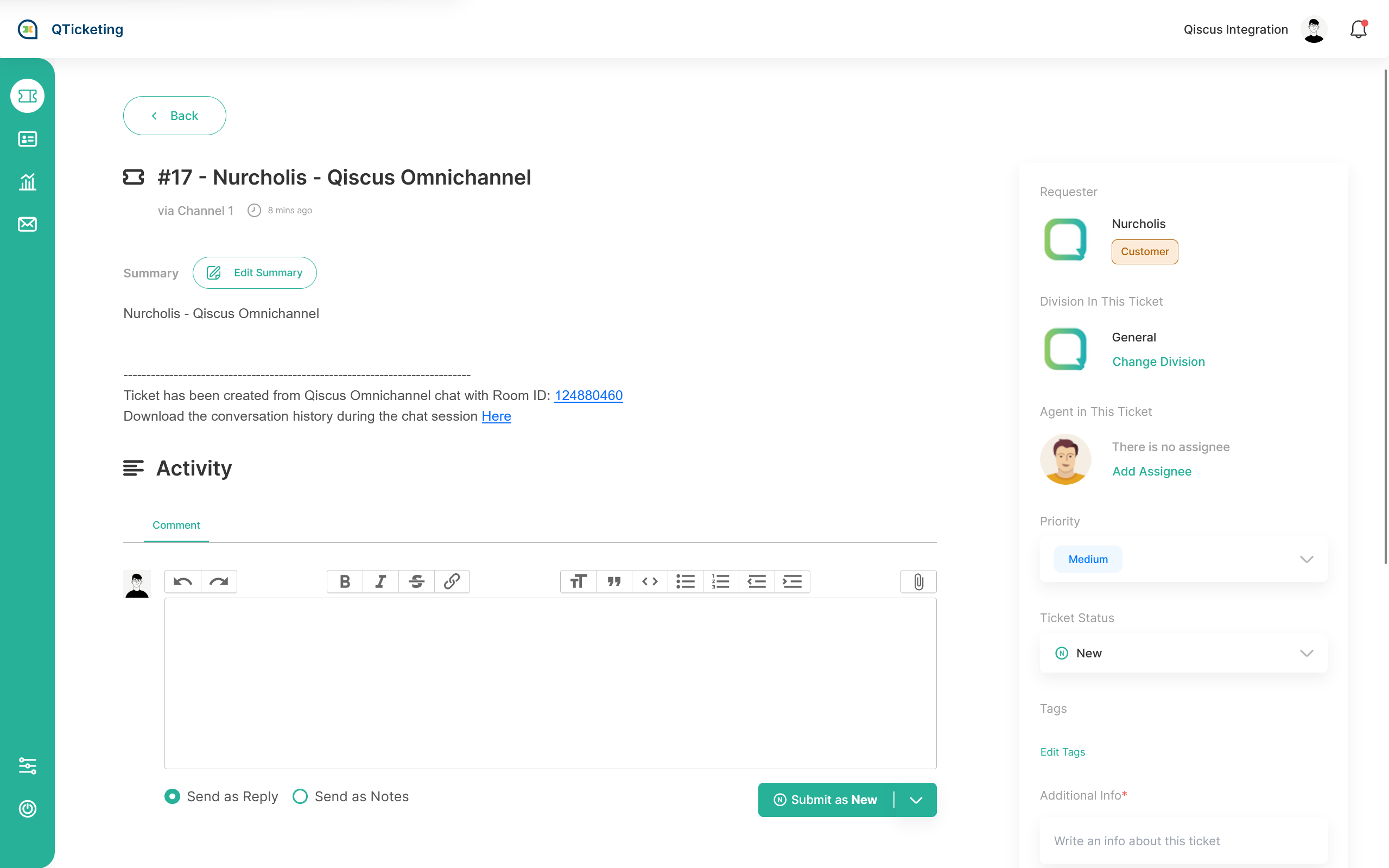
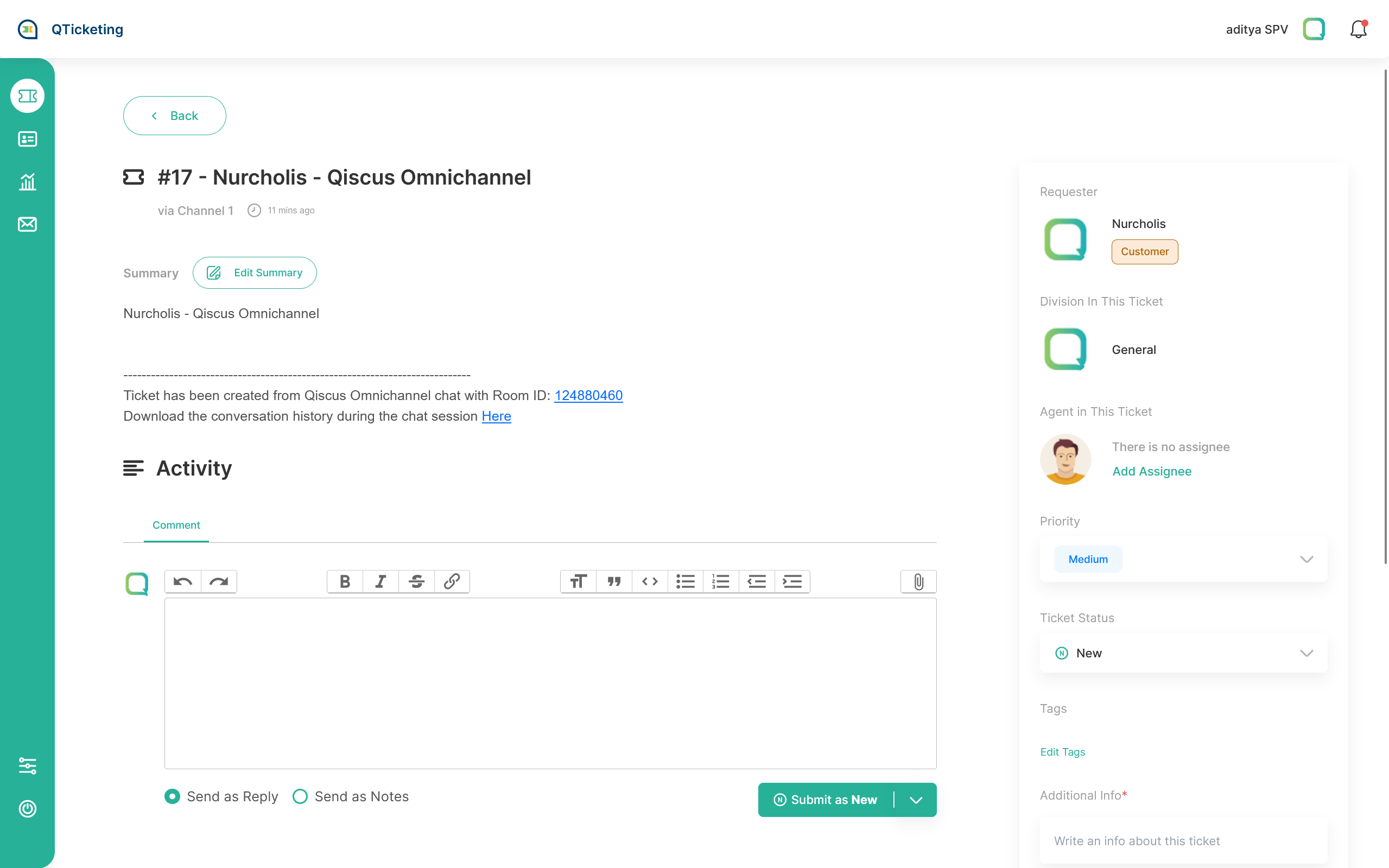
2. Assign ticket to agent in division
Admins get the privilege to delegate agents to each existing division. Meanwhile, supervisors can assign agents in their divisions, and agents only focus on incoming tickets from customers.
Owner’s view, Admin’s view and Supervisor’s view
Agent’s view
3. Change Ticket Priority
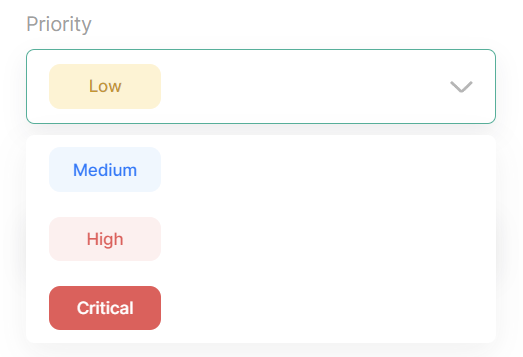
There’s 4 predefined ticket priority level in QTicketing.
- Critical – use it for a ticket that must be resolved as soon as possible
- High – use it for a ticket that must be resolved by today
- Medium – use it for ticket that can be resolved with certain longer time
- Low – use it for ticket that less priority and it’s okay to waive it
By default, if there is a new priority ticket, it will immediately enter the Medium level.
4. Ticket Status
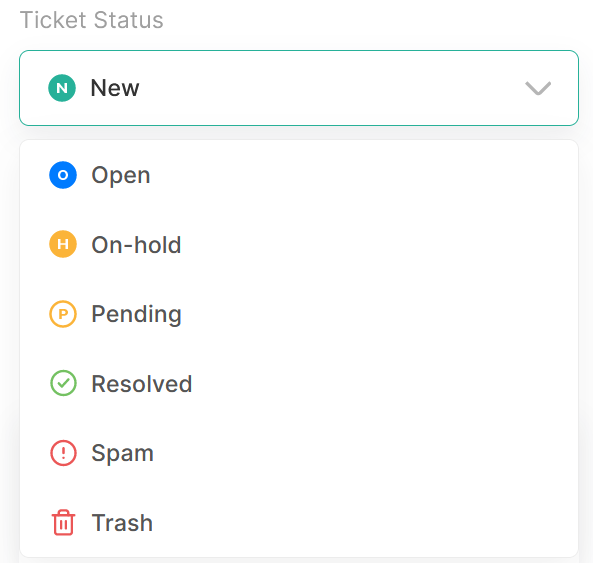
Ticket status are categorized as several category bellow:
- New – Status that can be the default value for any new created ticket.
- Open – Status that can be used for a ticket that already handled but need more action to resolve.
- On-Hold – Status that can be used for a ticket that needed to be checked with another internal team.
- Pending – Status that can be used for a ticket that due to lack of information from the requester.
- Resolved – Status that can be used for a ticket that already solved.
- Spam – Status that can be used for a ticket which have irrelevant or have inappropriate content.
- Delete – Status that can be used for a ticket that you don’t want to see again and will be moved to trash view.
5. Tag
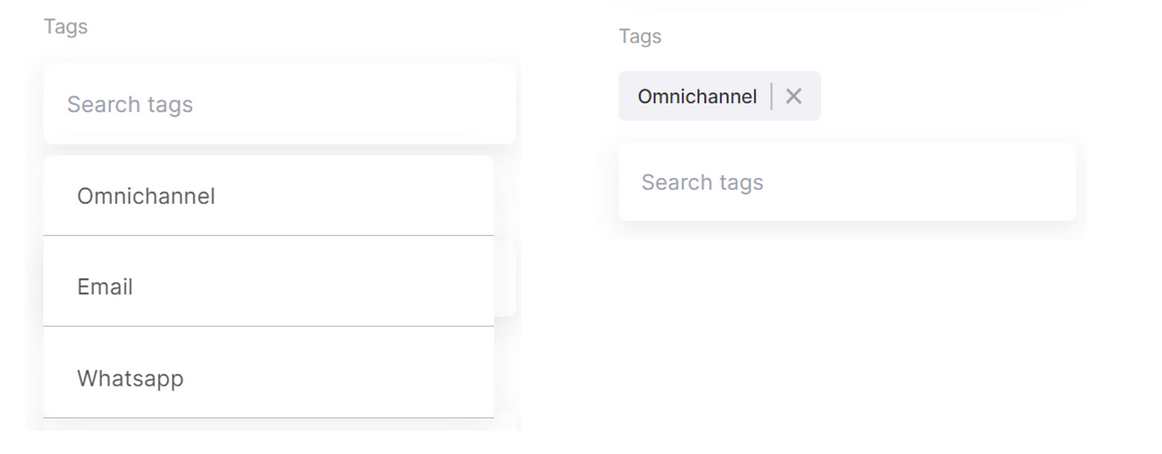
Ticket tag are a tagging system to marking certain ticket are marked as specific tag value or not. The tag value are predefined by Admin. You can using it to create custom analytics regarding how many ticket have specific tag in certain period or also able to be used for categorizing ticket so you can using it on filter ticket feature.
6. Reply Ticket
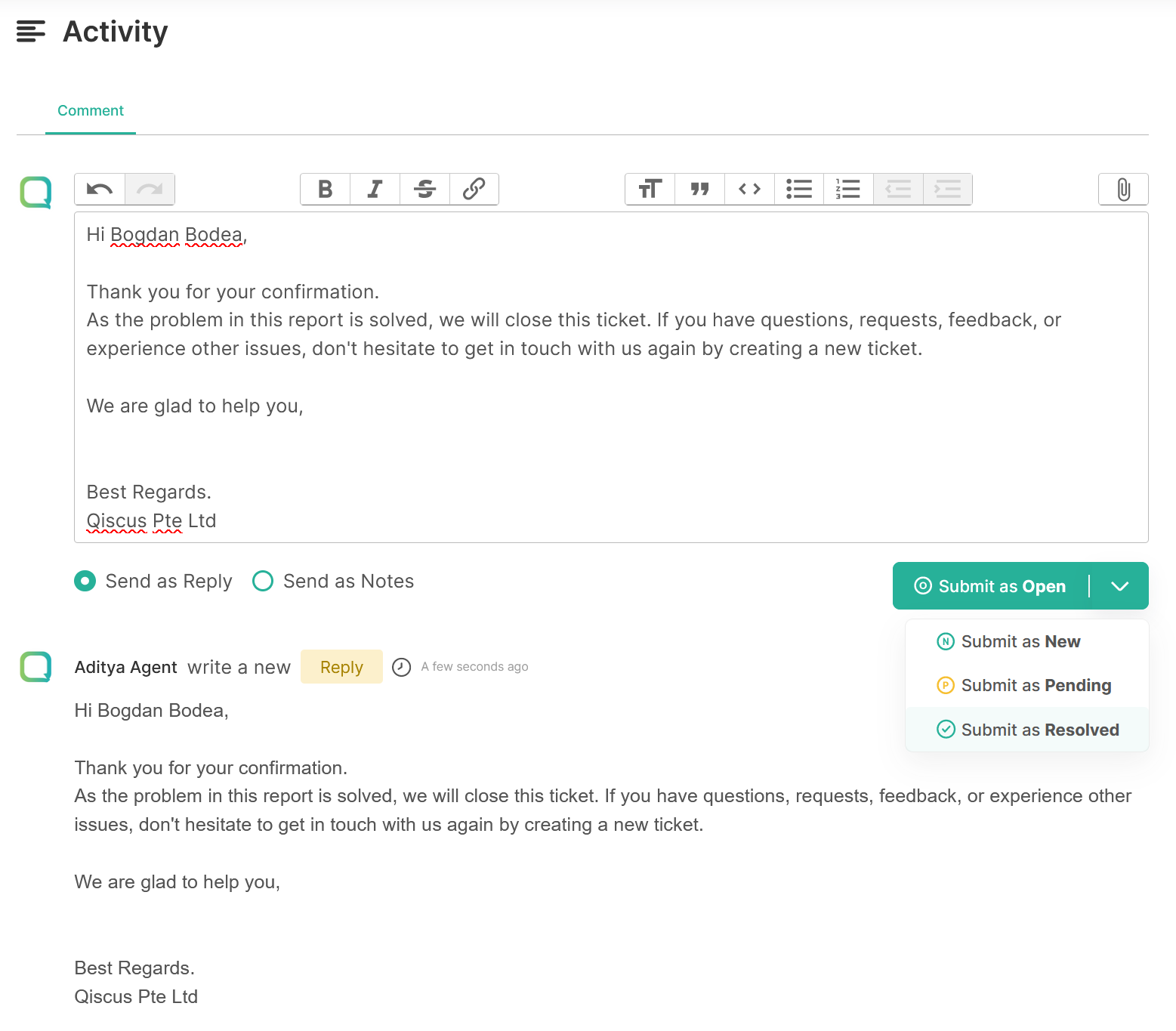
You can reply created ticket with an email replies for a ticket that has been created with channel that linked with email or just reply to comment section for the unlinked one.
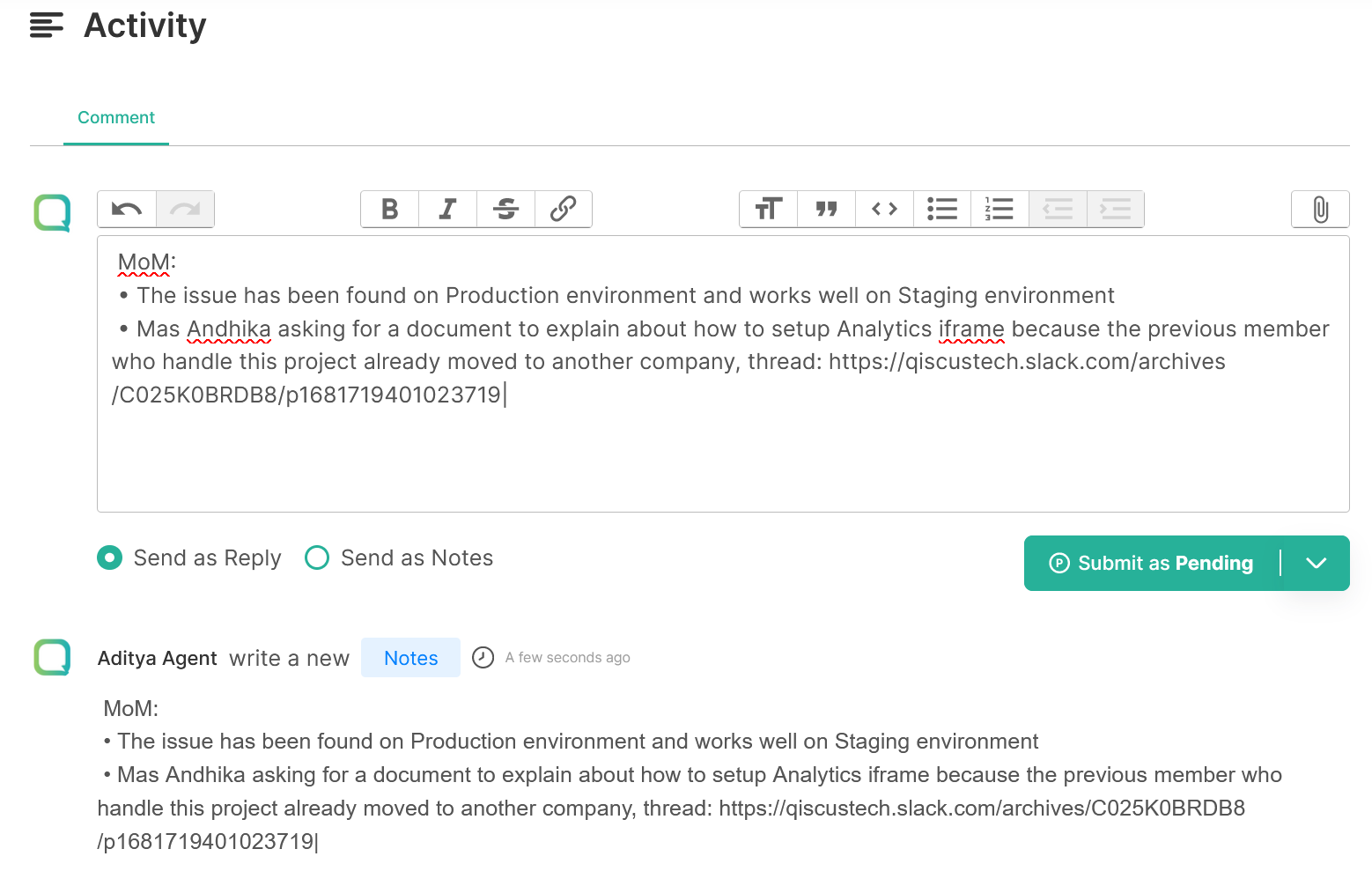
7. Reply Ticket as Internal notes
Reply ticket as internal notes will make the comment/replies are only visible to internal user. It means that this ticket has been created with channel that linked with email will make customer not receiving the comments since it was purposed only for internal.
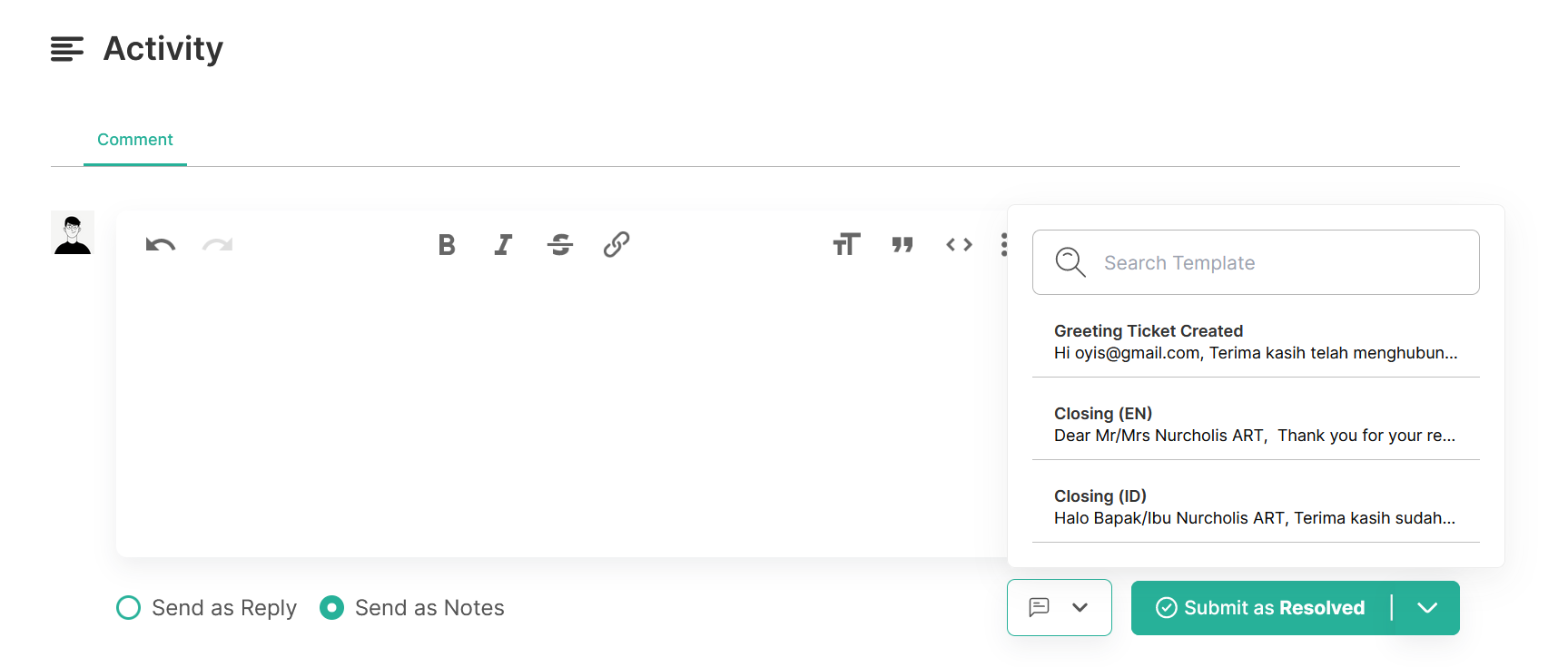
8. Reply ticket with reply template
A reply template is a feature to give user response with predefined template. The template can have a placeholder variable that will be replaced with the relevant value according the ticket’s data. There’s several data placeholder that can be used in Reply Template like:
- Current logged in user mail
- Current logged in user name
- Ticket ID
- Ticket title
- Ticket priority
- Ticket status
- Ticket assignee mail
- Ticket assignee name
- Ticket requester mail
- Ticket requester name
- Ticket requester organization name
- Ticket requester phone
QTicketing user who can create the template are only Admin and Owner. They can create reply template for specific listed division in order to make it more private.
Each user who joined in the division can using the Reply Template that assigned to their division during responding customer.
9. Update custom field
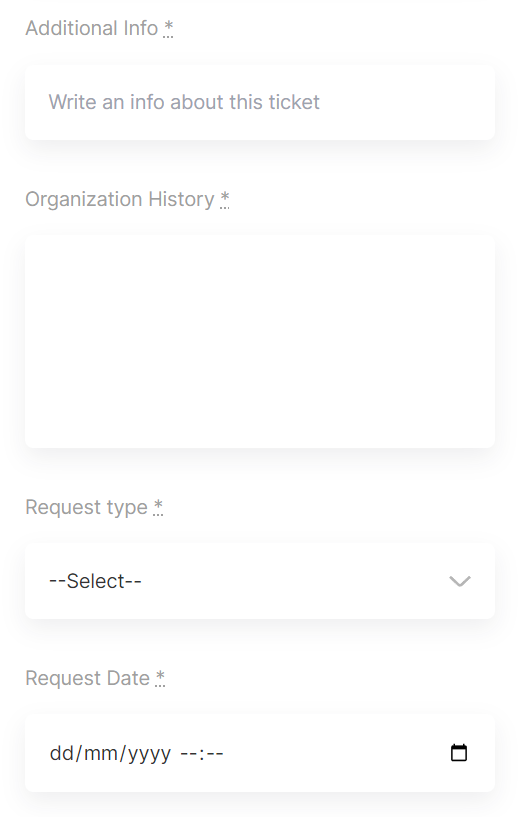
Update the custom field according to their type. there’s no save button so the data will be saved automatically.
a. Text
b. Text Area
c. Select/Dropdown
d. Date
Ticket View Preset
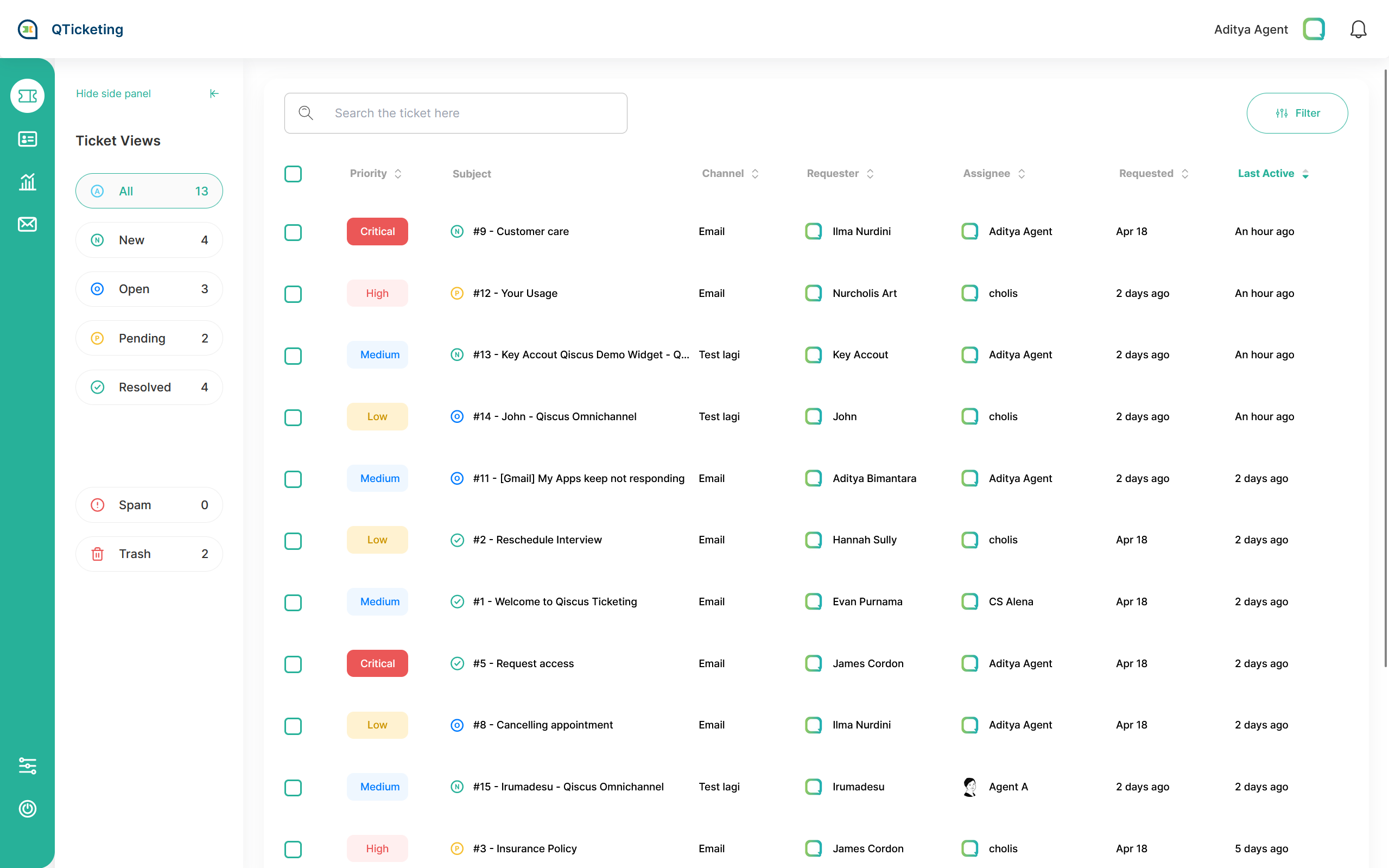
Ticket View Preset are a feature to see preset filter view that categorized by ticket status. There’s 6 ticket view preset type:
- All – It will show all ticket status exclude spam and deleted ticket. the ticket number beside the ticket preset view name are the total of ticket with status New, Open, Pending, and Solved.
- New – It will show all ticket that have new value as the the ticket’s status
- Open – It will show all ticket that have Open value as the the ticket’s status
- Pending – It will show all ticket that have Pending value as the the ticket’s status
- Resolved – It will show all ticket that have Solved value as the the ticket’s status
- Spam – It will show all ticket that have Spam value as the the ticket’s status
- Trash – It will show all ticket that have Delete value as the the ticket’s status
Ticket Filtering and Bulk Edit
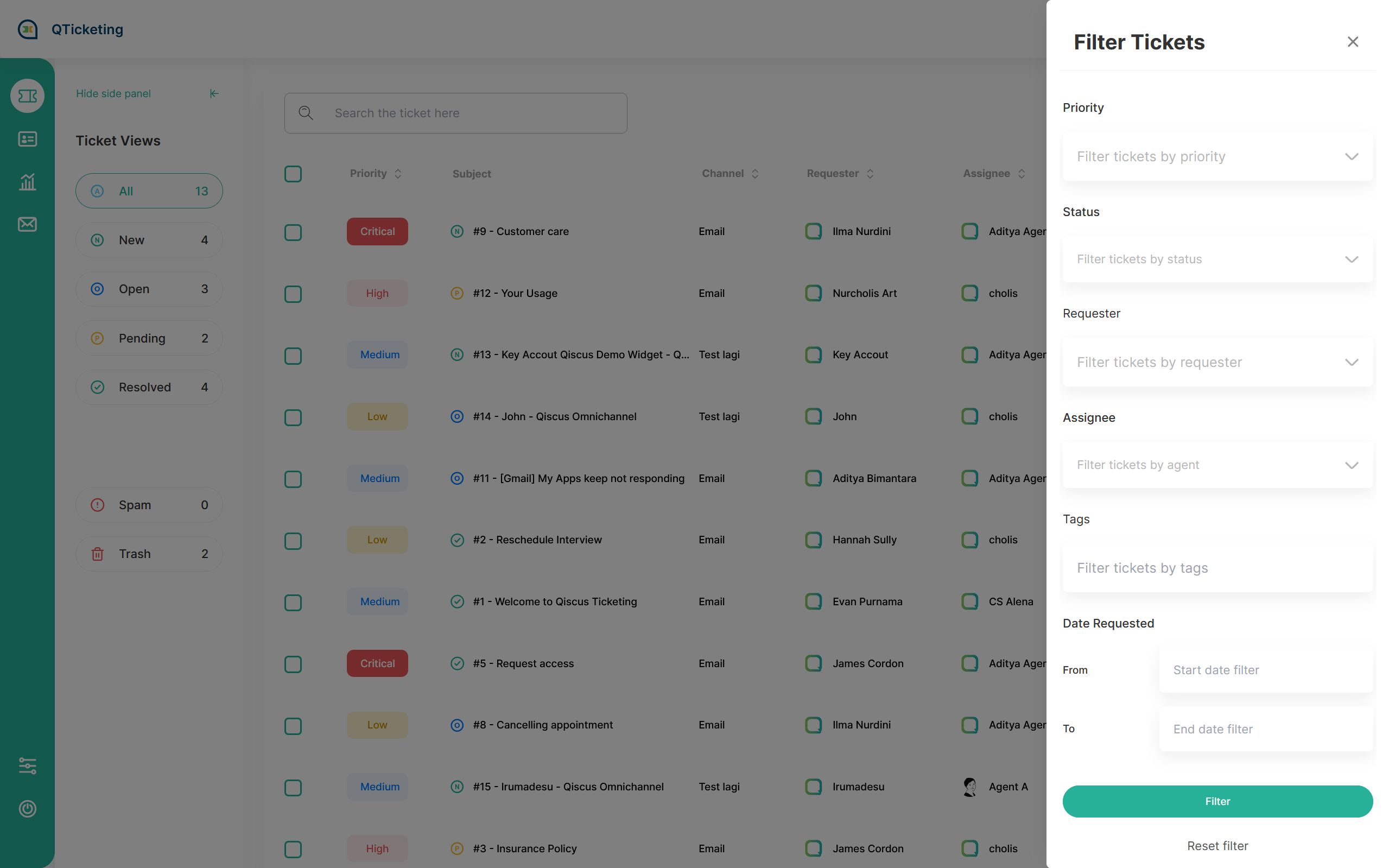
There’s a several field that can be used to filtering the ticket view:
- Priority
- Status
- Channel
- Requester
- Assignee
- Tags
- Date Requested
- Start date from
- To End date
After filtering the ticket you can bulk edit to changes the ticket properties or to add replies or internal notes.
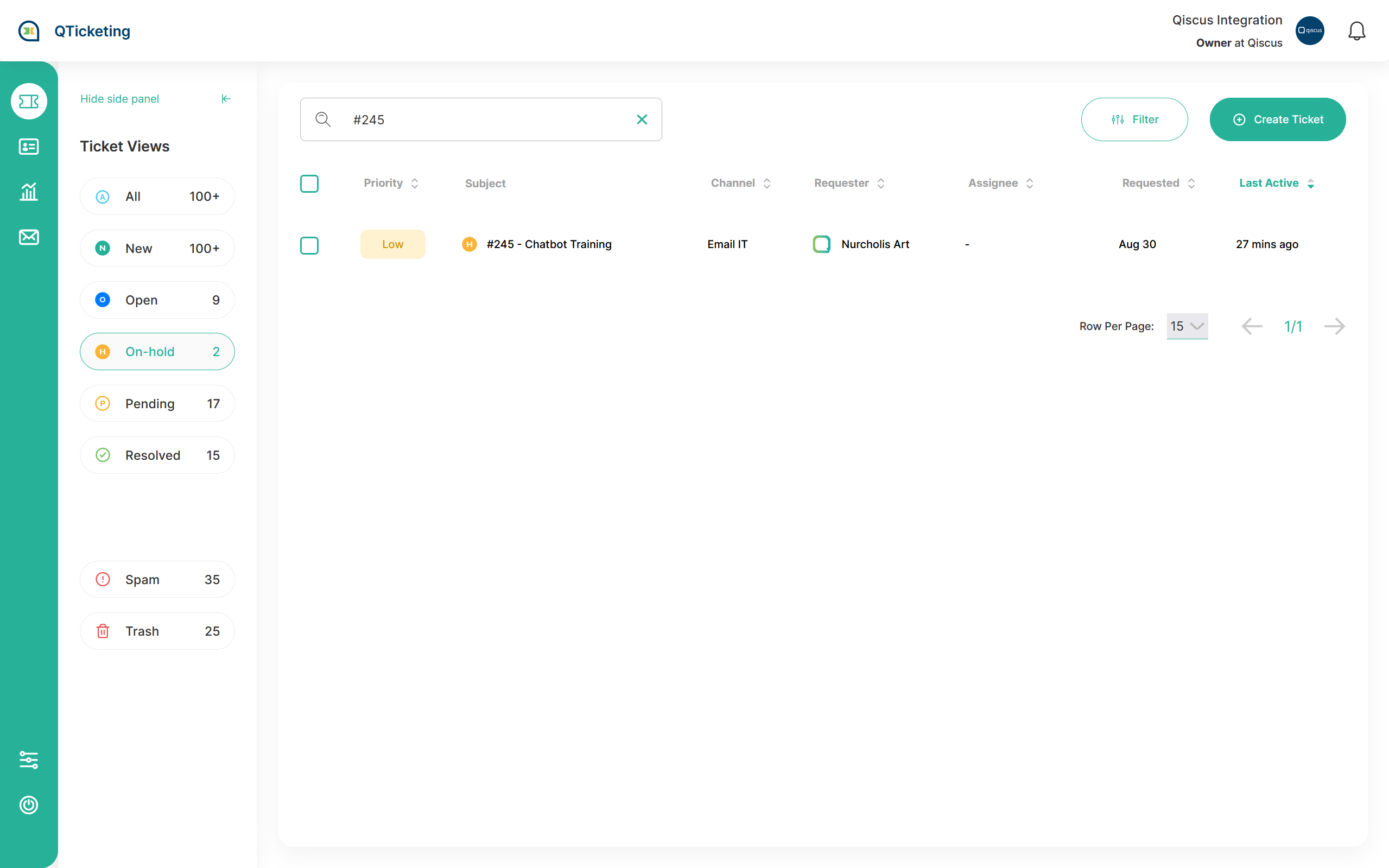
Ticket Search by Ticket ID or Title
QTicketing ticket search supports quick and precise ticket retrieval using either the Ticket ID or the Ticket Title. By simply using ‘#’ followed by the ticket number or entering keywords related to the ticket title, you can find specific tickets efficiently.
How to Use:
- By Ticket ID: Begin your search with ‘#’ followed by the ticket number (e.g.,
#12345). - By Ticket Title: Enter keywords related to the ticket title.
- Search: Enter the query into the search field.
- Results: The system will promptly display the ticket associated with the provided Ticket ID or Title keywords.
Leave a Reply