In accordance with WhatsApp’s new pricing updates, businesses will incur charges based on a per 24-hour conversation model, with varying rates depending on the conversation category. This price change from WhatsApp could have implications for your business strategy, especially if you heavily rely on broadcasts through the WhatsApp channel for promotional purposes and maintaining customer connections. To tackle this challenge, Qiscus has introduced the innovative Optimize Broadcast Price feature that allows you to optimize your credit usage when sending WhatsApp broadcasts to your valued customers.
Important Notes:
There are several important points that you need to pay attention to regarding the Optimize Broadcast Price feature:
- The Optimize Broadcast feature is limited to conversations that are within the active customer service window.
- Optimization is applicable only for templates with Marketing and Utility categories.
- There are seven specific types of content that can be optimized. We strongly advise following the guidelines when creating new templates. Learn more about the guidelines.
Enabling and disabling the Optimized Broadcast Price feature
You have the flexibility to enable or disable the Optimize Broadcast Price feature based on your preferences. Settings need to be configured individually on each integrated WhatsApp channel. You can access these settings by navigating to the Integration menu and select WhatsApp Integration. Click Settings for the desired WhatsApp channel.
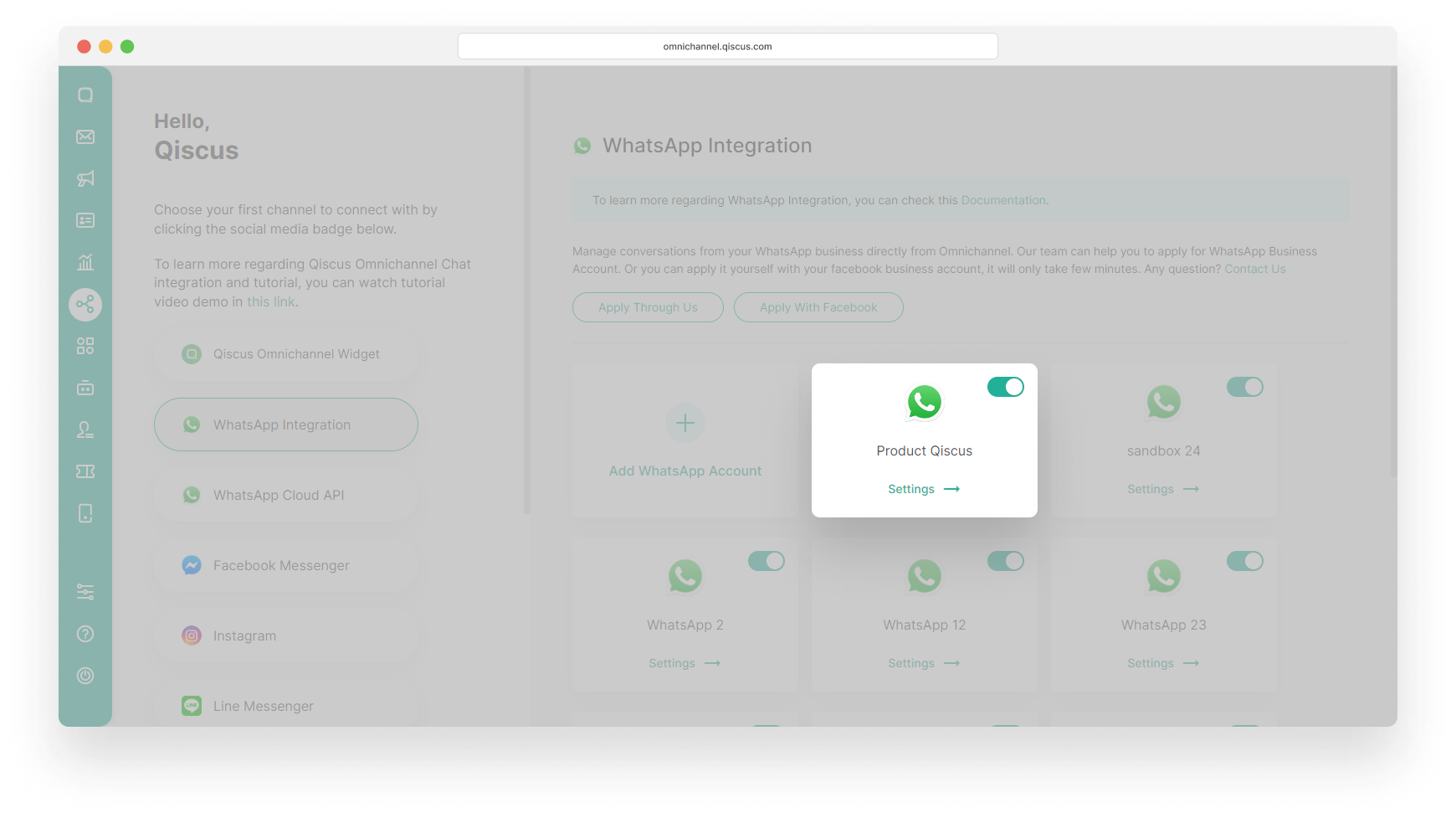
You will see a toggle for Optimize Broadcast Price. Once this setting is enabled, Qiscus Omnichannel Chat system will automatically verify whether the message template you intend to use for sending broadcasts can be optimized or not.
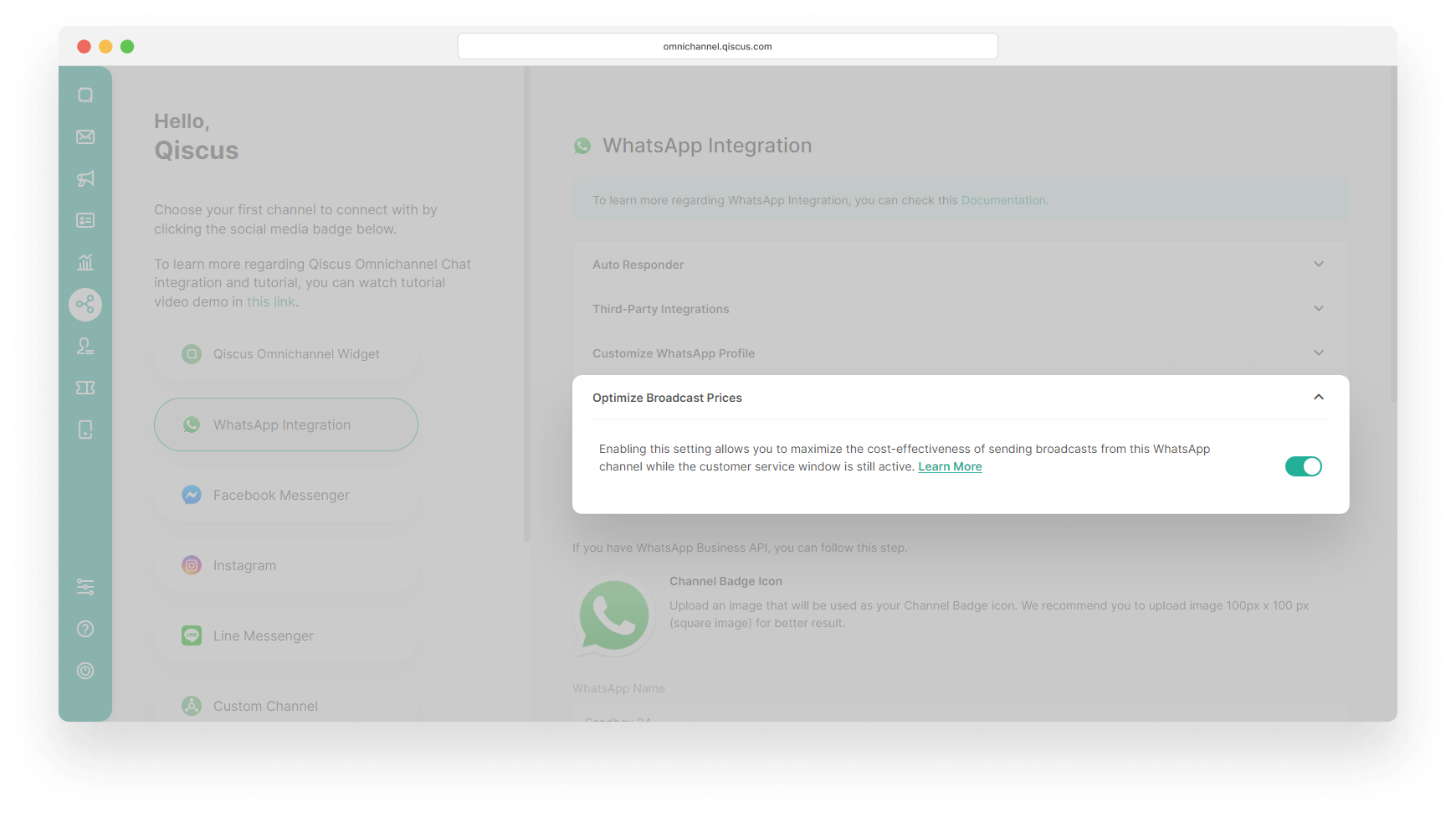
Sending WhatsApp broadcast with the Optimize Broadcast Price feature
Once the Optimize Broadcast Price feature is enabled, there will changes when you send broadcasts through either the Outbound Message or Inbox menus.
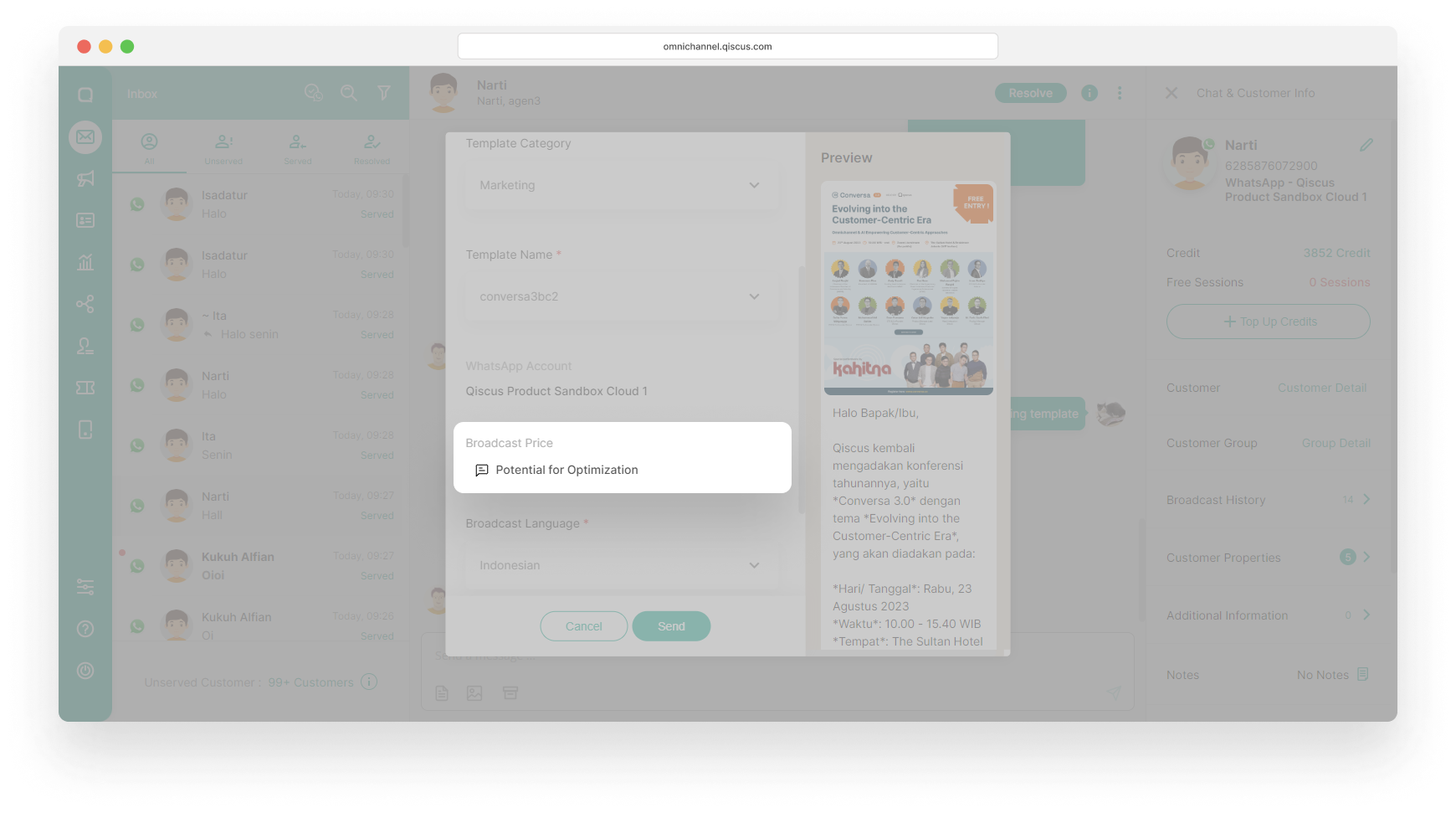
When sending a broadcast via the Outbound Message menu, there will be additional information about the Broadcast Price on the Send Broadcast Message page. If the template you choose matches the content guidelines, then you will get information that Broadcast Price Potential for Optimization.
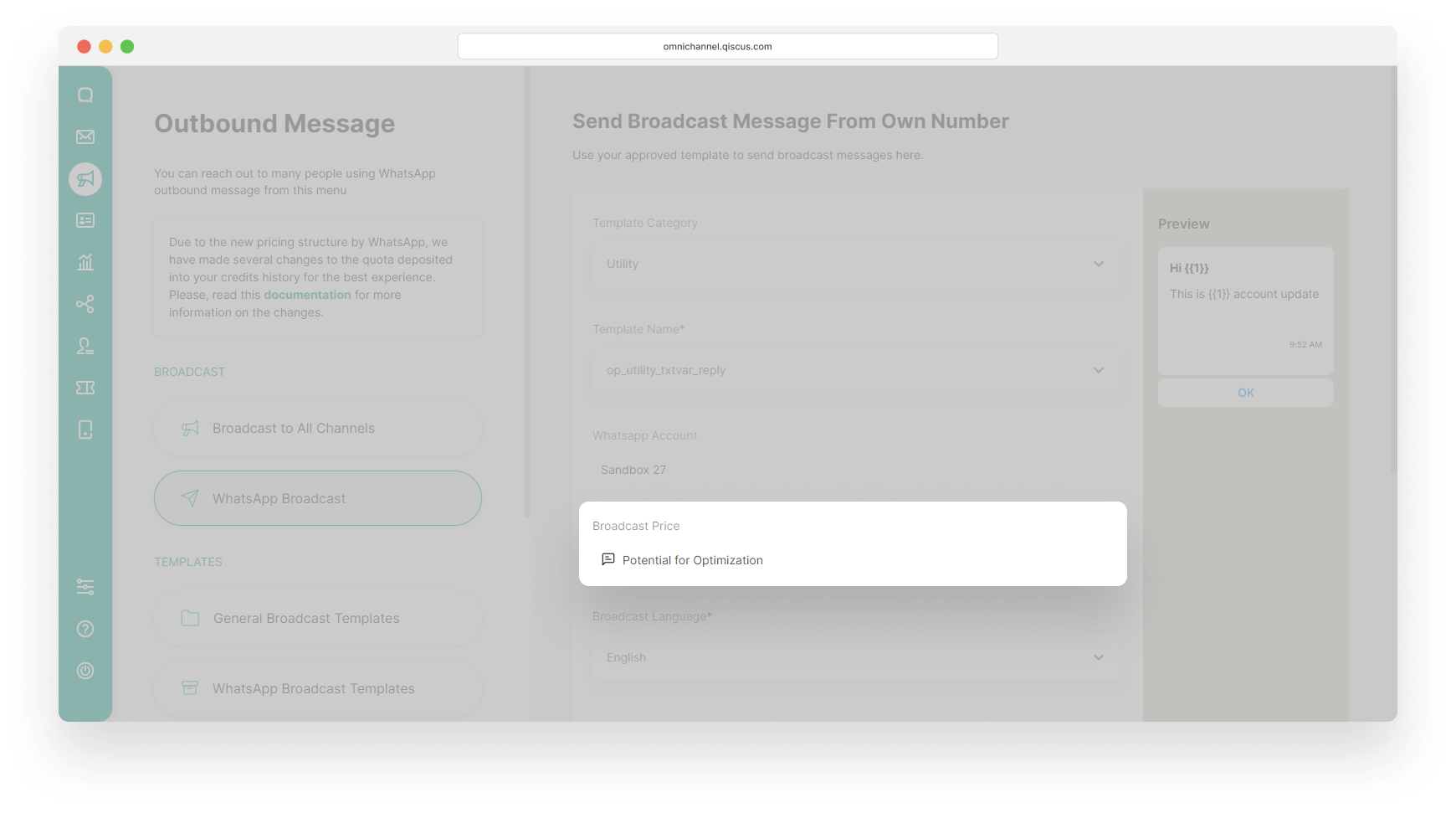
The Optimize Broadcast Price feature applies to all broadcast types including Submit your own number, Select from Customer Groups, and Upload from CSV.
To see whether the template that was sent was successfully optimized or not, you can see the Broadcast log. If the Broadcast Price section has an Optimized status, the broadcast delivery has been successfully optimized. Conversely, if the status is Standard, it means that the broadcast you are sending is not optimized and you will be charged a standard broadcast delivery fee.
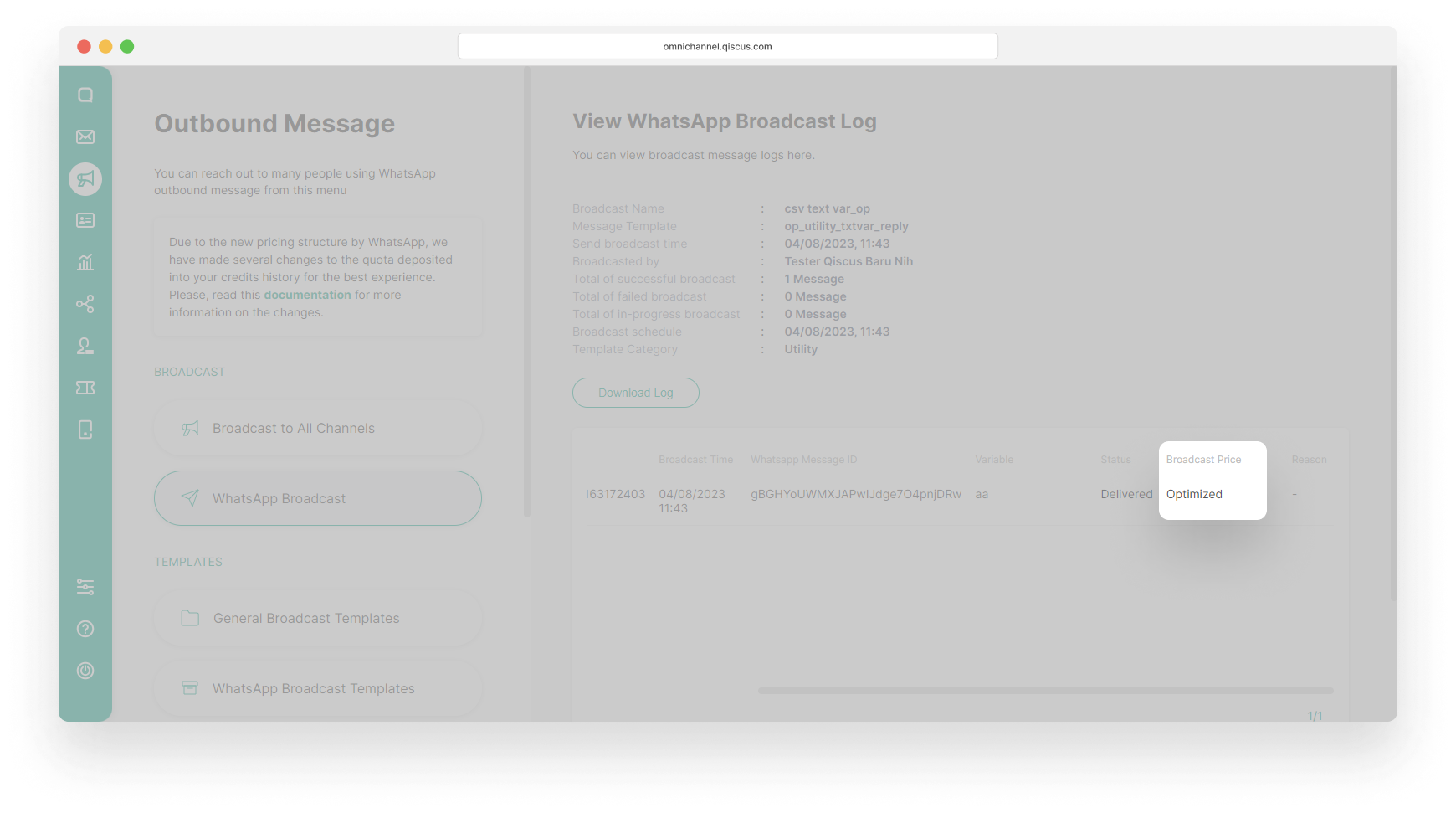
Apart from changes when sending broadcasts via the Outbound Message menu, you will also see the same information when sending message templates to follow up or start a conversation with customers in the Inbox menu.
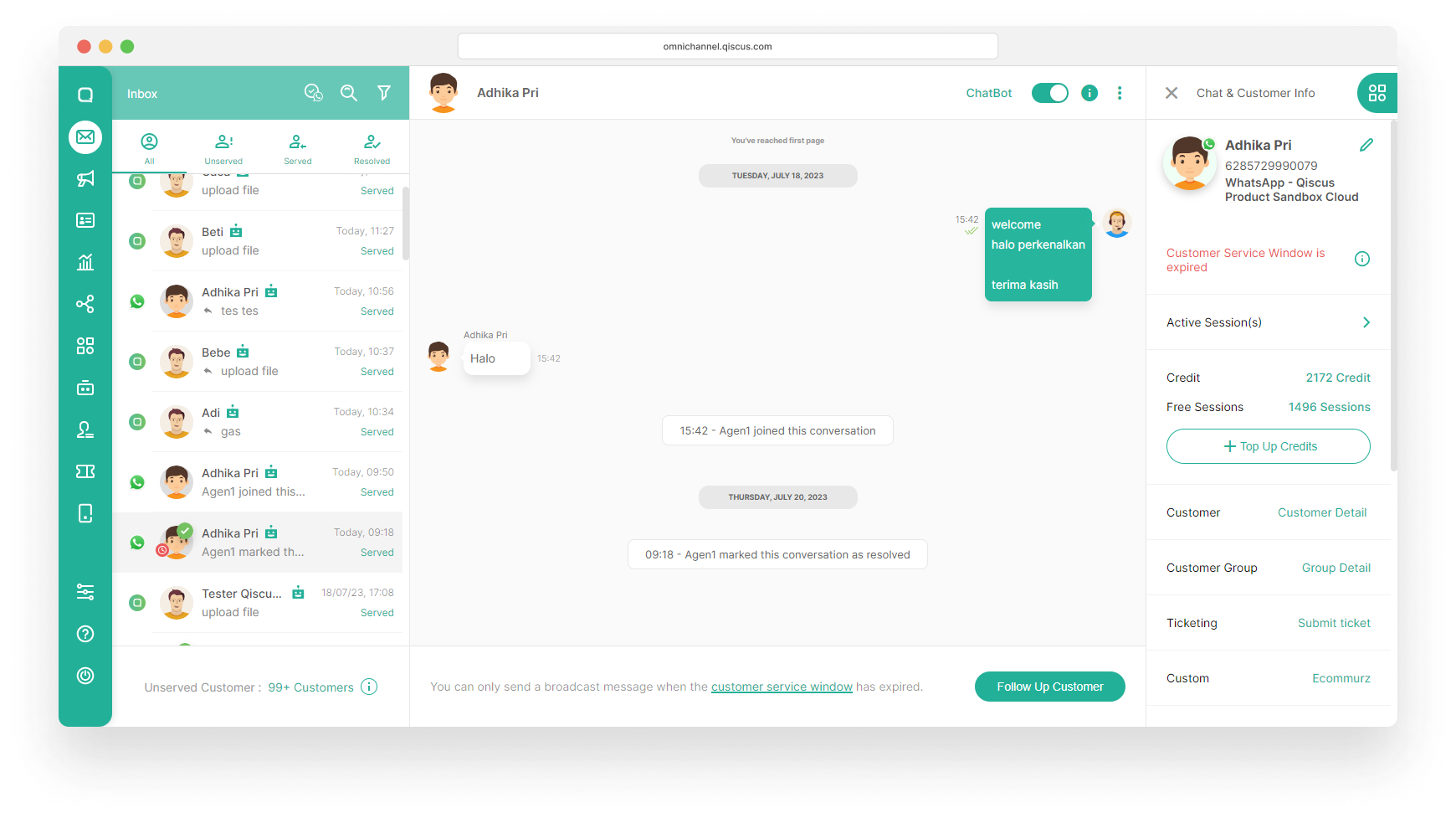
When the template you plan to send adheres to the guidelines, you will see Broadcast Price information Potential for Optimization.
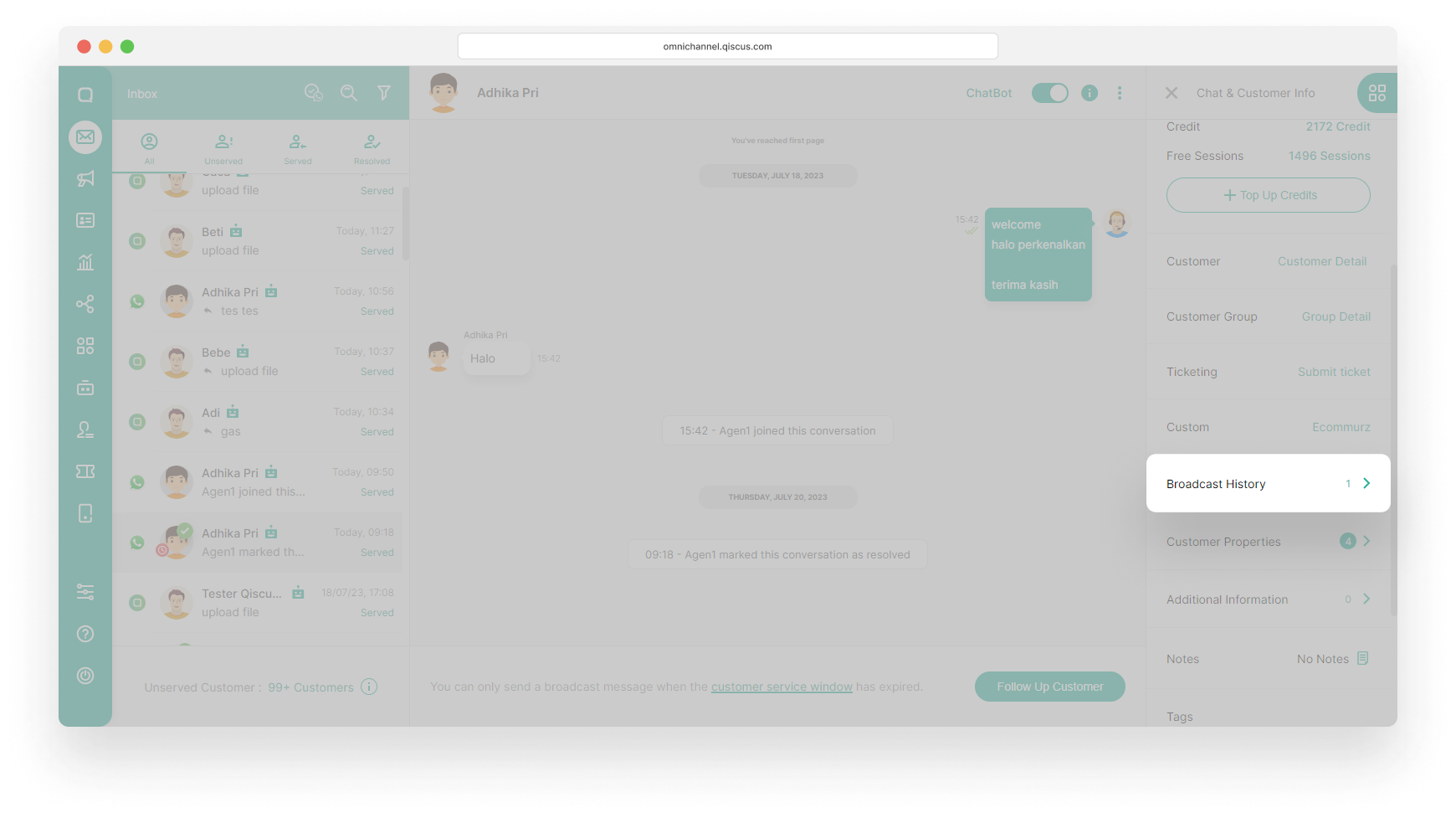
To see if the template sent was optimized, you can open Chat & Customer Info then select Broadcast History.
If the template you sent was successfully optimized, you will see the Optimized Broadcast Price banner on the Broadcast History page.
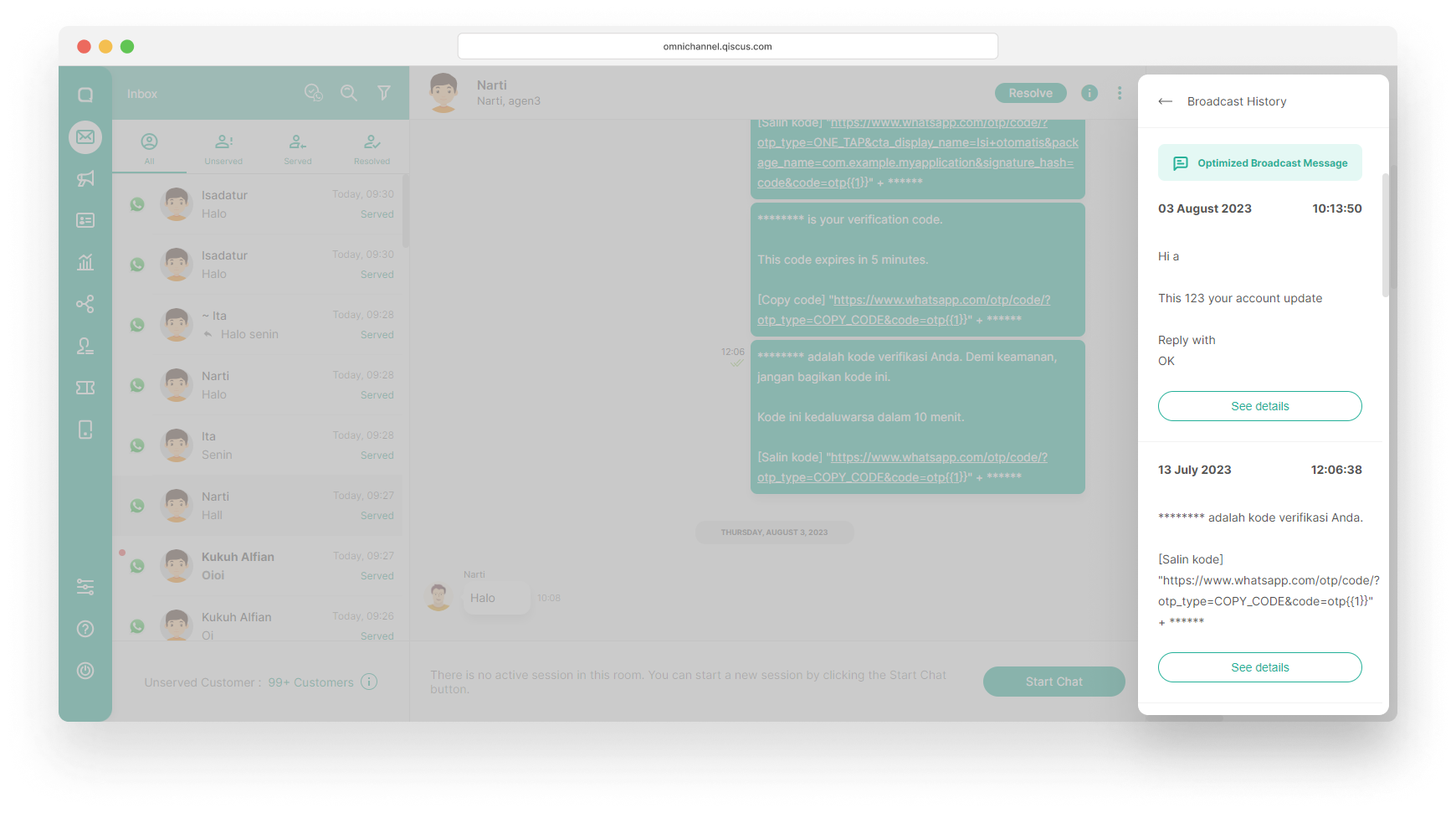
If the message template you sent cannot be optimized, our system will automatically resend it as a standard message template delivery.
Optimized template indicator
We strongly advise following the guidelines when creating new templates. However, the Optimize Broadcast Price feature applies not only to new templates created after the feature’s release but also to approved templates that already comply with the guidelines. Qiscus Omnichannel Chat system will automatically categorize these templates as “Optimized Templates,” and an icon will appear next to the template name.
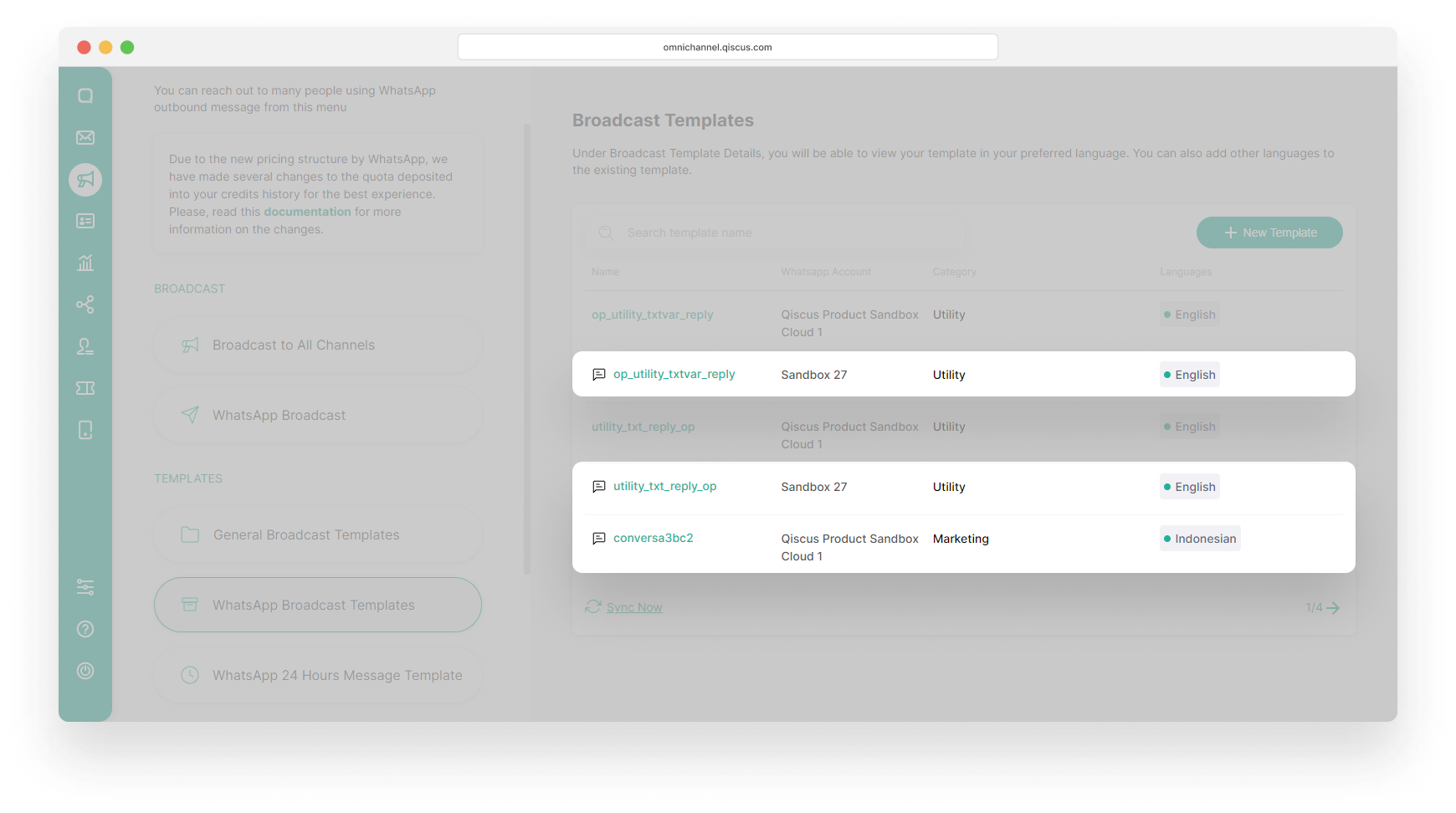
You can see the indicator icon by going to the Outbound Message menu and then selecting WhatsApp Broadcast Templates. If the template has been optimized, you will see an icon next to the Template Name.
Leave a Reply