WhatsApp Cloud API allows you to send and receive messages using a cloud-hosted version of the WhatsApp Business Platform. By integrating WhatsApp Cloud API channel with Qiscus Omnichannel Chat, you can receive and manage all WhatsApp messages from your customers in one dashboard.
Preparation
Before starting to integrate WhatsApp Cloud API channel, you will need:
- A Qiscus Omnichannel Chat account. You can easily get a Qiscus Omnichannel Chat account by register to this page.
- A Meta developer account and a Meta developer app. You can set up developer assets and platform access by following these steps.
- Contact Qiscus team to integrate WhatsApp Cloud API channel.
Important notes:
- The phone number you registered is owned by your business and must be a new phone number.
- You have to add the phone number to your WhatsApp Business Account.
- If you have two (2) phone numbers in one (1) WhatsApp Cloud API App, for now, Qiscus Omnichannel Chat only supports integration on one of those numbers. This is because one (1) WhatsApp Cloud API only has one (1) webhook configuration, even though it has two (2) phone numbers.
WhatsApp Cloud API channel Integration
After contacting Qiscus team to get the WhatsApp Cloud API channel on the Integration menu, you can follow these steps to integrate WhatsApp Cloud API channel with Qiscus Omnichannel Chat:
- Go to the Integration Page on the sidebar,
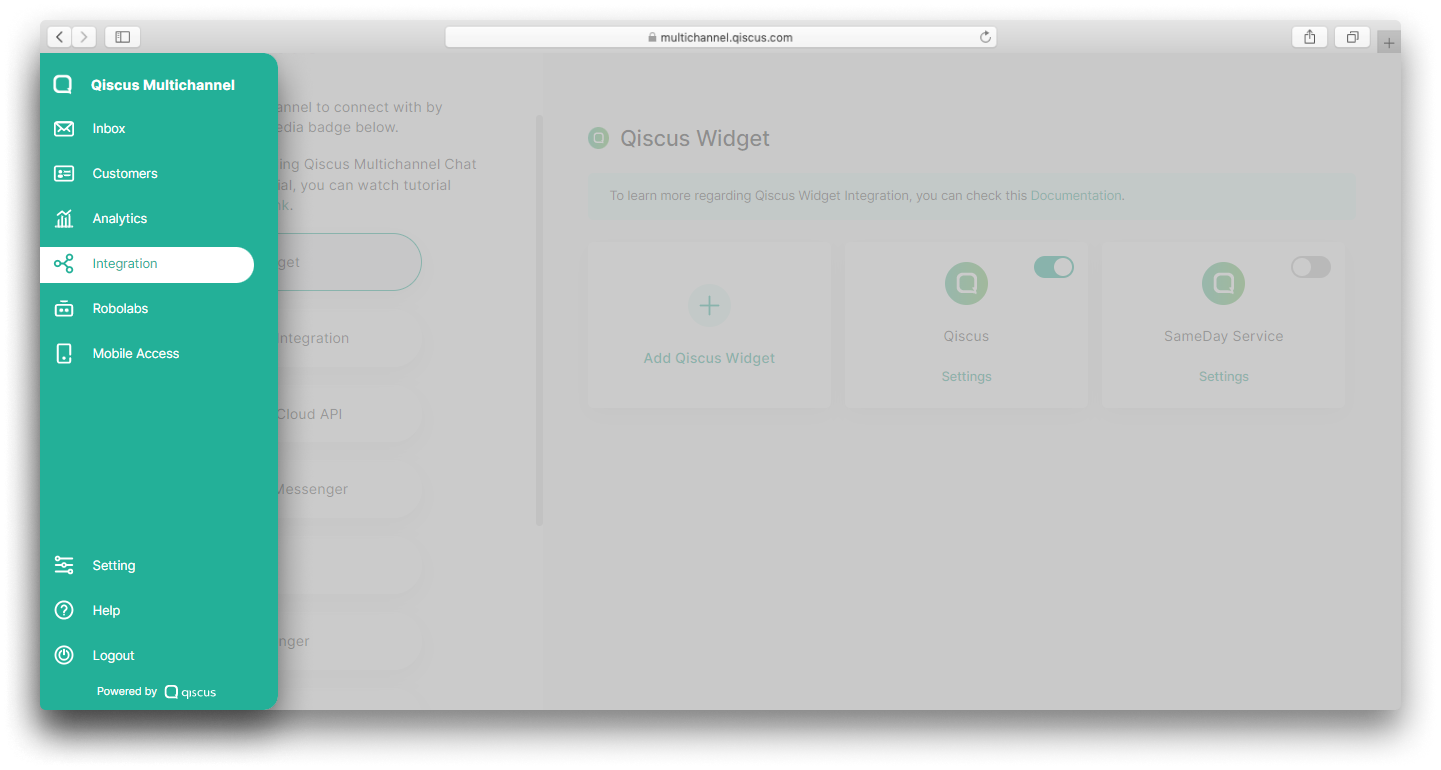
- Click menu WhatsApp Cloud API,
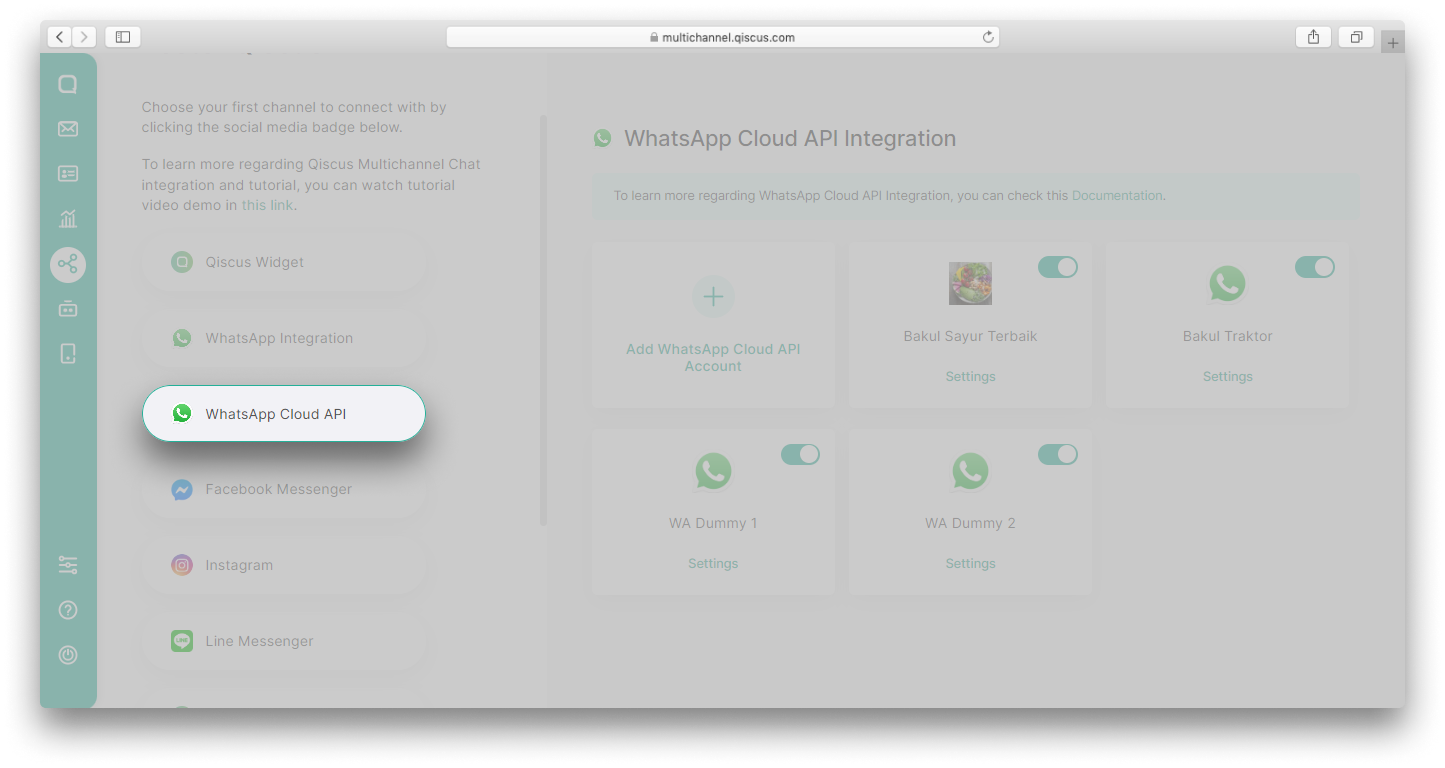
- Click Add WhatsApp Cloud API Account,
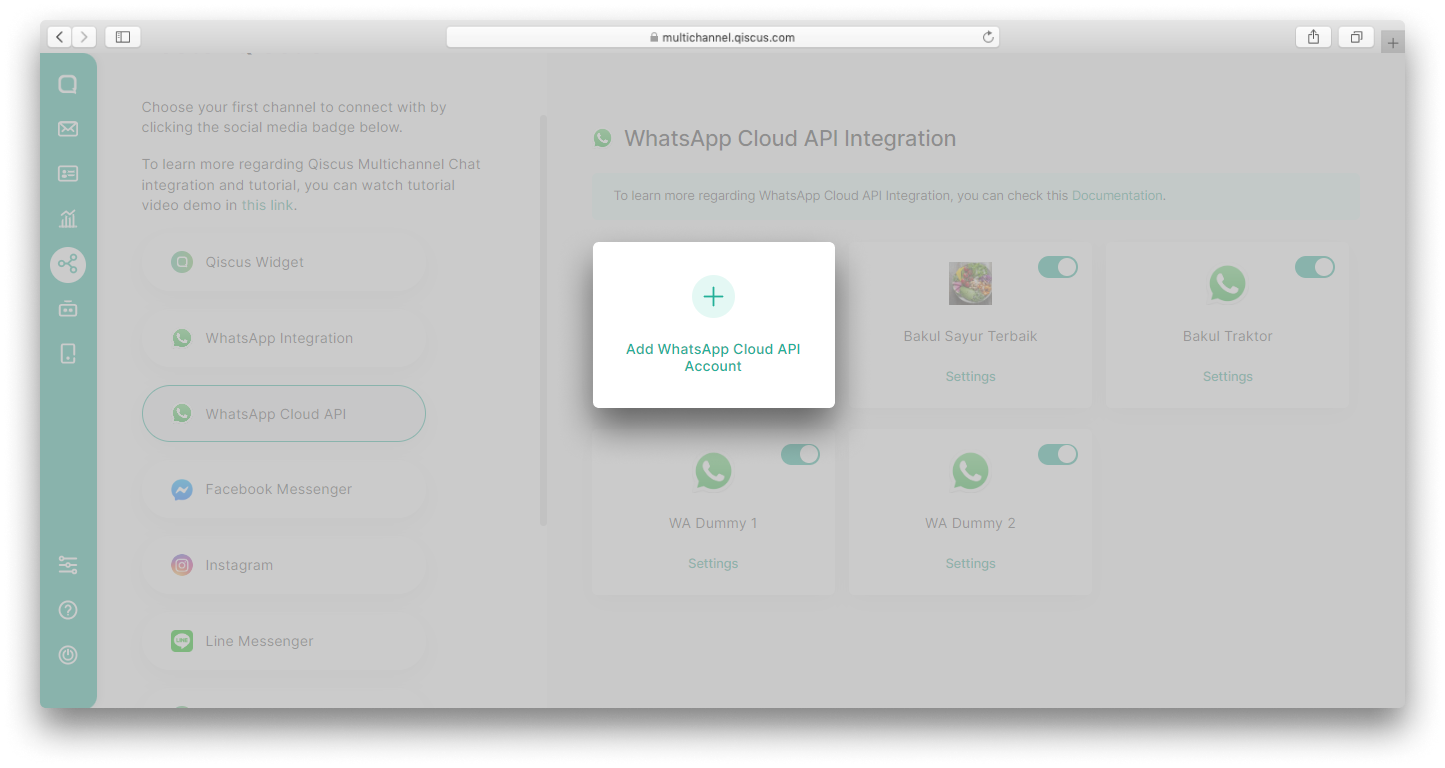
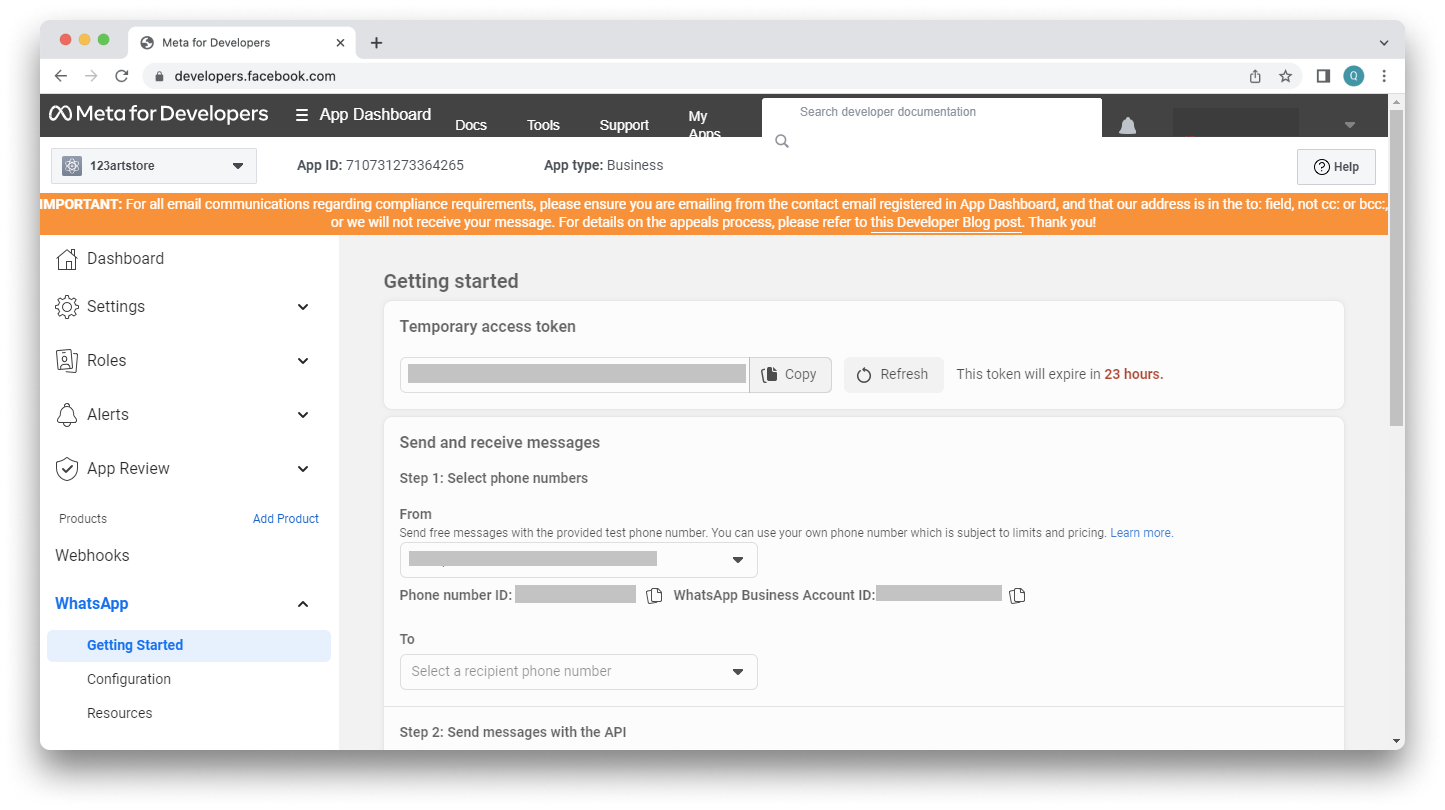
- Get the Information regarding System User Token, WhatsApp Business ID, and WhatsApp Phone Number ID from your Meta developer account,
- Fill in WhatsApp Name, Phone Number, System User Token, WhatsApp Business ID, and WhatsApp Phone Number ID,
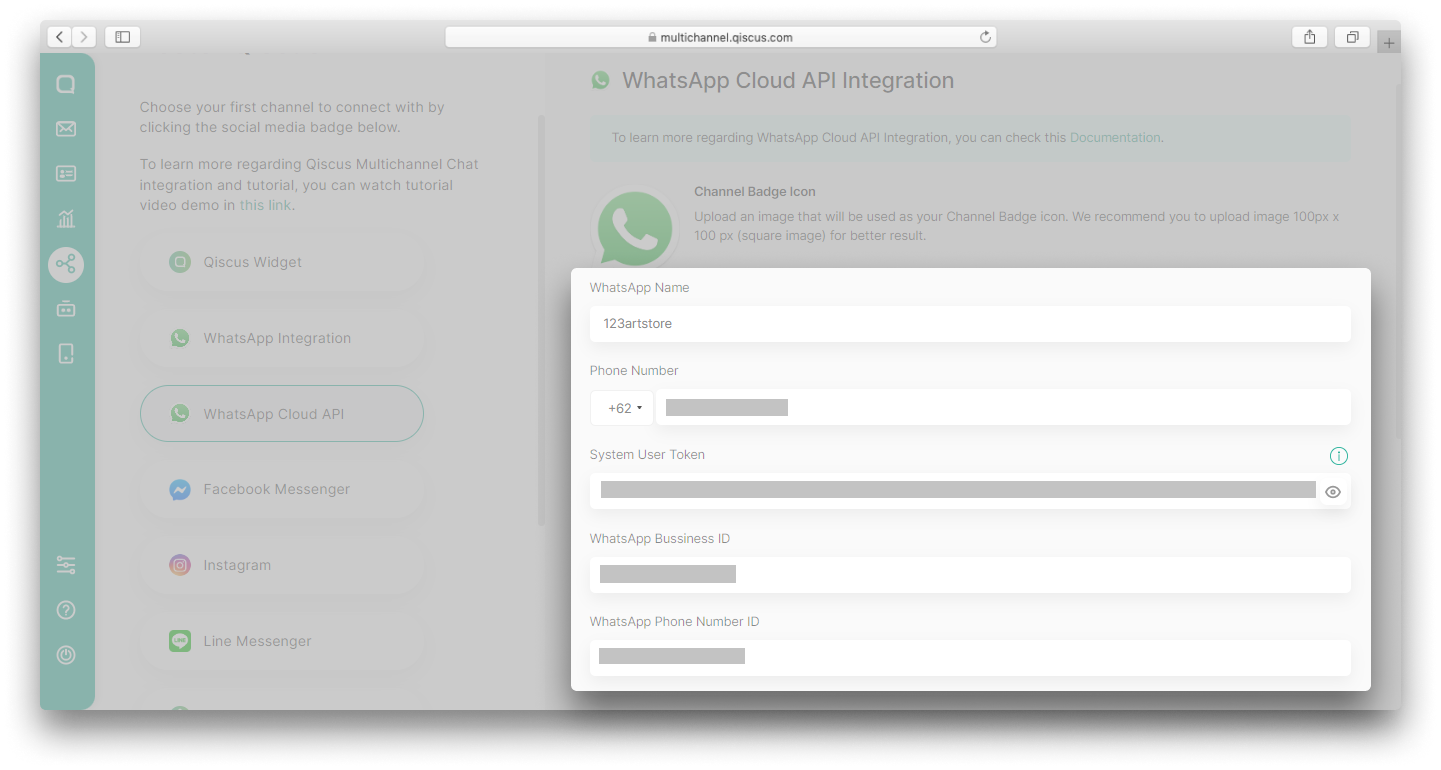
You can change the System User Token after successful integration. System User Token must be shown before updating the value. To show the System User Token, you need to enter Qiscus Omnichannel Chat password.
- Click Next,
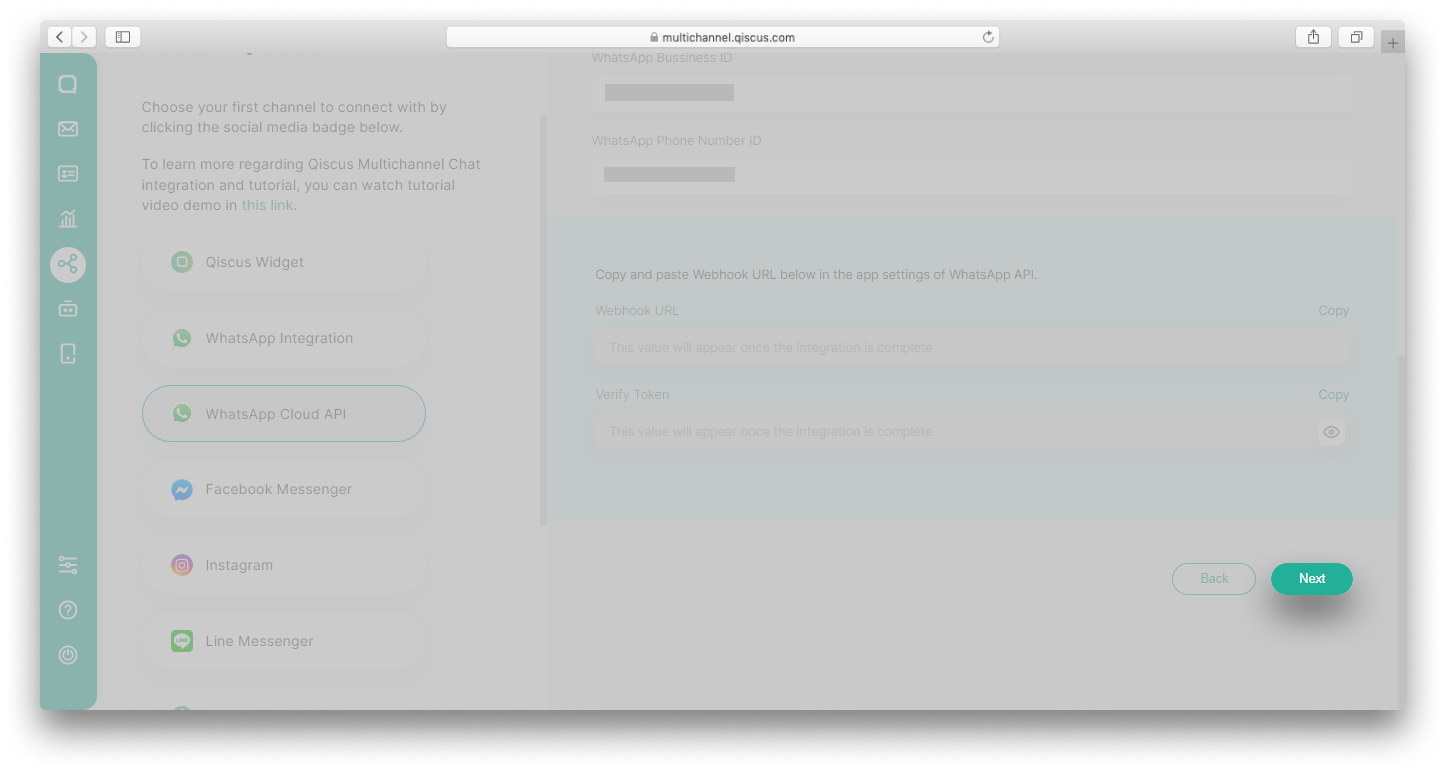
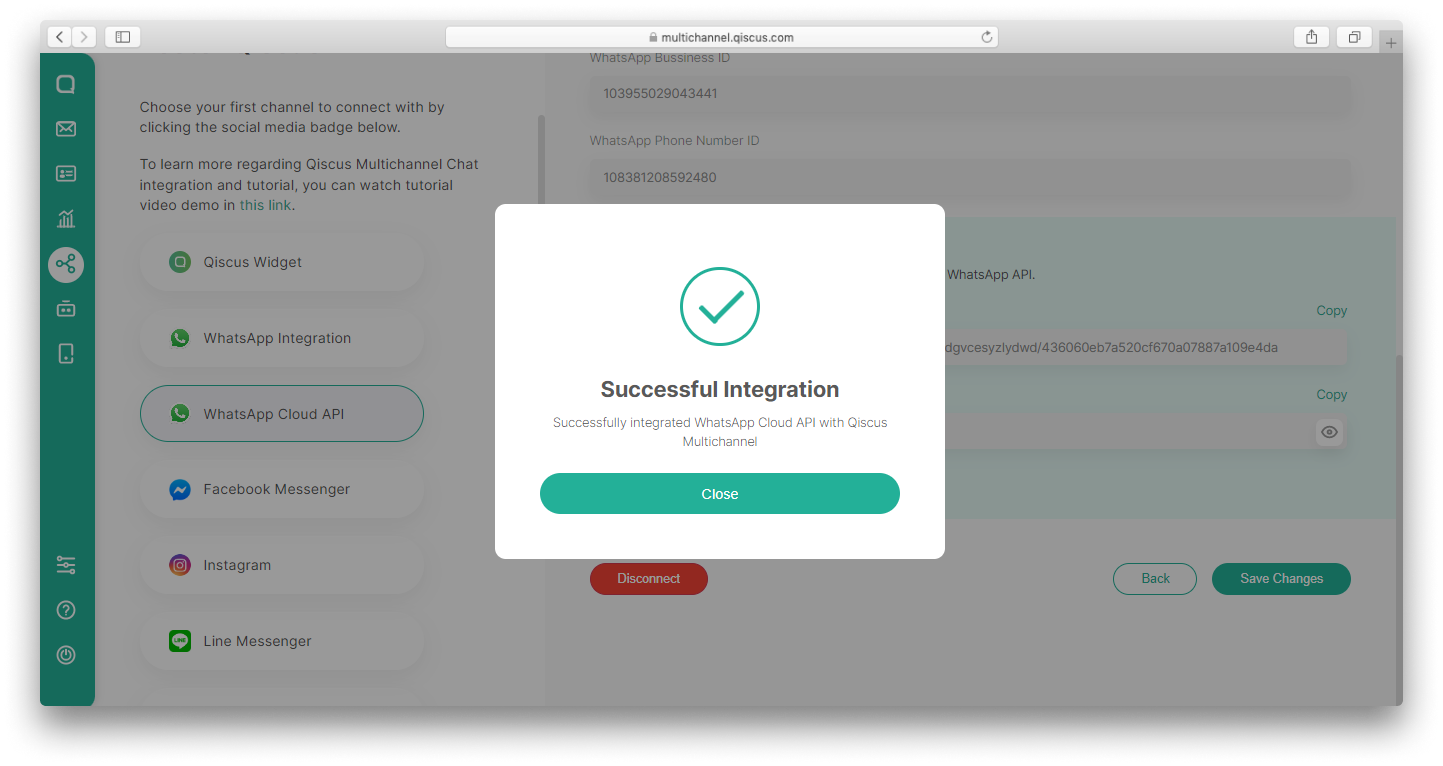
- A pop up notification indicating that the integration has been completed will appear,
- You will get Webhook URL and Verify Token after successfully integrating WhatsApp Cloud API channel,
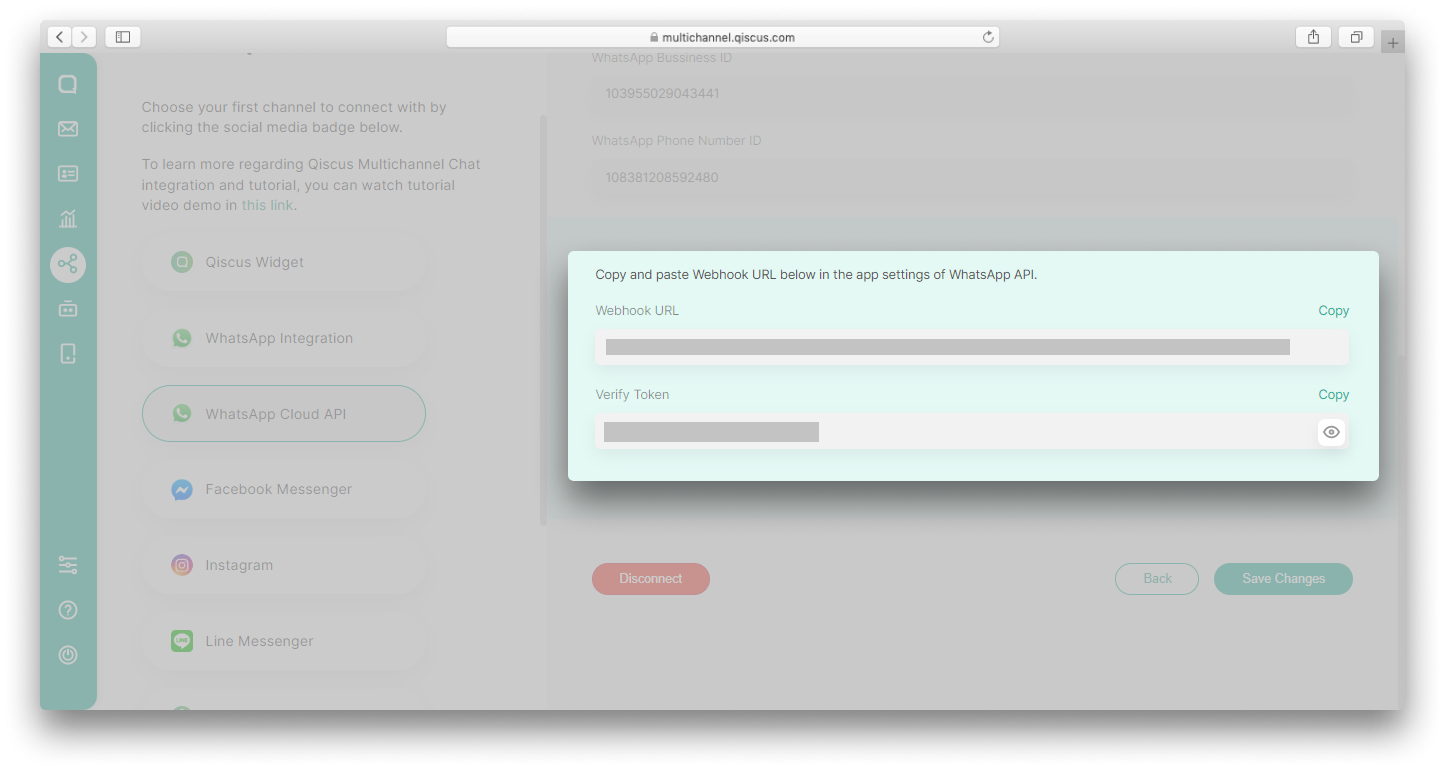
- Copy and Paste Webhook URL and Verify Token to your Meta developer account,
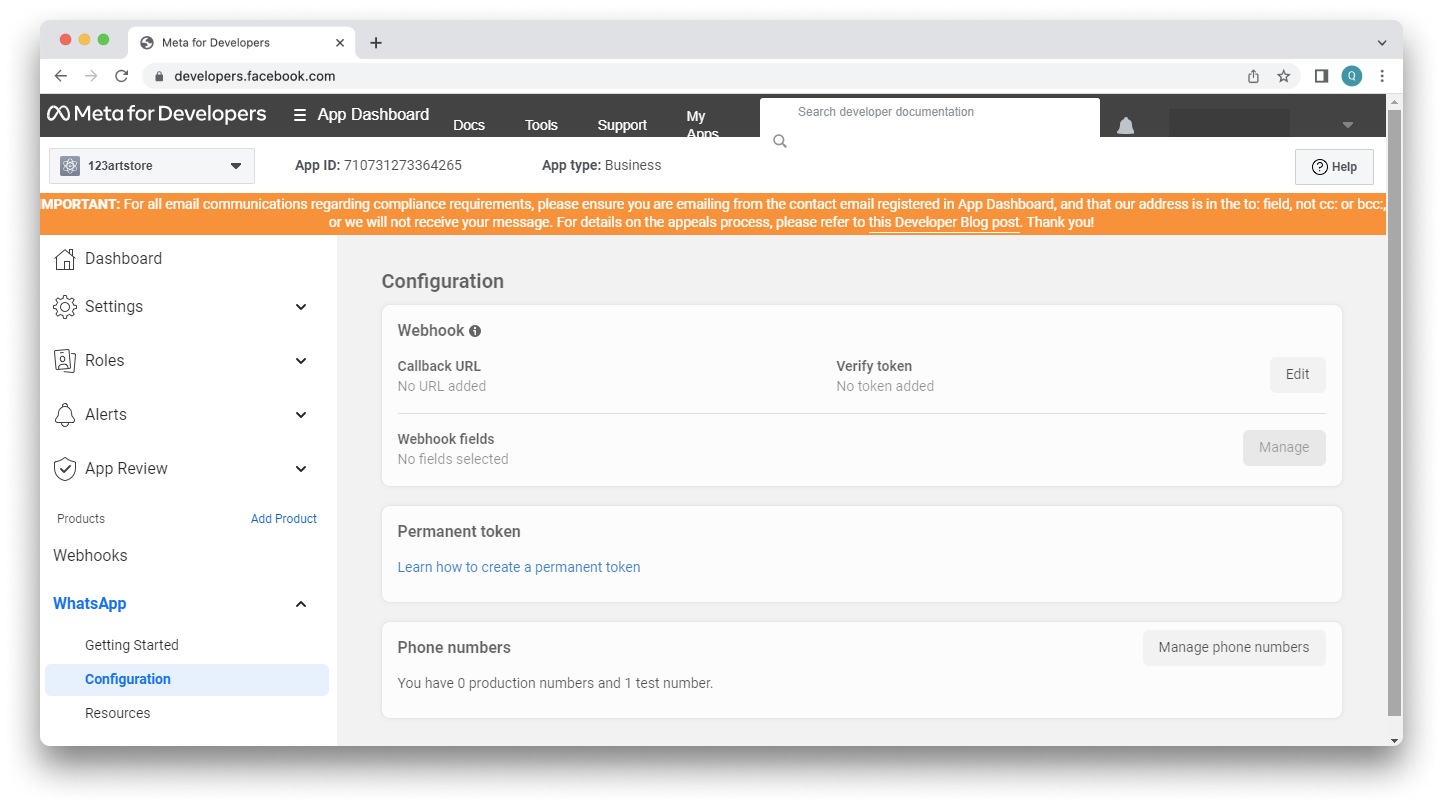
Don’t forget to subscribe to Webhook fields on your Meta developer account to ensure your customers’ WhatsApp messages delivered to Qiscus Omnichannel Chat Inbox.
Leave a Reply