WordPress Plugin
If you have a website that is using WordPress as its CMS, it’s now easy to integrate Qiscus Omnichannel Chat Widget in the website. We have now provided a Plugin to integrate it. Here is the Plugin link, https://wordpress.org/plugins/qiscus-multichannel-widget/.
So how do you set it up? It’s easy, if you have access to the WordPress dashboard, just go to the Plugin page, and click add plugin button, then search for Qiscus Omnichannel Widget, or Qiscus in sort. You can then just install it and activate it. Last but not the least, provide your Qiscus Omnichannel Widget app id.
If you only have access to FTP, you can follow up this steps:
- Upload qiscus-multichannel-widget directory to the /wp-content/plugins/ directory
- Activate the plugin through the ‘Plugins’ menu in WordPress
- Go to the Settings page and provide your Qiscus Omnichannel Chat App ID
Facebook Messenger
Based on Facebook policy, you can only response back to your customers in 24 hours from the last customer message, otherwise the message you are sending will not be received by customers.

This channel integration allows you to connect with people across devices and platforms through Facebook Messenger application. You can integrate multiple Facebook Business Page. In order to connect to the Qiscus Omnichannel Chat, first thing you need to ensure is that you already have a Facebook Account and a Facebook Business Page.

After that, just follow this simple steps.
- Click
Add Facebook Accounton Facebook Messenger Integration page, - Connect to Facebook by clicking Continue with Facebook button,
- Upload channel badge icon. Default channel badge icon is Facebook Messenger icon. This Icon will be used to identify the source of the channel,
- Select Facebook Business Page that you want to connect. The page name will be used to identified the channel,
- Finally, confirm the integration by clicking
Connect.
If you want to integrate with another Facebook Business Page, repeat those steps above. That’s all! we got you covered. Easy, isn’t?
After you integrate the Channel, you can’t change the Facebook Business Page. You’ll only be allowed to change channel badge icon. Click the Disconnect button If you want to disconnect the channel. Disconnecting will delete the connected channel and you can no longer receive messages. Before disconnecting channel we recommend you to ensure there’s no agent handling chatroom on that channel.
LINE Messenger
- To integrate with LINE Official Account, Qiscus Omnichannel Chat can only support Messaging API that is already equipped with a Developer Plan. Hence, it is crucial for you to choose the right plan first before using the tool. In short need to enable Messaging API.> 2. You can still Log-in to LINE Official Account Manager but you cannot execute one-on-one conversations. Your LINE Official Account chat history will still be exist but you can’t access it;> 3. Finally, you need a LINE Official Account pro-plan first, before you can use the Qiscus Omnichannel Chat. This is because pro-plan can buy quota for messaging.
For now, we would like to show you how to integrate the Qiscus Omnichannel Chat with one of the messaging apps, LINE Official Account. The steps are as follows:

- Go to LINE Official Account Manager,
- Login to the app using your LINE Account, and when you are done, you will be redirected to LINE Official Account Manager dashboard,
- Choose your LINE Official Account,
- Click the Setting Menu on the upper-right corner of the dashboard,
- Click the Messaging API in the Setting Menu,
- Enable Messaging API by clicking the Enable Messaging API button,
- When the process has been completed, your Messaging API Settings page will be changed as shown in the picture below.

After that, just follow this simple steps.

- Go to LINE Developers page,
- Login to the app using your LINE Account, and when you are done, you will be redirected to LINE Developers dashboard,
- Choose your provider and then choose your channel,
- Issue a Channel Secret in Basic Settings Tab and save it for further usage on Qiscus Omnichannel Chat settings,
- Click Messaging API Tab,
- Issue a Channel Access Token and save it for further usage on Qiscus Omnichannel Chat settings.


Now that you have finished with the LINE Developers dashboard part, let’s go to the Qiscus Omnichannel Chat integration page for LINE:

- Click
Add Line Accounton LINE Messenger Integration page, - Upload channel badge icon. The default channel badge icon is LINE Messenger icon. This Icon will be used to identify the channel,
- Set the name of the LINE integration. This name will be used as identifier to differentiate with other LINE Channel.
- Input Channel Access Token and Channel Secret provided by LINE Developers Dashboard,
- Confirm the integration by clicking
Connect, - Check the webhook URL, this webhook URL will be automatically saved on the LINE dashboard.

Finally, go back to the LINE Developers dashboard and set the Webhook.

- Click Messaging API Tab,
- Check the Webhook URL, make sure the webhook URL shown on the LINE dashboard matches the webhook URL during integration via Qiscus Omnichannel Chat dashboard, if the webhook is correct, proceed to the next step,
- Choose Enable of the Use Webhooks to activate Webhook,
- Click Verify of the Webhook URL to check whether the integration is successful or not.
- Make sure to also enable Allow bot to join group chats field.
That should connect your Line account with Qiscus Omnichannel Chat and you should now be able to receive messages from Line. If you want to integrate with other LINE Official Account you can repeat those steps above.
After you integrate the channel, you’re only allowed to change channel’s badge icon and the name of the integration. If you want to disconnect the channel then you need to click Disconnect. Disconnecting will delete the connected channel and you no longer can receive messages. Before disconnecting channel we recommend you to ensure there’s no agent handling chatroom on that channel.
Due to WhatsApp’s policy about new WhatsApp pricing. WhatsApp changes its charge with a conversation-based price. The conversation started when the business sends a message and will be valid for 24 hours.

WhatsApp integration allows you to connect to your customers through WhatsApp application. Before integration, there are some requirements that you should have.
- A phone number you have access to, owned by your business.
- A Facebook Business Manager for your business.
There are some notes that you should be aware of.
- You must use a new phone number to sign up. It can not be used if your number was signed up for the WhatsApp Business App or the WhatsApp Messenger App.
- Once your number is registered on the WhatsApp Business API, it can not be downgrade to a private number, log in to WhatsApp mobile application, uses it for video or audio calls, post a WhatsApp story.
- Your Business must be verified by Facebook.
- Your WhatsApp Broadcast Template should have been verified from WhatsApp and have enough credit or free session to start a conversation.
There are two ways to integrate WhatsApp Channel, first through Facebook and second through Us. Follow this document for the integration process.
Telegram
You can only connect with telegram bots, if you use personal telegram it will not work

To connect your Telegram messaging client with Qiscus Omnichannel Chat is quite straightforward. You just have to fill in your Telegram access token in Telegram channel integration page in Qiscus Omnichannel Chat.
- Create a bot in Telegram by asking it to BotFather. Just follow through the questions he asks you for and you will get the token
- Copy the token, and paste it in the field of
Bot tokenin Telegram integration page in Qiscus Omnichannel Chat. Qiscus Omnichannel Chat will auto generate your Telegram bot username and bot name.
Telegram Redownload
In some cases, an attachment file sent to Telegram failed to render because the system failed to download from the Telegram server. Therefore, the attachment file is not sent to the chat room.
To solve this issue, you can use Telegram Redownload feature provided by Qiscus. This feature allows you to redownload an attachment file from customers. During the process, your customer will not receive information that you have redownloaded the attachment file. Here is how you can use Telegram Redownload feature:
- Go to the Inbox menu and select a chat room with an attachment file that failed to load. You will see a bubble chat with a Redownload Attachment button,
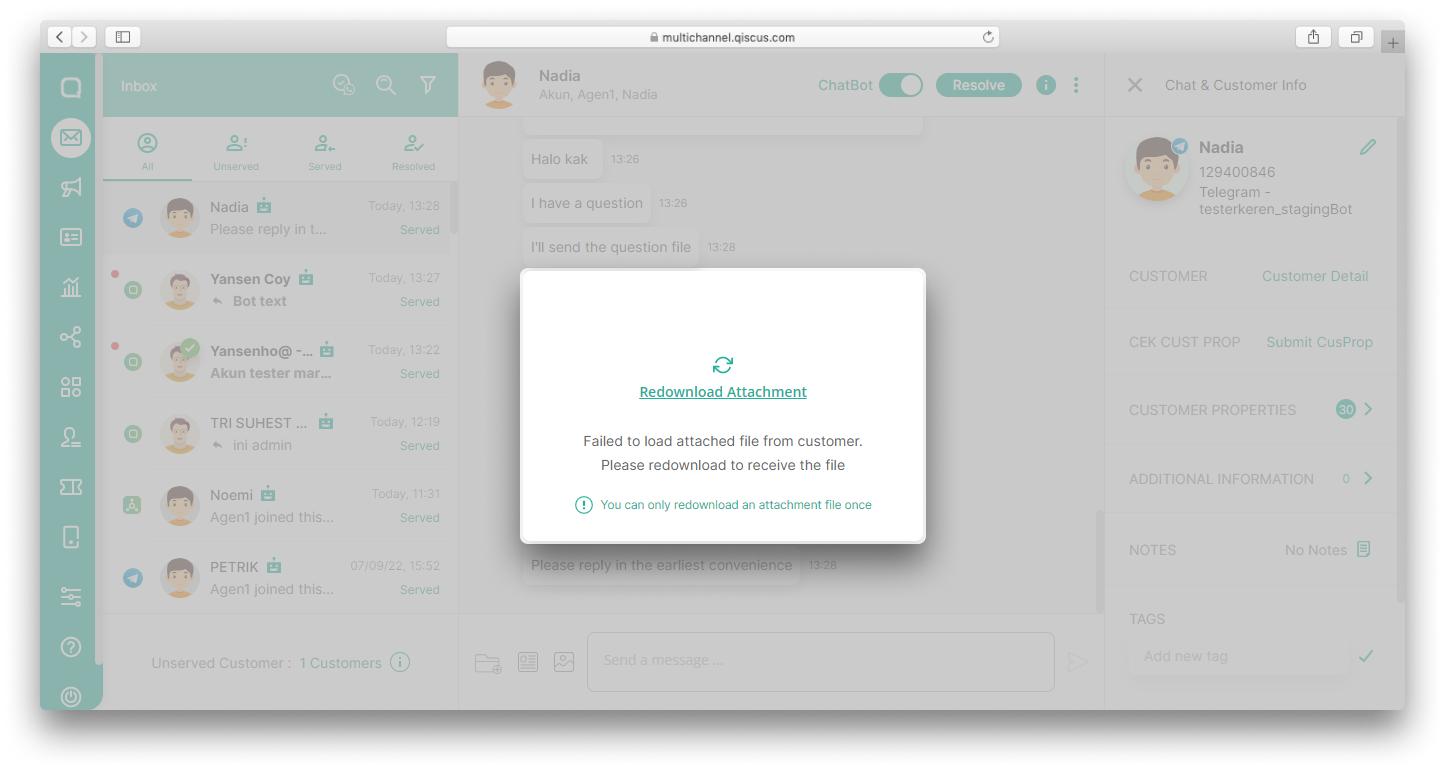
- Once you click Redownload Attachment button, a bubble chat indicating that the attached file has been redownloaded will appear along with the sender’s name and the time when file was sent,
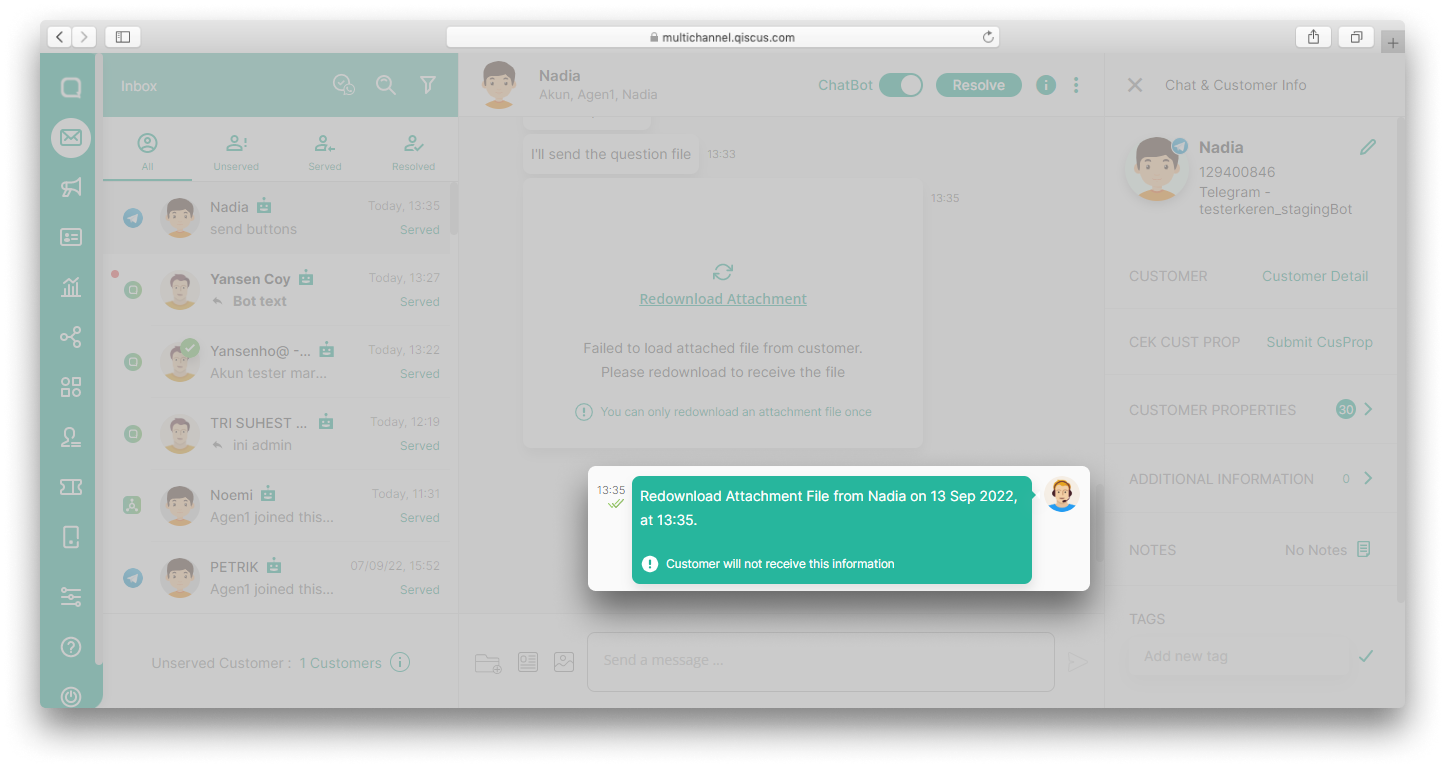
- The attachment file will appear along with information about the sender’s name and the time when the file was sent.
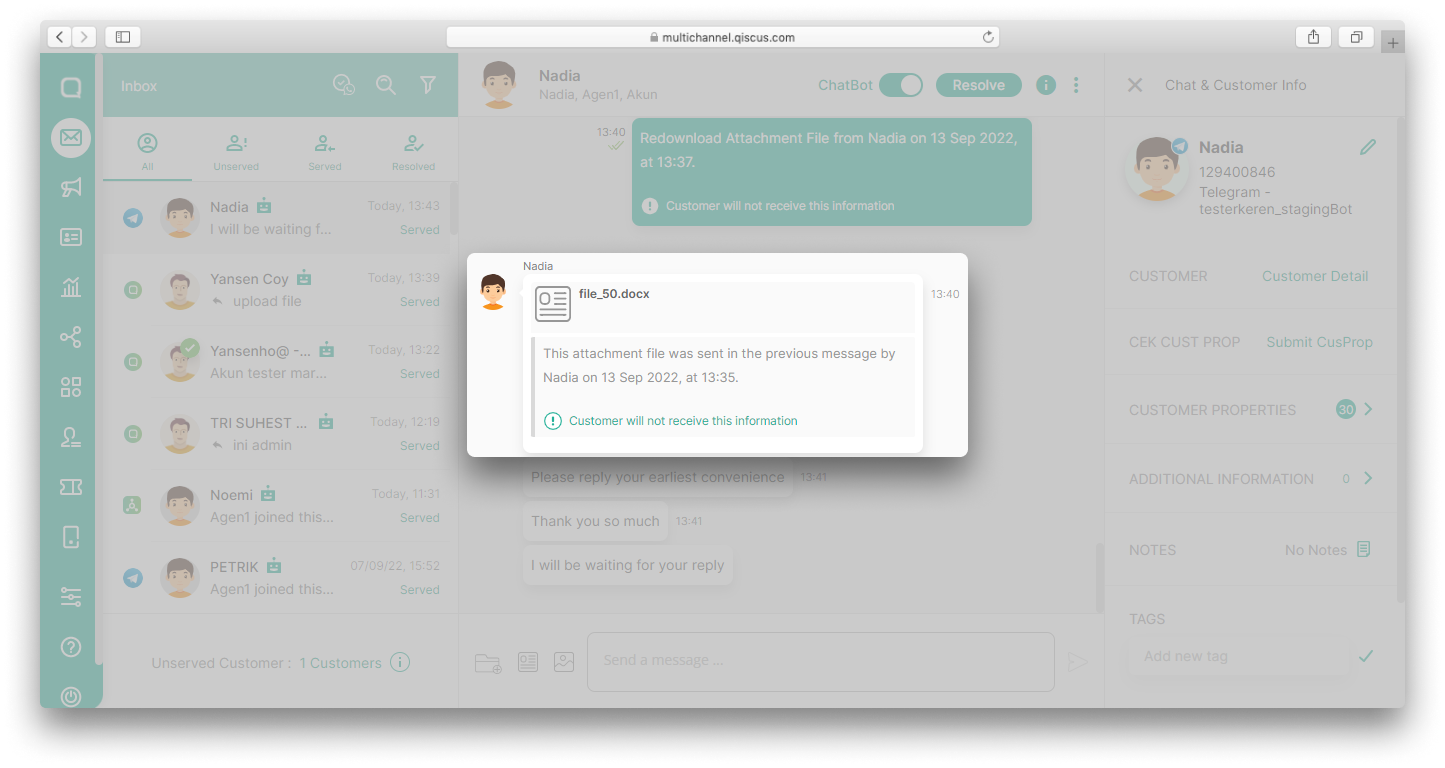
You can only redownload an attachment file once
Instagram Direct Message
Instagram Direct Message integration allows you to connect to your customers through Instagram application. For Instagram integration, you need to have Instagram Business Account or Instagram Creator Account. And make sure your Facebook Page is connected to your instagram account. You can integrate multiple Instagram Accounts.
To integrate Instagram, you can follow these instructions:
- Click
Add Instagram Accounton Instagram Integration page, - Click
Login with Facebook, - Input your Facebook Credential,
- Continue as Your Facebook Account,
- Select Facebook Page has already connected with your Instagram Account,
- Set Channel Badge Icon,
- Select Page already connected before,
- Finally, click
Next buttonand you can set Channel Auto Responder (optional).
If everything is set up correctly, you will be able to see messages that come through your Instagram account. If you want to integrate other Instagram accounts, repeat those steps above.
After you integrate the Channel, you’ll only be allowed to change channel badge icon of Instagram Channel. Click the Disconnect button If you want to disconnect the channel. Disconnecting will delete the connected channel and you no longer can receive messages. Before disconnecting channel we recommend you to ensure there’s no agent handling chatroom on that channel.
Private Reply Instagram Comments
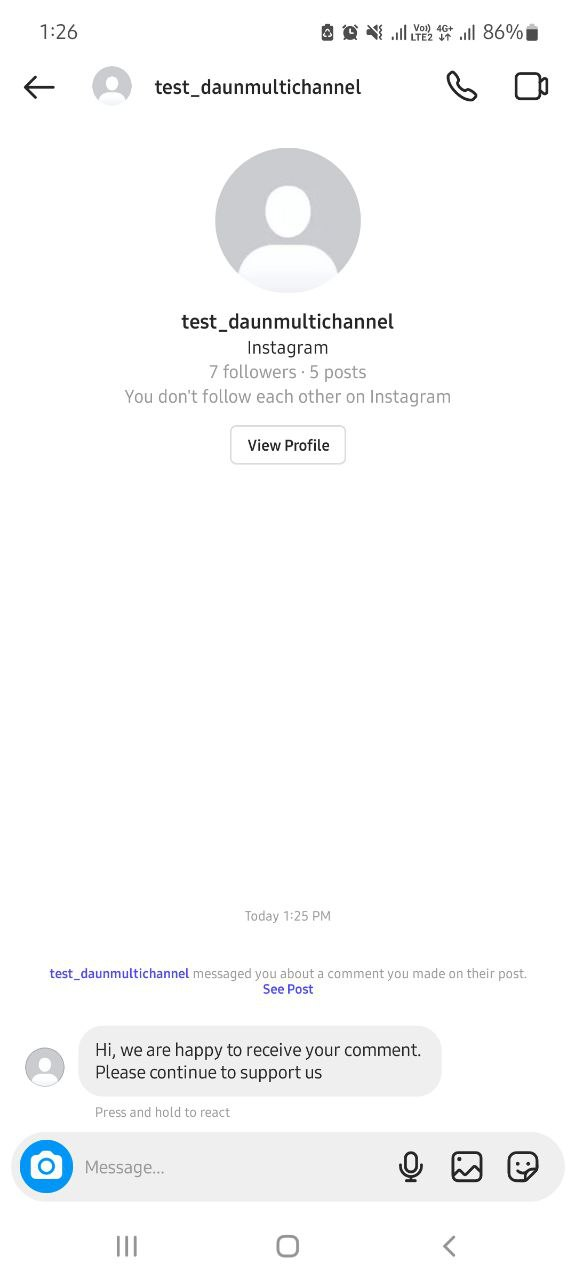
In addition to the Channel Auto Responder feature where you can reply to messages that come into Instagram’s Direct Messages automatically, Qiscus has an Auto Comments Replies feature that allows every comment on your Instagram posts to be replied to automatically and privately via Direct Messages.
To use this feature, make sure you have Instagram Business Account or Instagram Creator Account. Additionally, make sure your Facebook Page is connected to your Instagram account. Here is how you can set Auto Comments Replies feature:
- From the Integration menu, click Instagram,
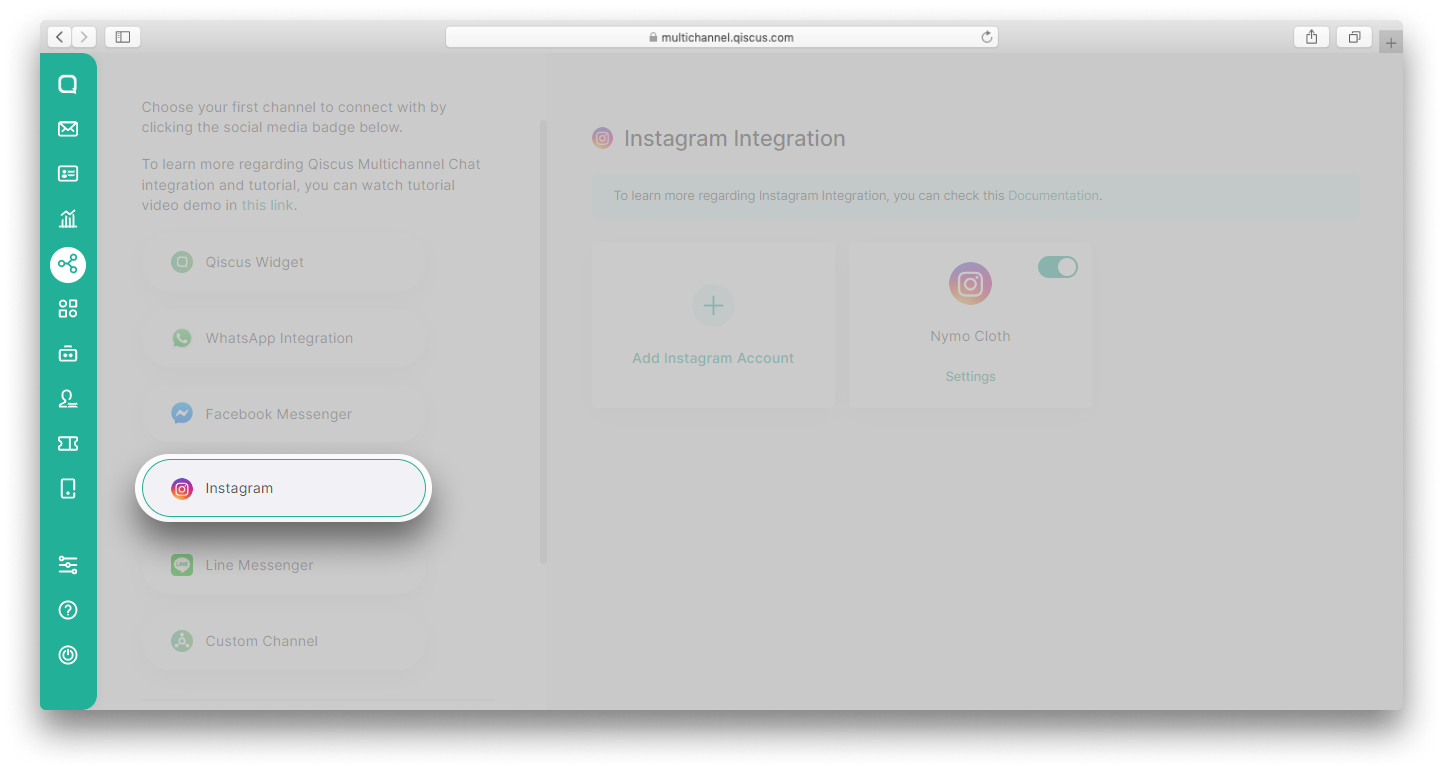
- Click Settings on the integrated Instagram account,
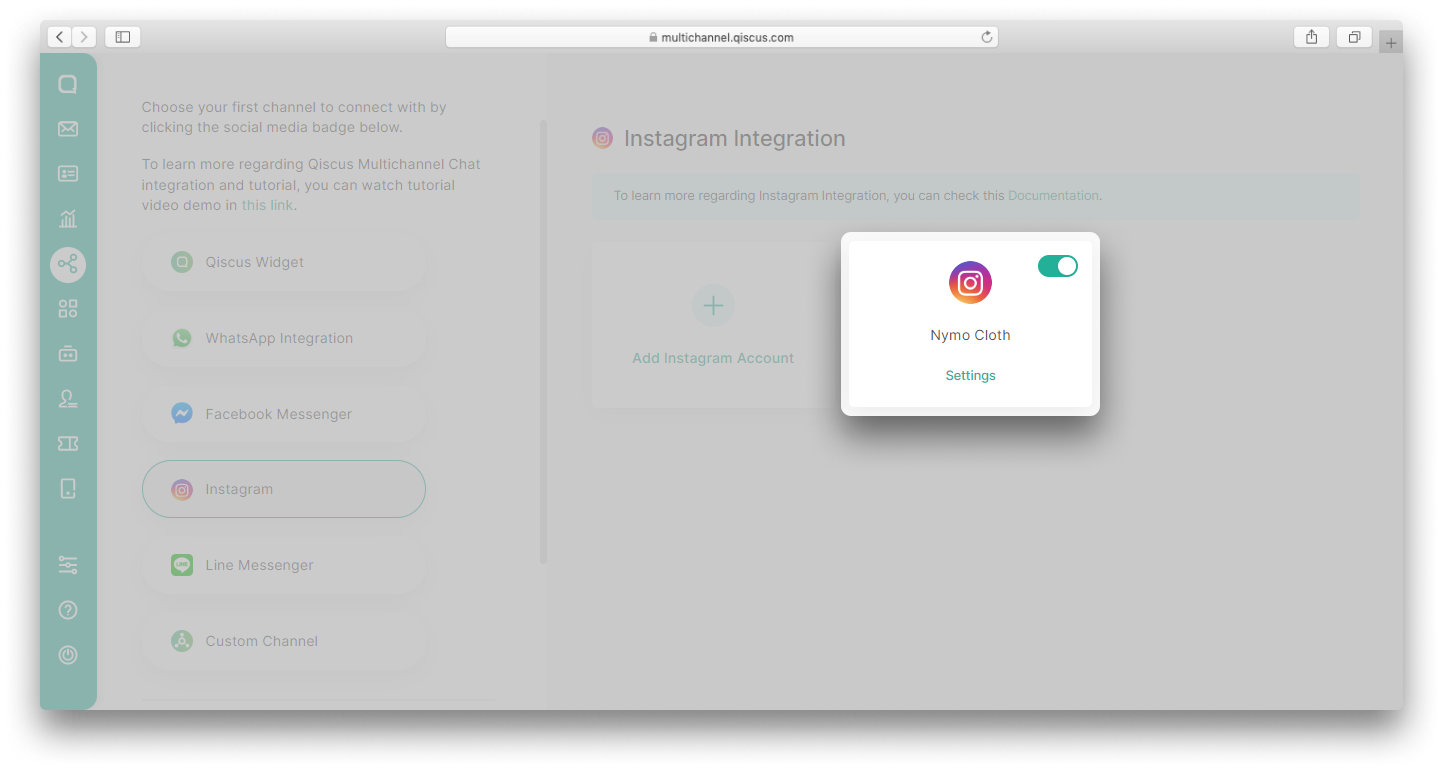
- Enable toggle Auto comments replies,
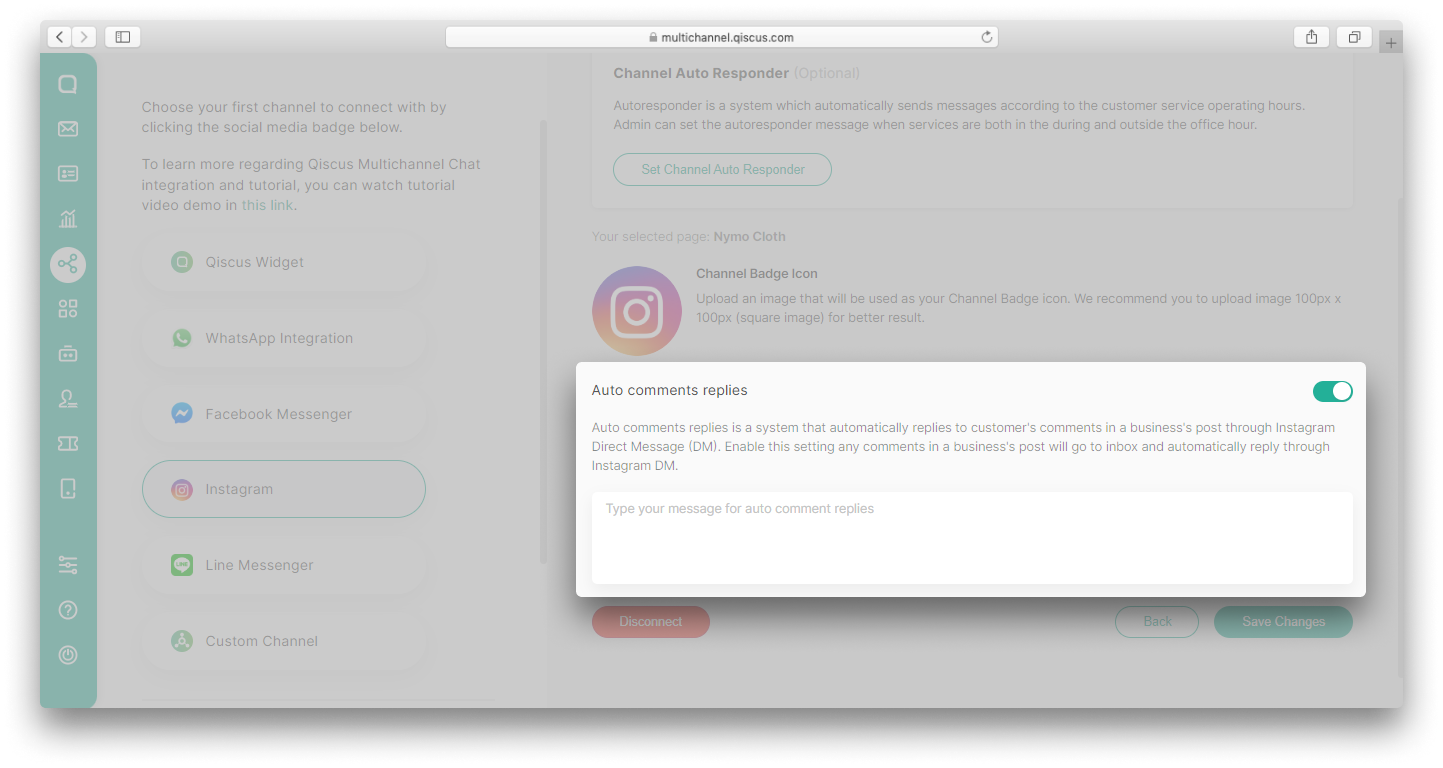
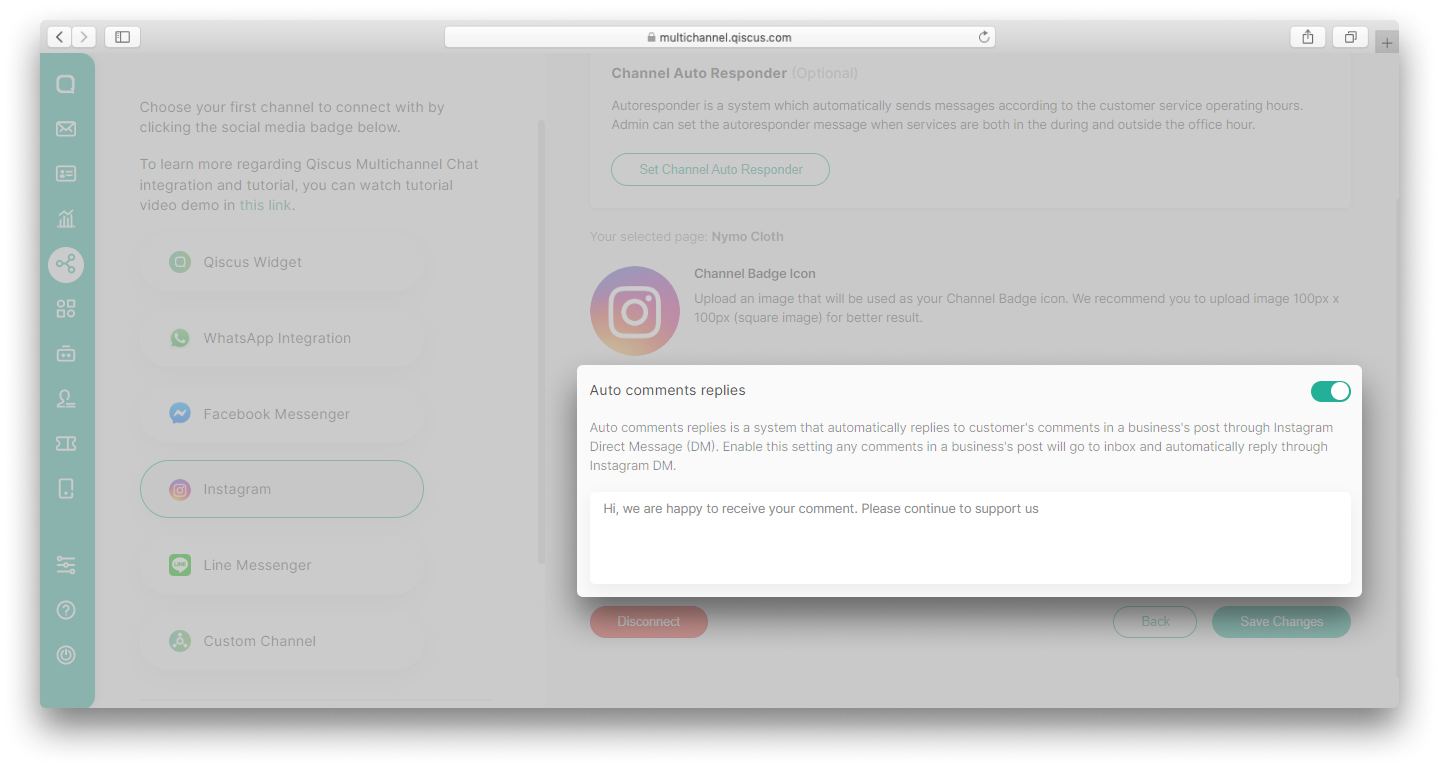
- Type your message in the text field. This message will be sent as a Direct Message to every comment on your Instagram post,
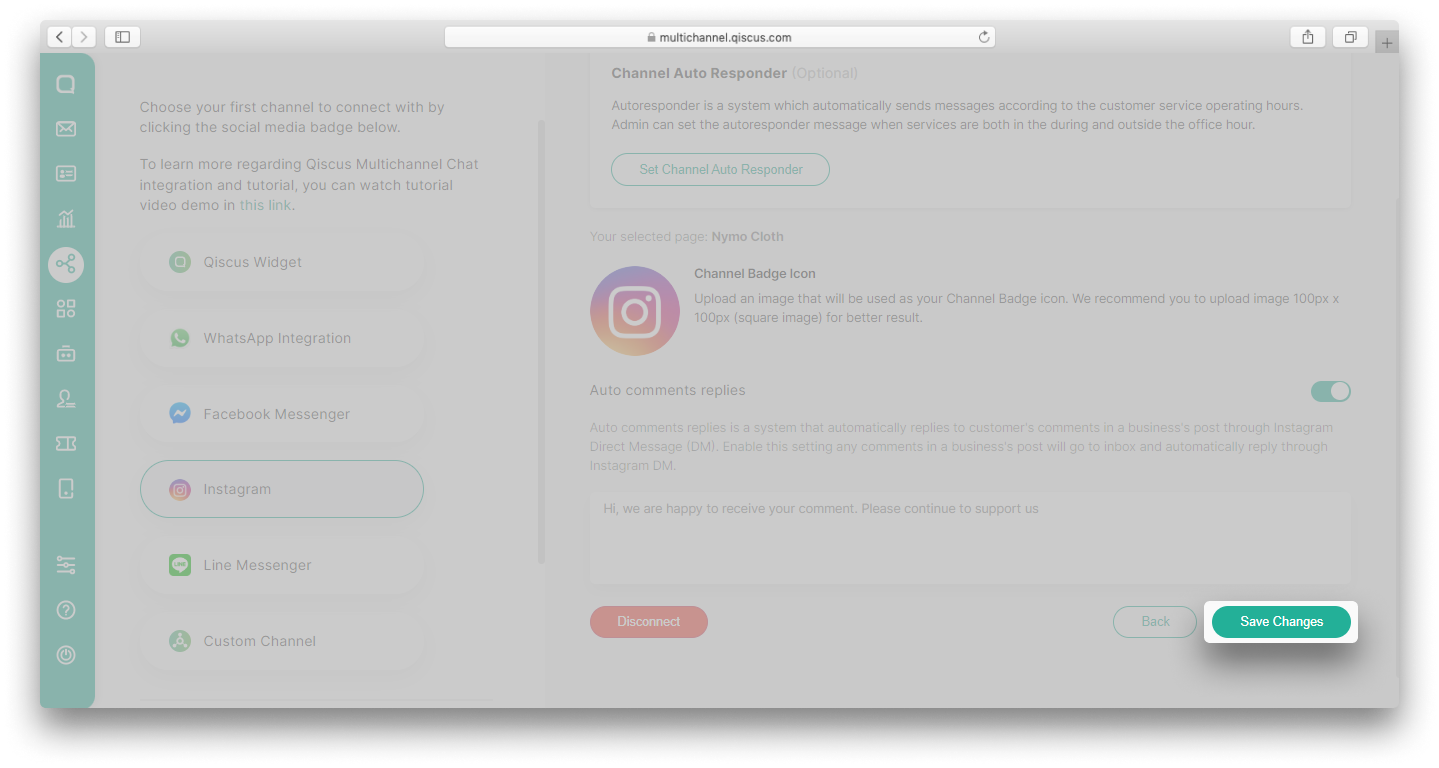
- Click Save Changes button,
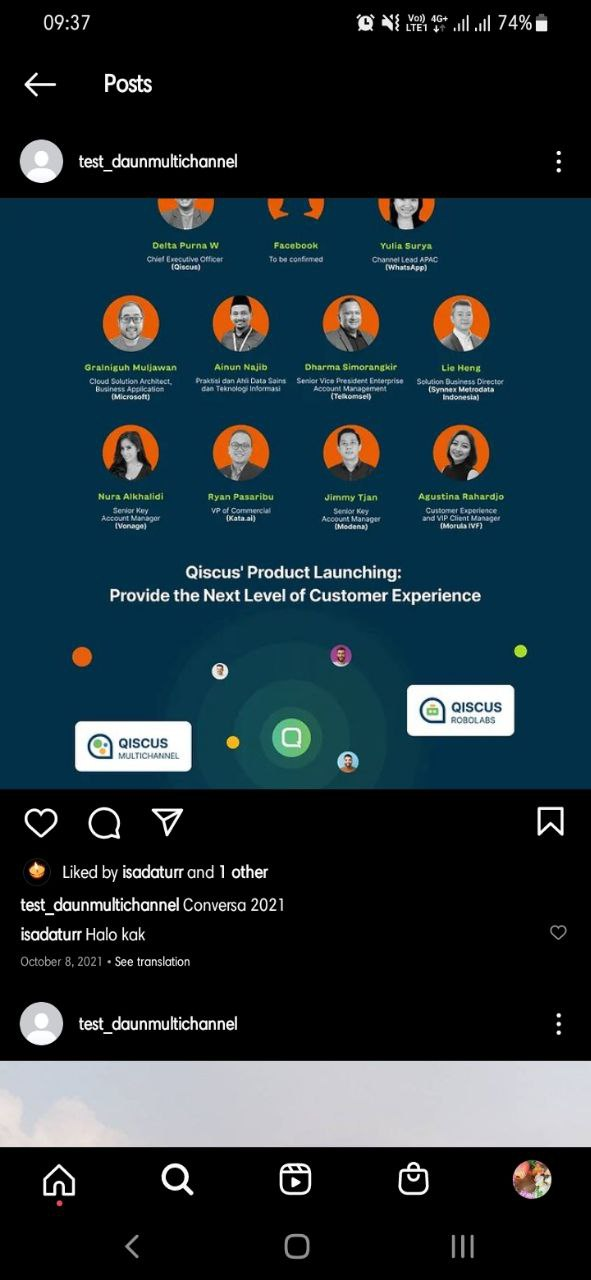
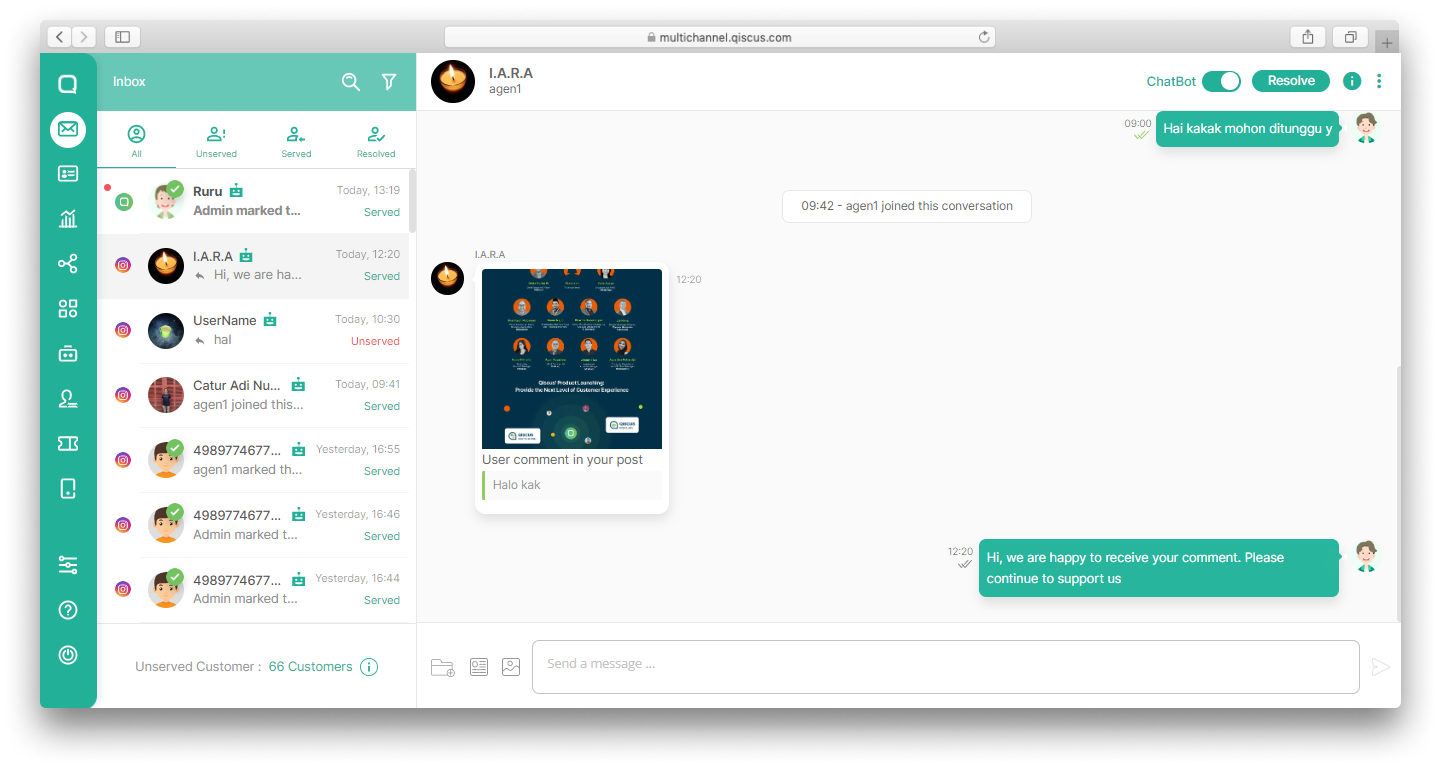
- If there is a new comment on your Instagram business posts, it will go to the Inbox on Qiscus Omnichannel Chat dashboard as shown in the image below.
Comment on Instagram business post:
How the comment will go to the Inbox on Qiscus Omnichannel Chat dashboard:
This is how Auto Comments Replies appear on a customer’s Instagram account:
Instagram Story Mention
One of the most popular Instagram features is Instagram Stories. This feature allow users to share their moments with their followers in 15-second-long photo or video formats. Not only that, Instagram Stories also allows you to interact with your account followers by using various add-on features such as stickers, GIFs, question and answer as well as polls and more.
If you have integrated your Instagram business account with Qiscus Omnichannel Chat, you can enjoy several useful features that help you maintain a strong relationship with your customers. One of them is the Instagram Story Mention feature from Qiscus. Through this feature, you can set whether story mentions from customers become a new chat in your Inbox or not.
You can follow the steps below to use the Instagram Story Mention feature:
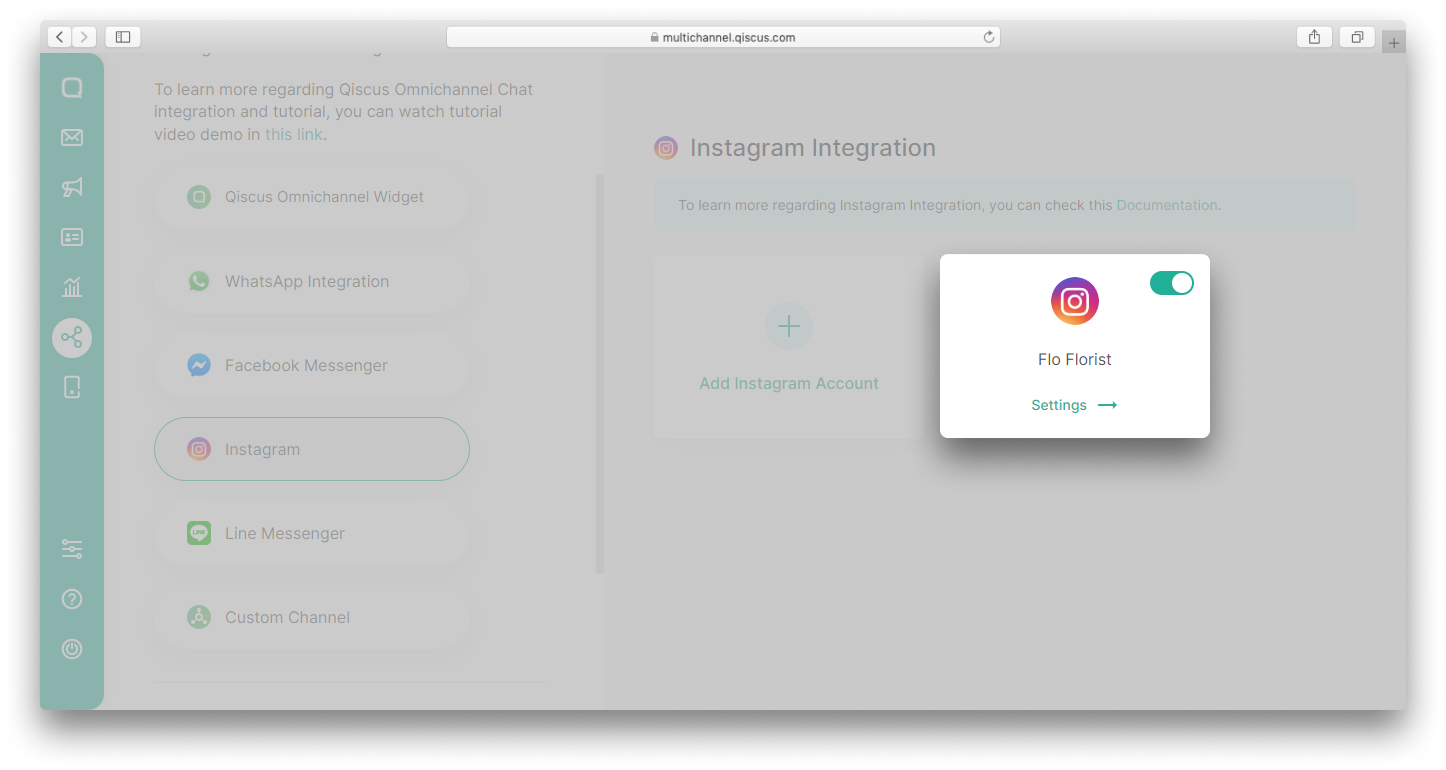
- Go to the Integration Menu and select Instagram,
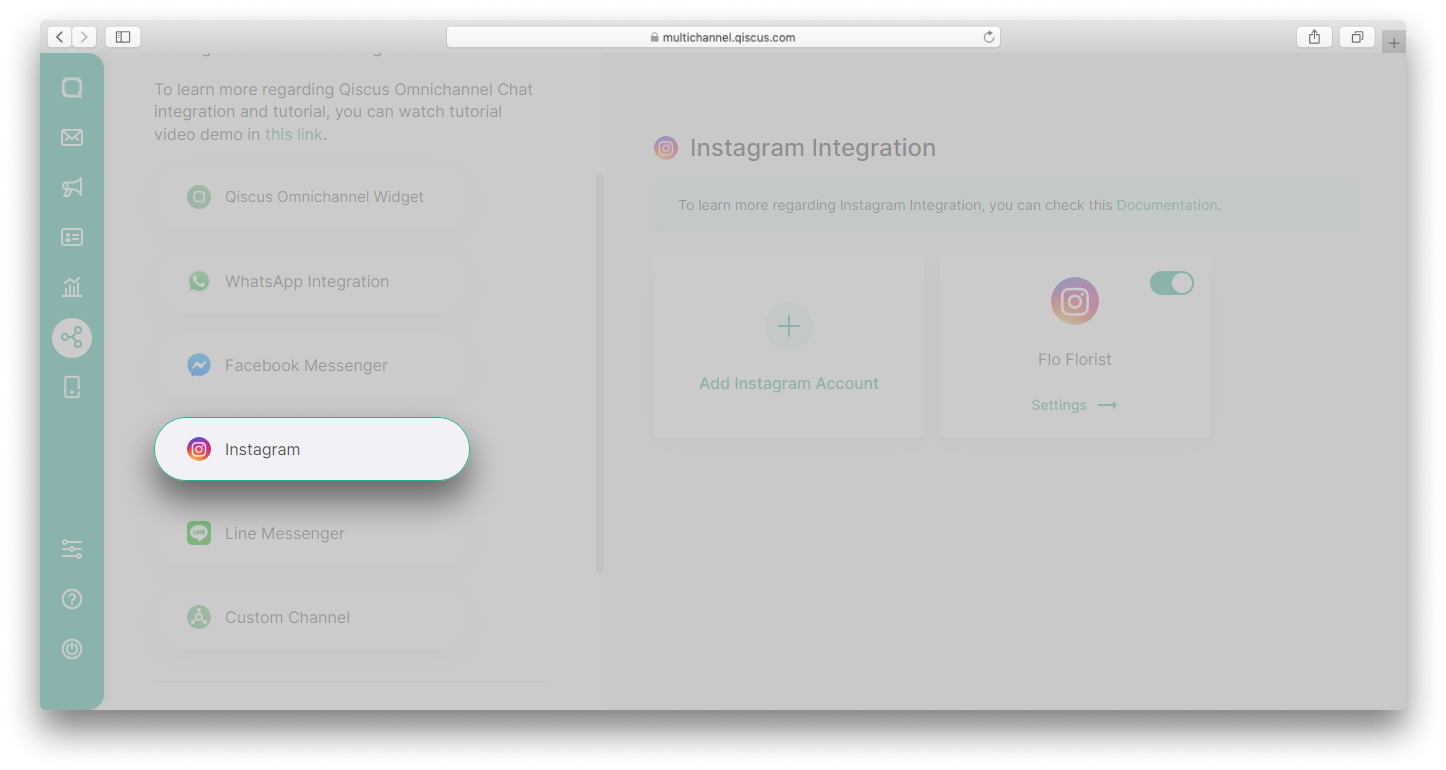
- Click Settings on the Instagram account that you want,
- Scroll down until you find the Instagram Story Mention feature,
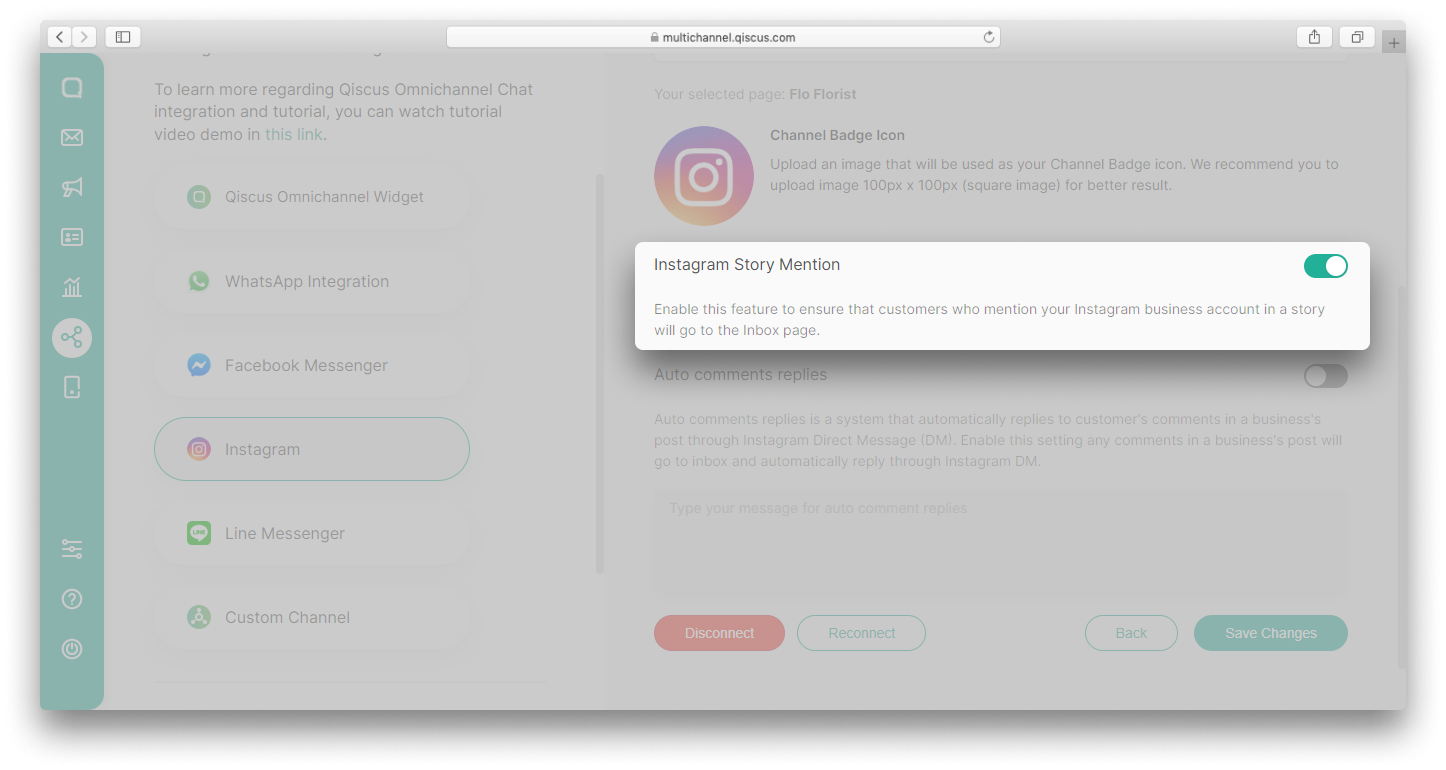
If you enable the toggle, all story mentions from customers will become a new chat in the Inbox. Conversely, if you disable the toggle, the story mentions from customers will not become a new chat in the Inbox.
If a customer only shares their stories with the close friends category, you will not get notifications about these stories on the Qiscus Omnichannel Dashboard even if you enable the toggle.
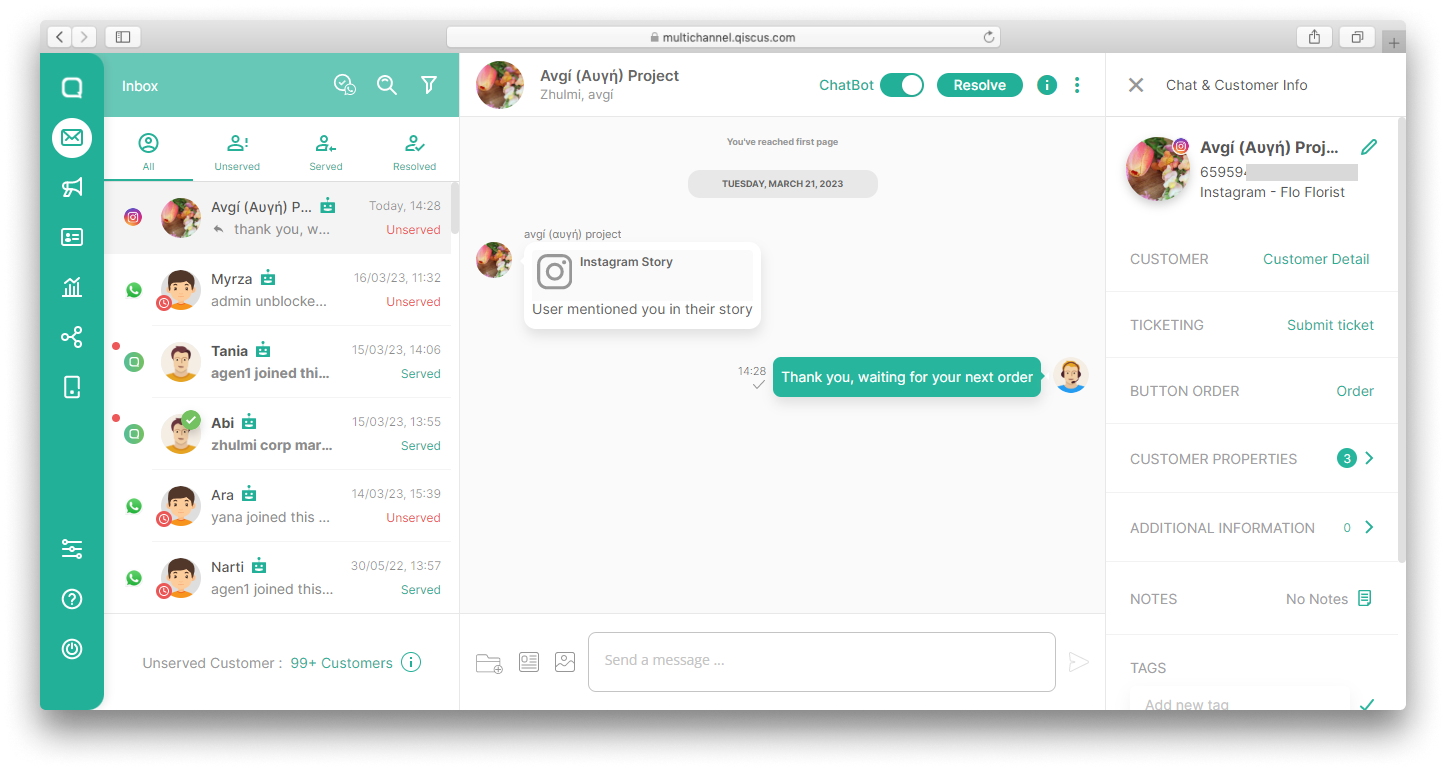
- Instagram story that mentions a business account:

- If the toggle is enabled, the story mention will become a new chat in the Inbox:
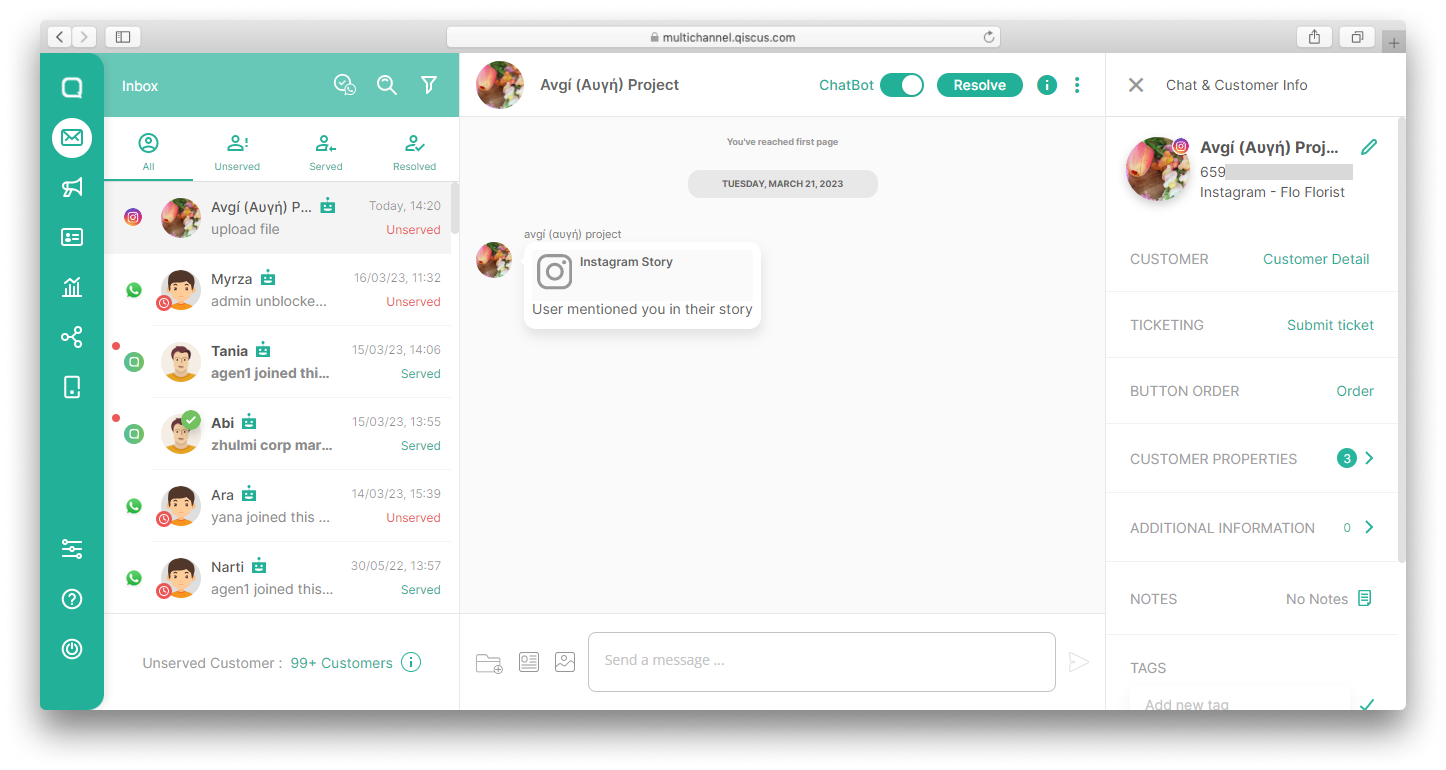
- Click the message to view the story,
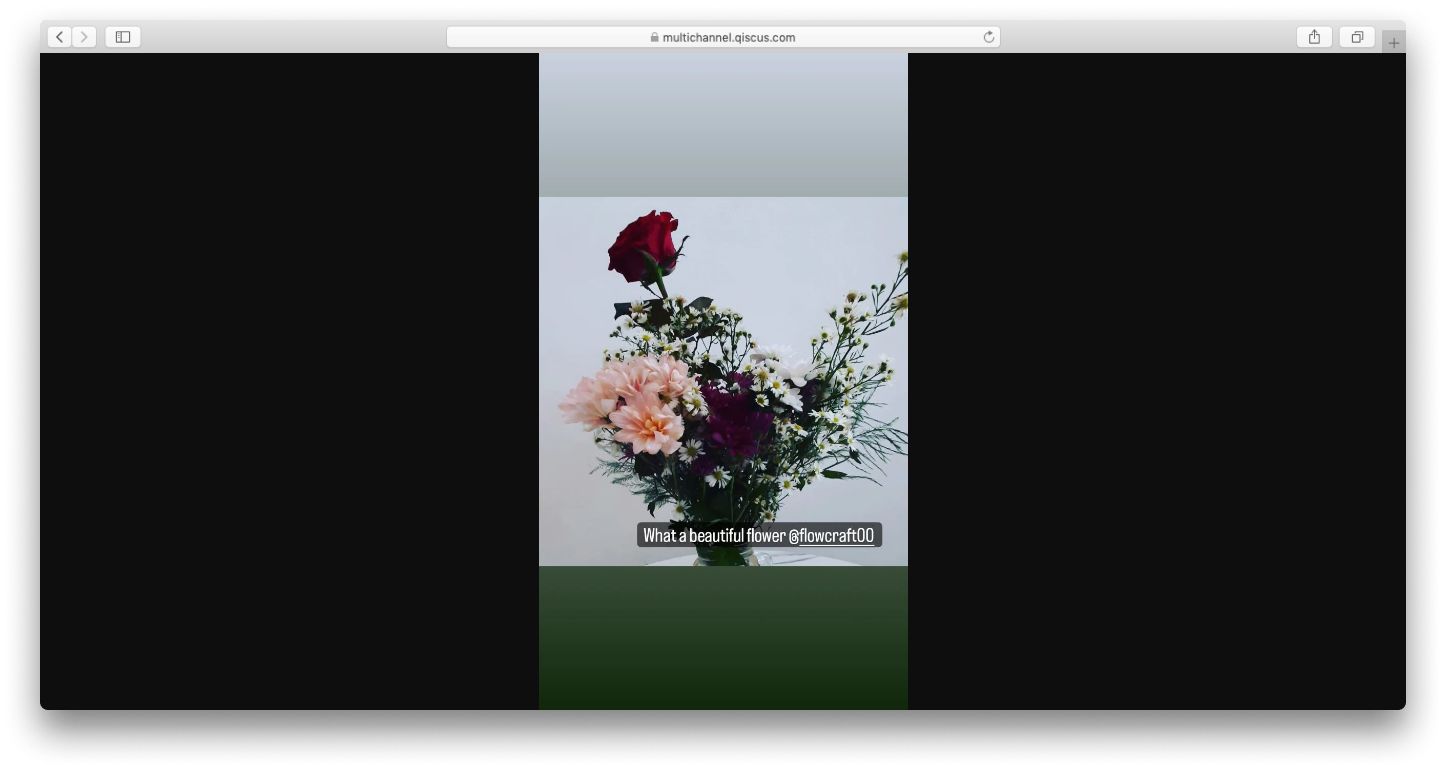
- You can reply the story directly from Qiscus Omnichannel Chat dashboard and it will be sent to the customer’s Direct Message,
- This is how the reply appears on a customer’s Instagram Direct Message:
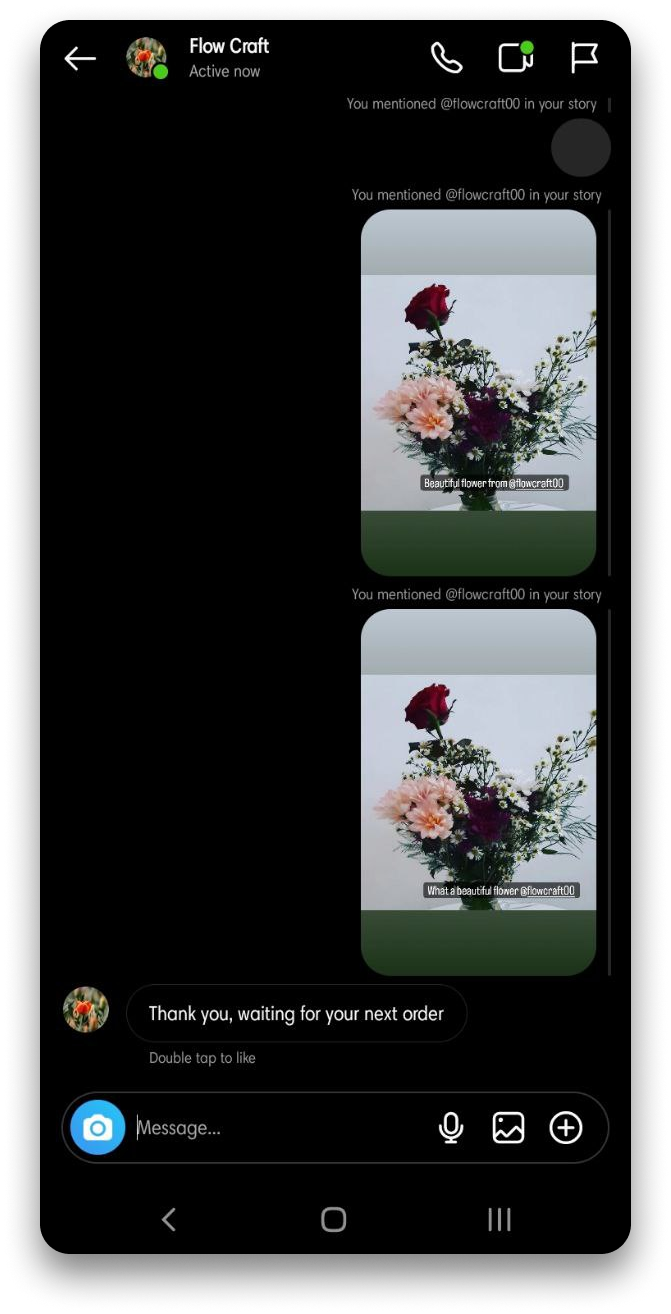
The Instagram stories will be inaccessible after 24 hours or if the customer deletes them.
Reconnect Instagram Button
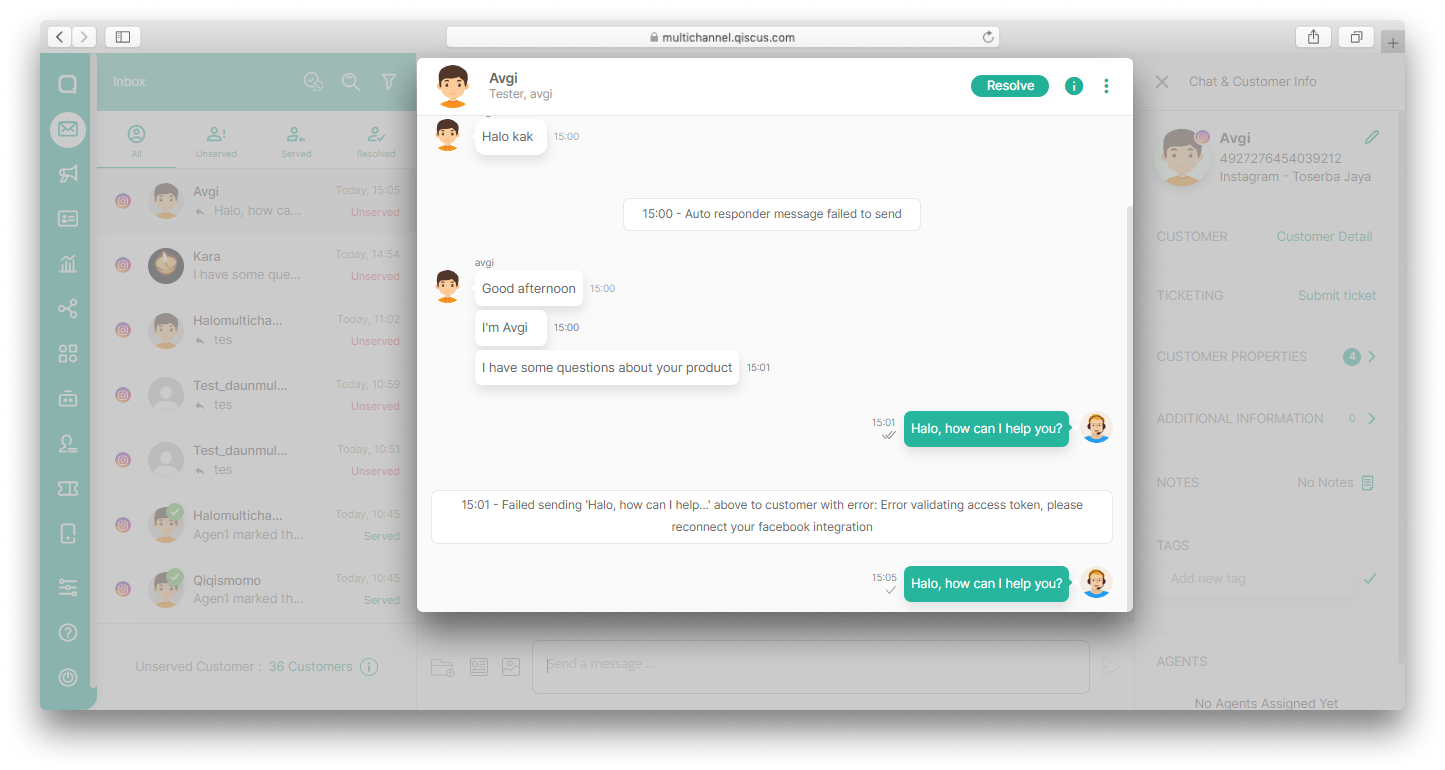
Sometimes, when replying to a customer’s message on the Instagram channel, you will encounter a system event Failed sending 'message' above to customer with error: Error validating access token, please reconnect your facebook integration. Previously, you will have to disconnect and then re-add the Instagram account on the Integration menu. This will cause you to be unable to follow up on previous conversations.
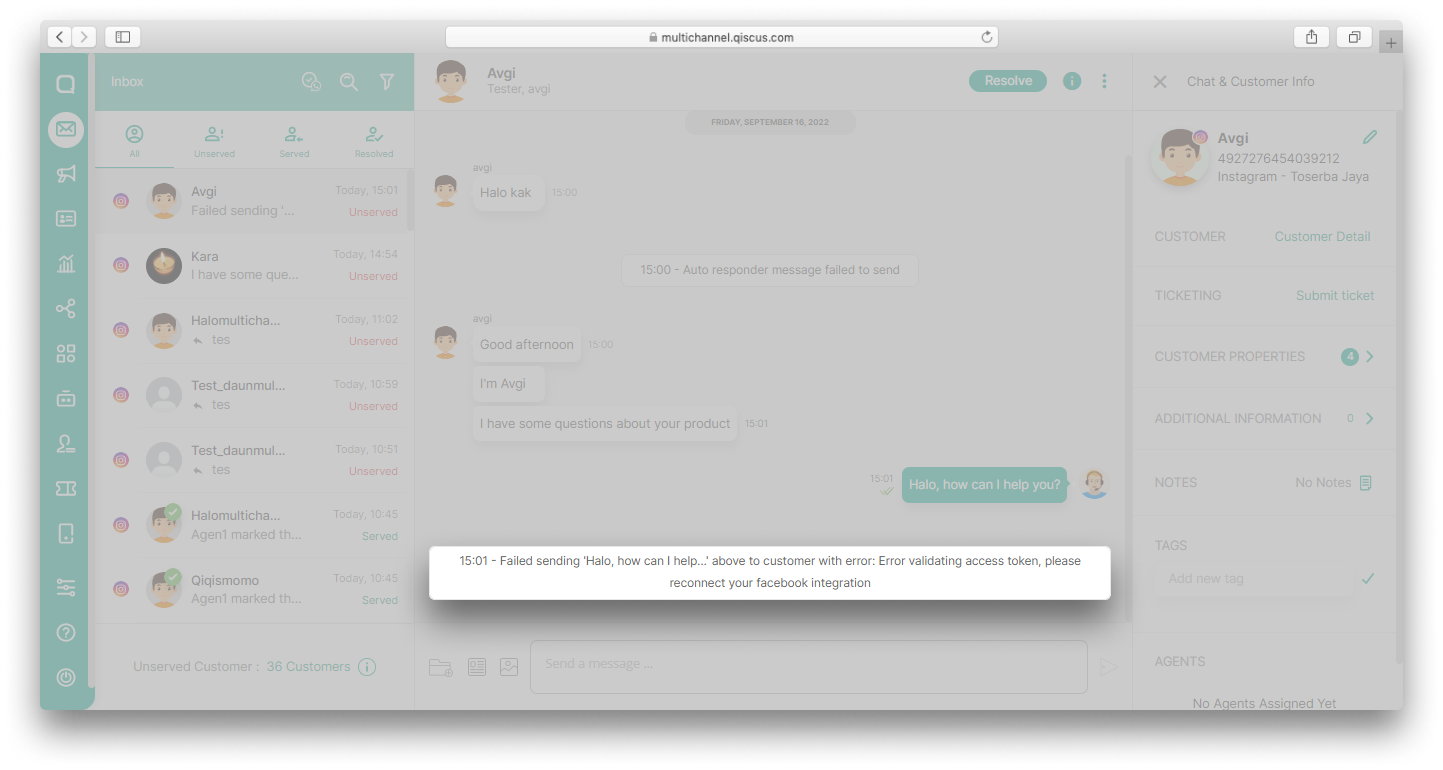
To solve this problem, Qiscus provides the Reconnect Instagram feature. With this feature, you no longer need to disconnect Instagram account. You just need to click the Reconnect button to fix the error access token and follow up on the previous conversation.
Here are the steps to use Reconnect Instagram button:
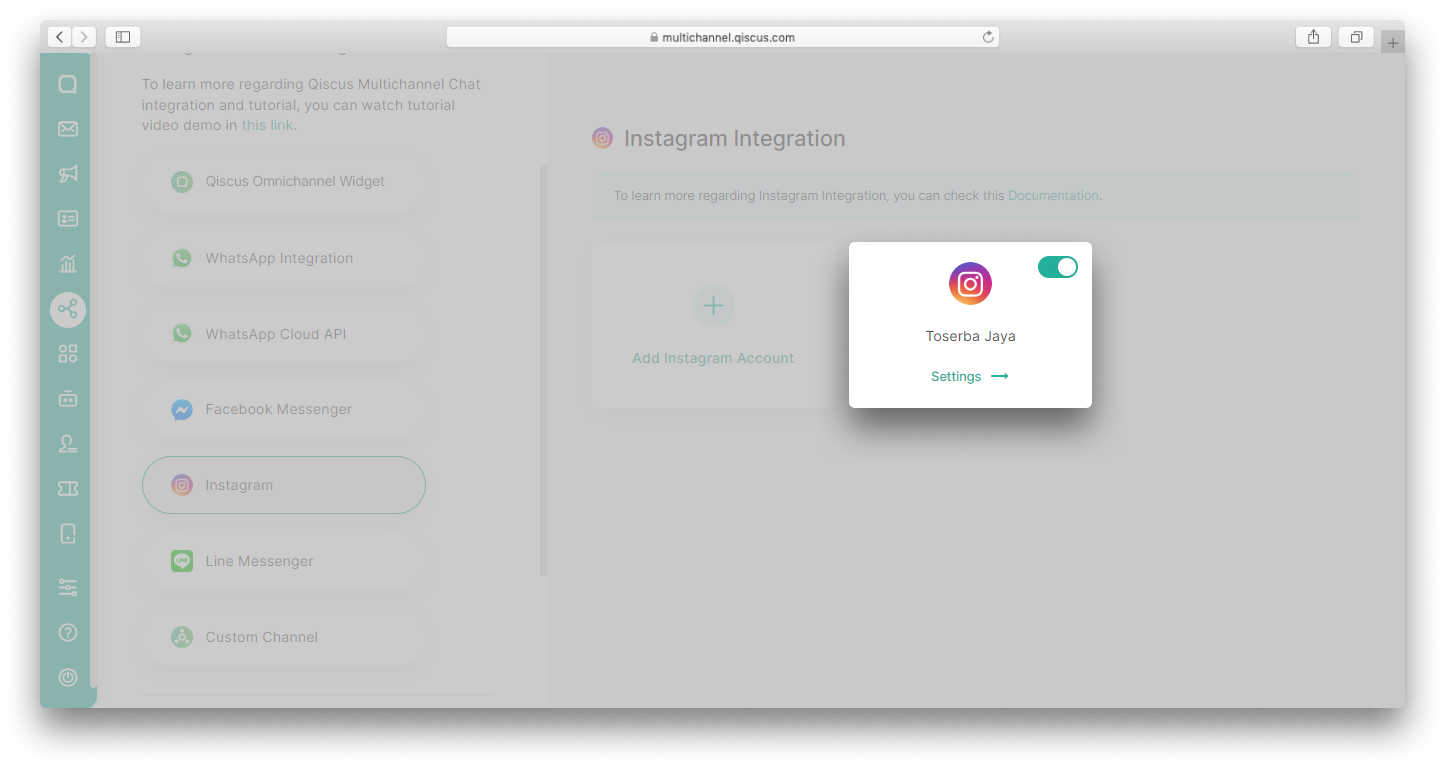
- Go to Integration Menu and click Instagram,
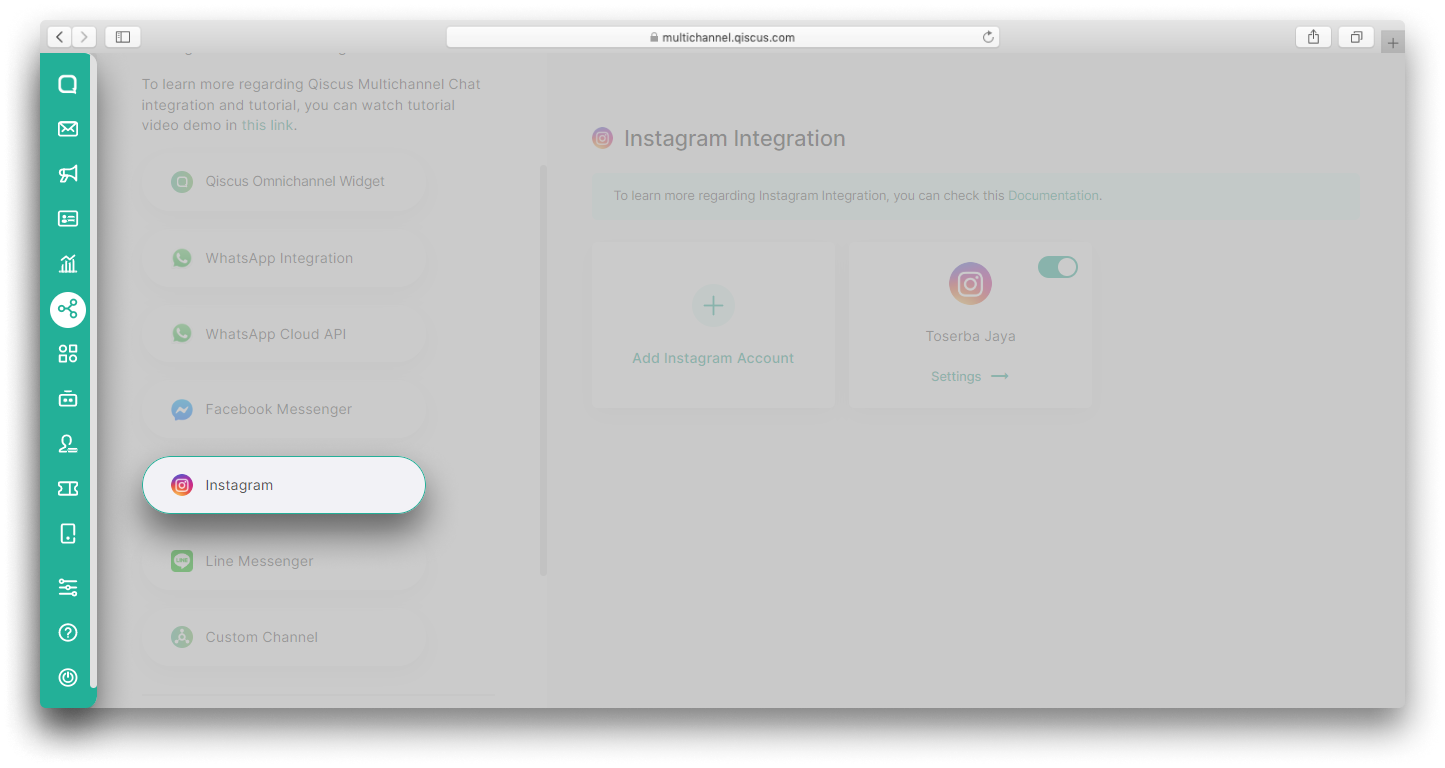
- Click Setting on the integrated Instagram account,
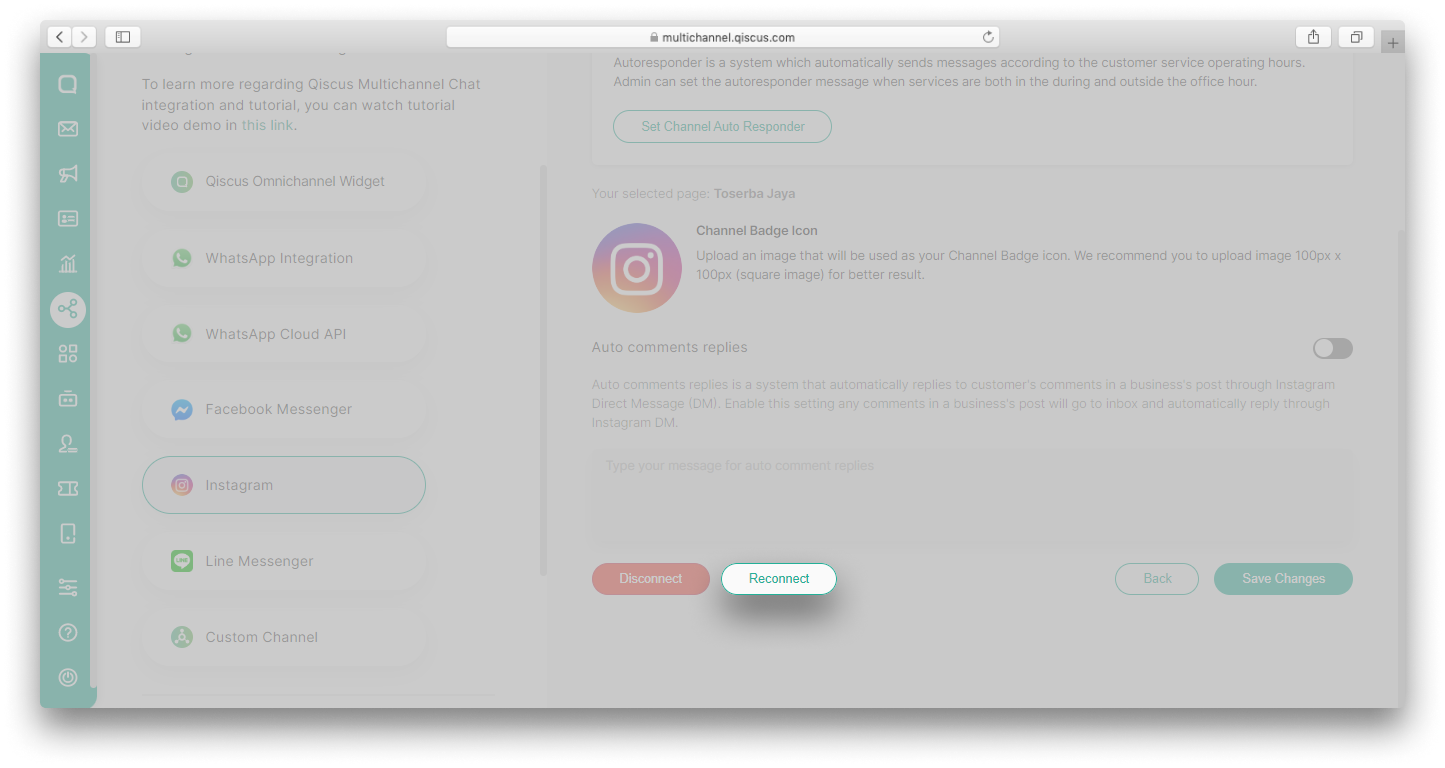
- Scroll down and then click Reconnect button,
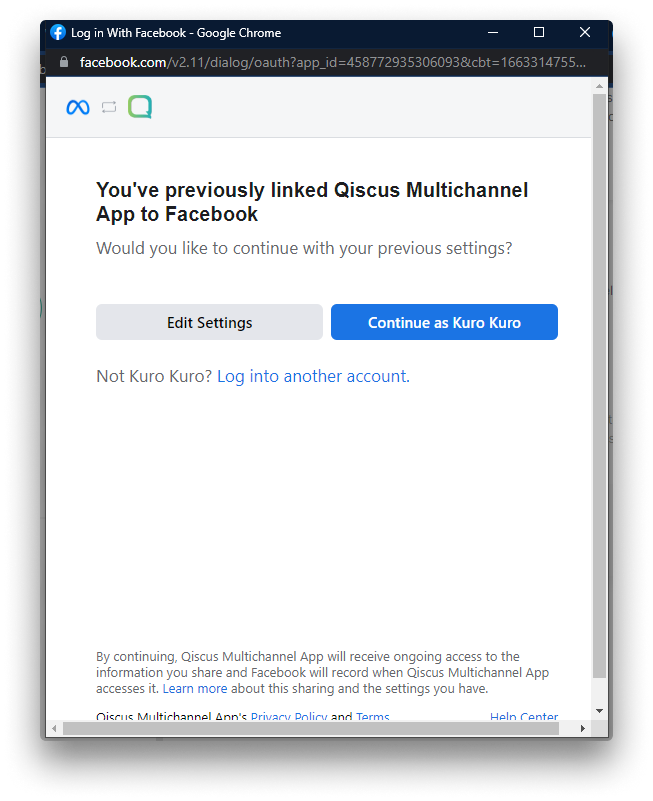
- You will be redirected to Facebook login page, click Continue,
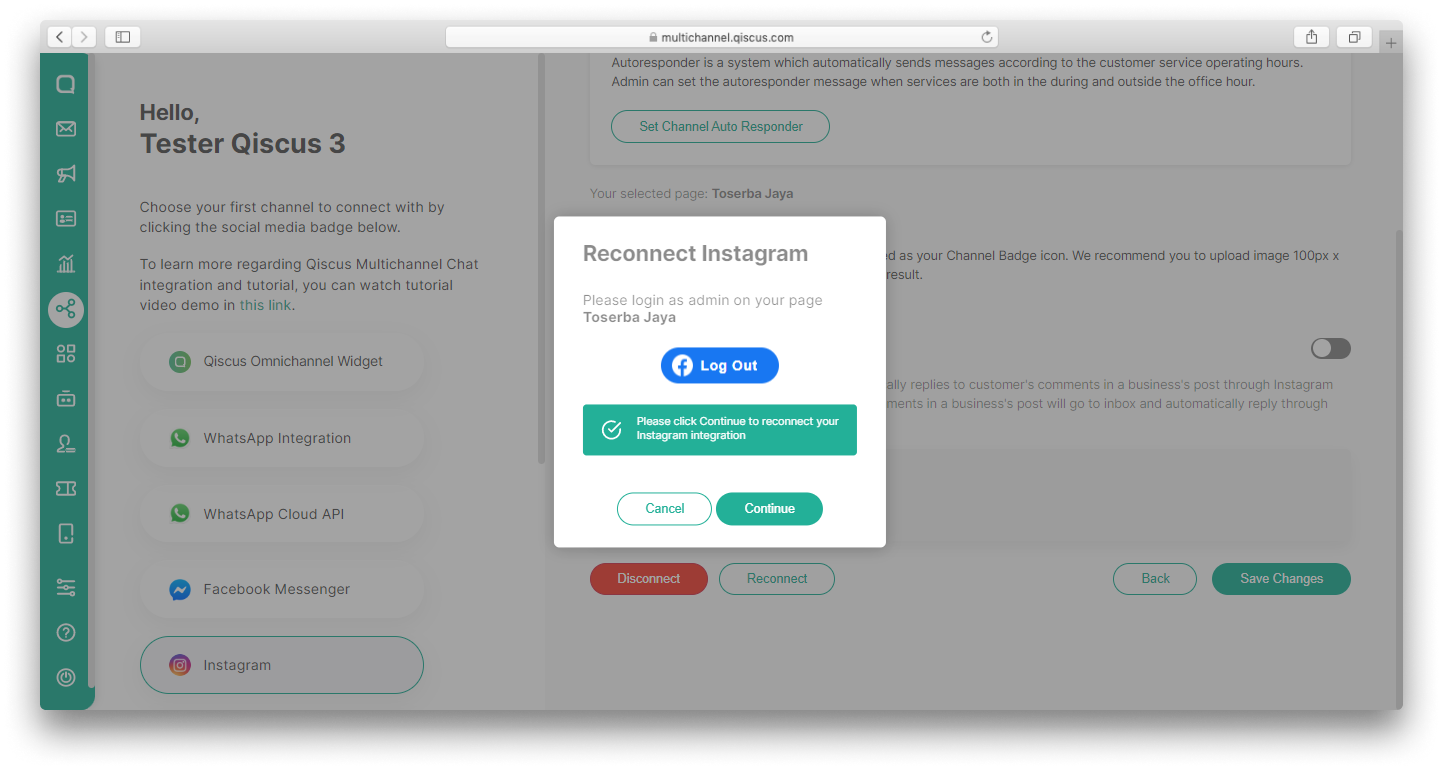
- A pop-up indicating that you want to reconnect Instagram account will appear. Click Continue,
- Once successful, return to the Inbox menu and send your message.
Custom Channel
Beside those five channels, you can also integrate any services you want as long as it is related to text exchange, we call it custom channel. For example, if you want to allow interaction through SMS, you could do it by providing your own webhook url in custom channel.
The idea behind this custom channel is that you provide your own server to be hooked by Qiscus Omnichannel Chat whenever you want to send any messages via Qiscus Omnichannel Chat to your custom channel or other way around. For more information about this custom channel, you can follow up at Custom Channel & Custom Agent Allocations section.

Leave a Reply