Apart from using bot templates, you can also create flow bots via the intent menu. This feature is connected to the Dialogflow Console, so changes made in Robolabs will appear in the Dialogflow Console. Intent on the Dialogflow is in the form of a hierarchy, to learn more please see the following page.
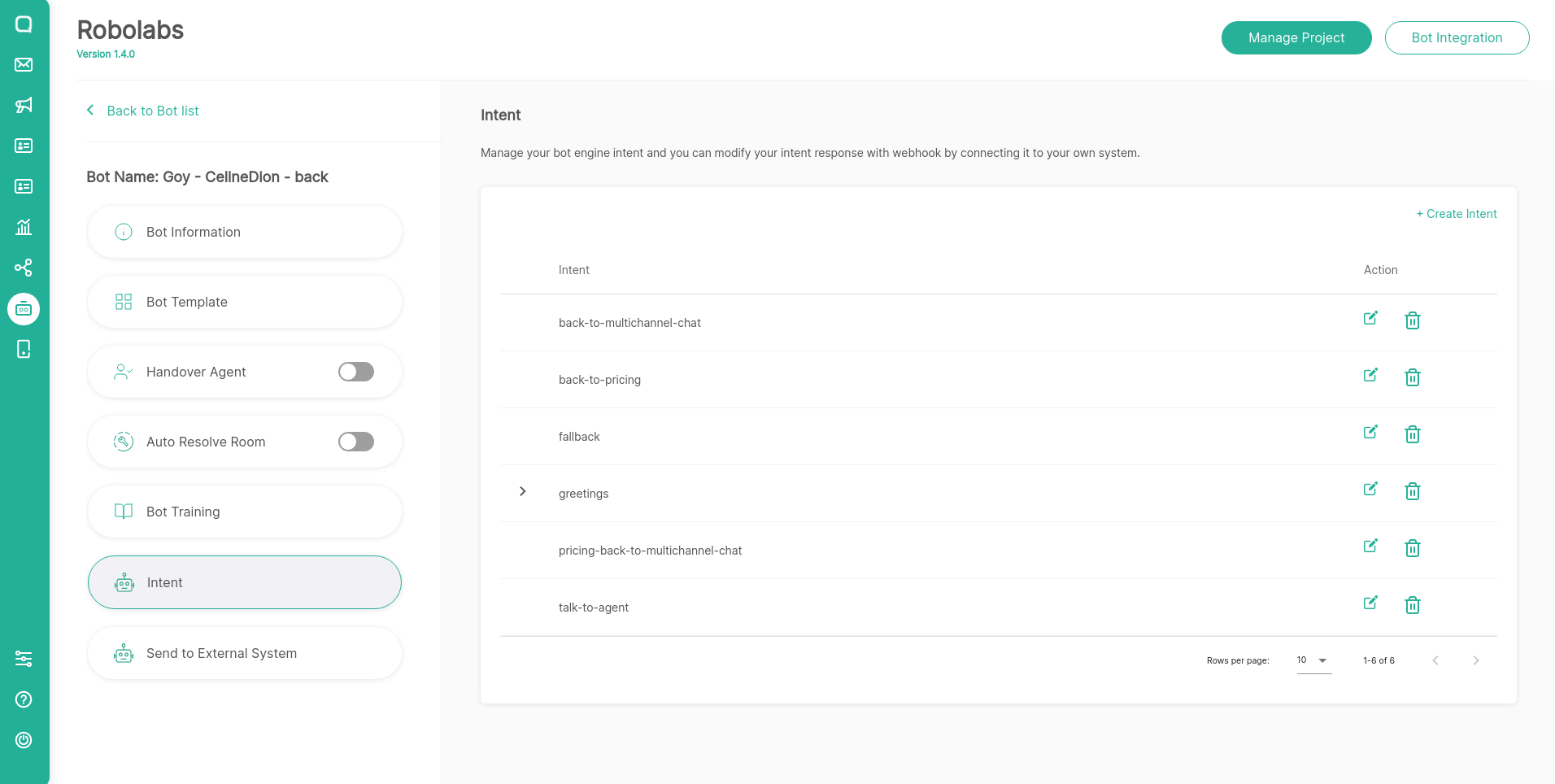
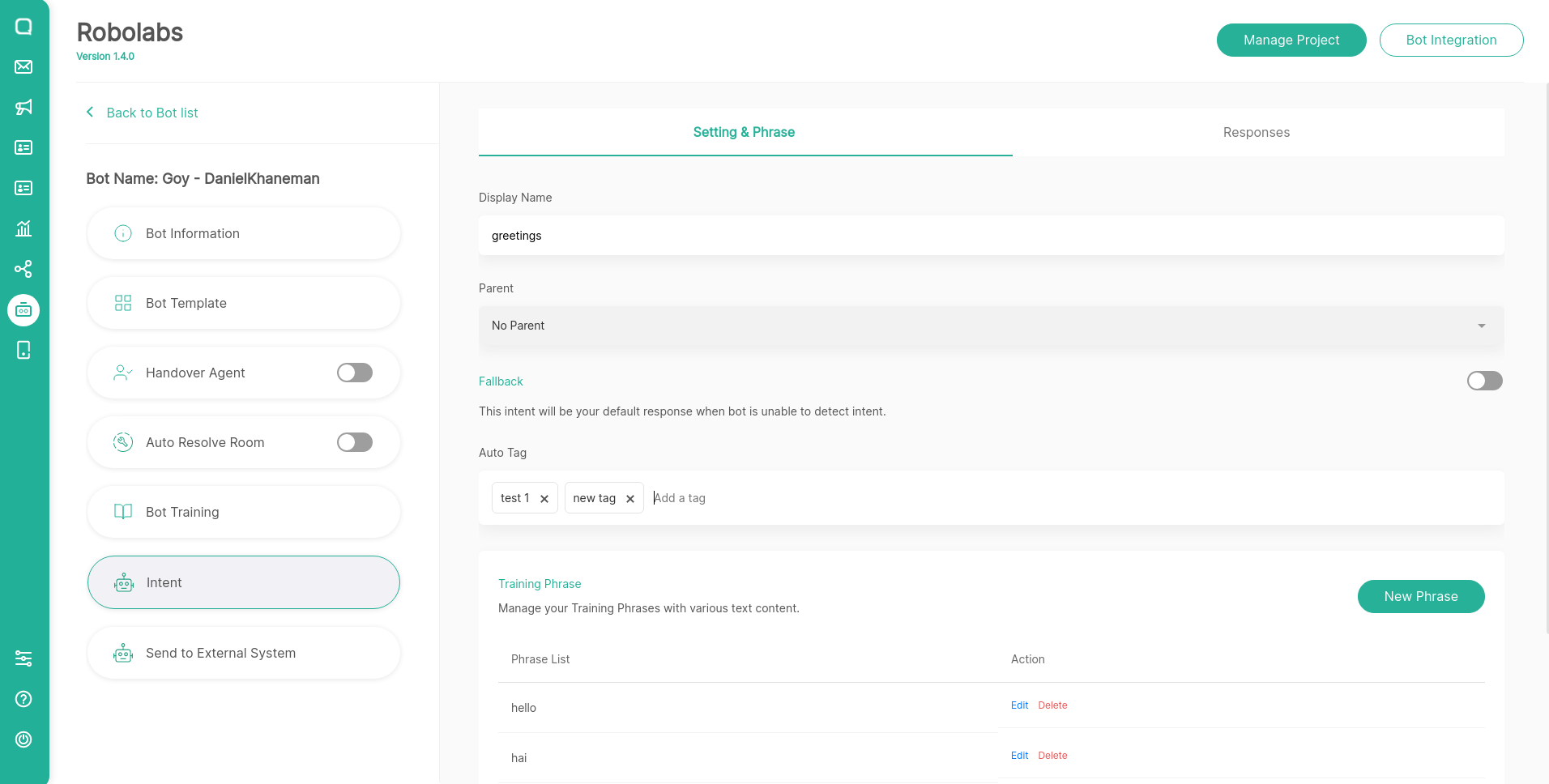
To create a new intent, click the create button. If you want to change the intent content, click the Edit button. Both actions will refer to the same page where there are 2 tabs, Settings & Phrase and Responses. On the Settings & Phrase tab you can set the following:
Auto Tag feature can only be used on Robolabs Premium plan
- Display Name: The name of the intent.
- Parent: The name of the intent above the intent you created. Robolabs will automatically create a context linking the parent to the intent you created with lifespan 1.
- Fallback: When activated, the intent you create becomes a reference if Dialogflow fails during the detection process. You can only create 1 fallback at 1 hierarchy level.
- Training Phrases: A collection of end-user-submitted sample texts. If there is similar text, Dialogflow will detect the text as this intent.
- Auto Tag: When the matched intent has an auto tag, the bot will automatically create the tag in the conversation room. You can select an existing tag or create a new tag by directly typing it and clicking enter.
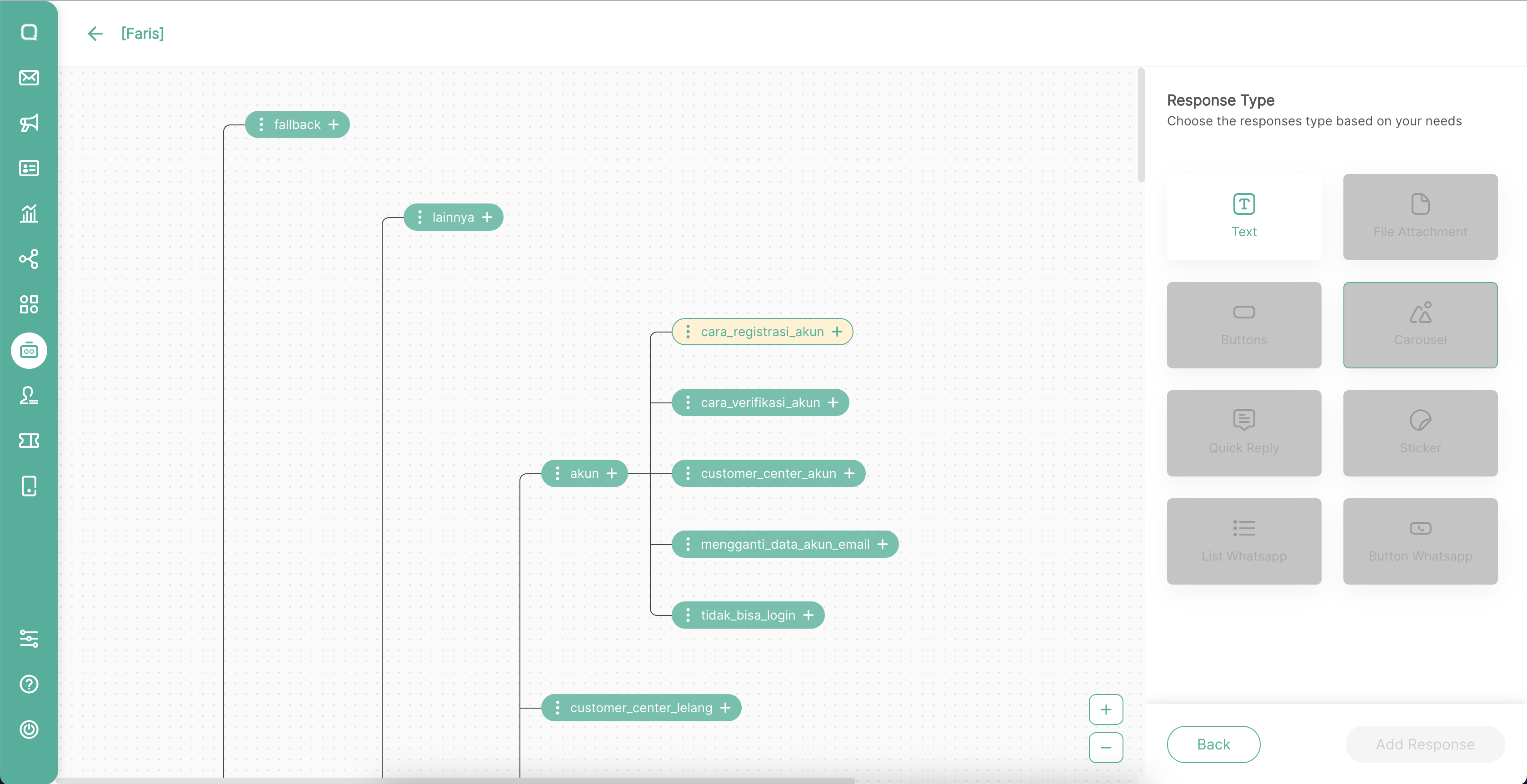
The Responses tab is devoted to setting the types of responses. There are several types of responses that you can send. However, there are types of responses that can only be applied to certain channels. Robolabs provides a default sample of each type for you to try.
Intent Visual Builder
This feature can only be used on Robolabs Premium plan

Now you can manage your intent through a more intuitive and easy to use interface. You can create an intent in the visual builder, edit all the components in the intent, up to the response in the intent.
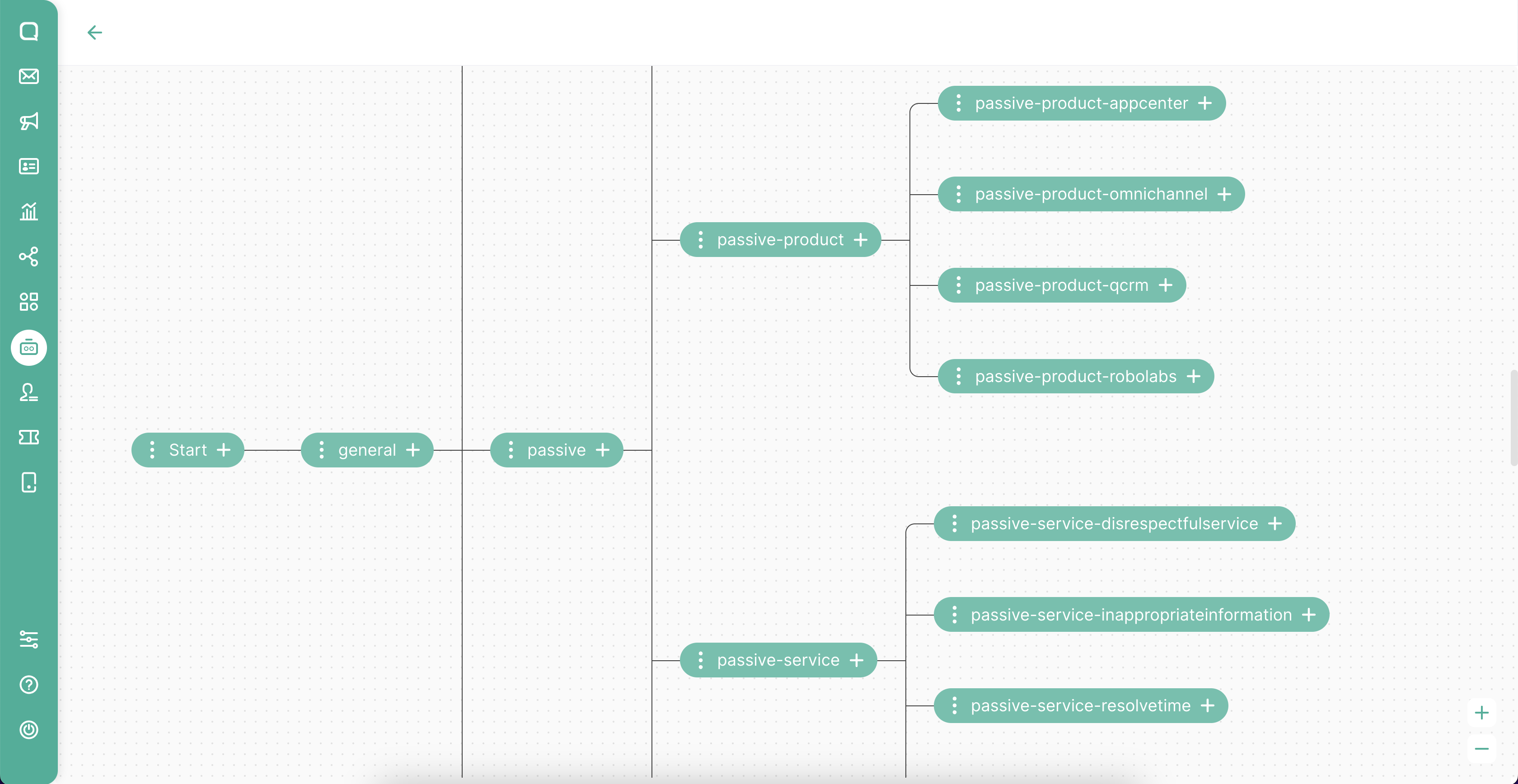
For now, the response type that can be created and edited in Intent Visual Builder is only text. In the future we will present all response types that can be set in Intent Visual Builder.
Responses
Text
Compatible: All of your channels
You can provide a variety of answers for text types. However, Dialogflow will only send one which is chosen at random.

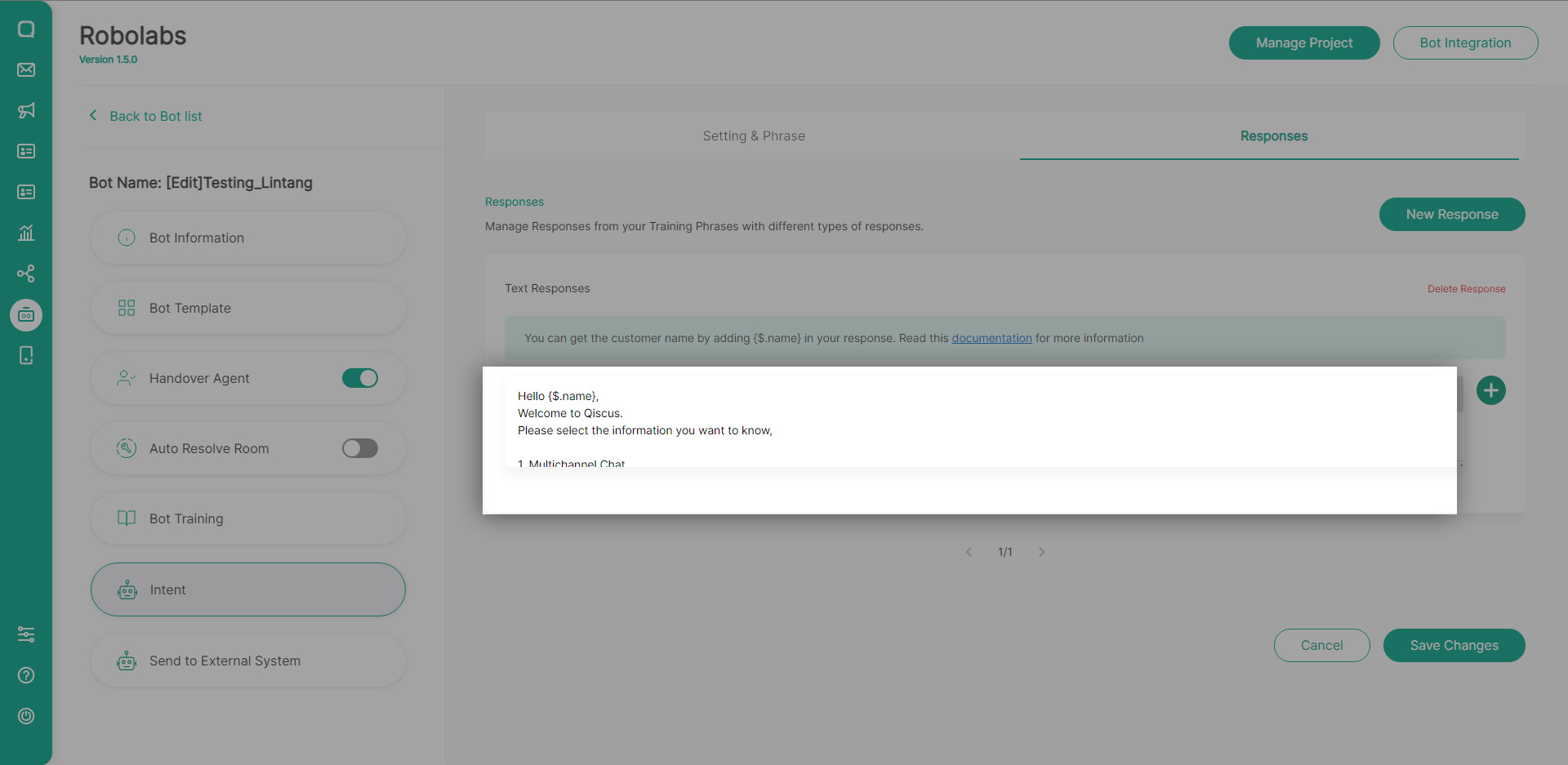
Get Customer Name
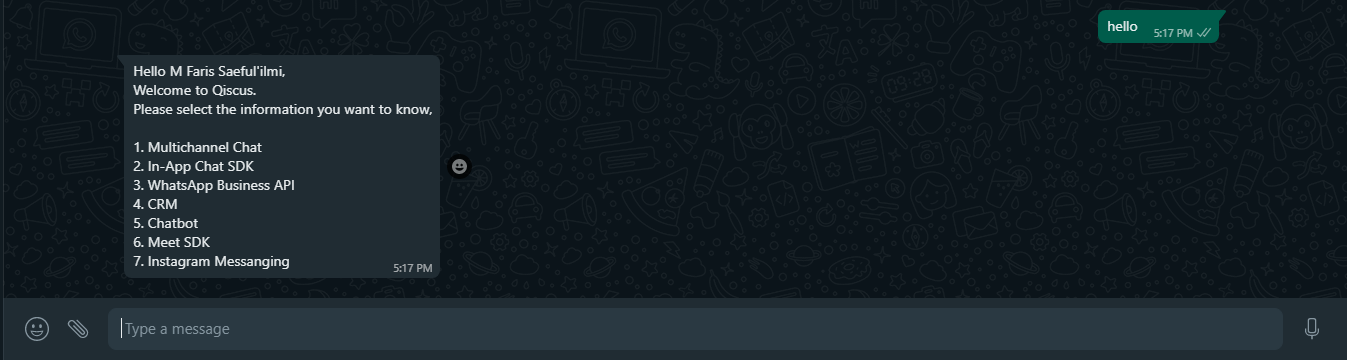
You can set your bot’s response by calling the customer’s name in this response text, put{$.name} in the response text to get the customer’s name. here’s an example:
And this is the view from the customer side via WA channel:
File Attachment
Compatible: All of your channels
You can send images and files of this type. Enter the URL where your image or file is saved. You can also provide a caption or description of what you sent.

Buttons
Compatible: Does not work on the WhatsApp channel
Bot will display a response in the form of a button which when pressed the bot will perform the command as defined on each button.

Stiker
Compatible: WhatsApp channel
You can also send images in the form of stickers provided that:
- Sticker URL is publicly accessible
- the resolution must be 512X512 pixels
- size < 100KB
- .webp image format

Quick Reply
Compatible: Line and Facebook channel
Bot will display response in the form of a button which when pressed the bot will perform the command as defined on each button and the button will disappear from the display.

WhatsApp Interactive – List
Compatible: WhatsApp channel
Bot will display the response in the form of a list. Some of the components to create an interactive list are:
Header (optional)
- Text with a maximum length of 60 characters.
Body (required)
- Text with a maximum length of 1024 characters.
Footer (optional)
- Text with a maximum length of 60 characters.
Action (required)
- You can create up to 10 sections.
- There is at least one set title-description in each section.
- The title is text with a maximum length of 24 characters.
- Description in the form of text with a maximum length of 72 characters.
List that has been selected by the end-user will then be received by the bot for the detect intent process. The text that will be processed by bots is only in the title section. Here’s the final display of the interactive list:

You must assign channels a project bot to WhatsApp channel to be able to use the response type in the form of Interactive Message WA
Ensure that the bot project has been assigned to the WhatsApp channel:


Interactive Message will be dislplayed on intent responses if the project bot has been assigned to WA channel:

Whatsapp Interactive – Button
Compatible: WhatsApp channel
Bot will display the response in the form of a button. Some of the components to create an interactive list are:
Header (required)
- Text with a maximum length of 60 characters.
- You can add image, video, or document.
Body (required)
- Text with a maximum length of 1024 characters.
Footer (optional)
- Text with a maximum length of 60 characters.
Action (required)
- You can create up to 3 buttons.
- The title is text with a maximum length of 20 characters.
Button that has been selected by the end-user will then be received by the bot for the detect intent process. Here’s the final display of the interactive button:

You must assign channels a project bot to WhatsApp channel to be able to use the response type in the form of Interactive Message WA
Ensure that the bot project has been assigned to the WhatsApp channel:


Interactive Message will be dislplayed on intent responses if the project bot has been assigned to WA channel:

Leave a Reply