Robolabs is a platform integrator between bot engine and Qiscus Omnichannel Chat. It is necessary to integrate Robolabs with the bot engine in the bot project on Dialogflow before creating a chatbot on Robolabs. Prior to the introduction of this feature, the integration process was carried out based on projects that were previously created in Dialogflow. Users must go through steps that are quite complicated and not easy to do until they get a service account key file in JSON format, then the integration process can be carried out. Based on these considerations, Robolabs developed an easier integration process through Google OAuth.
The Create New GCP Project feature through Google OAuth can simplify the integration process, without having to do the project creation process first in Dialogflow. The system will carry out all processes in an integrated manner, so that the bot engine created in Robolabs will also appear as a new project in Dialogflow.
Add New Project at Robolabs
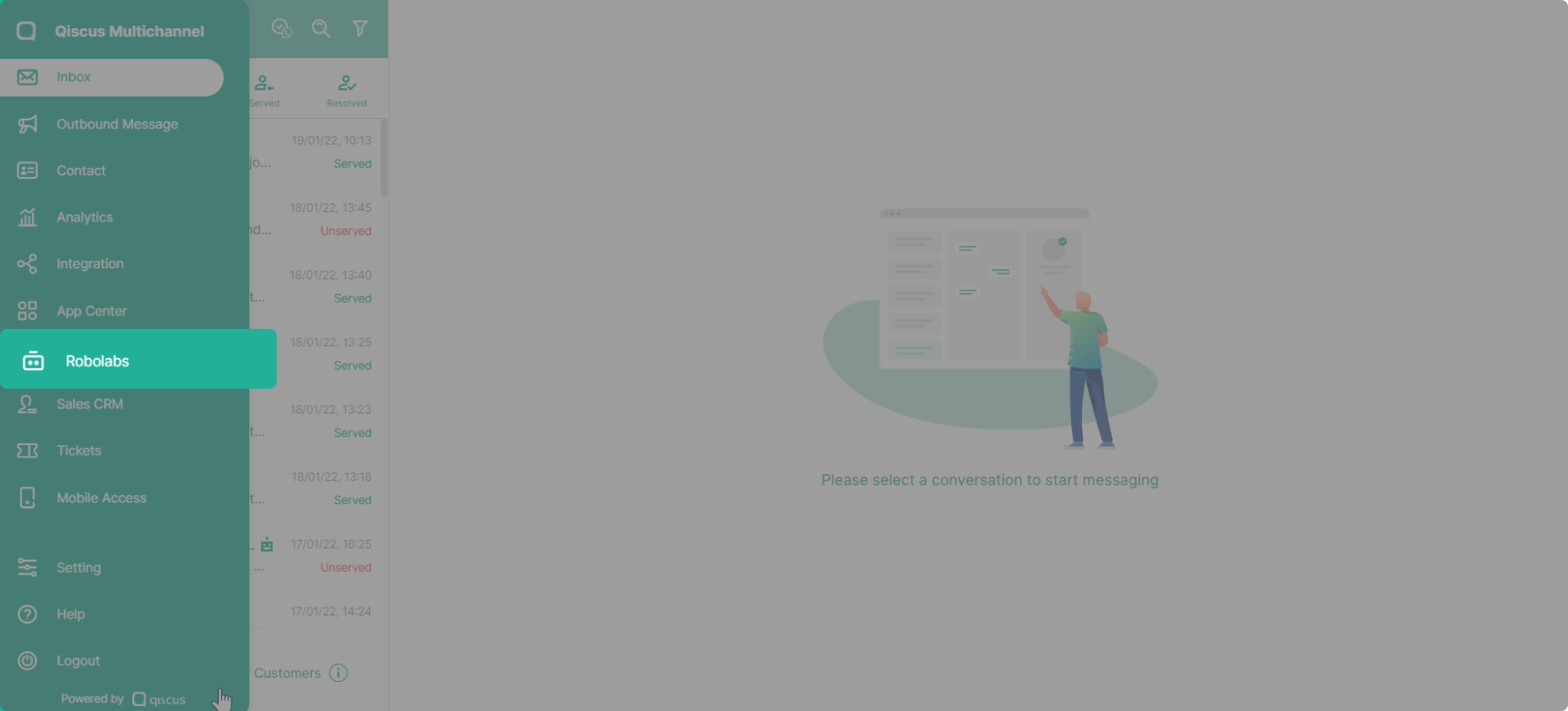
Go to Omnichannel https://multichannel.qiscus.com/, sign in to your account, then go to the Robolabs sub-menu and then click the Bot Integration button in the upper right corner of the page.
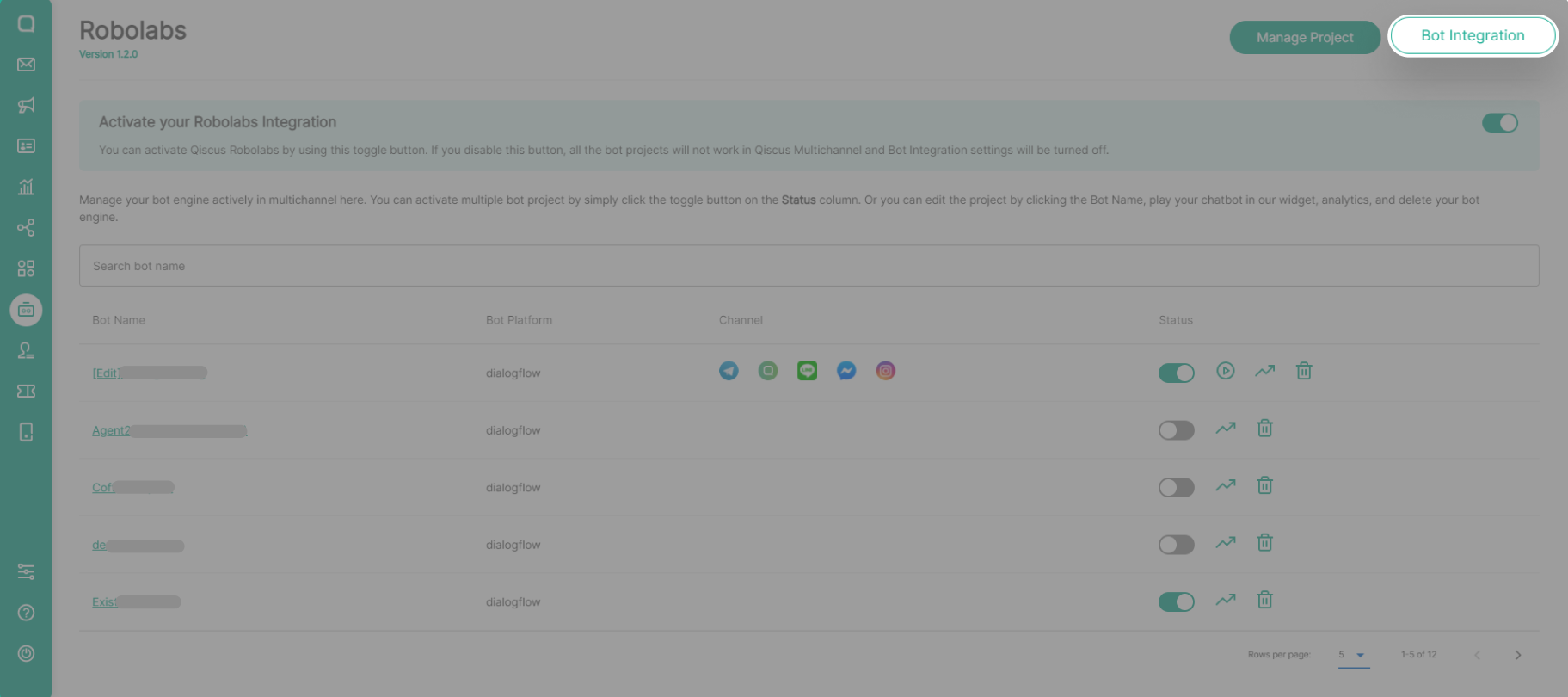
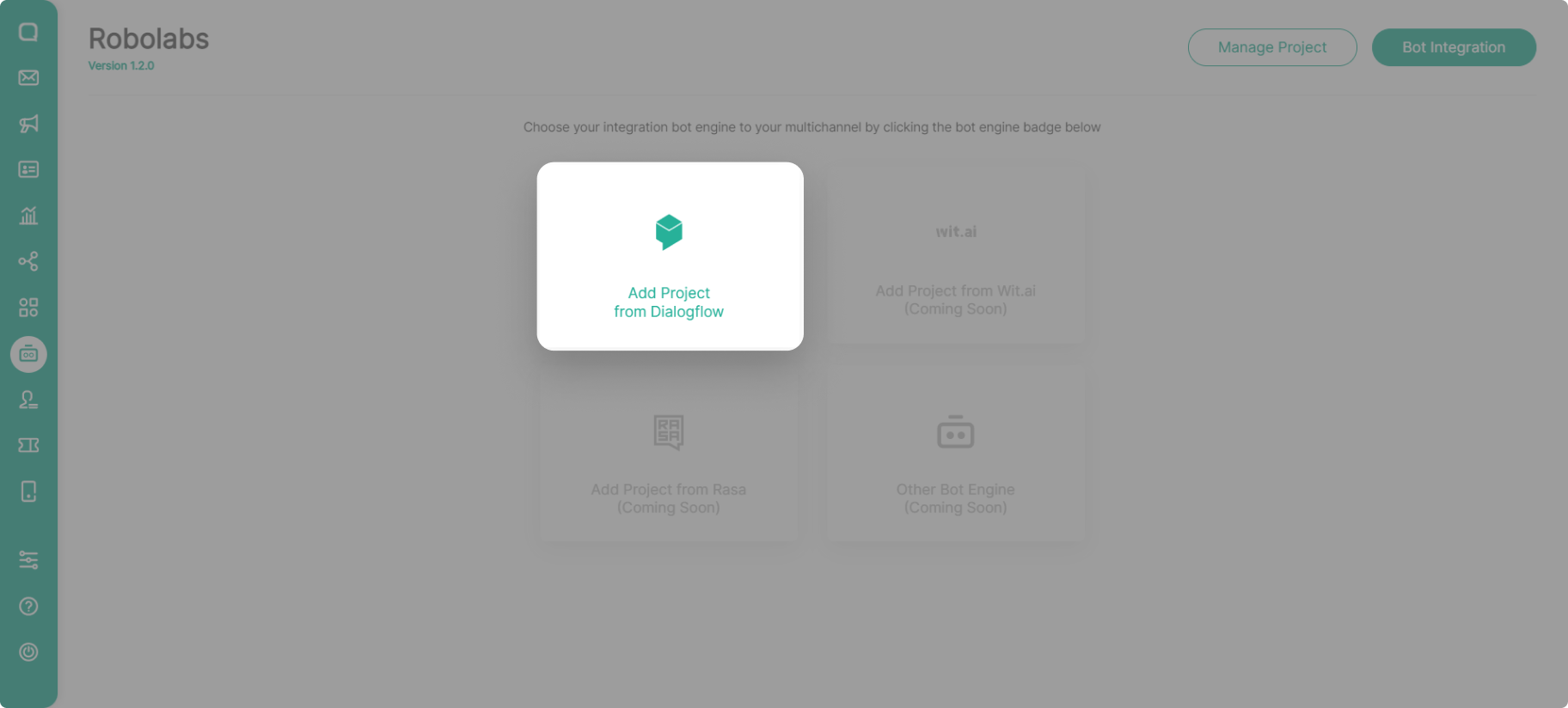
On the Bot Integration page, click the Add Project from Dialogflow to integrate with Dialogflow.
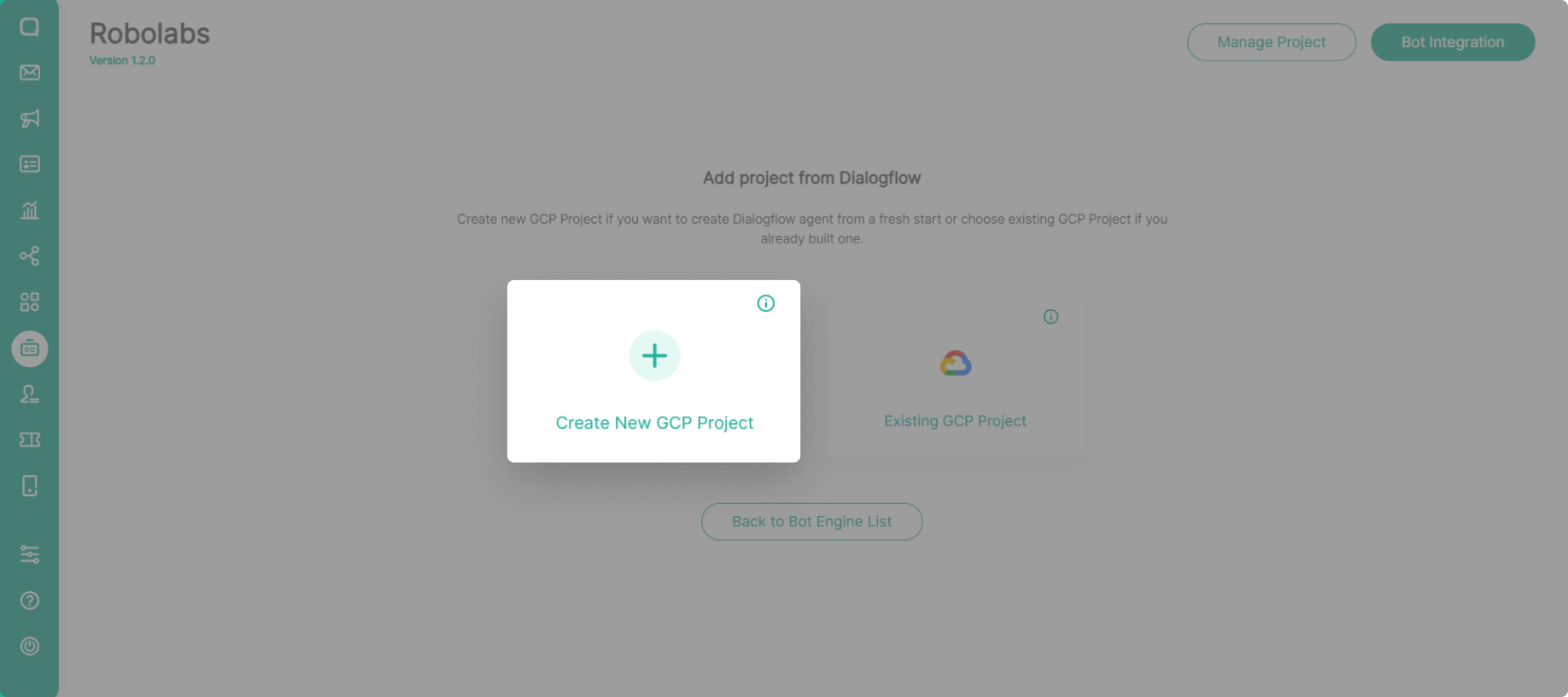
Choose Create New GCP Project to integrate and create a new project in Dialogflow. You don’t need to create a project in Dialogflow first because the process is done simultaneously.
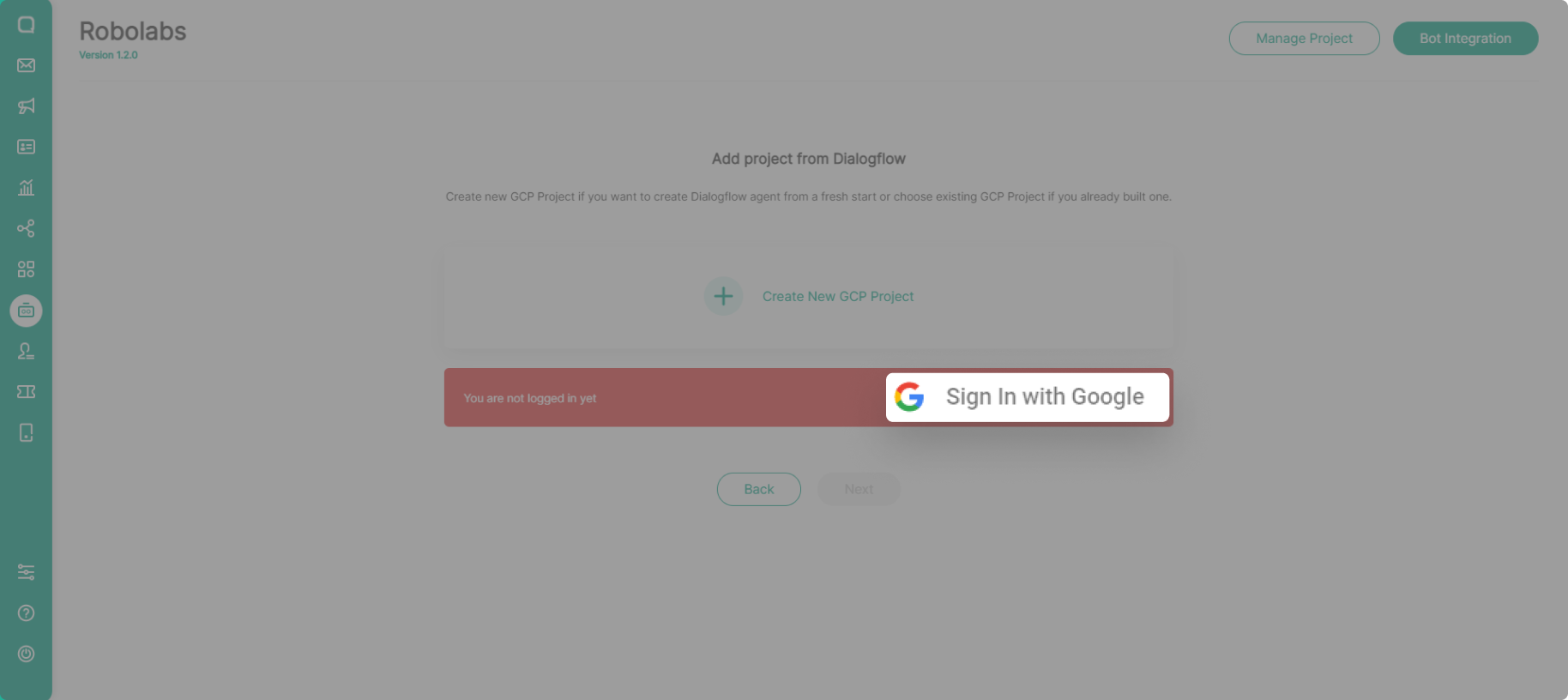
Select the Google Account that will be used to create bot engines and projects in Dialogflow by clicking Sign In with Google.
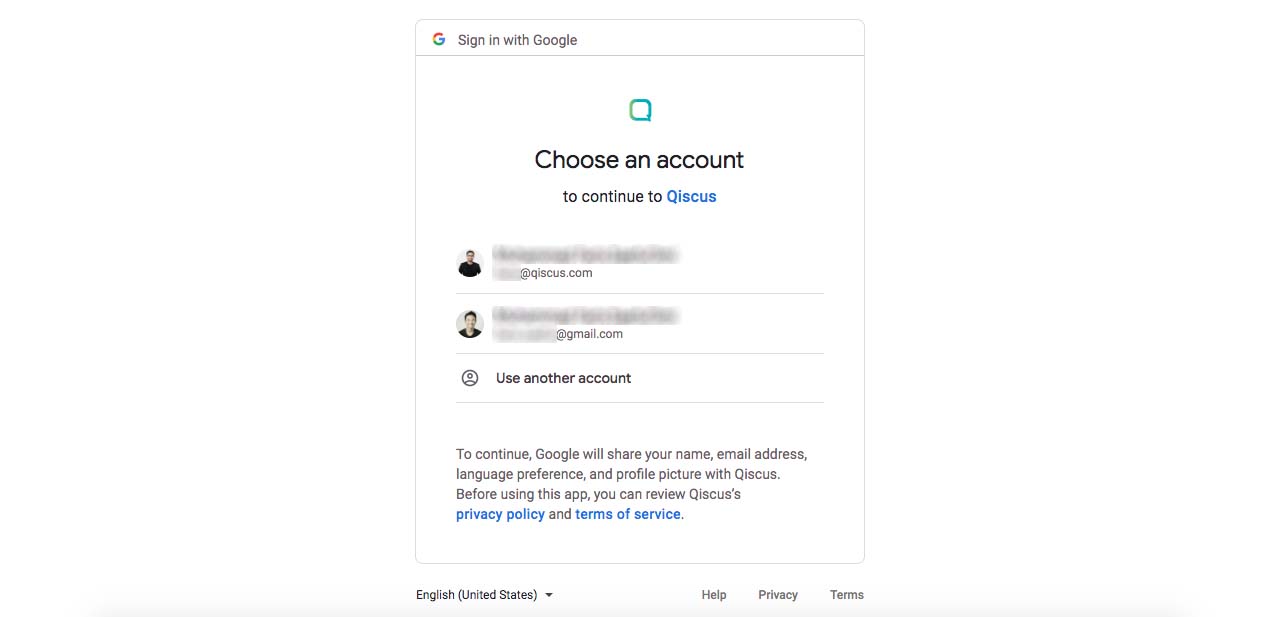
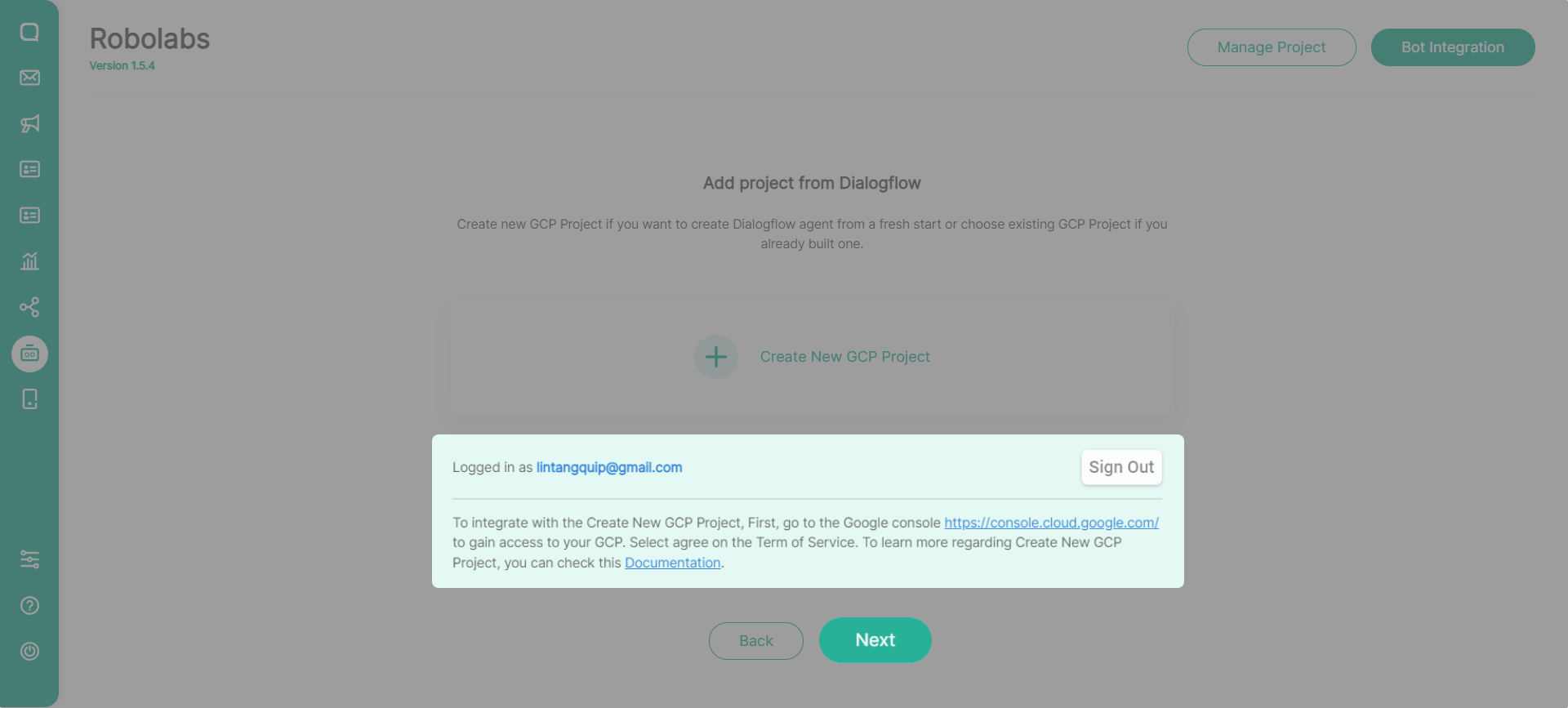
Make sure the previously selected email already appears on the integration page. If you want to change the email that will be used, you can Sign Out and then Sign In again. If you are sure of the email to be used, click Next to continue with the integration process.
If you have never created a project and entered your Dialogflow console, go to the Google Console first to accept Term of Service before you integrate into Robolabs for the first time.
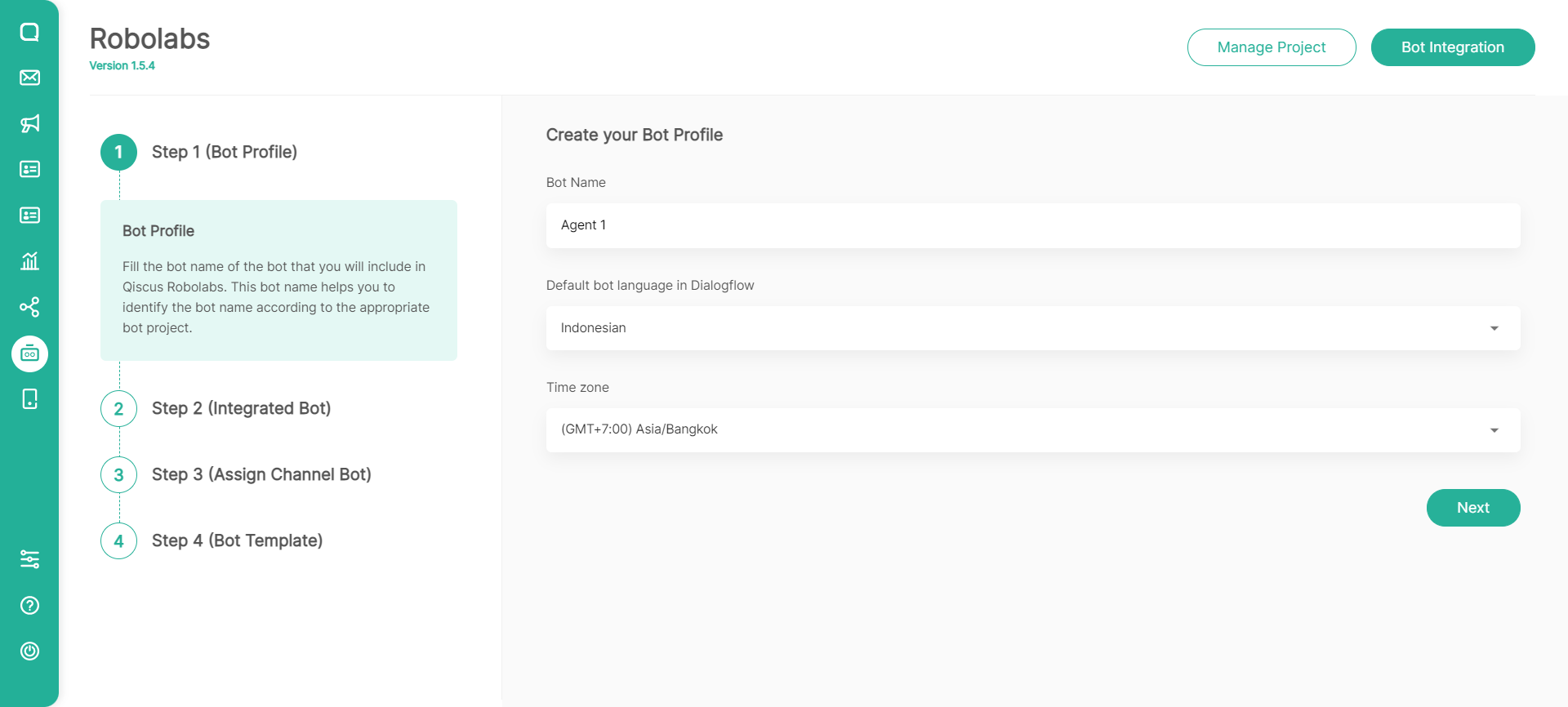
The integration process is divided into 4 stages:
- Step 1 (Bot Profile)
- Bot Name is the name of the bot that will be created. The name created will also be the name of the Dialogflow project. For the record, the input name must contain between 4 and 25 characters, both alphabetical and numeric.
- Default bot language in Dialogflow by default is Indonesian and can be changed as needed.
- Time zone by default is Asia/Bangkok (GMT+7:00) and can be changed as needed.
- Step 2 (Integrated Bot)
Integrated bot step is the process of integrating the bot engine in Robolabs. There is no need to upload the JSON file from the project to Dialogflow during this process. At the end of the integration process, the service account key will be generated and downloaded automatically. To proceed to the next integration stage, all you have to do is click the Next button.

- Step 3 (Assign Channel Bot)
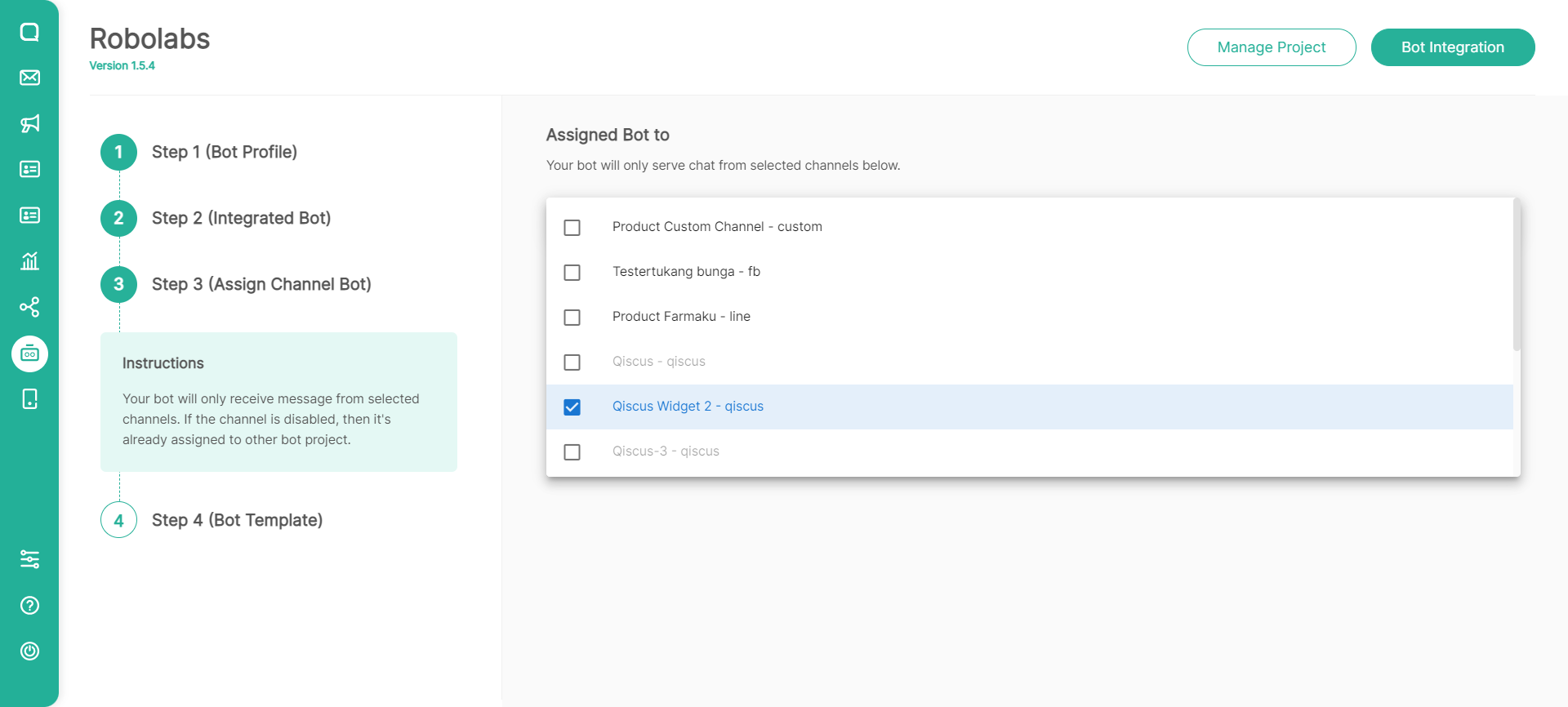
The third stage is the Assign Channel Bot _process, which allows you to specify which channels will be linked to the bot you created. There are no restrictions on the number of channels that can be used. You can select one or all of the channels that have been created, as long as the channel is not currently being used by other bots. What must be considered is which channels can be chosen. The conditions are as follows:
- Grey indicates that the channel has already been used by another bot and the channel cannot be selected.
- Black indicates that the channel is still not being used by other bots, and it can be selected.
- Step 4 (Bot Template)
Robolabs provides ready-to-use bot templates that you can use. You can choose by selecting a bot template, then the template will be implemented in your bot project. You can also skip this step.
For now, we have 9 bot templates that you can use according to your business needs.
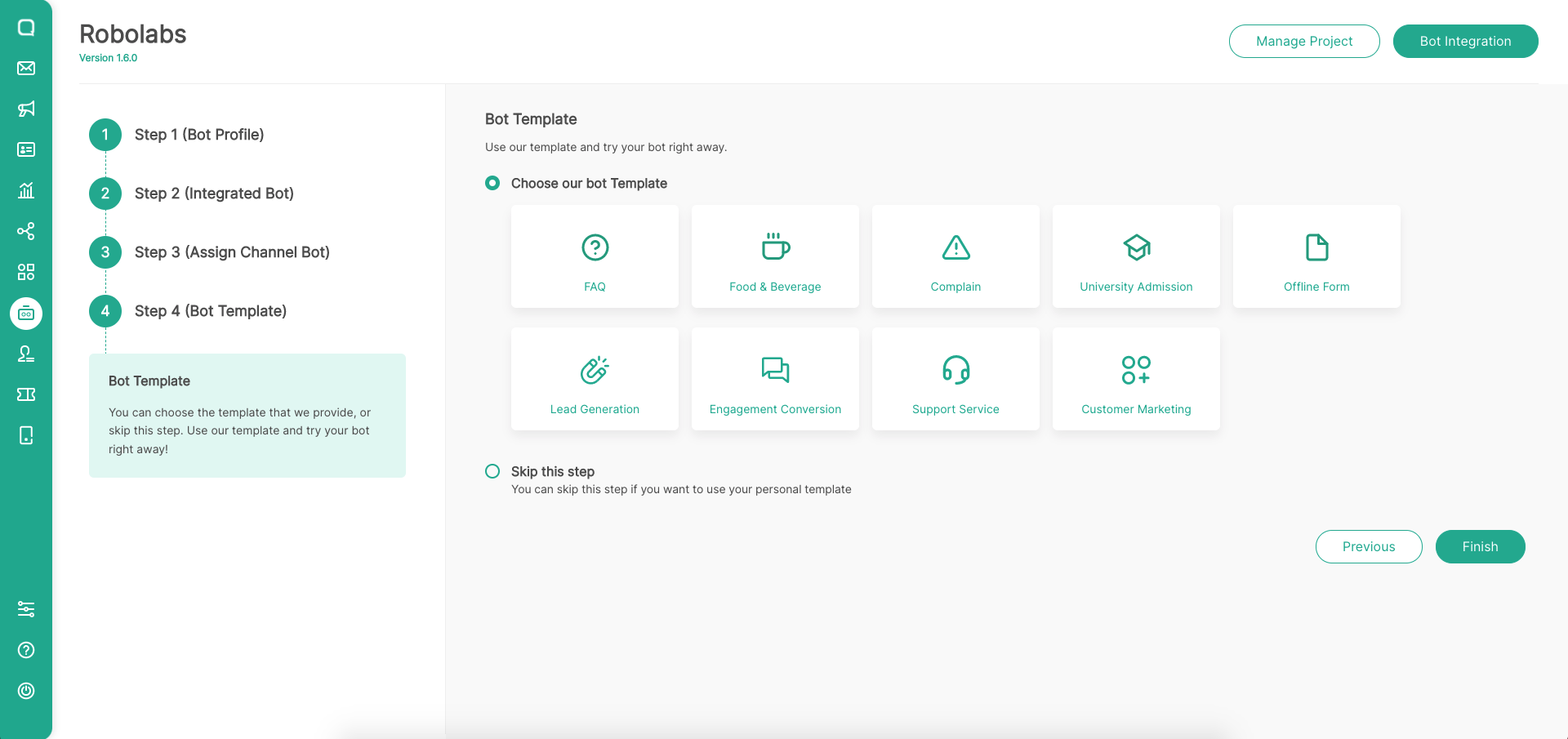
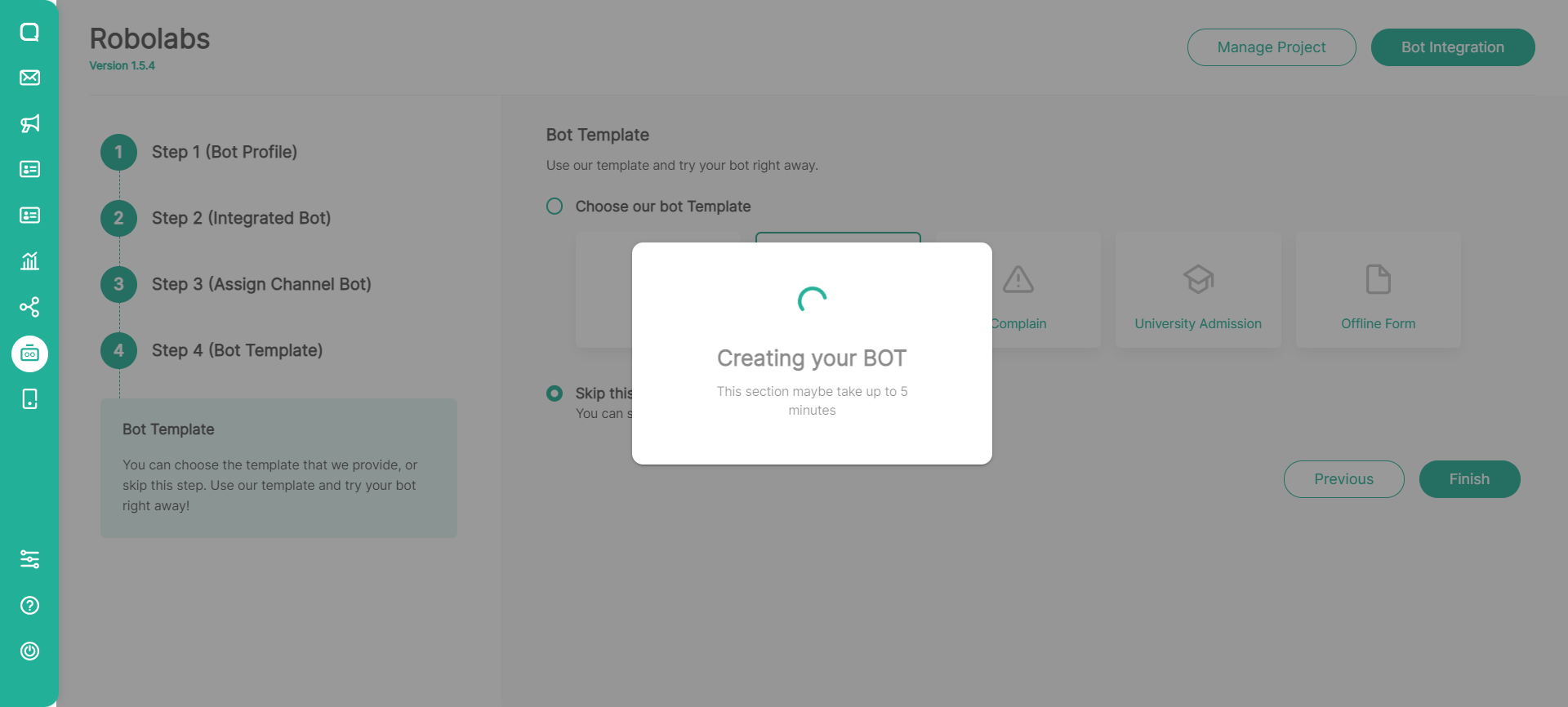
In the process of making this project, it will take about 3-5 minutes. Make sure you don’t reload or leave this page.
Then the following pop-up will appear, indicating that the integration process was successful. For the record, this integration process is time-consuming. As a result, please remain on the integration page until the integration process is complete.
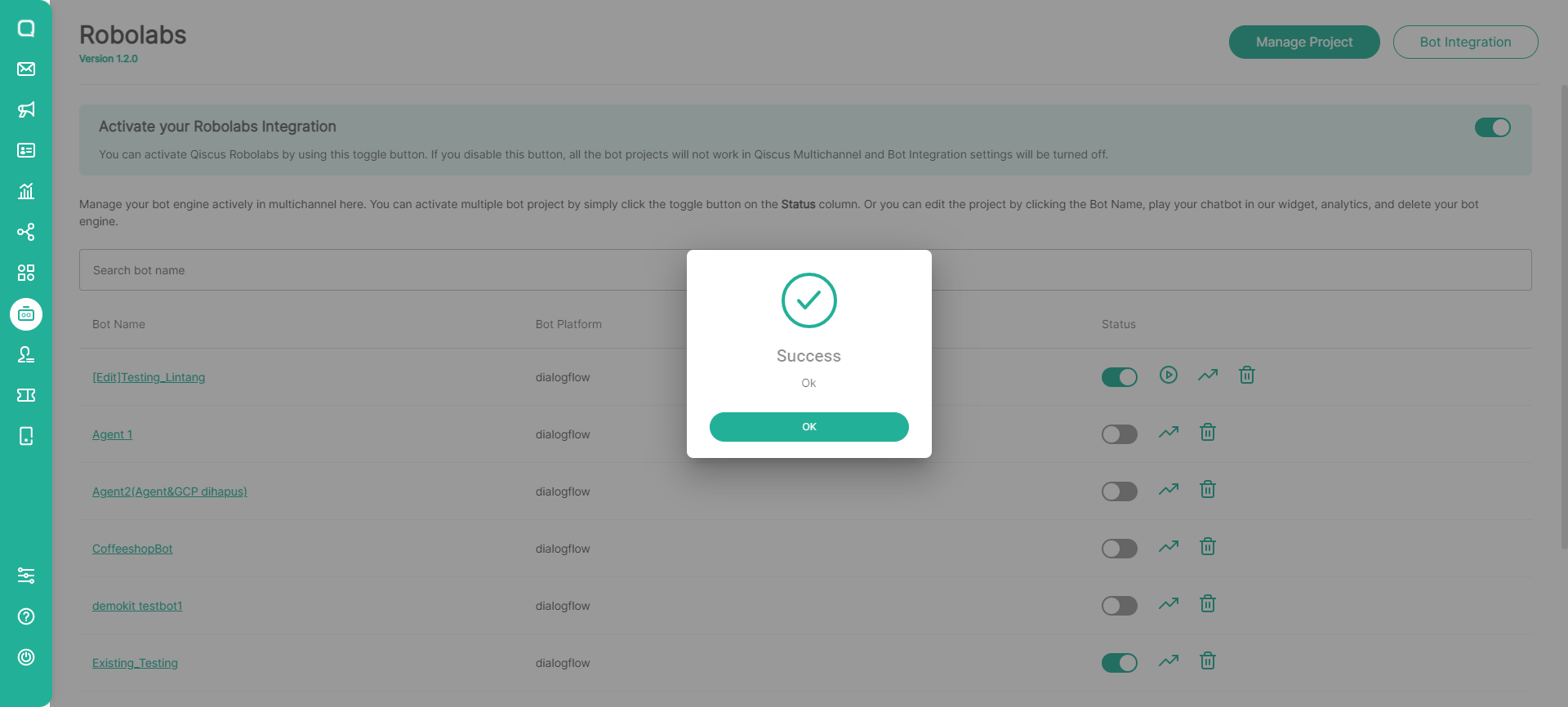
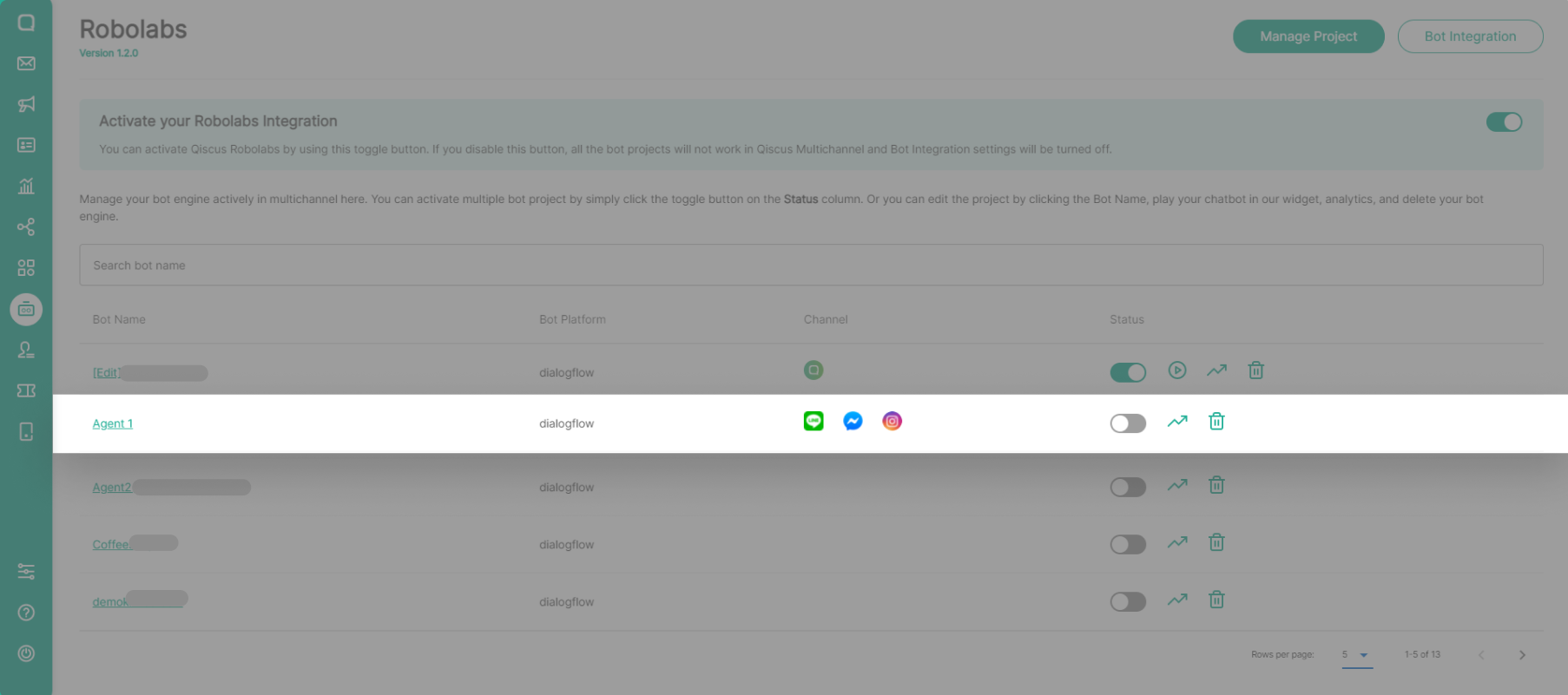
The bot engine that has been created will be displayed on the Manage Project page, allowing the process of creating the bot engine’s flow to be continued in greater detail. For instance, by activating a bot engine, creating a flow in the Bot Template or Intent, creating a delegate flow in the Handover Agent menu, configuring the Autoresolve feature, or performing other Robolabs activities.
Leave a Reply