Outbound Message page is the place you can configure all settings related to WhatsApp outbound message such as Send WhatsApp Broadcast Messages, WhatsApp Broadcast Templates, WhatsApp 24 Hours Message Template and WhatsApp Send Messages API.
WhatsApp Broadcast Message is used for outbound needs of customers on WhatsApp Channel as payment update, shipping updates and others. Messages for broadcast are referred to as Message Template. Message Template are message templates your company has predefined and, once approved by WhatsApp, use them to reach out to users in bulk. Terms for your Qiscus Omnichannel Chat Account to be able to do WhatsApp Broadcast Message, namely:
- Have a WhatsApp channel integration,
- Have an Approved Broadcast Template.
WhatsApp Broadcast Templates
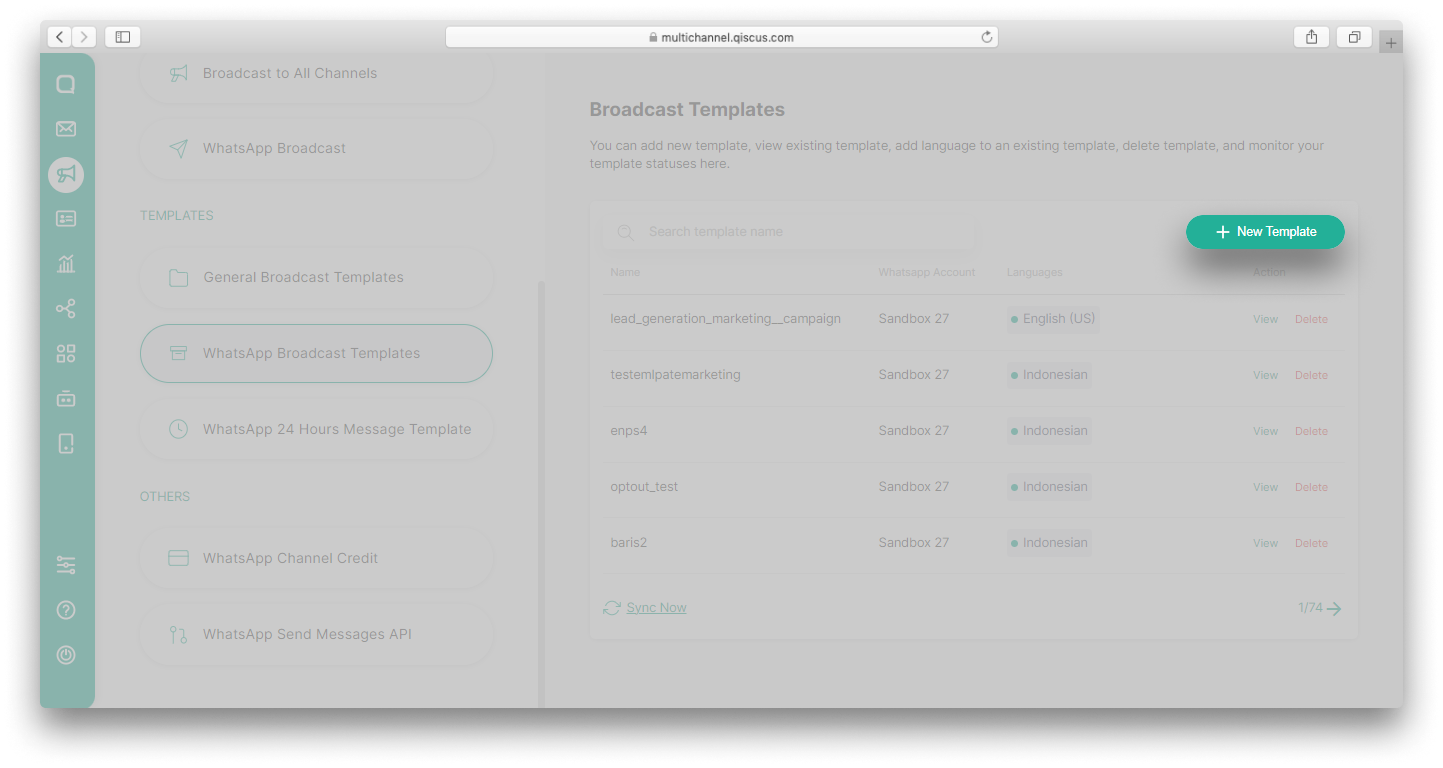
WhatsApp Broadcast Template is used to manage broadcast message templates. You can add, search, delete and view broadcast template details. You can create WhatsApp Broadcast Template using the New Template button.

Please follow the steps below to create a WhatsApp broadcast templates for Marketing and Utility Categories:
- Select the WhatsApp Account you want to use,
- Fill in the Message Template Name. Message template name can only include lowercase alphanumeric characters and underscores,
- Select Category. You can refer to the template category guidelines to understand the differences and learn more about each template category,
- Select Language. You can add multiple languages to suit your needs. You can check this Supported Languages,
- Select the Next button,
- Fill in the content, make sure the contents are in accordance with the language chosen, especially if you use many languages. The content consists of Header, Body, Footer and Buttons. If the template that you are going to create has variables in the Header, Body, or Button sections, you are required to add a sample of these variables.
Body can only consist of up to fifteen variables. To learn more about the Message Template, you can check this WhatsApp Message Template Guideline.
- Submit the Broadcast Template you have created,
- After that, your broadcast template will be reviewed to make sure it doesn’t violate WhatsApp policies. Reviews are carried out for each submitted Message Template language. If approved, the status changes to Approved and your broadcast template can be used. But if it is not approved, then the status changes to Rejected.
After you have a broadcast template with Approved status, you can send WhatsApp Broadcast Message. If you want to add another message template, repeat those steps above. That’s all! we got you covered. Easy, isn’t it?
WhatsApp Authentication Message Template
On June 1, 2023, WhatsApp officially announced its new prices and introduced a new feature called Authentication Templates with One-Time Password Buttons. Following the guidelines set by Meta, the new authentication template should not include links, media, or emojis. Additionally, parameters in the template are restricted to a maximum length of 15 characters, and the new template must include a Copy Code button.
After June 1, the existing authentication OTP templates will remain functional and effective. However, it is important to note that any templates that do not comply with the updated guidelines are at risk of being blocked by Meta. You can send Authentication Message Templates using the API by following this documentation.
In line with this change, Qiscus made several changes to the Omnichannel Chat dashboard.
Creating A New Authentication Message Template
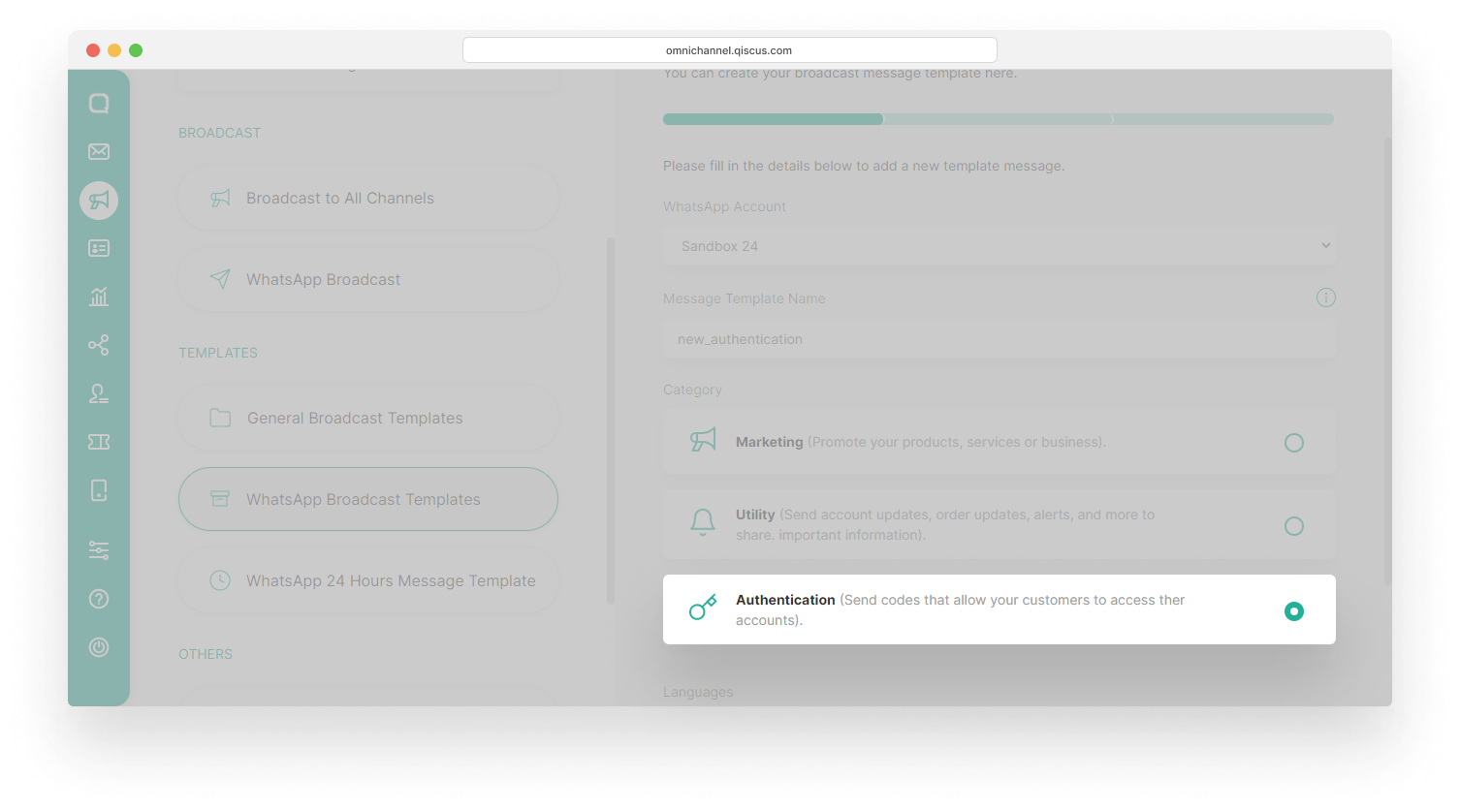
When you choose the Authentication category while creating a new template, the display on the Adding New Broadcast Template page will automatically comply with the latest guidelines from Meta.
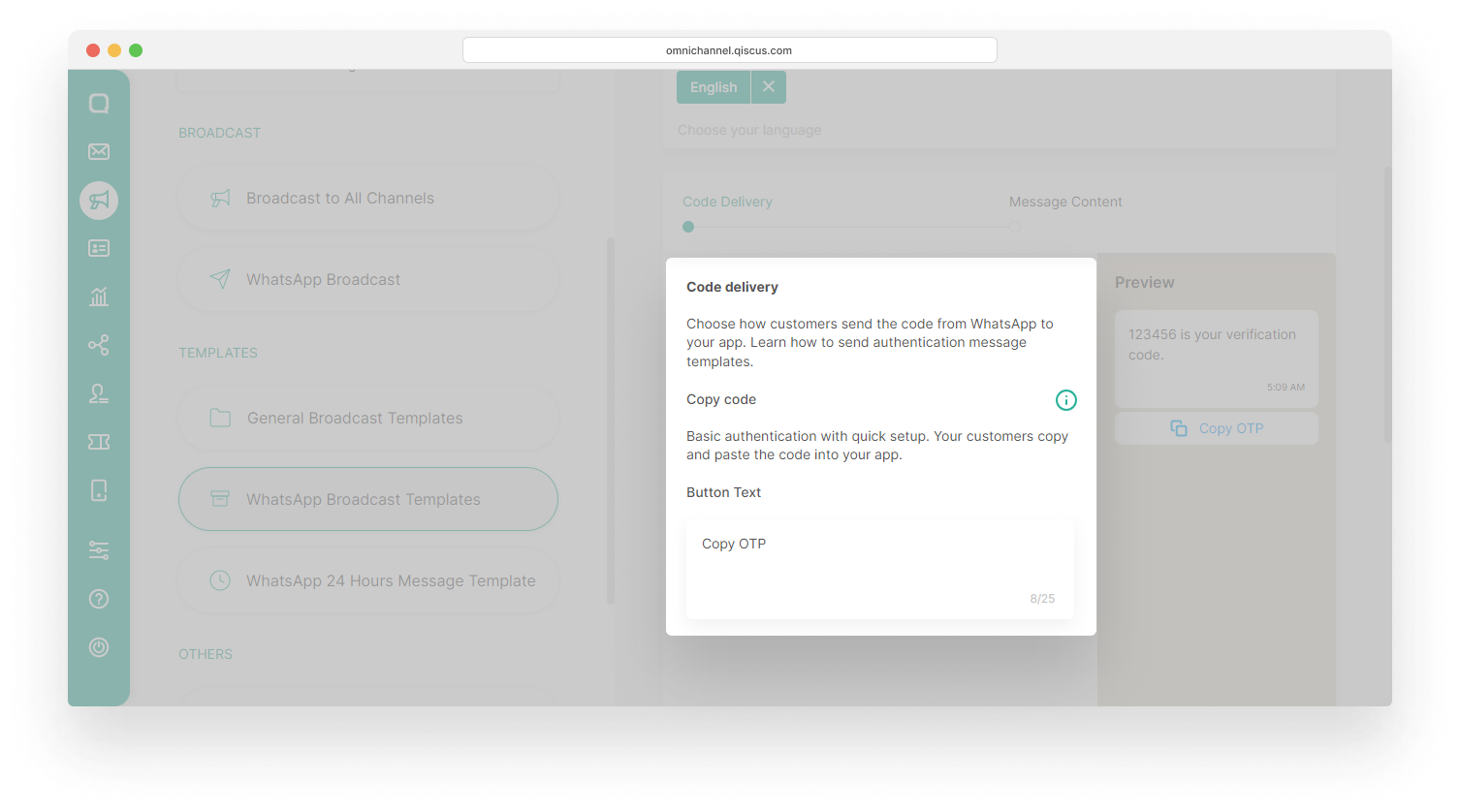
By default, you are required to add a Copy Code button. However, on the Qiscus Omnichannel Chat dashboard, you can change the button text as you wish.
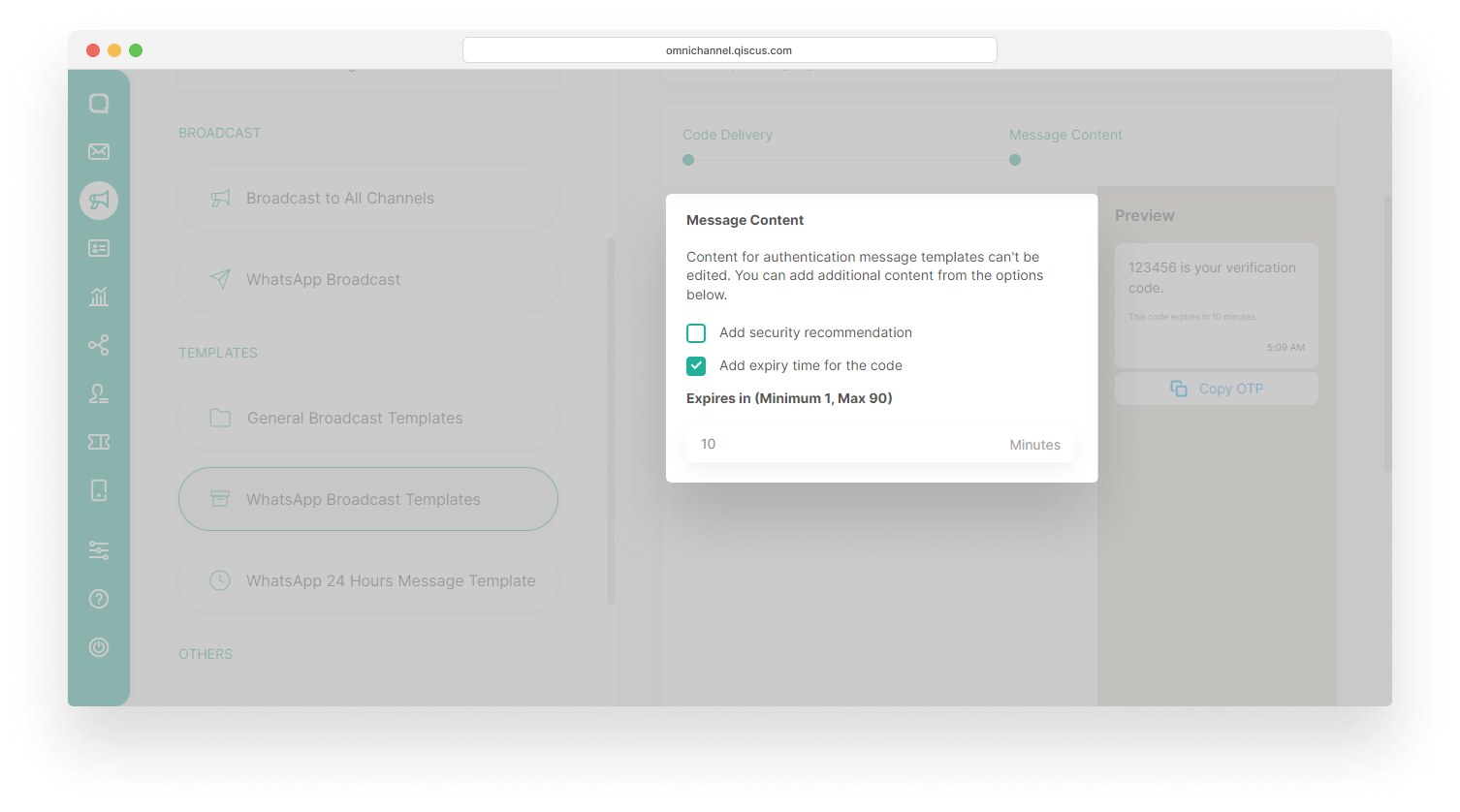
Content for authentication message templates can’t be edited.
You have the option to include a security recommendation, an expiry time for the code, or both to the authentication message templates. If you add an expiry time, you can set how many minutes the OTP code can be used.
The language of the content depends on the language selected when creating the template.
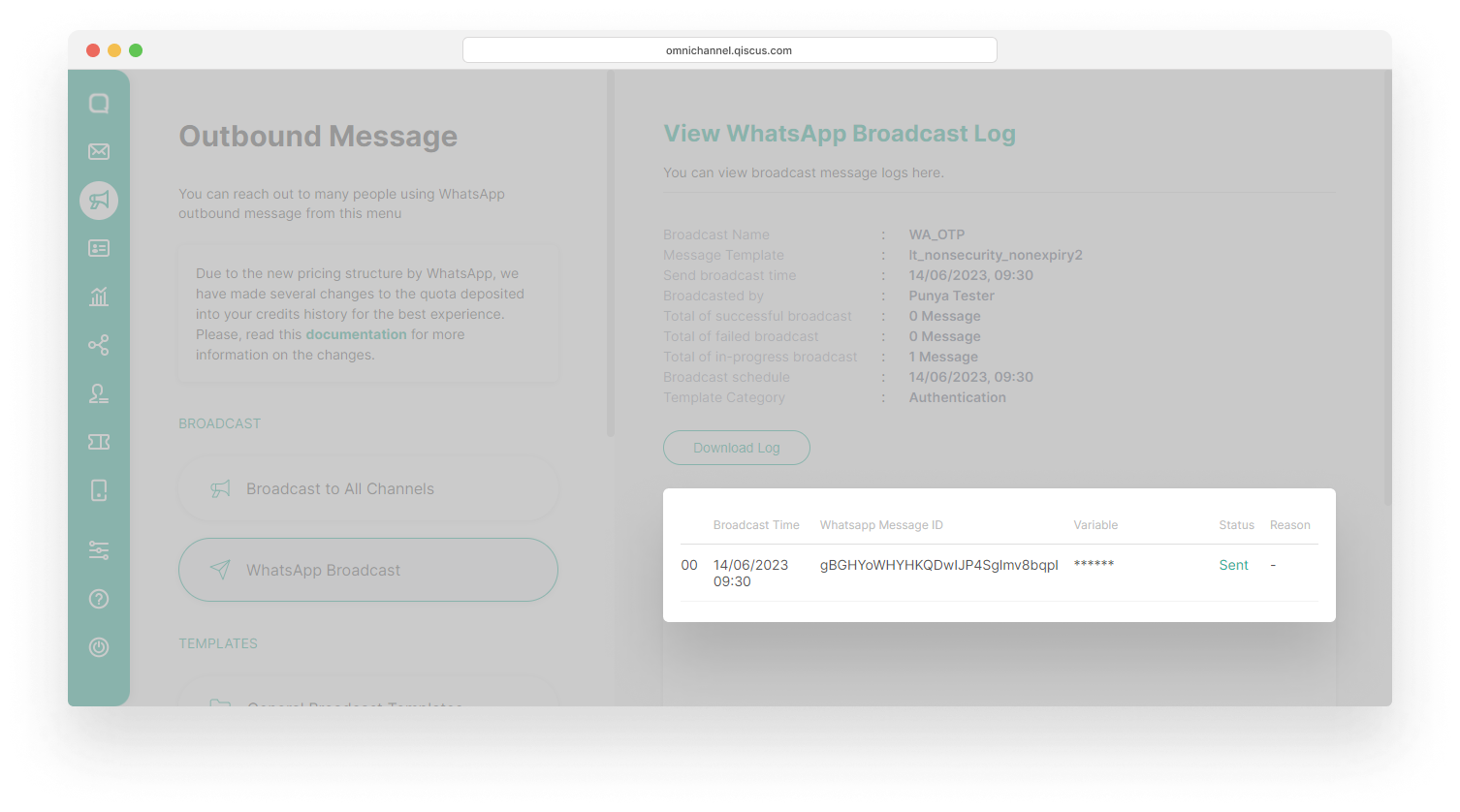
In order to maintain confidentiality, only your customers can see the OTP code. The OTP code will not appear in conversation on the Inbox menu and WhatsApp Broadcast Log.

Viewing Analytics Report
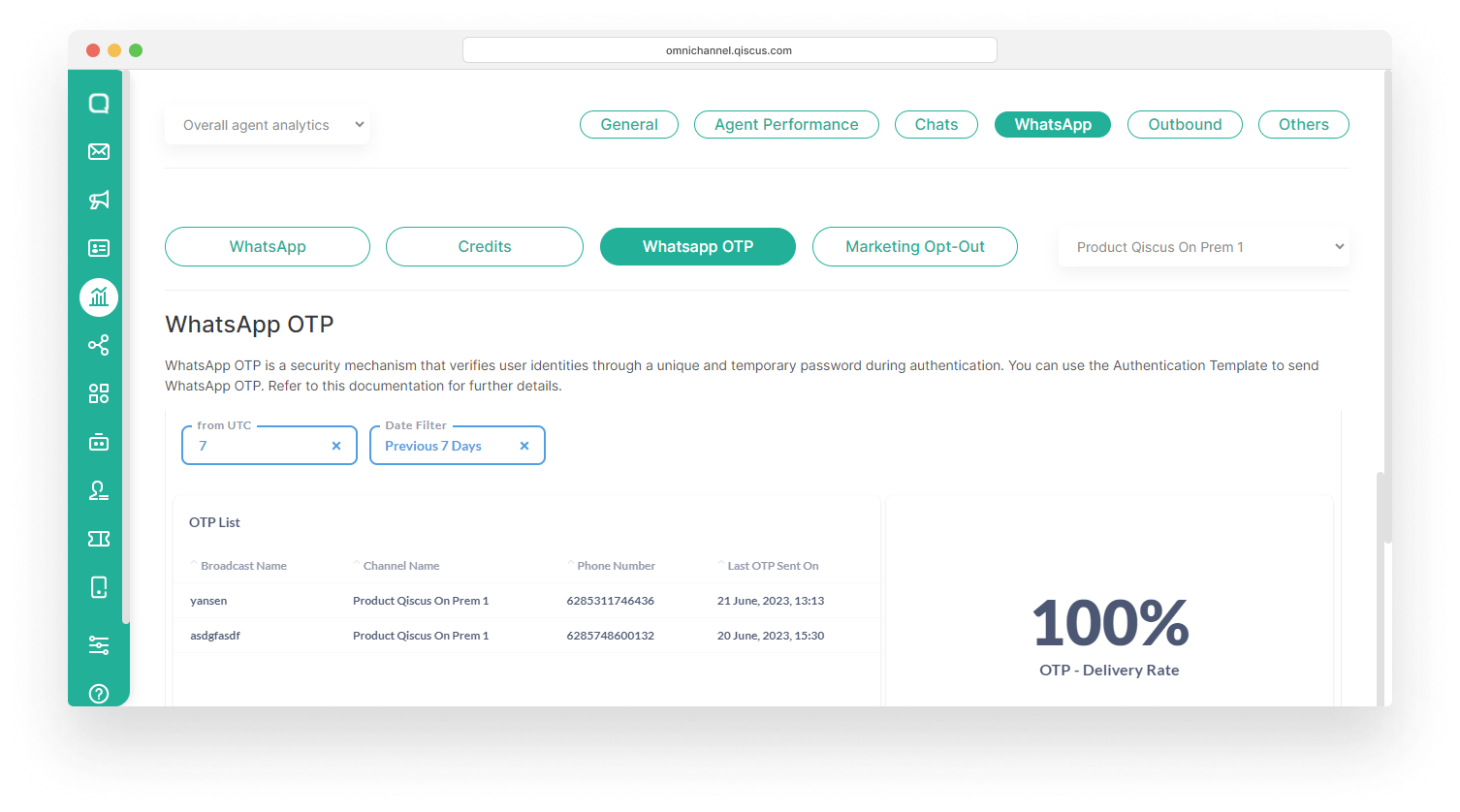
In addition to creating a new template, Qiscus has also added an analytical reporting feature for WhatsApp OTP. This feature allows you to access a comprehensive list of OTP deliveries and monitor the delivery rate. You can view this analytical report on the Analytics menu, then select WhatsApp and WhatsApp OTP.
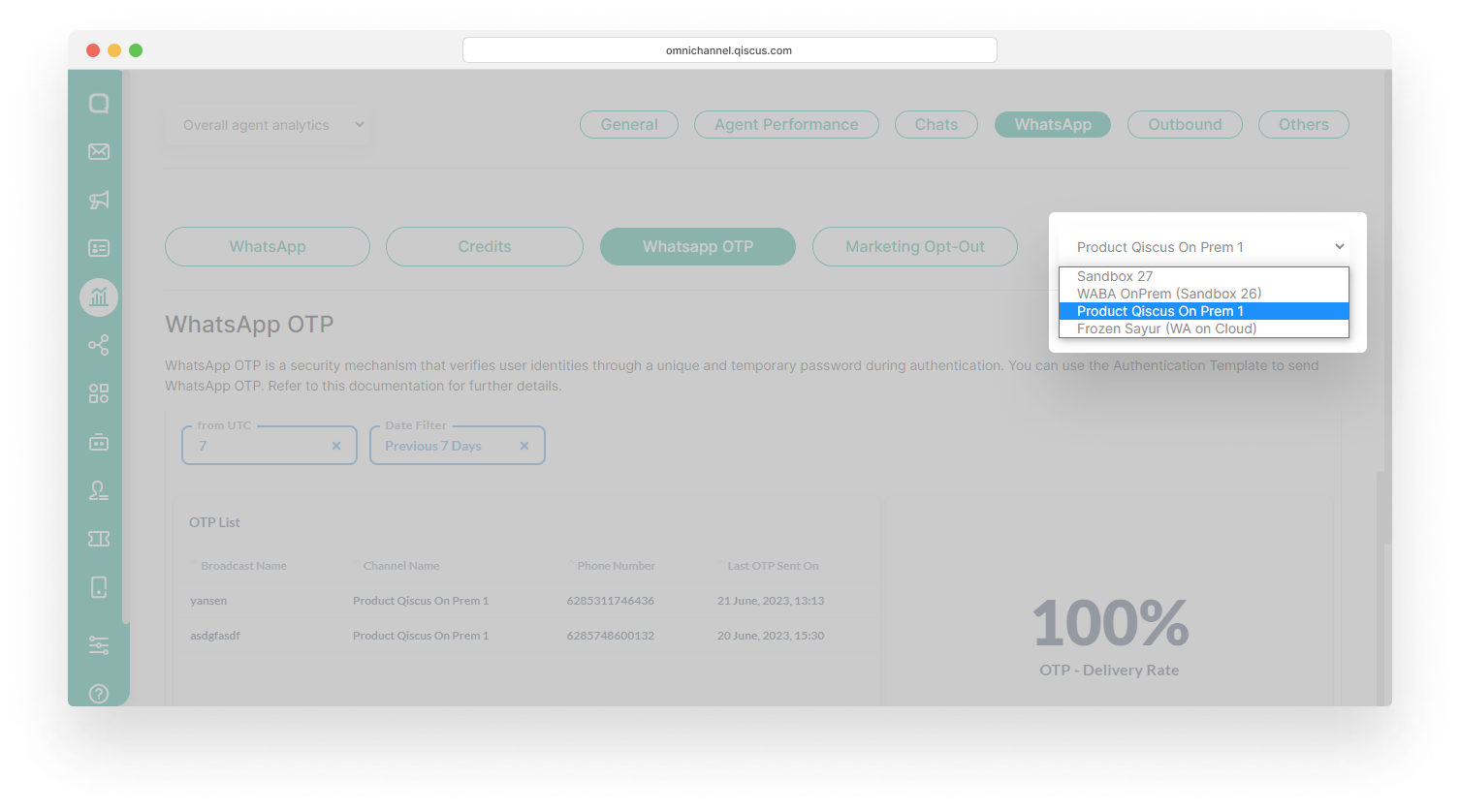
You can select the channel you want from the dropdown on the right.
WhatsApp 24 Hours Message Template
Based on WhatsApp policy, you can only respond back to your customers within 24 hours of the last customer message, otherwise the message you sent will not be received by the customer. However, you can follow up by sending a WhatsApp 24 Hours Message Template. Message Template are template messages your company has predefined and, once approved by WhatsApp, use them to reach out to users. You will be charged every time you send a 24 Hours Message Template to your customer.

You can send 24 Hours Message Template if you already have an approved 24 Hours Message Template. Before sending 24 Hours Message Template, you need to configure the 24 Hours Message Template template first. If you’ve never created a 24 Hours Message Template, please click the Create my first 24 Hours Message Template button. But, if you’ve ever created it, please click the Add Another 24 Hours Message Template button.
If you have a WhatsApp 24 Hours Message Template that has been approved by WhatsApp, please follow the steps below.
- Select Yes, I already have Message Template options, then click the Next button,
- Select the WhatsApp Account you want to use,
- You must fill out the form in accordance with the message template you have,
- Fill in the Template Name, Namespace, Category and Language. You can also choose multiple languages according to the language supported by WhatsApp, you can check this Supported Languages,
- Click Next to continue,
- Fill in the body, make sure the body are in accordance with the language chosen, especially if you use many languages. Body may only consist of a maximum of one variable in the form of customer name,
- Submit the 24 Hours Message Template that you have created.
If you have a WhatsApp 24 Hours Message Template that has not been approved by WhatsApp, don’t worry and please follow the steps below.
- Select No, I don’t have any broadcast template before options, then click the Next button,
- Select the WhatsApp Account you want to use,
- Select Language. You can add multiple languages to suit your needs. The language supported by WhatsApp, you can check this Supported Languages,
- Click Next to continue,
- Fill in the body, make sure the body are in accordance with the language chosen, especially if you use many languages. Body may only consist of a maximum of one variable in the form of customer name. To learn more about the Message Template, you can check this WhatsApp Message Template Guideline,
- Submit the 24 Hours Message Template that you have created.
- After that, your 24 Hours Message Template will be reviewed to make sure it doesn’t violate WhatsApp policies. Reviews are carried out for each submitted 24 Hours Message Template. If approved, the status changes to Approved and your message template can be used. But if it is not approved, the status changes to Rejected and you need to re-create the 24 Hours Message Template.

After the 24 Hours Message Template status becomes Approved, you can use it to follow up chat from WhatsApp channels that have exceeded 24 hours. Here are the steps to follow up chat.
- Select a chat from the WhatsApp channel that has exceeded 24 hours,
- Click the Send Message Template button in the send message area or in the chat & customer information area,
- Select the language for the 24 hours Message Template you want to send,
- Click the Send button, then the 24 hours Message Template that has been created is automatically sent to the customer. Wait until the customer calls you back.
You can also see all the 24 Hours Message Templates logs via Qiscus Omnichannel Chat Analytics in WhatsApp section.
WhatsApp Send Messages API
WhatsApp Send Message API is used for access the document of WhatsApp Integration.
Auto Sync WhatsApp Template
Auto Sync WhatsApp Template is a feature that allows you to Sync approved WhatsApp message templates to Qiscus Omnichannel Chat dashboard. Additionally, you will automatically get the message template status from Facebook Business Manager on the dashboard.
Before getting started, here are a few things to know:
- You must have approved message templates in Facebook Business Manager
- All templates in one WhatsApp Business API ID will be synced. So you have to manually delete an unwanted template on a certain WhatsApp channel
- All message templates created in Qiscus Omnichannel Chat dashboard will be automatically generated in Facebook Business Manager
- Auto Sync WhatsApp Template feature is only supported on WhatsApp channels under Qiscus
You can sync WhatsApp templates with the following steps:
- Go to the Outbound Message Page on the sidebar,
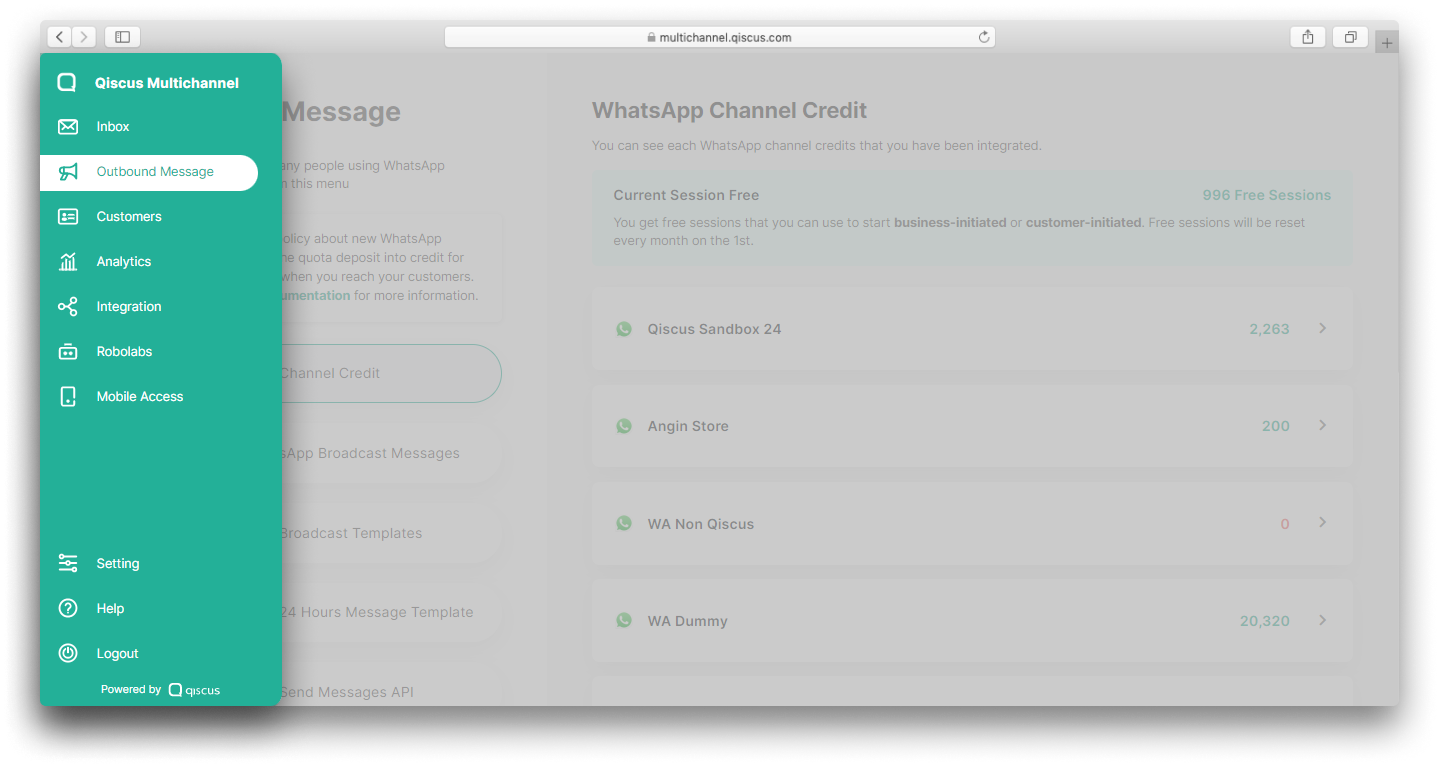
- Click menu WhatsApp Broadcast Templates,
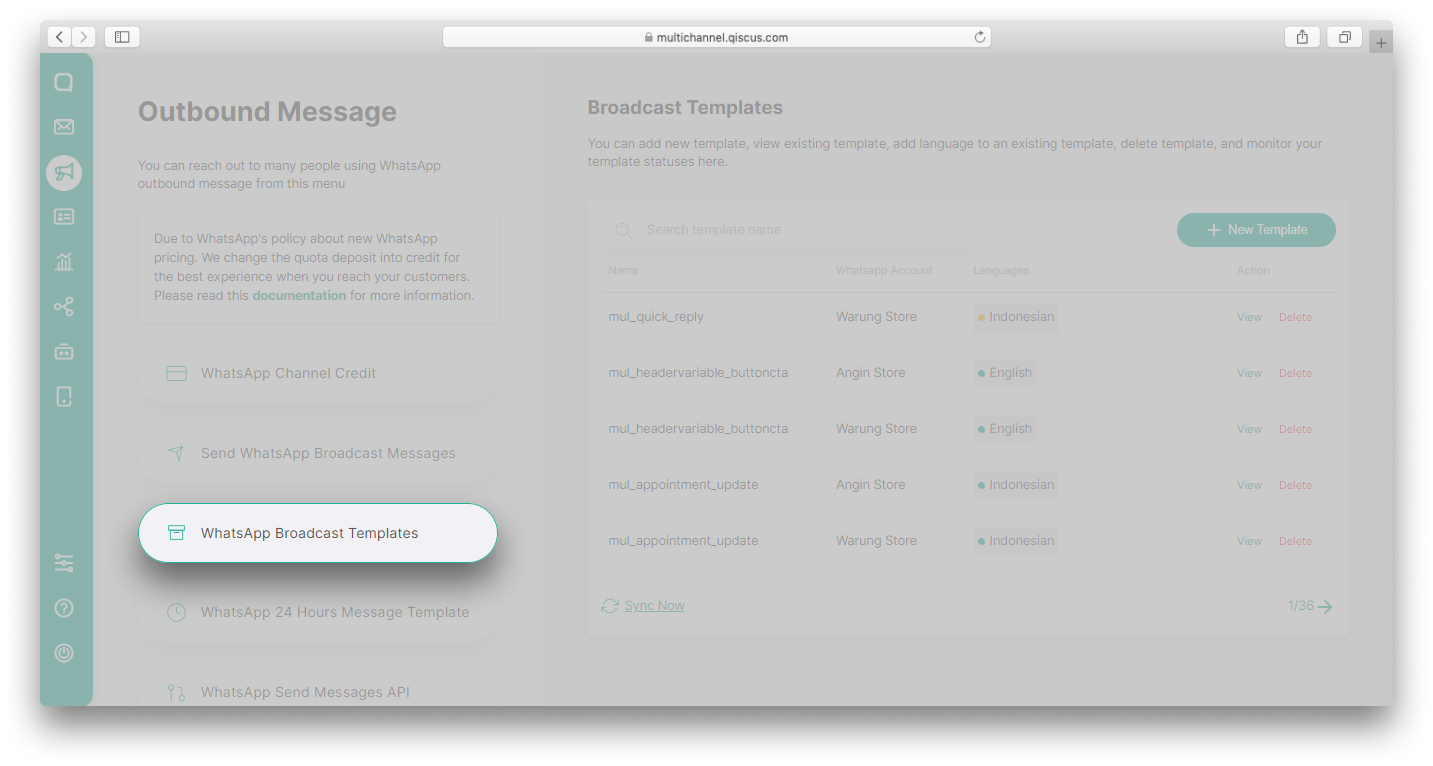
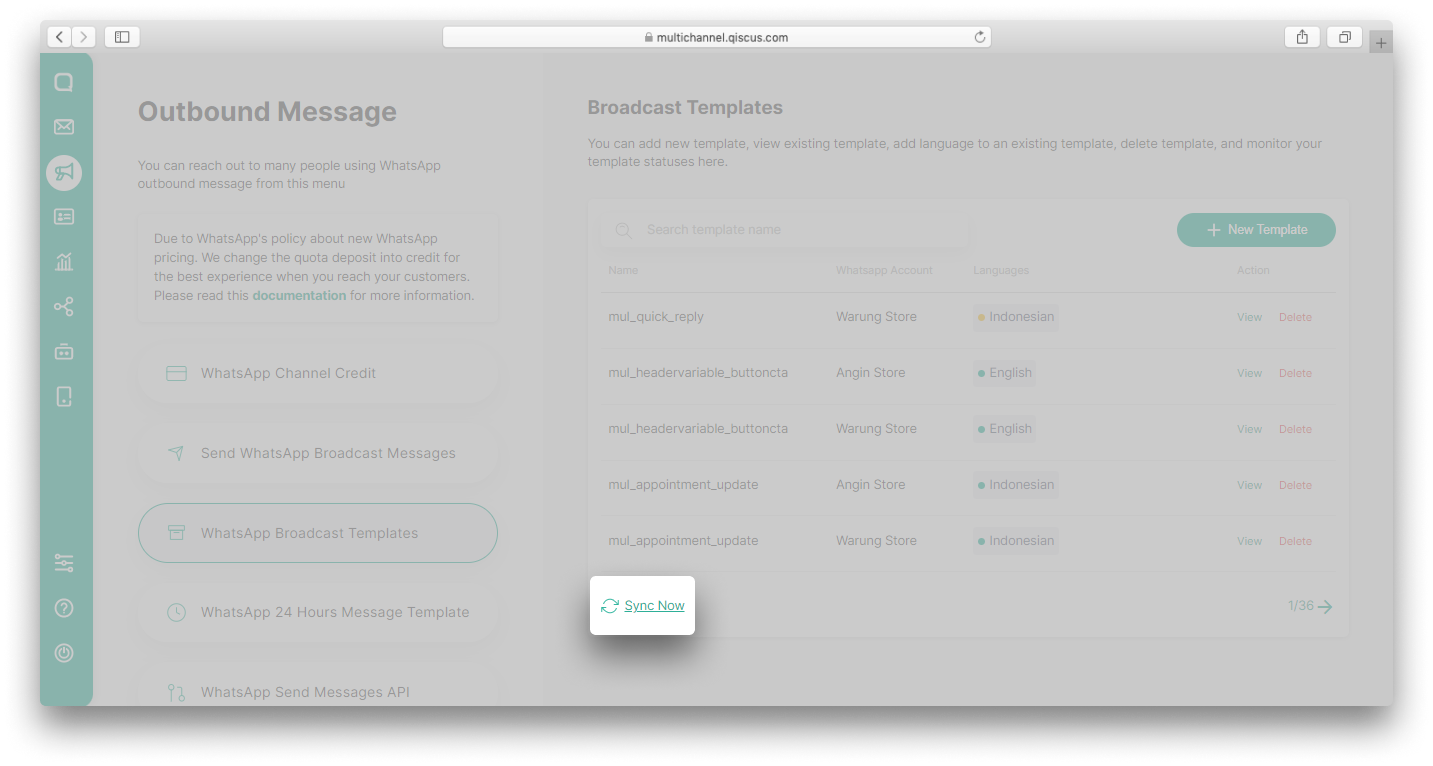
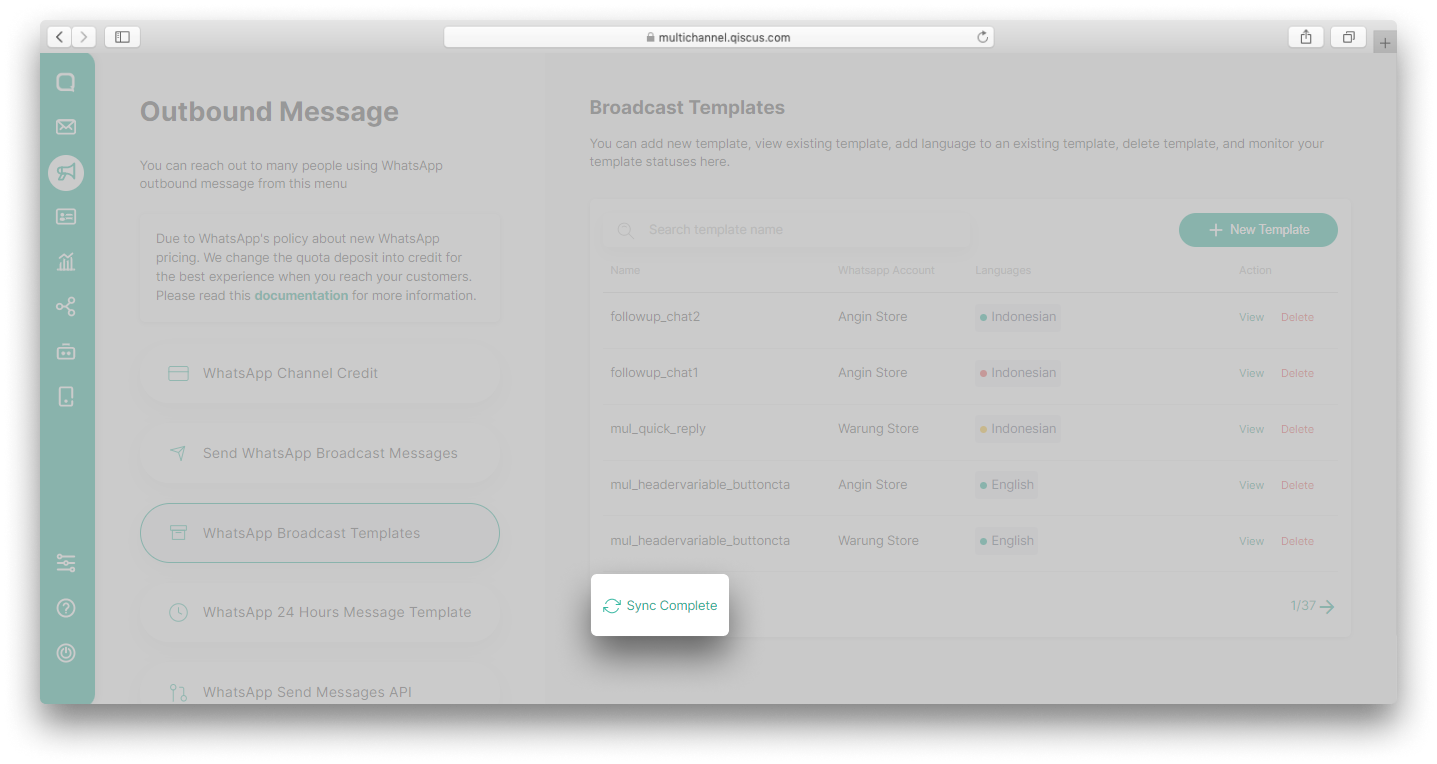
- Click Sync Now button,
- Choose the WhatsApp Account,
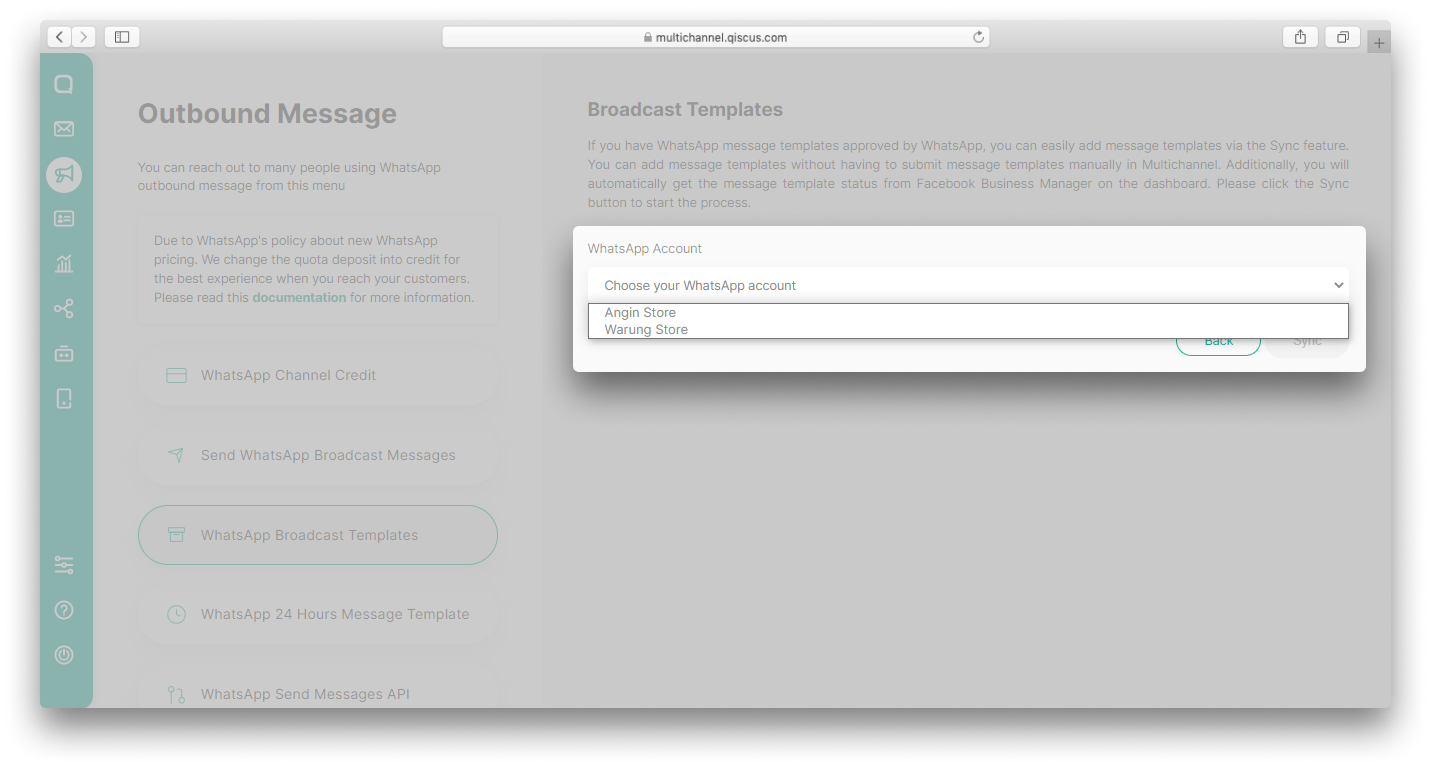
Auto Sync WhatsApp template feature is only work for WhatsApp Business On-Cloud API
- Click Sync button,

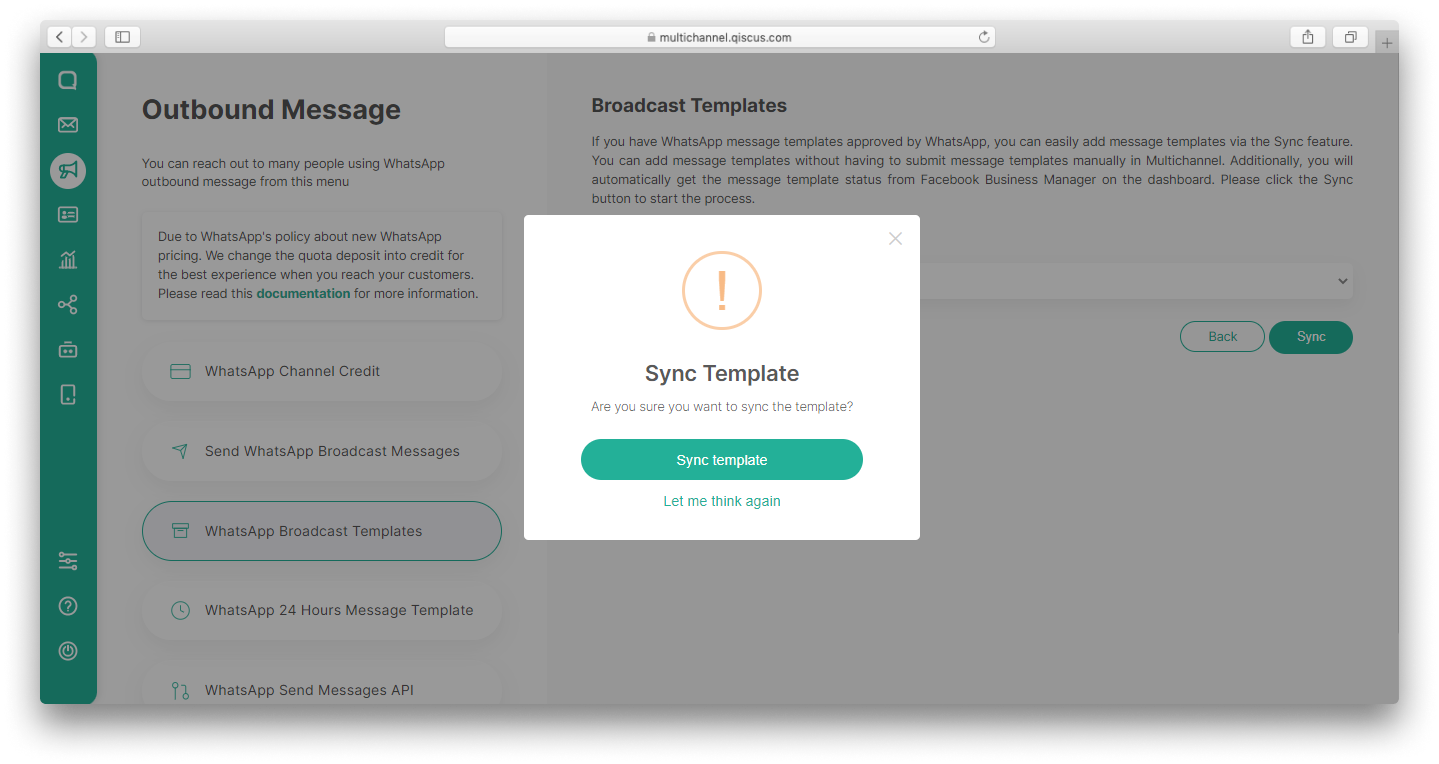
- Click the Sync template in the confirmation pop up,
- Wait until the Sync process is complete,
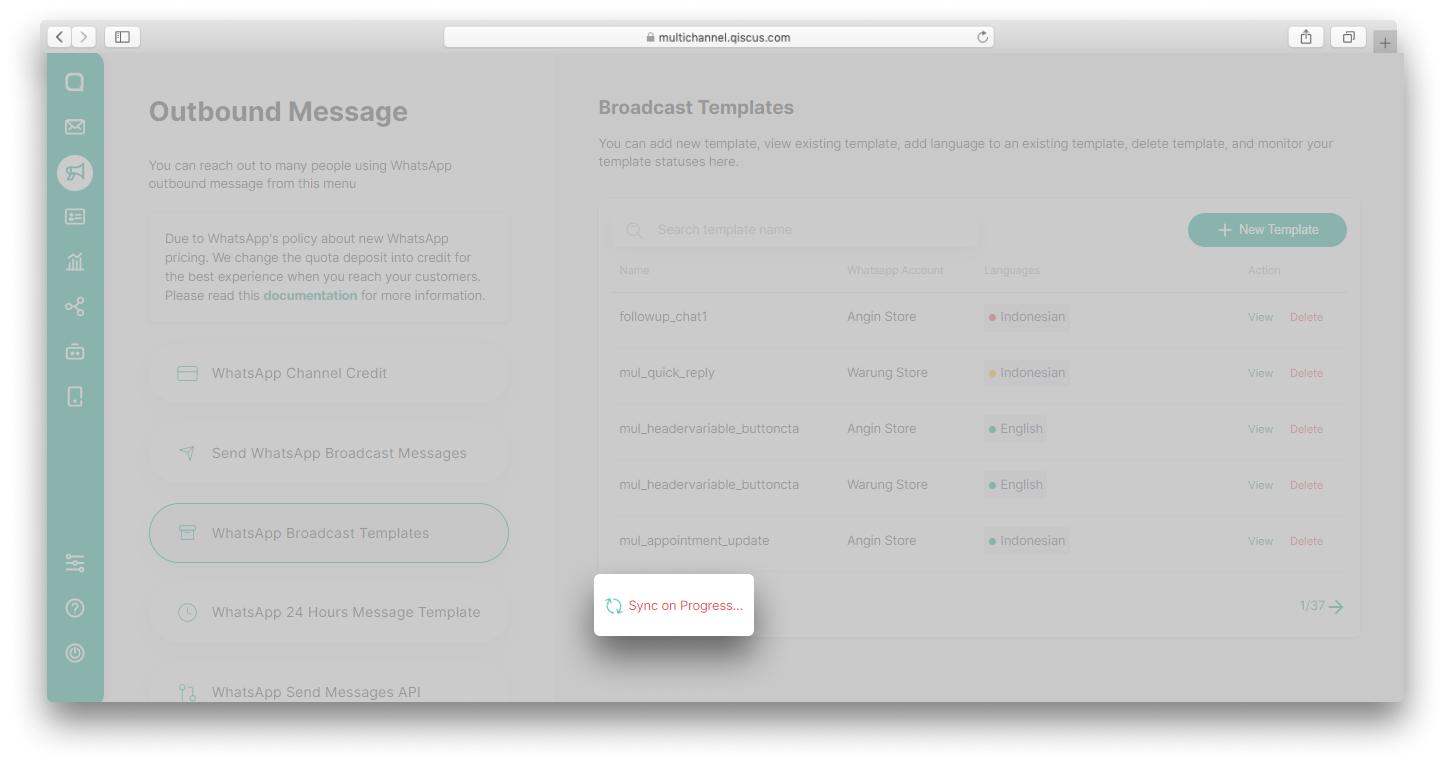
- Once complete, the button will be Sync Complete.
Broadcast to All Channels
Sending broadcast messages can be an effective way to convey important information to customers such as information regarding schedule changes to one or many customers. One of the most widely used channels for sending broadcast messages is WhatsApp. However, because a business usually has many channels that are used as a medium of communication with customers, sending a broadcast message to another channel increases the likelihood that the message will be delivered better.
The Broadcast to All Channels feature from Qiscus will help you to send broadcast messages to many other channels besides WhatsApp. Currently, you can send broadcast messages to 5 other channels, Facebook, Instagram, Telegram, Line, and Custom Channel. Each channel has regulations that you should consider.
| Channel | Regulation |
|---|---|
| You need an approved message template if the customer’s last message is more than 24 hours | |
| Broadcast messages can be sent a maximum of 24 hours from the customer’s last message | |
| Broadcast messages can be sent a maximum of 7 days from the customer’s last message | |
| Telegram | There are no restrictions on broadcasting |
| Line | There are no restrictions on broadcasting |
| Custom Channel | Depends on the respective channels that are integrated |
Important note:
- You can only send broadcasts to all channels provided that the customer has contacted your business from that channel.
- You can add a maximum of 1,000 characters for broadcast ( exclude WhatsApp channel ).
Send Broadcast to All Channels
Follow these steps to send broadcast to all channels:
- Go to Outbound Message menu and select Broadcast to All Channels,
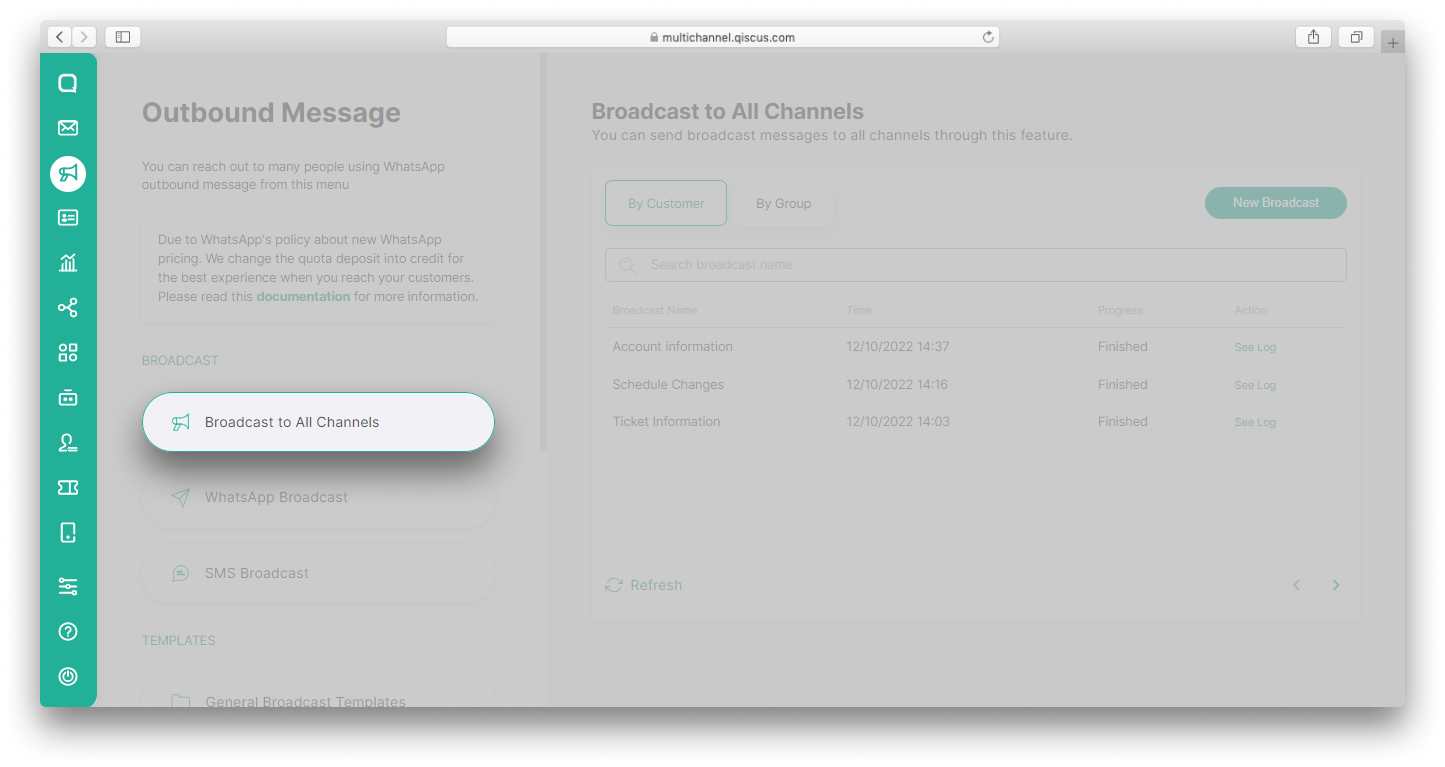
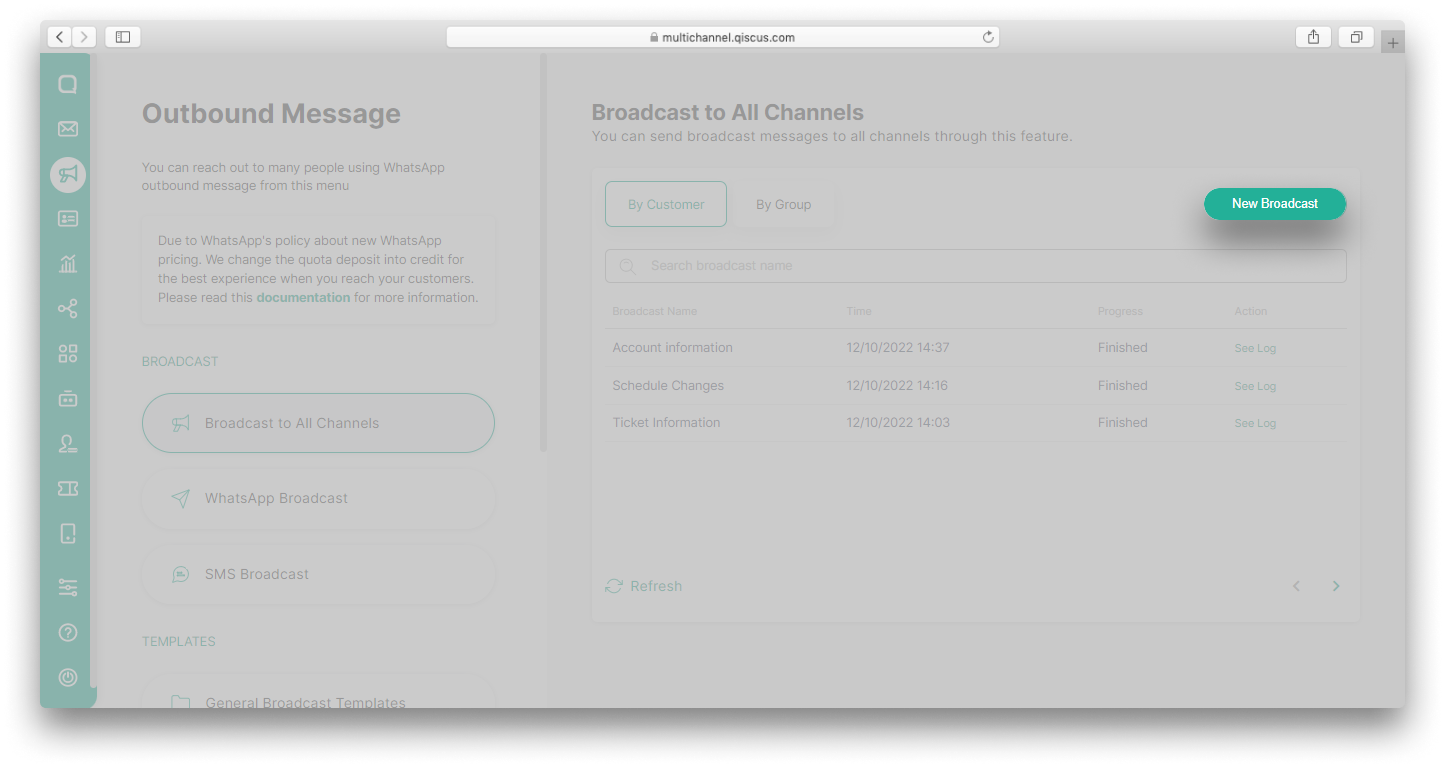
- Click New Broadcast button,
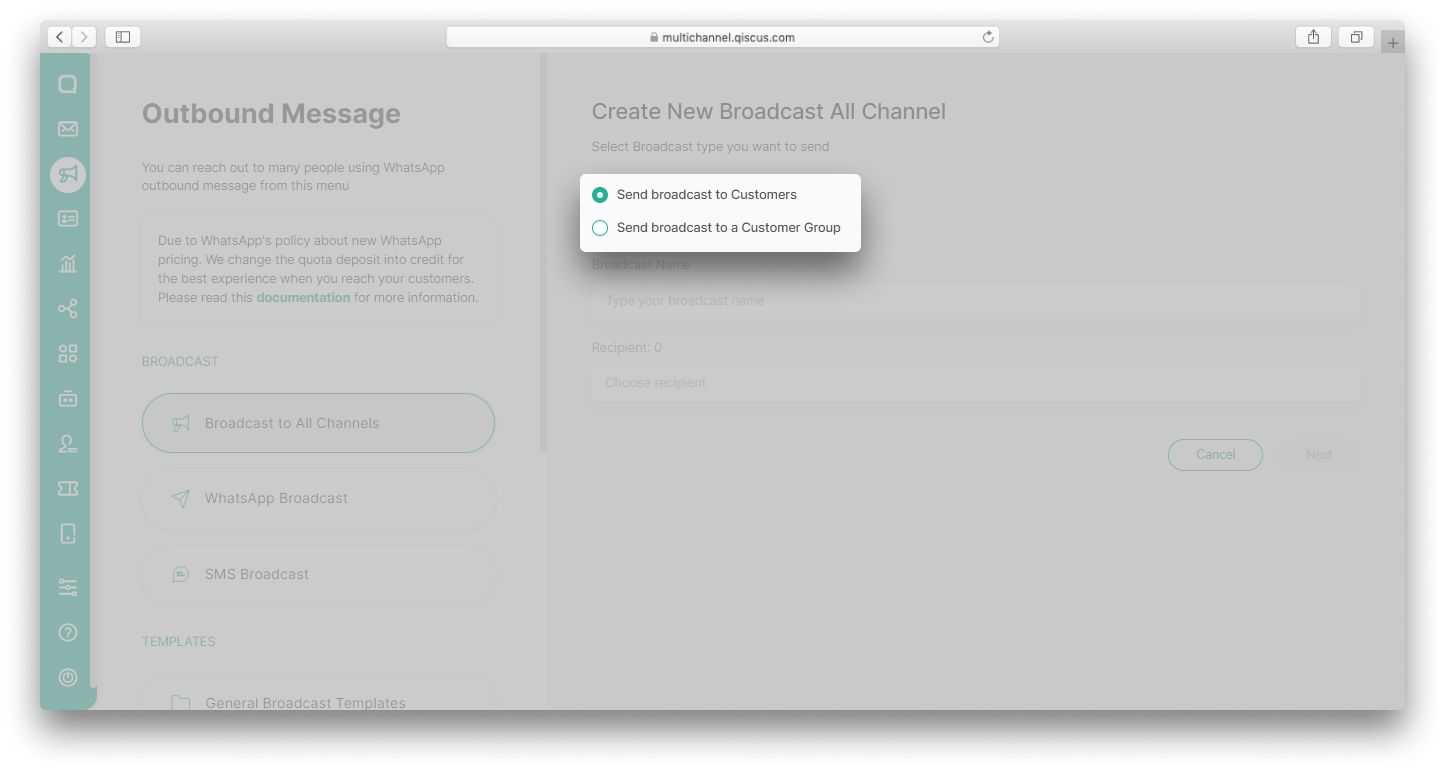
- You can choose to send the broadcast to Customers or to a Customer Group,
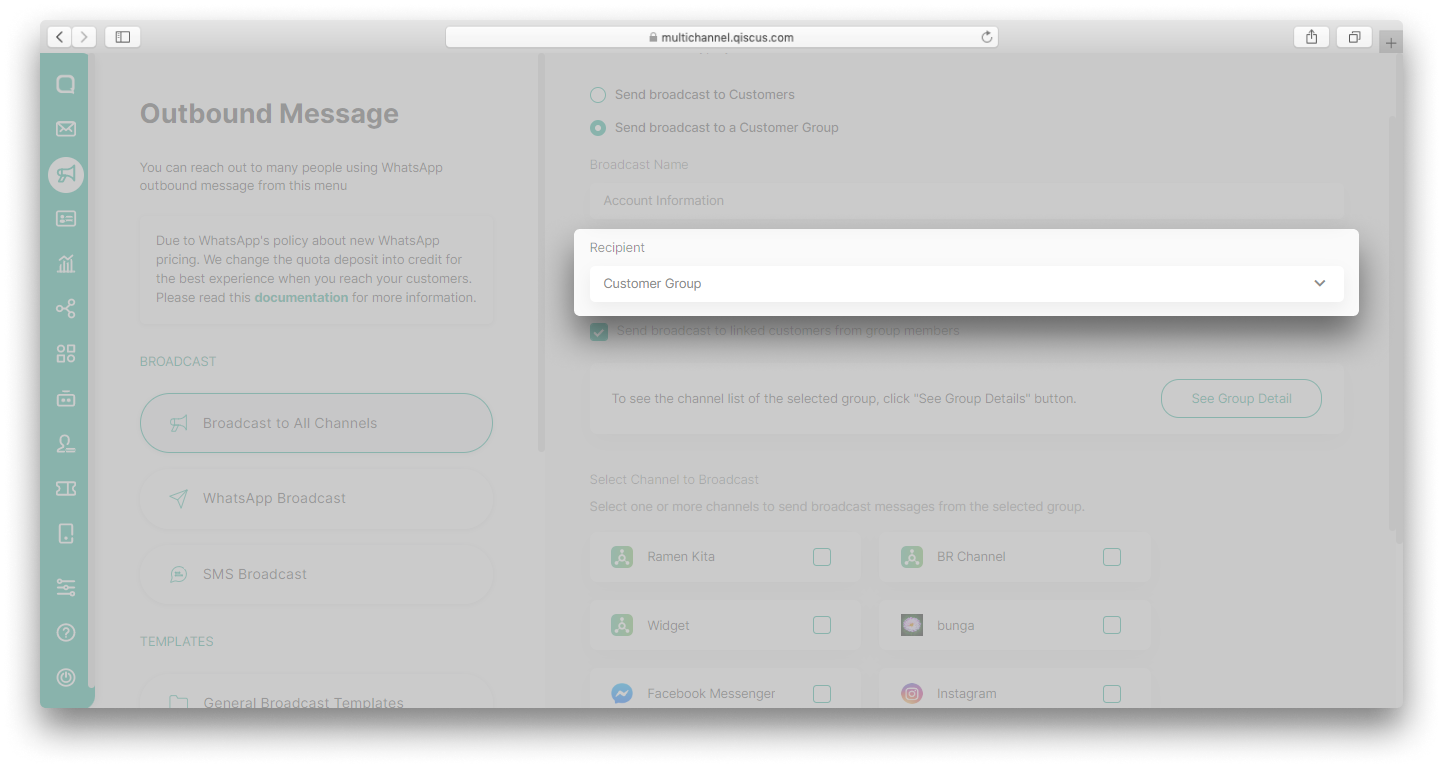
- Fill in the Broadcast Name and Recipient,
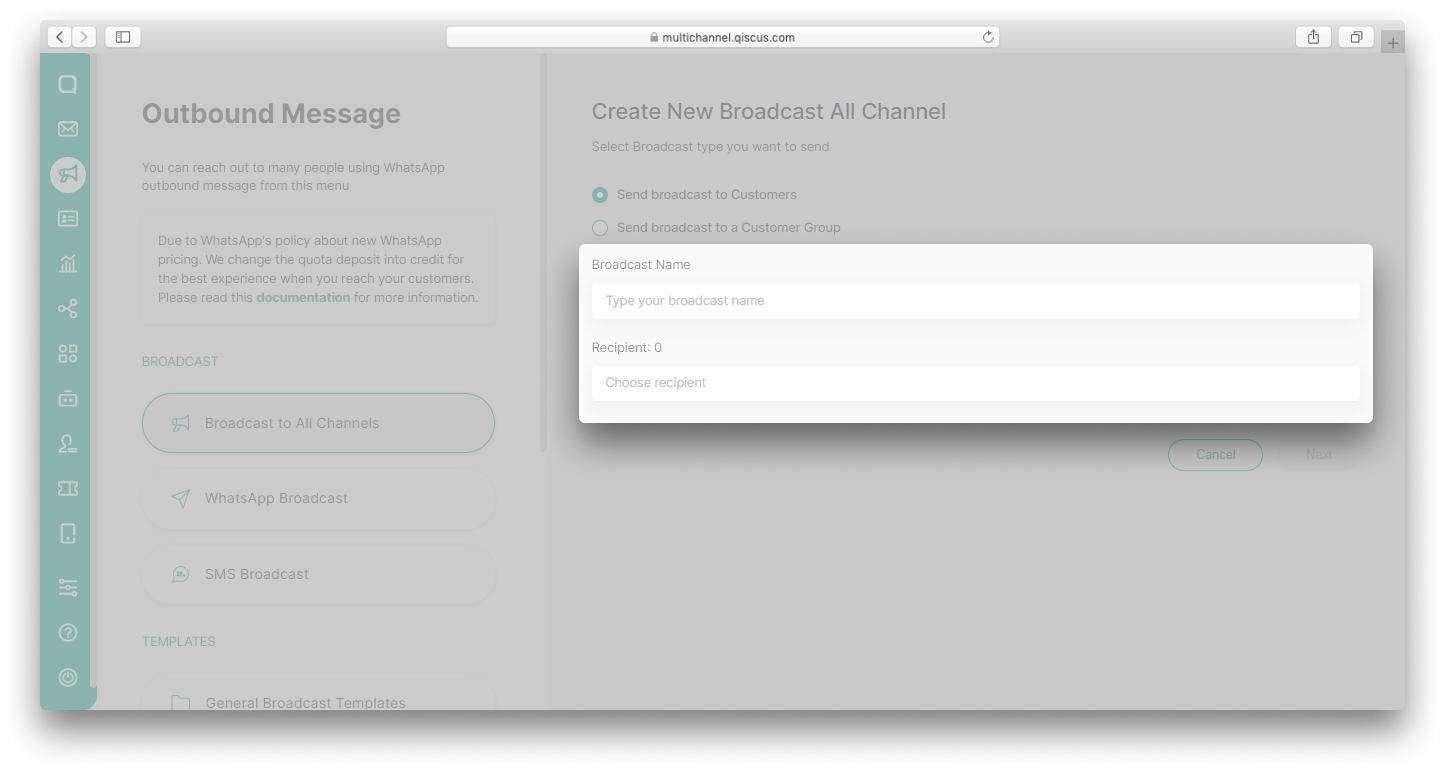
If you choose to send the broadcast to Customers:
- You will see a list containing all of your customers. You can select one or more recipient,
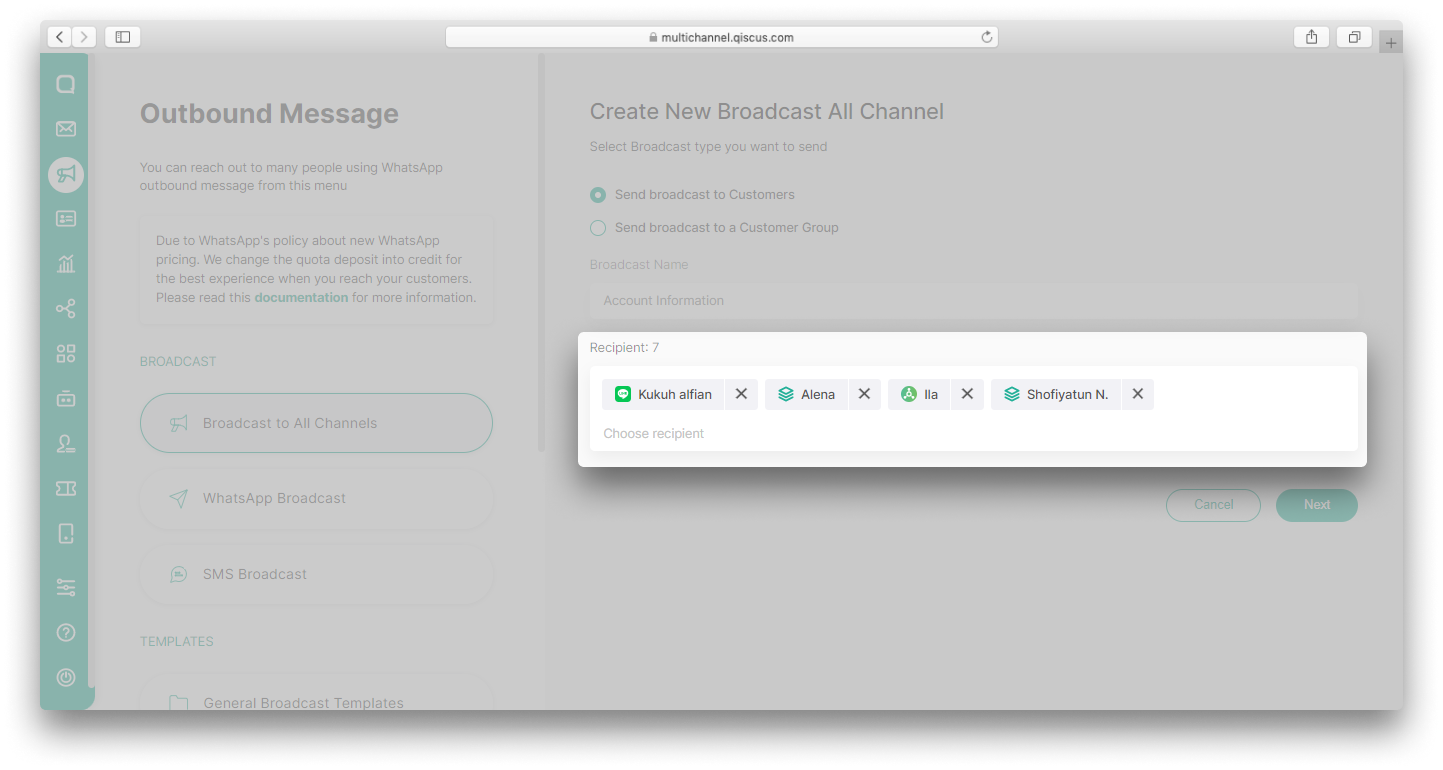
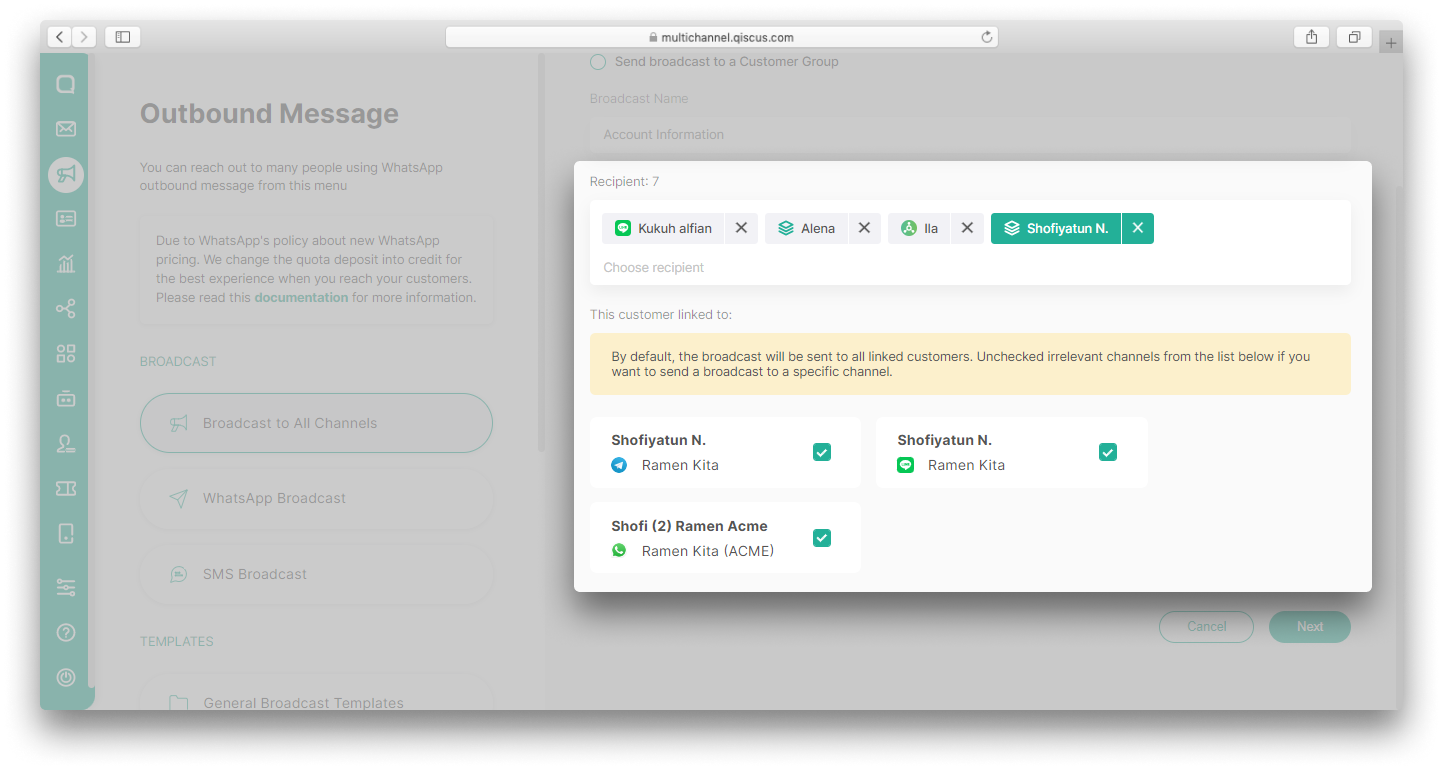
- If there is a linked customer among the list of recipients, you can select a specific channel from the linked customer to be broadcast, and then click Next,
- Configure the Message Content you want to send for each channel. You can create new content or use an existing template. Click Next,
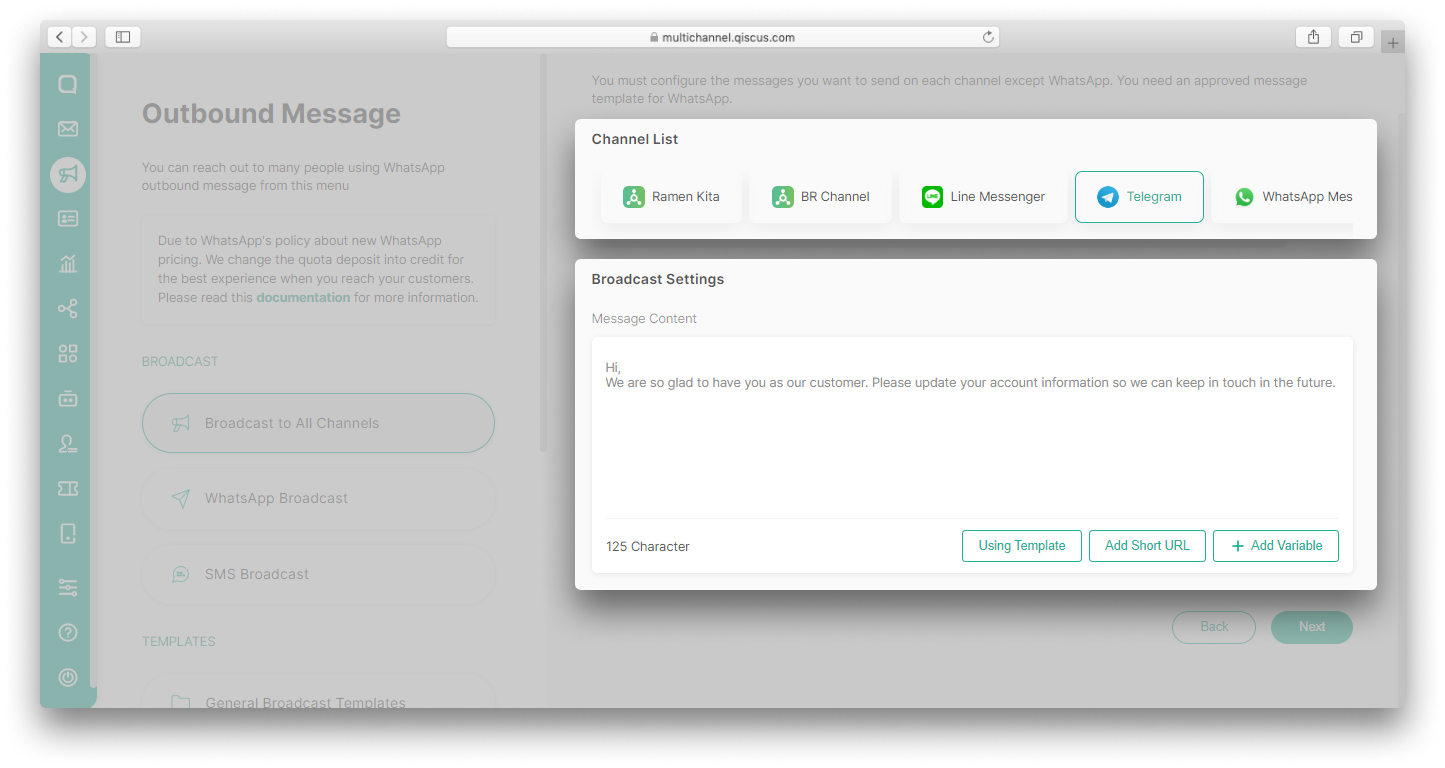
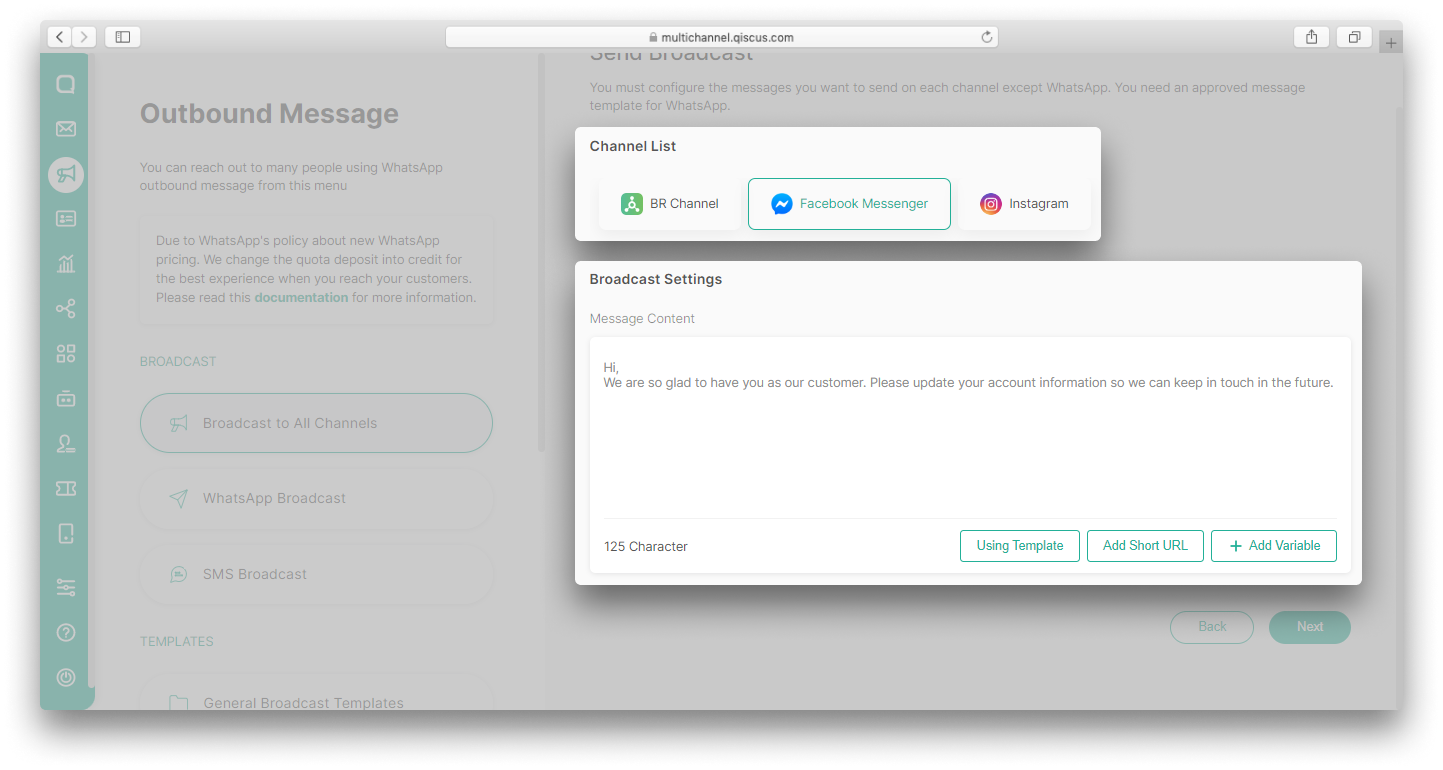
You must configure the messages you want to send on each channel except WhatsApp.
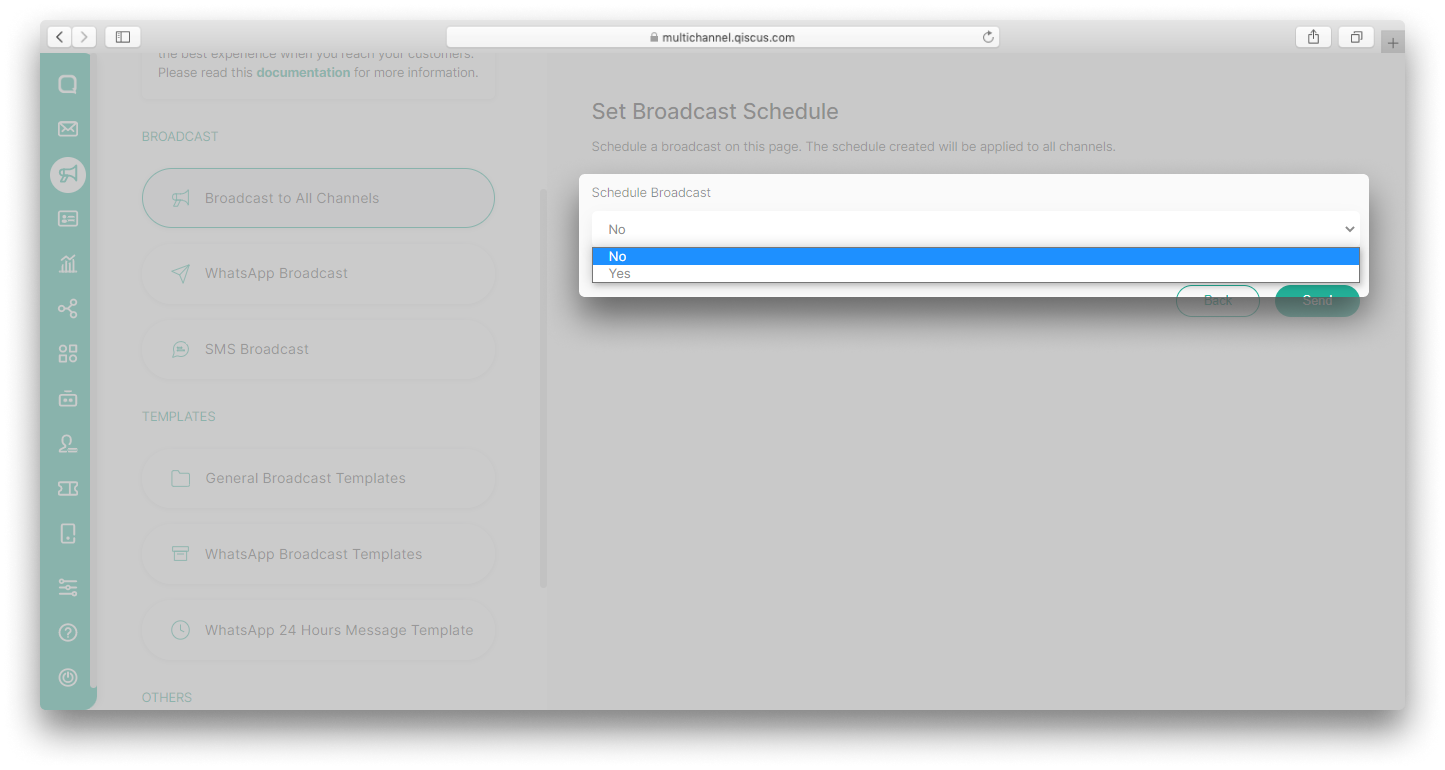
- Set Broadcast Schedule if you want to schedule the broadcast. Select No if you want to send the broadcast immediately, and then click Send,
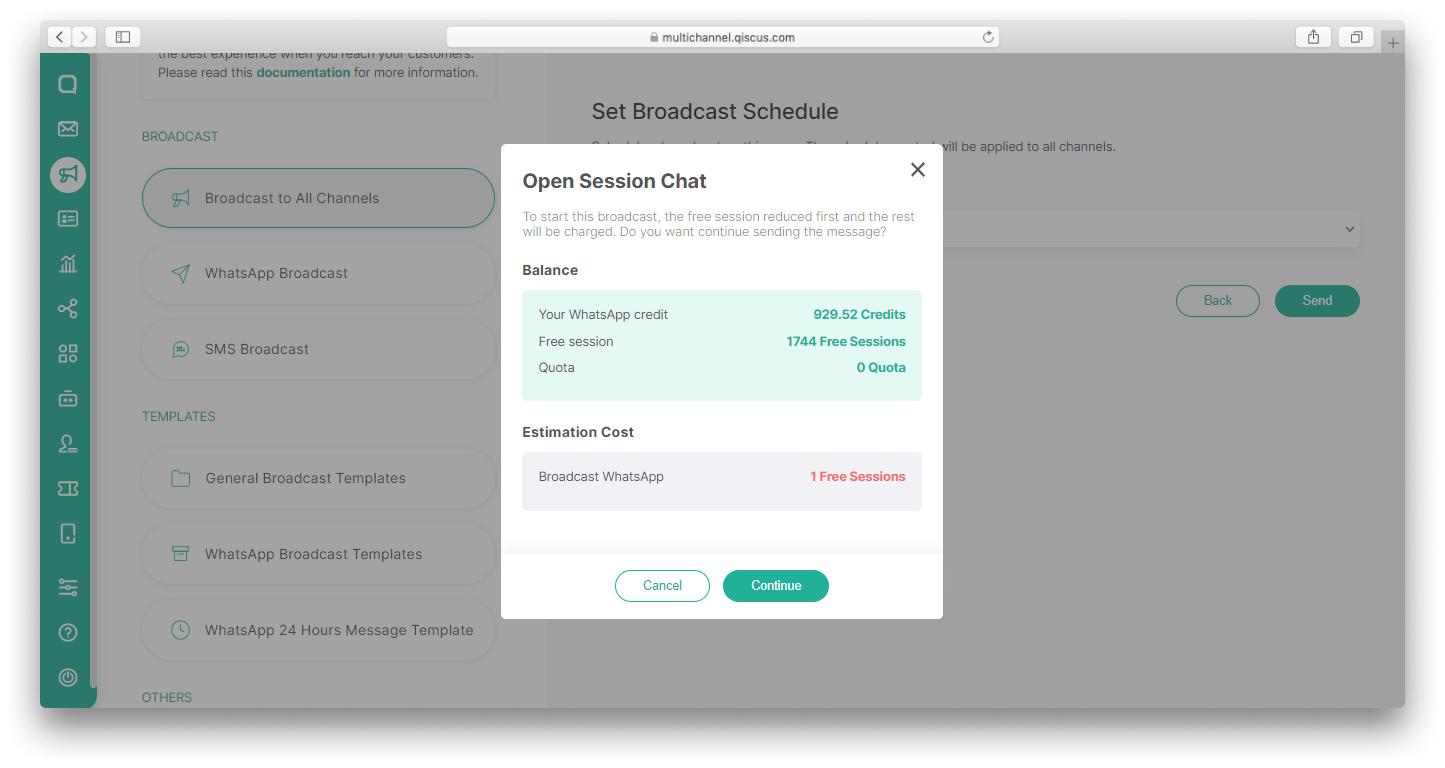
- If there is a WhatsApp channel, a pop up will appear informing you of balance and cost information. Click Continue.
If you choose to send the broadcast to a Customer Group:
- You will see a list containing all of your customer groups. You can only select one customer group,
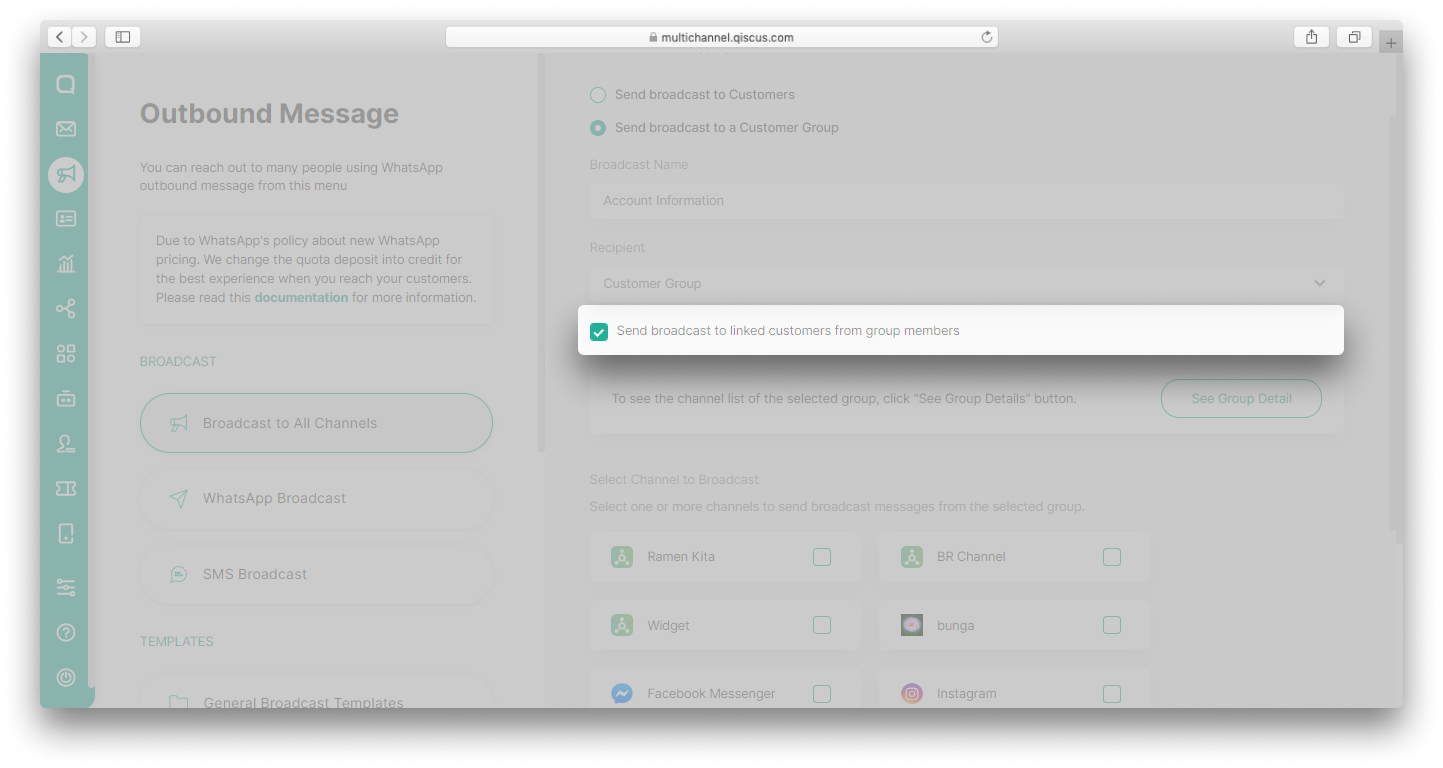
- Check “Send broadcast to linked customers from group members” if you want to send the broadcast to linked customers,
- Click See Group Detail button if you want to see the channel list of the selected group,
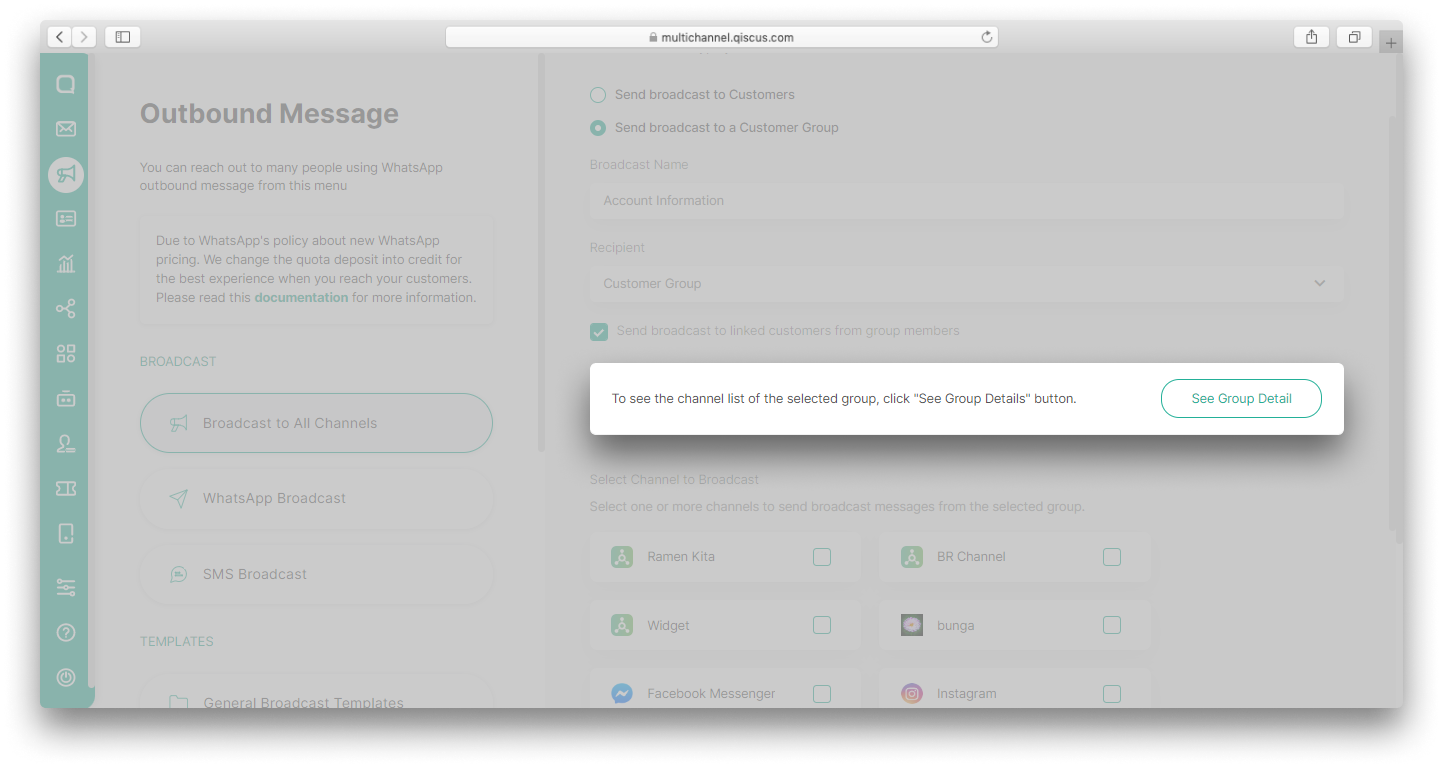
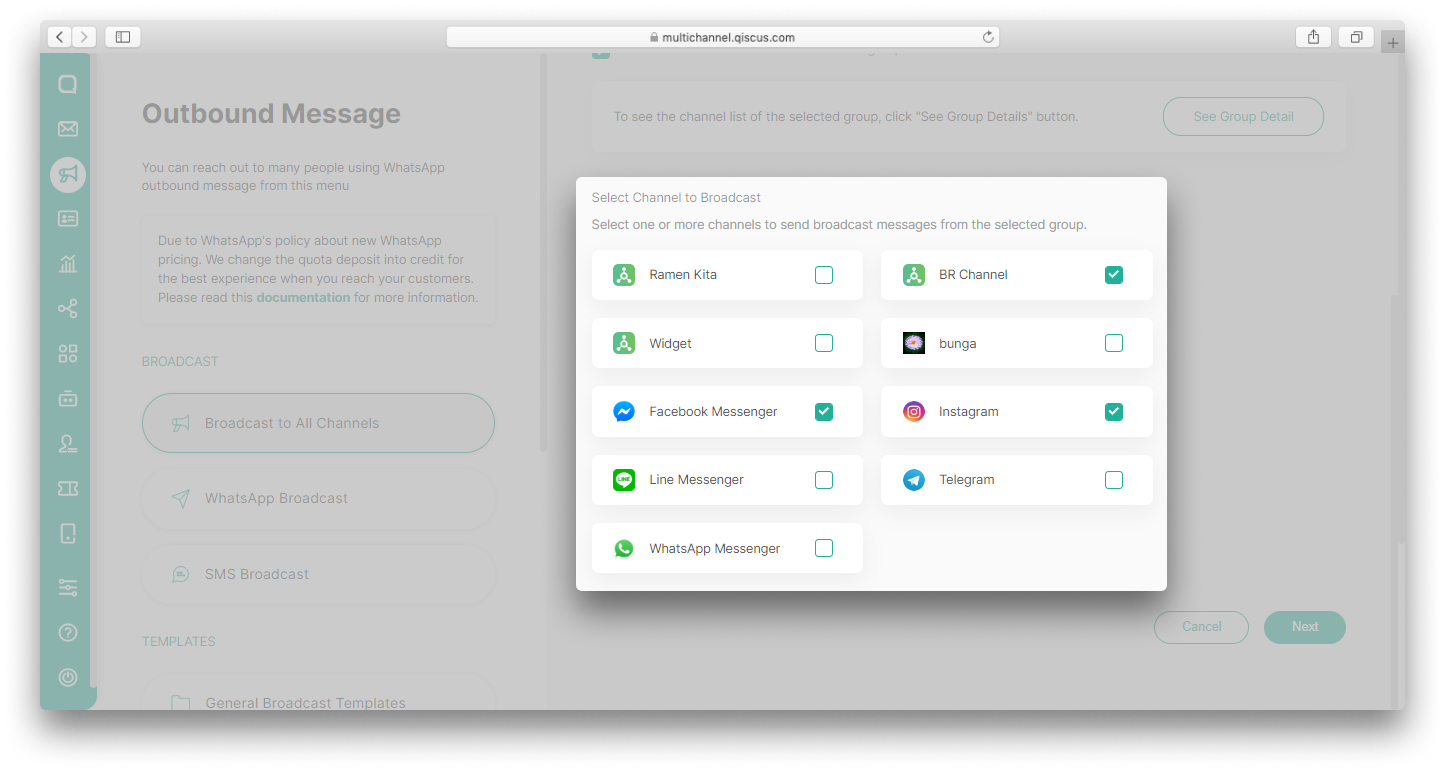
- Select Channel to Broadcast from the list provided and then click Next,
- Configure the Message Content you want to send for each channel. You can create new content or use an existing template. Click Next,
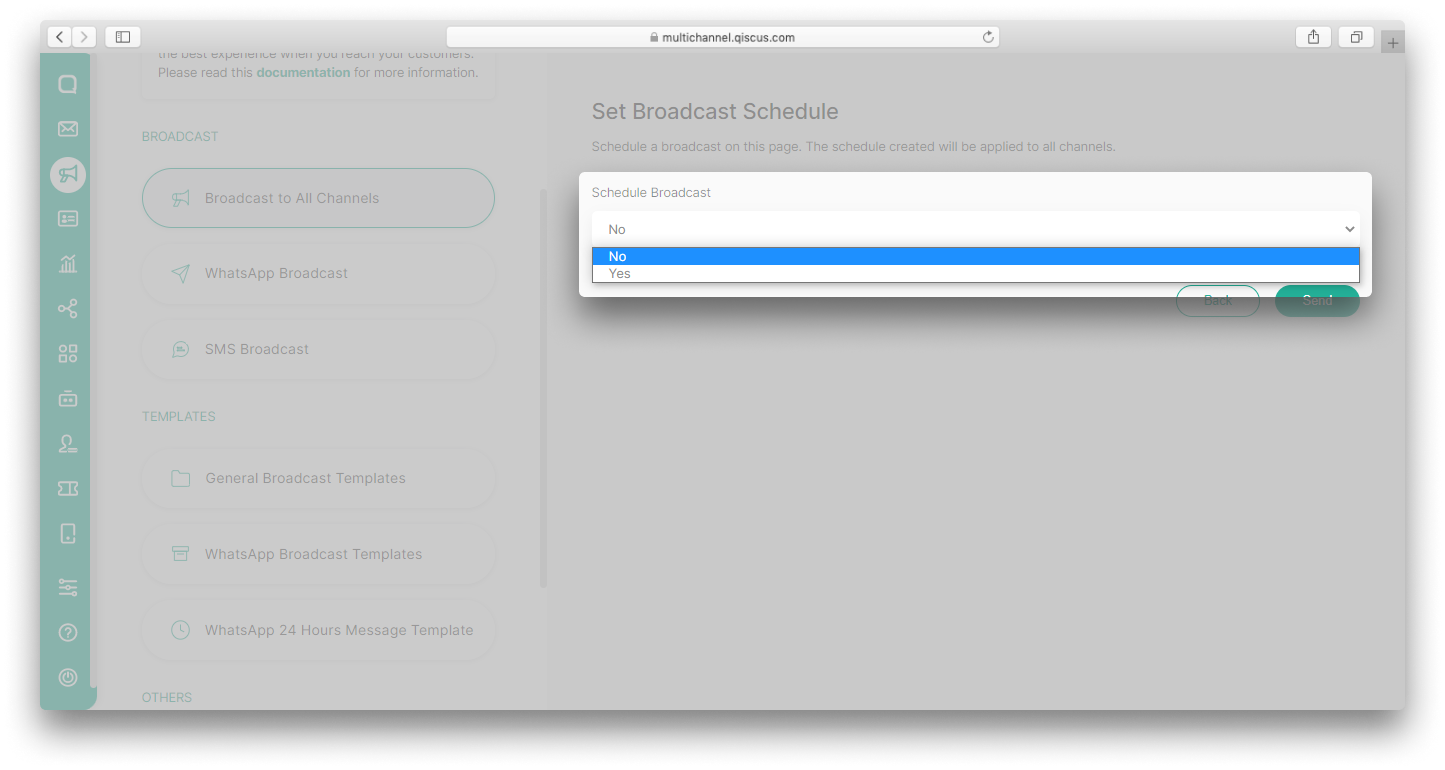
- Set Broadcast Schedule if you want to schedule the broadcast. Select No if you want to send the broadcast immediately, and then click Send.
View Broadcast Log
To view the broadcast logs, follow these steps:
- Go to Outbound Message menu and select Broadcast to All Channels,
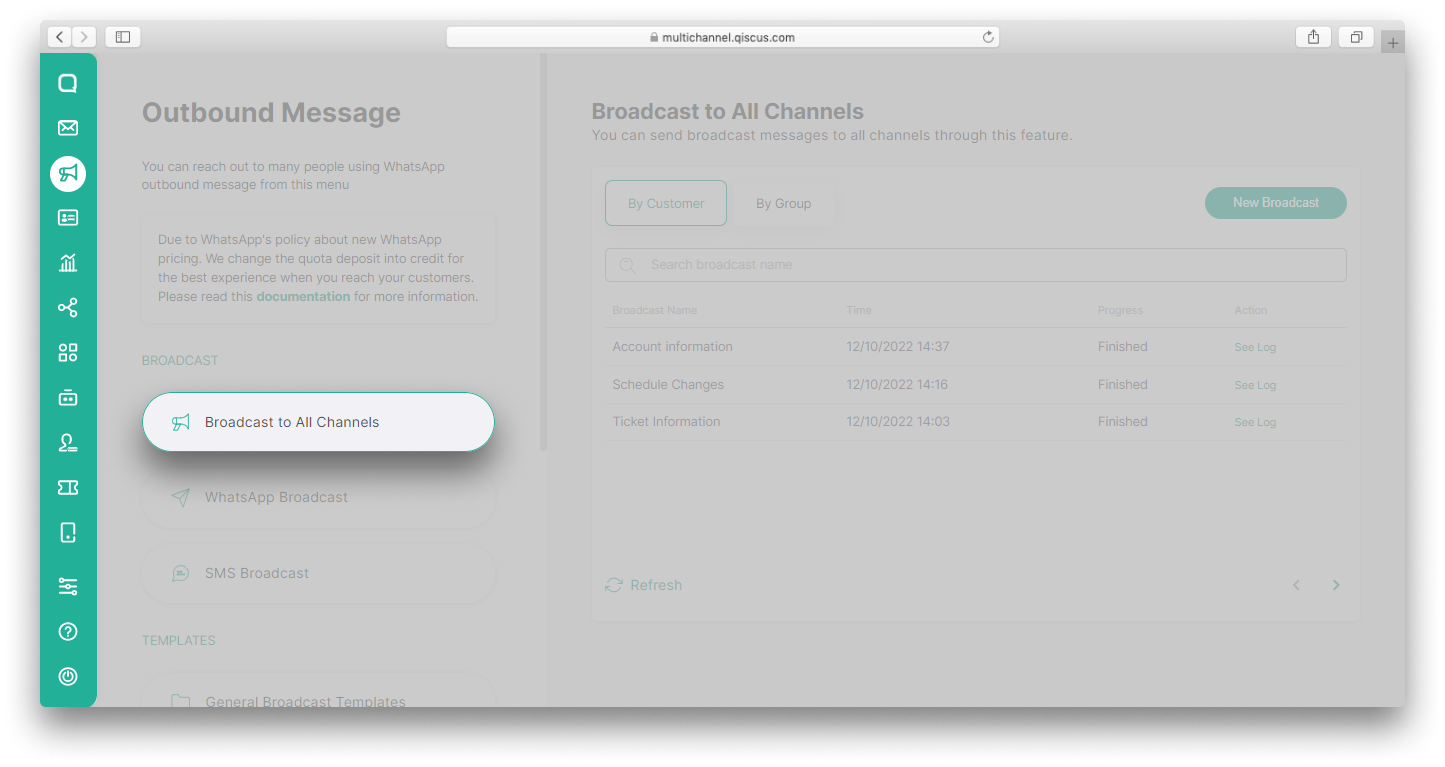
- Select the broadcast type, By Customer or By Group,
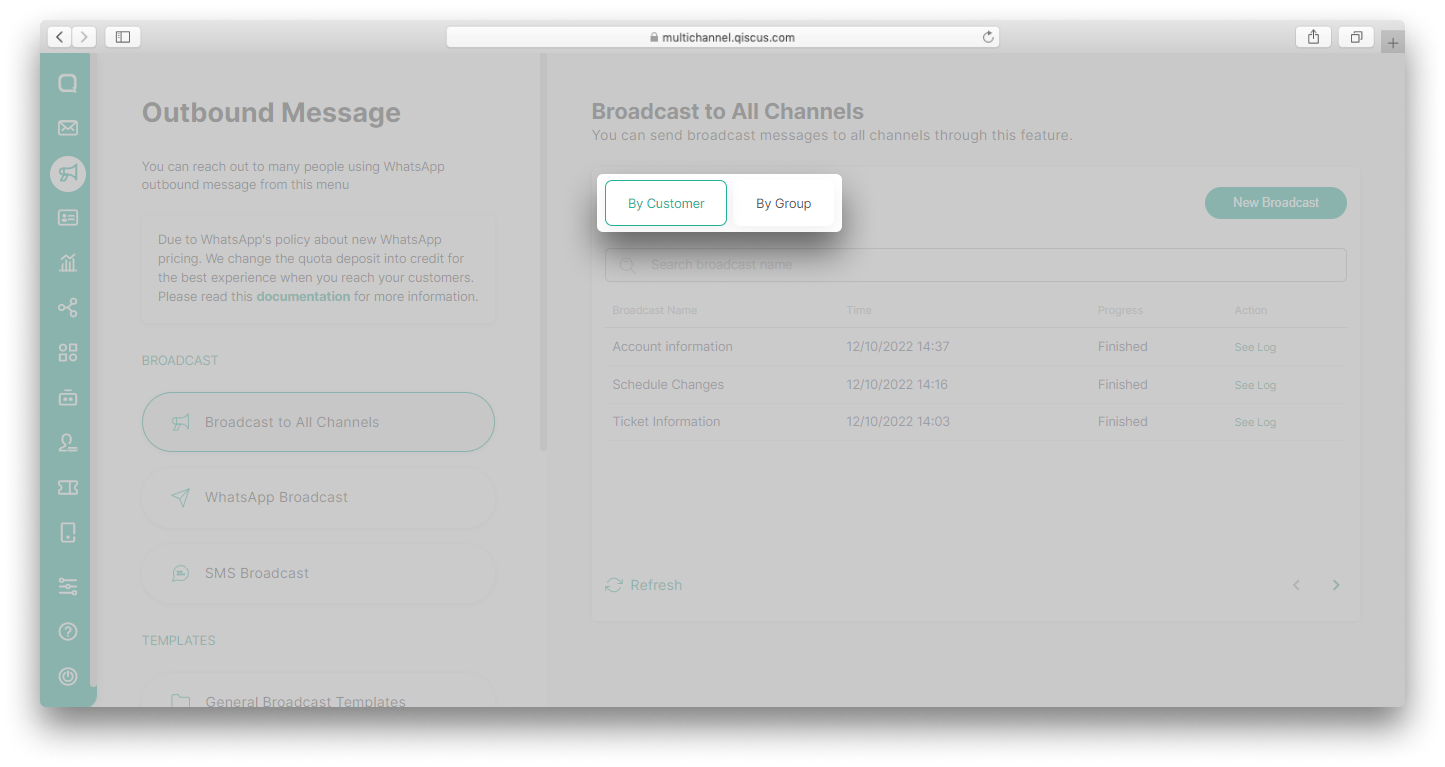
- Click See Log,
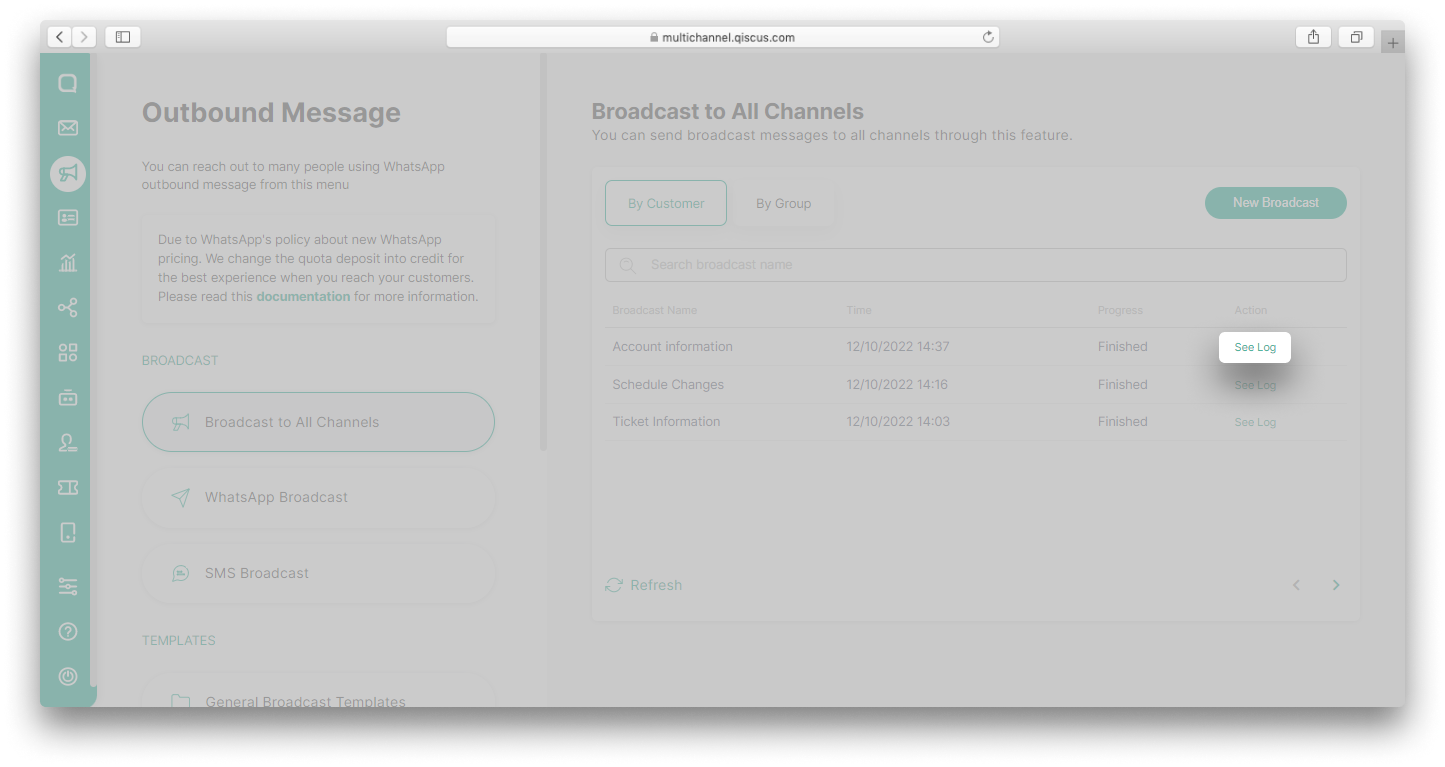
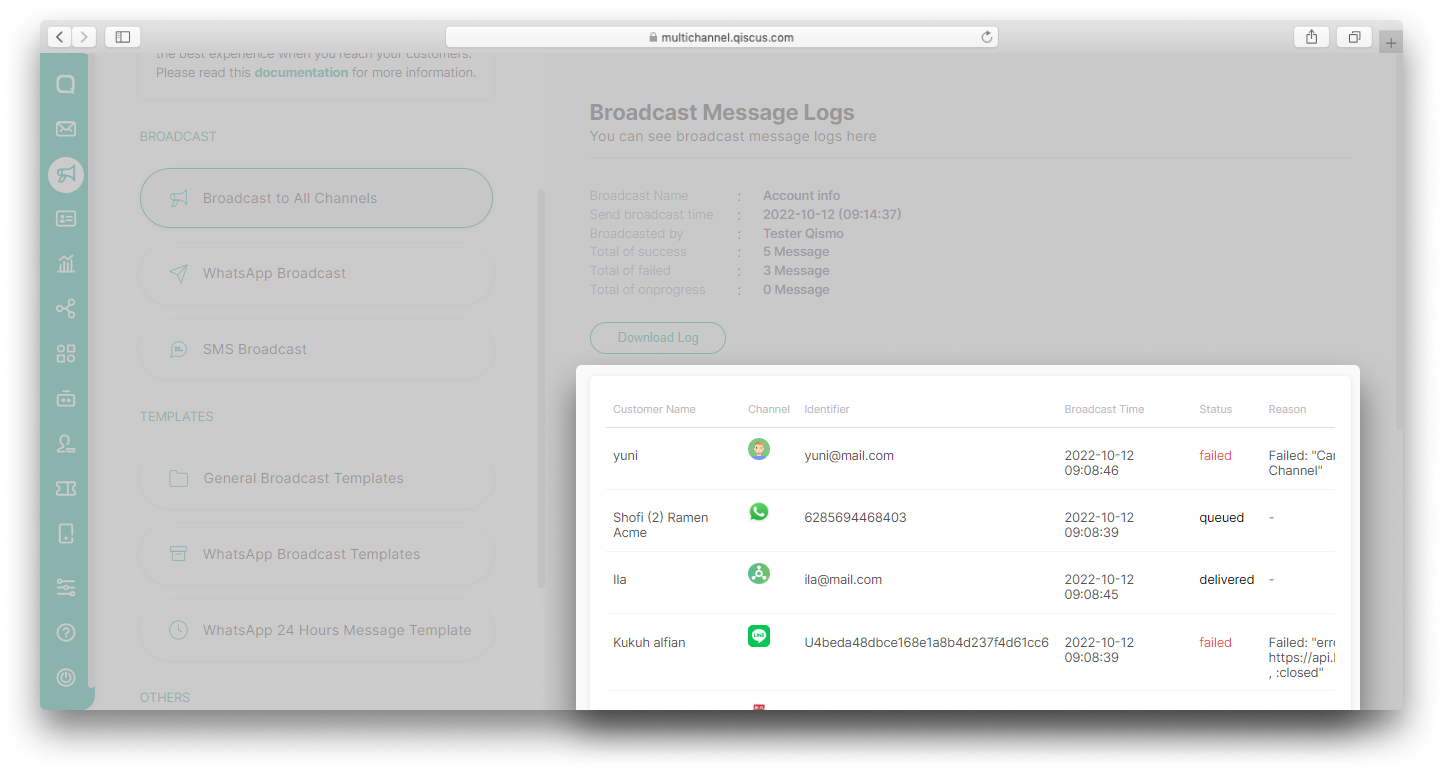
- You will see the broadcast report. If the broadcast is not sent, there will be a reason for the failed delivery.
Create General Broadcast Template
Similar to WhatsApp templates, you can also create general templates that can be used to send broadcasts to other channels. Here are the steps:
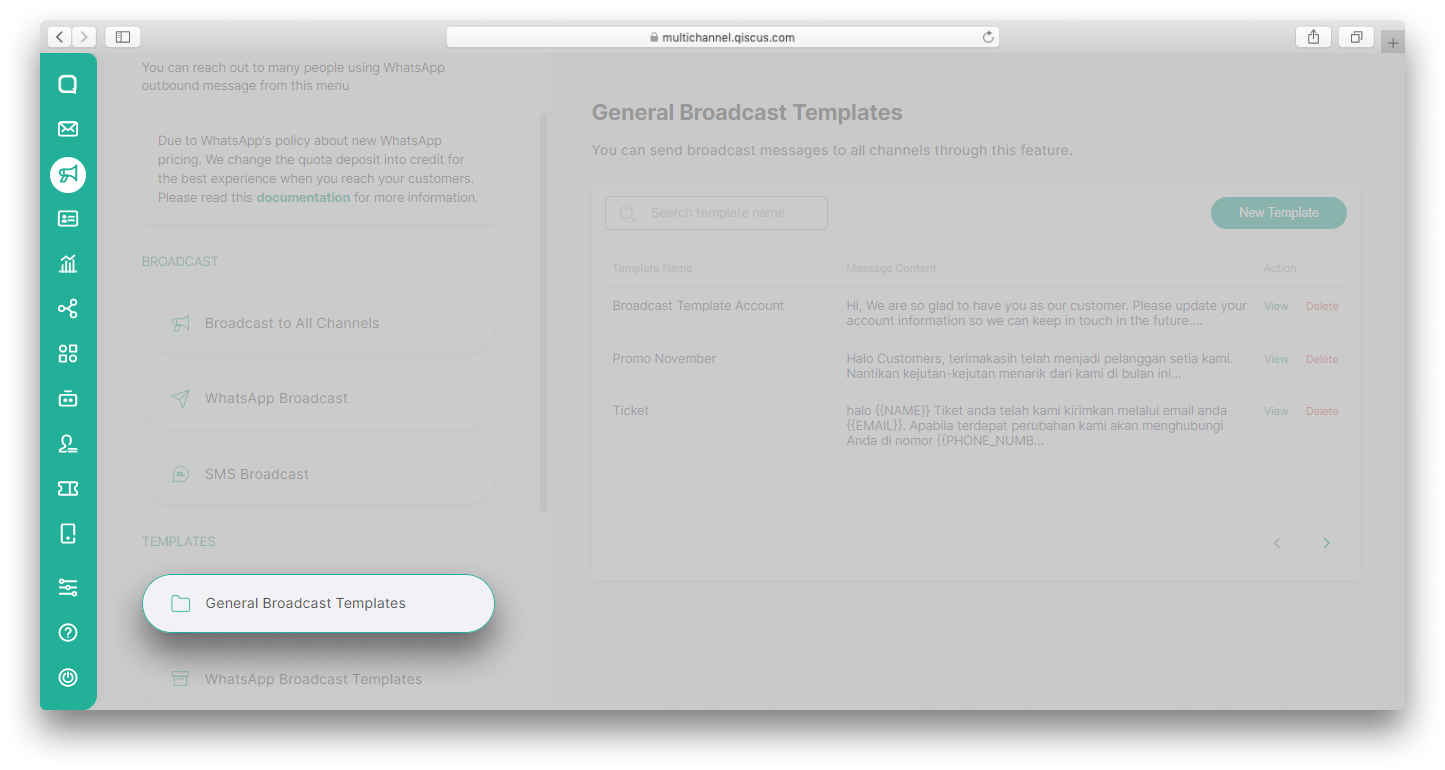
- Go to Outbound Message menu and select General Broadcast Templates,
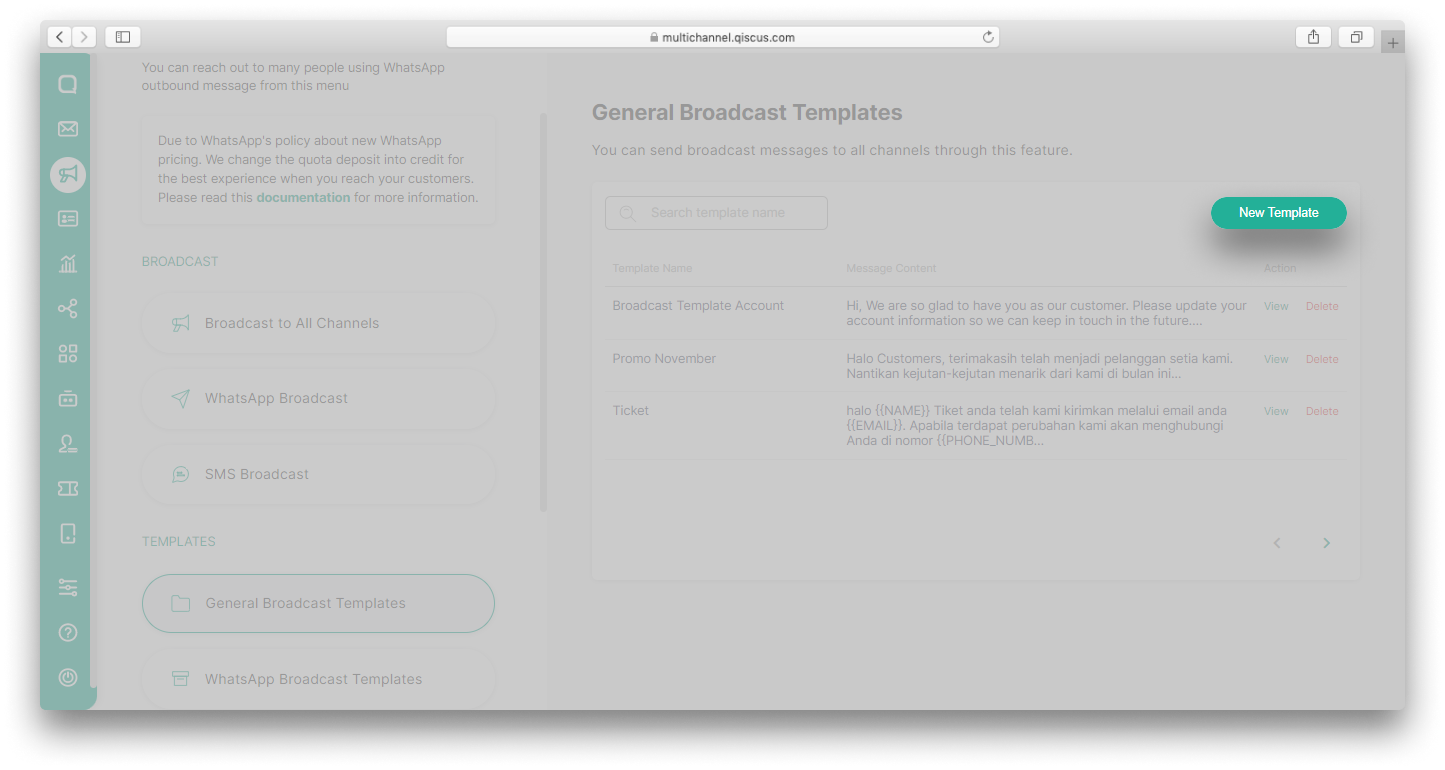
- Click New Template button,
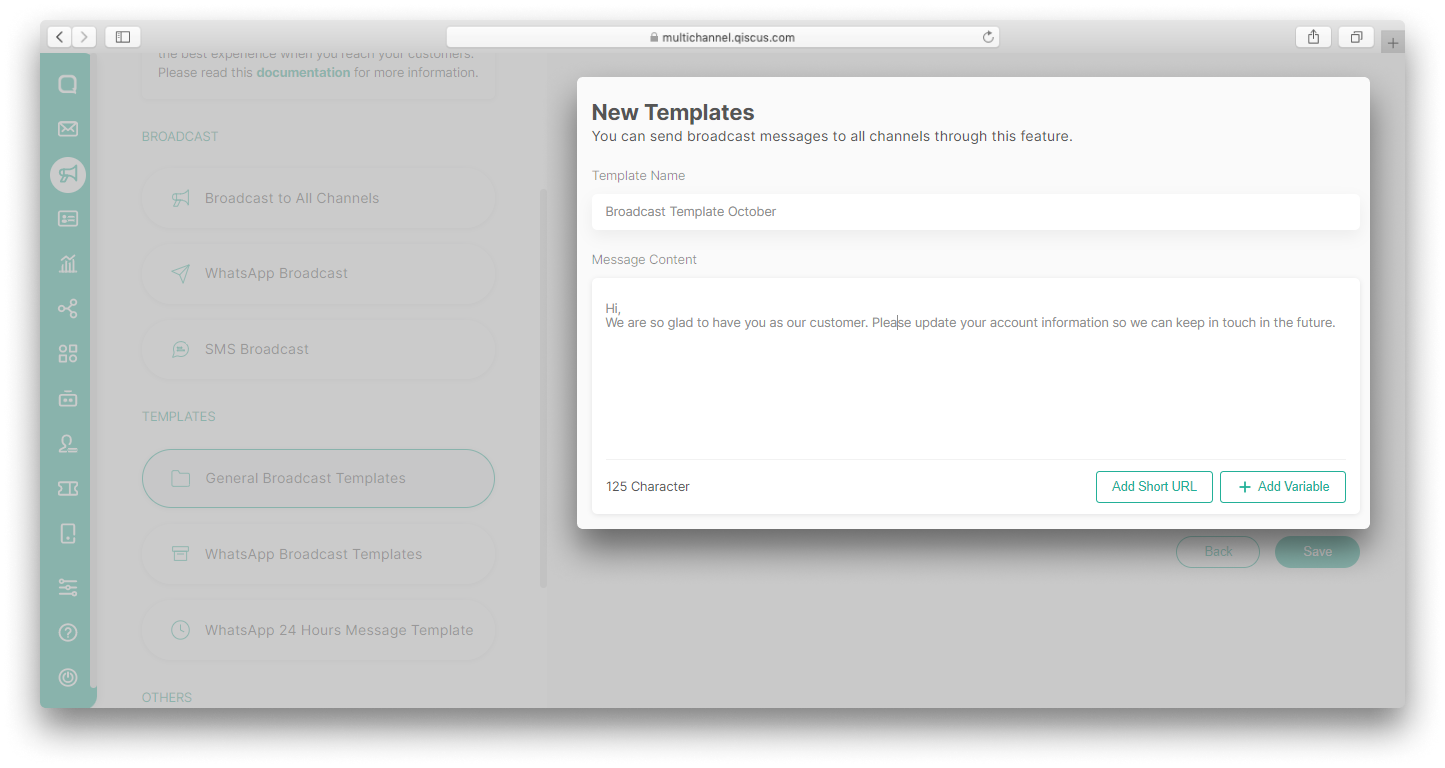
- Fill in the Broadcast Name and the Message Content. You can also add Short URL and variables in the template. Click Save,
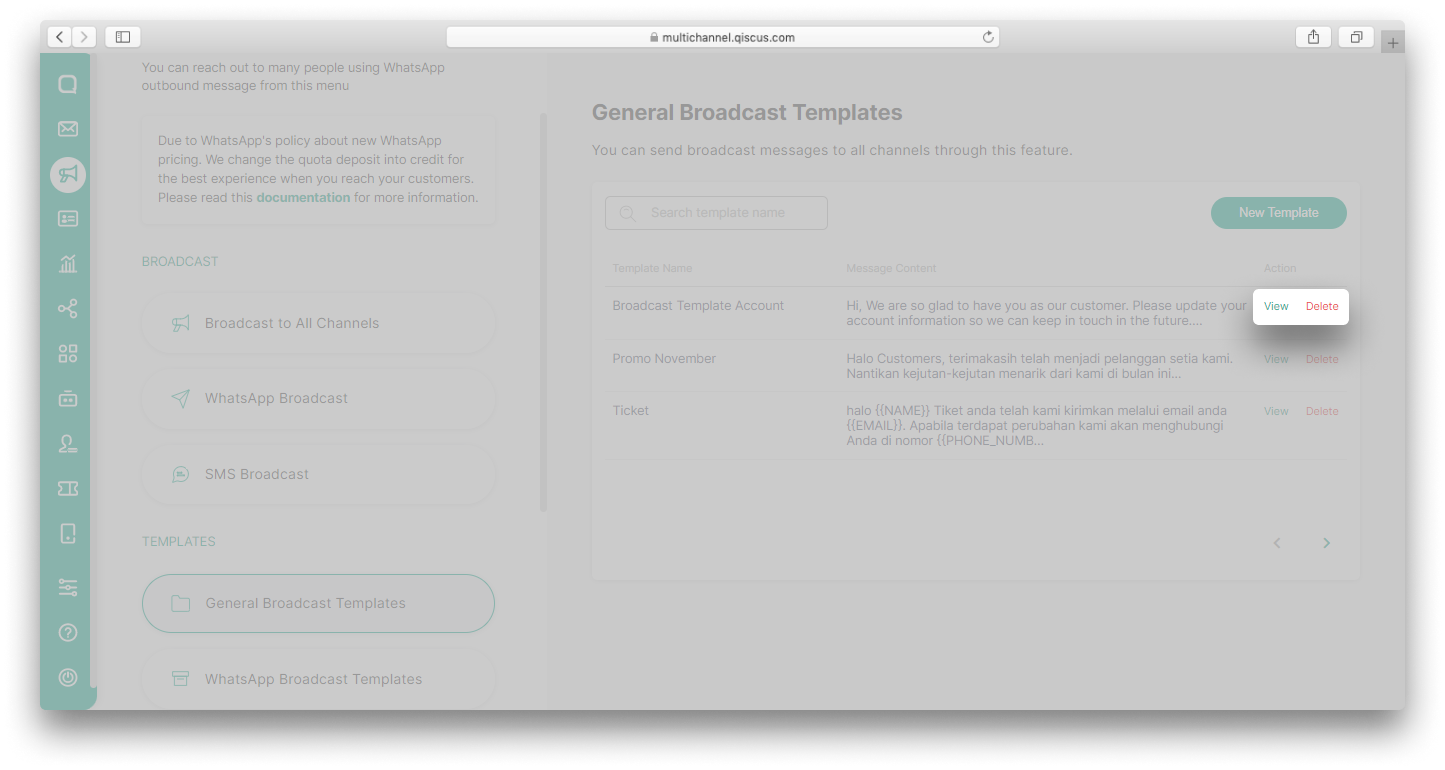
- The template you created will appear in the template list. Click View button to edit the template or Delete button to delete the template.
Broadcast to All Channels Analytics Report
You can get a detailed full report from Broadcast to All Channels with the following steps:
- Go to Analytics menu,
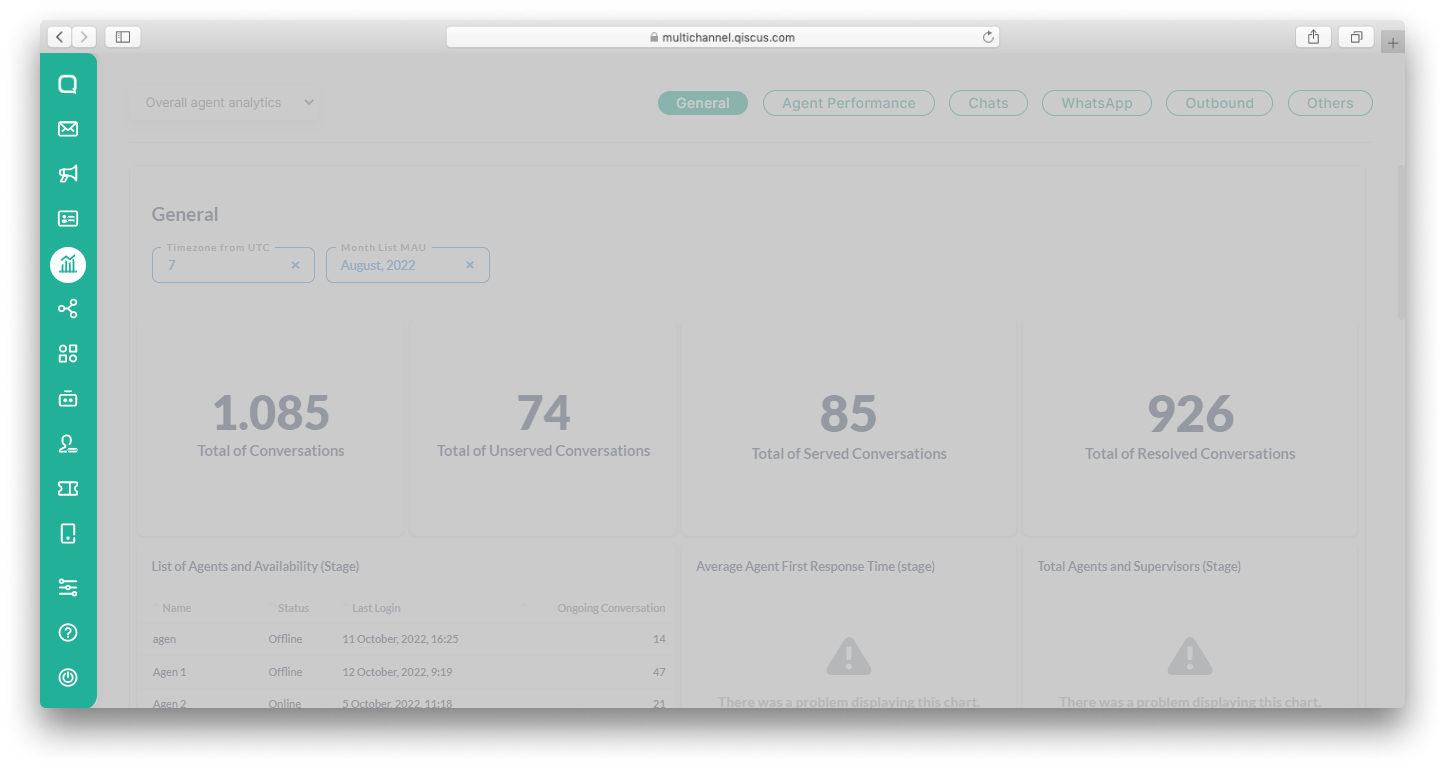
- Click Outbound, and then select All Channels,
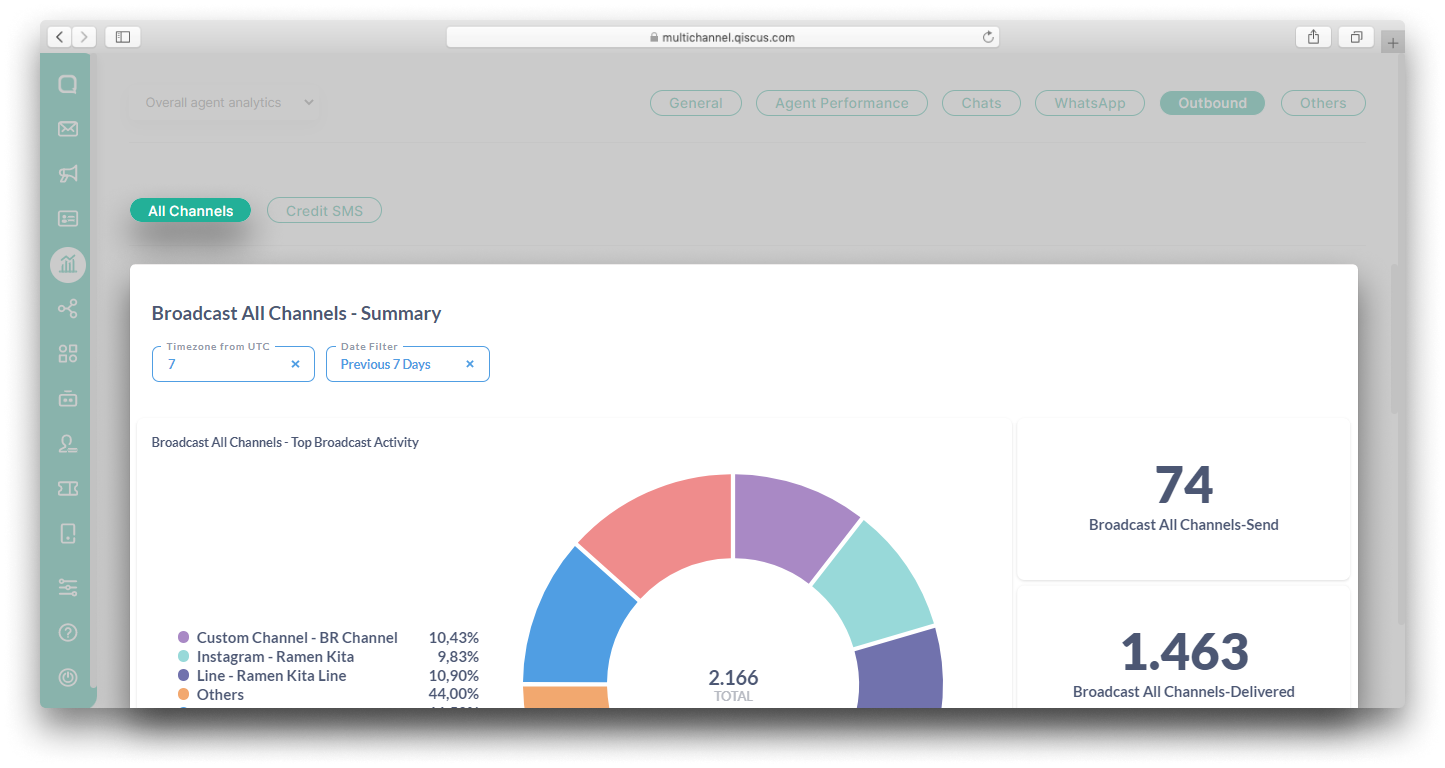
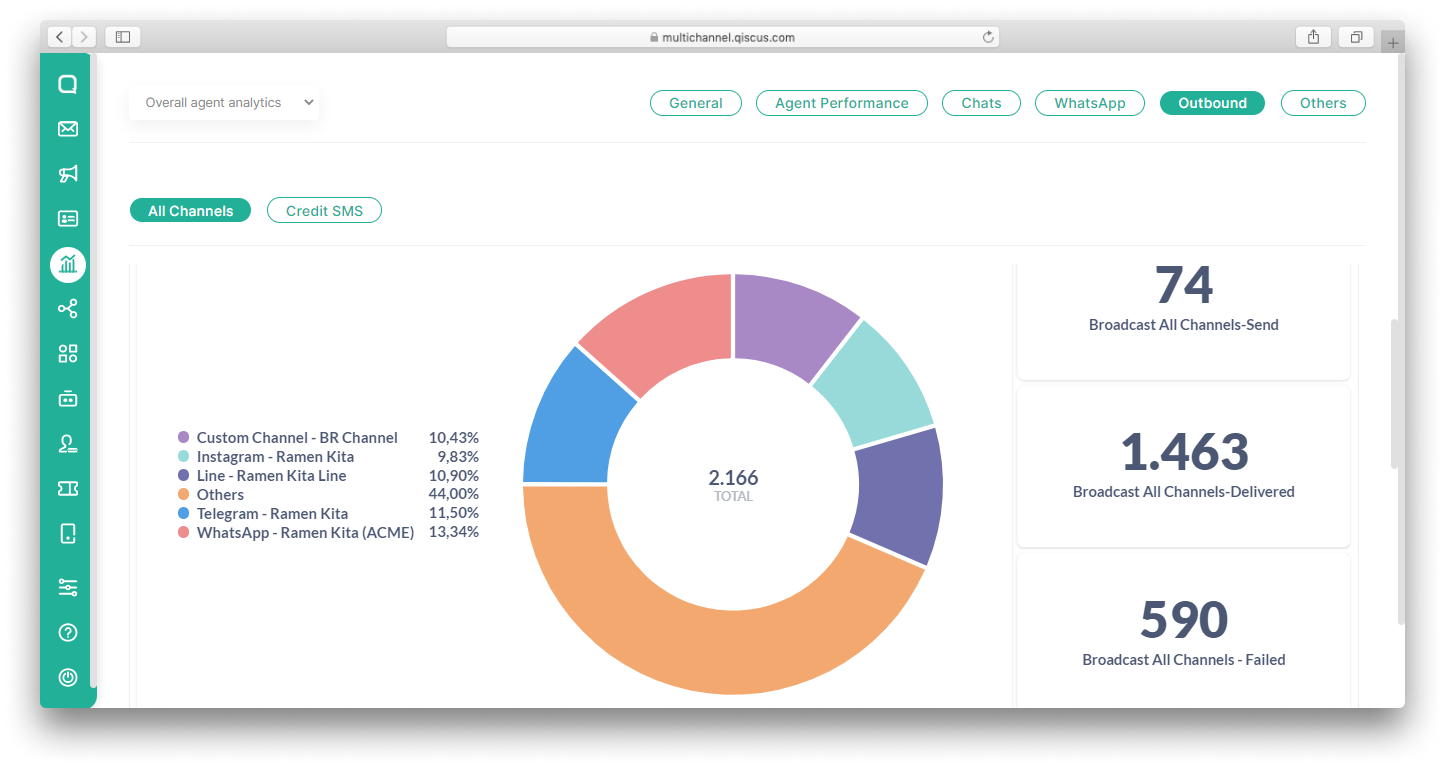
- You will see a comprehensive report of all broadcasts that have been done.
WhatsApp Message Template Category Validation
Meta will be validating message template categories from April 1st to May 15th. Message templates will be updated to the new categories: marketing, utility, or authentication. As a result, the message template category may be changed if it does not match Meta’s preferences. This is in preparation for WhatsApp’s new pricing system, which will be based on conversation categories starting June 1st. It means, when a business initiates a conversation, the category of the template message used will define the conversation category. However, you can submit an appeal if through our support team if you don’t agree with the changes to your template’s category. Learn more about these changes here.
Customer-initiated conversations will be categorized as service conversations starting June 1st.
You can follow these steps to view category validation by Meta and submit an appeal:
- Go to the Outbound Message menu and select WhatsApp Broadcast Templates. You will see a banner with information about the message template categories validation,
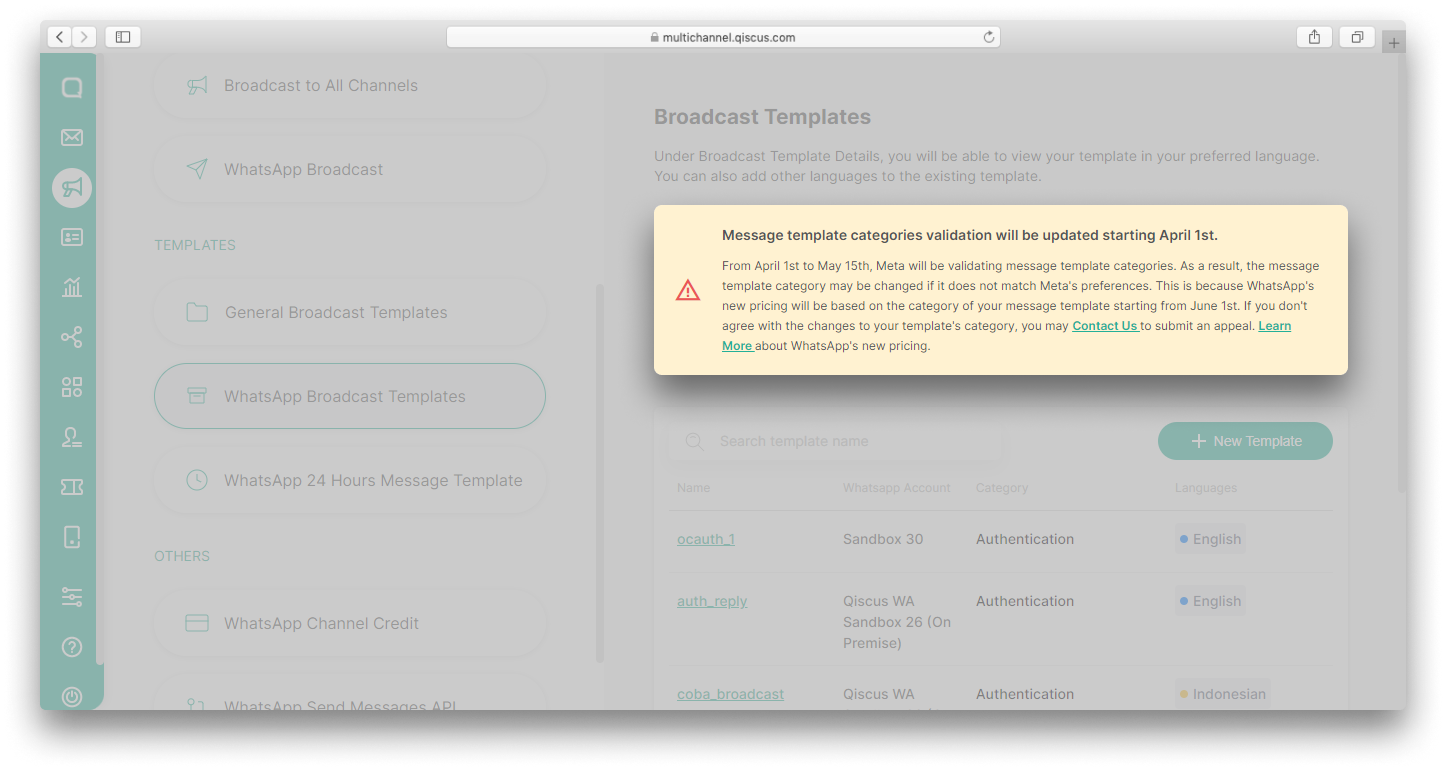
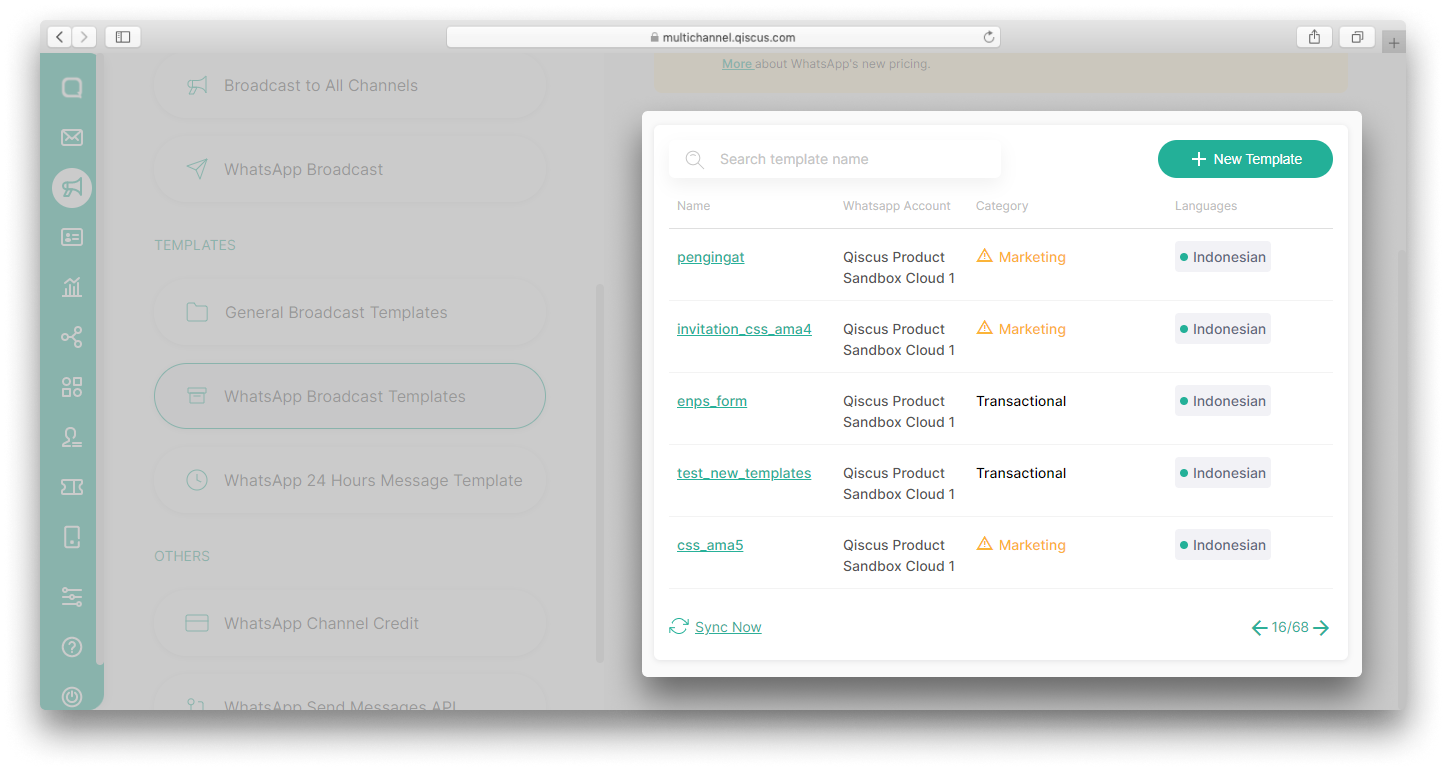
- In the message template list, you will see an alert in the category section if your template doesn’t match Meta’s preferences. You can refer to the template category guidelines to understand the differences and learn more about each template category,
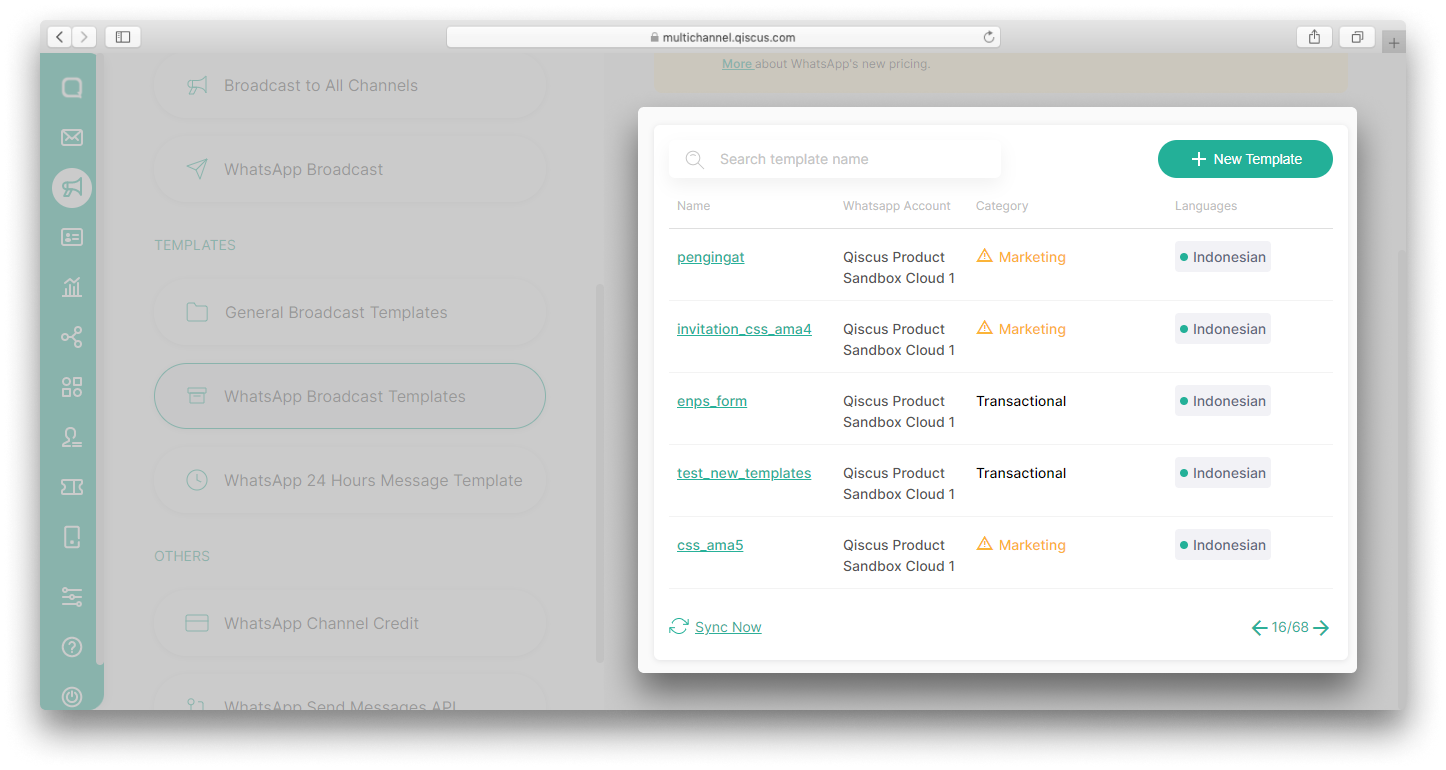
- Click the template name to see more details about changes to the template category,
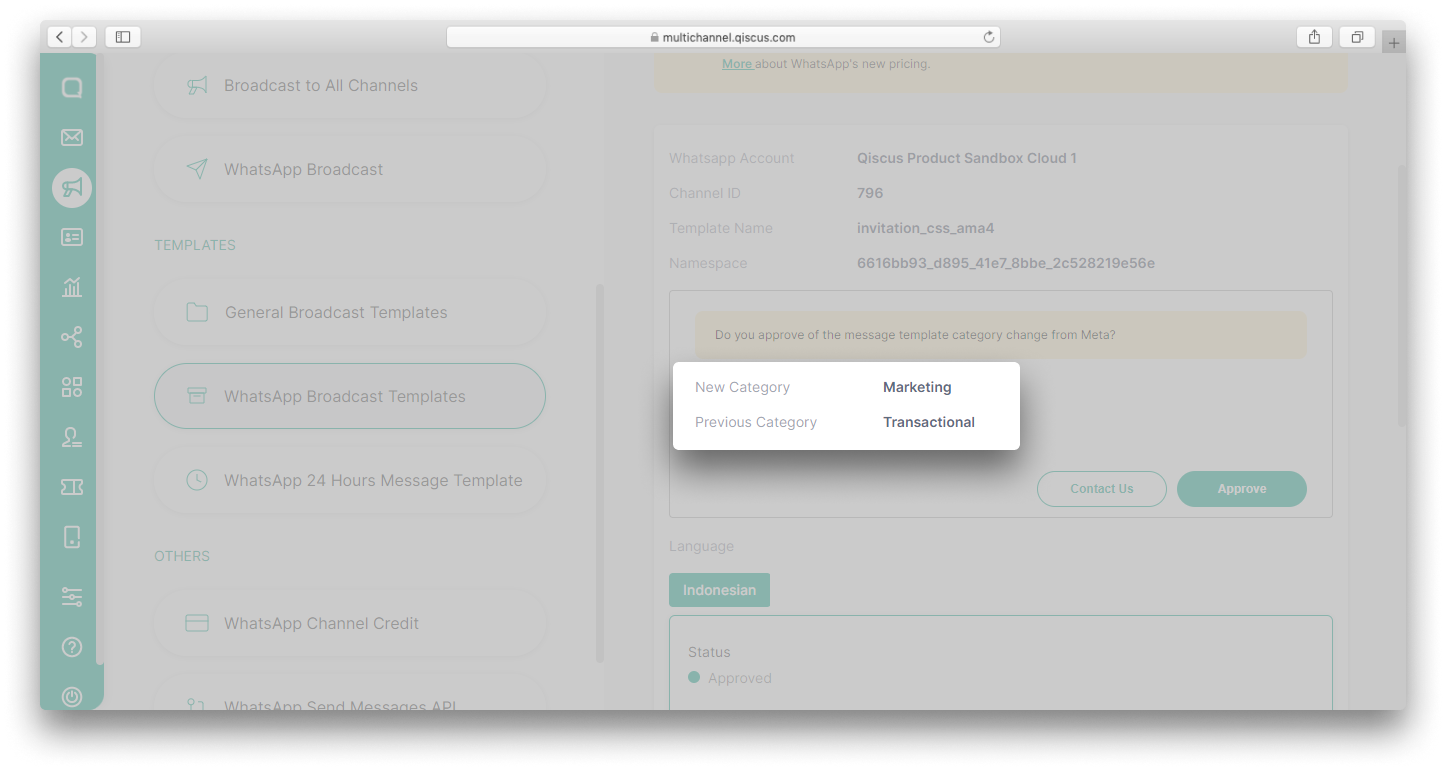
- There will be information about the new template category provided by Meta and also information about the previous template category,
- If you agree with the changes to the category template, click the Approve button. However, if you want to submit an appeal, please click the Contact Us button,
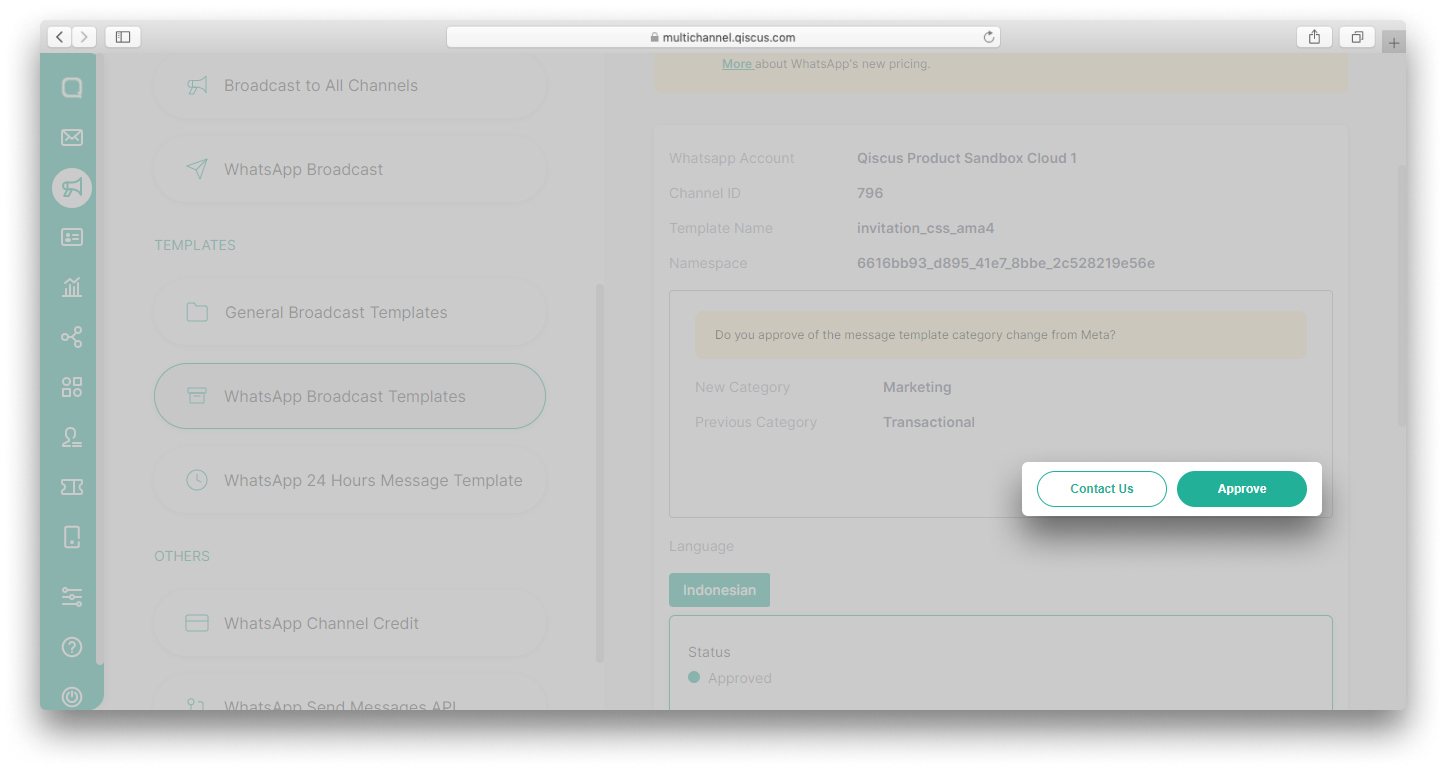
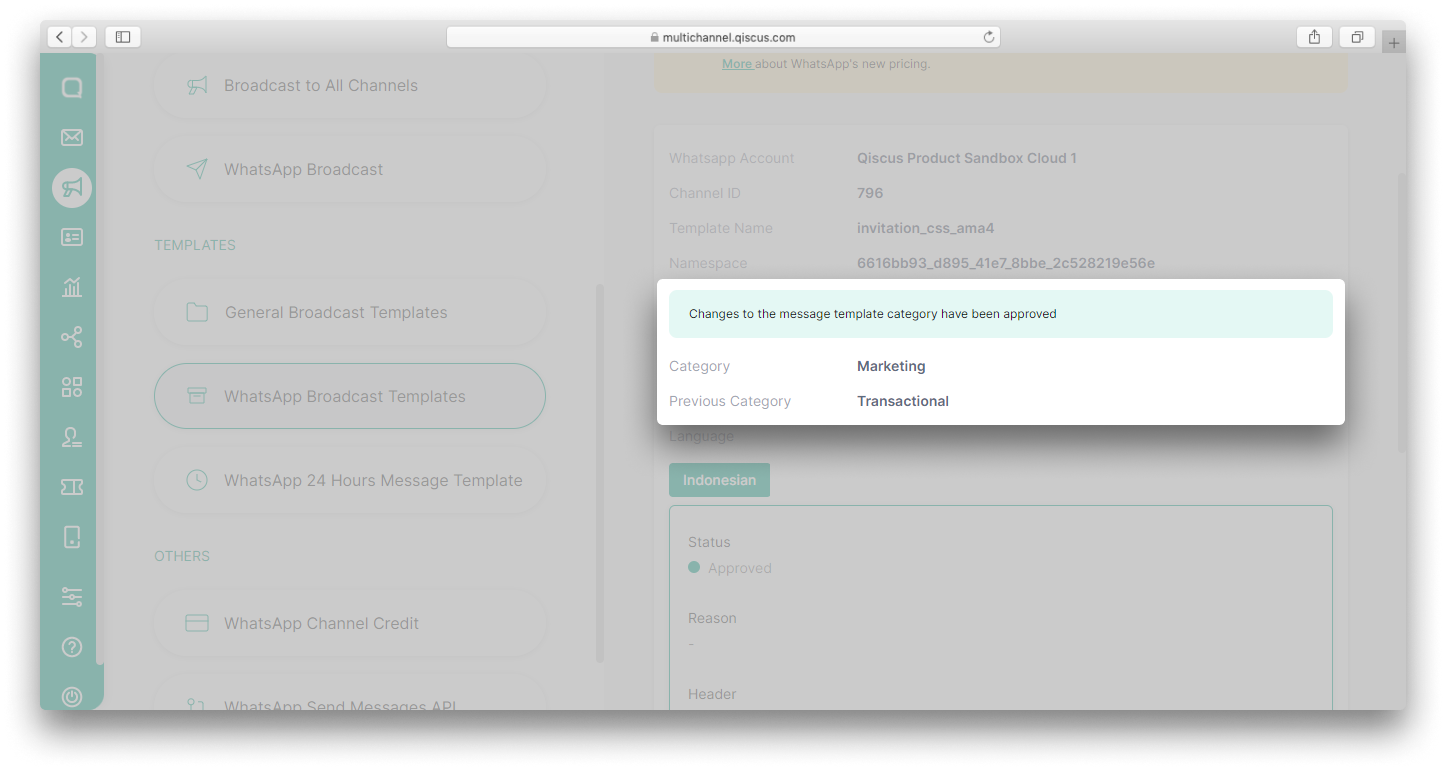
- If you approve changes to the template category, there will be an alert Changes to the message template category have been approved. The template category automatically changes to the new category,
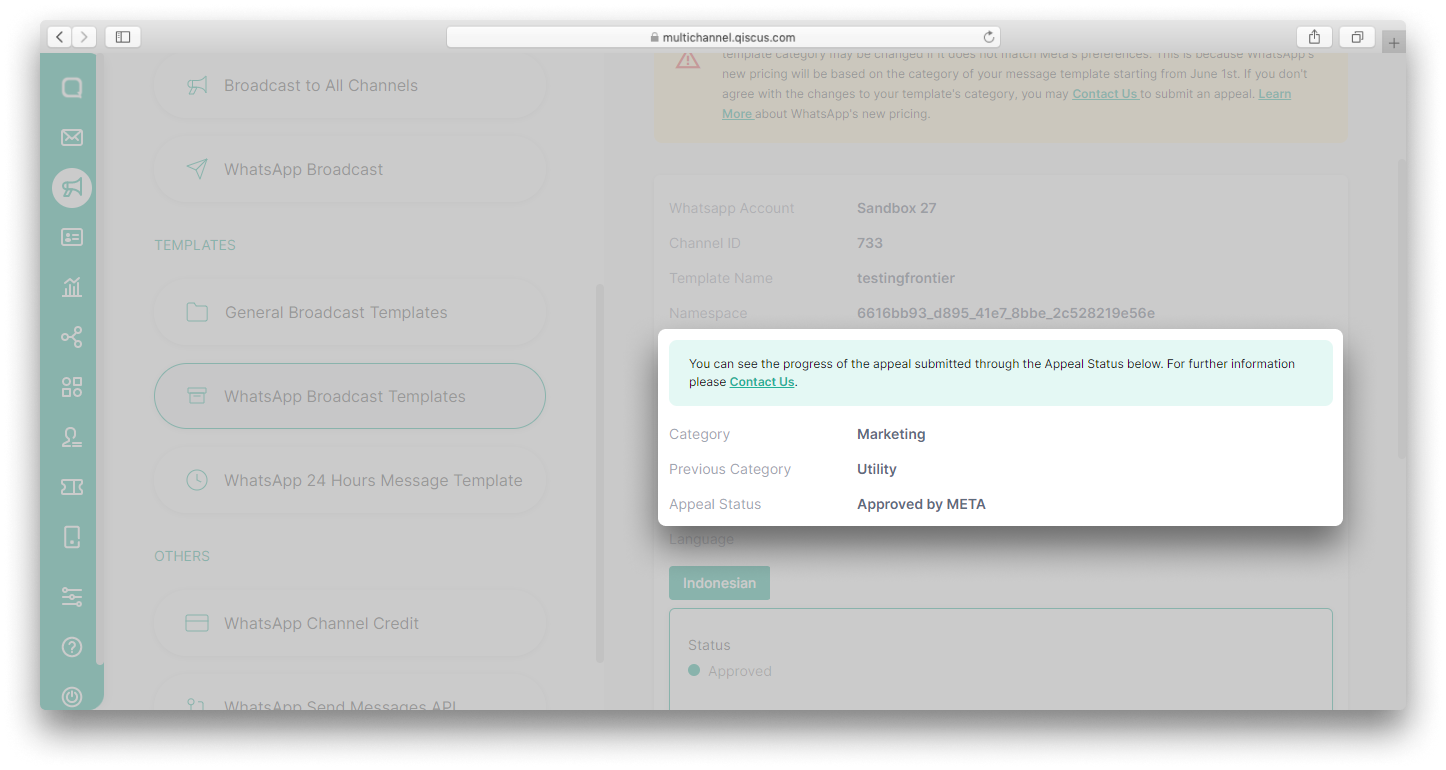
- If you submit an appeal, you will be redirected to a page to make a request. Fill in the required information and our team will help you to submit an Appeal. You will see Appeal Status information when you click the template name,

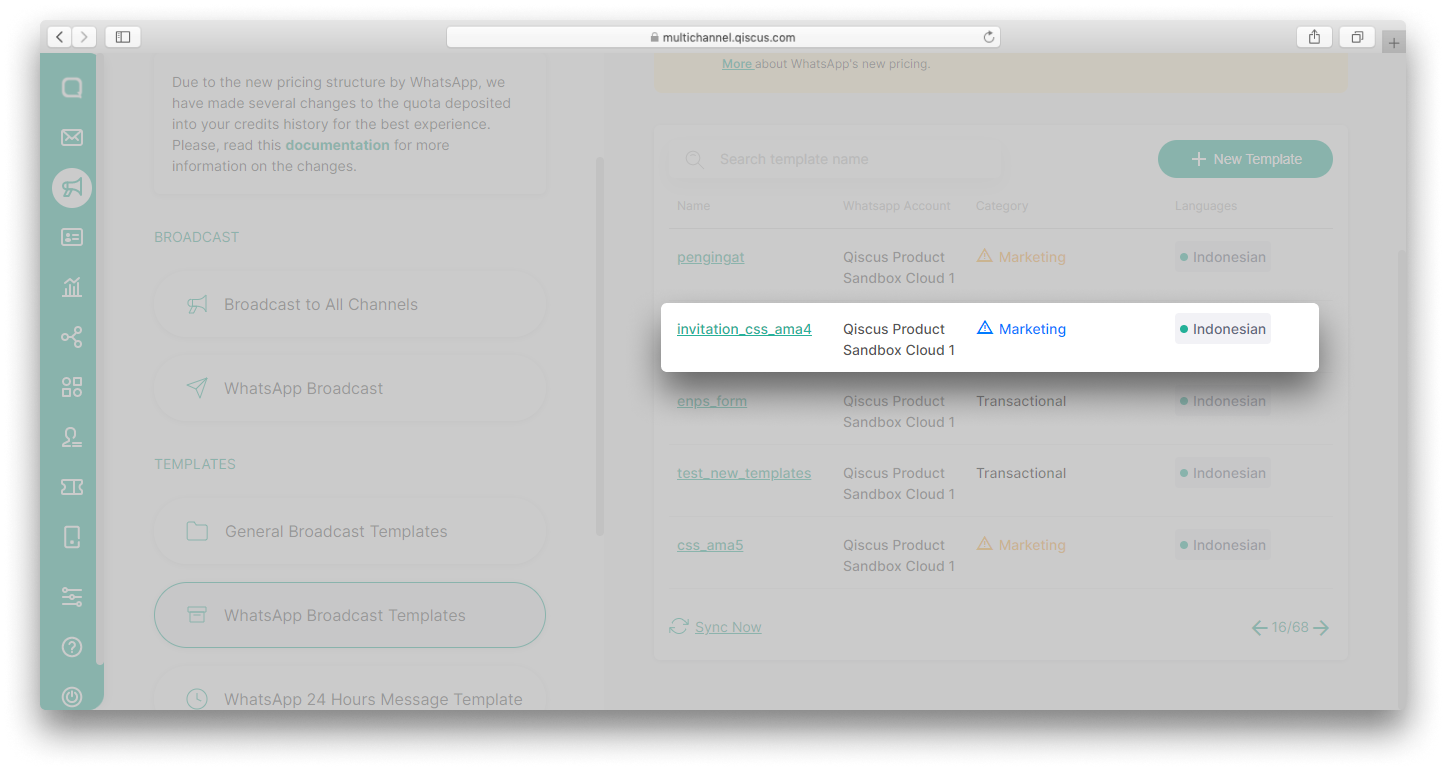
- For templates currently in the appeal process, the alert in the category section will change to blue,
- Once your appeal has been approved, Appeal Status will change to Approved by META.
This validation message template also applies to the WhatsApp 24 Hours Message Template.

Message Template Sample
According to the latest WhatsApp policy, if your template uses variables you must include sample variable values (media assets, text strings, etc.) with your submission. This aims to make it easier for WhatsApp to visualize how your template will appear to customers.
Qiscus presents the Message Template Sample feature in line with these changes. When creating a new template via the Qiscus Omnichannel Chat dashboard, you are required to add a sample if the header or body template has variable values either text or media.
You need to add samples for all message template categories
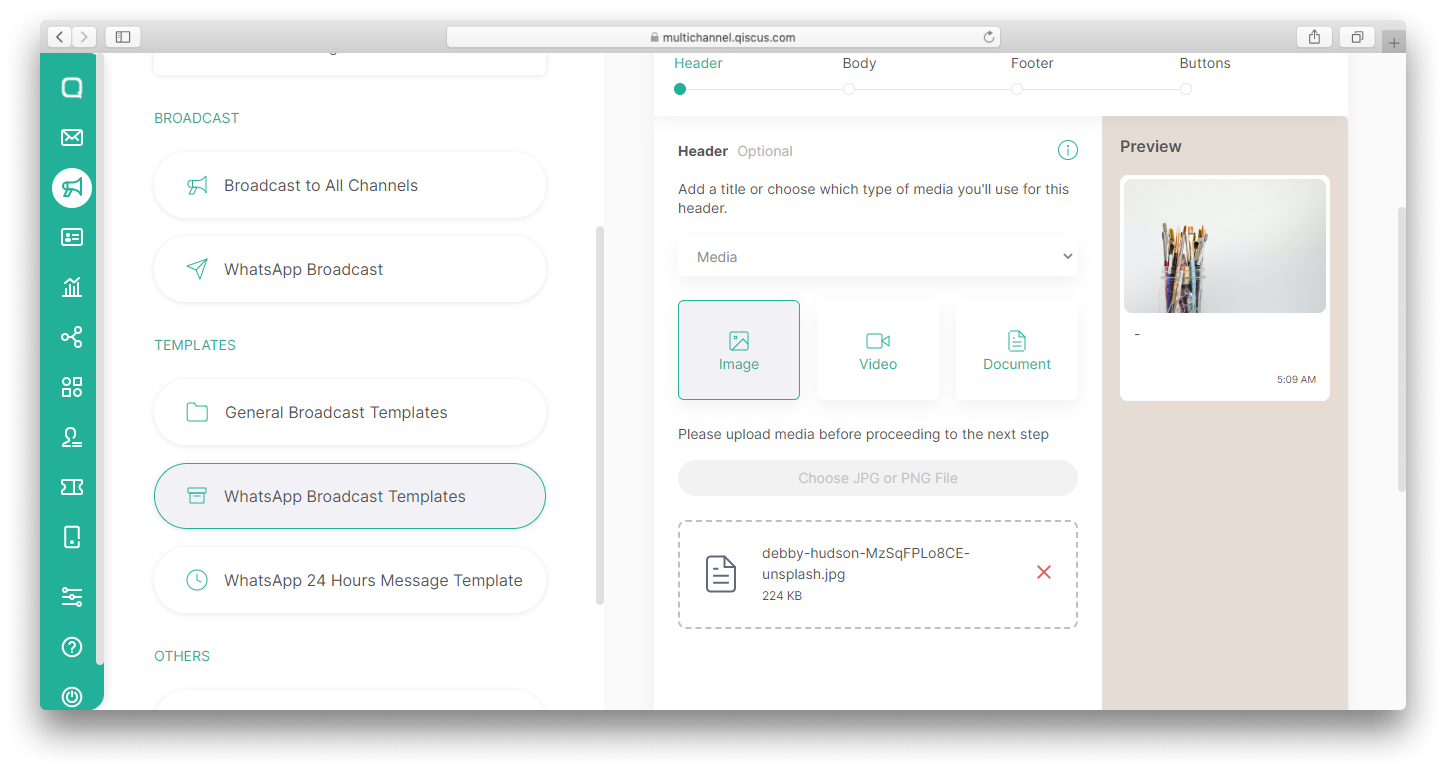
Variables in the header
When creating a new template, you can choose the type of media that will be used in the header, such as text or media (Image, Video, Document).
If you select text and add variable, you must add a sample of the variable.
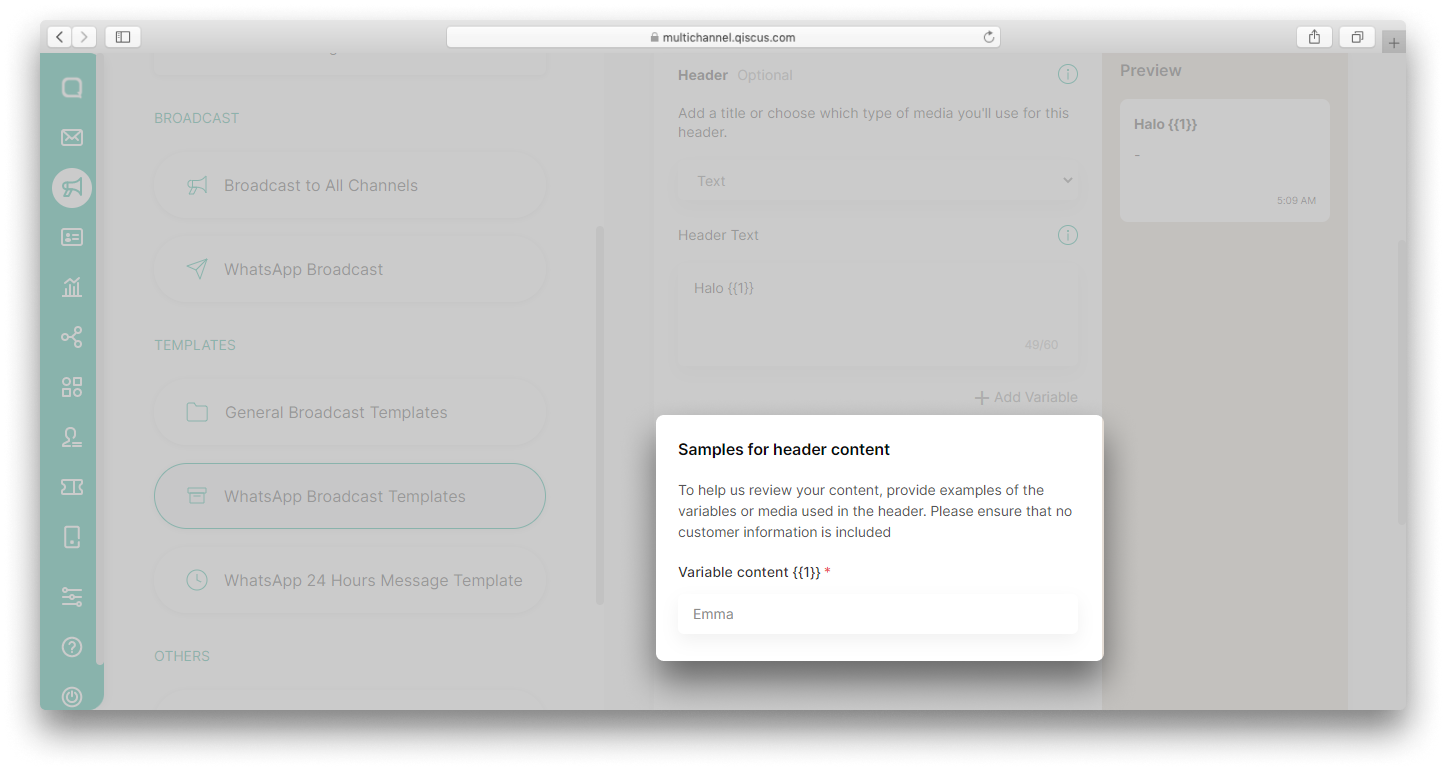
This also applies to the media header, you need to add a sample of the media.
Variables in the body
If in the header text you can only add 1 variable. In the body section, you can add a lot of variables. If adding more than 1 variable, you need to provide a sample for each variable.

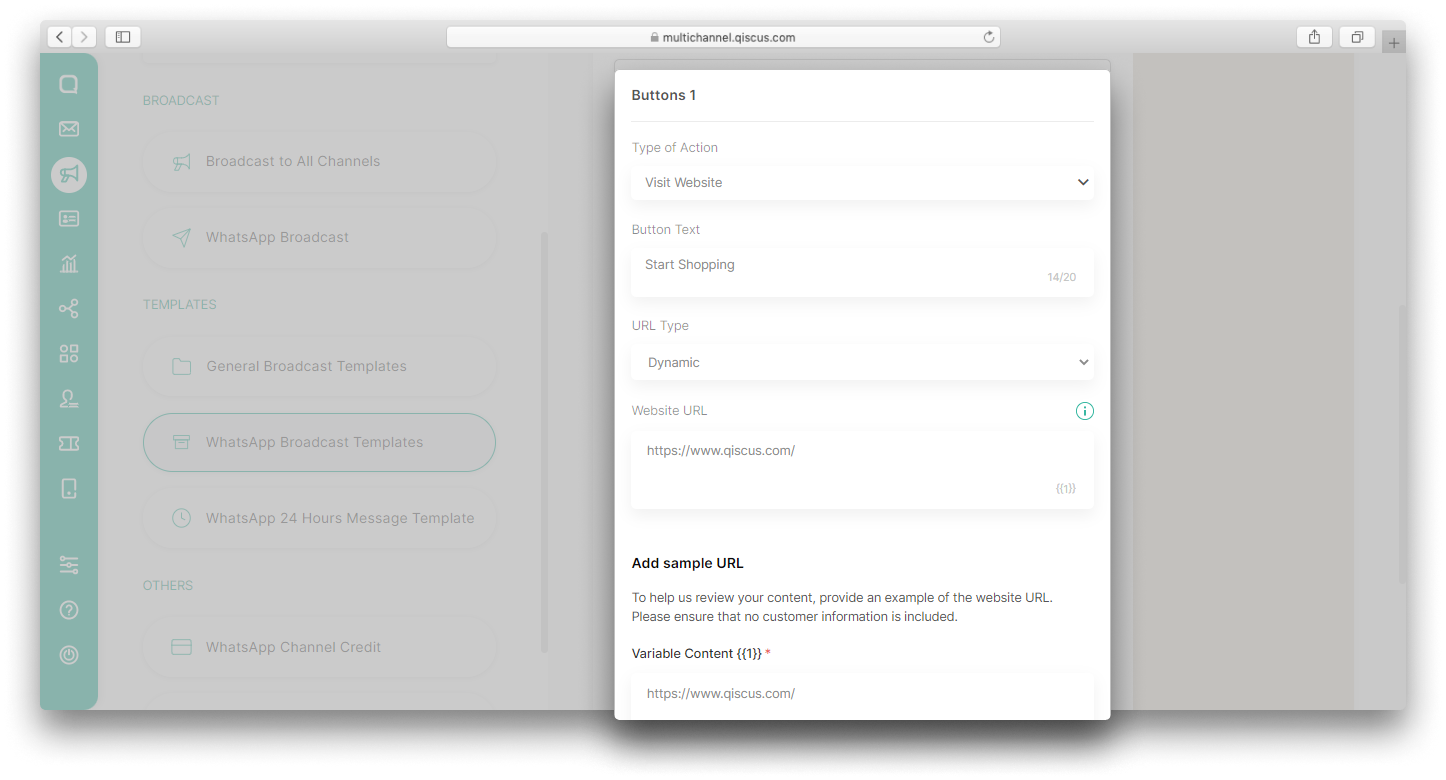
Variables in the button
You need to add an example variable to the button, just like the ones in the header and body. However, the sample is only needed if you select the Call to Action button with Type of Action: Visit Website and URL Type: Dynamic. With dynamic URL, you can add personalized link for each customer.
Marketing Opt-Out
Customers can block or report messages sent by businesses via WhatsApp if these messages don’t match customers’ preferences, such as marketing messages. If the customer reports your messages, the quality rating of your phone number will decline. Meanwhile, if a customer blocks a message, you will not be able to send another message to that customer. This will be detrimental to business. Therefore, adding an opt-out button to your marketing message template can reduce the block/report rate because customers can still receive other types of messages besides marketing messages.
Apart from that, adding an opt-out button will help you get information about your customers’ preferences. You will be able to see who has opted out of your marketing messages and improve the content of your message templates. Read here for more details about Marketing Opt-Out.
On the Qiscus Omnichannel Chat dashboard, you can add an opt-out button when creating a new WhatsApp template.
Create template with marketing opt-out button
You can follow the steps below to add an opt-out button on WhatsApp message templates.
- Go to Outbound Message menu and select WhatsApp Broadcast Templates,
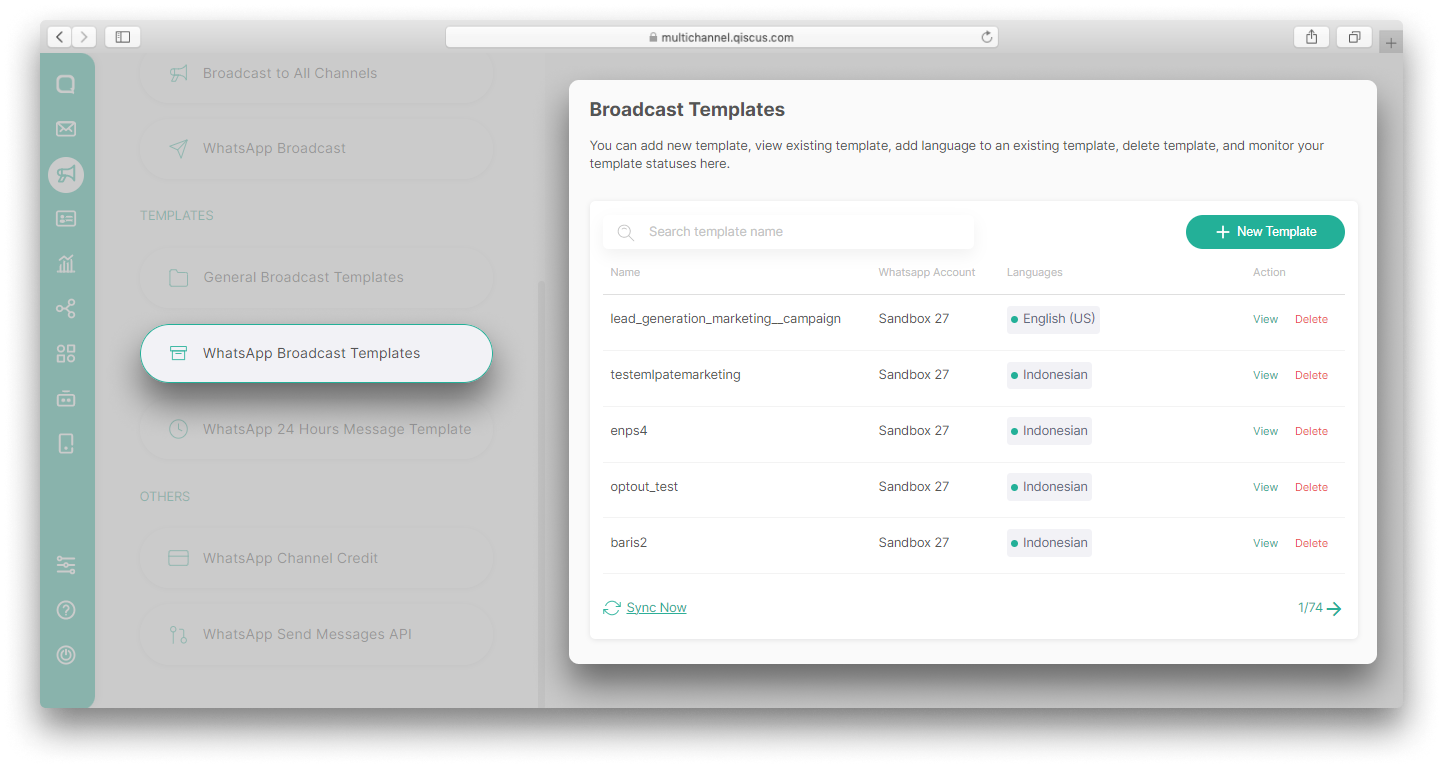
- Click + New Template button,
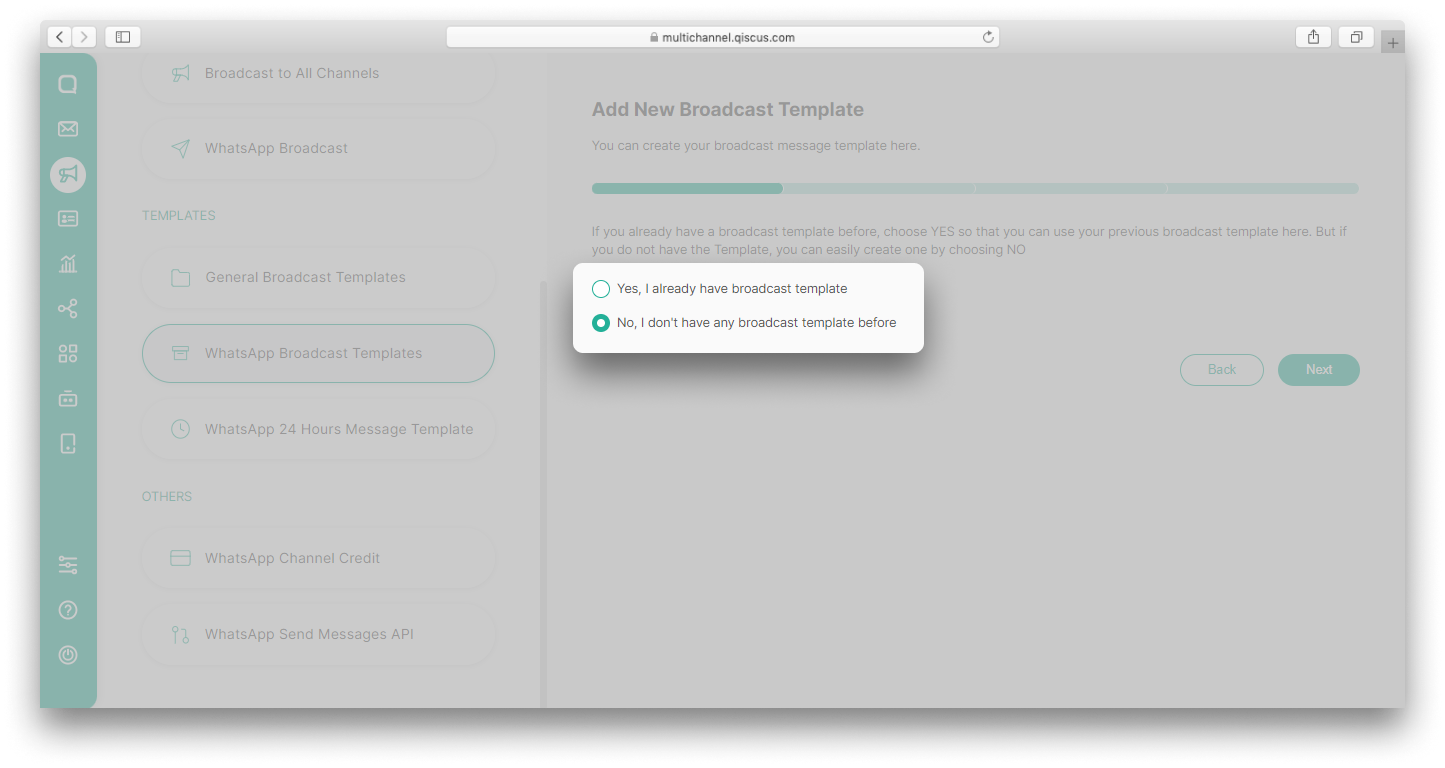
- Select Yes, I already have broadcast template if you have a WhatsApp Broadcast Templates message that has been approved by WhatsApp. Or No, I don’t have any broadcast template before if you have a WhatsApp Broadcast Templates message that has not been approved by WhatsApp. Click Next to continue.
- Select the WhatsApp Account you want to use. Fill in the Message Template Name and select Marketing as the category. You can add multiple languages to suit your needs. The language supported by WhatsApp, you can check this Supported Languages,
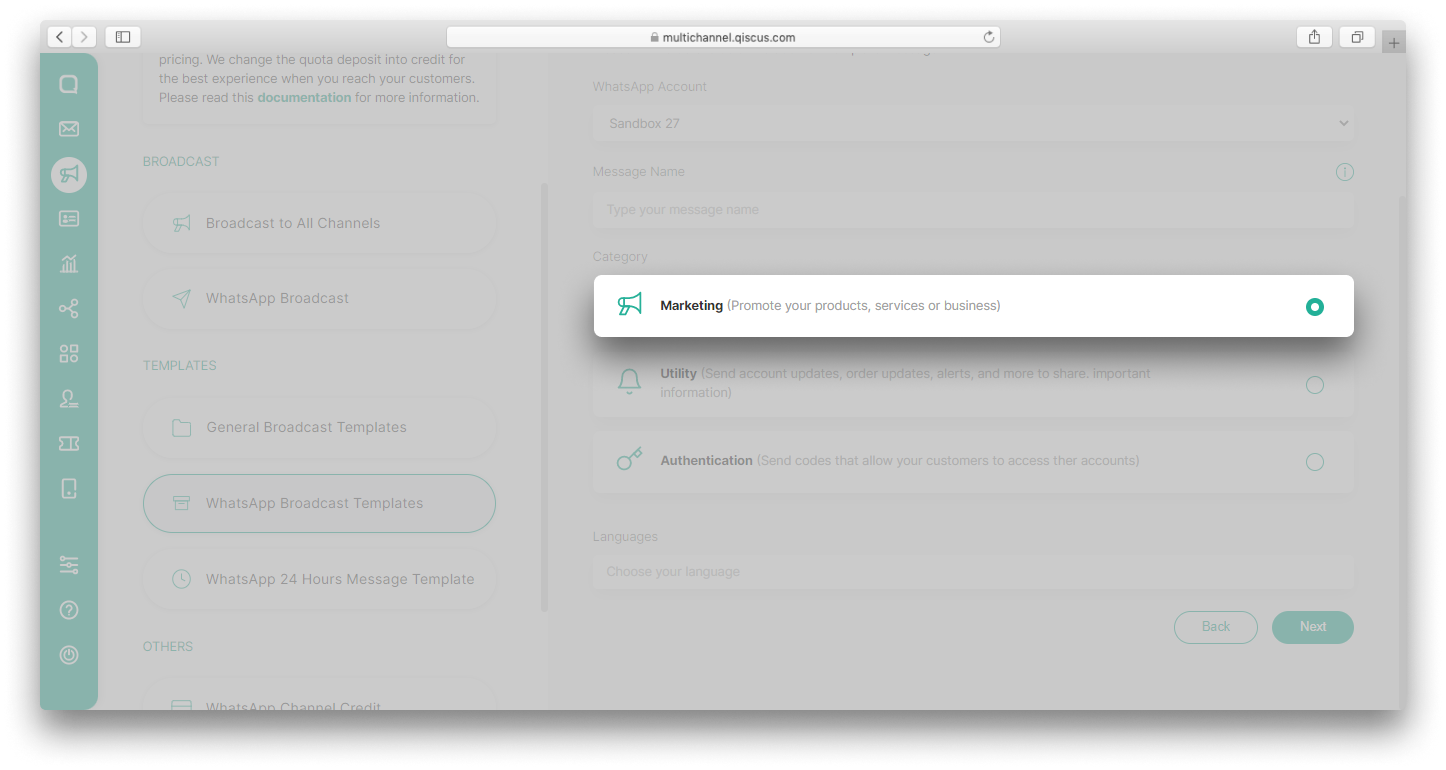
Message template name can only include lowercase alphanumeric characters and underscores,
- Fill in the content, make sure the contents are in accordance with the language chosen, especially if you use many languages. The content consists of Header, Body, Footer and Buttons. In the buttons section, click the dropdown and select Marketing Opt-Out,
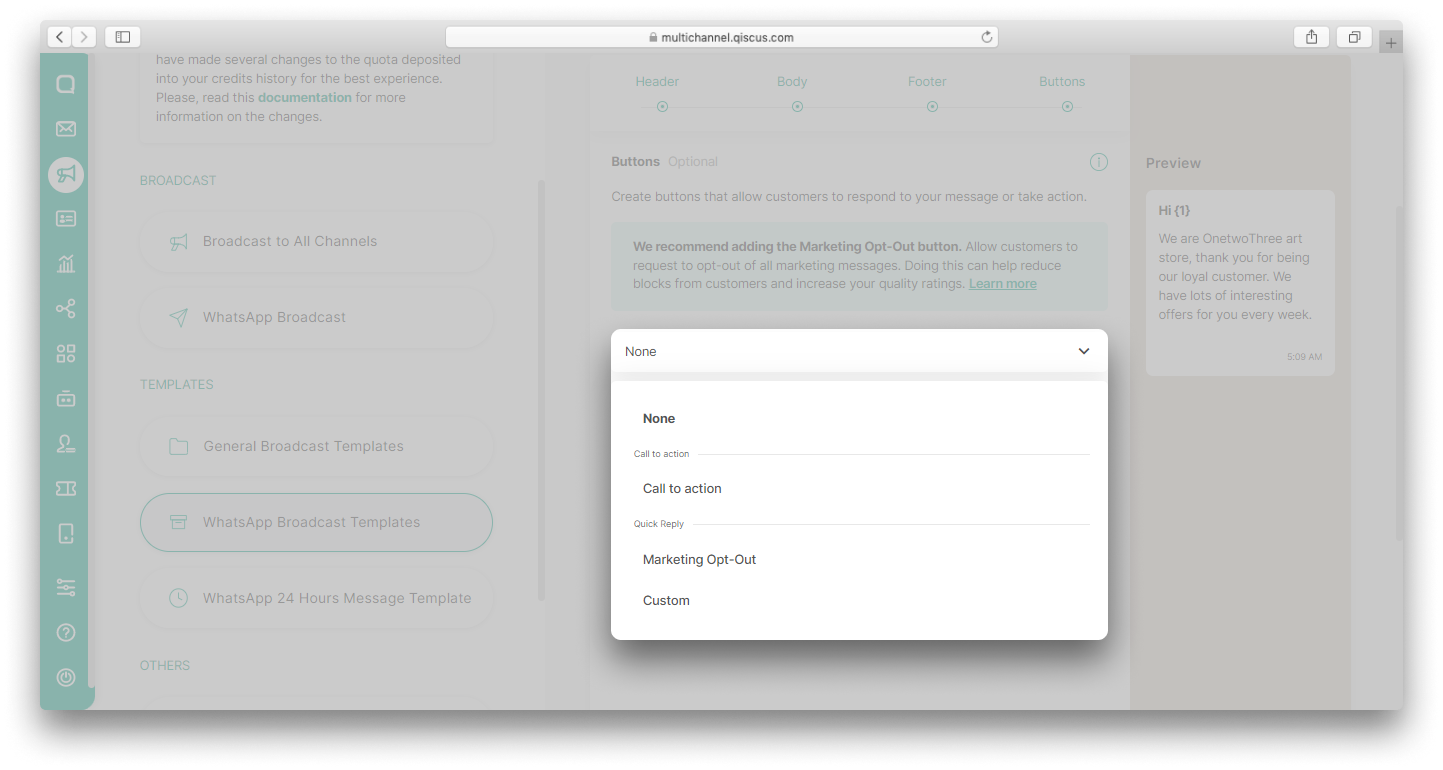
Body can only consist of up to fifteen variables.
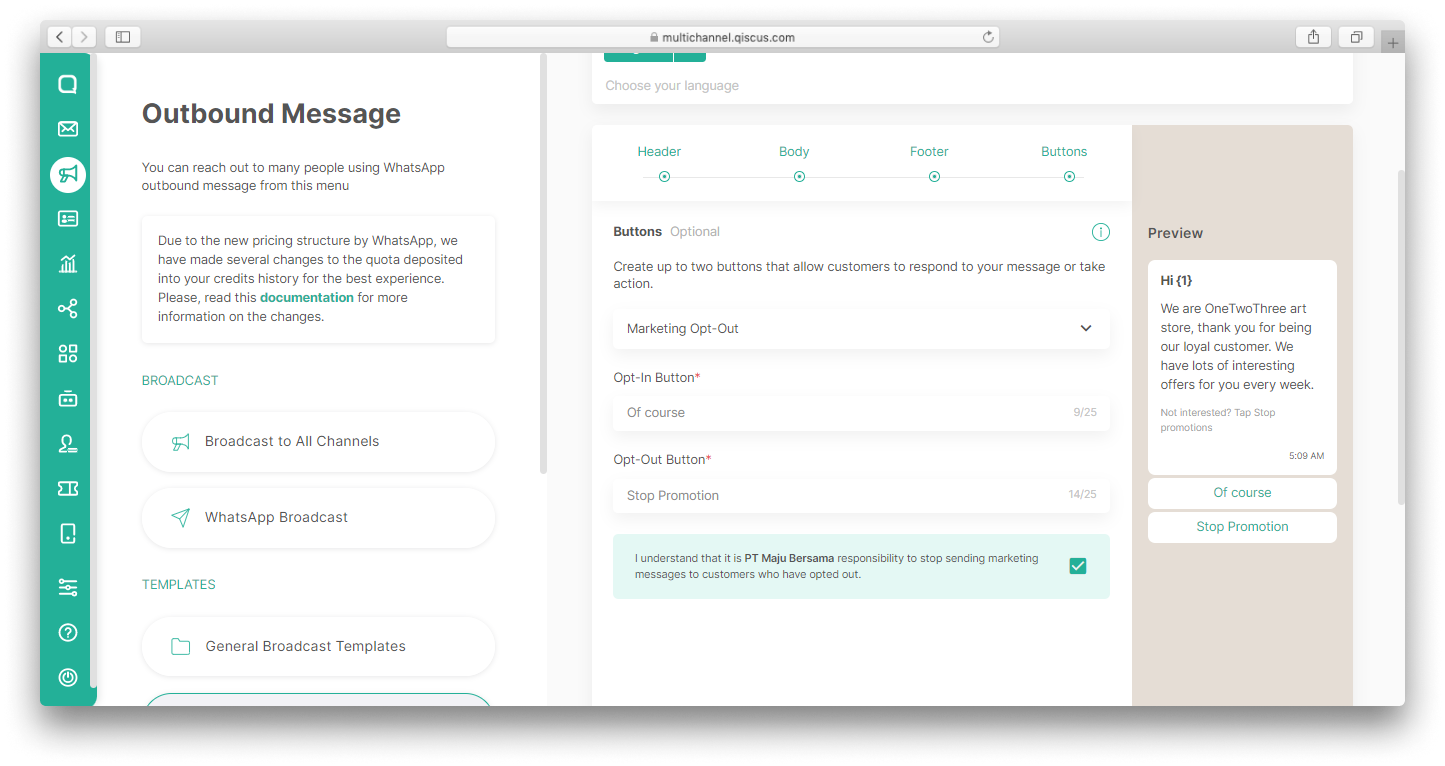
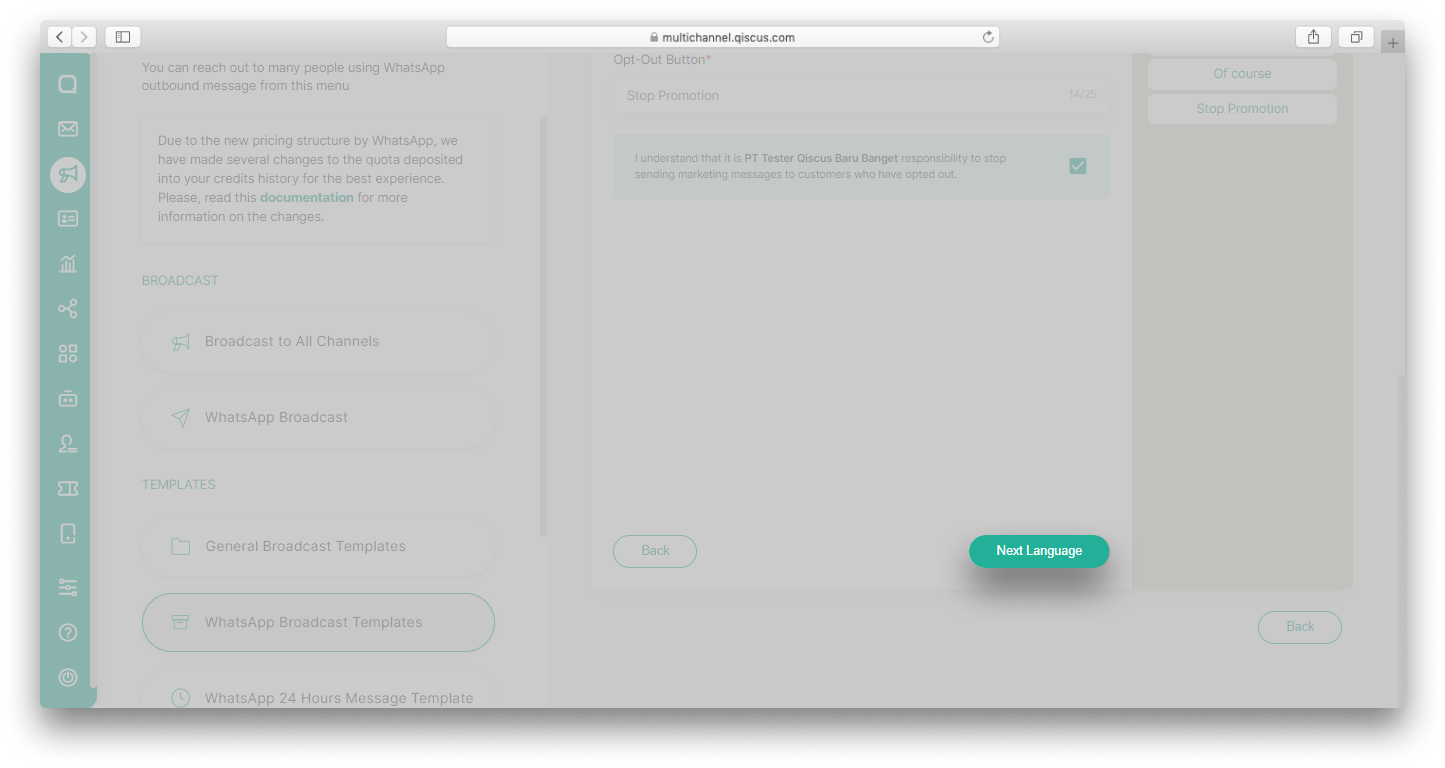
- You are required to add opt-in and opt-out buttons. By default, the button text will be Of course for opt-in and Stop Promotion for opt-out. But you can change it as you wish. Don’t forget to check the I understand that it is {Company} responsibility to stop sending marketing messages to customers who have opted out section,
- If you use more than one language, click the Next Language button,
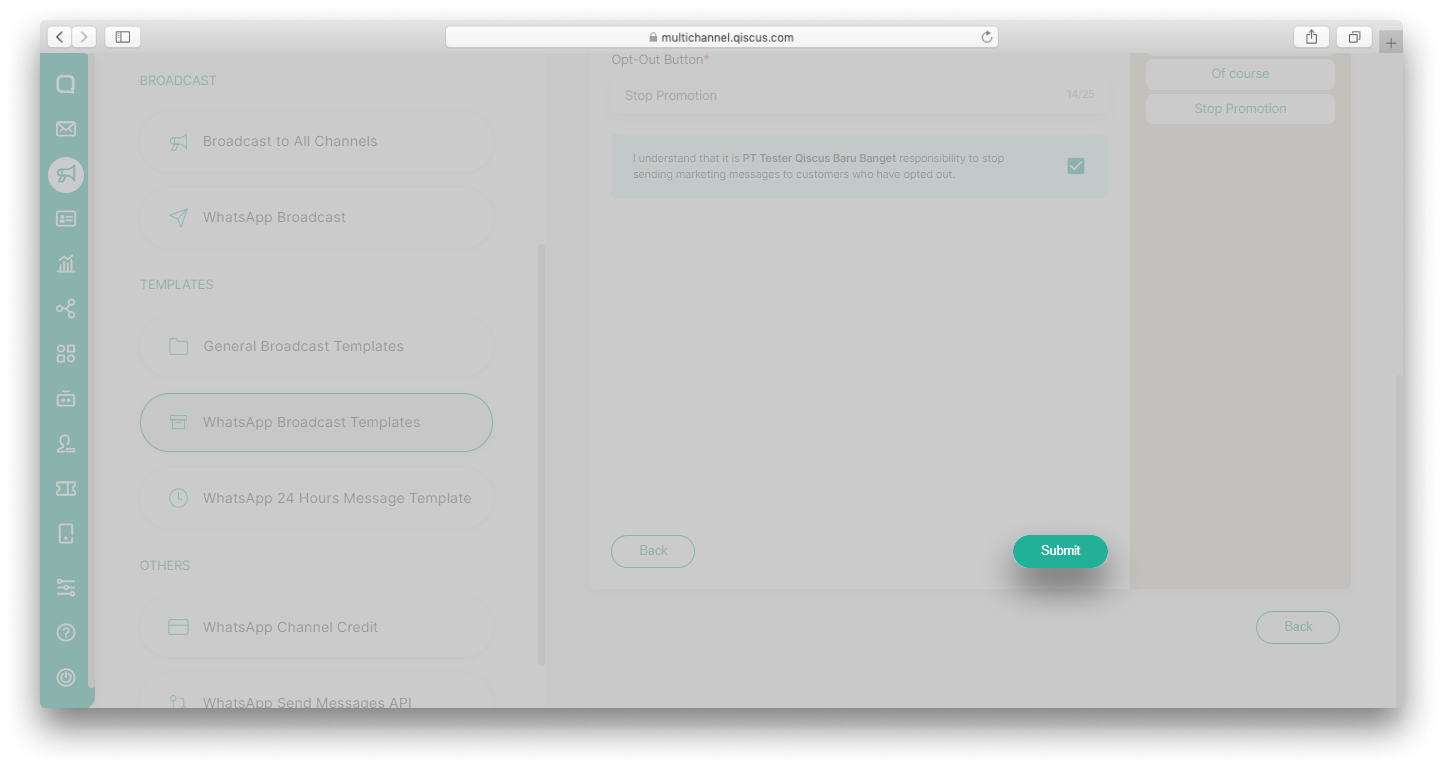
- Submit the Broadcast Template you have created.
Send broadcast using template with marketing opt-out button
You can send broadcasts using a template with a marketing opt-out button in two ways, via Outbound Message or Inbox menus. On the Outbound Message menu, you can use the WhatsApp Broadcast feature or Broadcast to All Channels features. To send a broadcast via WhatsApp Broadcast, you can follow the same steps as this documentation. Meanwhile, to send a broadcast via Broadcast to All Channels, you can follow this documentation.
The difference between sending a marketing opt-out template and other templates is that on the Broadcast Settings page, you can set who the broadcast will be sent to, all customers or only opt-out customers.

To send an opt-out marketing template via the Inbox menu, you can follow these steps:
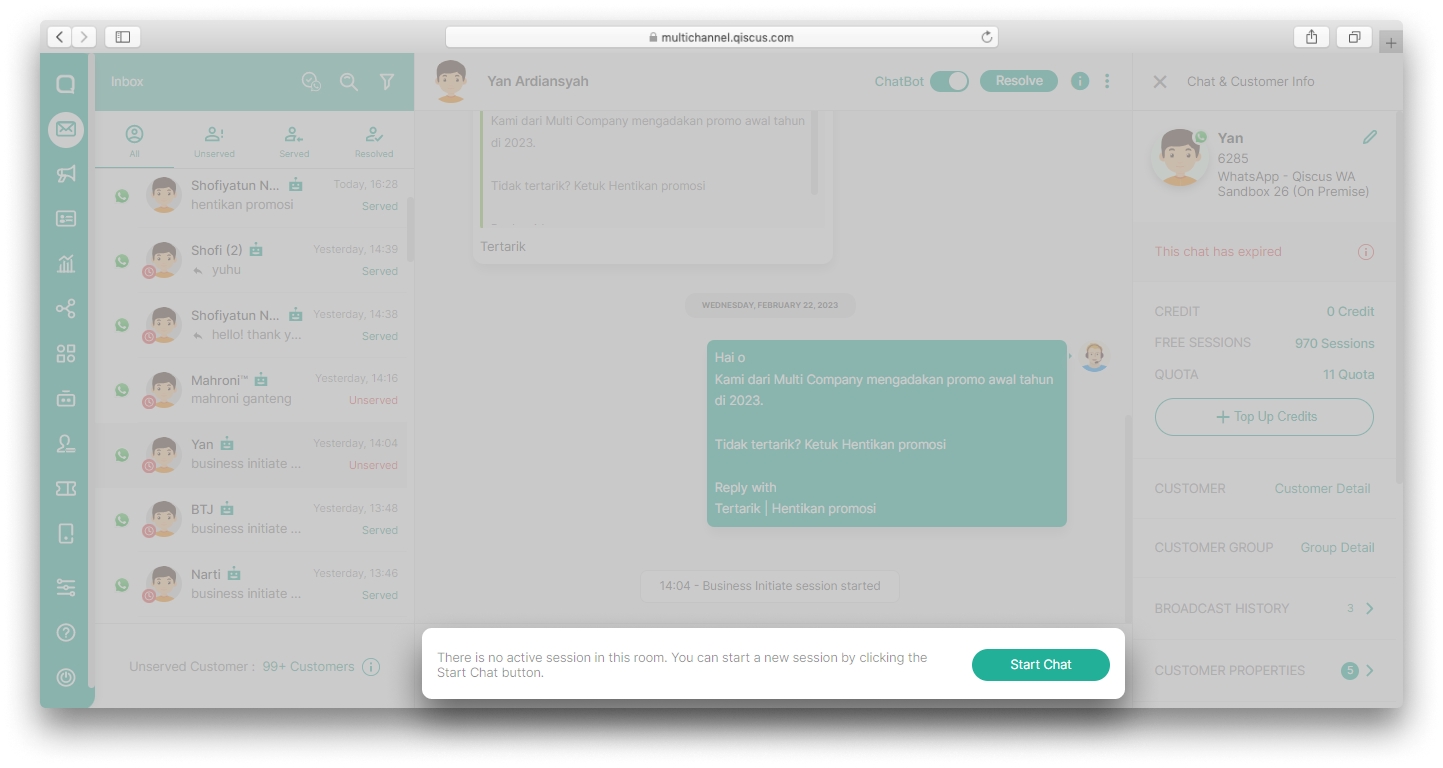
- Go to the Inbox page and select an expired WhatsApp conversation,

- Click the Start Chat/Follow Up Customer button,
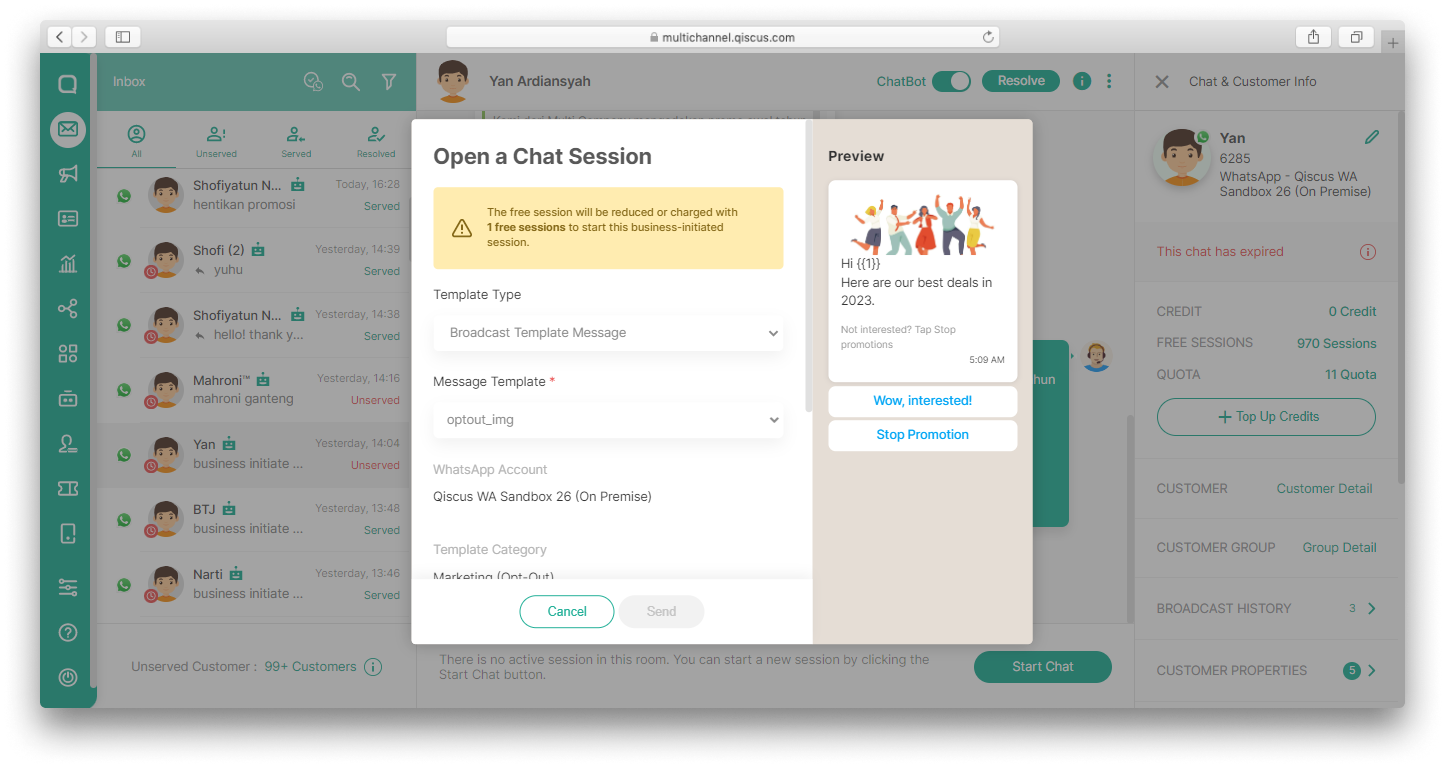
- In the Open Session Chat section, select Template Type: Broadcast Message Template and select the Template Name according to the name of your marketing opt-out template. Fill in the required variables then click Send.
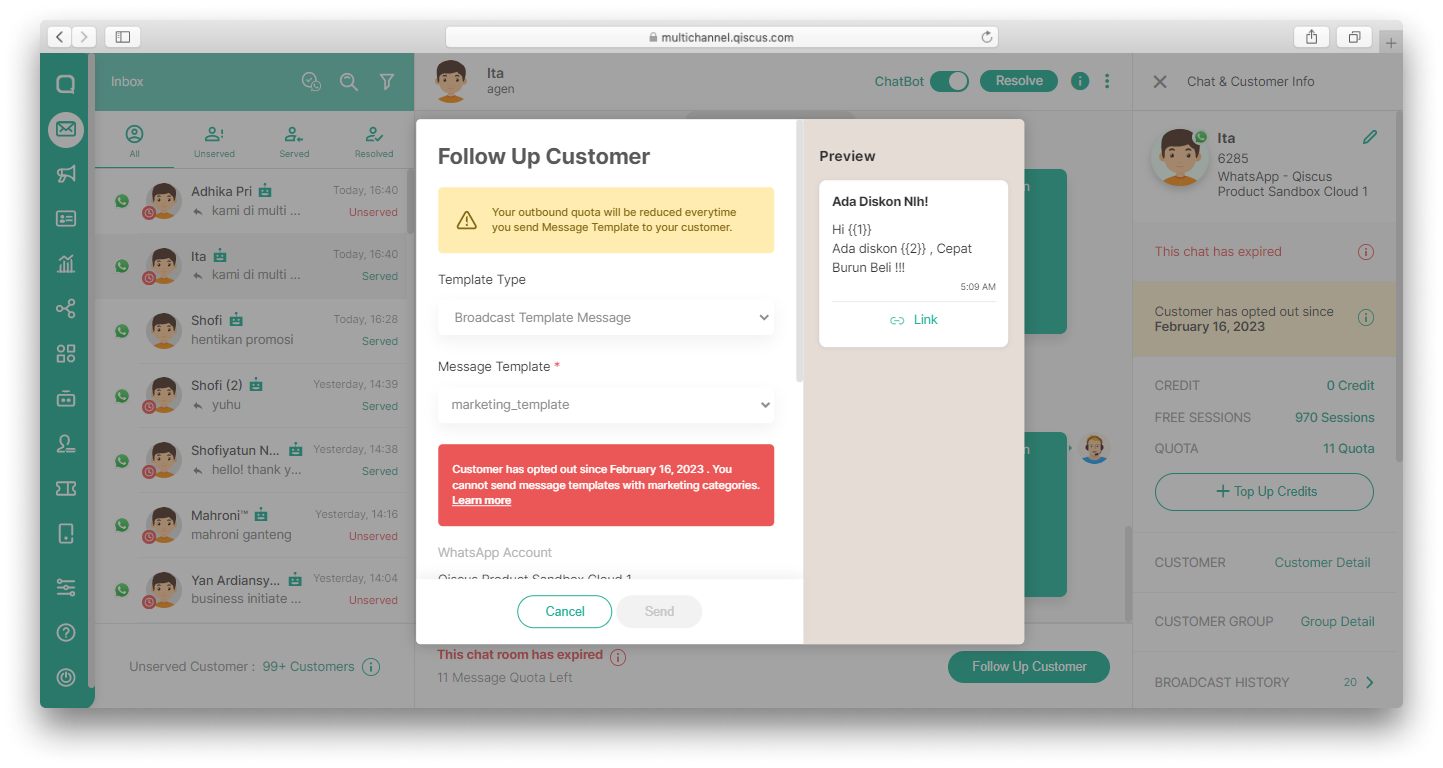
If a customer chooses to opt out of a marketing message, an opt-out date will appear in the Chat & Customer Info section.

When a customer has opted out, you can no longer send templates with marketing categories to these customers. Hence. you will get a message like this when you want to send templates with marketing categories.
Marketing Opt-Out analytics
Qiscus provides a Marketing Opt-Out analytics feature which provides insightful reports on customer preferences and feedback on the marketing messages you have sent. You will be able to see who has opted out of your marketing messages and improve the content of your message templates.
To access this analytics report, you can follow the steps below.
- Go to Analytics menu and select WhatsApp,
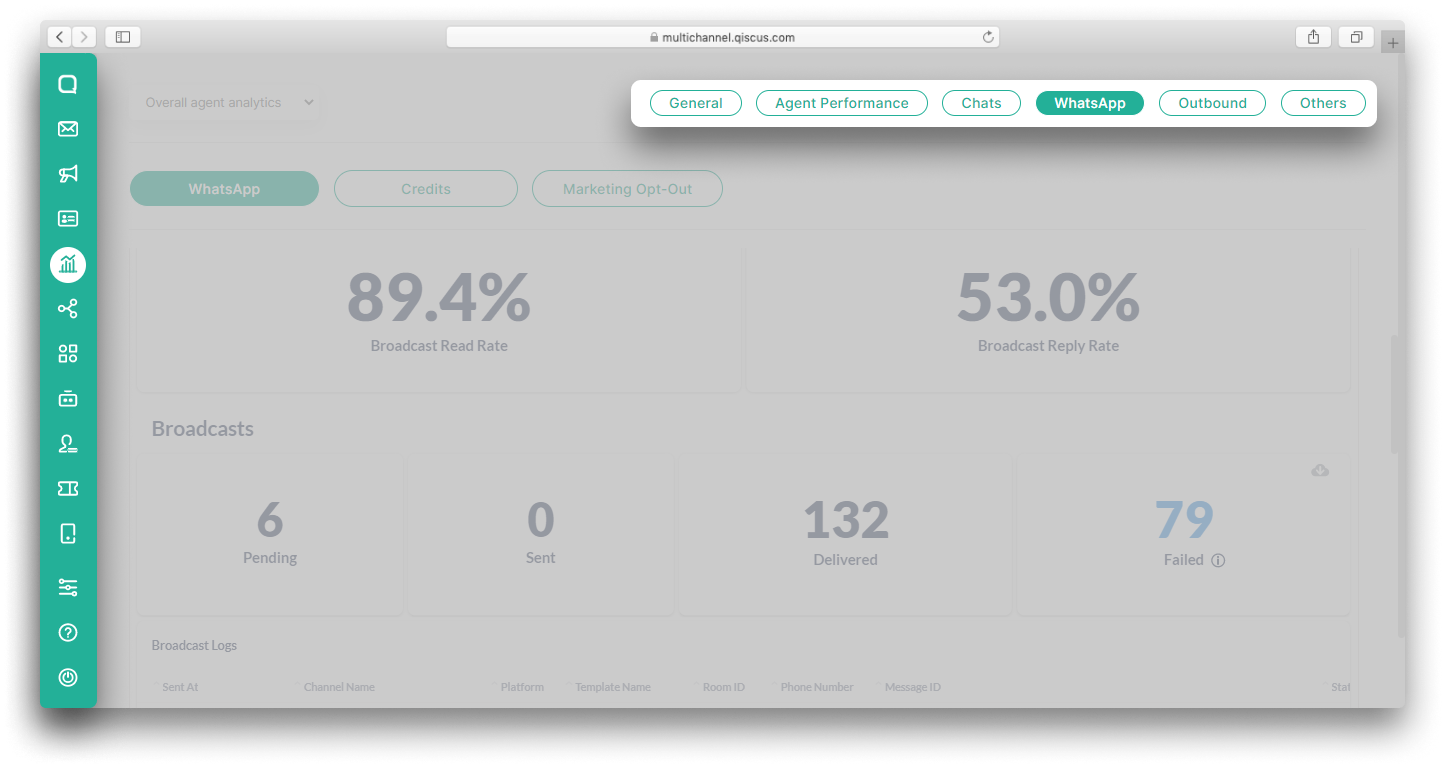
- Click Marketing Opt-Out.
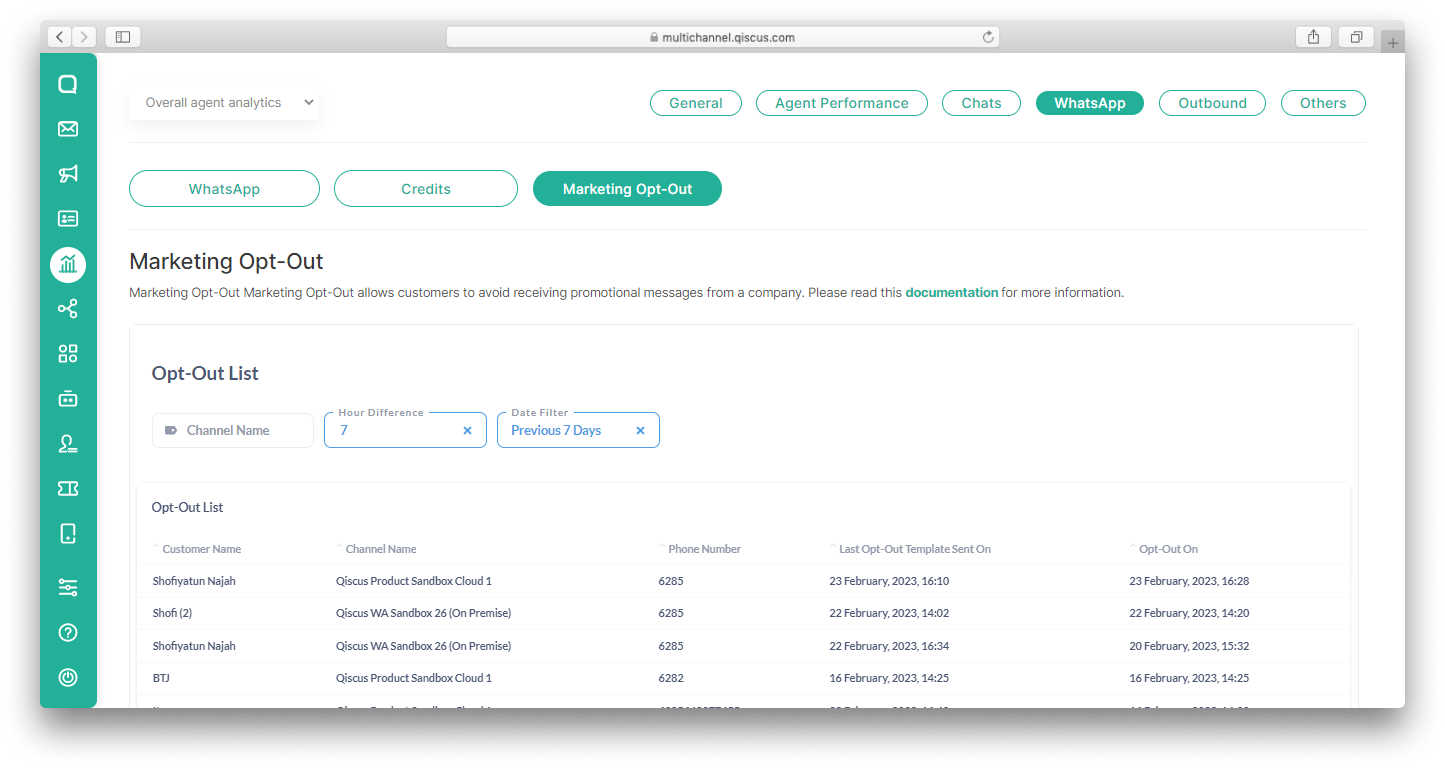
In the Template List section, you can see a list of customers names that have opted-out along with other information such as the channel from which they came, phone number, when the last opt-out template was sent and also when the customer opted out. You can also filter the opt-out list based on the template name or date.
Leave a Reply